
How to Create a Business Rule in SuccessFactors
This guide shows you how to create a business rule in SuccessFactors that automatically fills the Preferred Name field with the First Name value when someone saves personal information. You create the rule in the Admin Center, define its If and Then logic, assign it to the Personal Information object, and test it on an employee record.
Video: How to Create a Basic Business Rule in SAP SuccessFactors EC (Step by Step) for beginners by Sap Verse (2026). All credit for the demonstration goes to the creator; watch the original on YouTube. The written guide below was generated from this video by Docsie. Creator? Request a change or removal.
This guide shows you how to create a business rule in SuccessFactors that automatically fills the Preferred Name field with the First Name value when someone saves personal information. You create the rule in the Admin Center, define its If and Then logic, assign it to the Personal Information object, and test it on an employee record.
Prerequisites
- Access to the SAP SuccessFactors Admin Center.
- Access to Manage Business Configuration for Employee Central HRIS Elements.
- An employee record you can edit to test the rule.
Part 1: Create the business rule
Open the rule creation page and select the trigger scenario
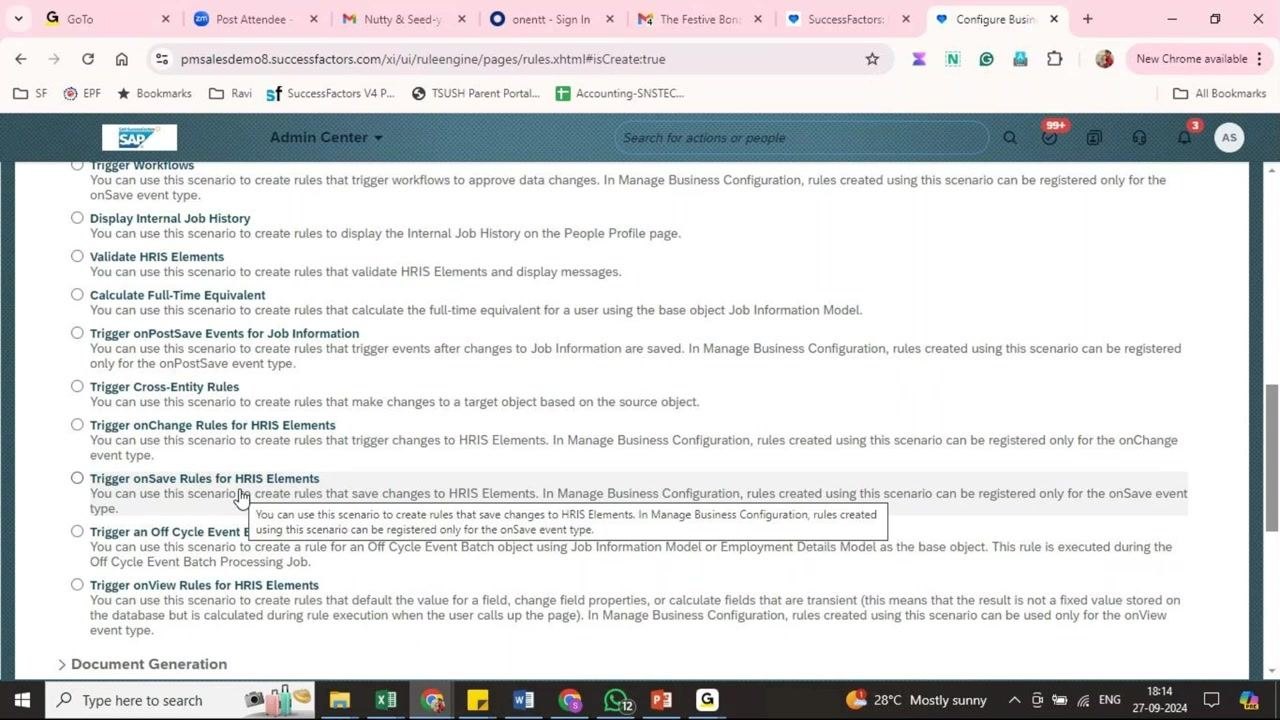
To start creating a business rule in SuccessFactors, open the Admin Center and go to the section for configuring business rules. Locate the list of available rule trigger scenarios.
Select Trigger onSave Rules for HRIS Elements. Rules created with this scenario save changes to HRIS Elements and can only be registered for the onSave event type. Confirm your selection to continue.
Enter the rule details
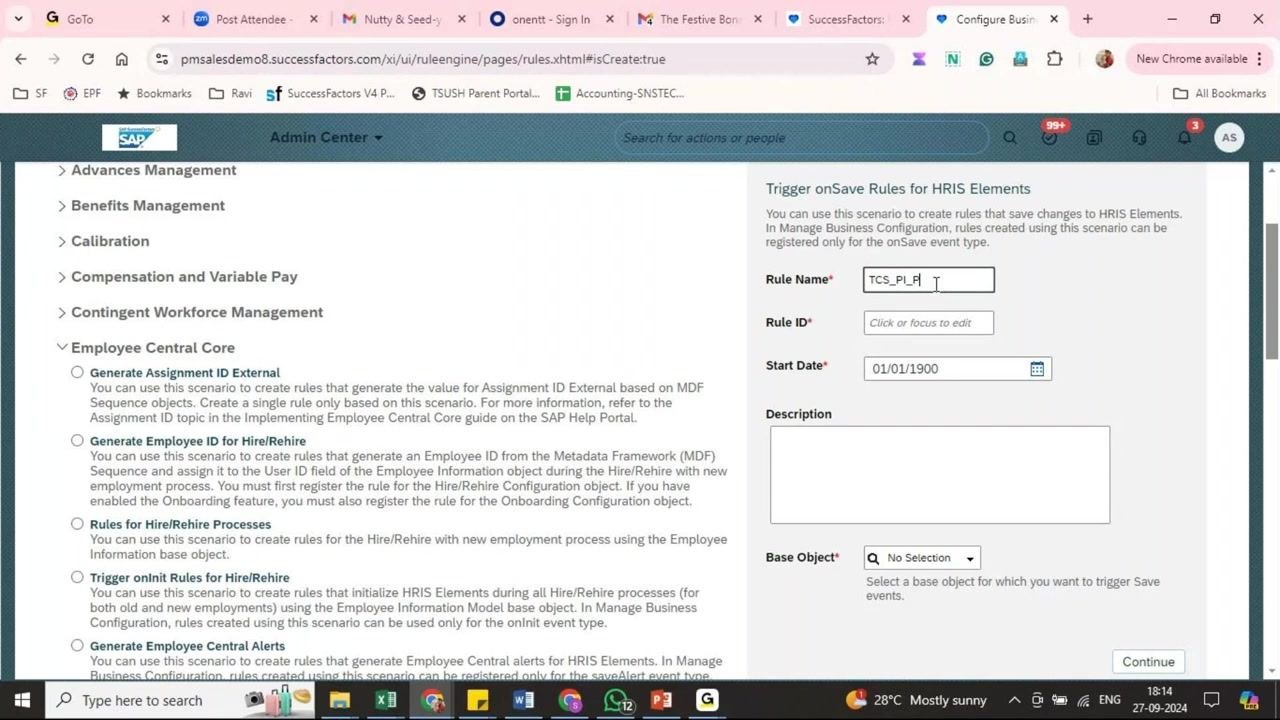
In the rule configuration panel, fill in the following fields:
- Rule Name: Enter
TCS_PI_PREF_NAME. - Rule ID: Enter
TCS_PI_PREF_NAME. - Start Date: Leave the default (
01/01/1900) or set a date as required. - Description: Optionally, enter a description for the rule.
Select the base object
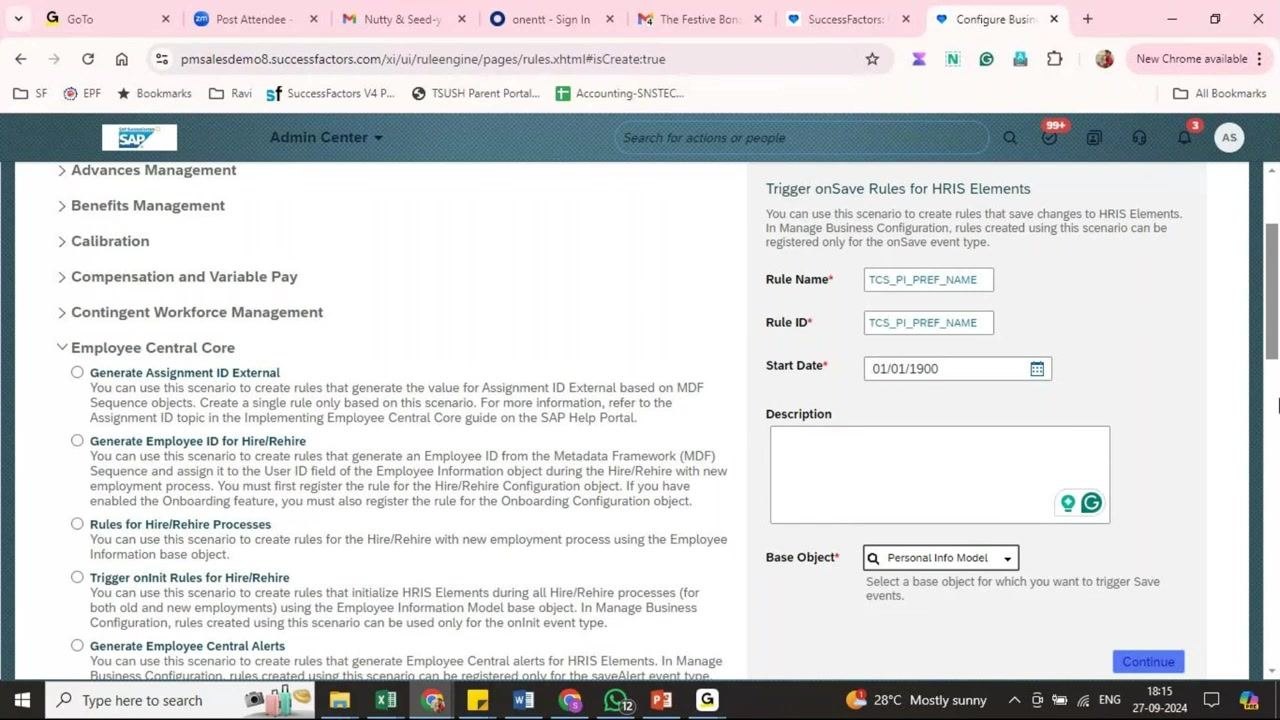
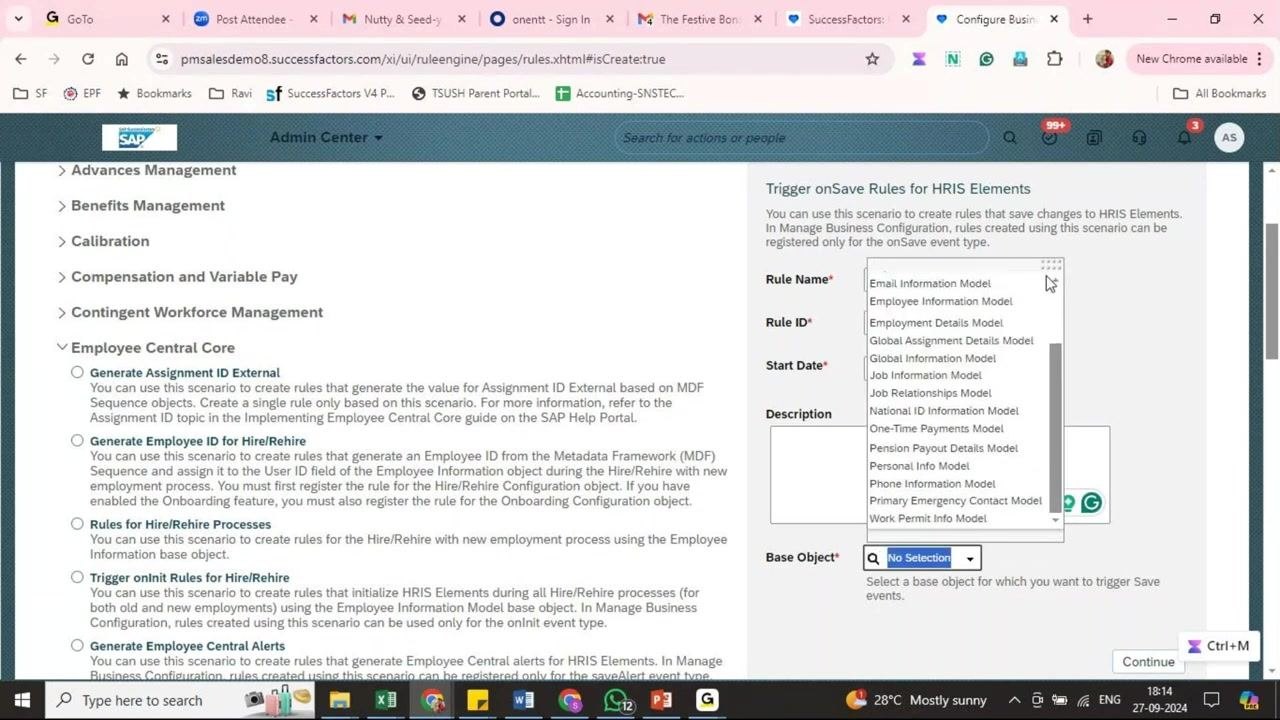
Open the Base Object dropdown, scroll through the list, and select Personal Info Model.
The base object determines which data the rule acts on. The "model" version gives you extra options, such as comparing previous and current values, setting fields as mandatory, or hiding fields.
SuccessFactors now recommends model-based base objects, so use the model version for all new business rules. A model-based base object lets you:
- Compare previous and current values.
- Set certain fields as mandatory.
- Hide specific field values.
Continue to the rule definition
Click Continue to open the rule definition screen.
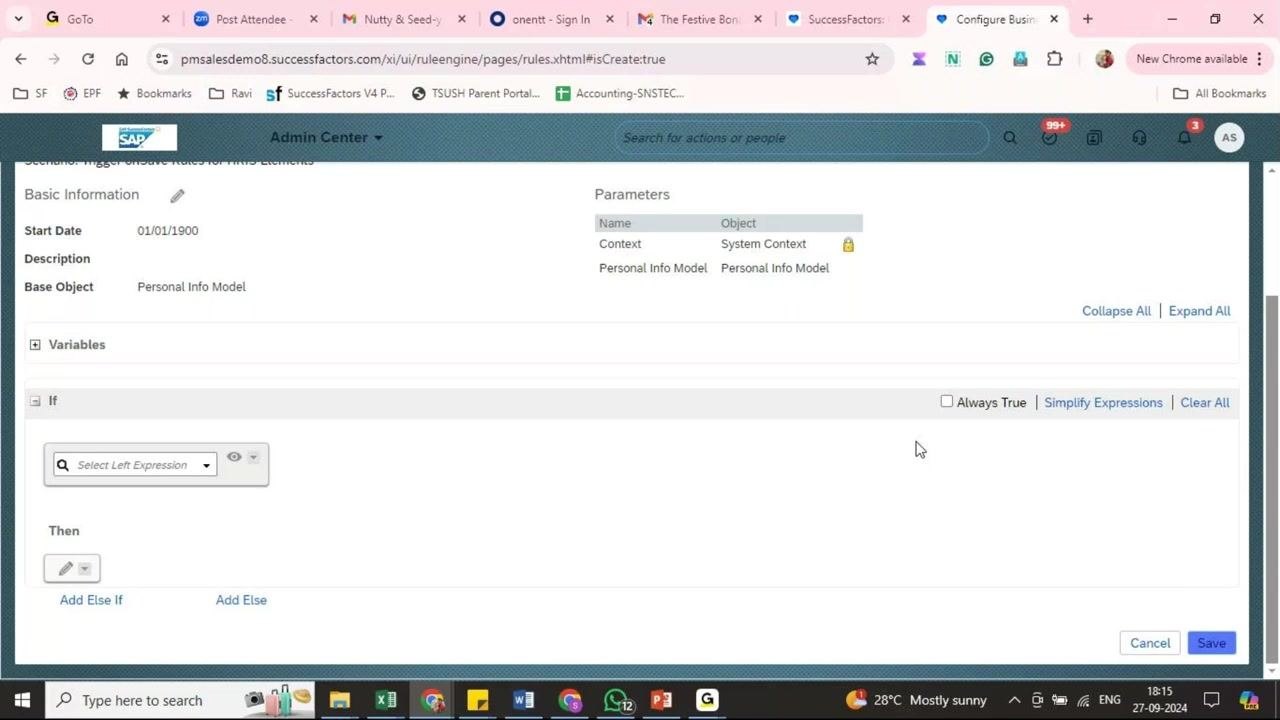
Review the rule definition interface
The rule definition screen contains these sections:
- Basic Information: Shows the Start Date, Description, and Base Object (
Personal Info Model). - Parameters: Lists Context (System Context) and Personal Info Model.
- Variables, If, and Then: Where you define the rule logic and add conditions and actions.
Part 2: Define the If and Then logic
Open the If condition builder
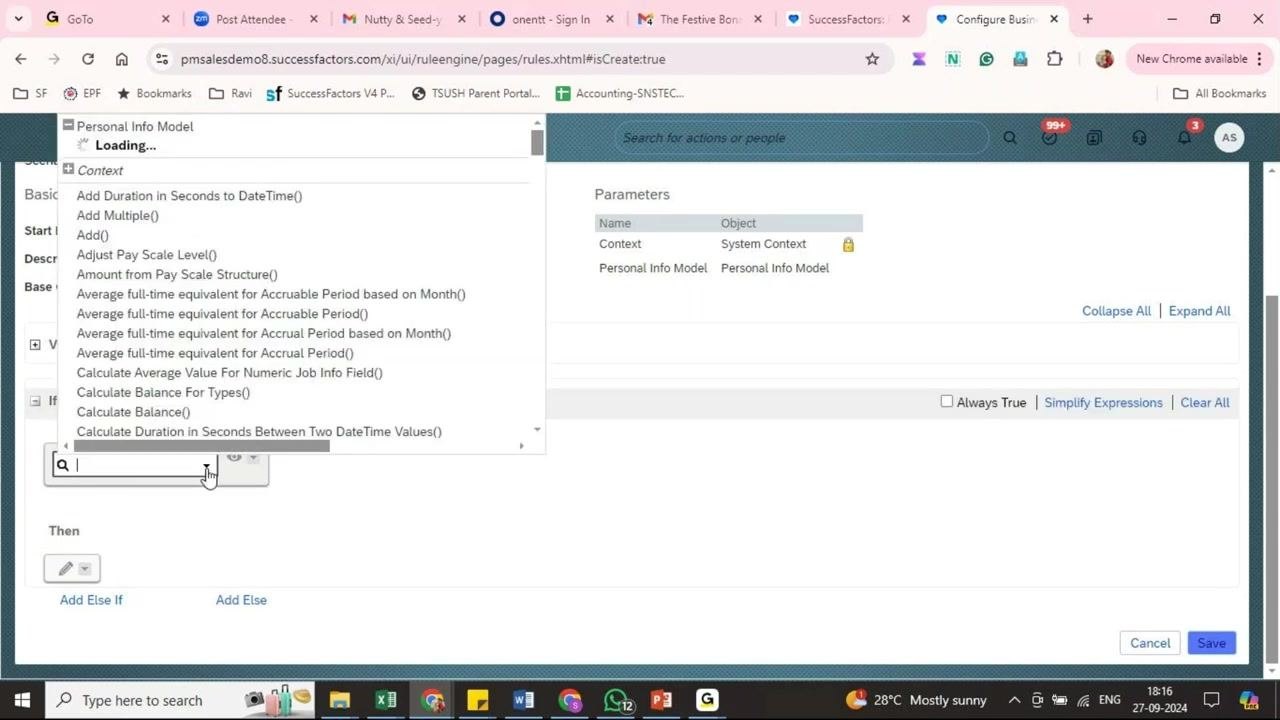
In the If section, click the Select Left Expression dropdown to start defining your condition.
Browse the available fields
Because you chose Personal Info Model as the base object, all related fields are available. They include Event Date, First Name, Full Name, Gender, Last Name, Marital Status, Nationality, Native Preferred Language, Personal Info, Preferred Name, Salutation, State, and more.
Expand a field, such as Full Name, to see Previous Value and Value (the current value).
Set the condition to check for a non-empty First Name
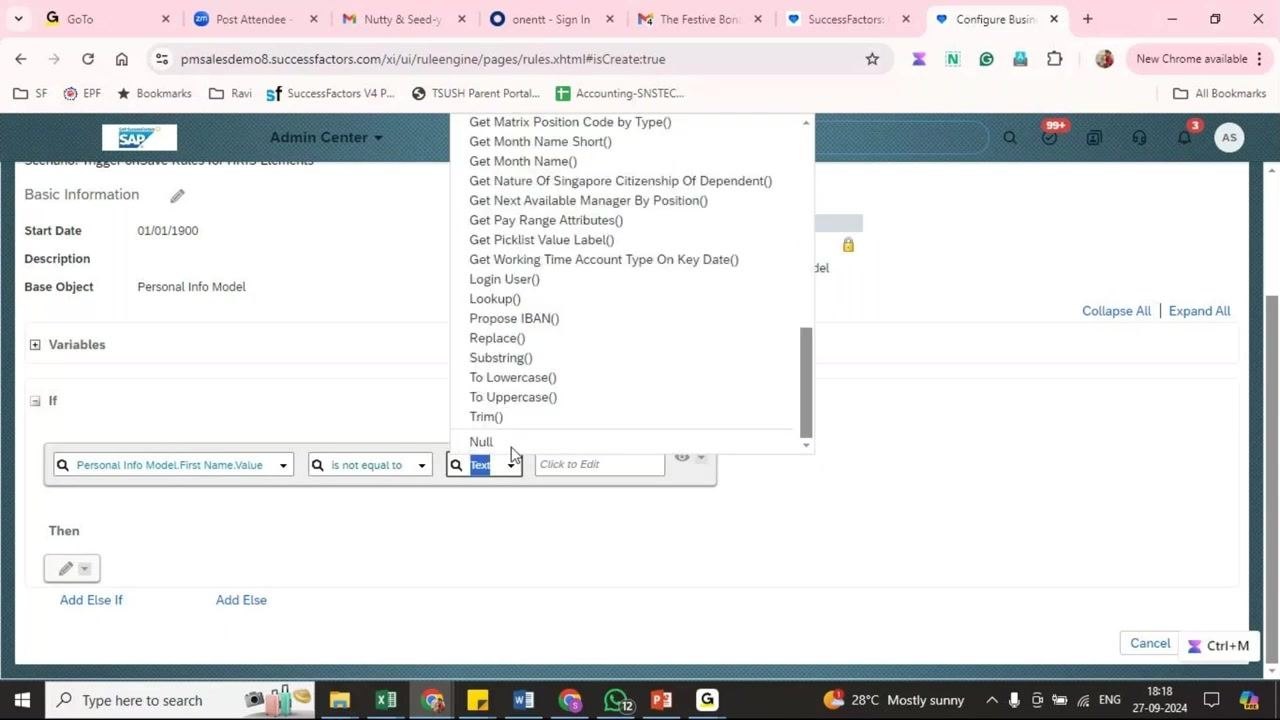
In the If section, set up the condition as follows:
- Select the field Personal Info Model.First Name.Value.
- Set the operator to is not equal to.
- Set the comparison type to Text.
- In the value field, scroll to the end of the dropdown and select Null.
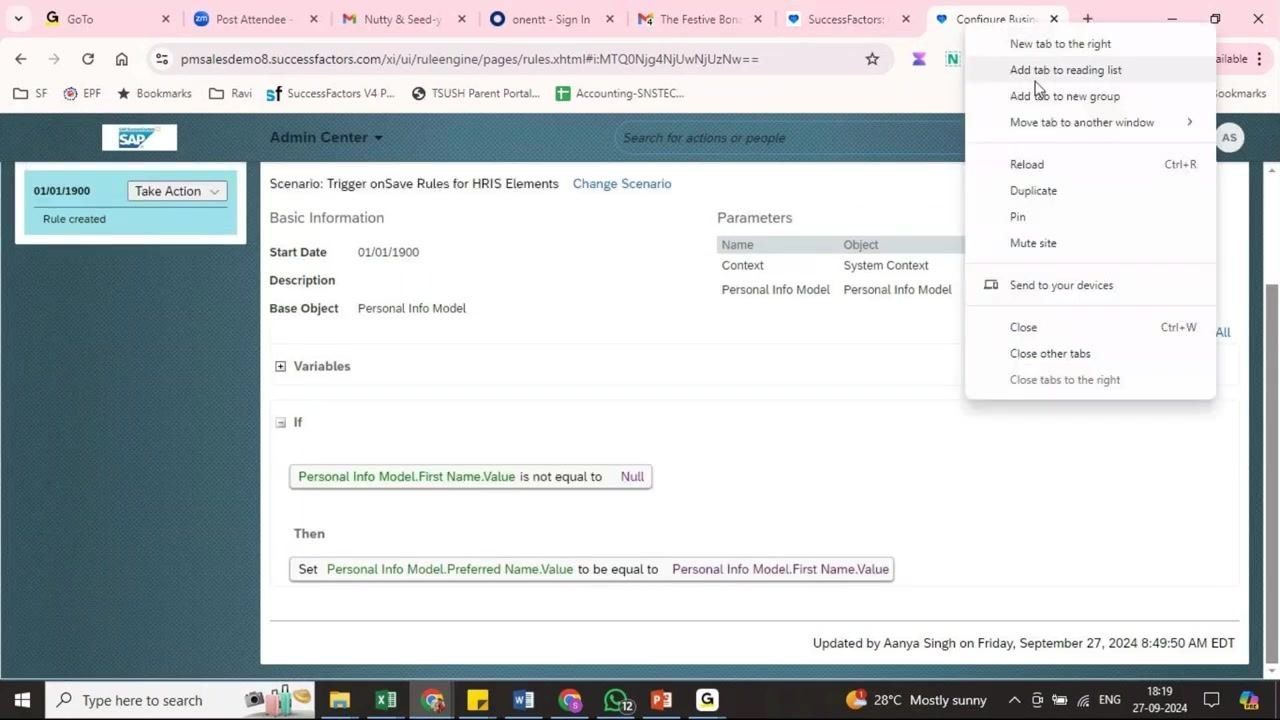
The condition reads Personal Info Model.First Name.Value is not equal to Null. The rule applies only when a First Name is present.
Define the action that defaults the Preferred Name
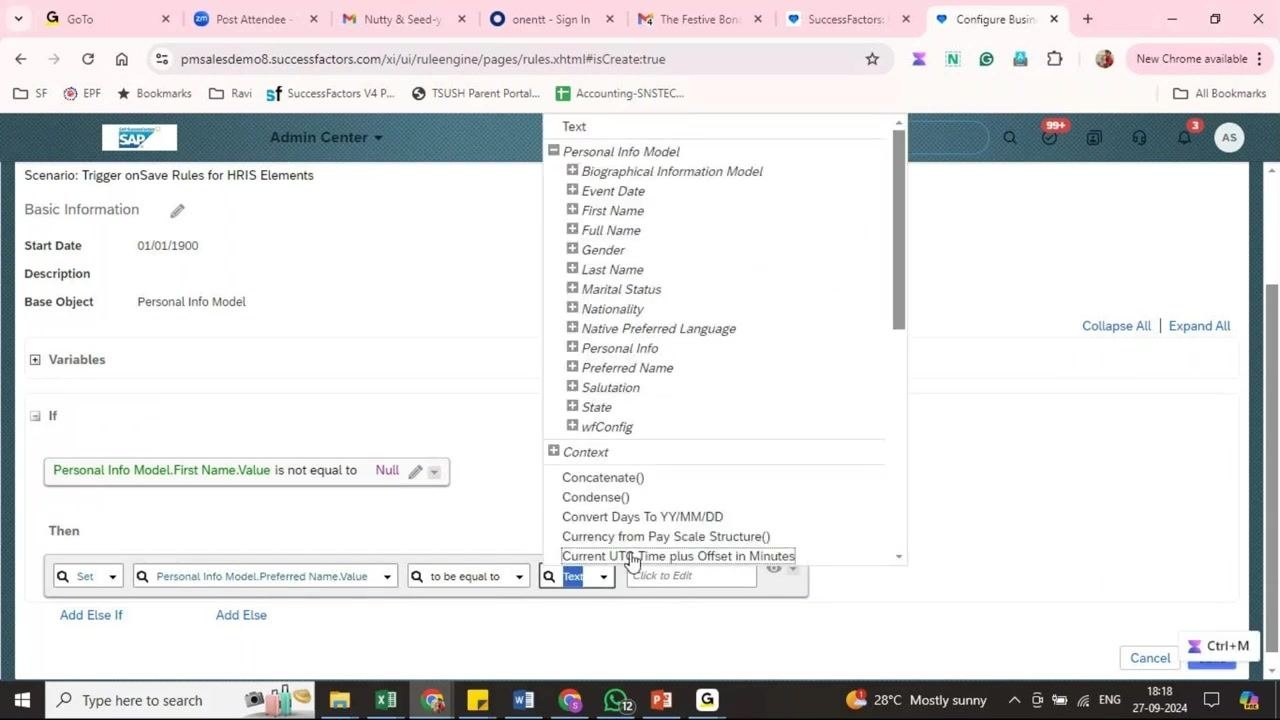
In the Then section, click the pencil (edit) icon to add an action. Then configure it:
- Choose Set as the action type.
- Select Personal Info Model.Preferred Name.Value as the field to update.
- Set the operator to to be equal to.
- Set the comparison type to Text.
- In the value field, expand the options and select Personal Info Model.First Name.Value.
Whenever the condition is met, the rule copies the First Name value into the Preferred Name field.
Save the business rule
With both the If and Then sections configured, click the i (information) icon to review your rule. Then click Save to store it.
In summary, the rule triggers only if First Name is not null, sets Preferred Name to the value of First Name, and is then saved.
Optional: use the Always True condition
Instead of checking for a non-empty First Name, you can set the condition to Always True. The rule then always attempts to update the Preferred Name.
First Name is a mandatory field, so the system does not let you save a record without one. This makes Always True a safe option. Save the business rule after you update the condition.
Part 3: Assign the business rule to Personal Information
After you write the rule, you must assign it to the relevant object. The rule does not take effect during data entry or updates until you do.
Open the Personal Information configuration
Follow these steps:
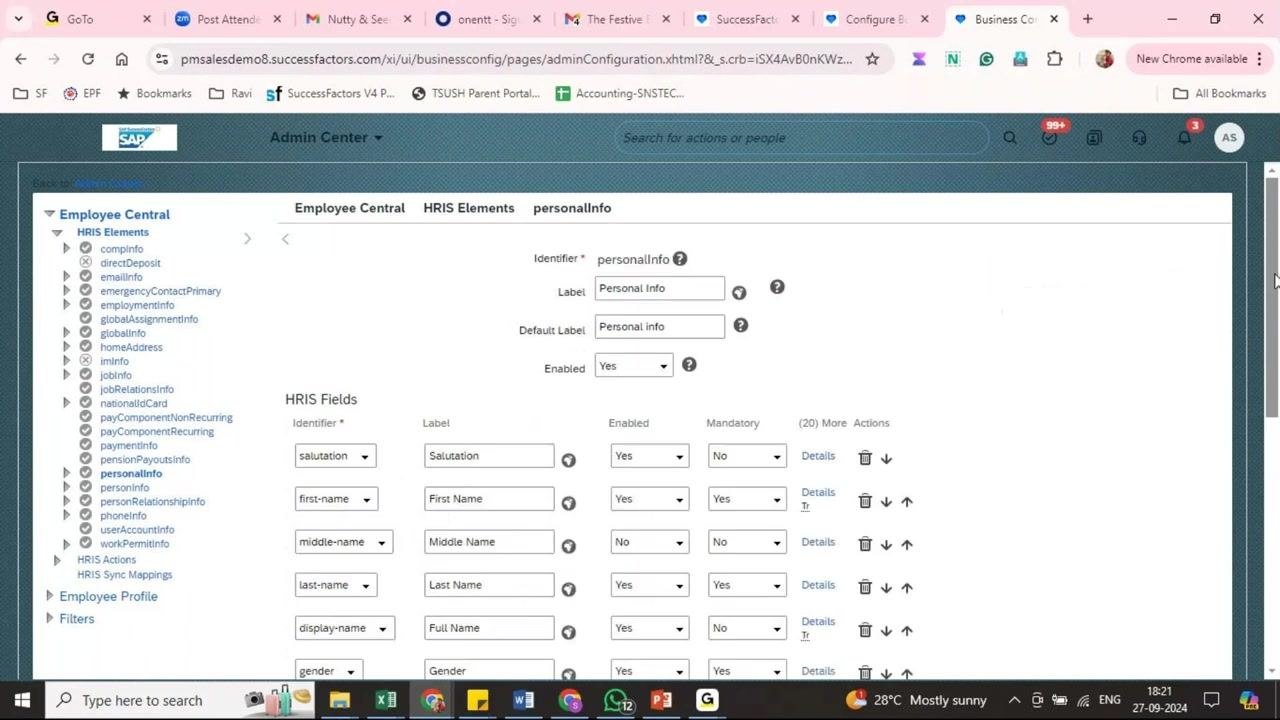
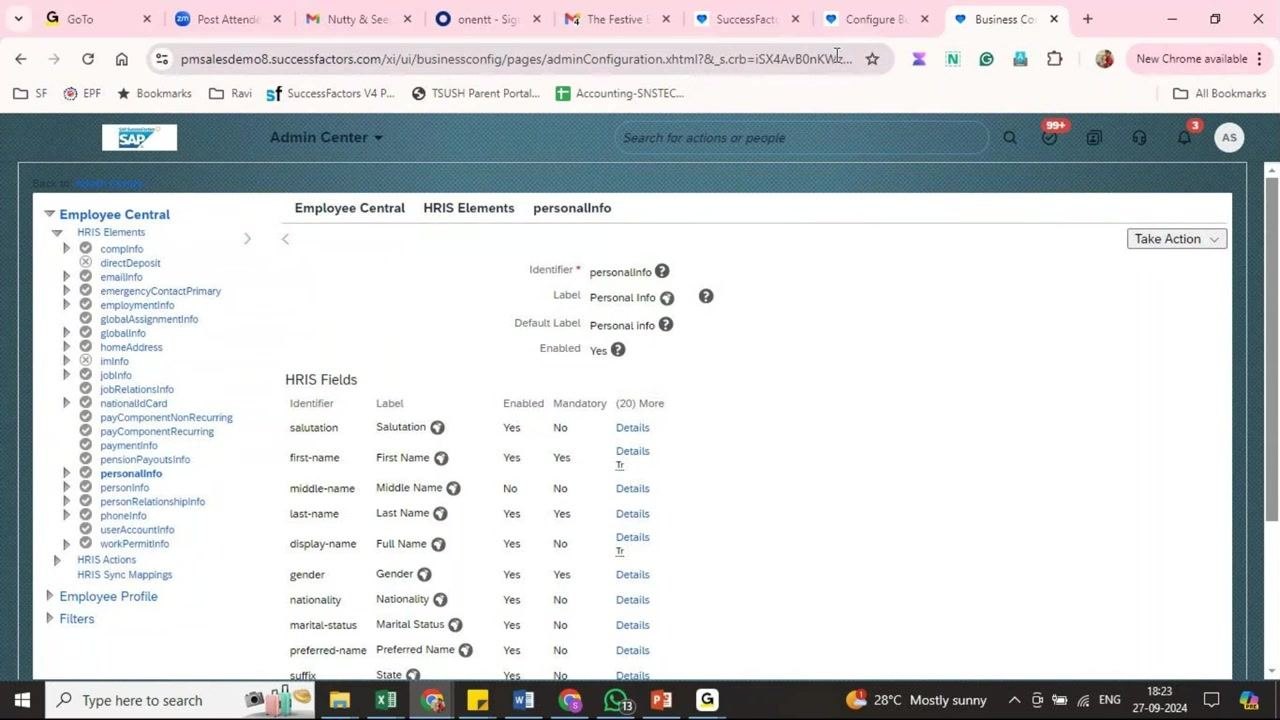
- In the Admin Center, go to Manage Business Configuration.
- In the left navigation pane, expand Employee Central > HRIS Elements.
- Select personalInfo.
The main panel lists the HRIS Fields for Personal Info, such as Salutation, First Name, Middle Name, Last Name, Full Name, and Gender.
Scroll to the Trigger Rules section
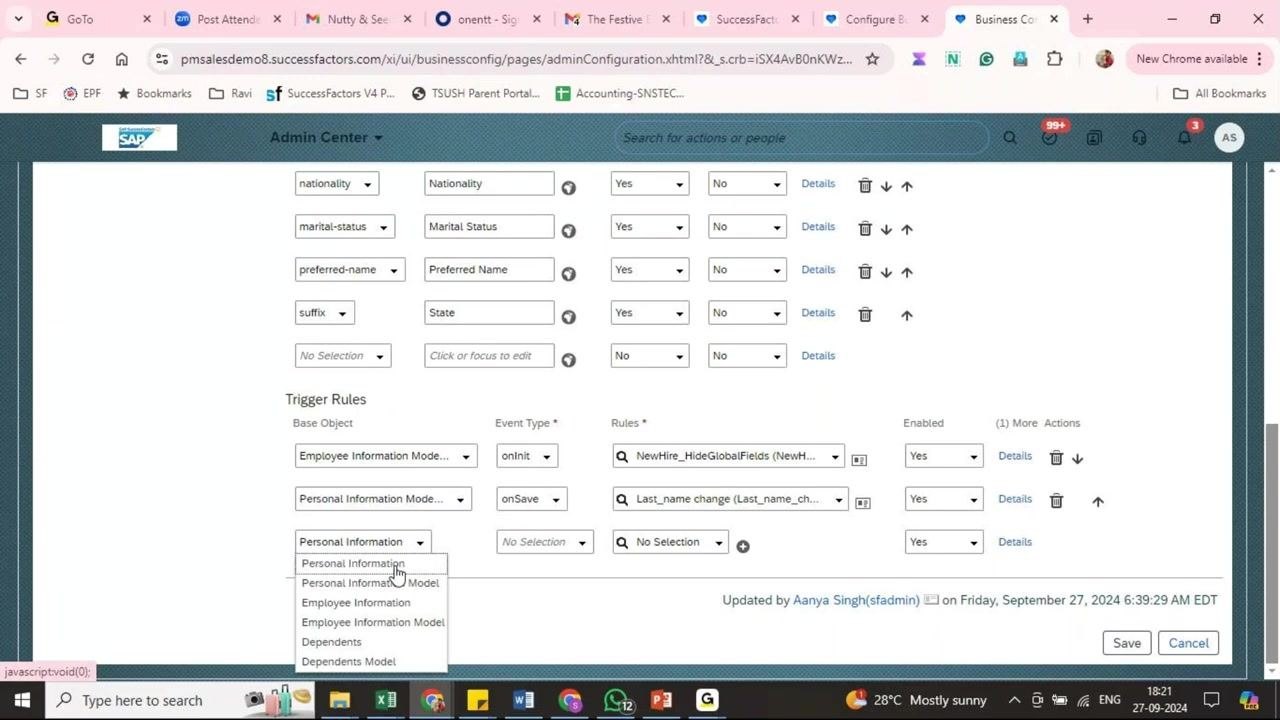
Scroll down to the Trigger Rules section at the bottom of the Personal Info configuration page. Here you can assign business rules to be triggered by specific events.
Select the base object for the rule
In the Trigger Rules section, open the Base Object dropdown. The options are:
- Personal Information
- Personal Information Model
- Employee Information
- Employee Information Model
- Dependents
- Dependents Model
Select Personal Information Model, because your rule is designed for this object.
Choose the event type
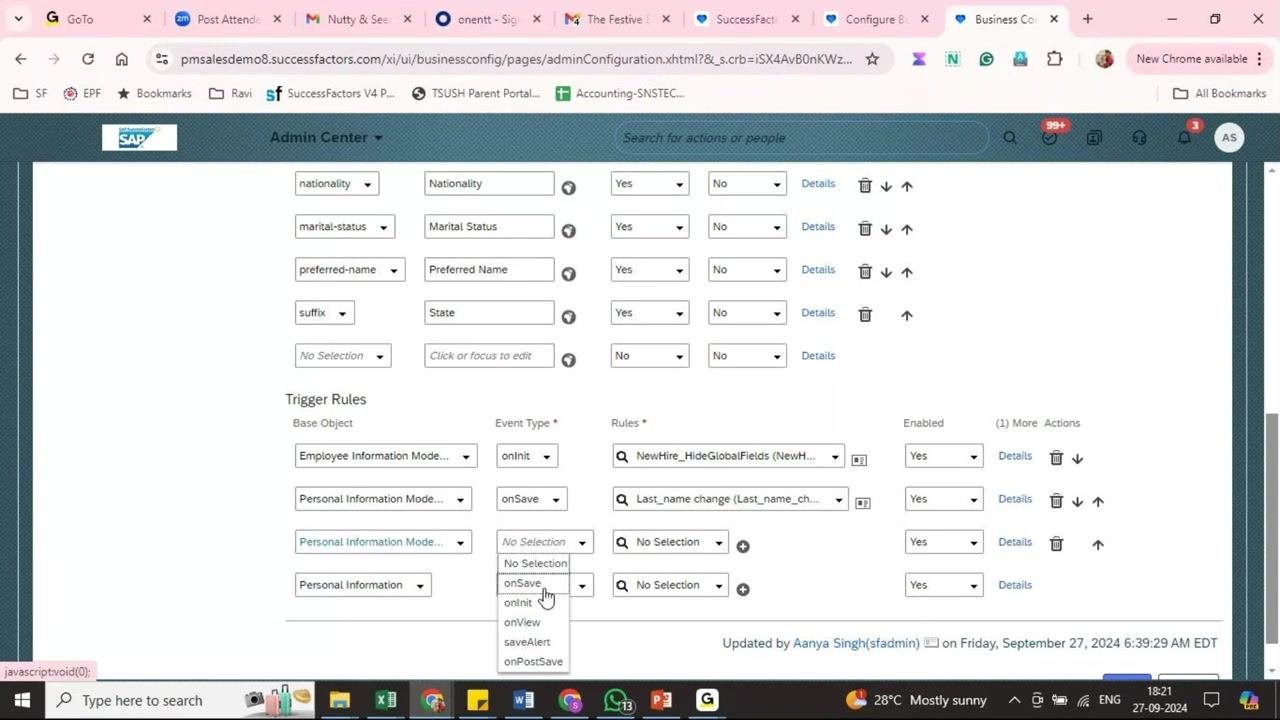
In the Event Type dropdown next to your base object, choose when the rule should trigger. The options are:
- onSave (when saving the portlet)
- onInit (when initiating a record)
- onView
- saveAlert
- onPostSave
To trigger the rule when the portlet is saved, select onSave.
Assign the business rule
In the Rules field, search for and select your business rule (for example, "Set Preferred Name from First Name"). Make sure the Enabled toggle is set to Yes. You can add multiple rules for different event types if needed.
Save the configuration
Click Save at the bottom of the page to apply your changes. Users who save changes to the Personal Information portlet now trigger the rule automatically.
Part 4: Test the business rule
Edit an employee's personal information
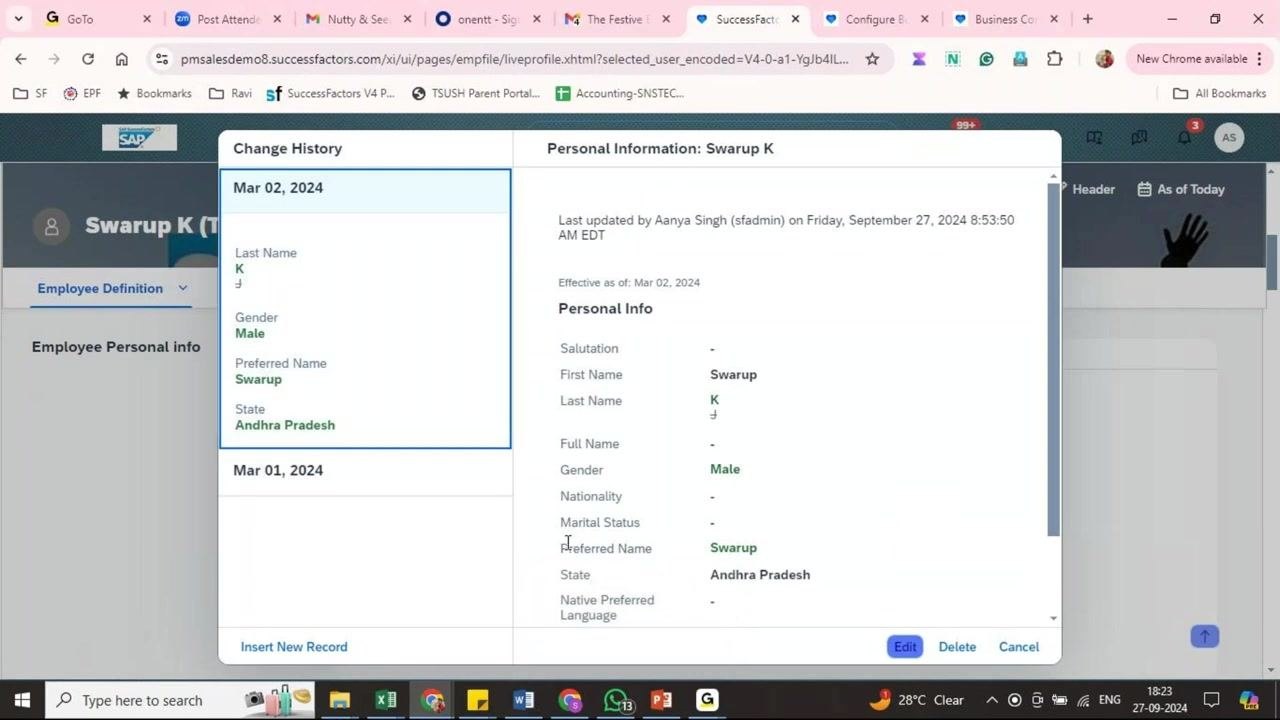
Go to an employee's profile and select the option to edit their personal information. In the Edit History of Personal Information dialog, set the effective date (for example, Mar 02, 2024). Then enter or update these fields:
- First Name: Swarup
- Last Name: K
- Gender: Male
- State: Select a value from the dropdown (for example, Andhra Pradesh)
Leave Preferred Name blank so you can check whether the rule fills it in.
Save the changes
Click Save to apply the changes to the employee's personal information.
Verify that the rule ran
Review the employee's personal information summary. Confirm that Preferred Name now shows the First Name value (for example, "Swarup"). Check that the other updated fields, such as State: Andhra Pradesh, saved correctly.
Summary and what's next
You now know how to create a business rule in SuccessFactors that sets Preferred Name from First Name. You created the rule with the onSave trigger scenario and the Personal Info Model base object, defined its If and Then logic, assigned it in the Trigger Rules section of personalInfo, and tested it.
To check that the rule works reliably, test it with other employee records or scenarios.
Generation details: cost, quality tiers
Docsie billed 5,500 credits ($3.85) to analyze this 11-minute video at standard quality. The rewrite, template fill and Word/PDF exports were included. The same video at each quality tier:
| Quality | Frames sampled | Credits | Approx. cost |
|---|---|---|---|
| Draft | every 16-30 s | 2,750 | $1.92 |
| Standard (this guide) | every 8-15 s | 5,500 | $3.85 |
| Detailed | every 4-7 s | 11,000 | $7.70 |
| Ultra | every 1-3 s | 22,000 | $15.40 |
Credits priced at $0.70 per 1,000; plans include a monthly allowance. Enterprise customers on on-premise or bring-your-own-model deployments run this on their own inference and pay no per-video credits.
Generated by Docsie Video-to-Docs on 2026-11-01 from a 10-minute video. Screenshots are frames from the source video and belong to their creator, Sap Verse, whose original is embedded above. If you own this video and want the guide removed or credited differently, contact us and we will act within one business day.