
How to Create an Event Reason in SuccessFactors
This guide shows you how to create an event reason in SuccessFactors, from the Admin Center form through to permissions. You enter the required fields, check the related picklist values, and configure optional fields such as Follow-Up Activity in Position and Payroll Event. You then grant permissions for the new event reason. The guide also covers event reason derivation with business rules and the related provisioning settings.
Video: How To Create Event Reasons - SAP SuccessFactors Employee Central by Web World Design (2021). All credit for the demonstration goes to the creator; watch the original on YouTube. The written guide below was generated from this video by Docsie. Creator? Request a change or removal.
This guide shows you how to create an event reason in SuccessFactors, from the Admin Center form through to permissions. You enter the required fields, check the related picklist values, and configure optional fields such as Follow-Up Activity in Position and Payroll Event. You then grant permissions for the new event reason. The guide also covers event reason derivation with business rules and the related provisioning settings.
Prerequisites
Before you start, make sure you have the following:
- Access to the SAP SuccessFactors system and its Admin Center.
- Events defined in the Picklist Center. Events determine where an event reason can be used, for example Hire or Termination.
- A
positionActionTypepicklist with the valuesRCLSandTRAN, if you plan to use Follow-Up Activity in Position. - Payroll integration enabled in provisioning, if you plan to use the Payroll Event field.
Create the event reason
Log in and open the Admin Center
Log in to the SAP SuccessFactors system, then navigate to the Admin Center.
Search for Manage Organization, Pay and Job Structures
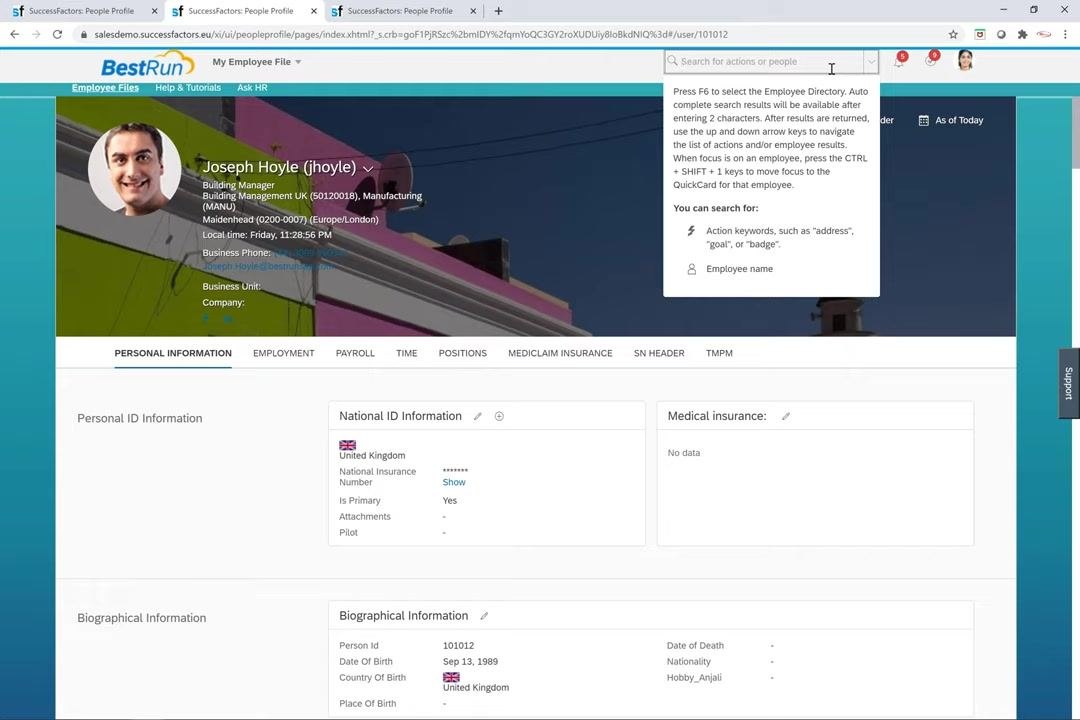
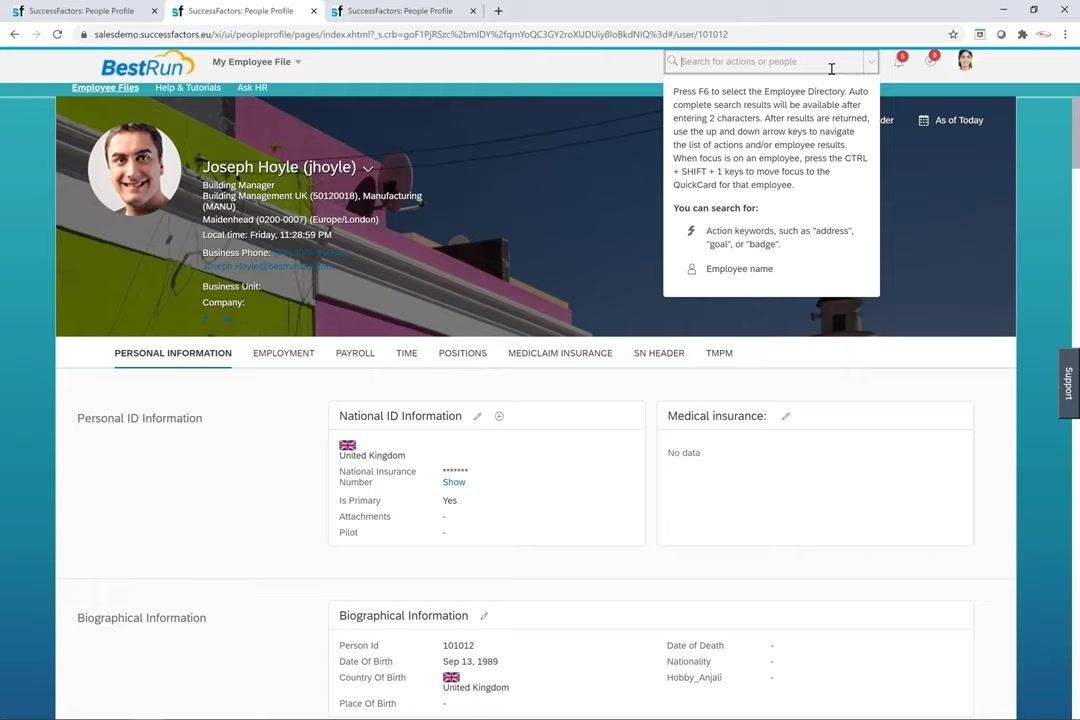
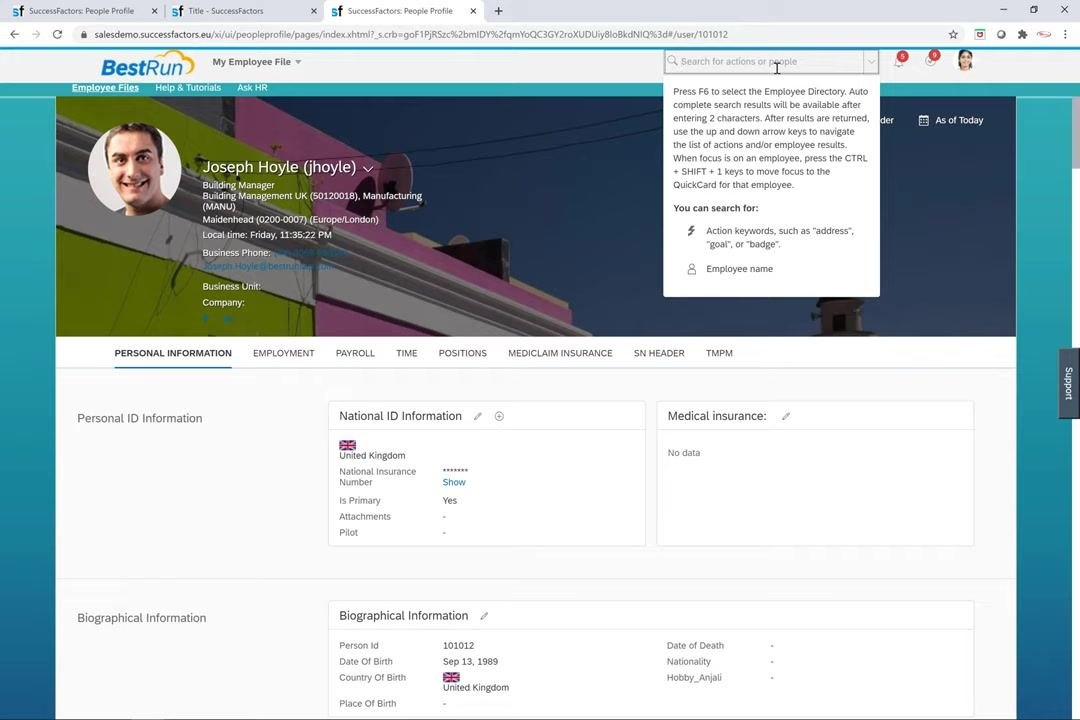
- Click the Search for actions or people field at the top right to activate it. You can use this search bar to search for action keywords or employee names.
- Type
Manage Organization, Pay and Job Structures. - Select Manage Organization, Pay and Job Structures from the search results.
Open the event reason form
- In Manage Organization, Pay and Job Structures, locate the Create New dropdown.
- Select Event Reason to open the event reason creation form.
Review the form fields and set the effective date
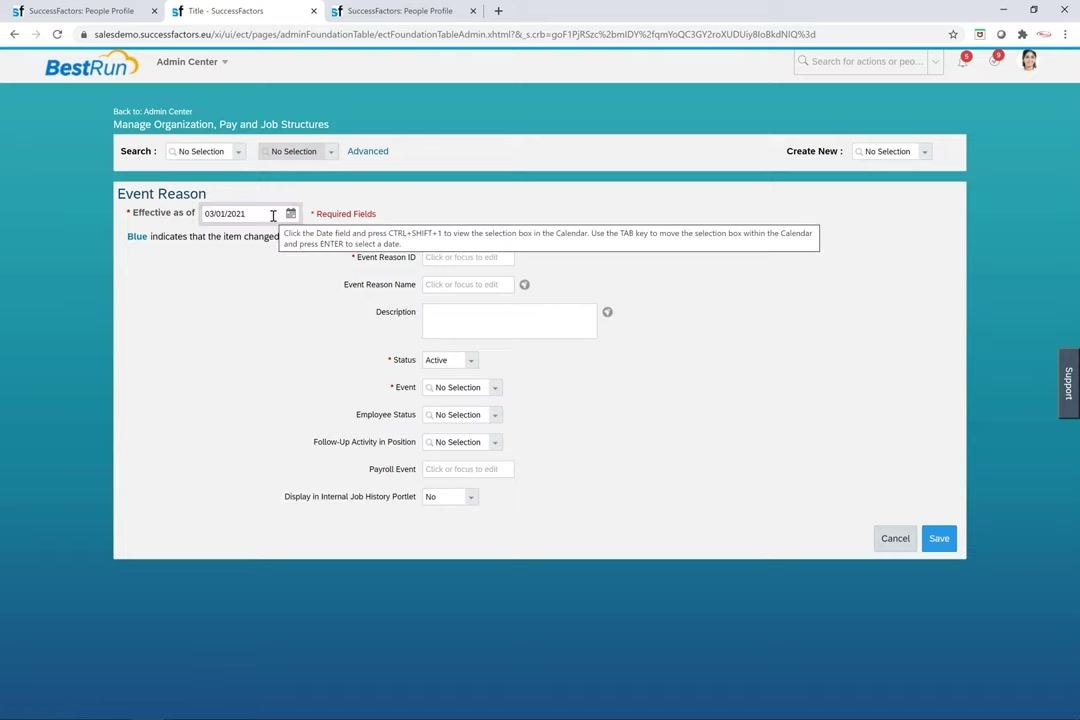
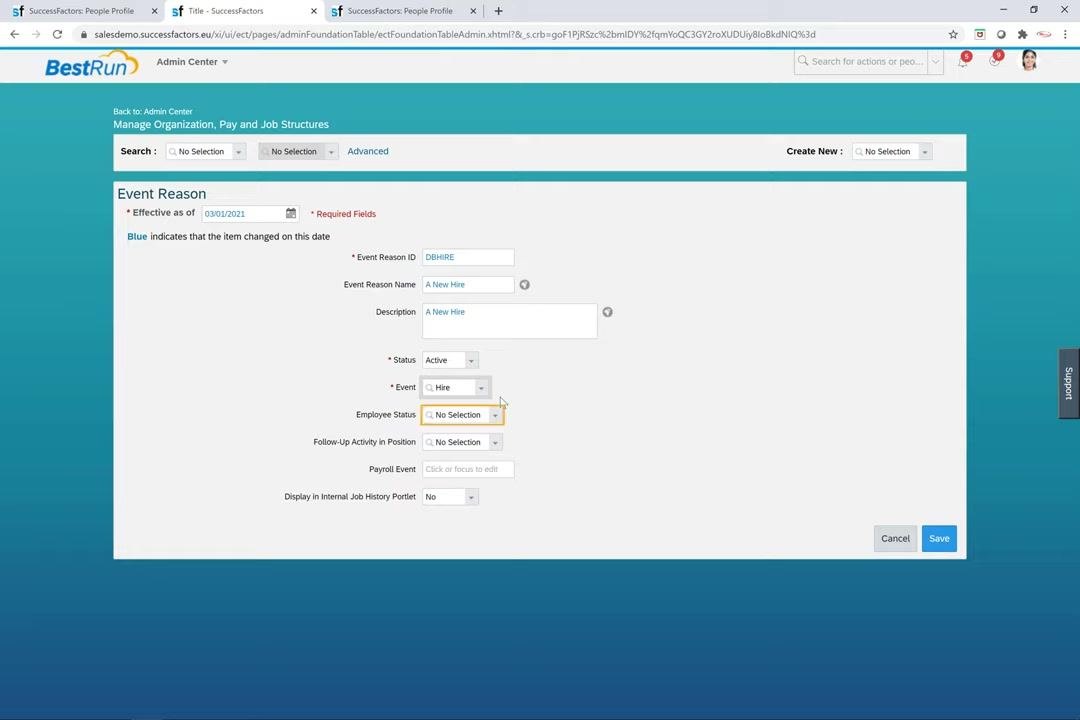
The Event Reason form contains the following fields:
- Effective as of: The date from which the event reason is effective, for example
03/01/2021(March 1, 2021). The event reason is available for selection only on or after this date. - Event Reason ID: A unique identifier for the event reason.
- Event Reason Name: A descriptive name for the event reason.
- Description: An optional description.
- Status: Set to Active to enable the event reason.
- Event: The relevant event, selected from the dropdown.
- Employee Status: The appropriate employee status.
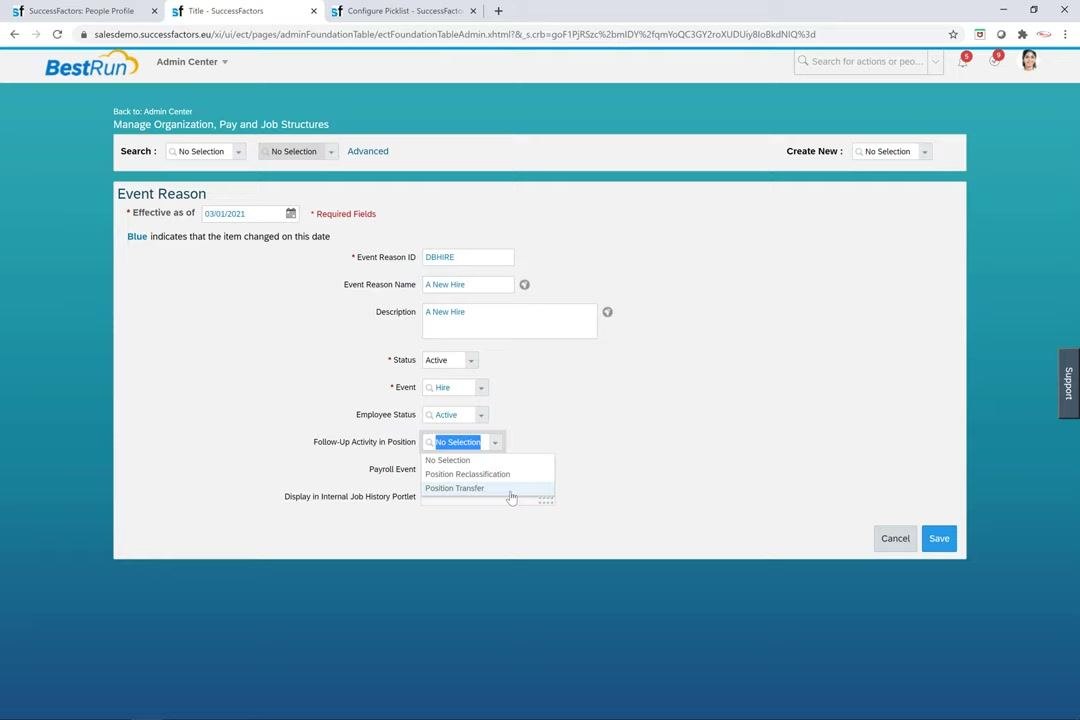
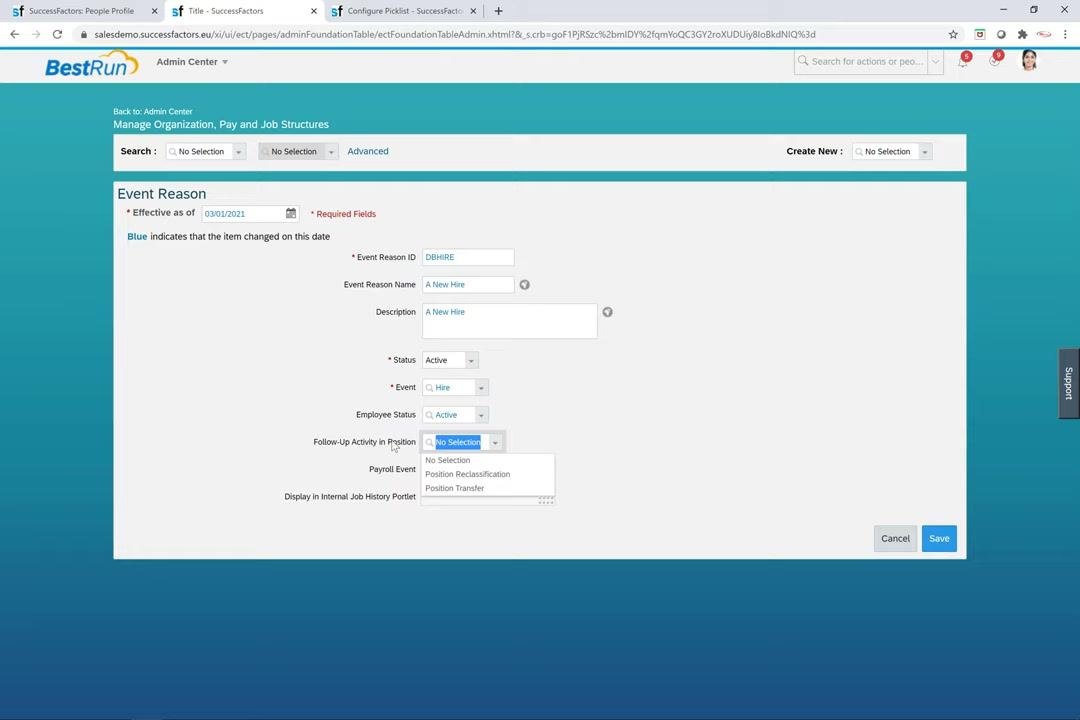
- Follow-Up Activity in Position: A follow-up activity, if required.
- Payroll Event: The payroll event, if applicable.
- Display in Internal Job History Portlet: Yes or No, as needed.
Start by entering the Effective as of date. Review all entered information for accuracy before you save.
Enter the event reason ID
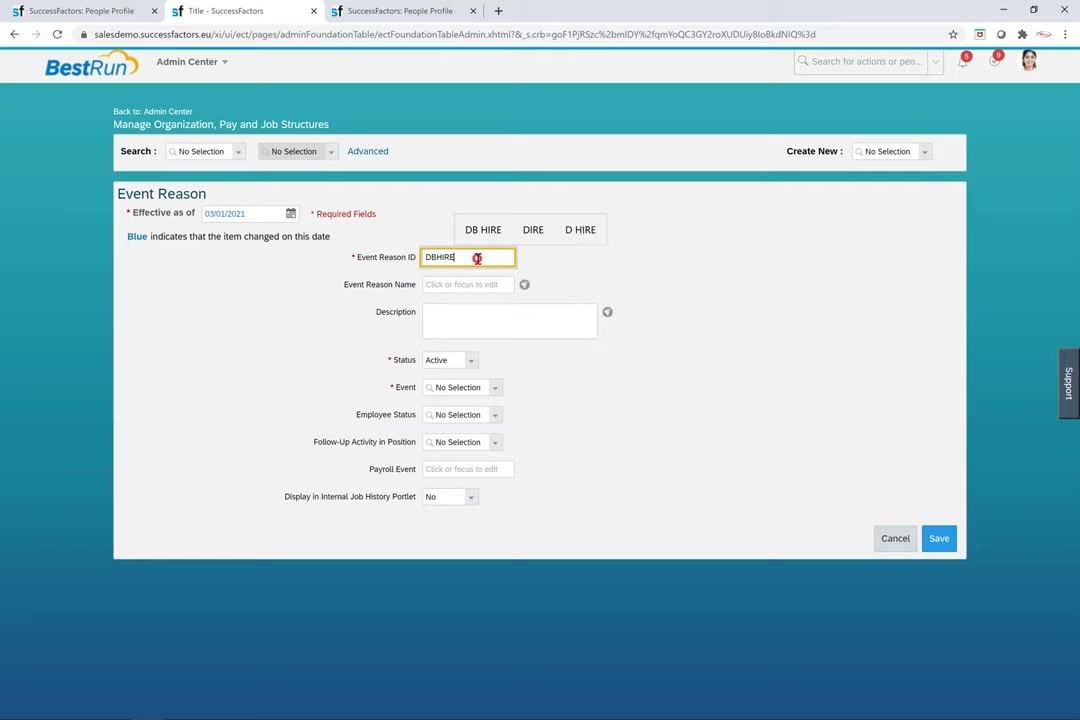
Type DBHIRE in the Event Reason ID field. This value uniquely identifies the event reason in the system.
Enter the event reason name
Type A New Hire in the Event Reason Name field. This descriptive name is displayed for the event reason.
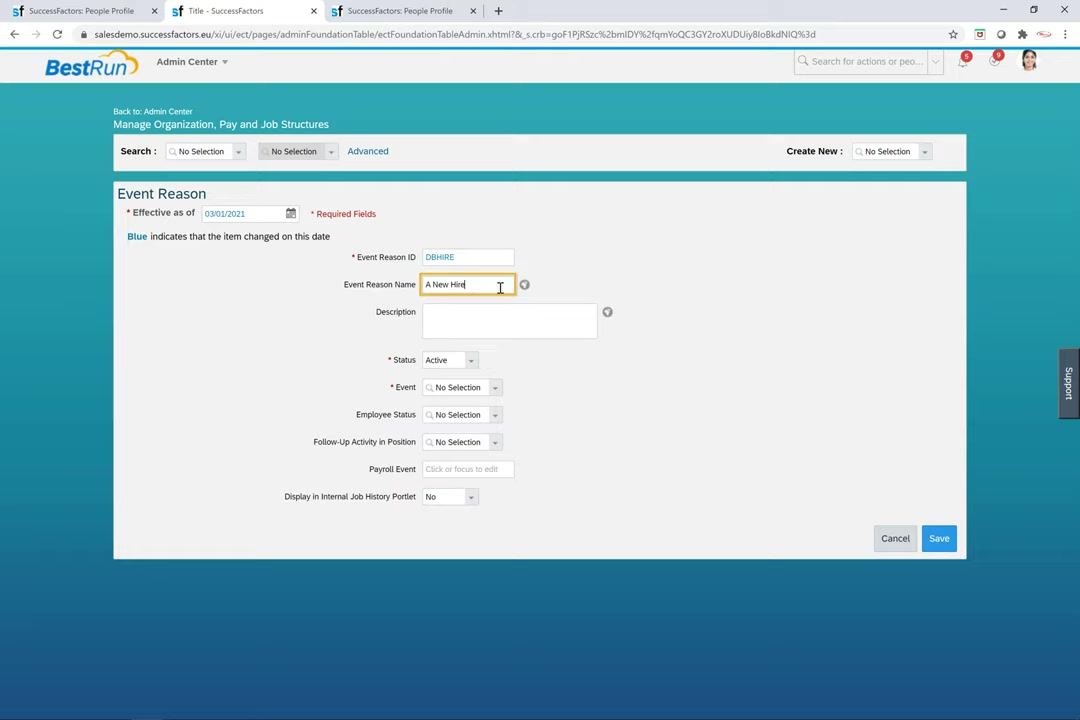
Enter the description
Type A New Hire in the Description field. The description can match the event reason name or provide additional context.
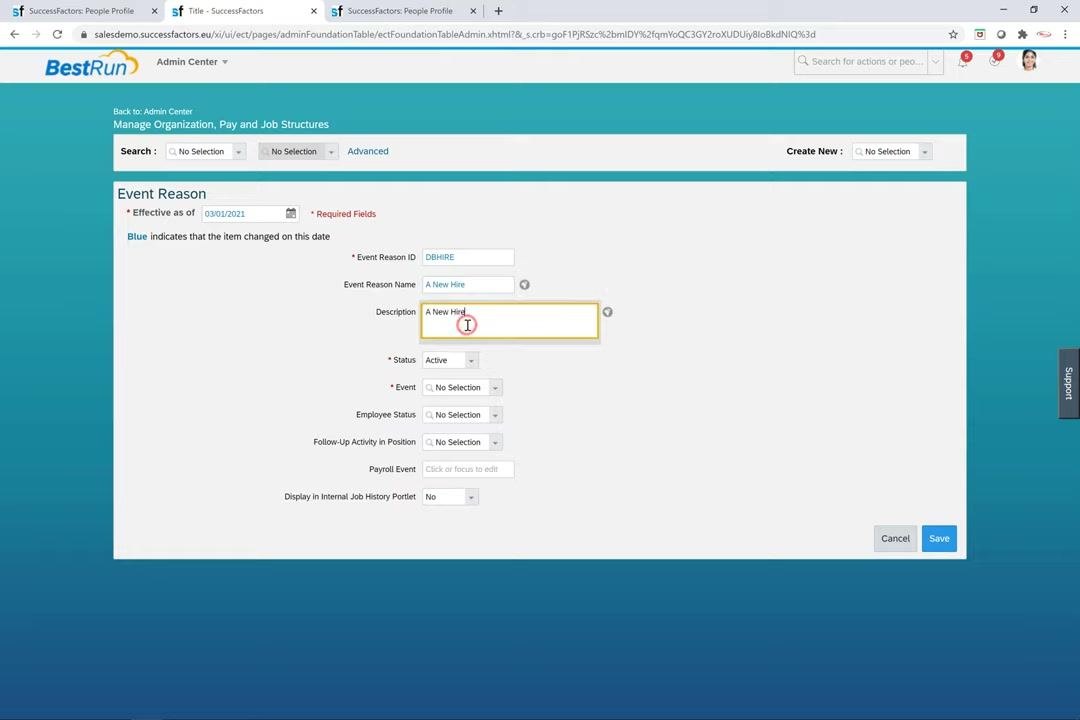
Set the status
Select Active from the Status dropdown. Only event reasons marked as Active are available for selection in the system. If you set the status to Inactive, the event reason is not selectable or usable.
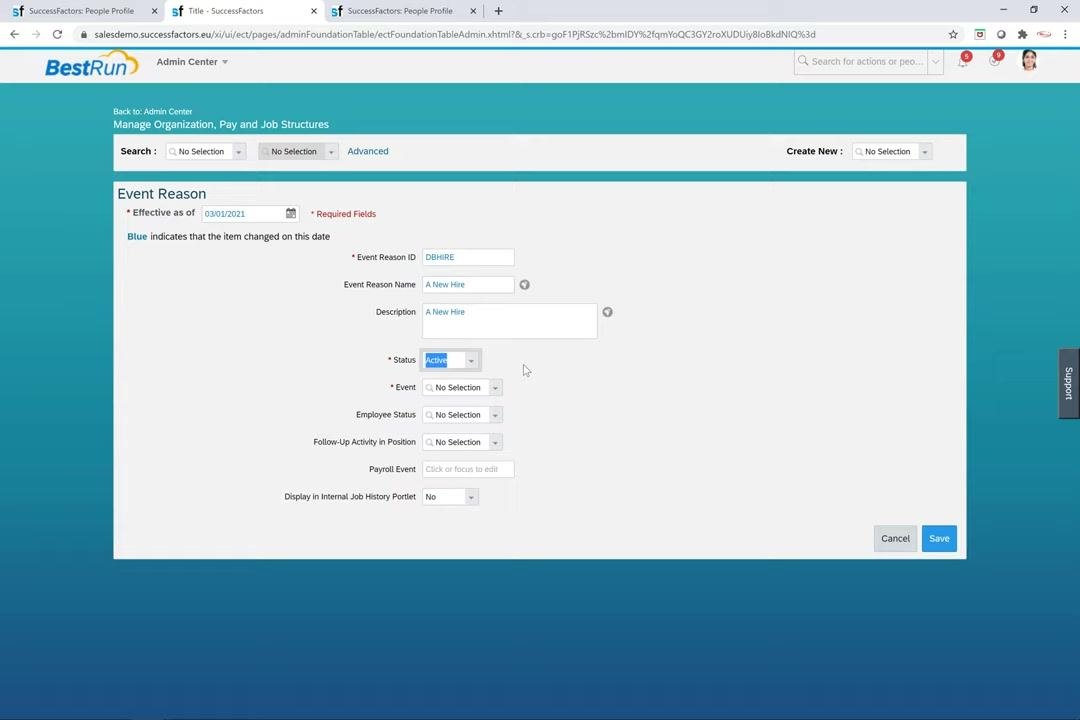
Select the event
- Click the Event dropdown.
- Choose
Hirefrom the list of available events.
Events are defined in the Picklist Center and determine where the event reason can be used, for example Hire or Termination. Associating this event reason with the Hire event means it appears only in relevant Hire UIs.
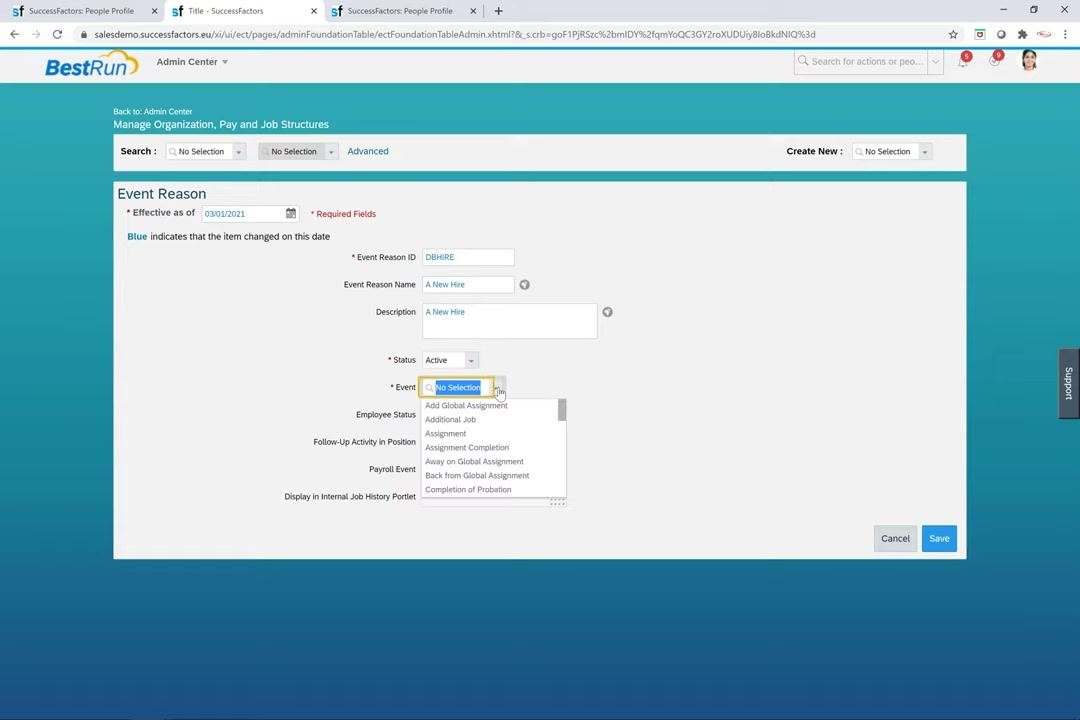
Set the employee status
- Click the Employee Status dropdown.
- For a hiring event, select
Active.
This ensures that when you use this event reason, the employee's status is set to active in the Job Information portlet.
Configure Follow-Up Activity in Position
Make the Follow-Up Activity in Position field visible
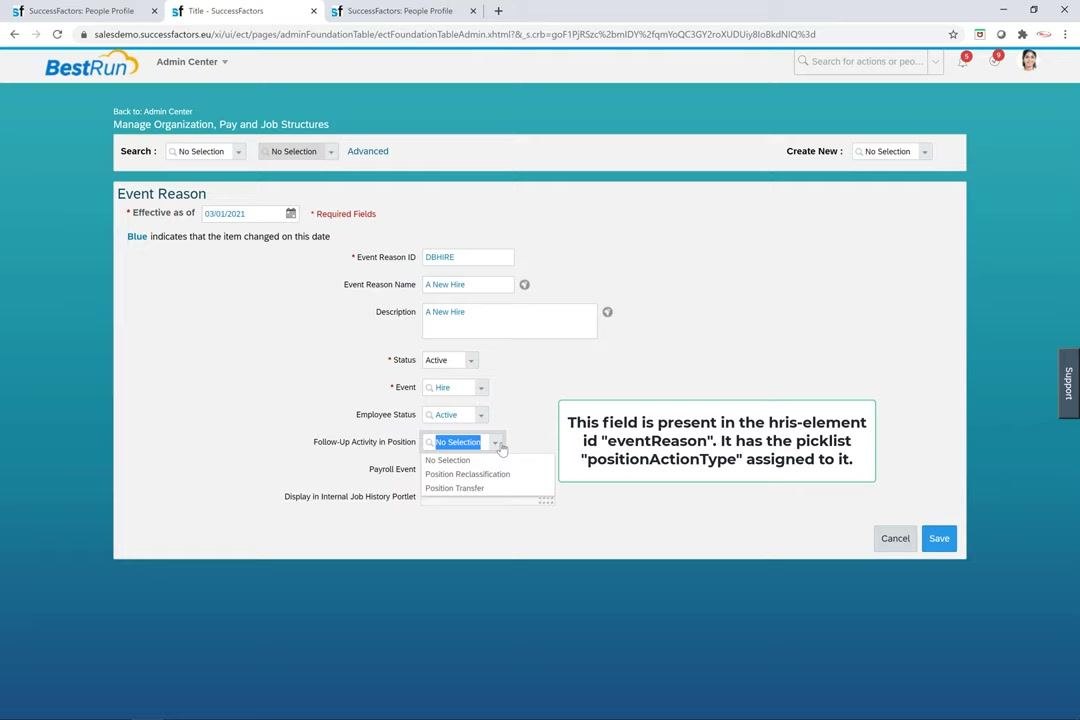
Locate the Follow-Up Activity in Position field. You set this field on individual event reasons, and it may not always be visible.
If the field is not visible, update the visibility of the field implicit-position-action in the corporate data model. This field is present in the HRIS element ID eventReason and uses the picklist positionActionType. Configure the picklist with two values:
RCLS(Position Reclassification)TRAN(Position Transfer)
Open the positionActionType picklist in the Picklist Center
- From the Admin Center, navigate to the Picklist Center.
- Use the search bar to search for the picklist
positionActionType.
Verify the picklist values
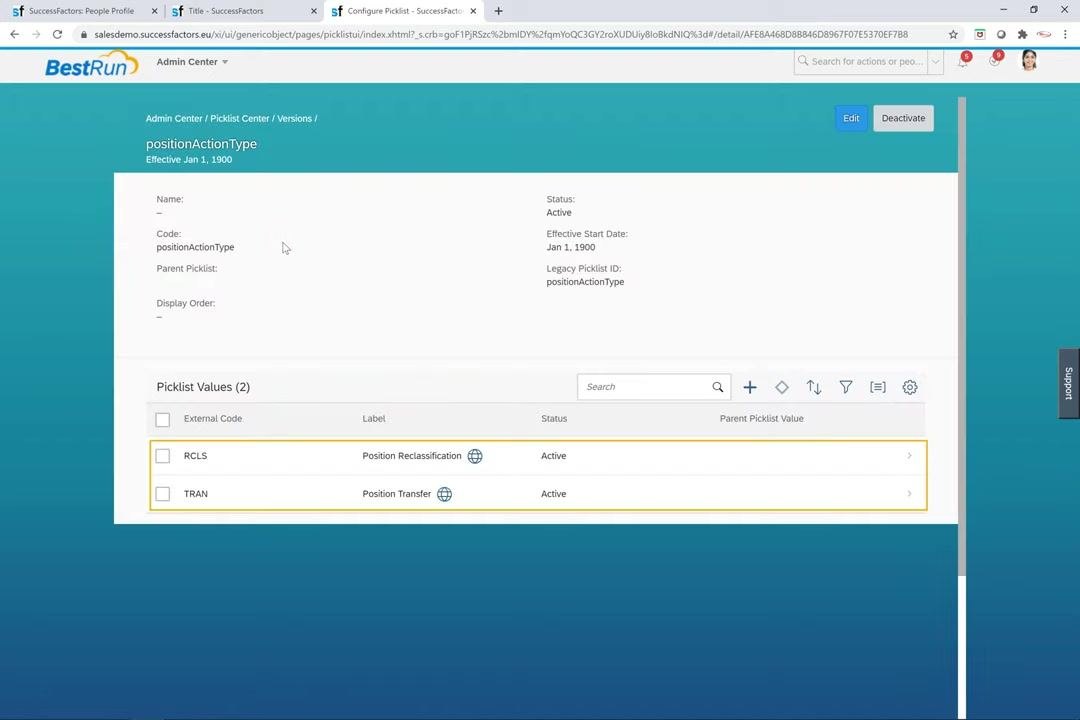
In the Picklist Center, check the details for positionActionType. Confirm that the picklist contains exactly two values:
RCLSwith the label Position Reclassification and status Active.TRANwith the label Position Transfer and status Active.
Both values must be Active to be selectable in configuration. The top of the screen shows the following reference details:
- Code: positionActionType
- Status: Active
- Effective Start Date: Jan 1, 1900
Use this screen to confirm that your configuration matches the setup required for event reasons that involve position actions.
Set the follow-up activity on the event reason
Click the Follow-Up Activity in Position dropdown and select Position Reclassification or Position Transfer, as needed.
When a manager makes any change in the Update Employee Record screen using this event reason, the selected follow-up activity is triggered. This applies to event reasons derived from business rules and to those defined manually.
Configure the internal job history and payroll event fields
Set Display in Internal Job History Portlet
Locate the Display in Internal Job History Portlet field for each event reason. Set it to Yes for every event reason that should be visible in the internal job history.
If you set this field to No, EC (Employee Central) historical data is not visible in the internal job history portlet.
Enable and configure the Payroll Event field
The Payroll Event field is available on the event reason when payroll integration is enabled in provisioning. If the field is not visible, enable it from provisioning.
After you modify the corporate data model, verify that the event reason UI contains the Payroll Event field. Then apply these rules:
- Configure the field as a string data type only. Do not use bit lists or other data types.
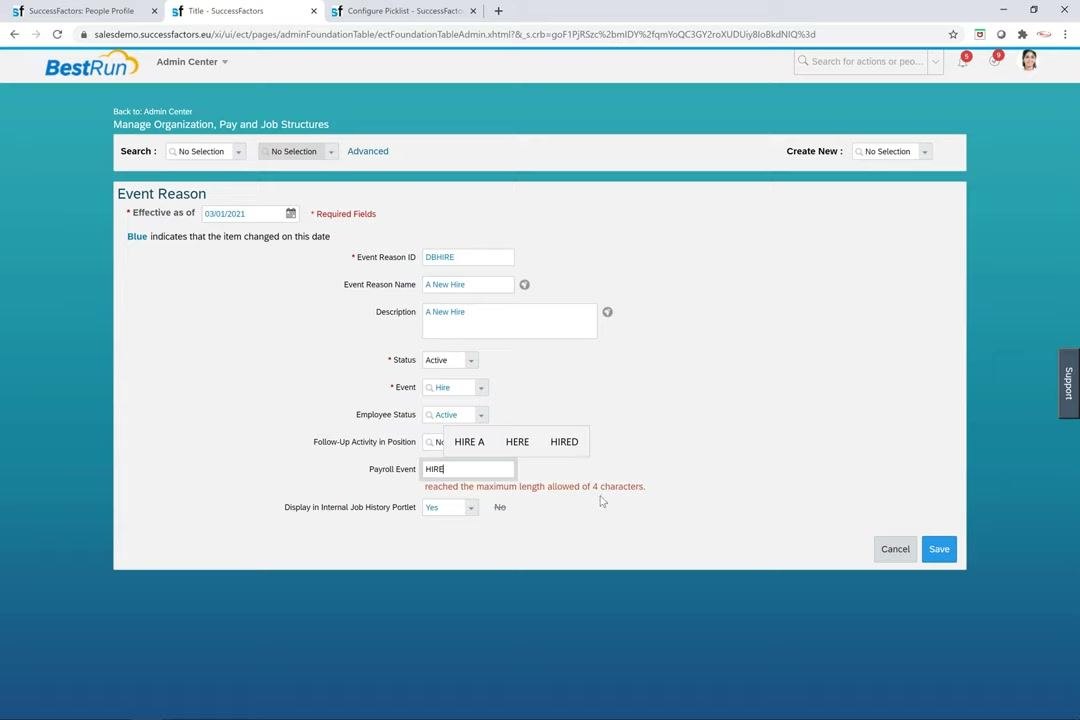
- Make sure the value is exactly four characters long. Do not enter longer values.
Enter the payroll event value
In the Event Reason configuration screen, locate the Payroll Event field and enter a value that is exactly four characters long, for example 1234.
If you enter more than four characters, the system displays the error "reached the maximum length allowed of 4 characters." The field does not accept longer values. This restriction prevents integration issues.
Grant permissions for the event reason
Open the permission role list
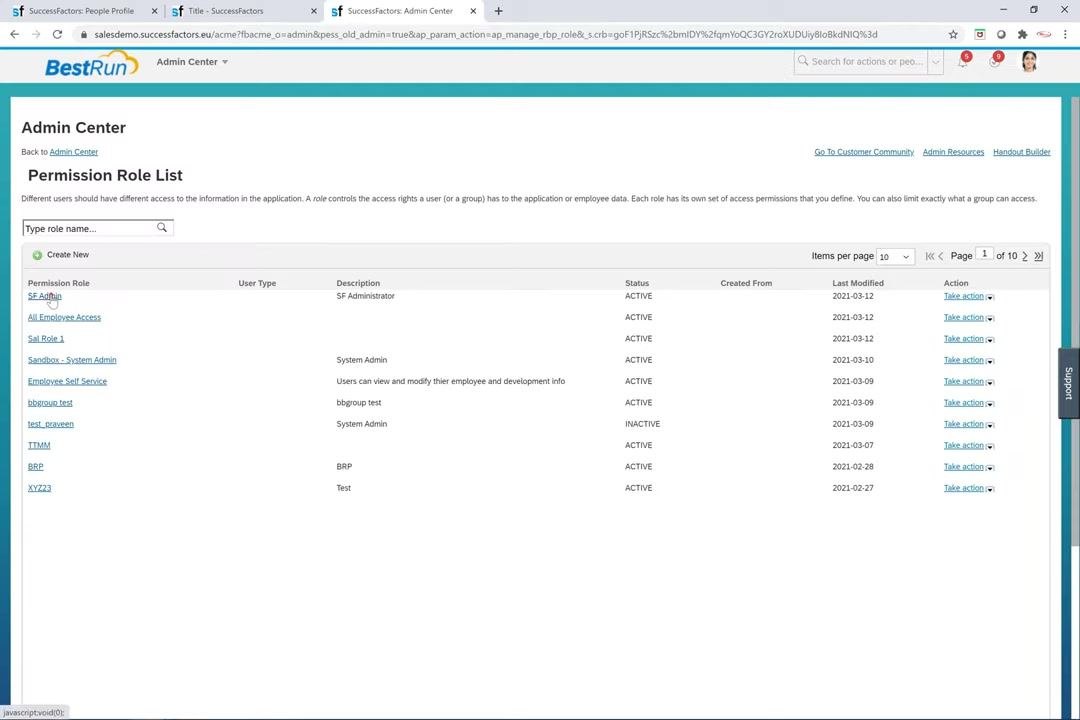
- In the Admin Center, select Manage Permission Roles.
- On the Permission Role List screen, review the available roles with their user types, descriptions, statuses, and actions.
- Locate the role you want to configure, for example
SF Admin.
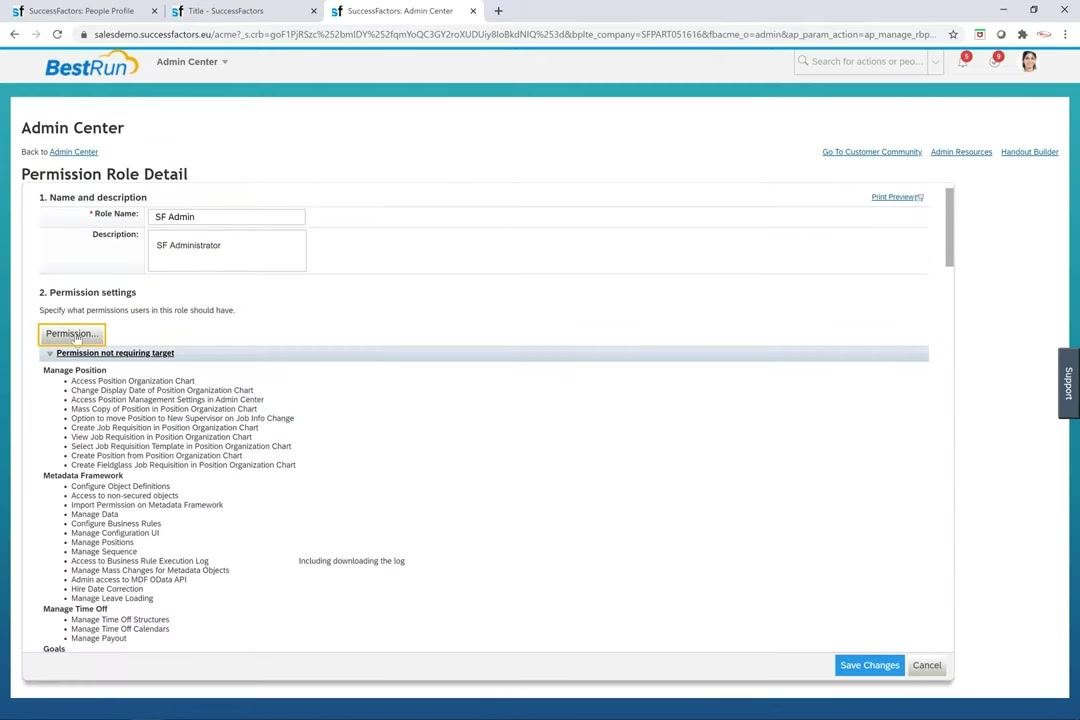
Open the role details
- Click the role name, for example
SF Admin, to open the Permission Role Detail screen. - Under Permission Settings, click the Permission button to view and edit the permissions for the role.
- Review and adjust permissions as needed, such as access to position management, the metadata framework, and other modules.
Configure event reason permissions for employee data
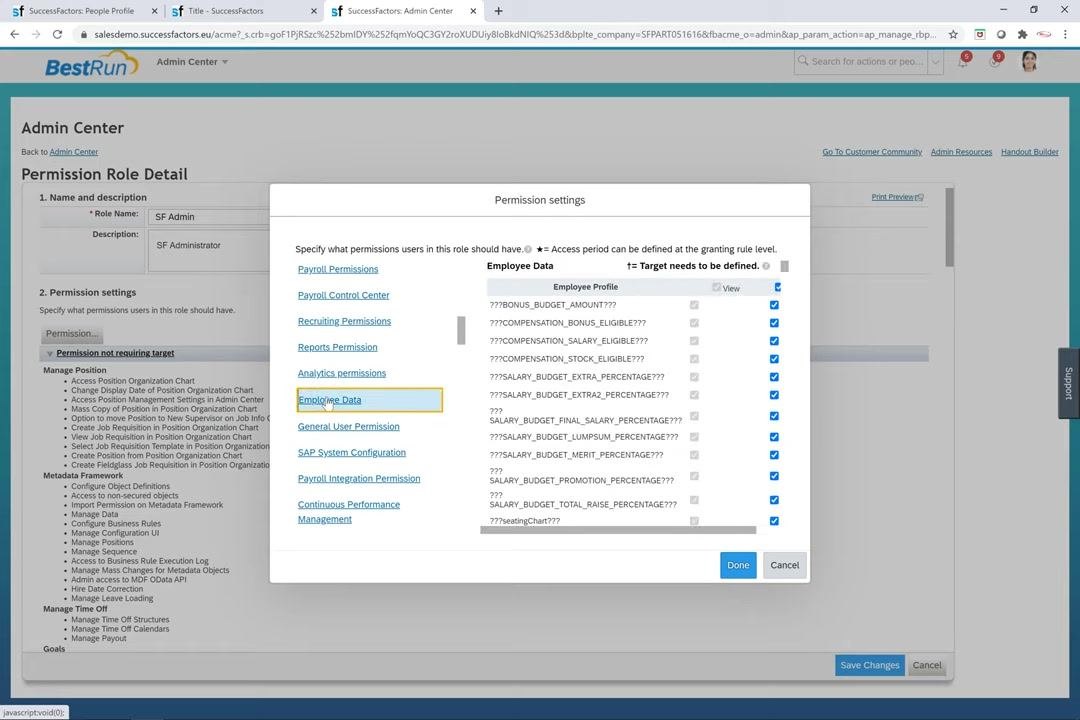
- In the Permission settings dialog, make sure the Employee Data section is selected.
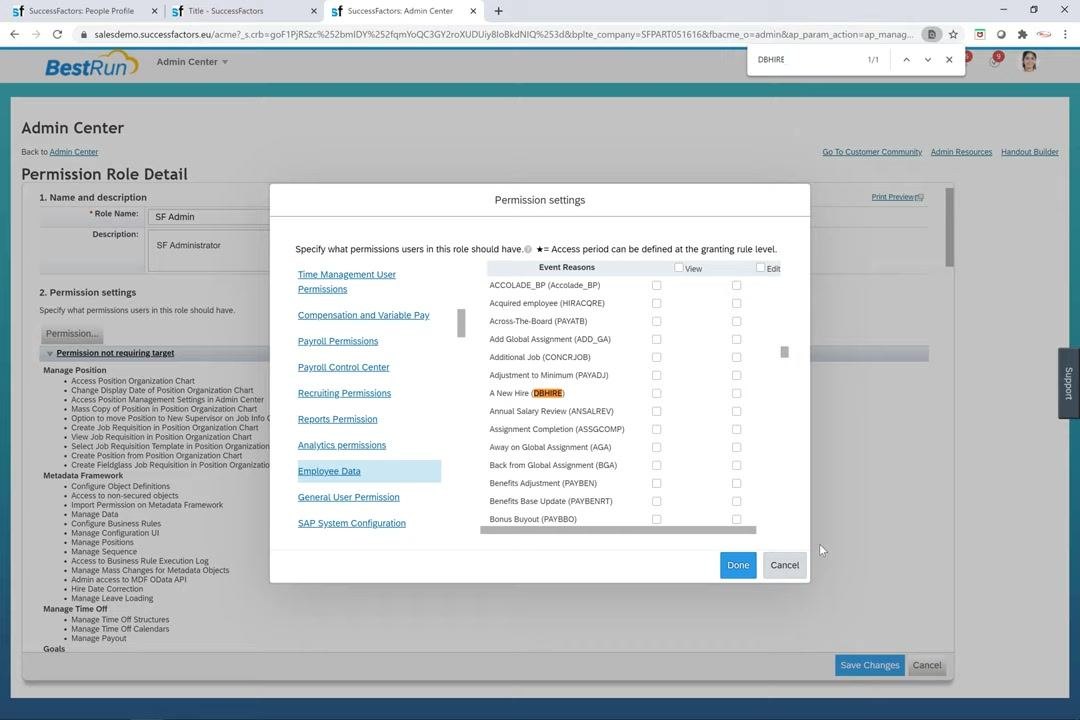
- Locate the Event Reasons column.
- Search for the event reason you want to configure, for example
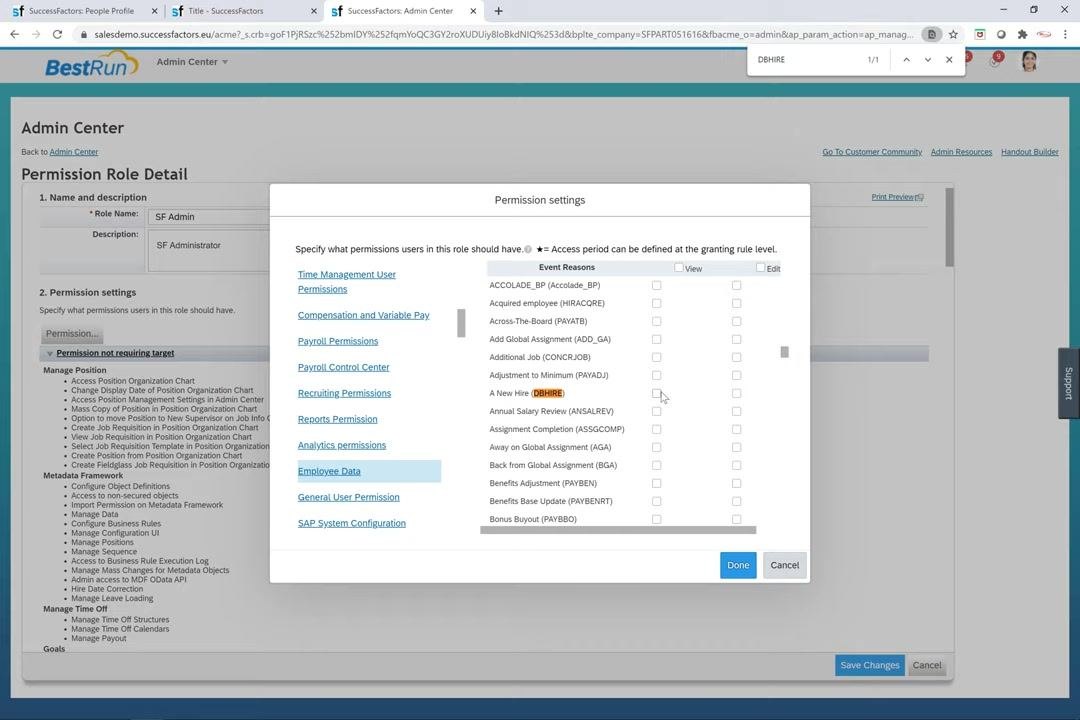
A New Hire (DBHIRE). You can enterDBHIREin the search bar at the top right of the dialog. - Select the appropriate boxes under View and/or Edit to grant the permissions you want.
- Click Done to confirm your selections.
Save the permission settings
- After you change event reasons and picklist external codes, review your permission settings. In the Permission settings dialog, make sure the correct event reasons are selected and the permissions are set as needed.
- Click Done to confirm your selections.
- On the main Permission Role Detail screen, click Save Changes to apply your updates.
Troubleshoot permission changes that don't take effect
If users don't see the permission changes you made, try the following in order:
- Log out of SuccessFactors and log back in to refresh your session and apply the new permissions.
- If the issue persists, clear your browser cache to remove stored data that might cause display issues.
- Try accessing SuccessFactors in a completely different browser to rule out browser-specific caching problems.
Derive event reasons with business rules
Understand the derivation approaches
SuccessFactors supports both XML-based and rules-based approaches for deriving event reasons in job information and compensation information. The XML-based approach derives event reasons for changes to job and compensation data.
A new rules scenario supports "unsafe" rules in the job information and compensation modules. This allows more flexible event reason assignment.
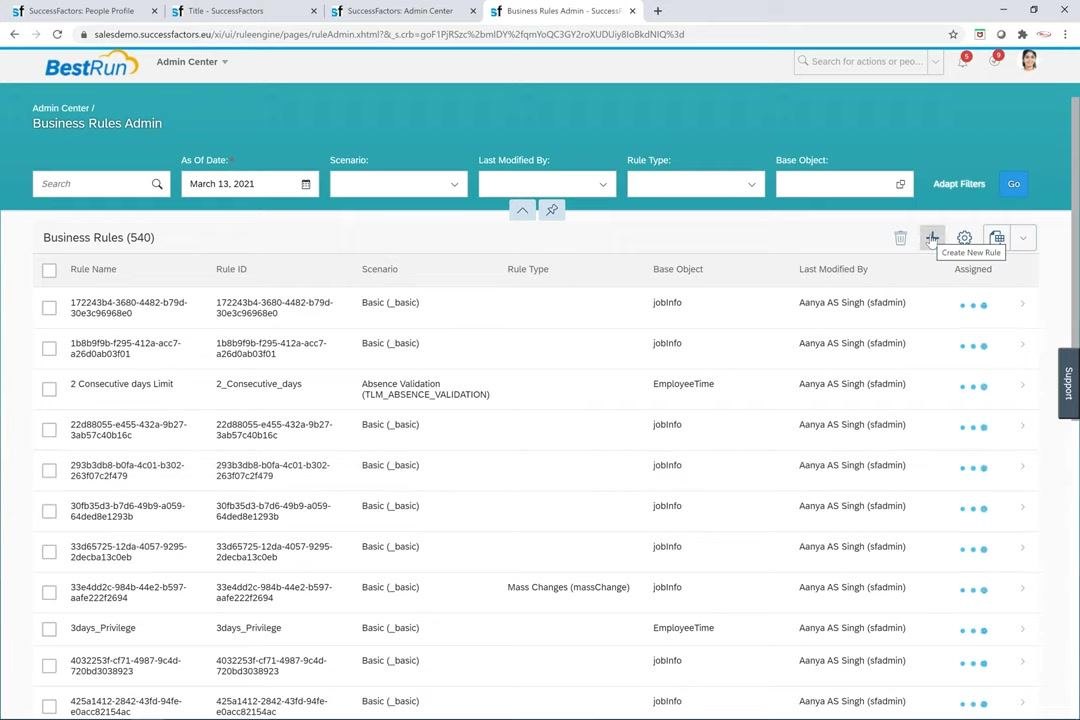
Open Business Rules Admin
Click Business Rules Admin in the Admin Center menu. You see a list of existing business rules with these columns:
- Rule Name
- Rule ID
- Scenario
- Rule Type
- Base Object
- Last Modified By
- Assigned
Use the search and filter options to locate specific rules.
Start a new rule
Click Create New Rule to begin configuring a new business rule. The button is typically at the top right of the Business Rules Admin screen.
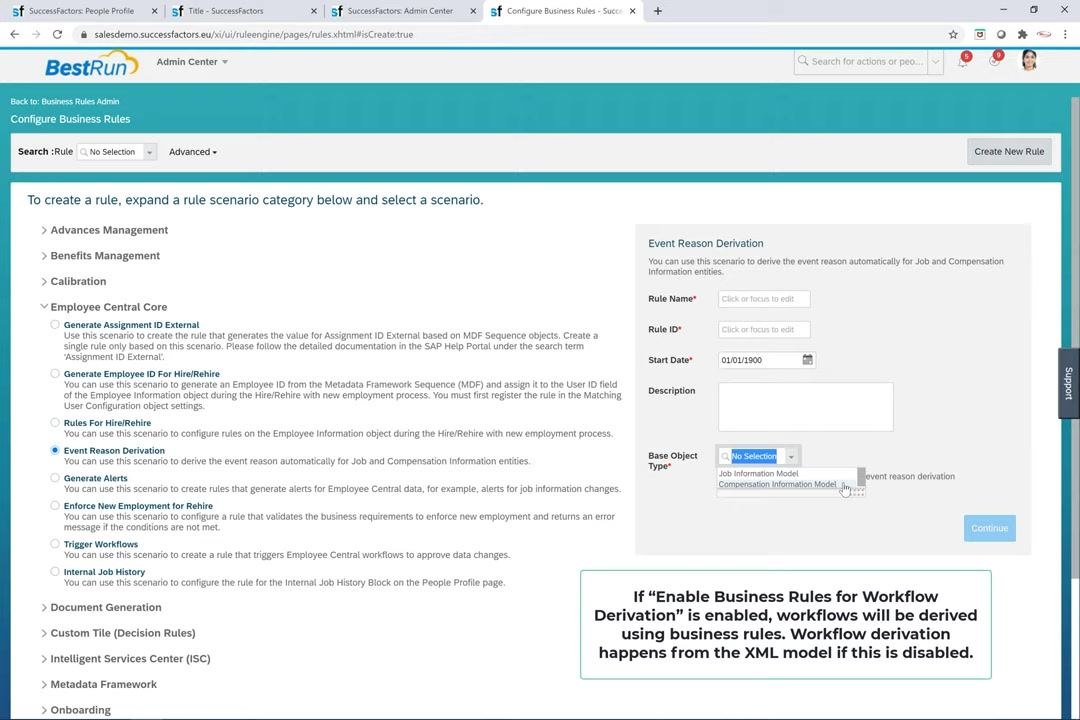
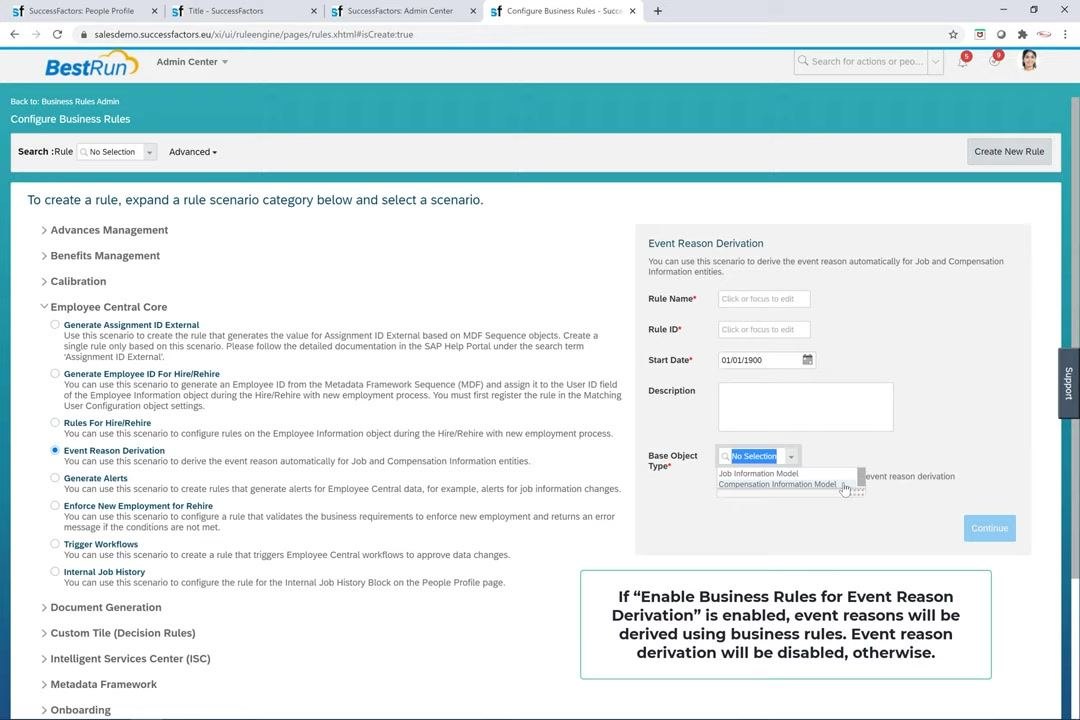
Select the Event Reason Derivation scenario
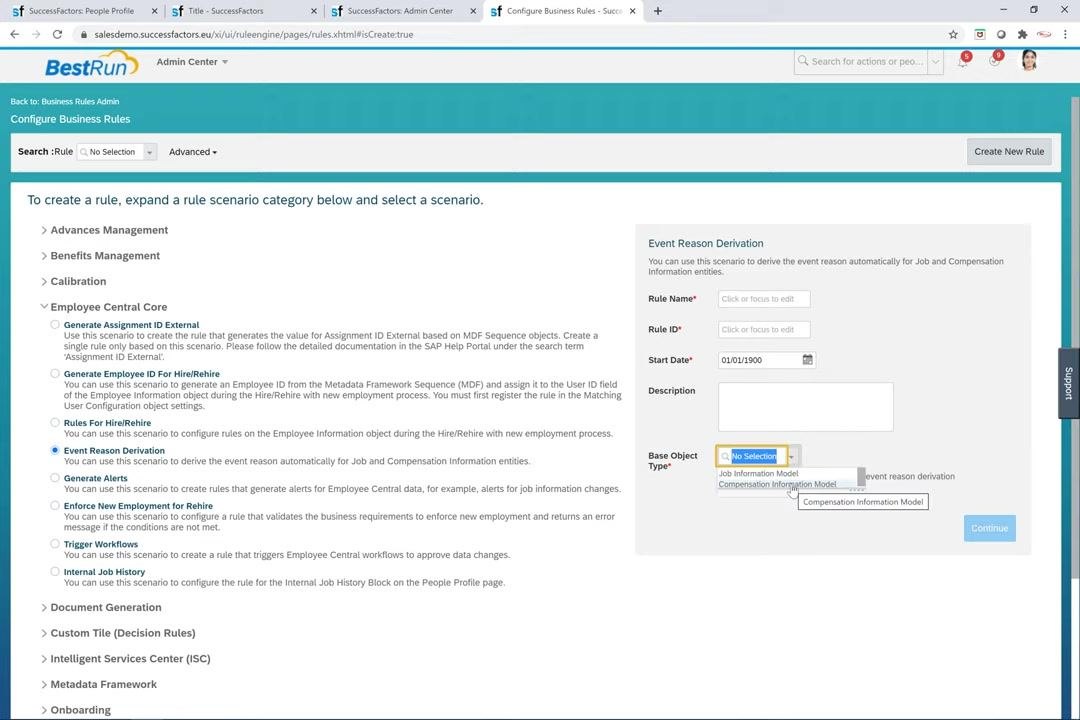
- On the Configure Business Rules screen, review the rule scenario categories, for example Advances Management, Benefits Management, Calibration, and Employee Central Core.
- Expand Employee Central Core to view the related scenarios.
- Click the radio button next to Event Reason Derivation.
This scenario derives the event reason automatically for Job and Compensation Information entities. A description appears and explains how it automates event reason assignment during job or compensation changes.
Enter the rule details
In the Event Reason Derivation panel, enter the following:
- Rule Name: A unique name for your rule.
- Rule ID: A unique identifier for the rule.
- Start Date: The effective start date for the rule. The default is 01/01/1900.
- Description: An optional description.
Choose the base object type
Click the Base Object Type dropdown and select the type that fits your rule. The available options are:
- Job Information Model
- Compensation Information Model
Confirm your selection
Make sure all required fields are filled, then click Continue to proceed with rule creation.
Each business rule is created for a specific object, either Job Information or Compensation Information, and is automatically migrated as needed. For more detail on configuring event reason derivation rules, refer to the SAP documentation.
Recognize migrated rules
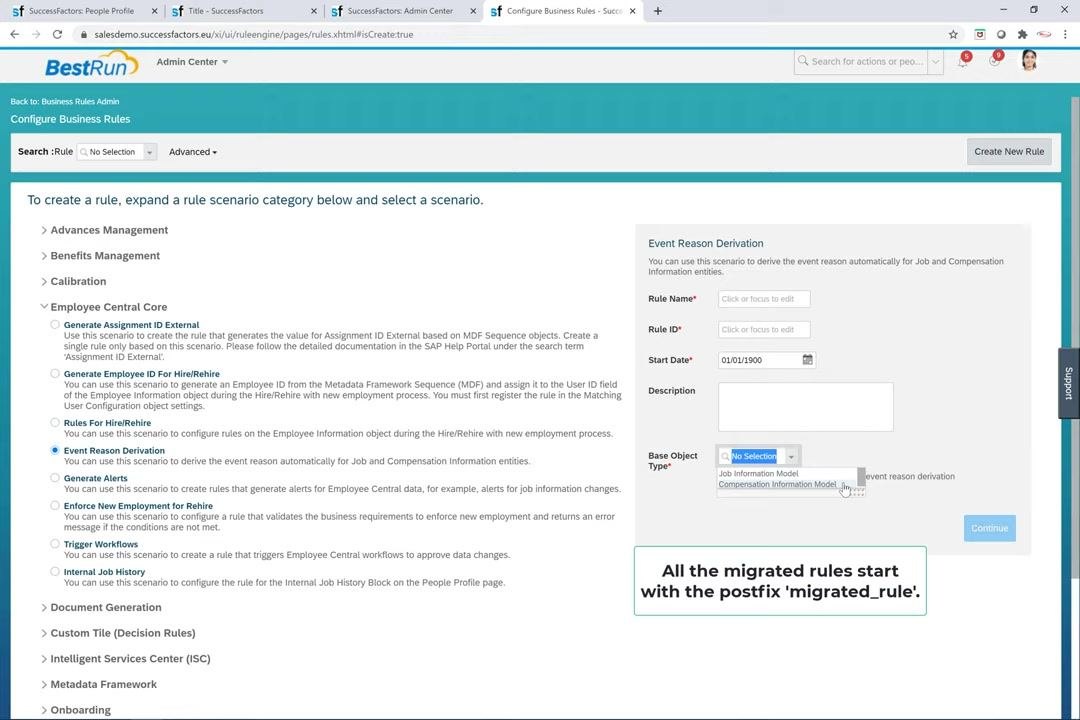
All migrated rules in SAP SuccessFactors start with the postfix migrated_rule. This naming makes it easier to identify, view, and edit migrated rules. A rule with this postfix was migrated as part of the system update.
Understand automatic assignment of new rules
New business rules are automatically assigned to the respective HRIS objects in the system. The correct rules are therefore applied to Job Information or Compensation Information entities without manual intervention.
Review provisioning settings for business rules
Note the removed legacy switch
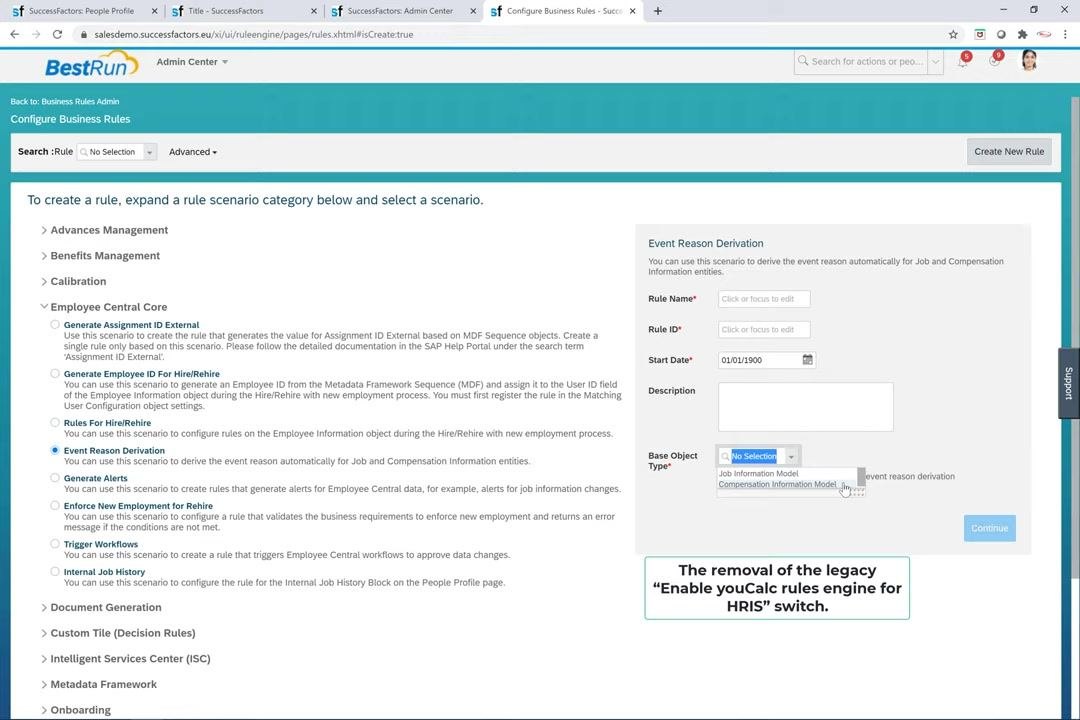
The legacy switch Enable youCalc Rules Engine for HRIS has been removed from the provisioning settings. This streamlines the configuration and removes the dependency on the old rules engine.
Note the decoupled switches
The Enable Business Rules for Event Reason Derivation switch and the other related workflow switches are now decoupled. Enabling or disabling one does not affect the other. This gives you more granular control over rule and workflow derivation.
Understand workflow derivation logic
The Enable Business Rules for Workflow Derivation switch controls how workflows are derived:
- If you enable it, workflows are derived using business rules.
- If you disable it, workflows are derived from the XML model.
Understand event reason derivation logic
The Enable Business Rules for Event Reason Derivation switch controls how event reasons are derived:
- If you enable it, event reasons are derived using business rules.
- If you disable it, event reason derivation is disabled.
Spot test after changes
After you change business rules or provisioning settings, perform spot testing in all instances. This confirms that event reason and workflow derivation work as expected in your SAP SuccessFactors environment.
Summary
You now know how to create an event reason in SuccessFactors. You entered the event reason details, checked the positionActionType picklist, and configured the follow-up activity, internal job history display, and Payroll Event field. You then granted permissions for the new event reason. You also reviewed how event reason derivation works with business rules and how the provisioning switches affect it.
What's next
- Create a business rule with the Event Reason Derivation scenario to automate event reason assignment for job or compensation changes.
- Look for rules with the migrated_rule postfix to review migrated rules.
- Perform spot testing in all instances after you change business rules or provisioning settings.
- Refer to the SAP documentation for more detail on configuring event reason derivation rules.
Generation details: cost, quality tiers
Docsie billed 7,000 credits ($4.90) to analyze this 14-minute video at standard quality. The rewrite, template fill and Word/PDF exports were included. The same video at each quality tier:
| Quality | Frames sampled | Credits | Approx. cost |
|---|---|---|---|
| Draft | every 16-30 s | 3,500 | $2.45 |
| Standard (this guide) | every 8-15 s | 7,000 | $4.90 |
| Detailed | every 4-7 s | 14,000 | $9.80 |
| Ultra | every 1-3 s | 28,000 | $19.60 |
Credits priced at $0.70 per 1,000; plans include a monthly allowance. Enterprise customers on on-premise or bring-your-own-model deployments run this on their own inference and pay no per-video credits.
Generated by Docsie Video-to-Docs on 2026-11-01 from a 13-minute video. Screenshots are frames from the source video and belong to their creator, Web World Design, whose original is embedded above. If you own this video and want the guide removed or credited differently, contact us and we will act within one business day.