
How to Complete One-step Sales Order Processing in Acumatica
This guide shows you how to complete one-step sales order processing in Acumatica using the Quick Process feature. You'll learn how to configure Quick Process settings for an order type, create a new sales order, and process shipment, inventory, and invoicing tasks in a single action — ideal for situations where a customer is present and waiting for immediate fulfillment.
Video: Acumatica - One Step Sales Order Processing by Gregg's Videos (2019). All credit for the demonstration goes to the creator; watch the original on YouTube. The written guide below was generated from this video by Docsie. Creator? Request a change or removal.
This guide shows you how to complete one-step sales order processing in Acumatica using the Quick Process feature. You'll learn how to configure Quick Process settings for an order type, create a new sales order, and process shipment, inventory, and invoicing tasks in a single action — ideal for situations where a customer is present and waiting for immediate fulfillment.
Prerequisites
- An active Acumatica account with access to the Sales Orders module.
- Permission to edit Order Types under Preferences.
- At least one inventory item and customer record set up in the system.
Log in to Acumatica
Launch Acumatica and log in to your account. The dashboard displays widgets such as Cash On-Hand, Cash Required, Overdue Payments, and Top Overdue Balances. The left navigation menu gives you access to modules including Favorites, Data Views, Time and Expenses, Finance, Banking, Projects, Payables, Receivables, Sales Orders, Purchases, Inventory, and Dashboards.
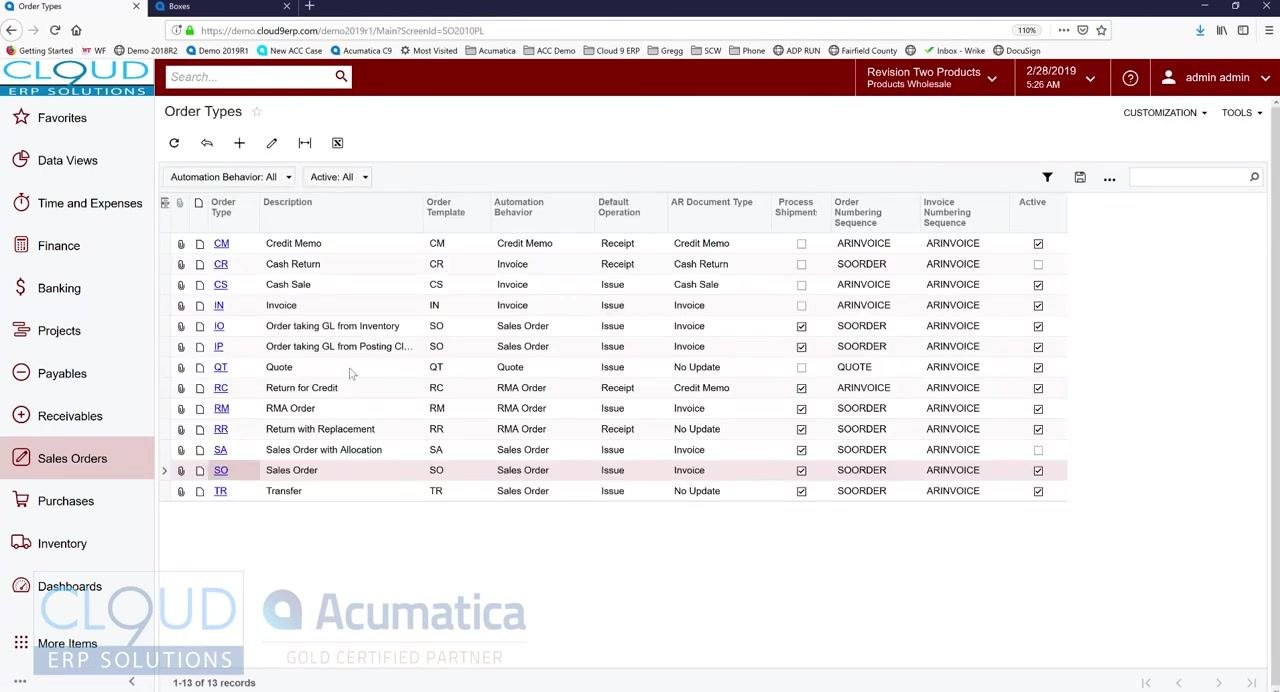
Open order types
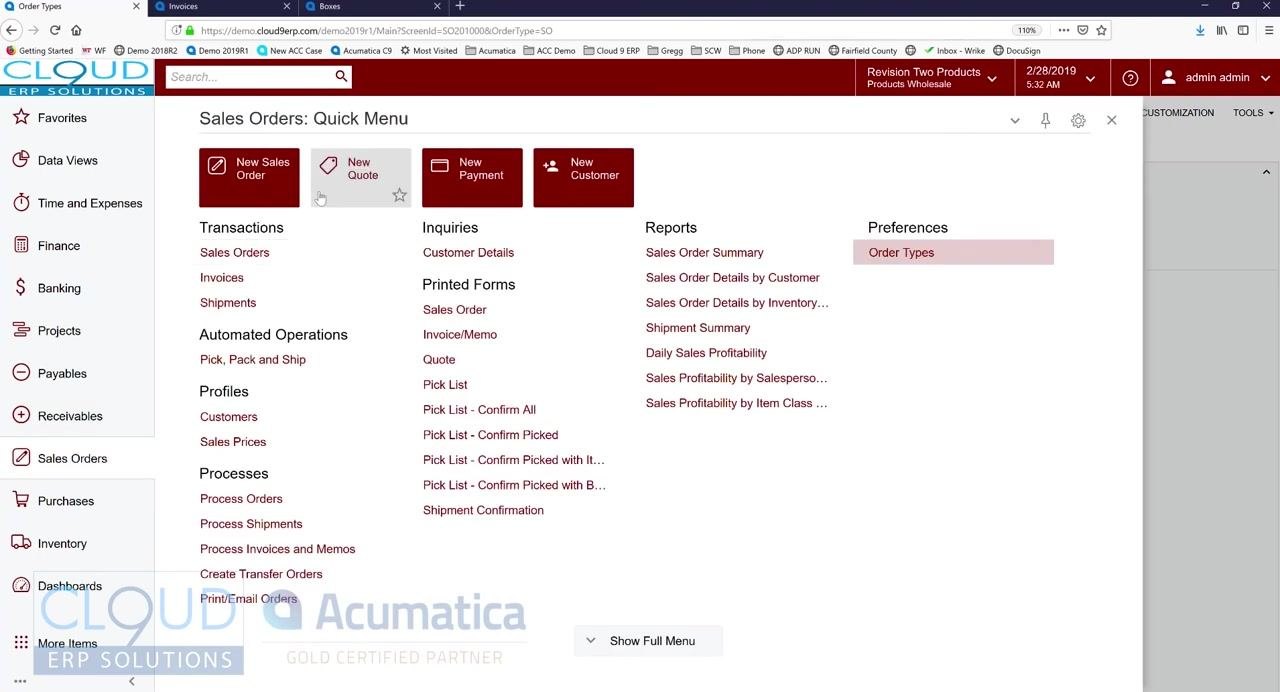
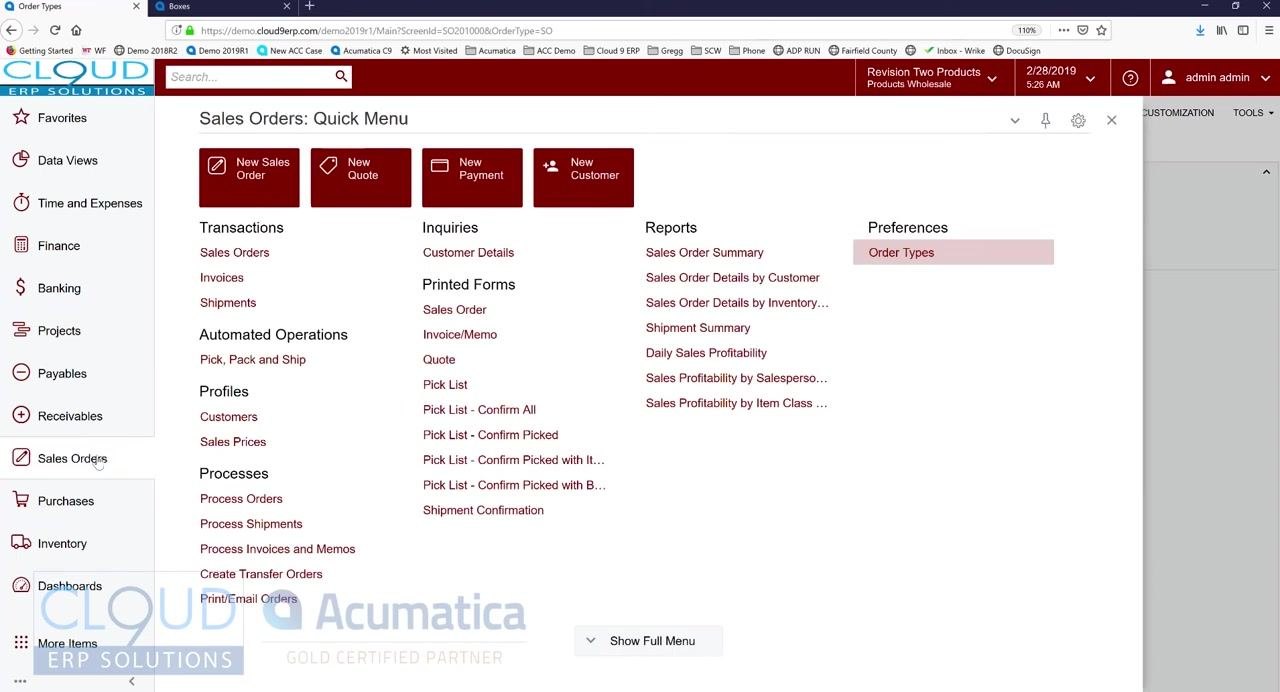
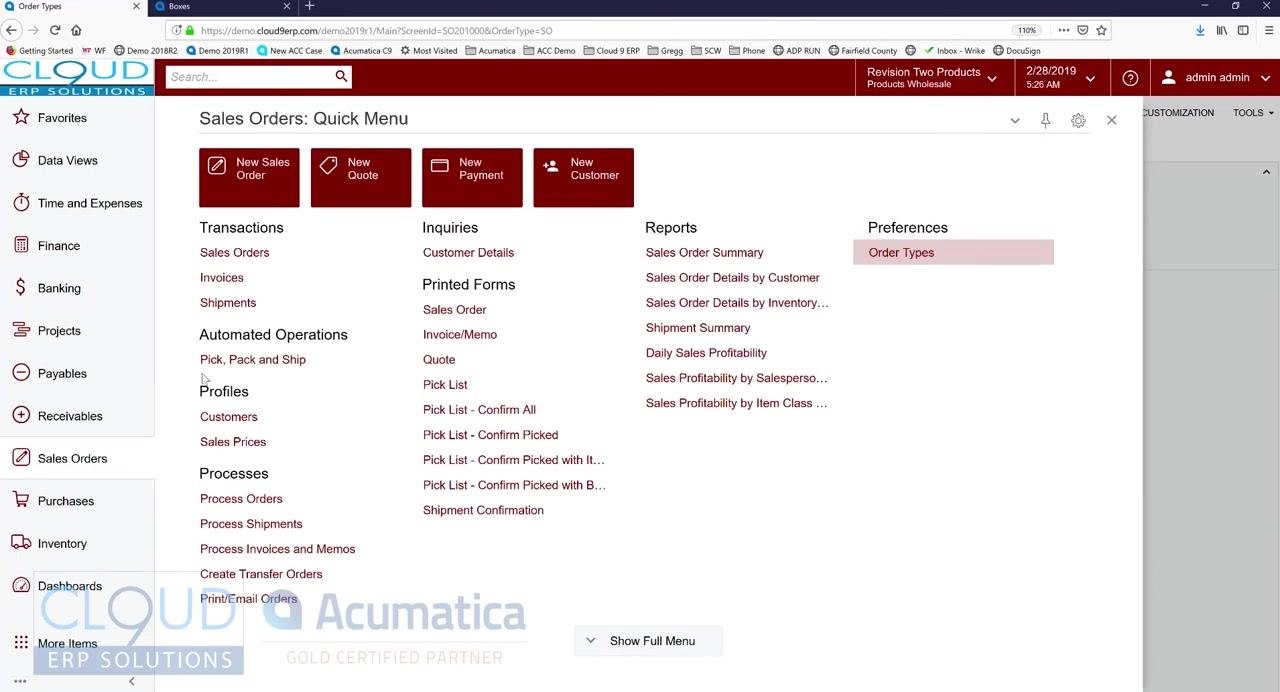
Go to the Sales Orders: Quick Menu. Under Preferences, click Order Types.
In the Order Types screen, select the order type you want to configure — for example, SO for Sales Order. Click the QUICK PROCESS SETTINGS tab to begin setting up one-step processing for this order type.
Review general and template settings
The Order Type SO screen displays tabs for General Settings, Template Settings, and Quick Process Settings. The General Settings tab includes fields for Order Numbering Sequence, Days To Keep, and various checkboxes for order and posting settings.
Click the Template Settings tab and locate the checkbox that enables Quick Process Settings. Make sure this checkbox is selected so the Quick Process Settings tab becomes active.
Configure quick process steps
In the Quick Process Settings tab, check the boxes for each step you want Quick Process to perform automatically:
- Create Shipment (checked by default)
- Print Pick List
- Prepare Invoice
- Email Invoice
- Release Invoice
- Update IN (inventory)
If you use Acumatica DeviceHub for automated printing, check Print with DeviceHub. You can also define printers manually if needed.
Save your configuration
Click SAVE & CLOSE to apply your Quick Process settings for the selected order type.
Start a new sales order
Return to the Sales Orders: Quick Menu and click New Sales Order to start a new order.
Enter the order header details
Fill in the required order details:
- Order Type: SO
- Customer: ABARTENDE - USA Bartending School
- Location: MAIN - Primary Location
- Currency: USD, Rate: 1.00
- Date: 2/28/2019
- Requested On: 2/28/2019
- Project: X - Non-Project Code
- Status: Open
Add a line item in document details
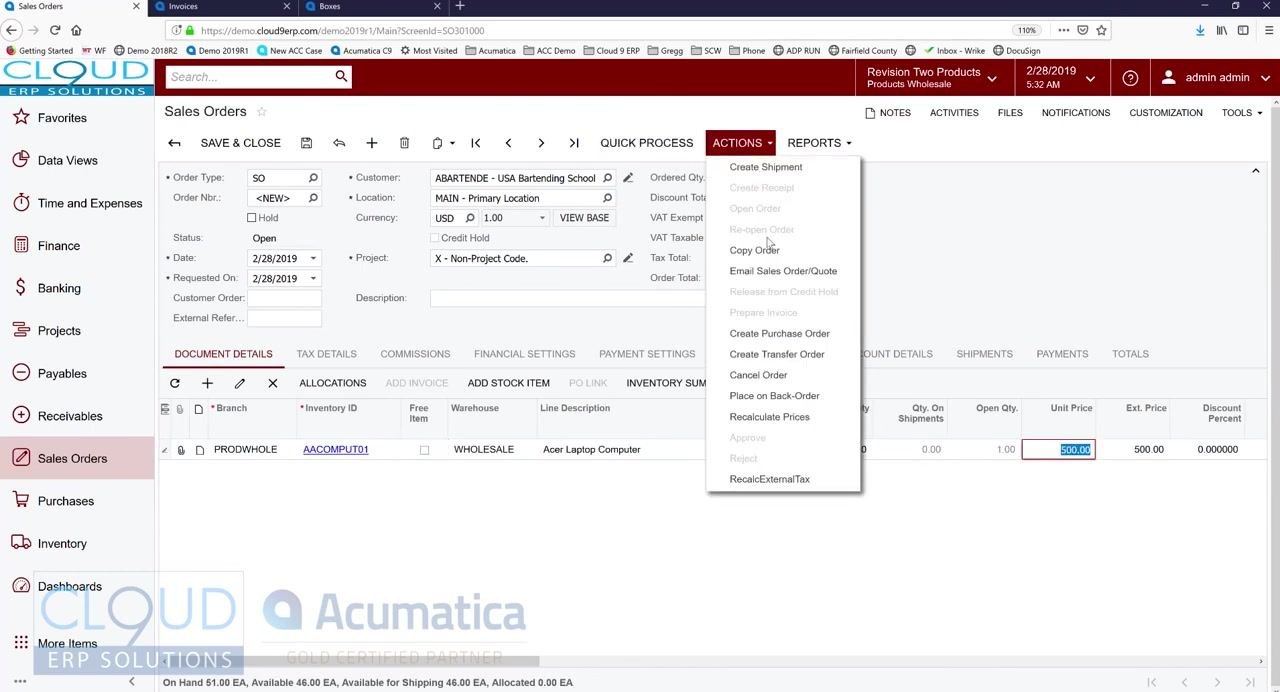
In the Document Details section, add a line item. Set the Branch to PRODWHOLE and select the appropriate Inventory ID for the item you want to sell.
Complete the line item details:
- Inventory ID: AACOMPUT01
- Warehouse: WHOLESALE
- Line Description: Acer Laptop Computer
- UOM: EA (Each)
- Quantity: 1.00
- Unit Price: 500.00
- Ext. Price: 500.00
- Discount Percent: 0.000000
Run quick process for one-step order fulfillment
Use the Quick Process feature when you need to complete all order fulfillment steps in one go — for example, when the customer is present and waiting. Quick Process automates multiple steps that would otherwise require separate manual actions.
Instead of processing each step individually, click the QUICK PROCESS button at the top of the screen. This button is located in the toolbar above the order details, next to ACTIONS and REPORTS. Clicking it streamlines the entire order processing workflow into one step.
Confirm processing options
In the Process Order dialog that appears, confirm the Warehouse ID is set to "WHOLESALE - HQ Wholesale Warehouse." Set the Shipment Date to "Custom" and enter "2/28/2019."
Under Shipping, ensure the following options are checked:
- Create Shipment
- Print Pick List
- Confirm Shipment
- Print Labels
- Print Shipment Confirmation
- Update IN
Under Invoicing, ensure the following options are checked:
- Prepare Invoice
- Print Invoice
- Email Invoice
- Release Invoice
Click OK to process the order.
Review the processing results
Wait for the system to process the order. A Processing Results dialog appears confirming successful completion, displaying the message "The document is successfully processed." The following documents are created, each with a clickable link:
- Shipment: 001772
- Inventory Document: 002009
- Invoice: AR005798
Click OK to close the dialog.
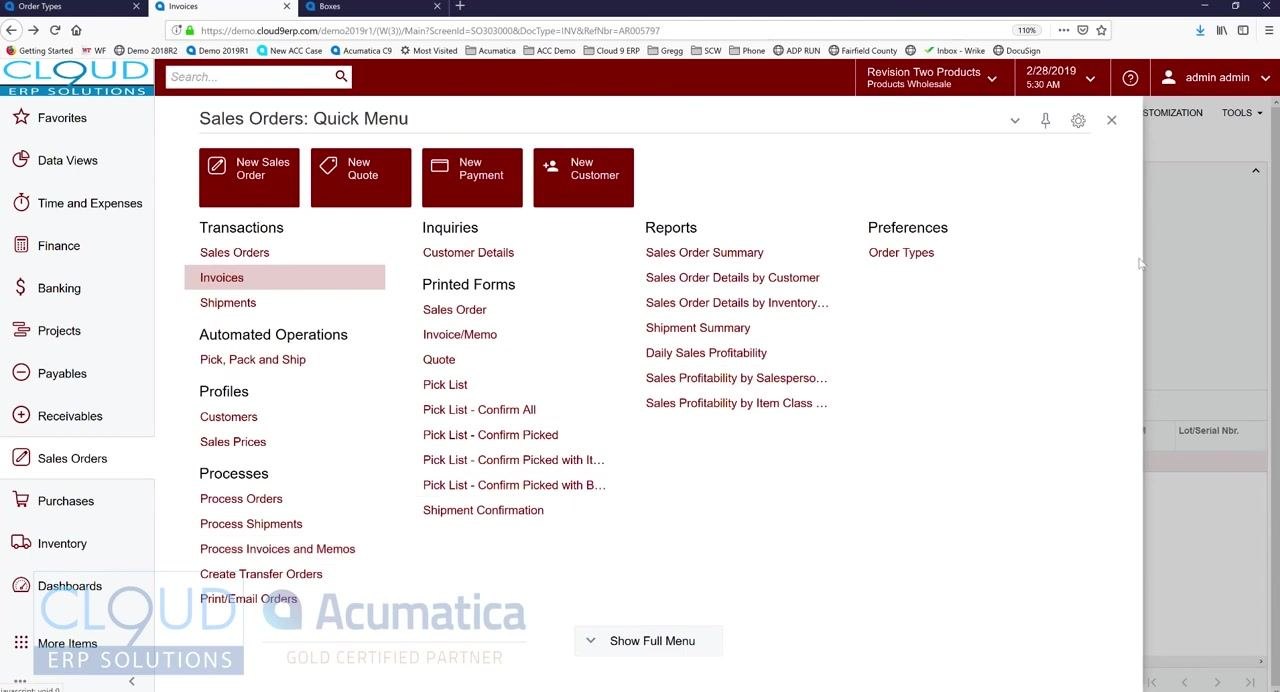
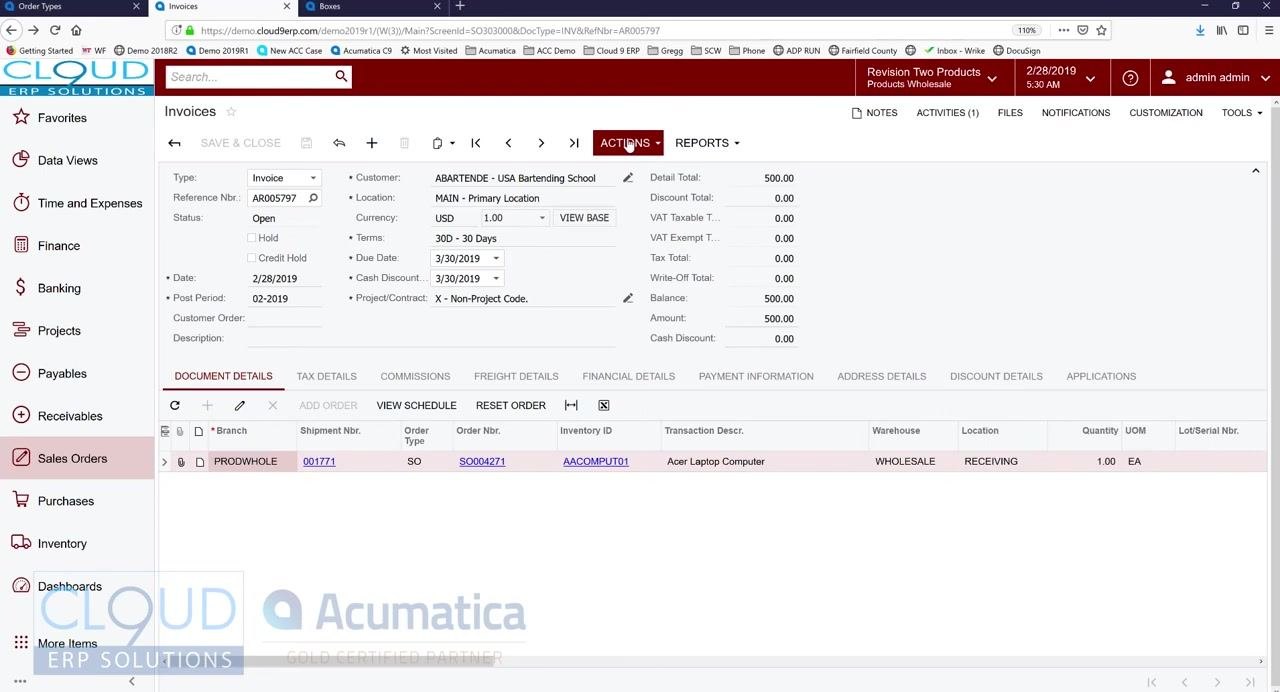
Review the generated invoice
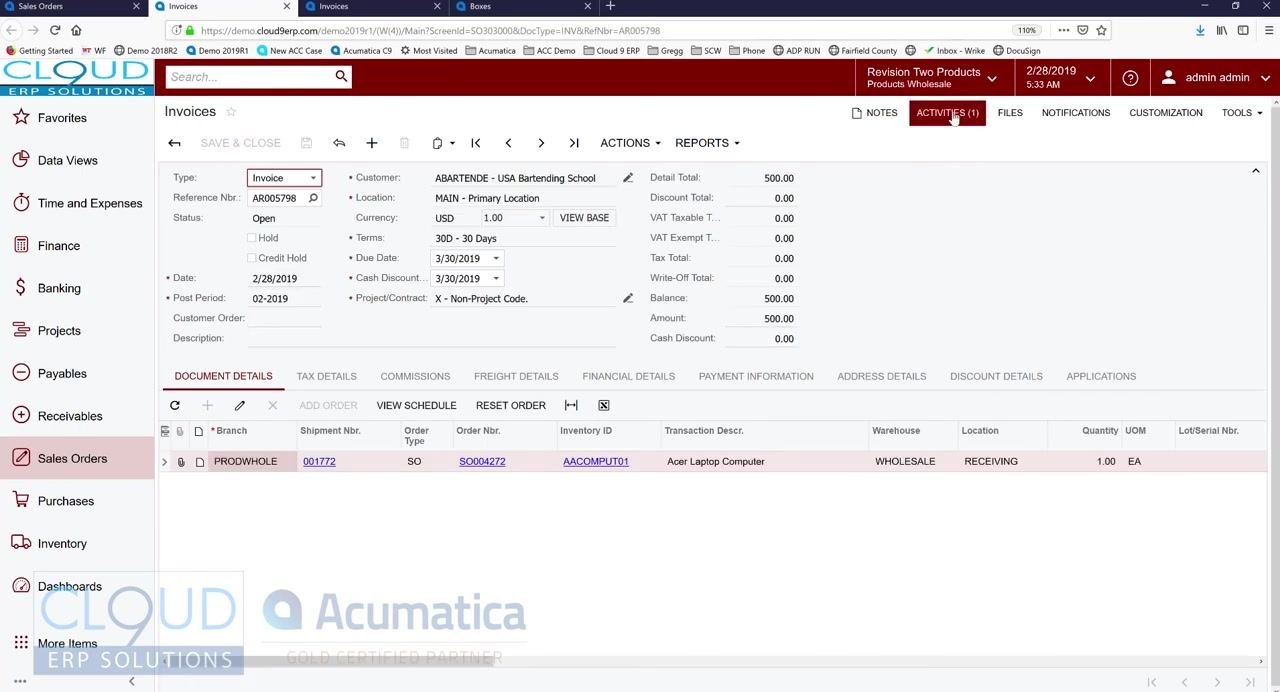
The system automatically navigates to the Invoices screen, where the invoice details are displayed:
- Type: Invoice
- Reference Nbr.: AR005798
- Status: Open
- Customer: ABARTENDE - USA Bartending School
- Location: MAIN - Primary Location
- Amount: 500.00
- Due Date: 3/30/2019
- Order Nbr.: SO004272
- Inventory ID: AACOMPUT01
- Transaction Description: Acer Laptop Computer
- Warehouse: WHOLESALE
- Location: RECEIVING
- Quantity: 1.00 EA
The shipment number (001772) and order number (SO004272) are linked on the invoice for easy reference.
Confirm the invoice was sent
Since the Email Invoice option was checked during quick processing, the customer automatically receives the invoice for their review — no separate send step is required.
Optional: Process orders in batch
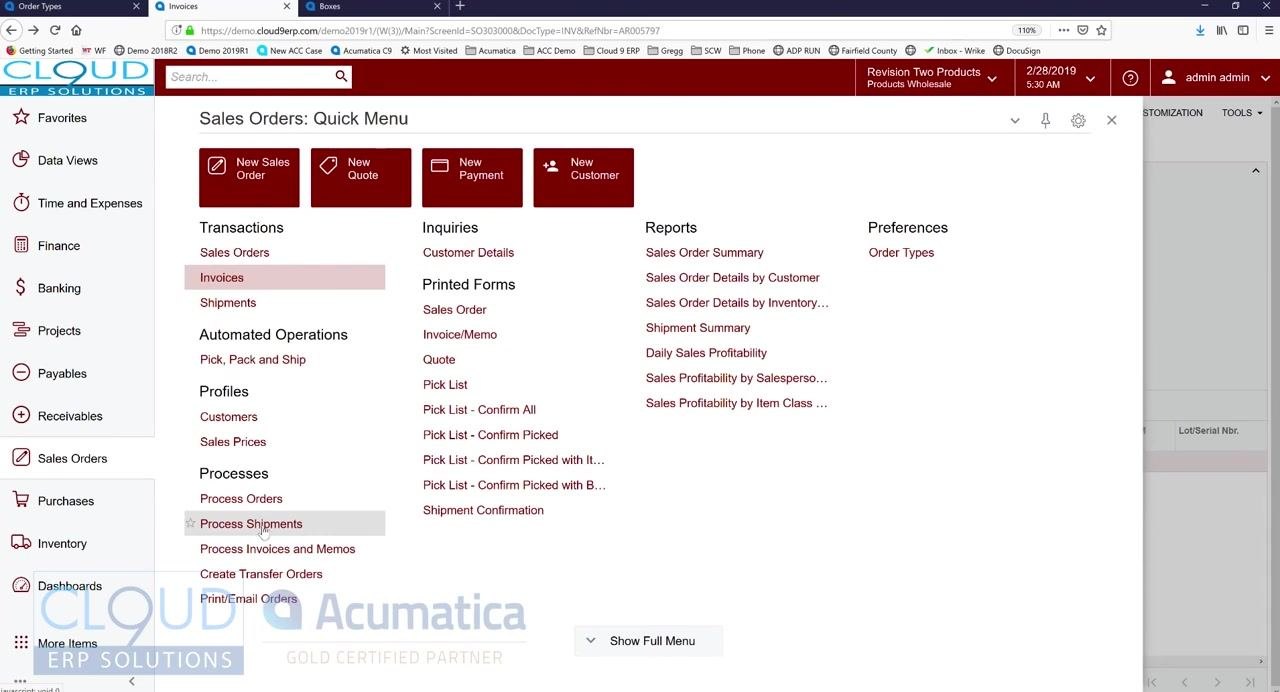
Acumatica also allows you to process multiple orders, shipments, or invoices in bulk rather than one at a time. Navigate to the Sales Orders: Quick Menu and, under the Processes section, select options such as:
- Process Orders
- Process Shipments
- Process Invoices and Memos
These processes can be scheduled or assigned to different users, enabling automation or division of labor across your team.
What's next
By following these steps, you can process a sales order from creation through shipment and invoicing in a single action using Quick Process, with the option to switch to batch processing when you need to handle multiple orders at once.
Generation details: cost, quality tiers
Docsie billed 3,500 credits ($2.45) to analyze this 7-minute video at standard quality. The rewrite, template fill and Word/PDF exports were included. The same video at each quality tier:
| Quality | Frames sampled | Credits | Approx. cost |
|---|---|---|---|
| Draft | every 16-30 s | 1,750 | $1.22 |
| Standard (this guide) | every 8-15 s | 3,500 | $2.45 |
| Detailed | every 4-7 s | 7,000 | $4.90 |
| Ultra | every 1-3 s | 14,000 | $9.80 |
Credits priced at $0.70 per 1,000; plans include a monthly allowance. Enterprise customers on on-premise or bring-your-own-model deployments run this on their own inference and pay no per-video credits.
Generated by Docsie Video-to-Docs on 2026-10-25 from a 6-minute video. Screenshots are frames from the source video and belong to their creator, Gregg's Videos, whose original is embedded above. If you own this video and want the guide removed or credited differently, contact us and we will act within one business day.