
How to Create a Picklist in SuccessFactors
This guide shows you how to create a picklist in SuccessFactors using the Picklist Center. You first create a parent picklist for states and add values to it. You then create a child picklist for districts, link it to the states picklist, and map each district to its state.
Video: Creating Pick List in Employee central Success Factor by SJ Tech(Shivika) (2020). All credit for the demonstration goes to the creator; watch the original on YouTube. The written guide below was generated from this video by Docsie. Creator? Request a change or removal.
This guide shows you how to create a picklist in SuccessFactors using the Picklist Center. You first create a parent picklist for states and add values to it. You then create a child picklist for districts, link it to the states picklist, and map each district to its state.
Prerequisites
Before you begin, make sure you have:
- A SuccessFactors login that gives you access to the Home screen and the Picklist Center, which is available under the Admin Center.
- The picklist details you want to enter: a code, a name, and the values you plan to add.
Create the parent picklist
Open the SuccessFactors Home screen
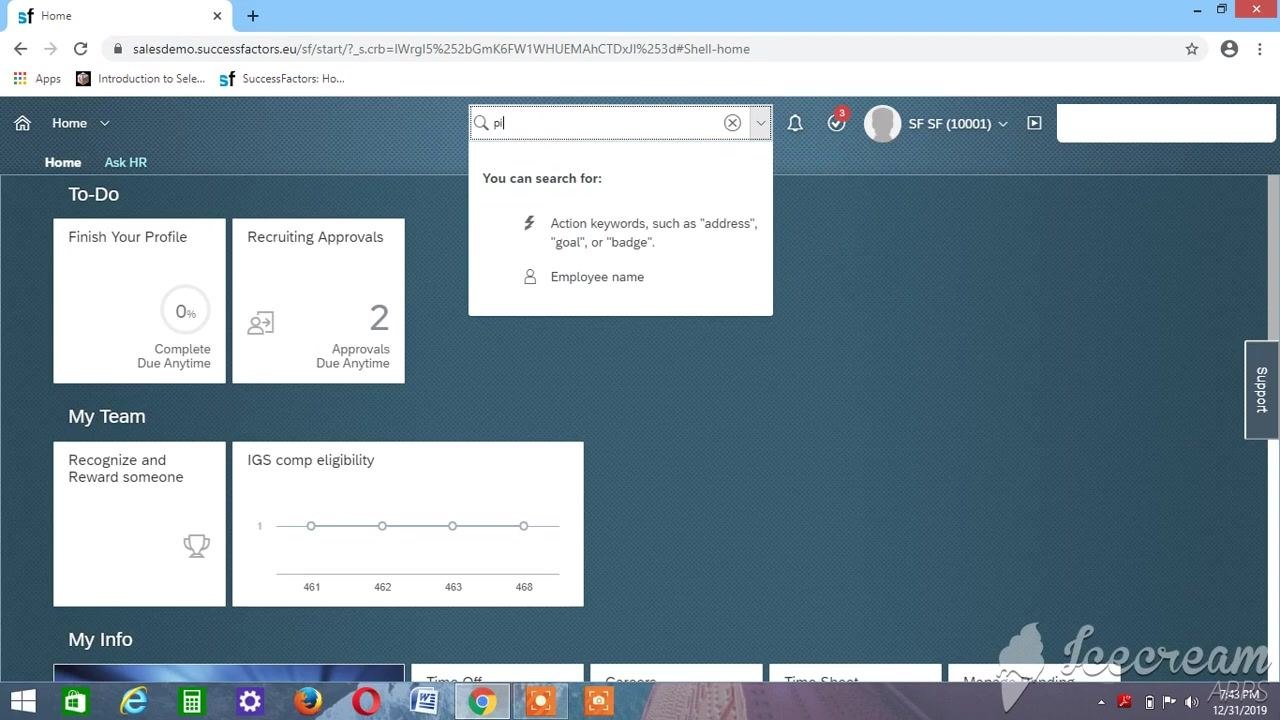
Log in to SuccessFactors. The Home screen displays widgets such as To-Do, My Team, and My Info.
Search for the Picklist Center
Click the search bar at the top of the screen and start typing "pl". Search suggestions appear below the search bar.
Open the Picklist Center
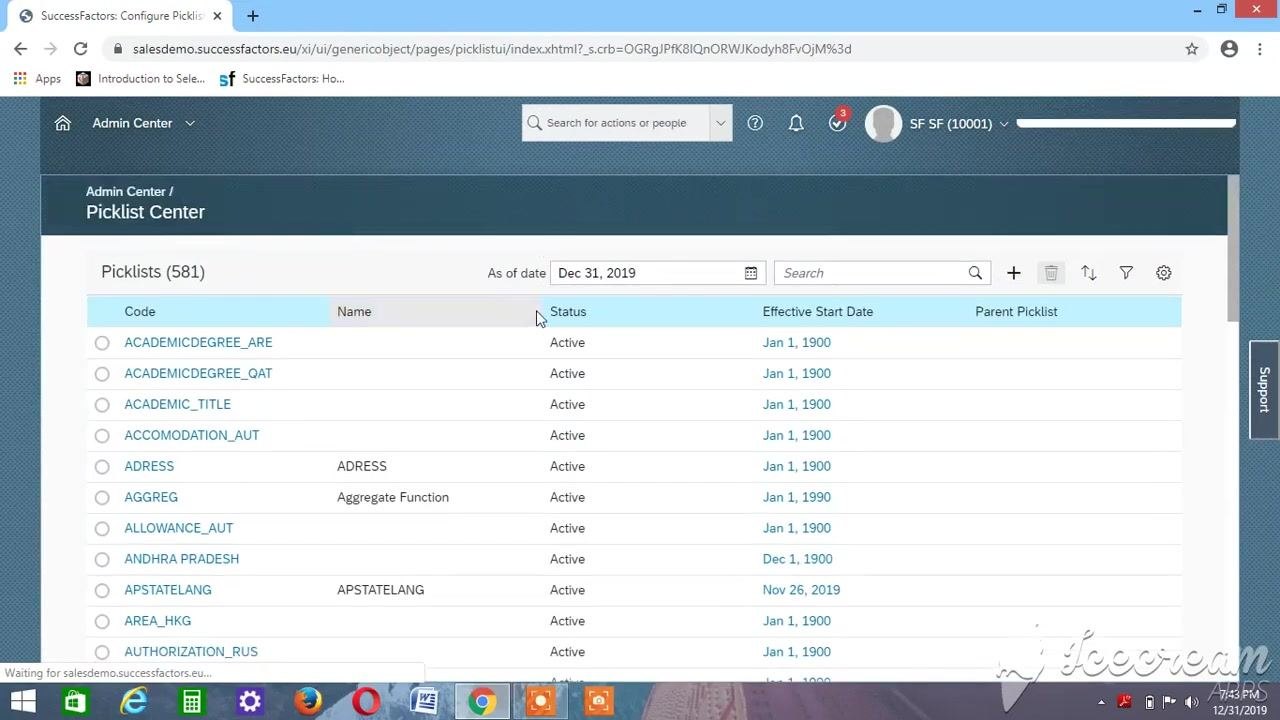
Select Picklist Center from the search results. The screen lists existing picklists with the columns Code, Name, Status, Effective Start Date, and Parent Picklist. Confirm that the "As of date" is set (for example, Dec 31, 2019).
Start creating a new picklist
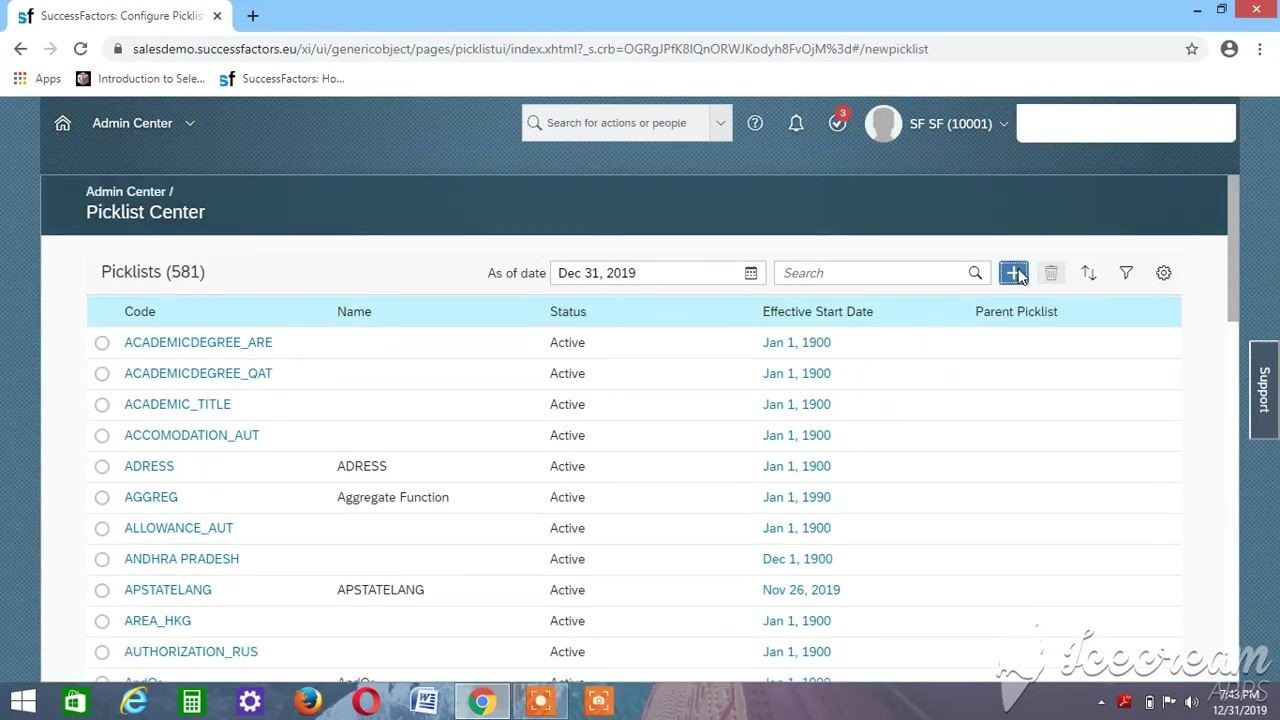
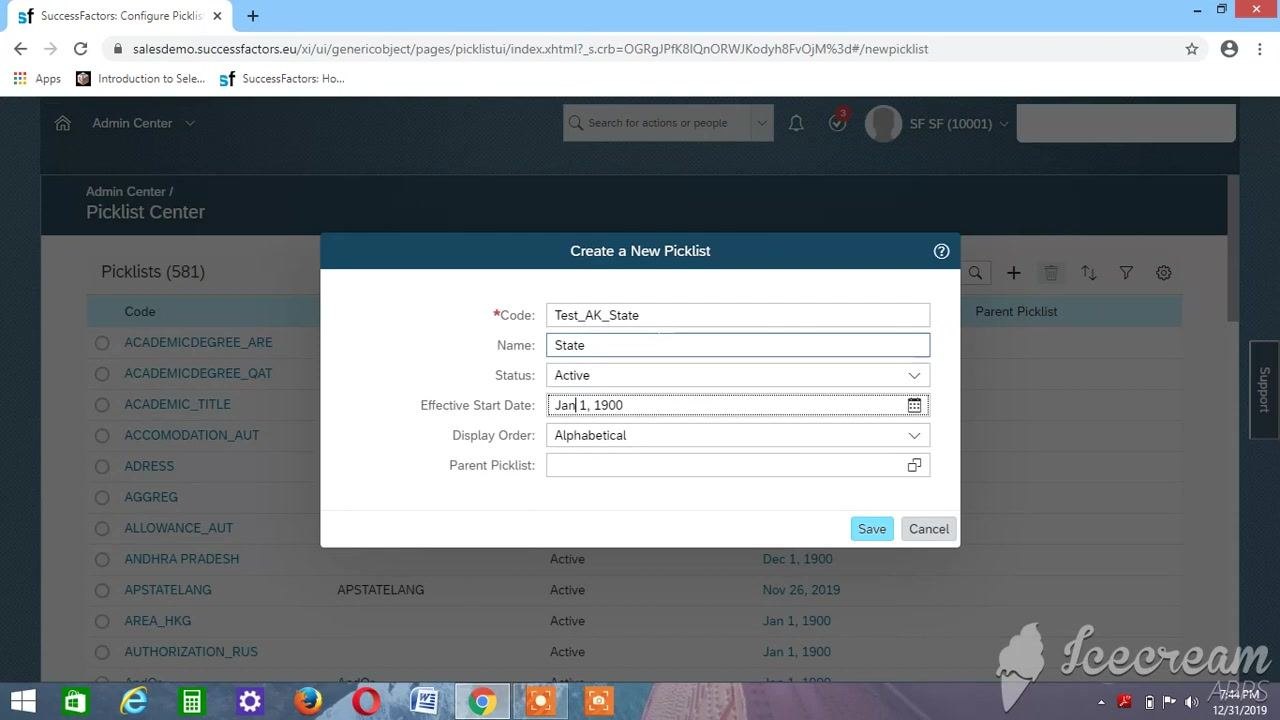
Click the + (plus) icon. The Create a New Picklist dialog opens with fields for Code, Name, Status, Effective Start Date, Display Order, and Parent Picklist.
Enter the picklist details
This example creates a picklist named State. Fill in the dialog as follows:
- In the Code field, enter
Test_AK_State. - In the Name field, enter
State. - Make sure Status is set to
Active. - Set Display Order to
Alphabetical. - Leave Parent Picklist blank, unless you are creating a hierarchical picklist.
The Effective Start Date defaults to the current date (for example, Dec 31, 2019).
Set the Effective Start Date to the standard value
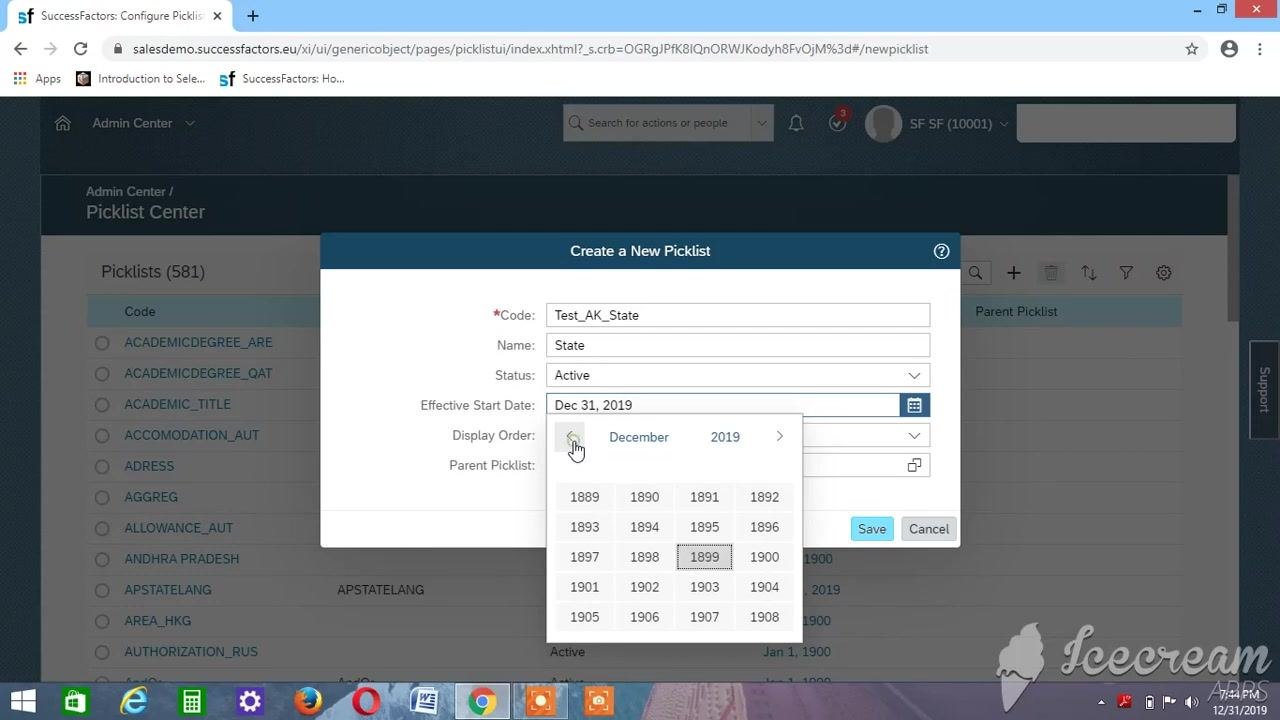
Click the calendar icon next to the Effective Start Date field. In the date picker, navigate to the year 1900 and select January 1, 1900.
Review the picklist details
Check that the dialog shows these values:
- Code:
Test_AK_State - Name:
State - Status:
Active - Effective Start Date:
Jan 1, 1900 - Display Order:
Alphabetical - Parent Picklist: blank
Save the picklist
The saved picklist in this example has the code Test_AK_State1, and later steps refer to it by that code. Confirm these values in the dialog, then click Save:
- Code:
Test_AK_State1 - Name:
State - Status:
Active - Effective Start Date:
Jan 1, 1900 - Display Order:
Alphabetical - Parent Picklist: blank for now
Verify the picklist was created
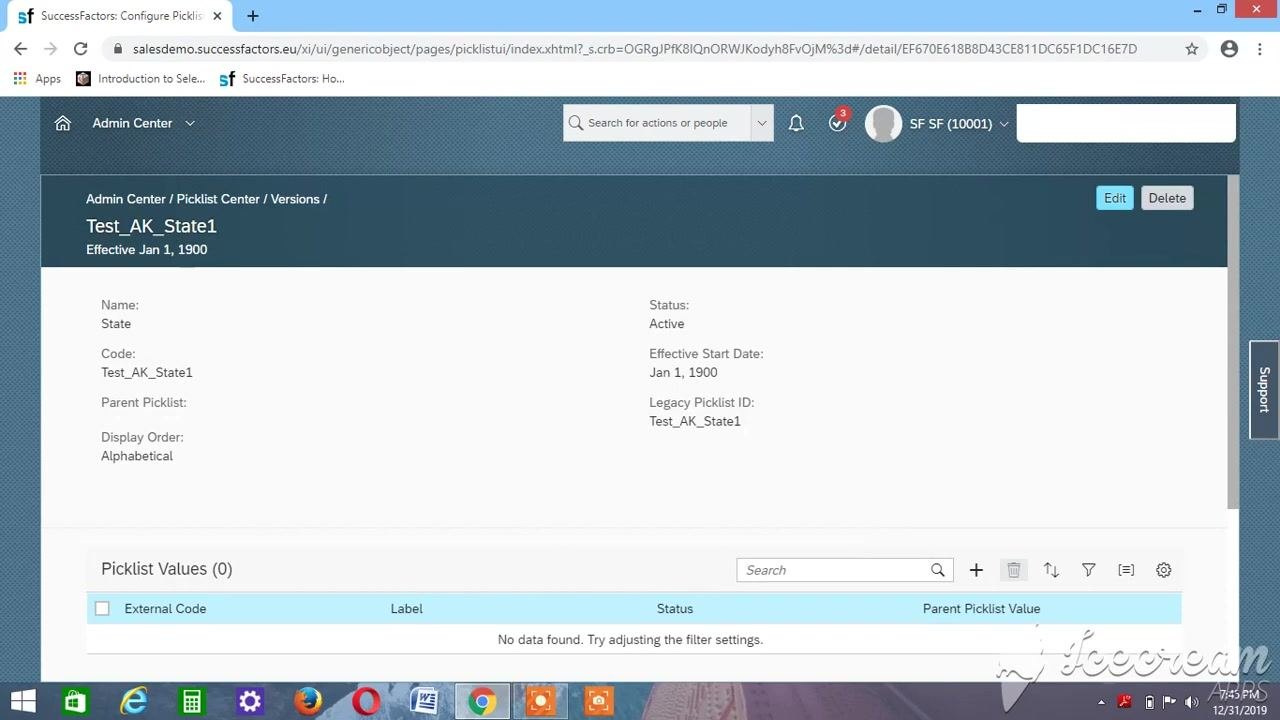
After you save, SuccessFactors opens the picklist details page. Confirm that it shows:
- Name: State
- Code: Test_AK_State1
- Status: Active
- Effective Start Date: Jan 1, 1900
- Display Order: Alphabetical
- Parent Picklist: blank
The Picklist Values section shows "No data found" because you haven't added any values yet.
Add values to the parent picklist
Open the Add New Value dialog
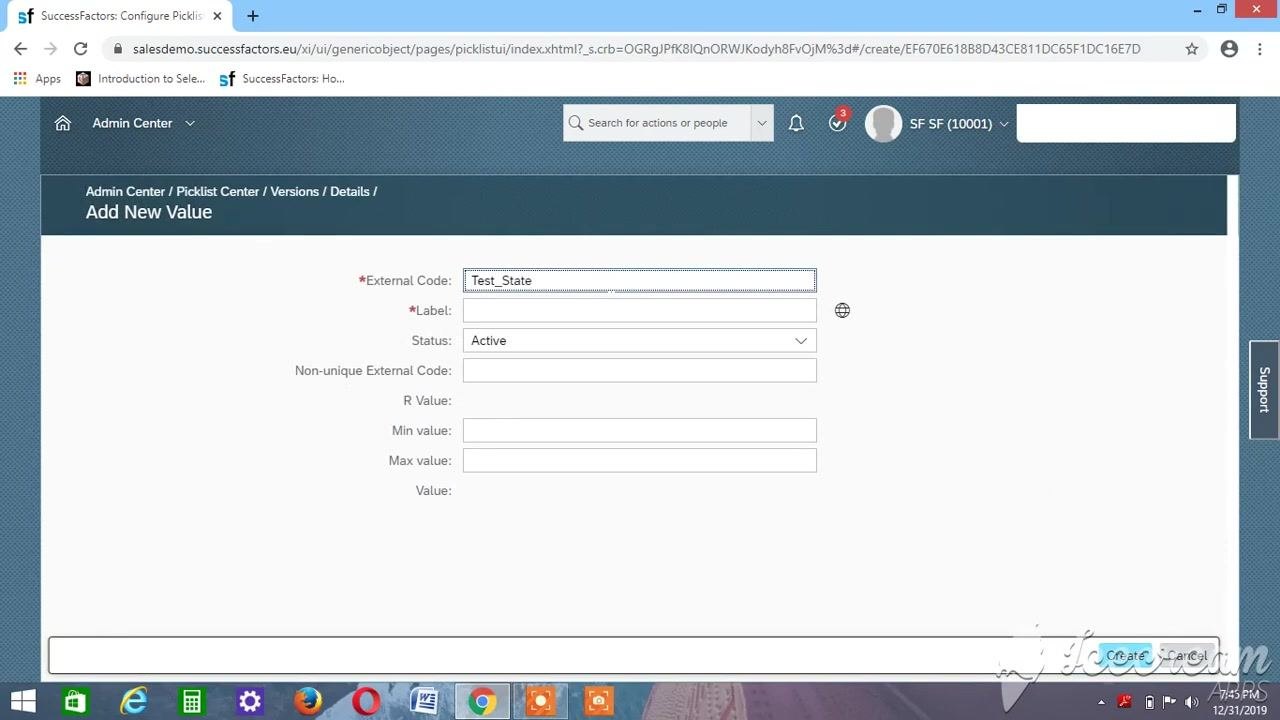
Scroll down to the Picklist Values section and click the + (plus) icon. The Add New Value dialog appears.
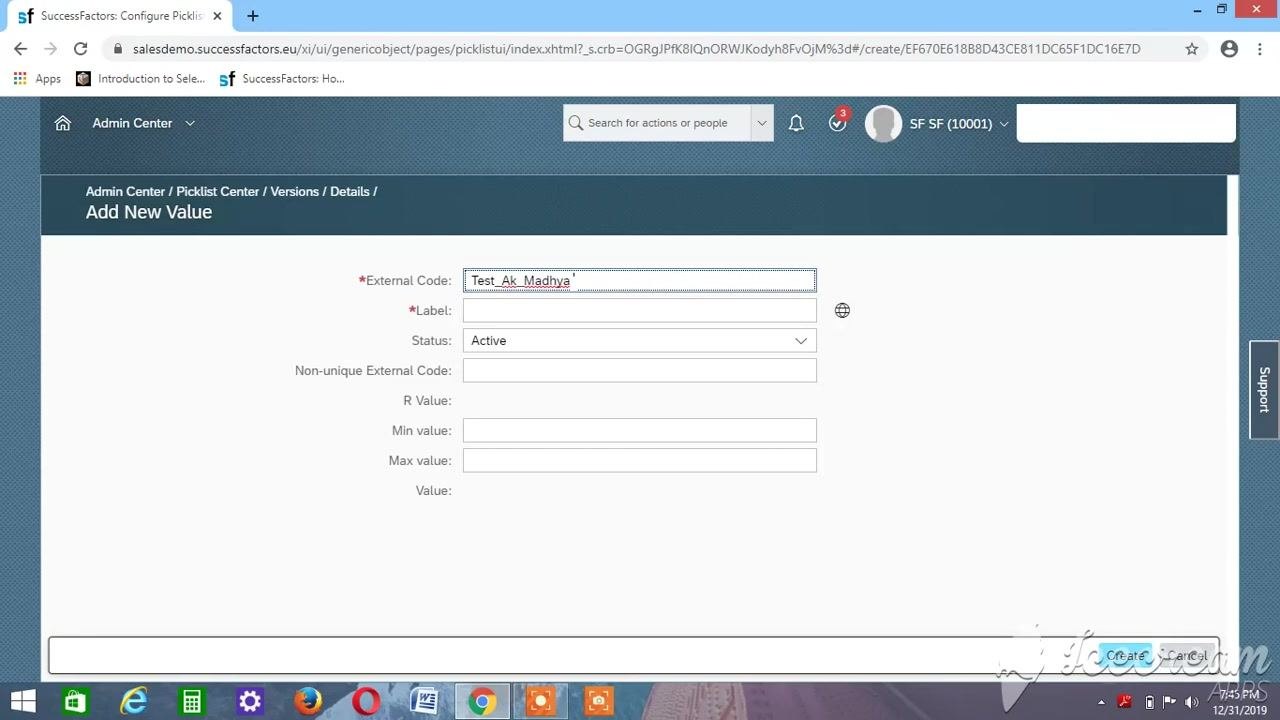
Enter the first picklist value
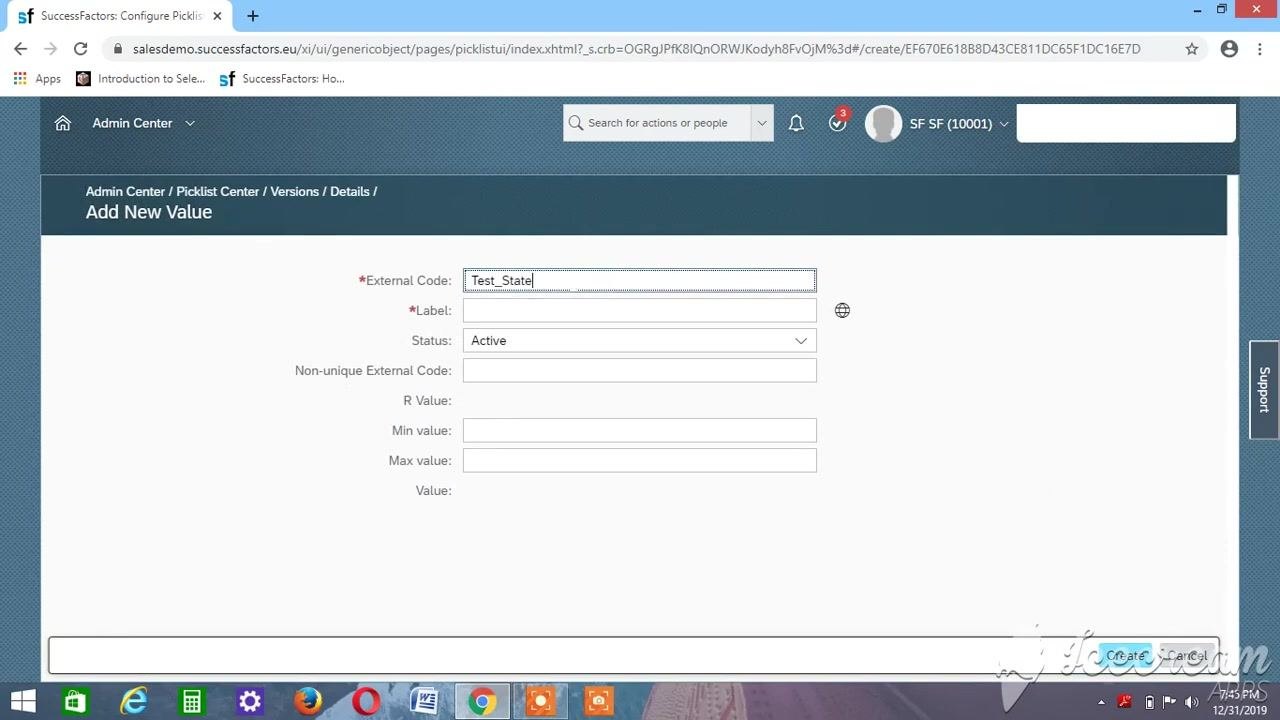
In the Add New Value dialog, fill in these fields:
- External Code:
Test_State - Label: Enter the label you want, such as a state name.
- Status:
Active
Leave the other fields (Non-unique External Code, R Value, Min value, Max value, and Value) blank unless you need them.
Add more picklist values
Repeat the process for each new value, and click Create after you enter each one:
- External Code: Enter a unique code, such as
Test_Ak_MadhyaorTest_Ak_Karnataka. - Label: Enter the matching label, such as
Madhya. - Status: Set to
Active.
Leave the other fields blank unless you need them.
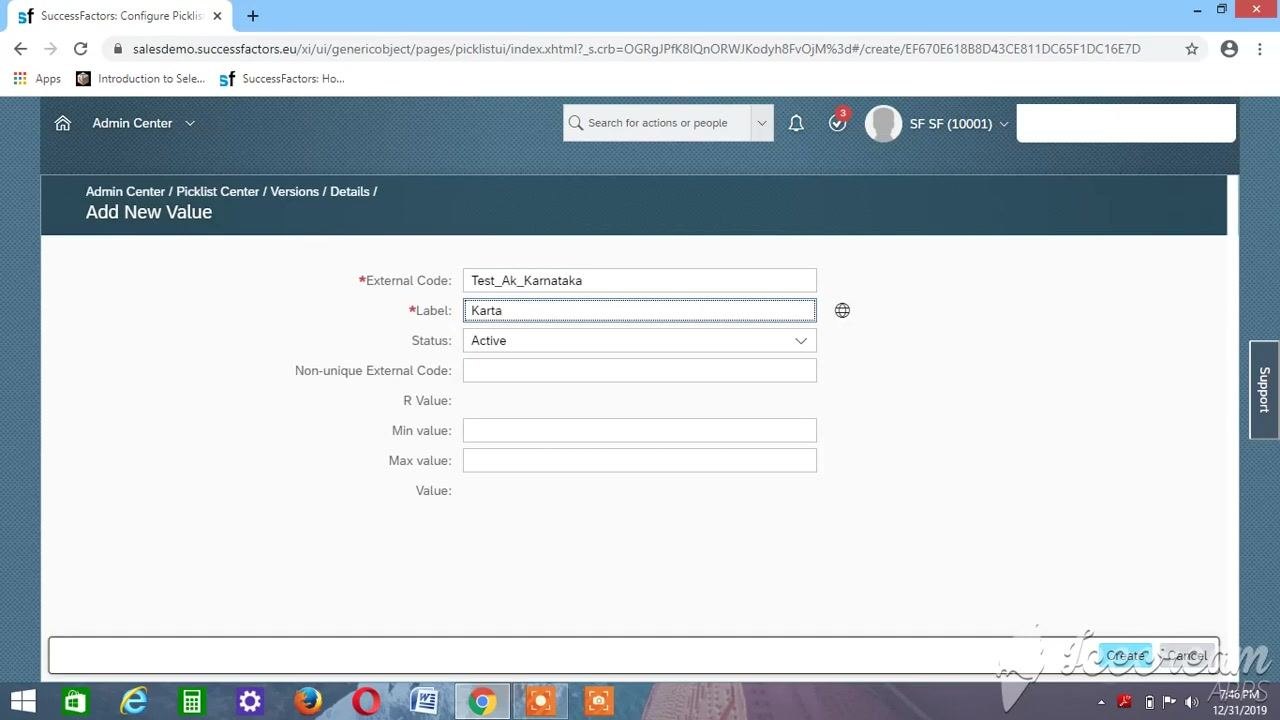
Add the Karnataka value
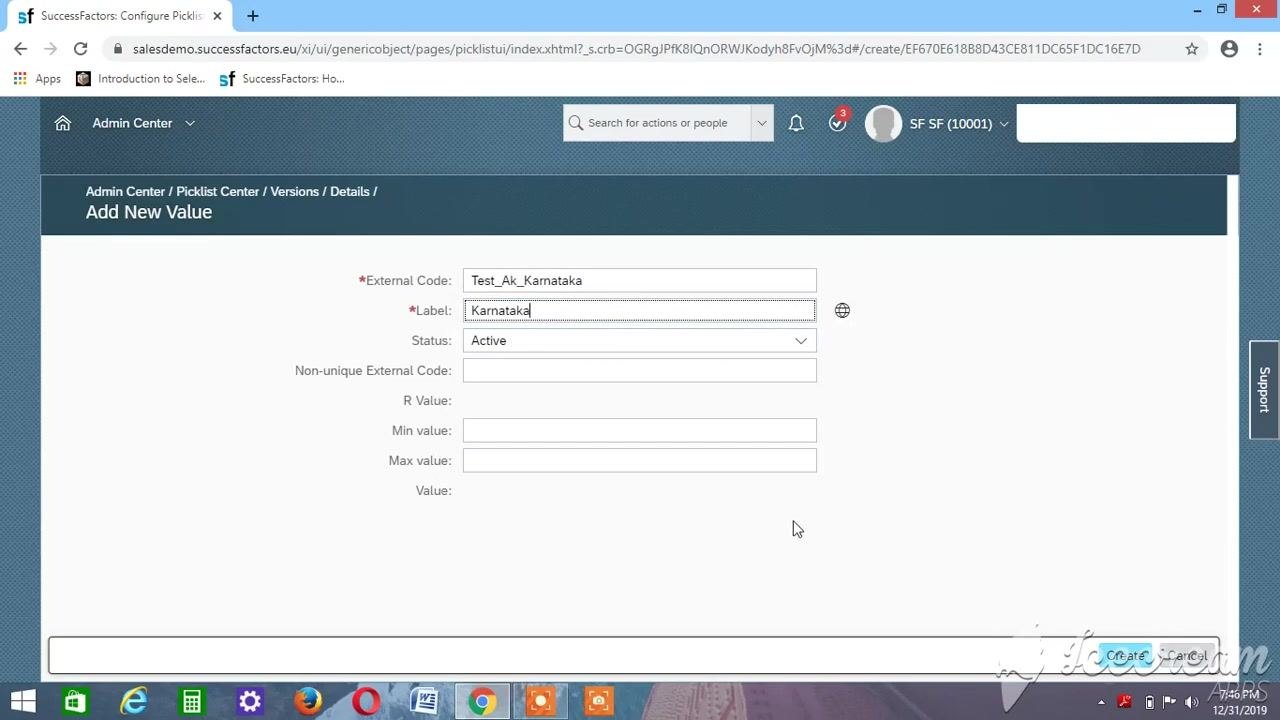
In the Add New Value dialog, enter these details and click Create:
- External Code:
Test_Ak_Karnataka - Label:
Karnataka - Status:
Active
Leave all other fields blank unless you need them.
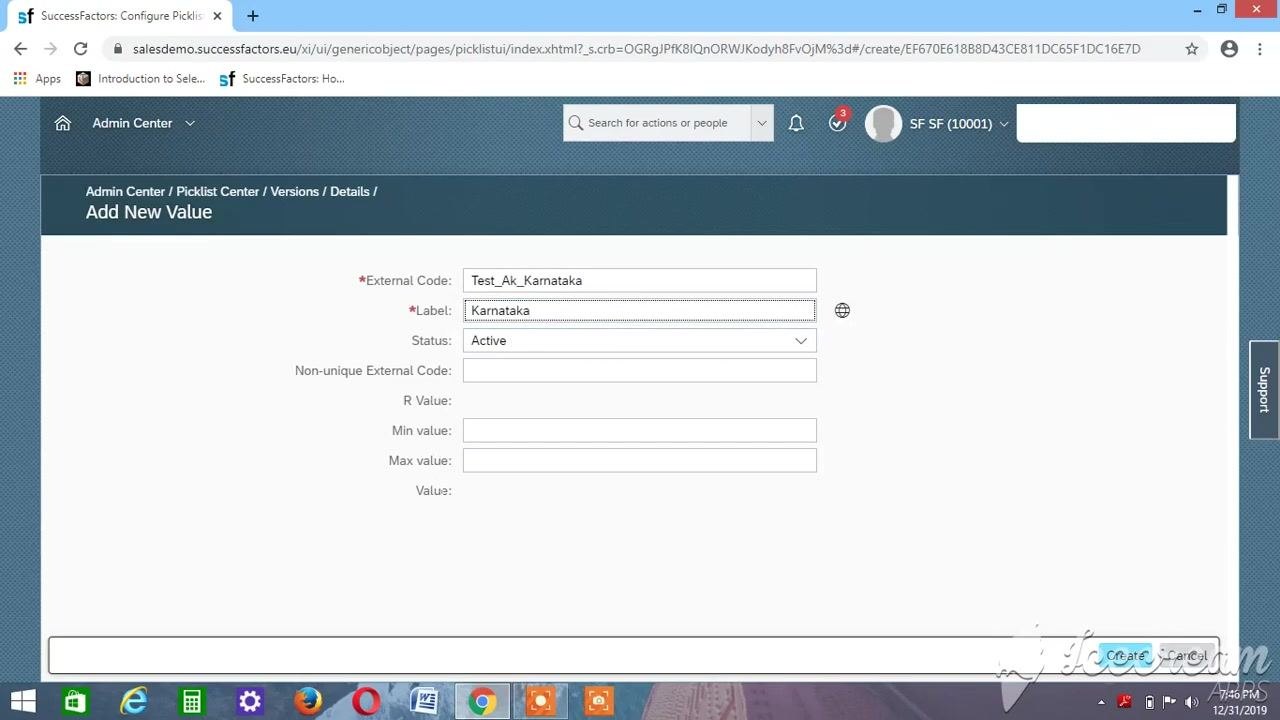
Verify the value appears in the picklist
Confirm that the value appears in the Picklist Values section with:
- External Code:
Test_Ak_Karnataka - Label:
Karnataka - Status:
Active - Parent Picklist Value: blank
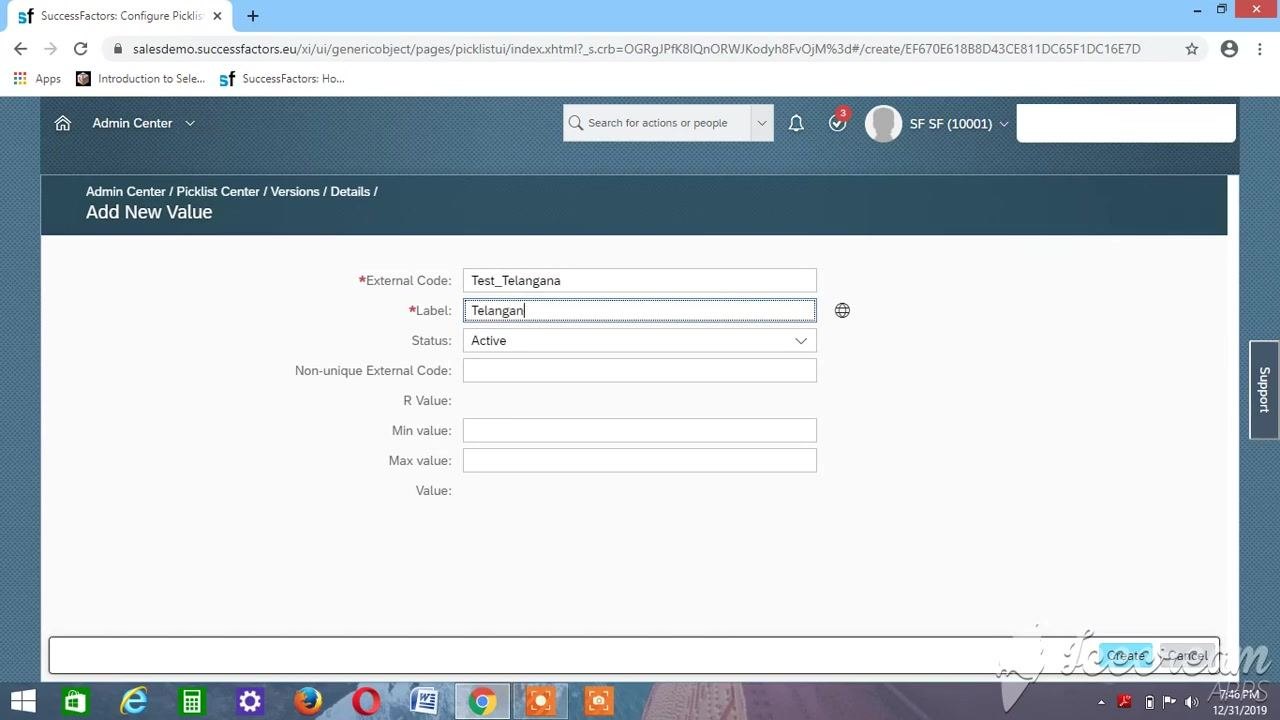
Add the Telangana value
Click the + (plus) icon to add another value. In the Add New Value dialog, enter these details and click Create:
- External Code:
Test_Telangana - Label:
Telangana - Status:
Active
Leave all other fields blank.
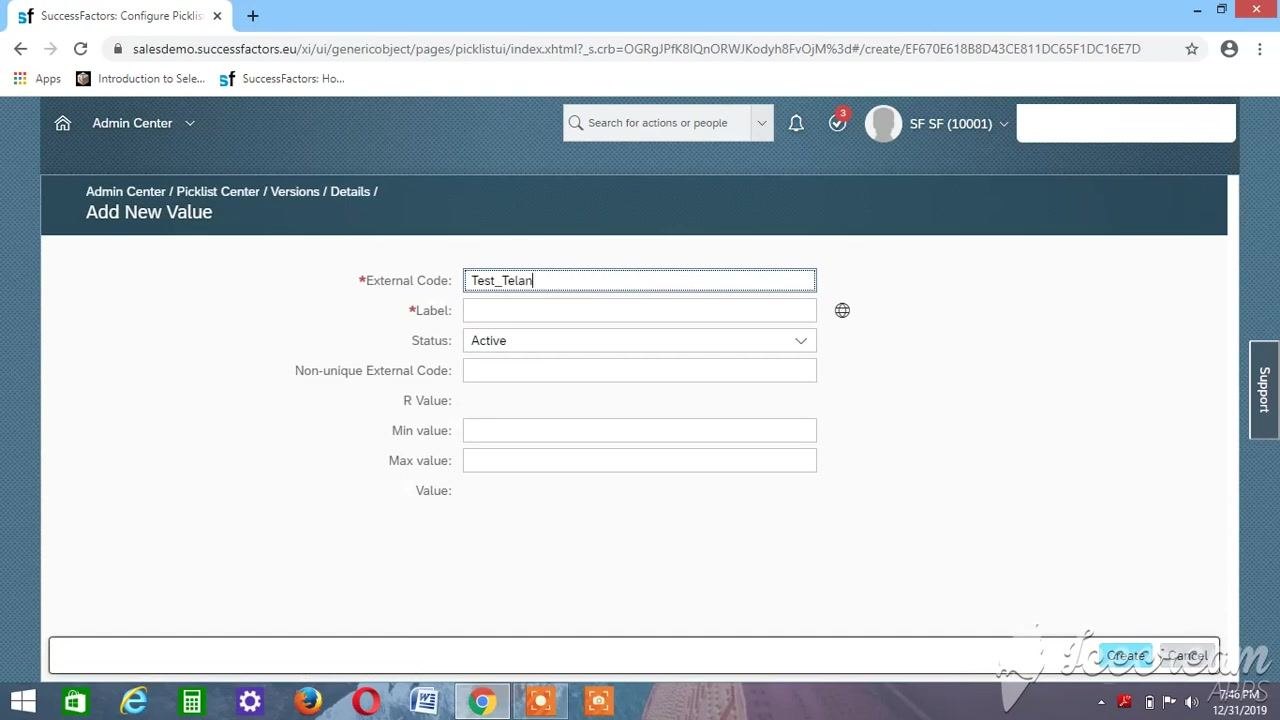
Confirm multiple values are listed
Verify that both values now appear in the Picklist Values section:
Test_Ak_Karnataka|Karnataka|ActiveTest_Telangana|Telangana|Active
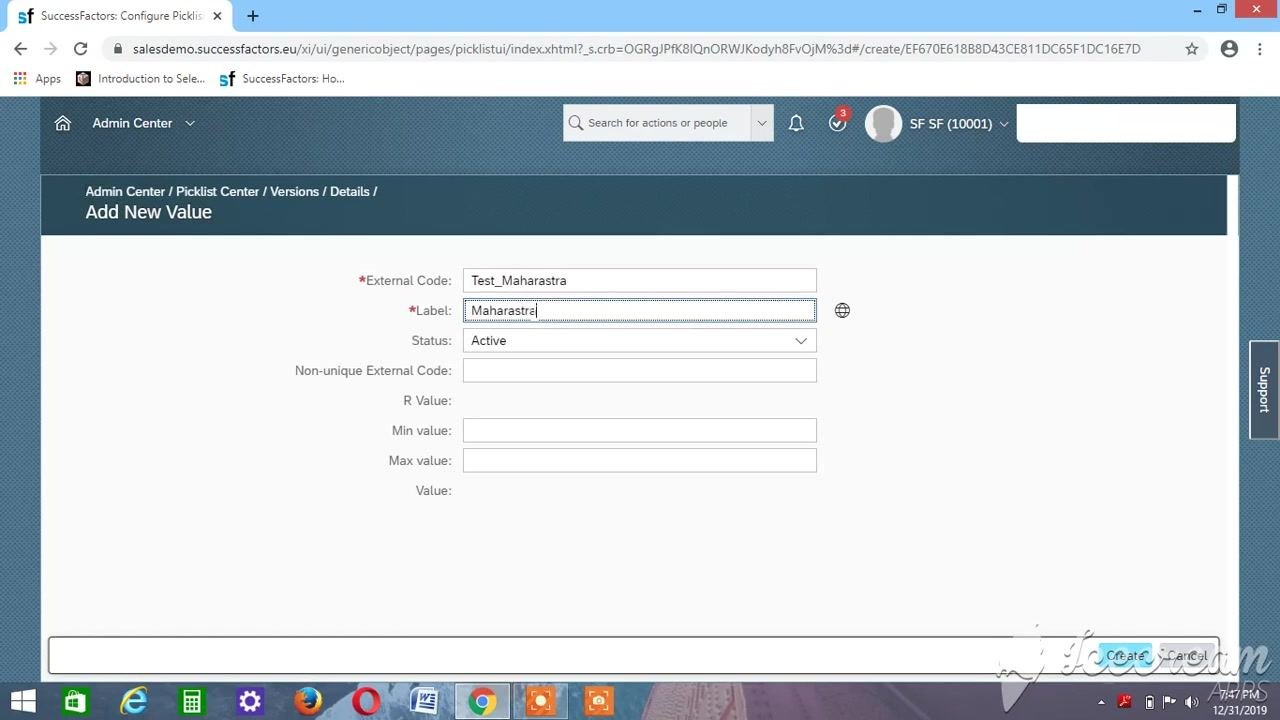
Enter the Maharashtra value
Click the + (plus) icon to add a new value. In the Add New Value dialog, enter the following. Leave all other fields blank.
- External Code:
Test_Maharastra - Label:
Maharastra - Status:
Active
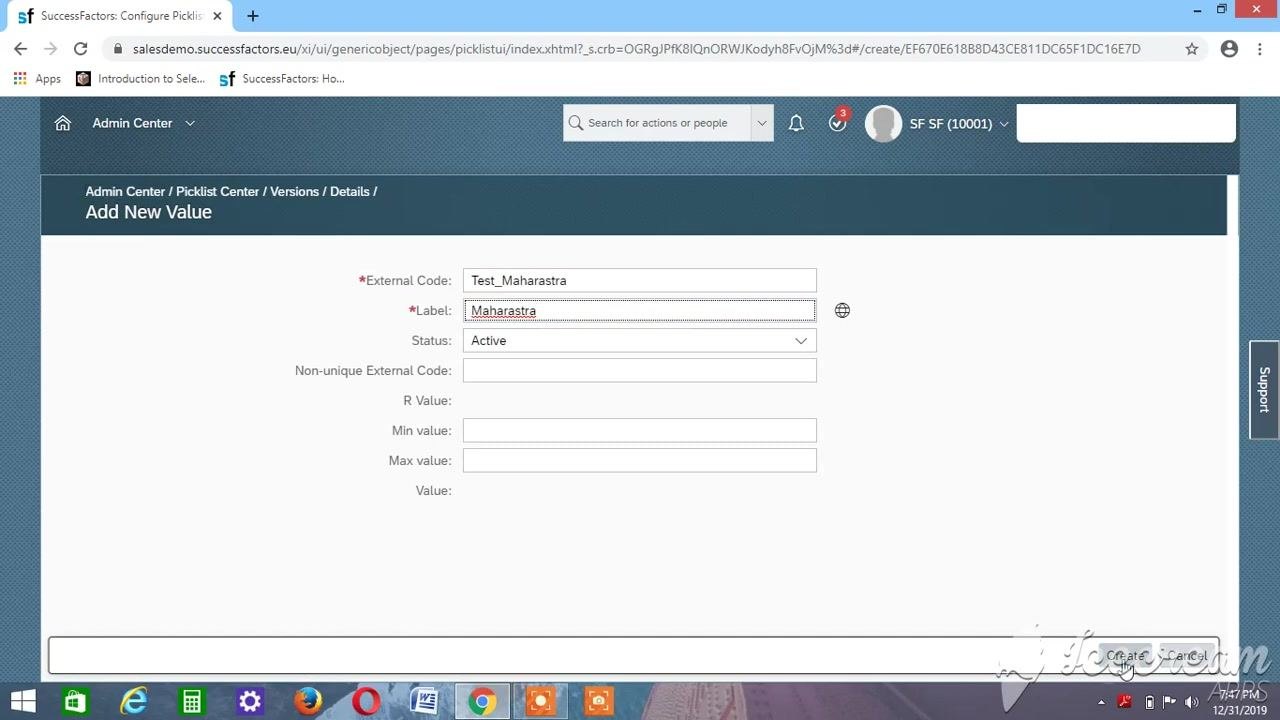
Review the value before you save
Confirm that the Add New Value dialog is open in the Admin Center under the Picklist Center, and check these fields:
- External Code:
Test_Maharastra - Label:
Maharastra - Status:
Active
Verify that the other fields (Non-unique External Code, R Value, Min value, Max value, and Value) are blank unless you need them. Double-check the values for typos. The Create and Cancel buttons appear at the bottom right of the dialog.
Save the new value
Click Create at the bottom right of the dialog to add the value to the picklist.
Verify the new value is listed
Check that Test_Maharastra with the label Maharastra and the status Active now appears alongside the values you added earlier. Make sure all values display correctly and are active.
Each picklist value needs a unique external code, an appropriate label, and the status Active. Repeat these steps for every value you need.
Create the child picklist
Return to the Picklist Center
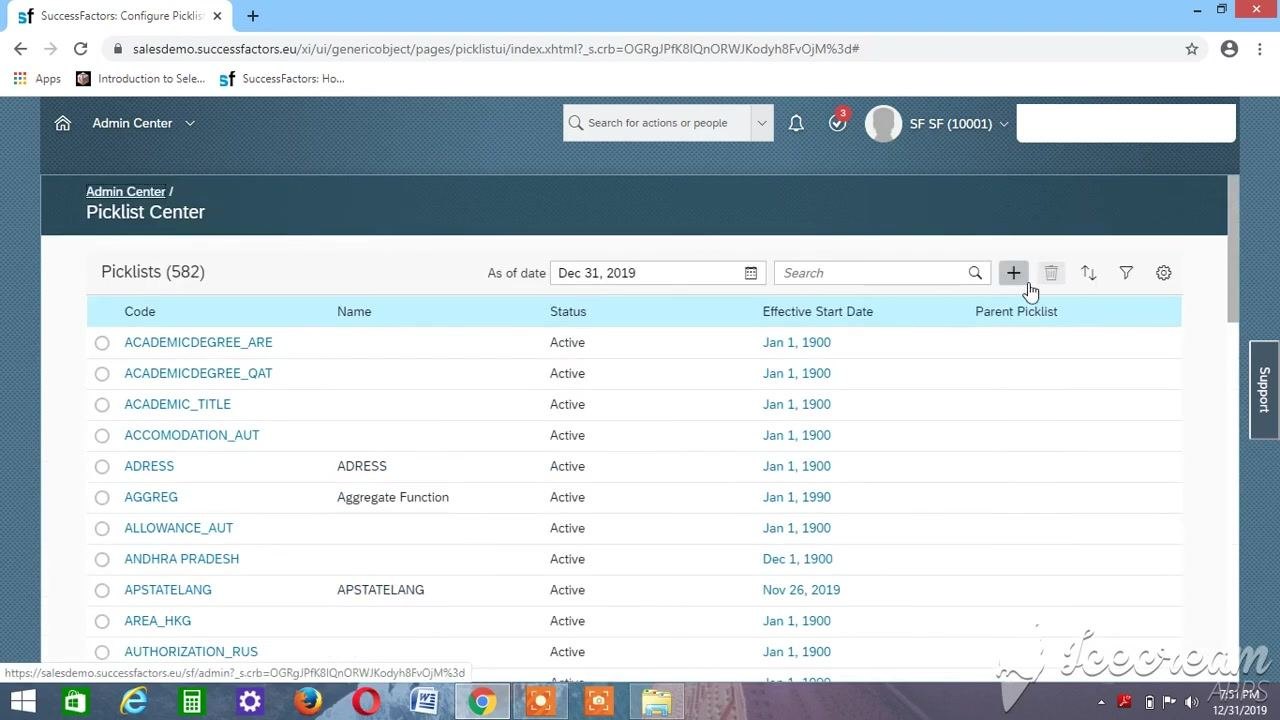
Open the Picklist Center in SuccessFactors. The list shows existing picklists with their codes, names, statuses, effective start dates, and parent picklists. Example picklists include ACADEMICDEGREE_ARE, AGGREG, and ANDHRA PRADESH.
Start a new picklist
Click the + (plus) button to create a new picklist.
Enter the child picklist details
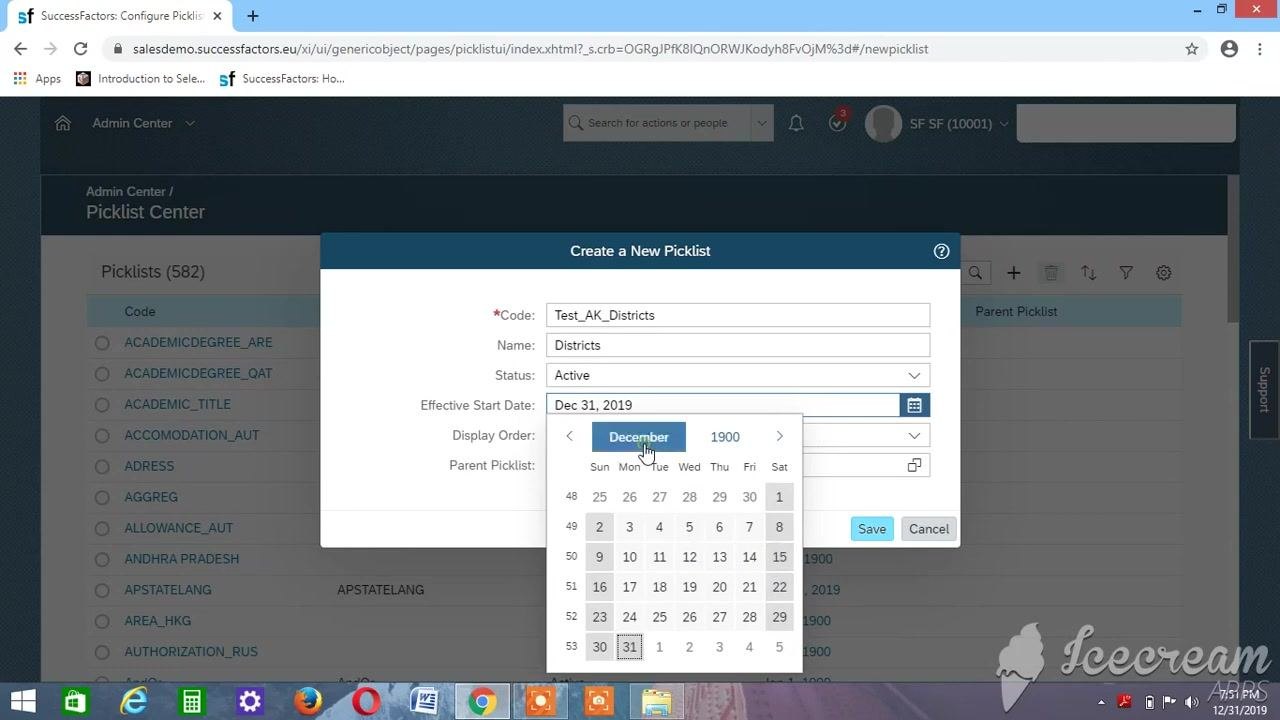
In the Create a New Picklist dialog, enter the details for a districts picklist:
- Code:
Test_AK_Districts - Name:
Districts - Status: Make sure it is
Active. - Effective Start Date: Change it to
Jan 1, 1900. - Display Order: Set it to
Alphabetical. - Parent Picklist: Leave blank for now.
Set the Effective Start Date
Click the calendar icon next to the Effective Start Date field. In the calendar picker, select the year 1900 and the date Jan 1, 1900.
Assign the parent picklist
To link the districts picklist to the states picklist, follow these steps:
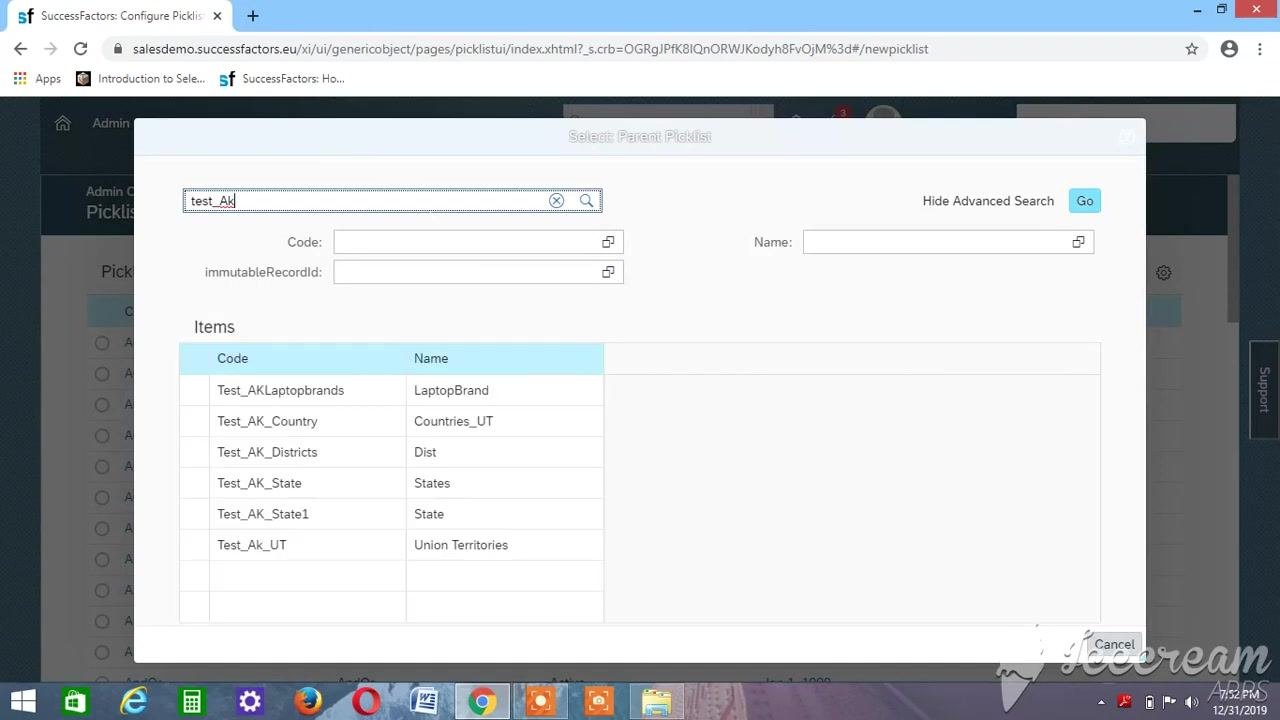
- Click the icon next to the Parent Picklist field.
- In the Select Parent Picklist dialog, enter
test_Akin the search field. - Click Go or press Enter to search.
- From the results, select the parent picklist. To link districts to states, select
Test_AK_State1.
Review the details and save
In the Create a New Picklist dialog, confirm these values:
- Code:
Test_AK_Districts - Name:
Districts - Status:
Active - Effective Start Date:
Jan 1, 1900 - Display Order:
Alphabetical - Parent Picklist:
Test_AK_State1
Click Save to create the picklist.
Confirm the picklist was created
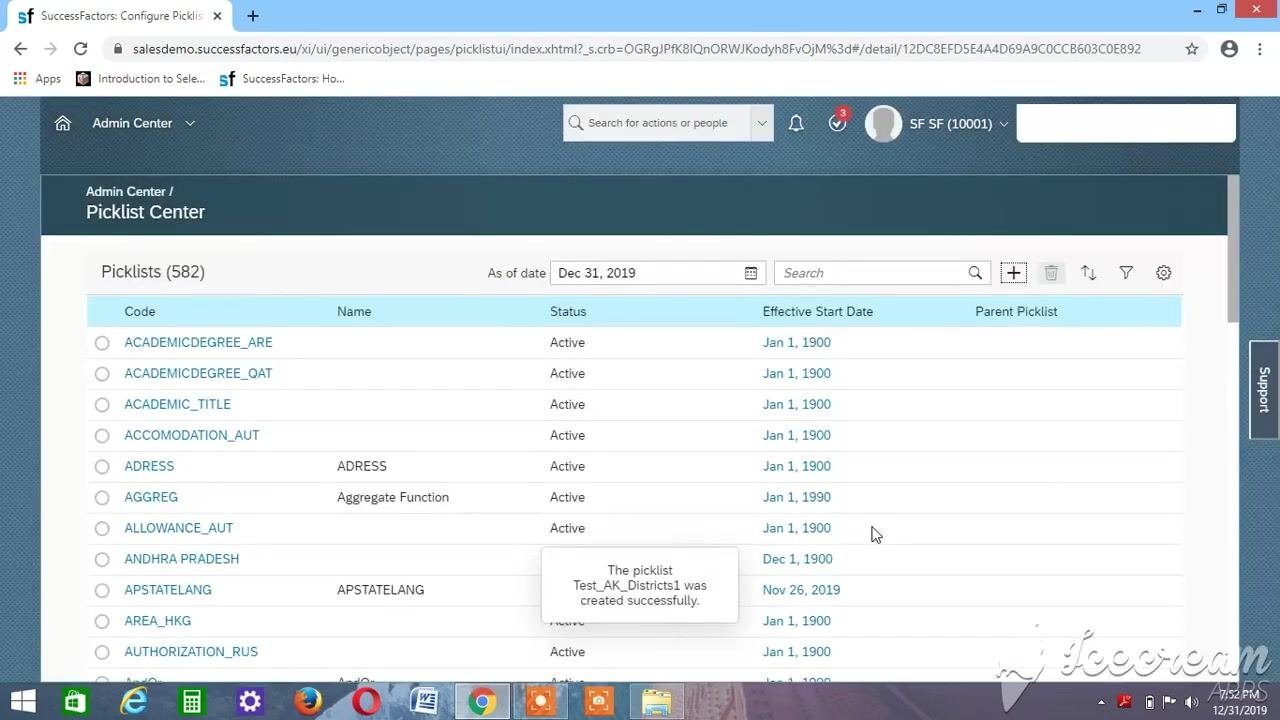
Wait for the confirmation message. In this example, it reads "The picklist Test_AK_Districts1 was created successfully." The new picklist now appears in the Picklist Center list.
Open the new picklist
Click the new picklist, Test_AK_Districts1, to open its details page. The page displays:
- Code: Test_AK_Districts1
- Parent Picklist: State (Test_AK_State1)
- Display Order: Alphabetical
- Effective Start Date: Jan 1, 1900
- Picklist Values: Empty ("No data found")
Add values to the child picklist
Open the Add New Value dialog
Click the + (plus) button in the Picklist Values section.
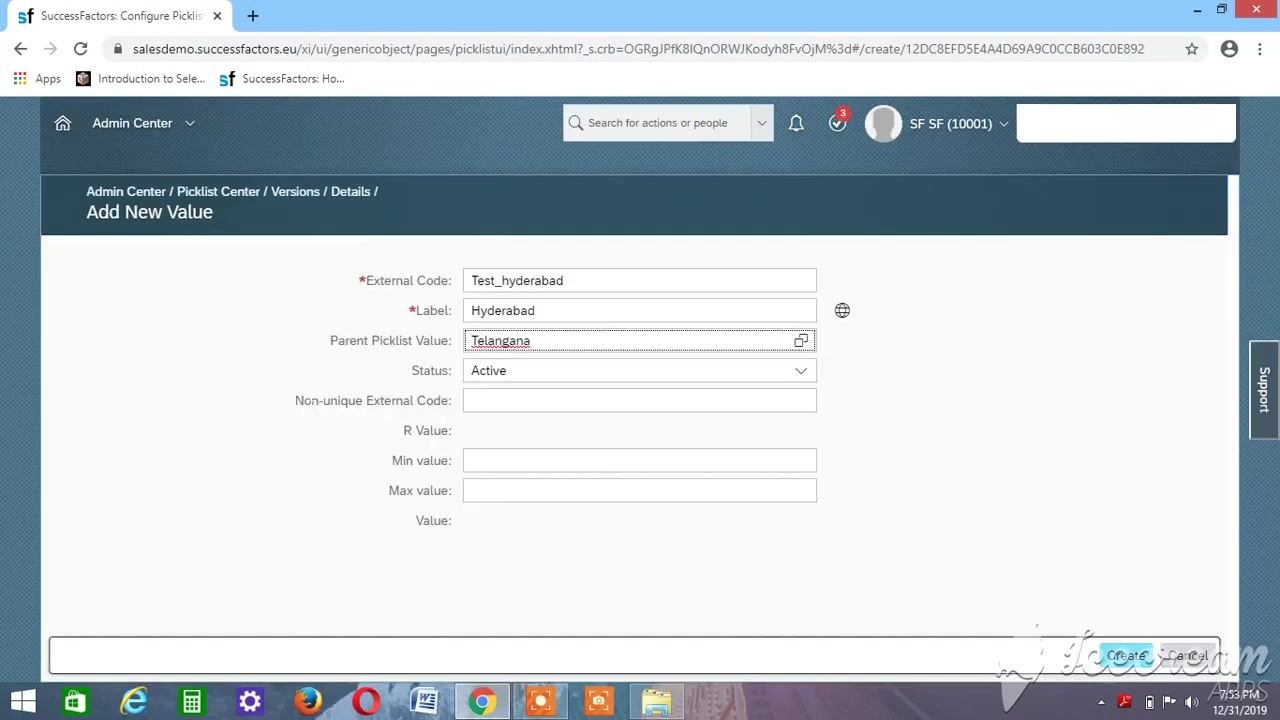
Enter the Hyderabad value
In the Add New Value dialog, enter these details:
- External Code:
Test_hyderabad - Label:
Hyderabad - Parent Picklist Value: Click the icon and select the parent value. Because Hyderabad is a district in Telangana, select
Telangana. - Status: Make sure it is
Active.
Leave the other fields blank unless you need specific values.
Save the value and repeat for other districts
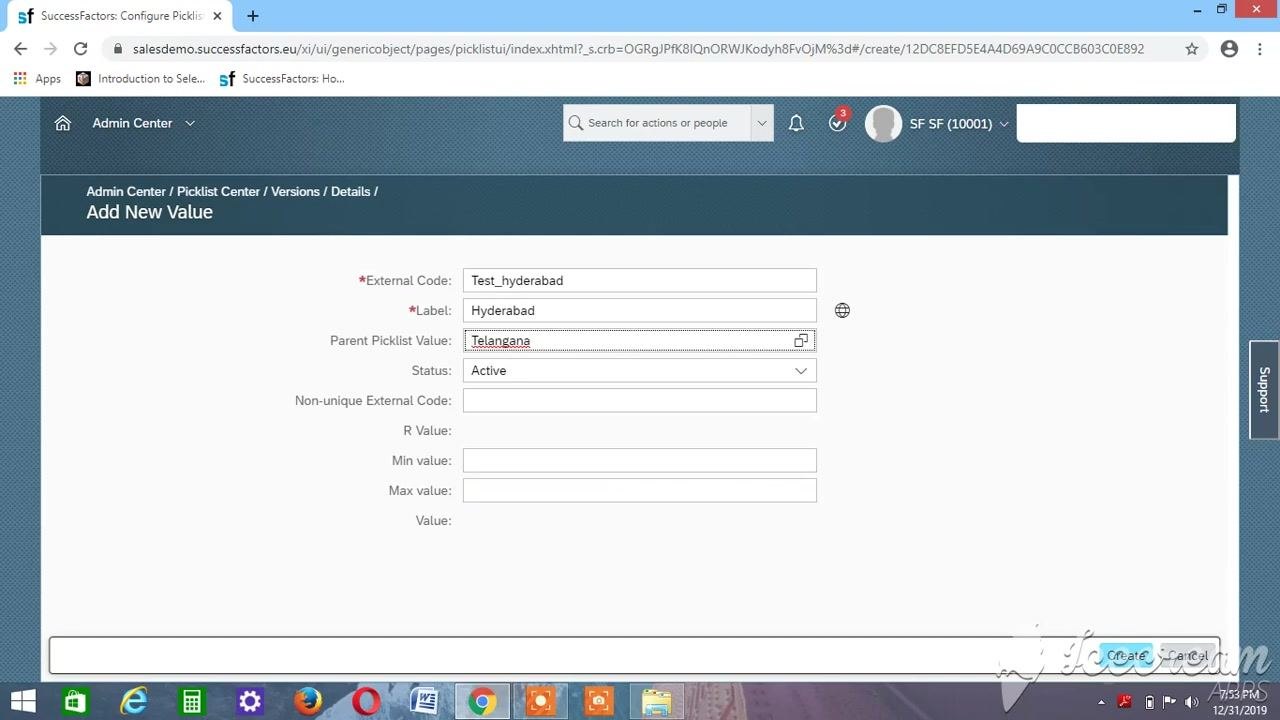
Click Create to add the value. Then repeat the previous steps for each additional district. For each one:
- Enter a unique External Code, such as
Test_nizamabad. - Enter the Label (the district name).
- Select the correct Parent Picklist Value (the state).
- Set Status to
Active.
Begin the Bengaluru value
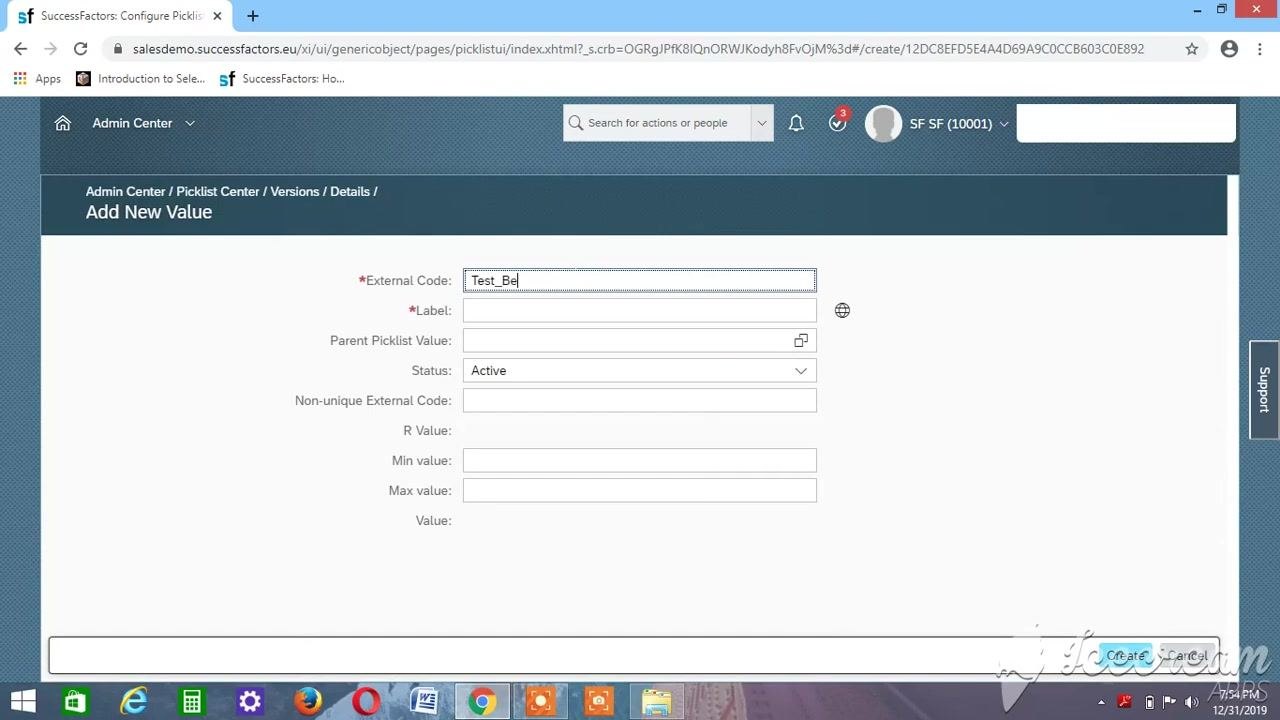
In the Add New Value dialog, start entering the next district. You reach this screen from the Picklist Center under the Admin Center.
- External Code: Begin with
Test_Beand complete it in the next step. - Label: Leave blank for now.
- Parent Picklist Value: Leave blank for now.
- Status: Make sure it is
Active.
Complete the Bengaluru entry
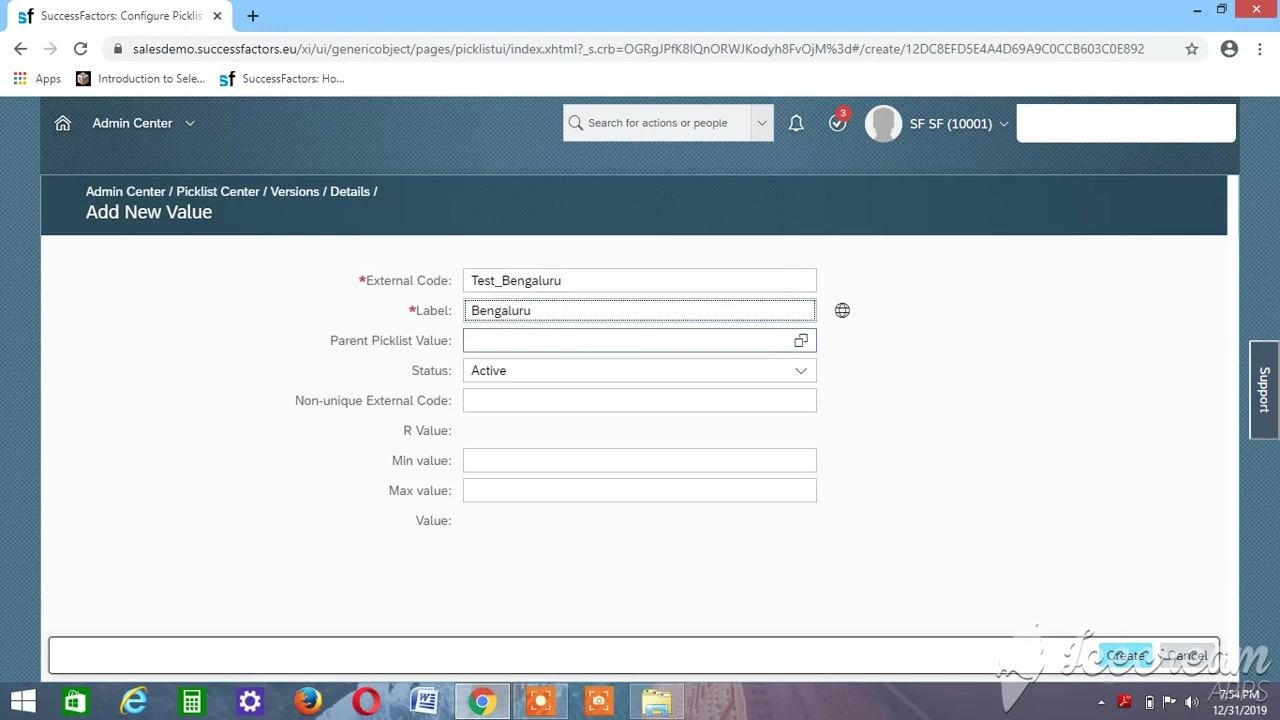
Finish the entry with these values:
- External Code:
Test_Bengaluru - Label:
Bengaluru - Parent Picklist Value: Leave blank for now.
- Status:
Active
Search for the parent picklist value
Click the icon next to the Parent Picklist Value field to open the selection dialog. In the Select Parent Picklist Value dialog, enter test_kar in the search field to filter for Karnataka. No matching items appear at first.
Refine the search and select Karnataka
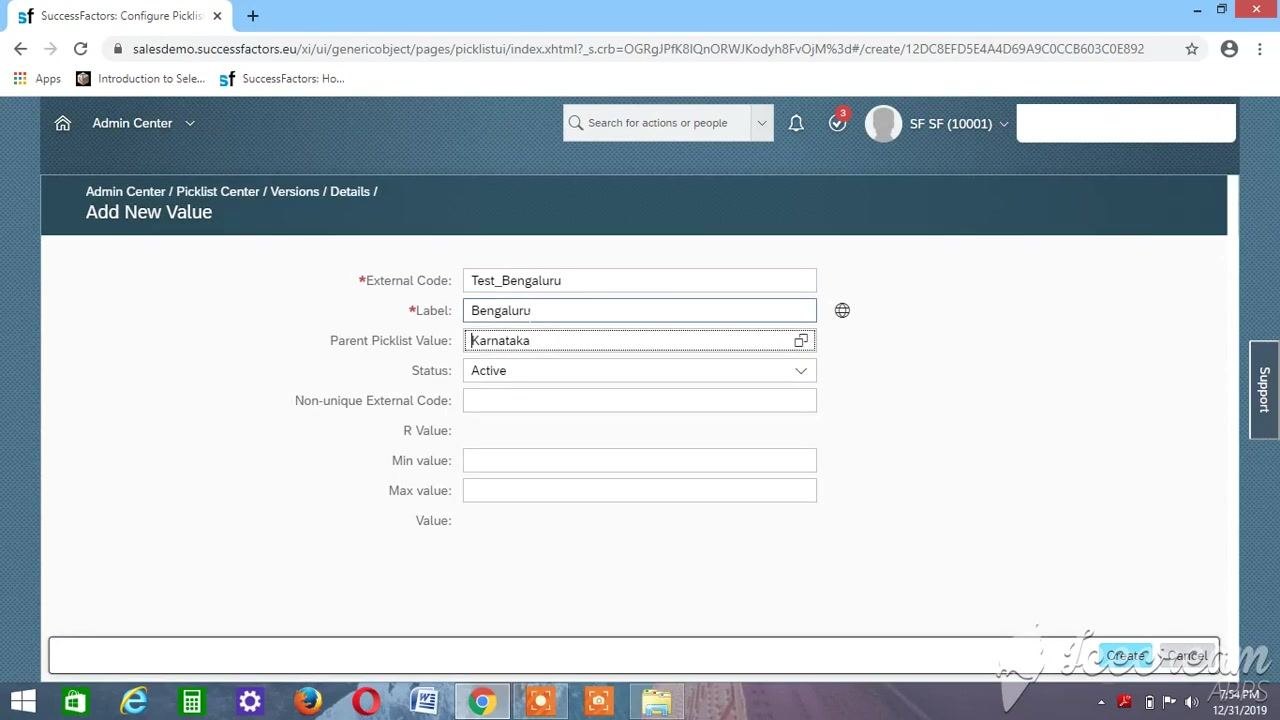
Change the search to test_Ak_kar. The item Test_Ak_Karnataka with the label Karnataka appears in the results. Select Test_Ak_Karnataka as the parent picklist value.
Confirm the Bengaluru entry
Check that the dialog shows these values. All other fields remain blank.
- External Code:
Test_Bengaluru - Label:
Bengaluru - Parent Picklist Value:
Karnataka - Status:
Active
Save the Bengaluru value
Click Create to add the Bengaluru district value to the picklist.
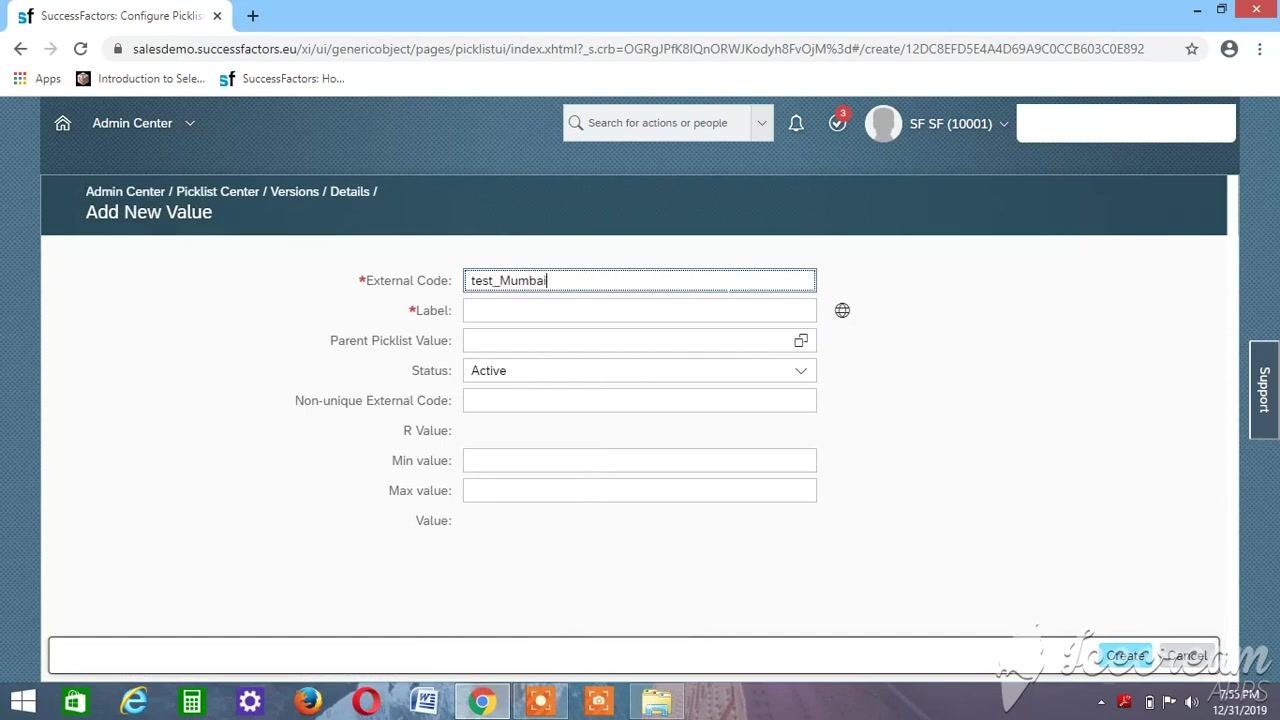
Start the Mumbai value
Repeat the process for Mumbai. In the Add New Value dialog, enter:
- External Code:
test_Mumbai - Label:
Mumbai - Parent Picklist Value: Leave blank for now.
- Status: Make sure it is
Active.
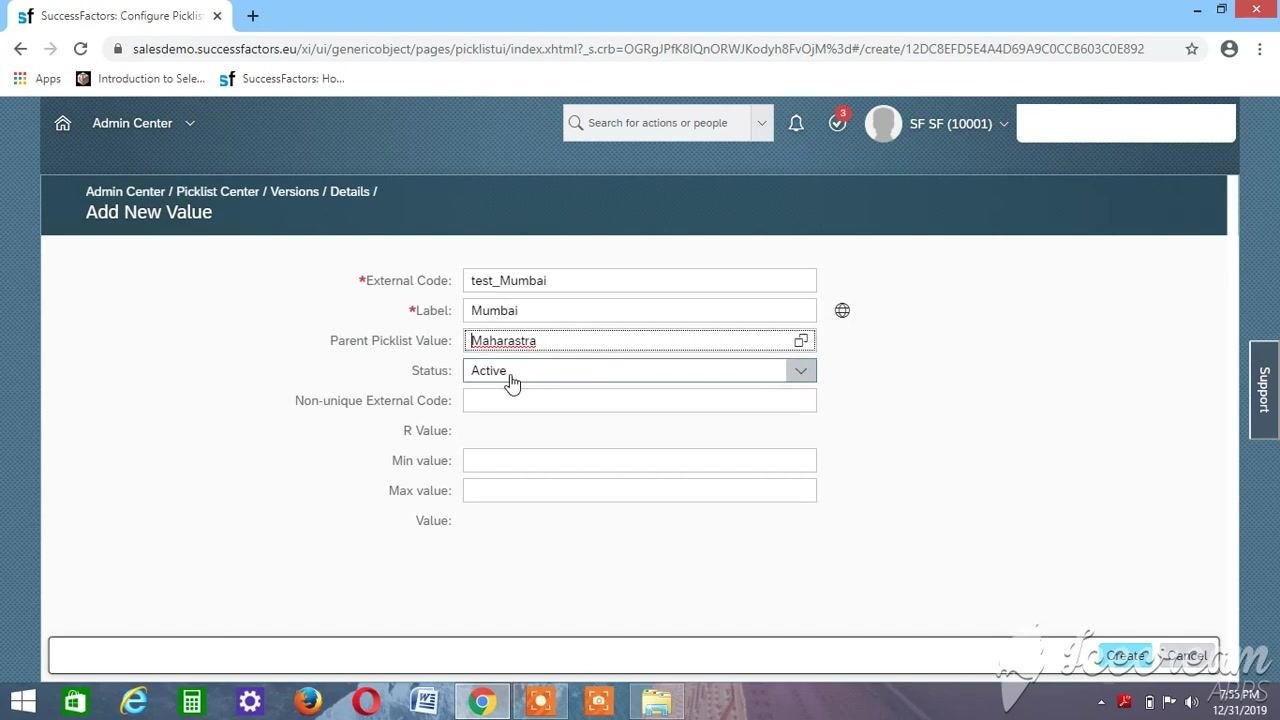
Select the parent value for Mumbai
Click the icon next to the Parent Picklist Value field. Search for and select Maharastra (Test_Maharastra) as the parent picklist value. Make sure Status is set to Active.
Save the Mumbai value
Click Create to add the Mumbai district value to the picklist.
Review the completed picklist
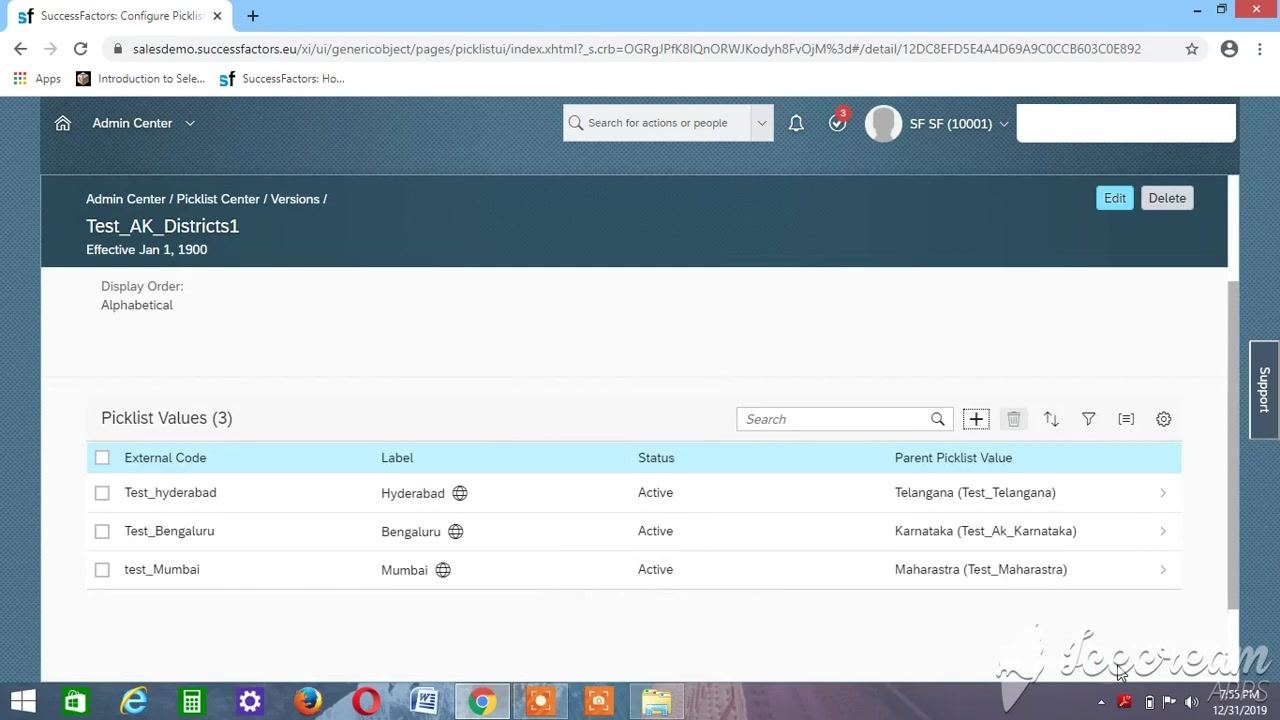
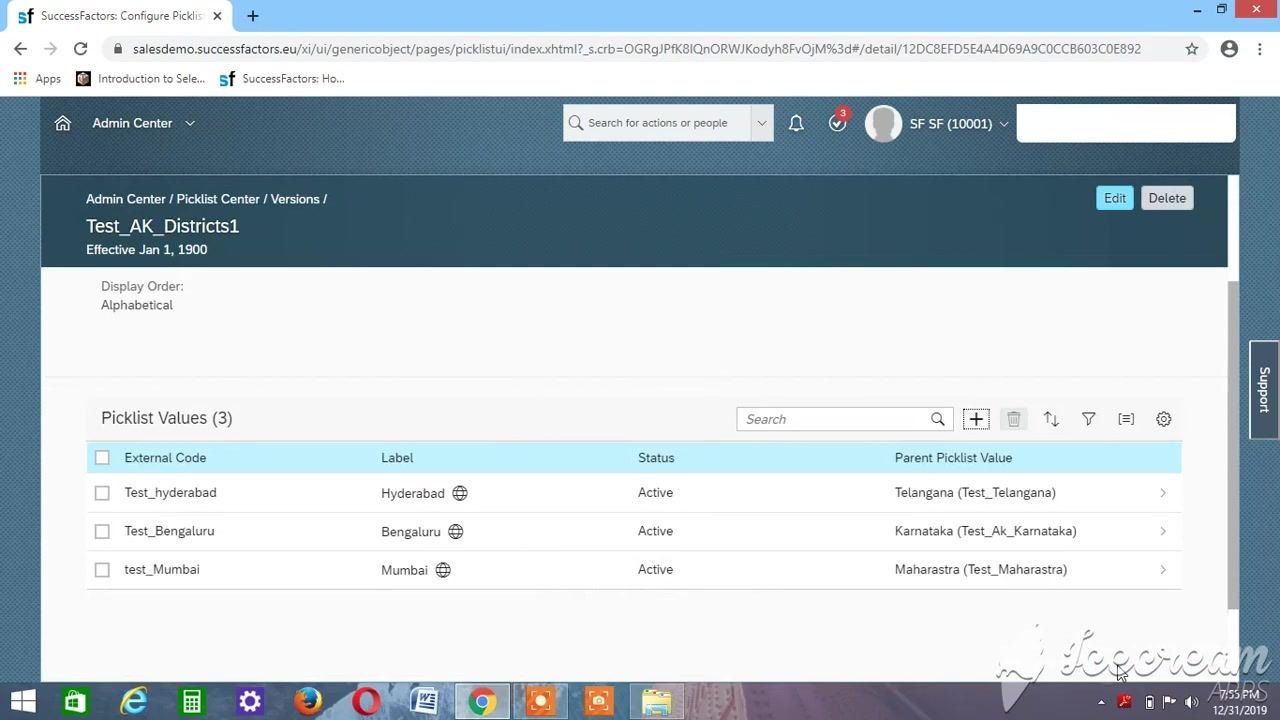
The picklist Test_AK_Districts1 now contains three values:
- Test_hyderabad (Hyderabad), with the parent Telangana (Test_Telangana)
- Test_Bengaluru (Bengaluru), with the parent Karnataka (Test_Ak_Karnataka)
- test_Mumbai (Mumbai), with the parent Maharastra (Test_Maharastra)
All values have Status set to Active.
Review the parent-child mapping
Verify the district picklist
Confirm that the picklist named Test_AK_Districts1 contains the following values:
- Test_hyderabad (Label: Hyderabad), with the Parent Picklist Value Telangana (Test_Telangana)
- Test_Bengaluru (Label: Bengaluru), with the Parent Picklist Value Karnataka (Test_Ak_Karnataka)
- test_Mumbai (Label: Mumbai), with the Parent Picklist Value Maharastra (Test_Maharastra)
Ensure all values have Status set to Active. Confirm that the Effective Date for the picklist is Jan 1, 1900 and that the display order is Alphabetical.
Understand the parent-child relationship
Keep these points in mind when you create a child picklist:
- The district picklist (
Test_AK_Districts1) uses the state picklist as its parent. - Always specify the parent picklist (states) when you set up the child picklist (districts).
- Use a meaningful picklist name so you can identify it easily during testing or production use.
- Set the Effective Date to
Jan 1, 1900for consistency and to avoid future-dated issues. - When you assign the parent, search for the exact name or external code, such as
Test_Ak_Karnatakafor Karnataka.
Return to the SuccessFactors Home page
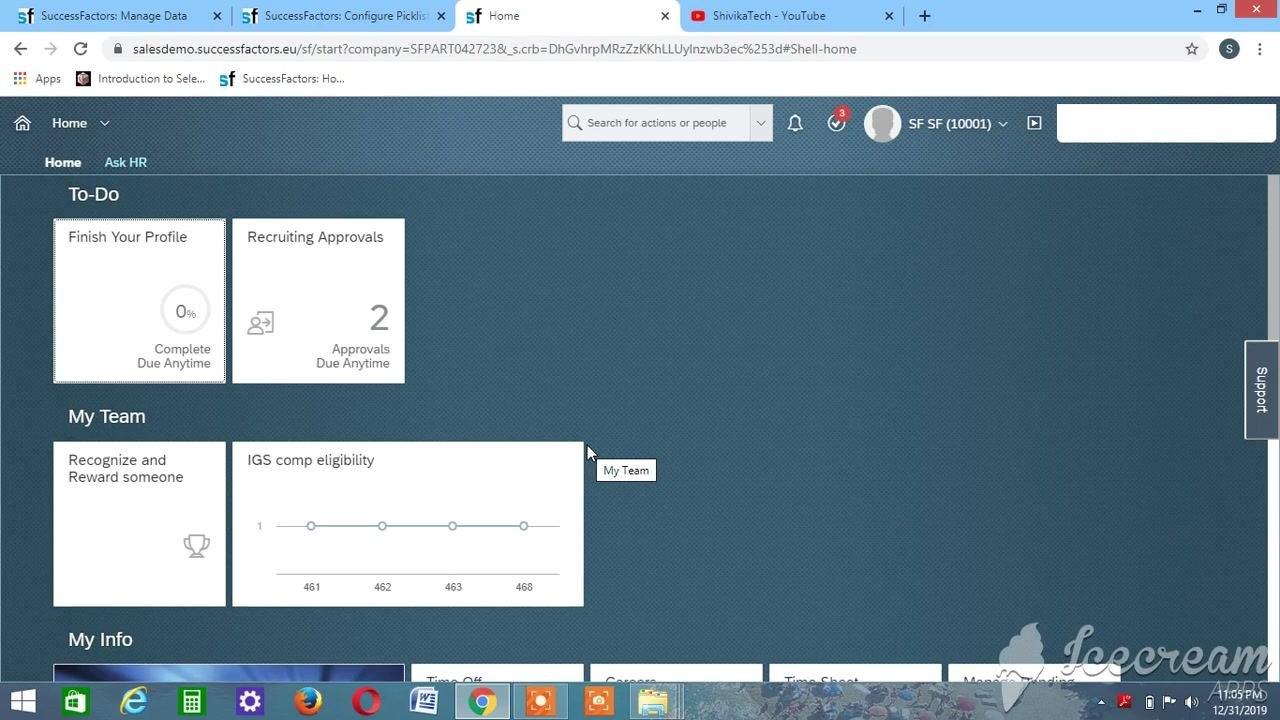
When you finish configuring the picklists, navigate back to the Home page. It displays widgets such as:
- To-Do: Finish Your Profile (0% Complete) and Recruiting Approvals (2 Approvals Due Anytime)
- My Team: Recognize and Reward someone and IGS comp eligibility chart
- My Info: Additional personal and HR-related widgets
Summary
You have created a hierarchical picklist structure in SuccessFactors, with states as the parent picklist and districts as the child picklist. Each district is mapped to its corresponding state. You can now link the picklist to MDF (Metadata Framework) objects and HRIS elements.
What's next
- Link the picklist to MDF objects and HRIS elements in your SuccessFactors configuration.
- Use the picklist in employee or organizational data forms. This enables dynamic, hierarchical dropdowns, such as selecting a state to filter the available districts.
- Use the picklist in SuccessFactors modules that require hierarchical picklists.
- To make changes, return to the Picklist Center and edit the picklist or its values.
Generation details: cost, quality tiers
Docsie billed 5,500 credits ($3.85) to analyze this 11-minute video at standard quality. The rewrite, template fill and Word/PDF exports were included. The same video at each quality tier:
| Quality | Frames sampled | Credits | Approx. cost |
|---|---|---|---|
| Draft | every 16-30 s | 2,750 | $1.92 |
| Standard (this guide) | every 8-15 s | 5,500 | $3.85 |
| Detailed | every 4-7 s | 11,000 | $7.70 |
| Ultra | every 1-3 s | 22,000 | $15.40 |
Credits priced at $0.70 per 1,000; plans include a monthly allowance. Enterprise customers on on-premise or bring-your-own-model deployments run this on their own inference and pay no per-video credits.
Generated by Docsie Video-to-Docs on 2026-11-01 from a 10-minute video. Screenshots are frames from the source video and belong to their creator, SJ Tech(Shivika), whose original is embedded above. If you own this video and want the guide removed or credited differently, contact us and we will act within one business day.