4.8
on G2
Record your screen, polish it with zooms and effects, then turn the recording into Markdown, DOCX, or PDF documentation — all from one free desktop app. Mac, Windows, and Linux.

Direct links resolve from the latest GitHub Release. Open source, MIT-licensed core.
Apple Silicon (M1/M2/M3/M4)
Intel
Installer
Portable
AppImage
Debian / Ubuntu
Downloads resolve to the latest GitHub Release automatically. See release notes and SHA256SUMS on GitHub. macOS builds are Developer ID signed and notarized.
Built on the open-source OpenScreen project, with Docsie's enterprise Video-to-Docs pipeline layered on top.




_Leader_Small-Business_Leader.svg)

Loom records and shares. ScreenApp transcribes. Most tools end there. Docsie Screen Recorder records, edits, and turns the result into structured documentation that your team can search, edit, and ship.
Why This Recorder
Most free screen recorders give you a video file. Docsie Screen Recorder gives you a video plus the documentation you would have written about it — without doing the writing.
Record specific windows or your whole screen with mic and system audio. Add automatic or manual zooms, motion blur, custom backgrounds, annotations, and trim sections — features other tools charge for, free here.
One click sends your recording into Docsie's Video-to-Docs pipeline. AI plus computer vision extracts steps, captures screenshots at the right moments, and outputs structured Markdown, DOCX, and PDF — ready for your knowledge base.
Built on the open-source OpenScreen project. Recording and editing happen on your machine. Source on GitHub, MIT-licensed core, no telemetry on the recorder, no forced cloud account to record.
The whole flow lives inside the desktop app. No copy-pasting clips between tools.
Pick a window or full screen, hit record. Mic, system audio, and webcam optional. Stop when done — the editor opens automatically.
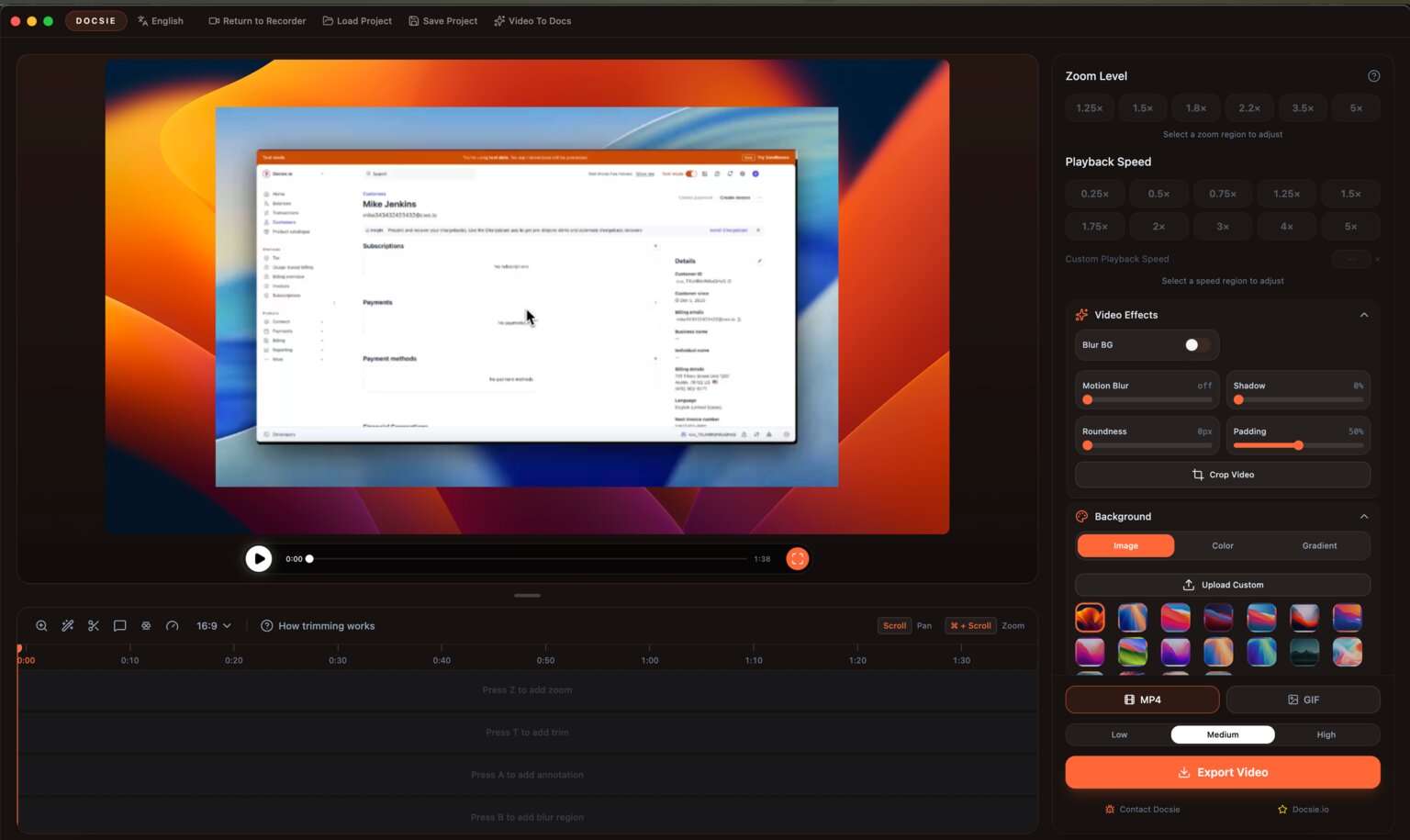
Add zooms, adjust playback speed per segment, drop in annotations, swap the background, trim dead space. Export as MP4 or GIF if you only need the video.
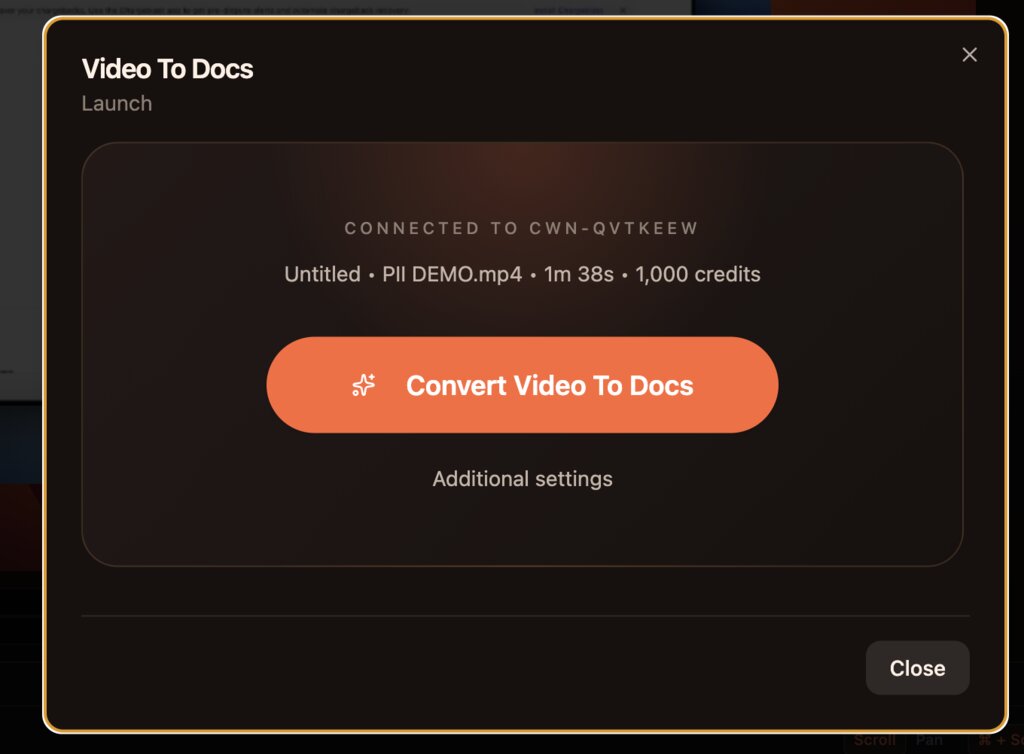
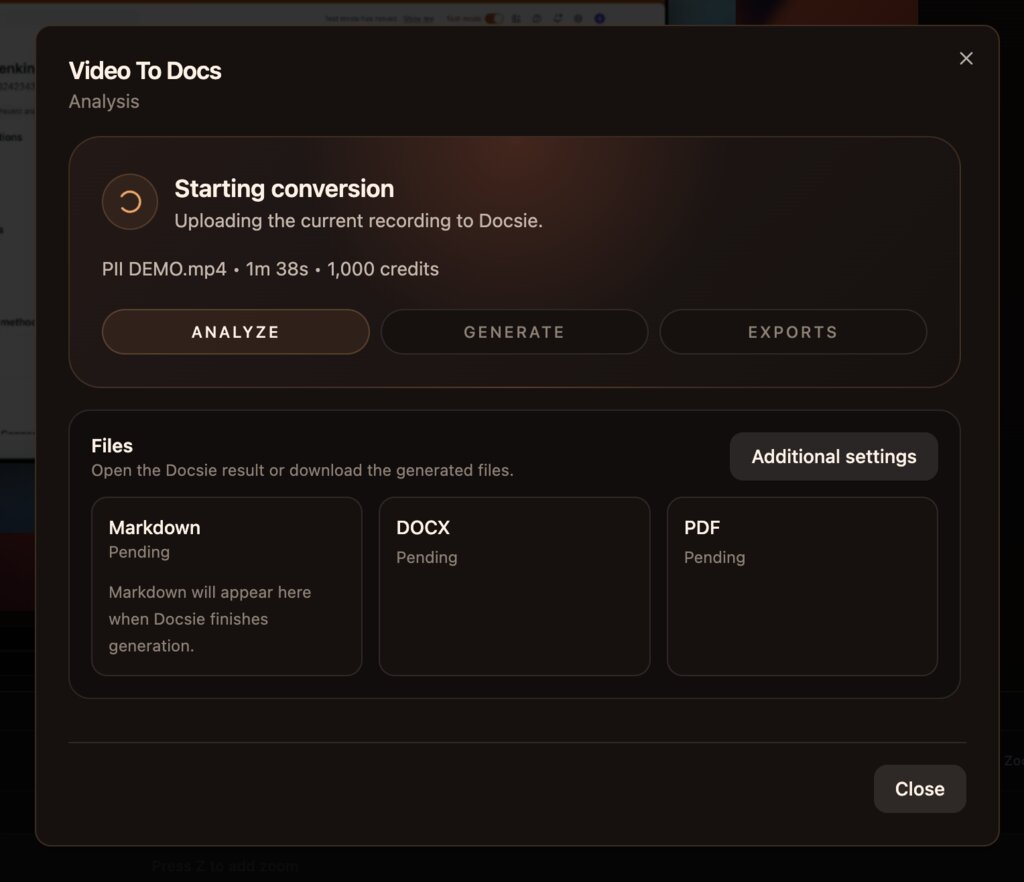
Click 'Video To Docs'. The recording uploads, AI analyzes the workflow, and the system generates structured documentation with screenshots and step-by-step instructions.
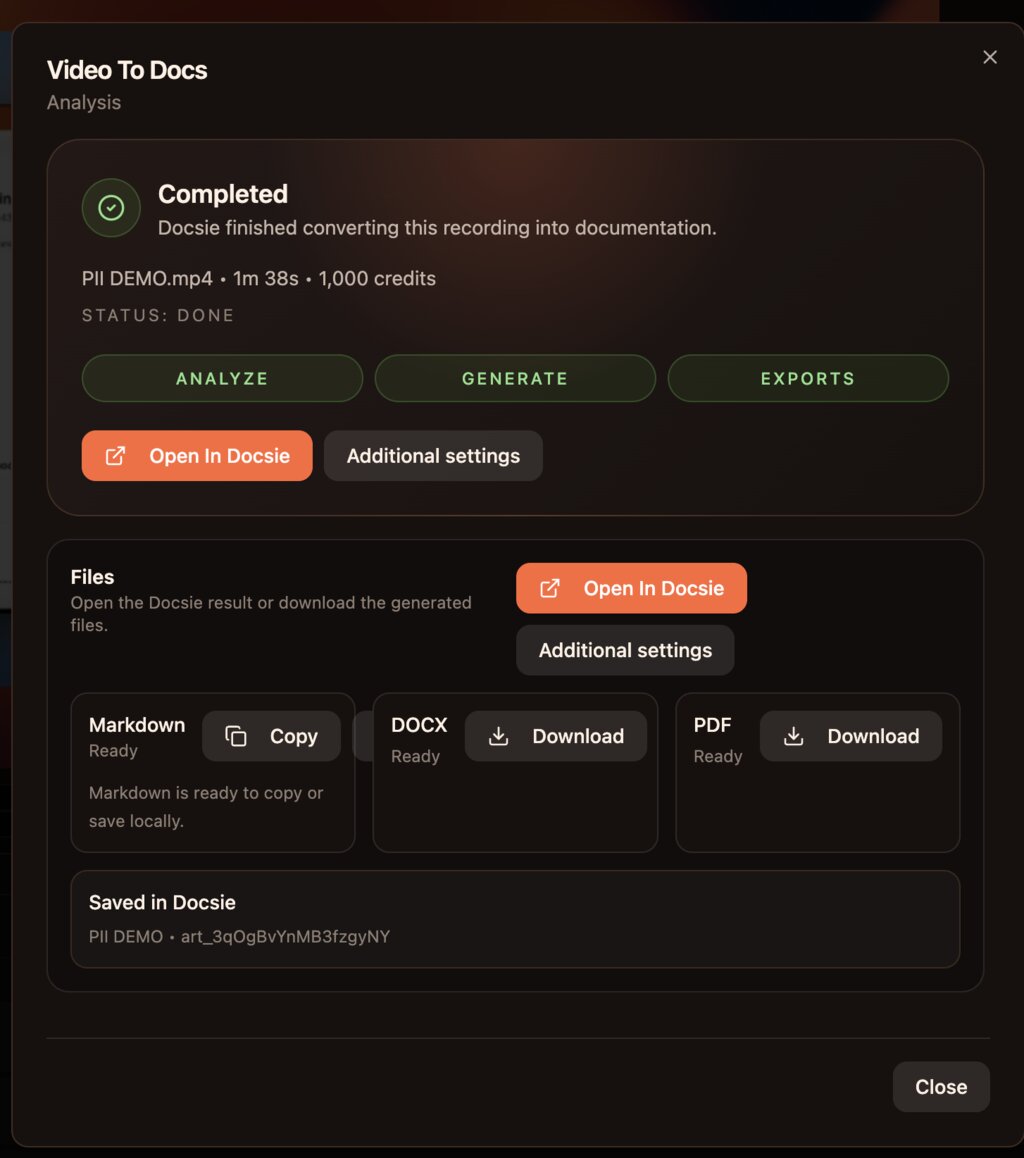
Get Markdown, DOCX, and PDF outputs ready to download, or open directly in Docsie to publish to a knowledge base, share with a portal, or convert into a Docsie Learn course.
Recording is the easy part. Turning hours of footage into documentation that someone will actually read is what this tool is for.
Record yourself answering a support question once, hit Convert to Docs, and ship a properly structured help article with annotated screenshots. Stop typing the same answer ten different ways.
Record a senior team member walking through a process. The recorder gives you the polished video for Docsie Learn courses, and Video-to-Docs gives you the written SOP — same source, two formats, zero double work.
Internal tools never get documented because the people who know them don't have time to write. Record a five-minute walkthrough instead. The output is markdown your engineers will actually keep up to date in a repo.
Everything in the recorder is free. The Video-to-Docs conversion uses Docsie credits — sign in with a free Docsie account to convert your first recording.
Record a specific app window or the whole desktop. Mic and system audio capture. Webcam overlay optional.
Drop zoom regions on the timeline at adjustable depths from 1.25× to 5×. Customize duration and target position frame-by-frame.
Speed up boring parts, slow down the important ones. Speeds from 0.25× to 5× applied per timeline segment, not the whole clip.
Wallpapers, solid colors, gradients, custom uploads. Motion blur, shadow, padding, and roundness controls for clean output.
Remove dead air with a keystroke. Add text, arrows, and image annotations. Crop the frame to hide sensitive UI.
Export the video as MP4 or GIF at low, medium, or high quality. Or convert to documentation as Markdown, DOCX, and PDF.
Recording and editing happen on your machine. No mandatory cloud account to record. Cloud only kicks in when you opt into Video-to-Docs conversion.
Built on OpenScreen (MIT). Source on GitHub. Inspect what runs on your machine, fork it, contribute back.
Free for Mac, Windows, and Linux. Open source. No account needed to record — sign in with a free Docsie account when you want to convert a recording into documentation.
macOS Apple Silicon, macOS Intel, Windows installer, Windows portable, Linux AppImage, Linux .deb.
Common Questions
About the recorder, the Video-to-Docs pipeline, and how the free vs. paid line works.
Q: Is this really free?
A: Yes. The desktop recorder and editor are free, open source under MIT, and downloadable from GitHub Releases. No account required to record, edit, and export MP4 or GIF. The only paid piece is the Video-to-Docs conversion, which runs on Docsie's cloud and uses Docsie credits — and even that includes a free starter allowance with a Docsie account.
Q: What's the difference between this and Loom or ScreenApp?
A: Loom is recording and sharing. ScreenApp is recording and transcribing. Docsie Screen Recorder records, edits with full zoom and speed controls, and turns the result into structured Markdown, DOCX, and PDF documentation — not just a transcript. The recorder is also open source and runs locally instead of cloud-only.
Q: Can I use it commercially?
A: Yes. The OpenScreen-based recorder is MIT-licensed, so you can use it inside a company. Docsie's enterprise extensions (under enterprise/ in the repo) follow a separate license — those are the pieces that integrate with your Docsie portals, SSO, on-prem deployments, and compliance scanning.
Q: Which platforms are supported?
A: macOS Apple Silicon, macOS Intel, Windows (installer or portable .exe), and Linux (AppImage or .deb). System audio capture needs macOS 13+, Windows works out of the box, and Linux needs PipeWire (default on Ubuntu 22.04+ and Fedora 34+).
Q: Does it record system audio and microphone?
A: Both. Mic always works. System audio works on macOS 13+, Windows, and Linux with PipeWire. On macOS 14.2+ you'll be prompted to grant audio capture permission the first time.
Q: How does the recording become documentation?
A: When you click Video To Docs, the recording uploads to Docsie. AI transcribes the audio while computer vision watches the screen — detecting clicks, navigation, form input, and UI state changes. Those signals become structured steps with screenshots taken at the right frame. The output is Markdown, DOCX, and PDF, plus a Docsie article you can publish or edit further.
Q: Is my recording private?
A: The recording stays on your machine while you're recording and editing. It only leaves your machine if you choose to convert it to docs — that requires uploading to Docsie. For regulated environments we offer on-premise and air-gapped deployments where the conversion runs entirely inside your infrastructure.
Q: What output formats does Video-to-Docs produce?
A: Markdown, DOCX, and PDF — all generated in parallel and downloadable individually. The output also lands inside Docsie as an article, so you can publish it to a portal, version it, share it, or convert it into a training course in Docsie Learn.
Ready to try it?
Download Free