
How to Display Material Documents with MB51 in SAP S/4HANA
This guide explains how to display material documents with MB51 in SAP so you can look up materials spent on a cost center. Using the Material Document List transaction, you can filter by plant, storage location, movement type, and posting date, then drill down into totals for a specific cost center.
Video: SAP - MB51 - Material Document List - How to Look Up Materials Spend on a Cost Center by Elite Vision Technology (2019). All credit for the demonstration goes to the creator; watch the original on YouTube. The written guide below was generated from this video by Docsie. Creator? Request a change or removal.
This guide explains how to display material documents with MB51 in SAP so you can look up materials spent on a cost center. Using the Material Document List transaction, you can filter by plant, storage location, movement type, and posting date, then drill down into totals for a specific cost center.
Prerequisites
- Access to the SAP GUI with valid login credentials.
- Knowledge of the relevant plant number, storage location, and movement type for your search.
- The posting date range you want to review.
Open SAP Easy Access
Launch the SAP GUI and log in to your SAP system. Once logged in, you will see the SAP Easy Access screen.
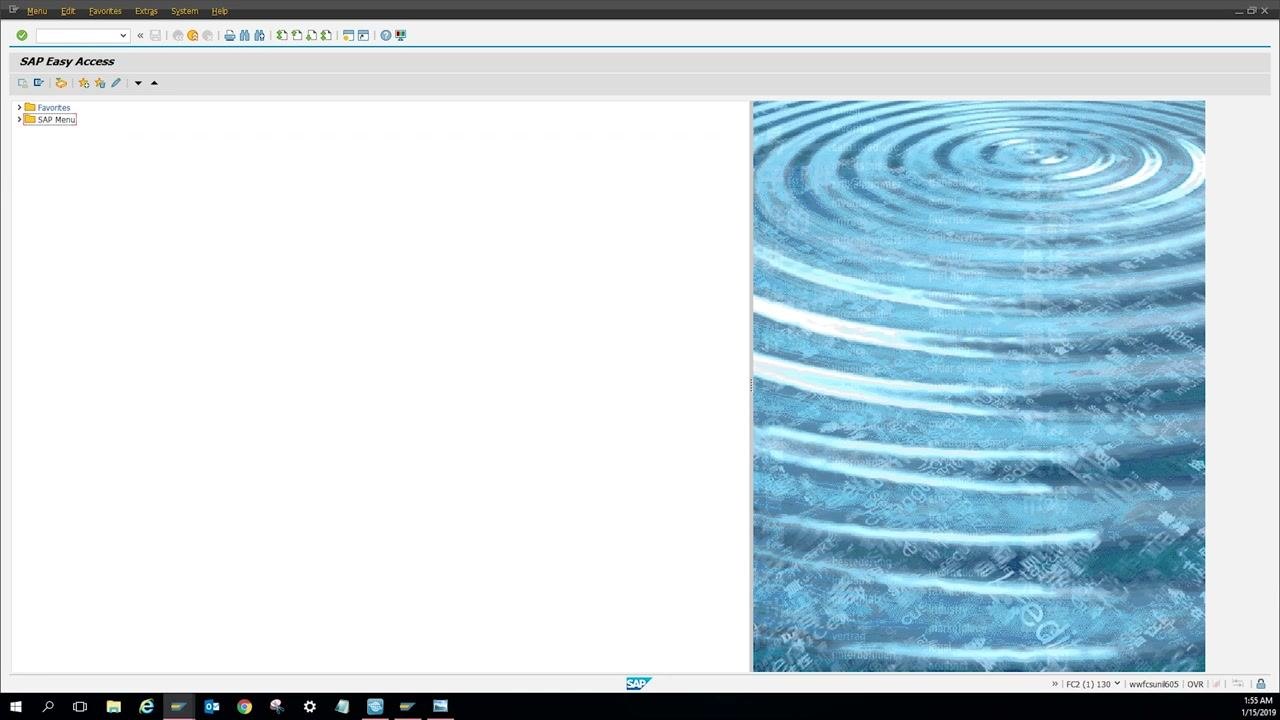
Navigate to the MB51 transaction
Click on the command field at the top of the SAP Easy Access screen. Type MB51 into the field and press Enter on your keyboard to open the Material Document List transaction.
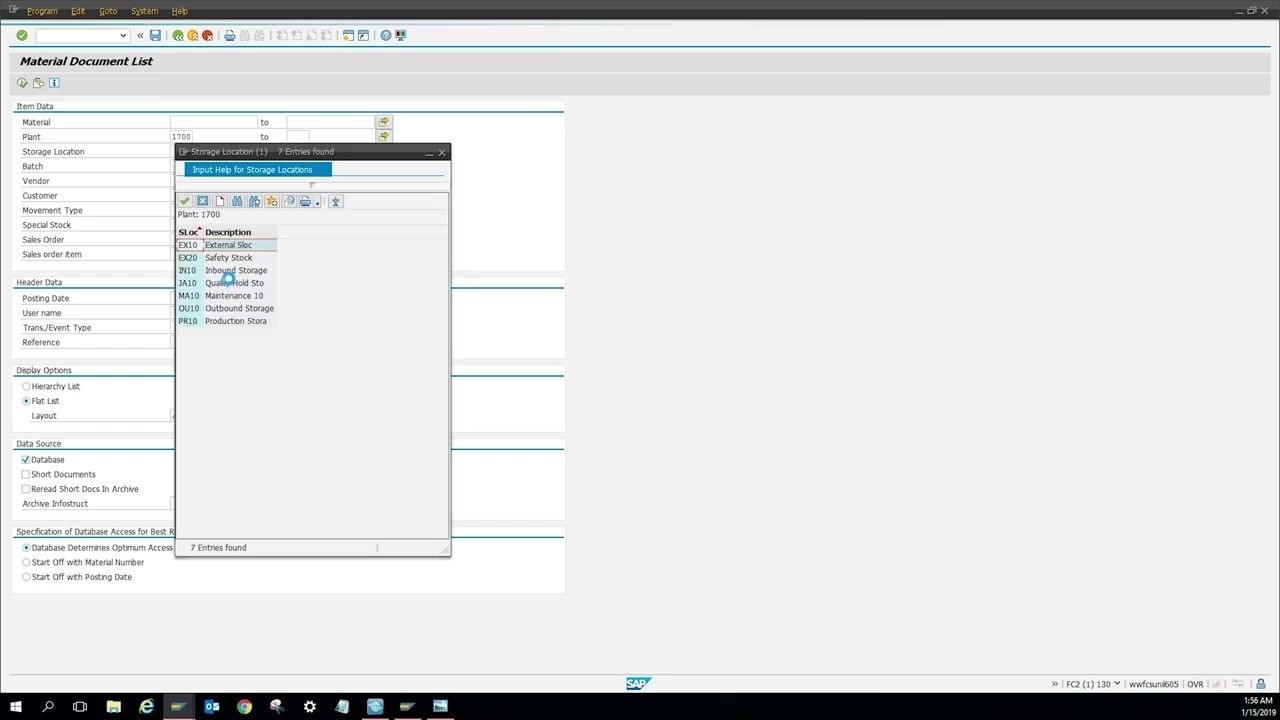
Enter selection criteria
On the Material Document List screen, fill in the following fields under Item Data:
- Plant: Enter your plant number (for example,
1700). - Storage Location: Click the selection button next to the field to open the list of storage locations, then choose
MA10(Maintenance 10), the maintenance MRO storage location.
- Movement Type: Click the selection button next to the field to open the list of movement types, then select
201(Goods Issue for Cost Center).
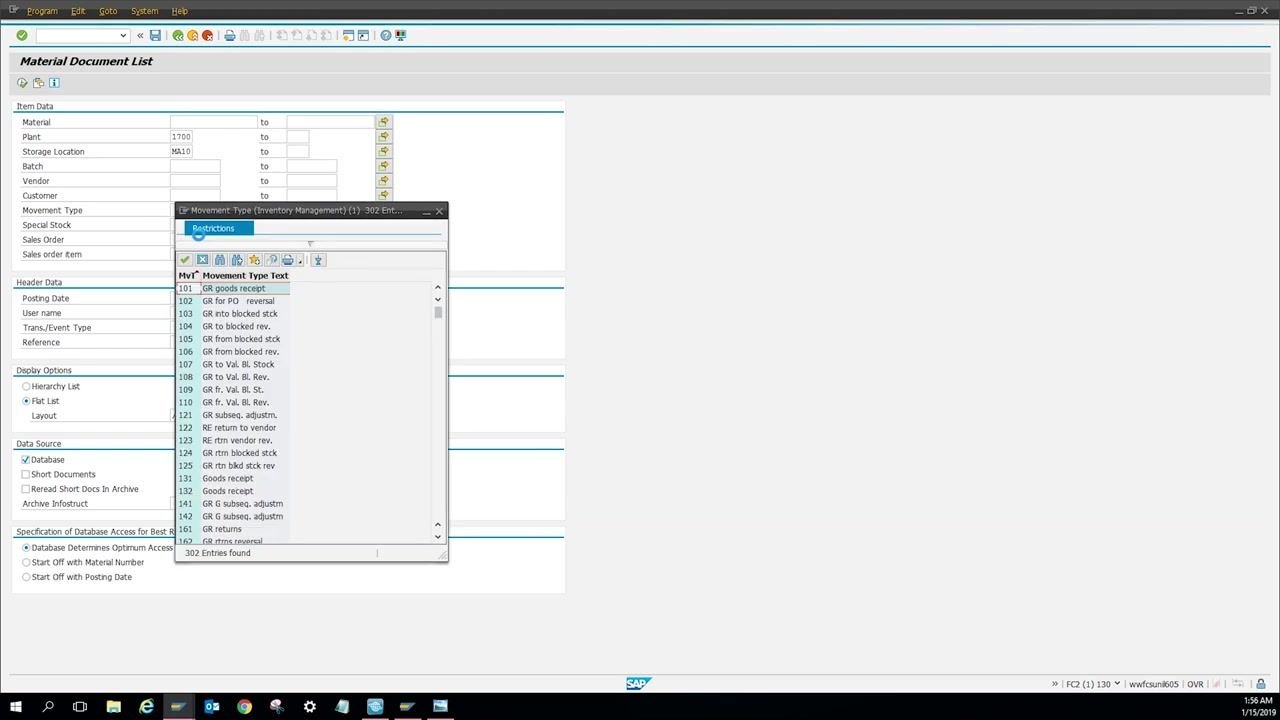
Set the posting date range
In the Header Data section, enter the desired posting date range:
- From:
01/01/2018 - To:
12/30/2018
This limits the results to material documents posted within 2018.
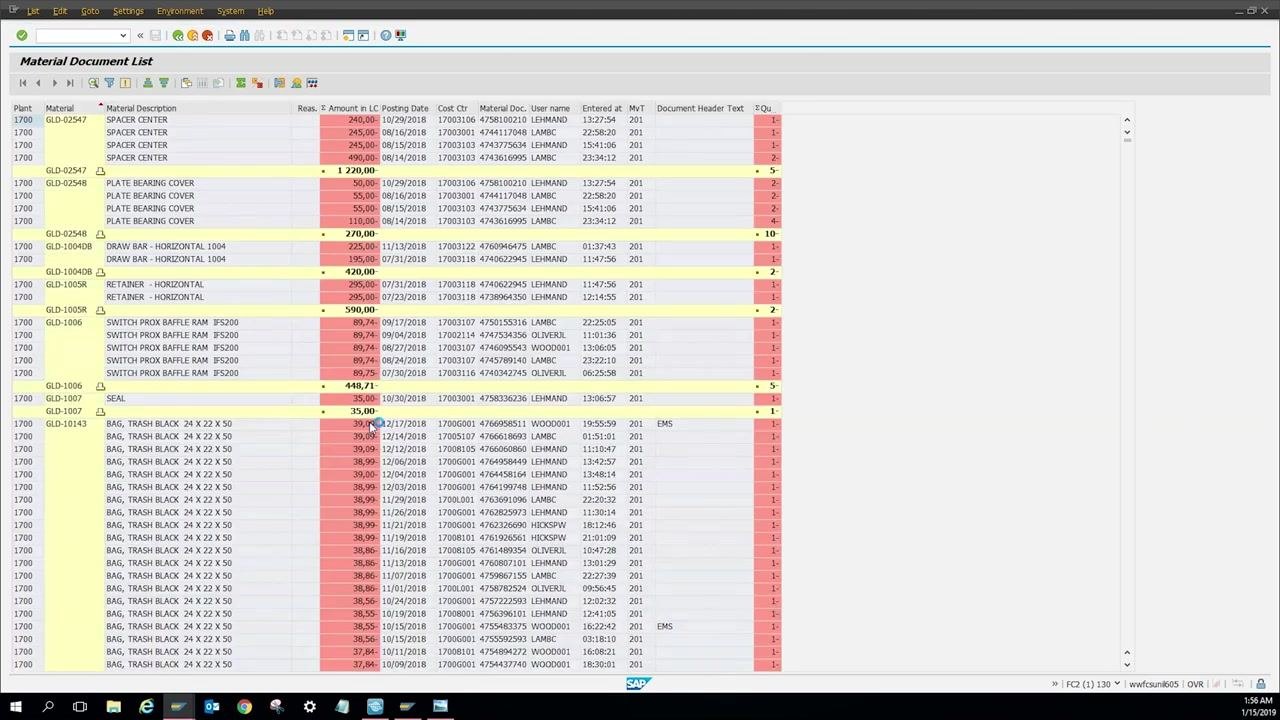
Execute the report
Press Enter or click the execute button (green checkmark or clock icon) to run the report. Wait for the system to load the results.
Review the results
The system displays a list of all materials spent by cost center for your specified criteria. Review columns such as Plant, Material, Material Description, Amount, Posting Date, Cost Center, User Name, and Movement Type.
View total yearly expenditure
After executing your MB51 report, scroll all the way down to the bottom of the results list. You will see the total amount spent for all materials within your selected criteria, such as for the entire year. Totals are typically highlighted in yellow for easy identification.
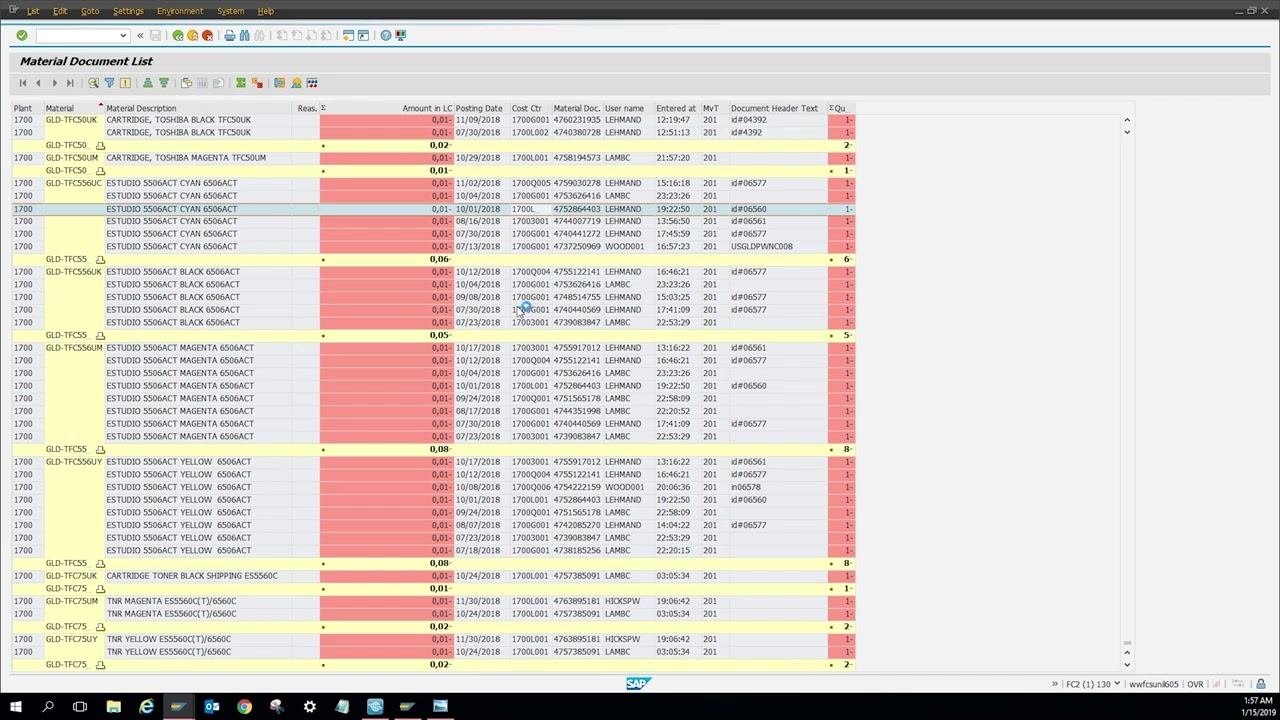
Filter results by a specific cost center
Locate the Cost Ctr (Cost Center) column in your results and find the cost center you want to analyze. Right-click on the desired cost center value in the list, then select Save Filter (or a similarly named option, depending on your SAP version) from the context menu. Confirm the filter by clicking the checkmark. The report refreshes to show only the entries for the selected cost center.
Review the filtered results
After applying the filter, review the list to see only the material expenditures associated with the chosen cost center. Scroll to the bottom of the filtered list to view the total amount spent for that specific cost center. This filtered total is also highlighted in yellow at the bottom of the report.
Interpreting the results
Use the displayed totals to understand how much was spent on materials for the entire year or for a specific cost center. Review individual line items for details such as material description, posting date, user name, and movement type.
What's next
If you need to analyze another cost center, repeat the filtering steps in Step 8 and Step 9 with a new cost center value. You now know how to display material documents with MB51 in SAP, review total yearly expenditures, and filter results down to a specific cost center for detailed analysis.

Generation details: cost, quality tiers
Docsie billed 2,000 credits ($1.40) to analyze this 4-minute video at standard quality. The rewrite, template fill and Word/PDF exports were included. The same video at each quality tier:
| Quality | Frames sampled | Credits | Approx. cost |
|---|---|---|---|
| Draft | every 16-30 s | 1,000 | $0.70 |
| Standard (this guide) | every 8-15 s | 2,000 | $1.40 |
| Detailed | every 4-7 s | 4,000 | $2.80 |
| Ultra | every 1-3 s | 8,000 | $5.60 |
Credits priced at $0.70 per 1,000; plans include a monthly allowance. Enterprise customers on on-premise or bring-your-own-model deployments run this on their own inference and pay no per-video credits.
Generated by Docsie Video-to-Docs on 2026-10-02 from a 3-minute video. Screenshots are frames from the source video and belong to their creator, Elite Vision Technology, whose original is embedded above. If you own this video and want the guide removed or credited differently, contact us and we will act within one business day.