
How to Activate a Business Function in SAP
Before you can configure fixed assets in SAP S/4HANA, you must confirm that the relevant business function is activated in your system. This guide walks you through how to activate a business function in SAP S/4HANA, using the fixed assets business function as an example, so your configuration work can proceed without technical blockers.
Video: How Activate Business Function for fixed Assets: SAP S/4 HANA by SAP at a glance (2024). All credit for the demonstration goes to the creator; watch the original on YouTube. The written guide below was generated from this video by Docsie. Creator? Request a change or removal.
Before you can configure fixed assets in SAP S/4HANA, you must confirm that the relevant business function is activated in your system. This guide walks you through how to activate a business function in SAP S/4HANA, using the fixed assets business function as an example, so your configuration work can proceed without technical blockers.
Prerequisites
- Access to the SAP GUI and the transaction code used to open the IMG (Implementation Guide).
- Authorization to activate business functions in your SAP S/4HANA system. If you do not have this authorization, you will need support from your BASIS team.
Verify business function activation
Before you start configuring fixed assets, check whether the required business function is already active in your SAP S/4HANA system. This activation may have already been completed during the initial project installation, so it is important to verify its current status rather than assume it is missing.
If you do not have access to check or activate business functions yourself, contact your BASIS team and ask them to confirm the status, or to activate the required business function for fixed assets if it is not yet active.
Access the IMG and open Activate Business Functions
Open the SAP GUI and enter the transaction code to access the IMG. In the IMG structure, locate and click Activate Business Functions under the relevant section to open the list of available business functions.
Review the required business functions
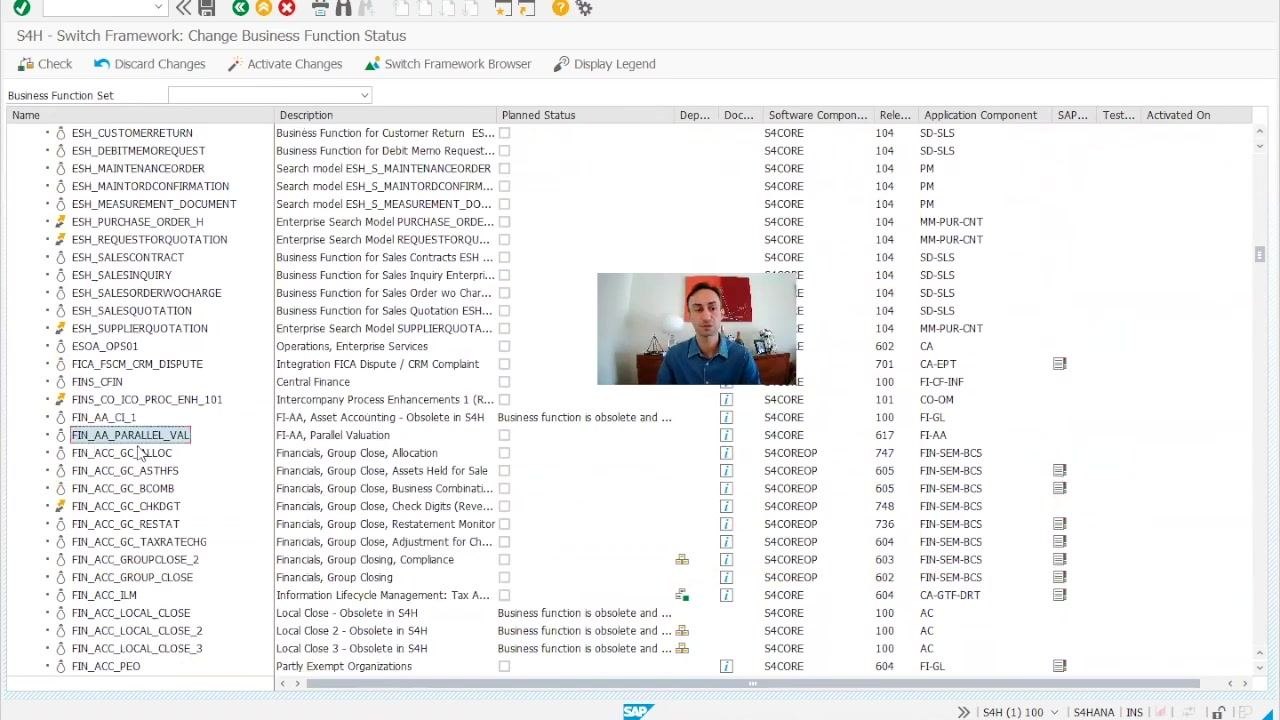
On the S4H - Switch Framework: Change Business Function Status screen, verify that all the business functions required for your project are listed. You may return to this screen multiple times during the implementation lifecycle, for example when working on other modules such as banking.
Keep in mind that some business functions, such as those related to banking, may no longer require manual activation if they are now delivered as part of SAP's cloud solutions.
Locate the fixed assets business function
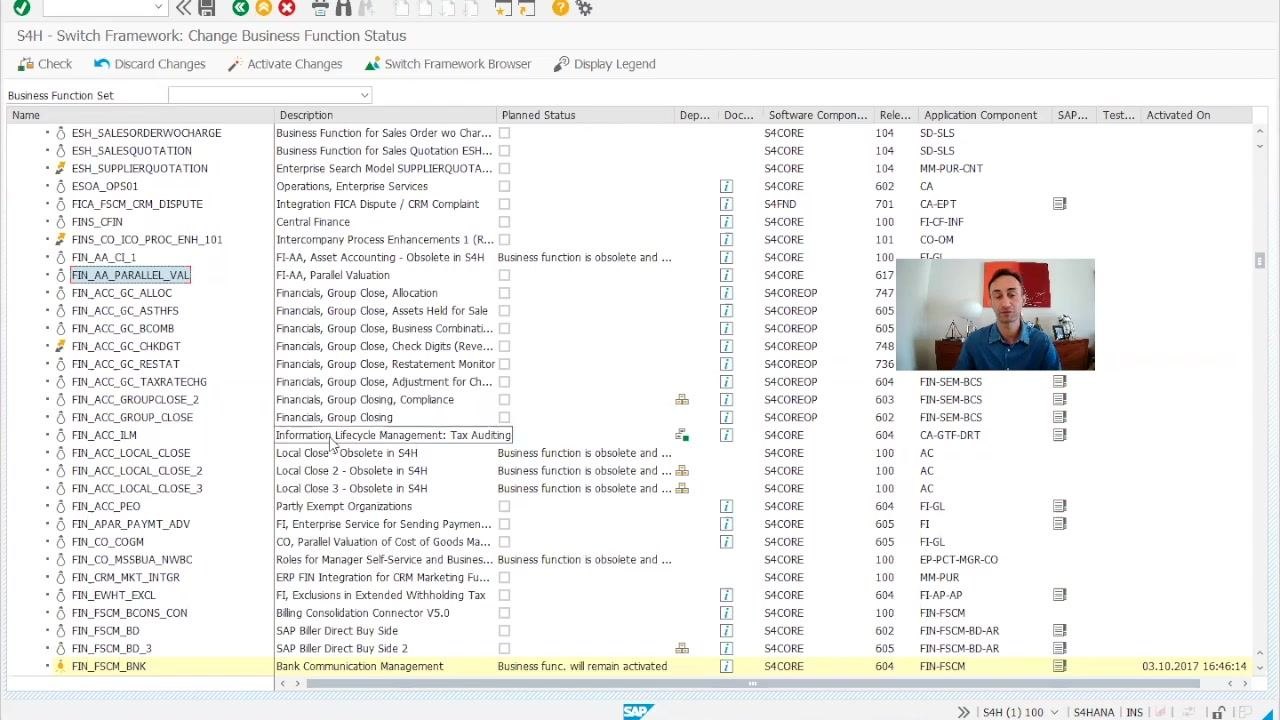
On the S4H - Switch Framework: Change Business Function Status screen, you will see a list of all business functions along with their planned status, dependencies, software components, and activation status. Use the search function or scroll through the list to find the business function for fixed assets, for example FIN_AA_PARALLEL_VAL (Parallel Valuation in FI-AA).
Check the activation status
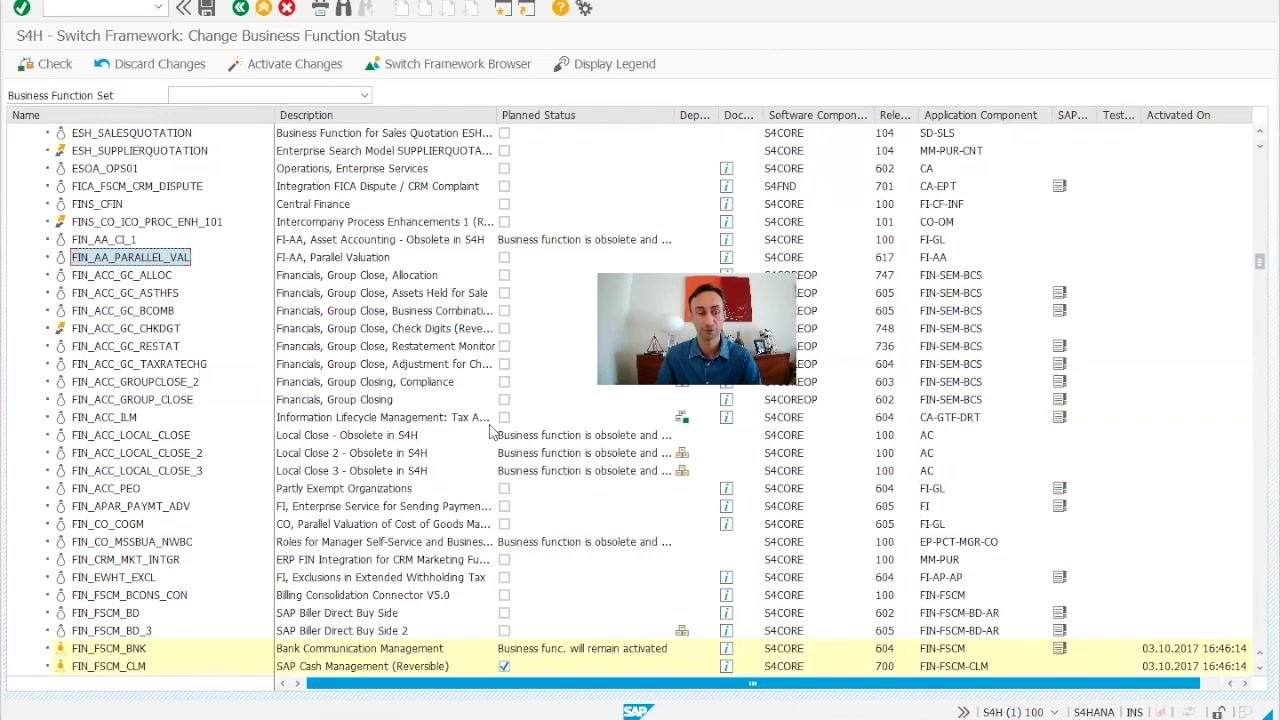
Check the Planned Status column for the business function FIN_AA_PARALLEL_VAL:
- If the checkbox is empty, the function is not yet active.
- If the checkbox is selected and the row is highlighted (as with FIN_FSCM_CLM), the business function is already active and will remain so.
Review the business function details
Double-click the business function (for example, FIN_AA_PARALLEL_VAL) to view its properties. The details screen displays:
- Description (e.g., "Parallel Valuation in FI-AA")
- Long Text
- Created by, Last Changed by, Created on, Changed on
- Software Component (e.g., S4CORE)
- Delivery Release (e.g., 617)
- S/4H On Premise Status (e.g., "1 customer switchable")
- S/4H Cloud Status (e.g., "3 always on")
- Activation Status (e.g., "off" if not yet active)
Use the available tabs to check dependencies and other relevant details before proceeding.
Activate the business function
If everything checks out and you have the necessary authorizations, click Activate Changes (the green checkmark or similar icon) and save your changes.
If you do not have the required access, contact your BASIS team and request activation of the business function for fixed assets. Provide them with the exact business function name (for example, FIN_AA_PARALLEL_VAL) and any other relevant details. The process itself is straightforward: check the function, activate it, and save.
Confirm activation
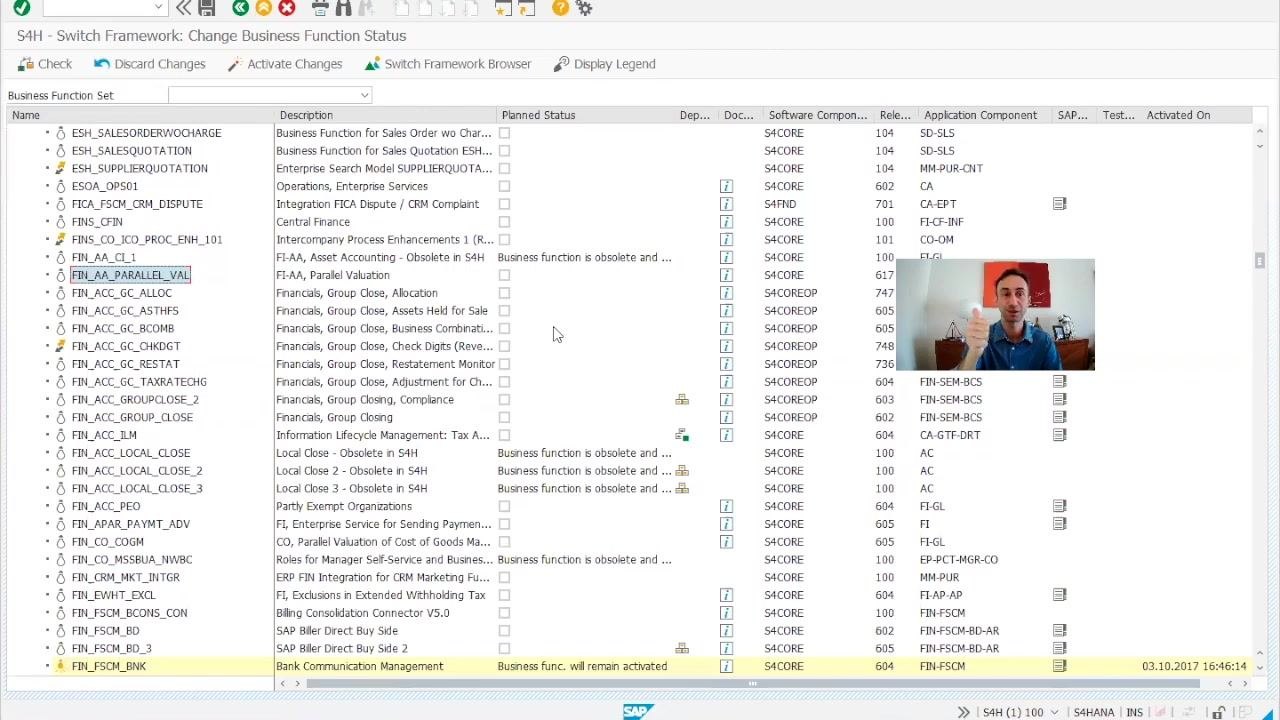
Once activated, the business function shows as active in the status column. The row may be highlighted, and the message "Business func. will remain activated" appears to confirm the change.
Summary
You have now verified and, if needed, activated the required business function for fixed assets in SAP S/4HANA using the Switch Framework in the IMG. This confirms that the technical prerequisite is in place before you continue with fixed assets configuration. If you encounter any business functions you cannot activate yourself, work with your BASIS team to complete activation before moving forward.

Generated by Docsie Video-to-Docs on 2026-10-14 from a 4-minute video. Screenshots are frames from the source video and belong to their creator, SAP at a glance, whose original is embedded above. If you own this video and want the guide removed or credited differently, contact us and we will act within one business day.