
How to Create an ASN in SAP Ariba
This guide shows you how to create an ASN (advance ship notice) in SAP Ariba. You log in to the Ariba Network supplier portal, confirm a purchase order, and create a ship notice for it. You then resolve a duplicate Packing Slip ID error and submit the notice. The example uses purchase order 4000002415.
Video: How to Create ASN in SAP Ariba by HackNLearnIndia (2023). All credit for the demonstration goes to the creator; watch the original on YouTube. The written guide below was generated from this video by Docsie. Creator? Request a change or removal.
This guide shows you how to create an ASN (advance ship notice) in SAP Ariba. You log in to the Ariba Network supplier portal, confirm a purchase order, and create a ship notice for it. You then resolve a duplicate Packing Slip ID error and submit the notice. The example uses purchase order 4000002415.
Prerequisites
Before you start, make sure you have the following:
- An activated Ariba Network supplier account with your username and password.
- A purchase order from your customer. The example uses order number
4000002415. - Your invoice file, for example
NX6D29567.pdf, ready to attach to the ship notice. - A Packing Slip ID and an Invoice Number that you have not used on another ship notice.
Log in to Ariba Network
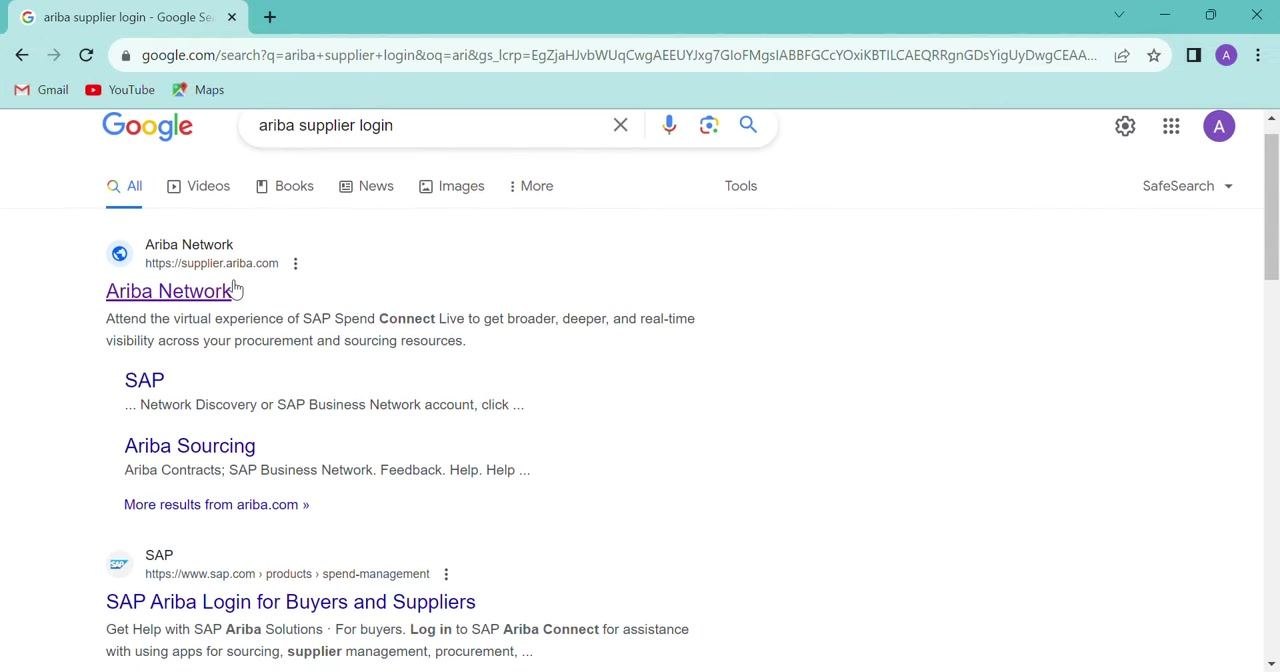
Step 1: Search for the Ariba supplier login
- Open your preferred web browser and open a new tab.
- In the search bar, type
ariba supplier login. - Press Enter to view the search results.
Step 2: Open the Ariba Network login page
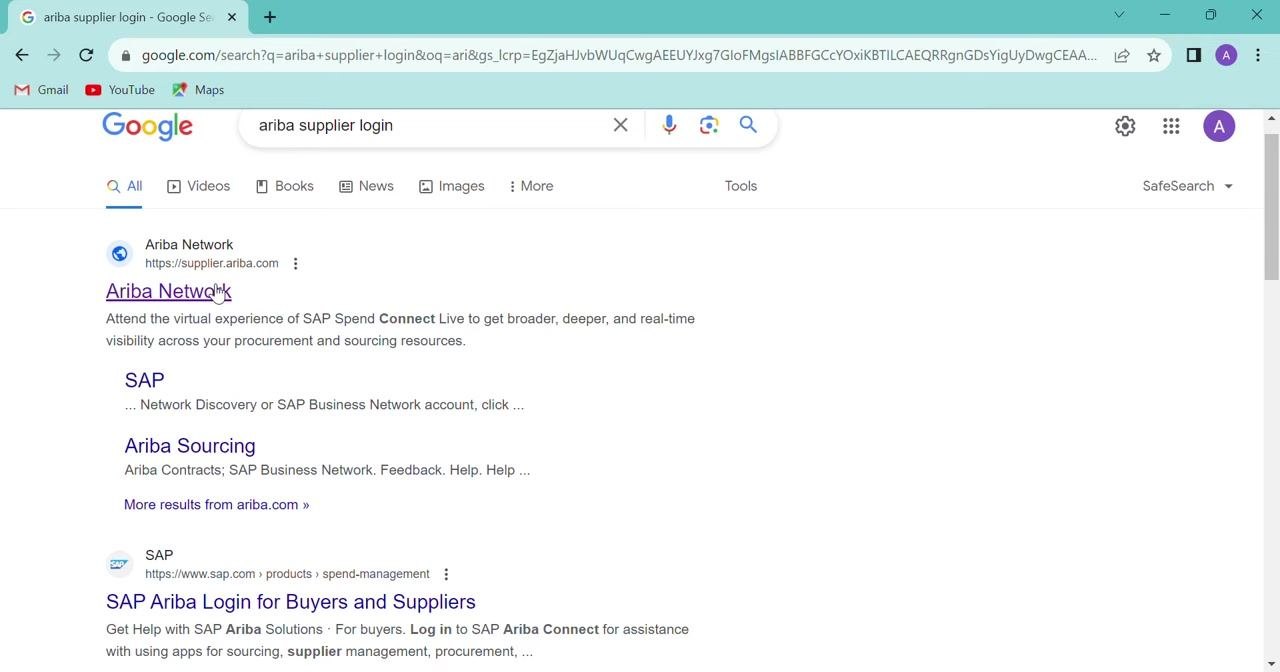
Find the result titled Ariba Network with the URL https://supplier.ariba.com. Click the link to open the login page.
Step 3: Enter your supplier login credentials
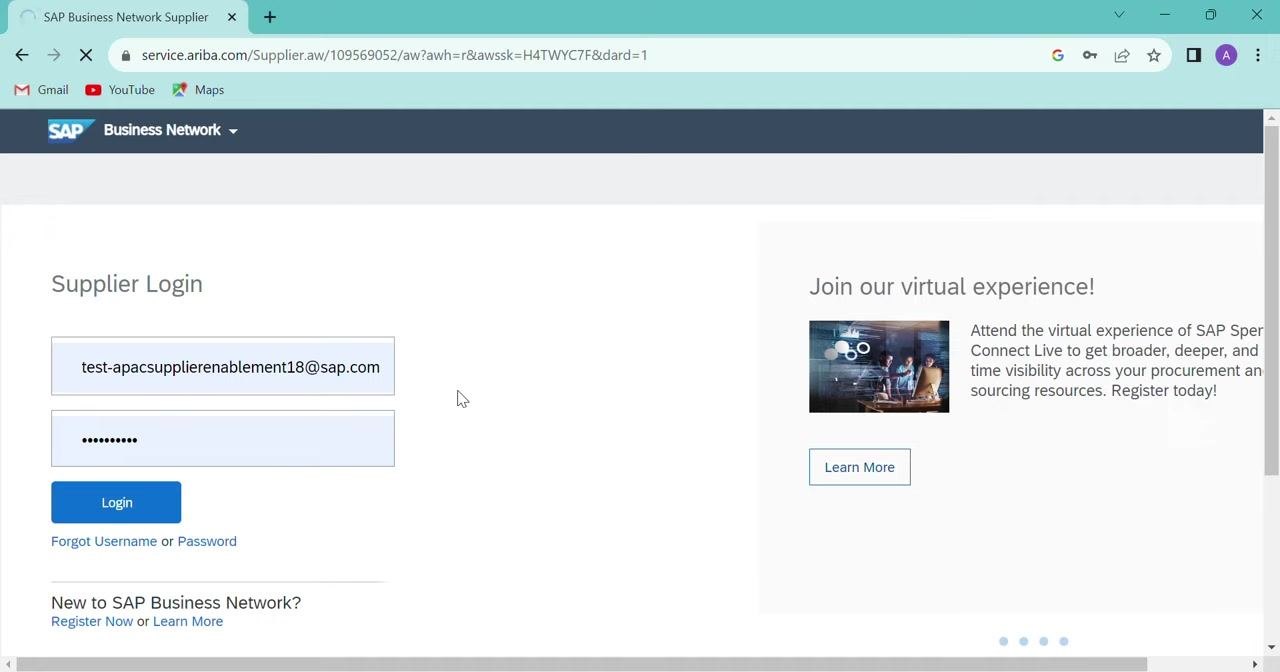
- On the Supplier Login page, enter your username and password in the respective fields. The example username is
test-apacsupplierenablement18@sap.com. Your password is masked as you type. - Click Login.
Step 4: Confirm your account is activated
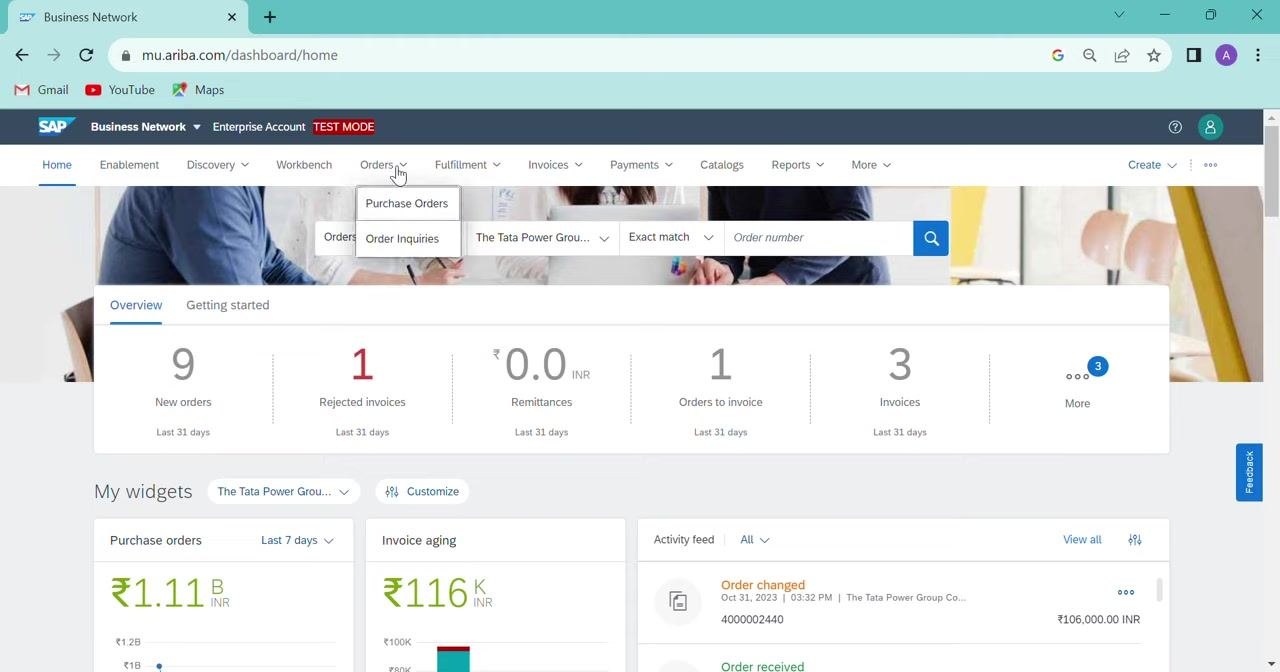
After you log in, confirm that your account is active. Your company name and ANID (Ariba Network ID) should be visible. The dashboard shows your account's active status and company information.
Find your purchase order
Step 5: Open Purchase Orders
- In the top navigation bar, hover over or click Orders to open the dropdown.
- Select Purchase Orders.
Step 6: Search for the purchase order by order number
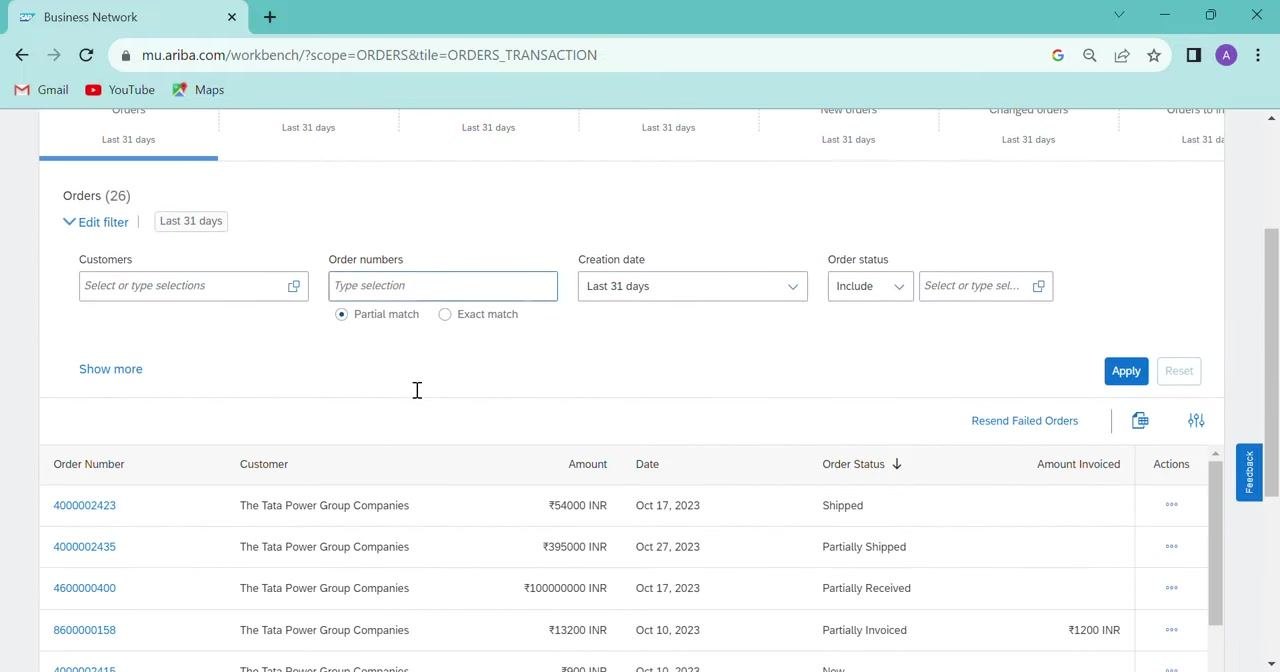
- On the Orders page, find the filter section at the top.
- In the Order numbers field, enter your purchase order number, for example
4000002415. - Choose a match type. Select Exact match to find the specific order in a single row, or use Partial match to find orders that contain part of the number.
- Click Apply.
Step 7: Review the purchase order details
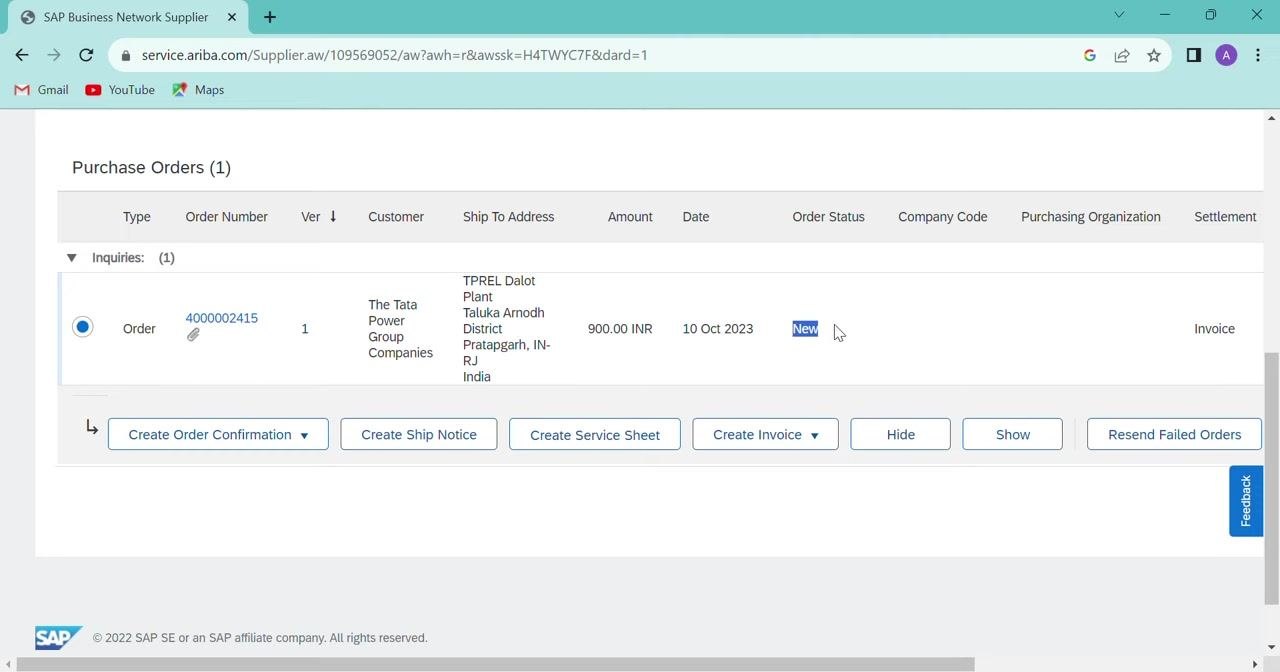
In the results table, review these columns for your order:
- Order Number: for example,
4000002415 - Ver (Version): for example,
1, which is the latest version of the order - Customer: for example,
The Tata Power Group Companies - Ship To Address: for example,
TPREL Dalot Plant, Taluka Arnodh, District Pratapgarh, IN-RJ, India - Amount: for example,
900.00 INR - Date: for example,
10 Oct 2023 - Order Status: for example,
New
The order status shows whether the order is new, shipped, partially shipped, partially received, or partially invoiced.
Step 8: Open the purchase order
In the results table, click the order number (for example, 4000002415) to open the order dashboard.
Confirm the order
Step 9: Start the order confirmation
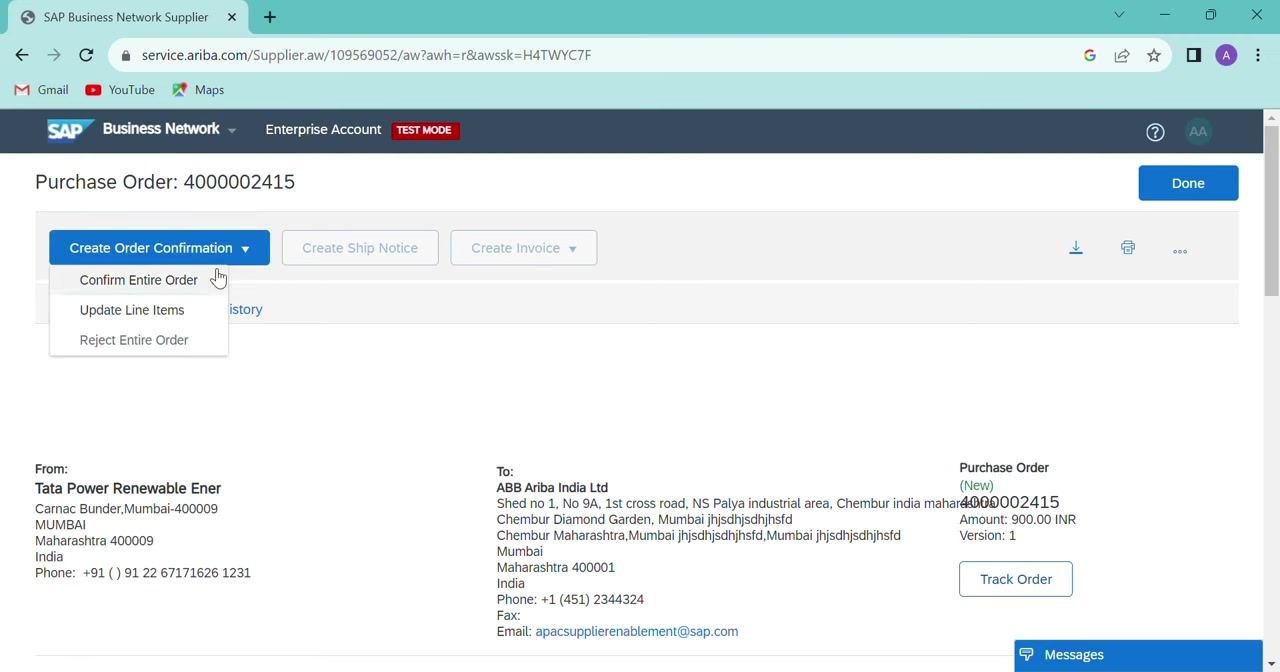
- In the order dashboard, click Create Order Confirmation.
- From the dropdown, select Confirm Entire Order.
Step 10: Review the order confirmation page
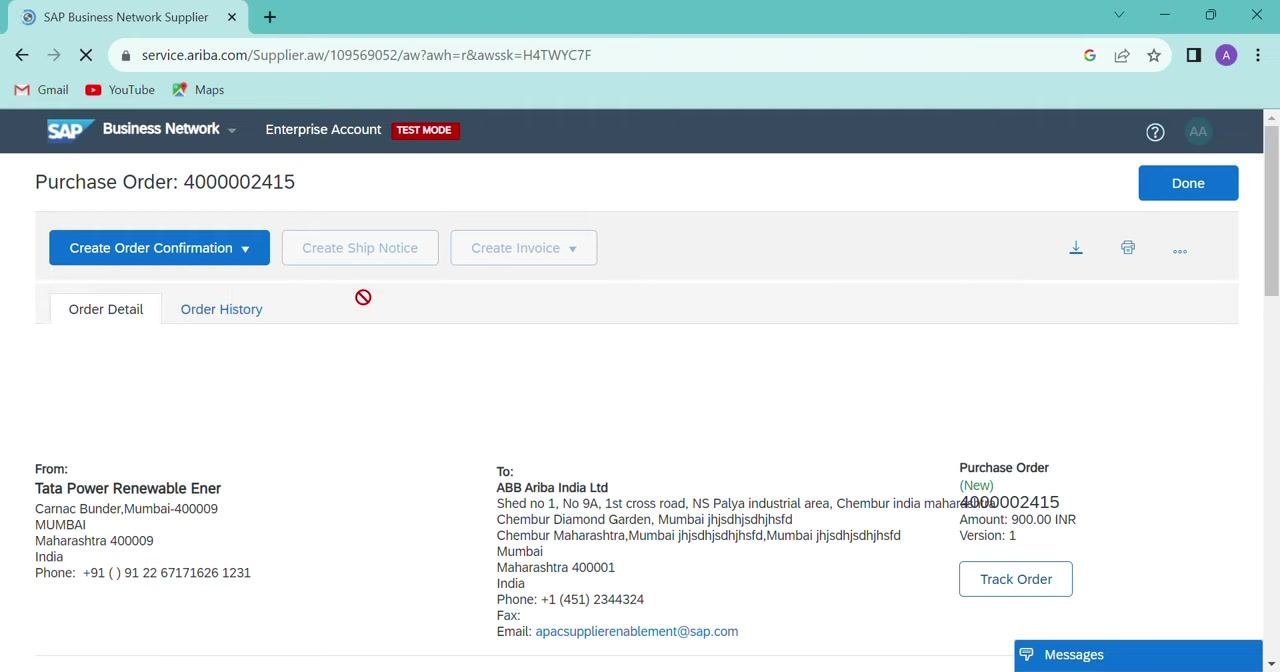
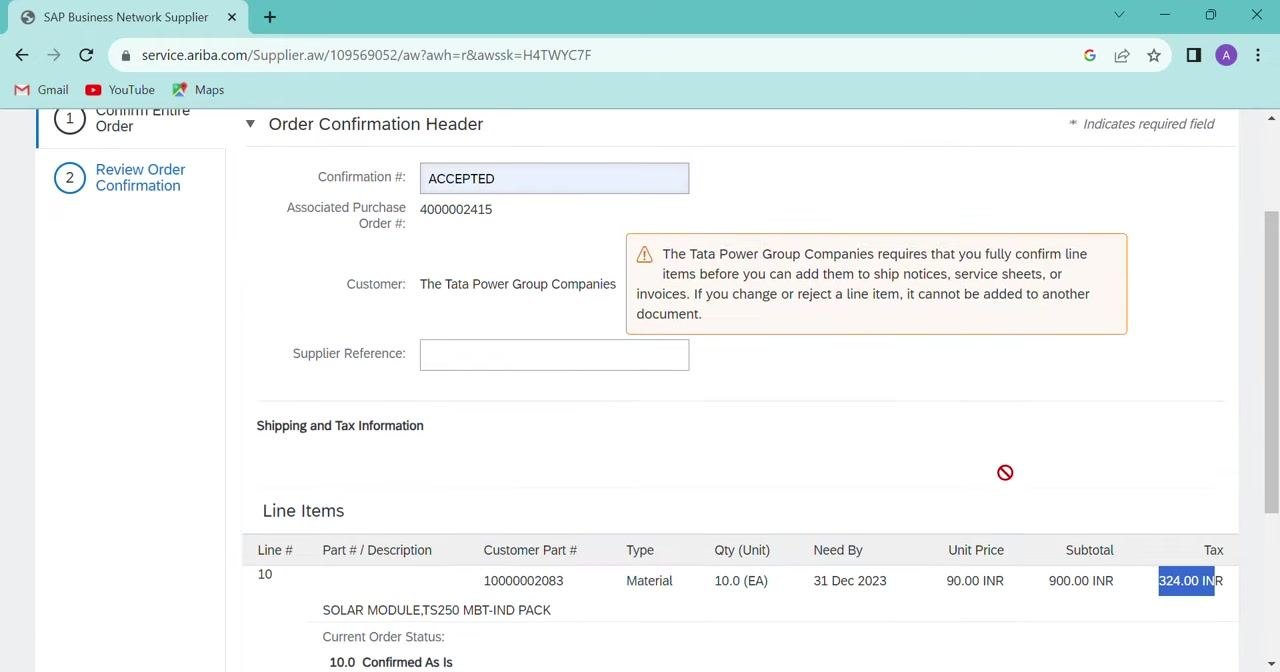
The order confirmation page opens and shows the order details and line items. Confirm that the Confirmation # field is set to ACCEPTED.
You can enter a Supplier Reference, but skip this field unless you need it.
Step 11: Verify the line item details
In the Line Items section, check each value against your order and requirements:
- Line #: 10
- Part # / Description:
SOLAR MODULE, TS250 MBT-IND PACK - Customer Part #:
10000002083 - Type:
Material - Qty (Unit):
10.0 (EA) - Need By:
31 Dec 2023 - Unit Price:
90.00 INR - Subtotal:
900.00 INR - Tax:
324.00 INR
Step 12: Go to the review screen
After you verify the details, click Next at the bottom right of the page.
Step 13: Submit the order confirmation
- On the Review Order Confirmation screen, verify the following:
- Confirmation #:
ACCEPTED - Associated Purchase Order #:
4000002415 - Customer:
The Tata Power Group Companies - Line Items: the same details you reviewed earlier
- Confirmation #:
- If everything is correct, click Submit.
Create the ship notice
Step 14: Start creating the ship notice
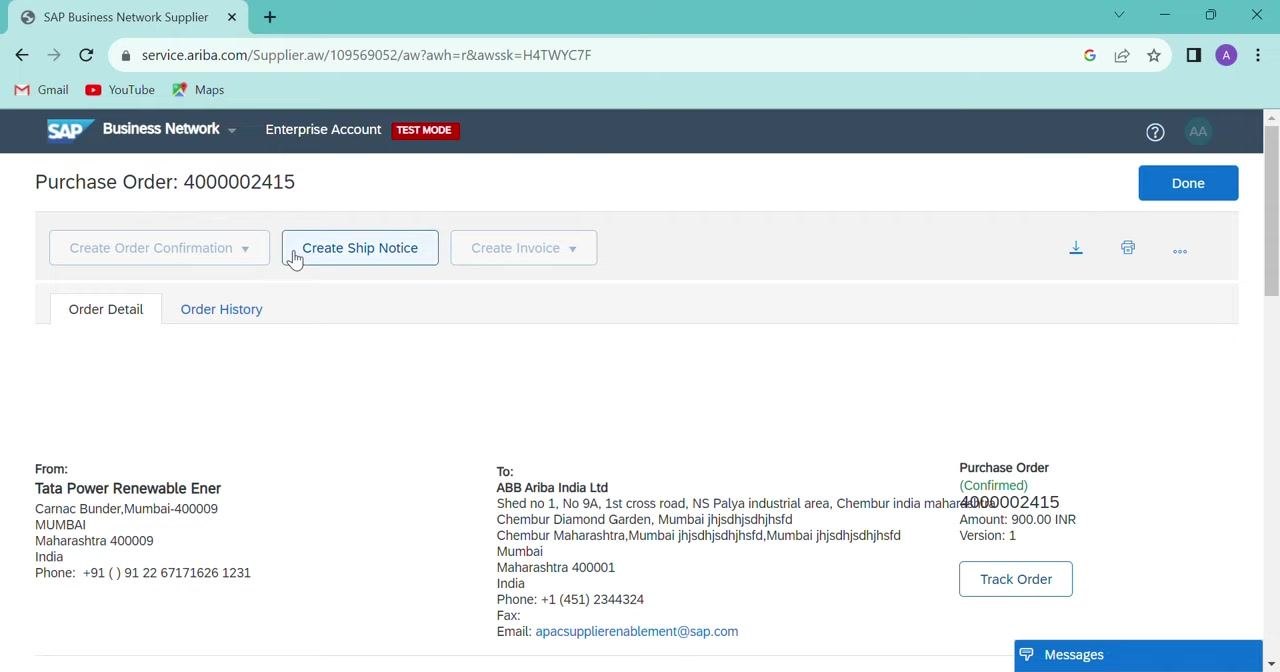
After you submit the order confirmation, you return to the purchase order dashboard. Click Create Ship Notice to begin the shipping process.
Step 15: Review the ship notice dashboard
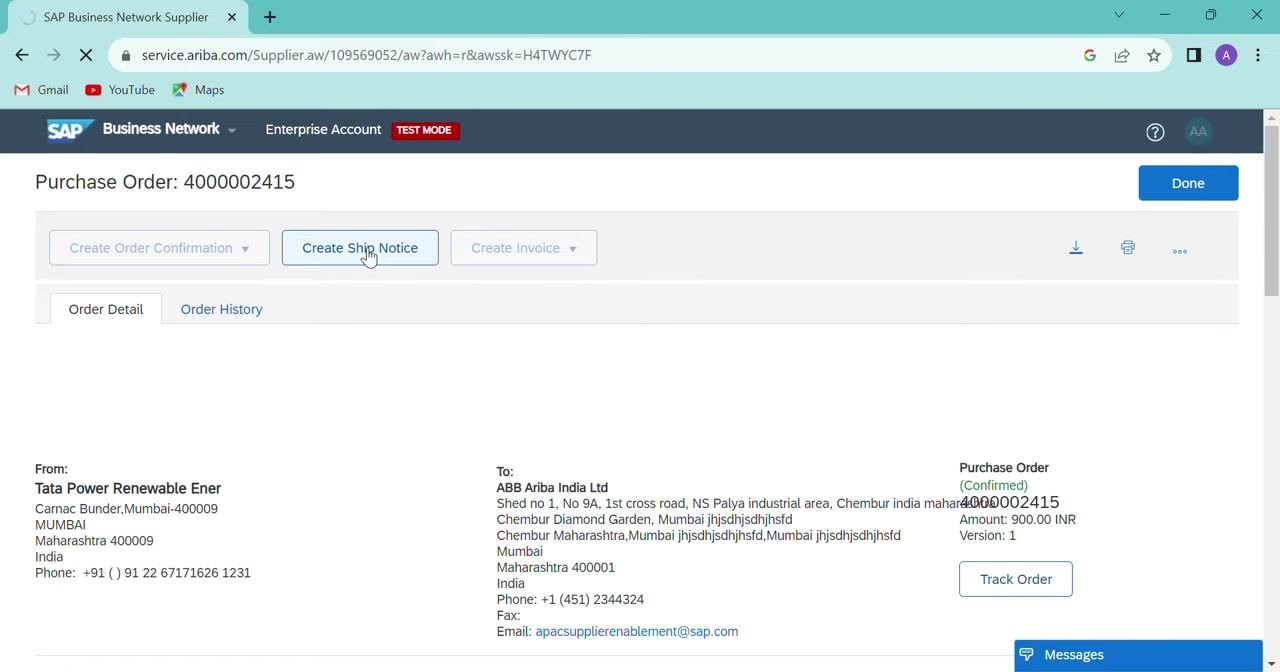
The Ship Notice dashboard opens for the selected purchase order (4000002415). The dashboard shows:
- The purchase order number at the top.
- The action buttons: Create Order Confirmation (disabled), Create Ship Notice (active), and Create Invoice (disabled).
- The Order Detail and Order History tabs.
- The sender and recipient information.
- A purchase order summary with Status (Confirmed), Amount (
900.00 INR), Version (1), and a Track Order button.
The sender (From) is Tata Power Renewable Ener, Carnac Bunder, Mumbai-400009, Maharashtra, India. The recipient (To) is ABB Ariba India Ltd, Shed no 1, No 9A, 1st cross road, NS Palya industrial area, Chembur, Mumbai, Maharashtra, India.
Step 16: Check the details before you enter shipping information
Review the sender and recipient details to make sure they are accurate. Confirm that you are working on the correct purchase order (4000002415).
Be ready to provide the shipping details in the fields that follow. These may include shipment date, carrier, tracking number, and item quantities to ship.
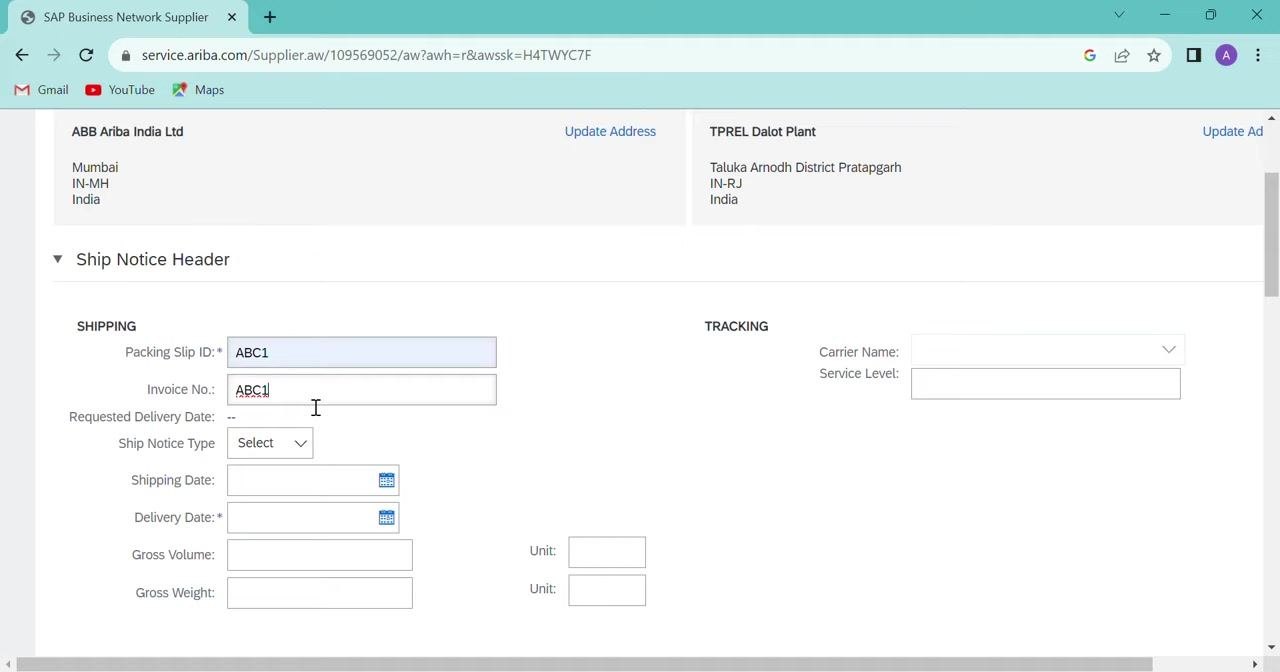
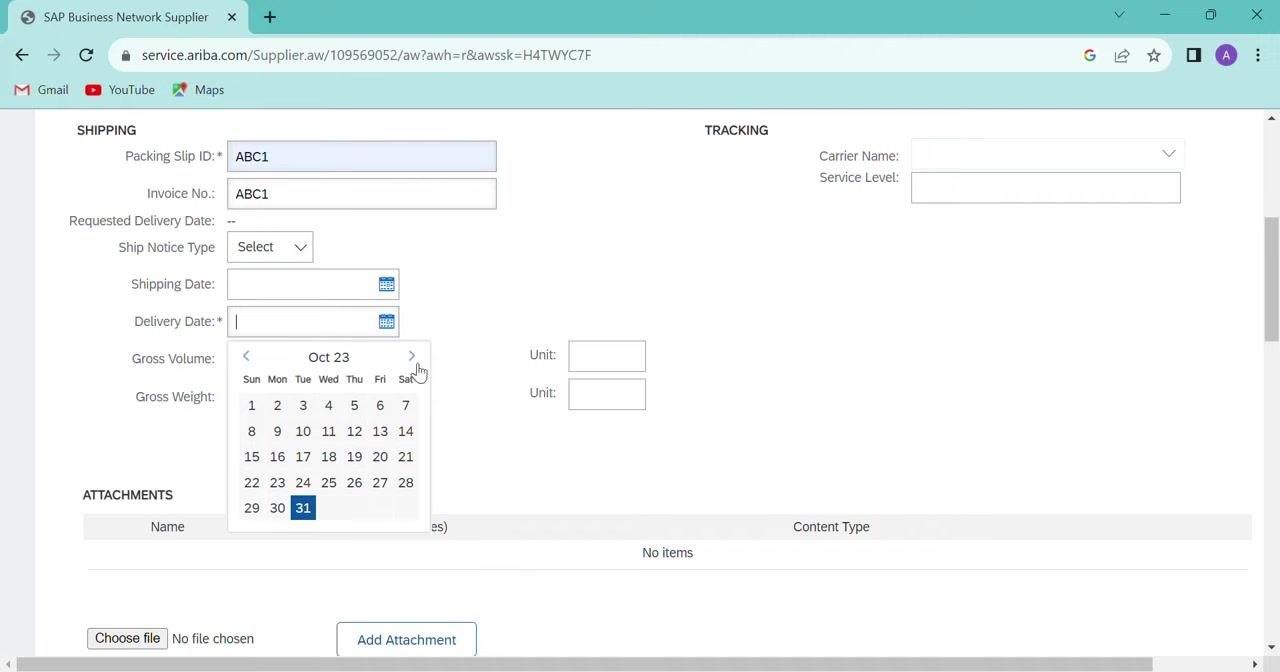
Step 17: Enter the packing slip and invoice information
- In the Ship Notice Header section, find the SHIPPING panel.
- In the Packing Slip ID field, enter
ABC1. - In the Invoice No. field, enter
ABC1.
Step 18: Select the delivery date
- Click the calendar icon next to the Delivery Date field.
- In the calendar, select today's date or a future date. Always use the same date or a future date.
Step 19: Attach your invoice file
- Scroll down to the ATTACHMENTS section.
- Click Choose file.
- Select your invoice file (for example,
NX6D29567.pdf) from your computer. The file name appears next to the button. - Click Add Attachment to upload the file.
Large files can take longer to upload. Wait until the file is fully uploaded and listed under ATTACHMENTS. Don't fill in unnecessary or extra details in this section.
Step 20: Enter delivery and transport information
In the DELIVERY AND TRANSPORT INFORMATION section, fill in the fields you need:
- Delivery Terms
- Delivery Terms Description
- Transport Terms Description
- Shipping Payment Method (for example,
Account) - Shipping Contract Number
- Shipping Instructions
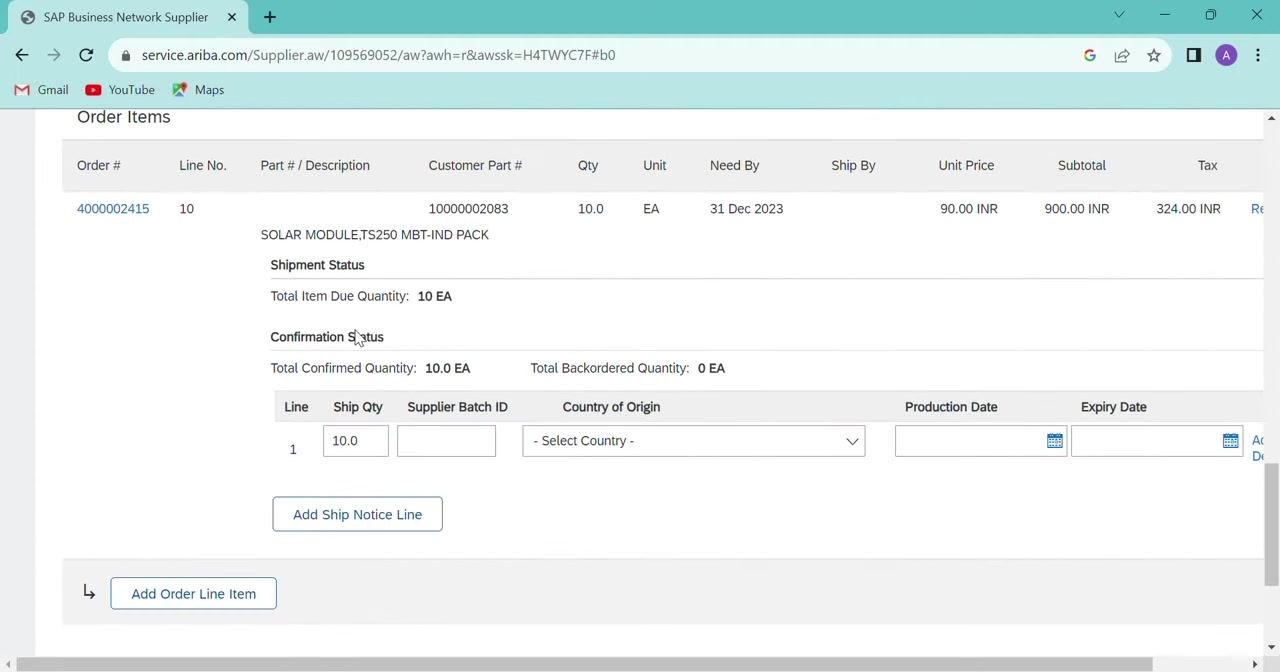
Step 21: Review the order items and enter the ship quantity
- Scroll to the Order Items section.
- Review the order details:
- Order #:
4000002415 - Part #:
10000002083 - Description:
SOLAR MODULE, TS250 MBT-IND PACK - Qty:
10.0 EA - Need By:
31 Dec 2023 - Unit Price:
90.00 INR - Subtotal:
900.00 INR - Tax:
324.00 INR
- Order #:
- Under Line, enter the Ship Qty. Enter
10.0to ship the full quantity. - Enter the Supplier Batch ID if you have one.
- Select the Country of Origin from the dropdown.
- Enter the Production Date and Expiry Date if required.
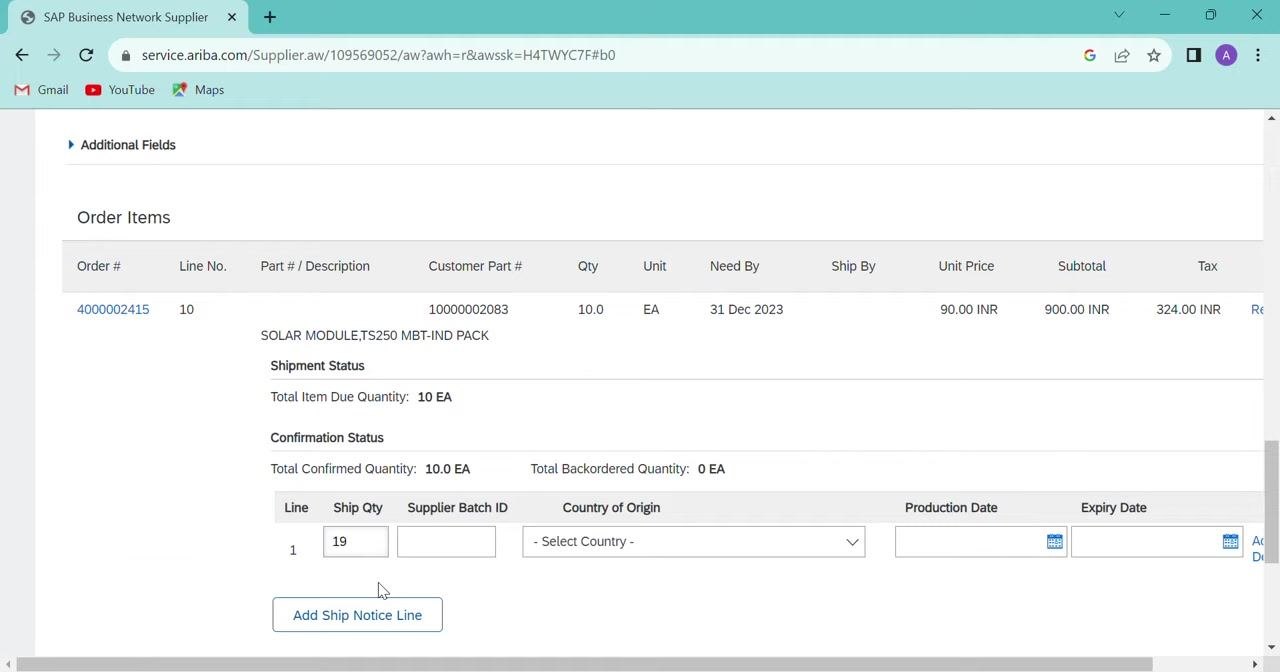
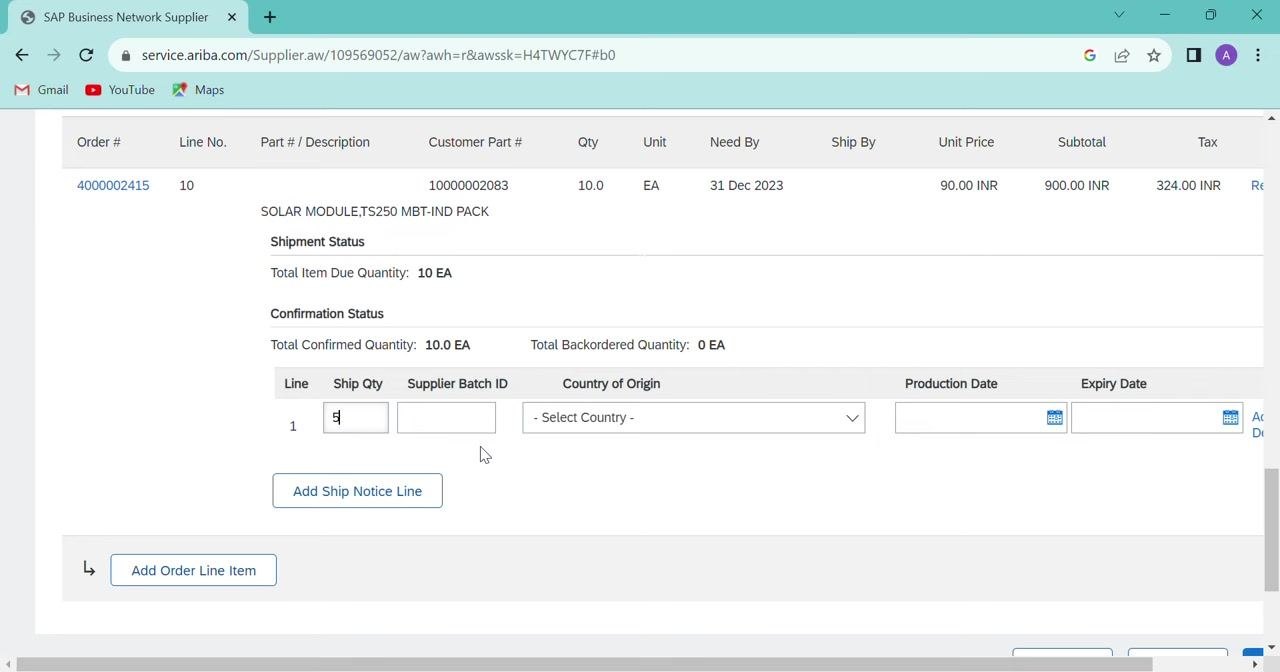
Step 22: Adjust the ship quantity if needed
- To change the Ship Qty, update the value. In the example, the value changes from
5to19. - Click Add Ship Notice Line to confirm the line entry.
Step 23: Verify all entered information
Review all fields and attached files for accuracy. Make sure all required fields are filled in and the correct files are attached.
Step 24: Save your progress
At the top right of the Create Ship Notice screen, click Save to save your progress, or click Exit to leave the form. Then continue with submission as your organization's process requires.
Review and submit the ship notice
Step 25: Review the confirmation dashboard
When you proceed from the ship notice form, the confirmation dashboard appears. It shows:
- The SHIP FROM and DELIVER TO addresses.
- The Ship Notice Header, with the Packing Slip ID (for example,
ABC116) and Invoice No. (for example,ABC1). - Tracking information, if you provided it.
Use Previous, Save, Submit, and Exit at the top right to navigate or finalize your submission.
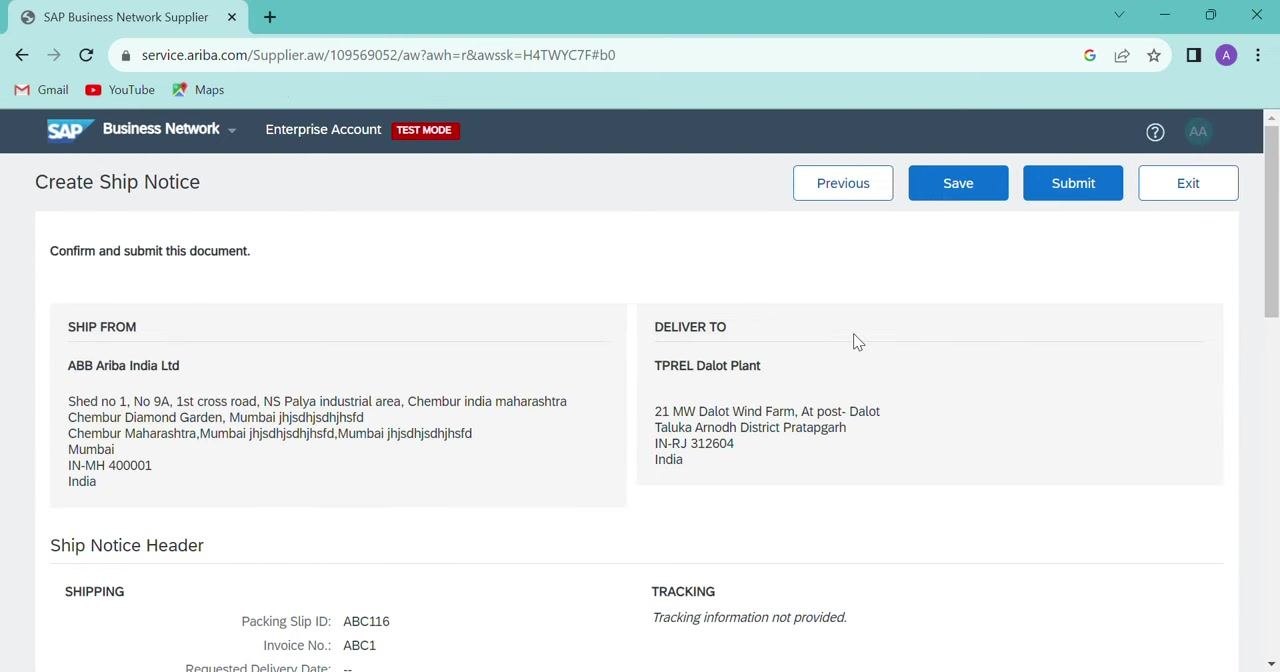
Check that the addresses, Packing Slip ID, Invoice Number, and other details are correct. Make sure tracking information is provided if required.
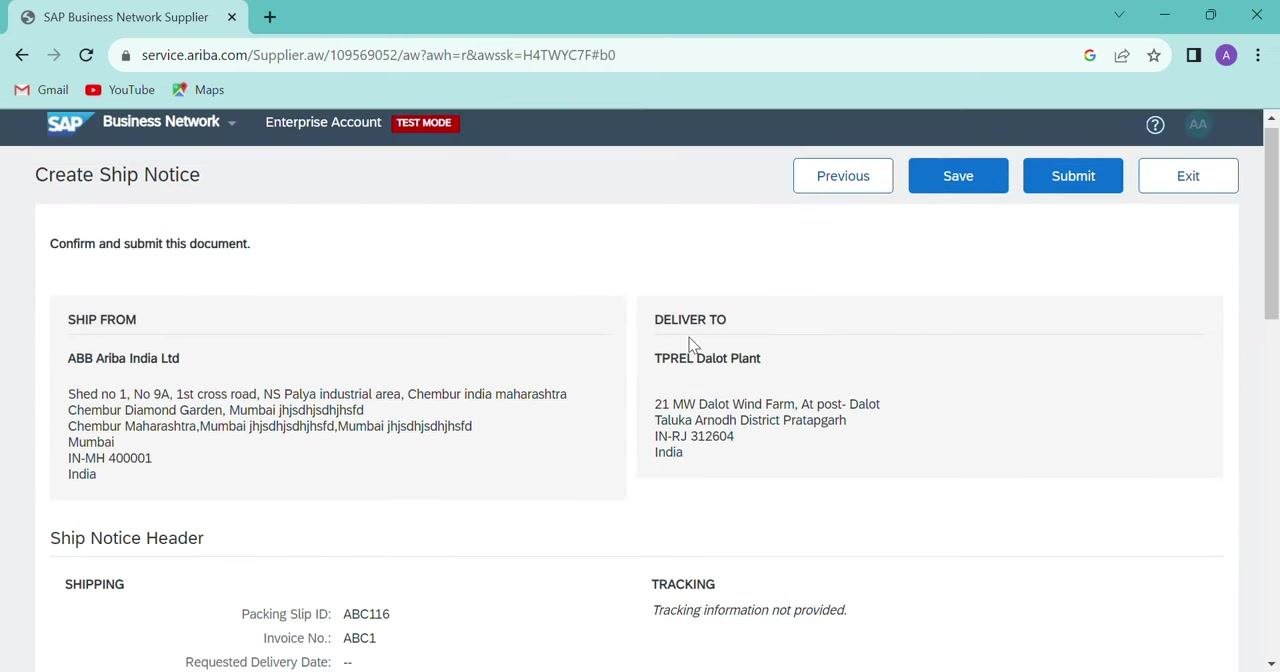
Step 26: Resolve a duplicate Packing Slip ID error
If you submit a ship notice with a duplicate Packing Slip ID or Invoice Number, an error appears. The message reads "The Packing Slip ID must be unique." It appears in red text above the relevant field.
- Enter a unique value in the Packing Slip ID field.
- Make sure the Invoice Number is also unique if you are prompted.
Step 27: Submit the ship notice
After you verify all details, click Submit at the bottom or top right of the screen. If the submission succeeds, you are redirected to the Purchase Order summary page.
Step 28: Review the purchase order status
On the Purchase Order summary page, the Create Order Confirmation, Create Ship Notice, and Create Invoice options are now disabled. This shows the ship notice has been submitted.
The Purchase Order status shows as Shipped. You can also review the supplier and buyer information, order number, and amount.
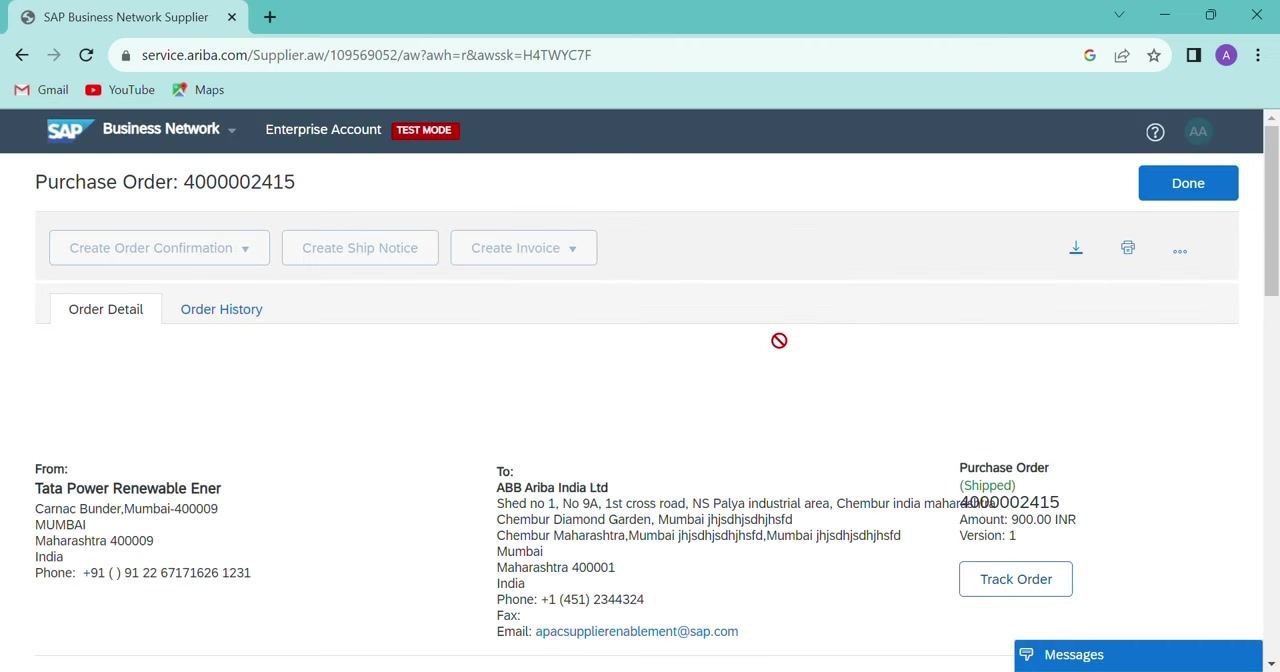
Step 29: Finish
Click Done at the top right to exit the Purchase Order summary page.
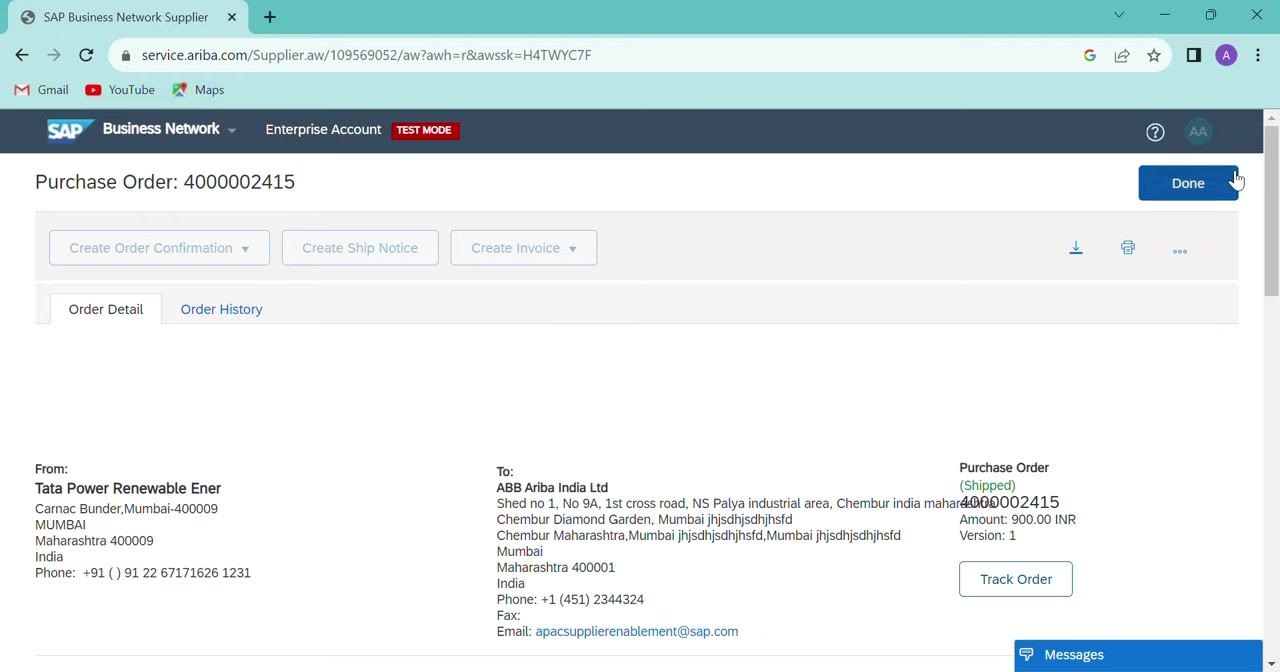
Summary
To create an ASN in SAP Ariba, confirm the purchase order first, then create and submit the ship notice. Keep these points in mind:
- Review all order and line item details before you confirm. Check the material, customer part number, quantity, unit price, subtotal, and tax.
- Make sure Confirmation # is
ACCEPTED, skip the supplier reference unless required, then click Next and Submit. - Always use a current or future delivery date.
- Attach only the required invoice and shipping documents.
- Use a unique Packing Slip ID and Invoice Number for each ship notice.
- Double-check all quantities and details before you submit. If an error appears, correct it as indicated and resubmit.
What's next
After the ship notice is submitted and the purchase order shows Shipped, the next step is creating an invoice for payment.
Generation details: cost, quality tiers
Docsie billed 4,500 credits ($3.15) to analyze this 9-minute video at standard quality. The rewrite, template fill and Word/PDF exports were included. The same video at each quality tier:
| Quality | Frames sampled | Credits | Approx. cost |
|---|---|---|---|
| Draft | every 16-30 s | 2,250 | $1.57 |
| Standard (this guide) | every 8-15 s | 4,500 | $3.15 |
| Detailed | every 4-7 s | 9,000 | $6.30 |
| Ultra | every 1-3 s | 18,000 | $12.60 |
Credits priced at $0.70 per 1,000; plans include a monthly allowance. Enterprise customers on on-premise or bring-your-own-model deployments run this on their own inference and pay no per-video credits.
Generated by Docsie Video-to-Docs on 2026-11-01 from a 8-minute video. Screenshots are frames from the source video and belong to their creator, HackNLearnIndia, whose original is embedded above. If you own this video and want the guide removed or credited differently, contact us and we will act within one business day.