
How to Register As a Supplier in SAP Ariba
This guide walks you through how to register as a supplier in SAP Ariba Commerce Cloud, from receiving your invitation email to managing contracts and logging out securely. Follow each step in order to complete your supplier registration successfully.
Video: How supplier can register themselves on SAP Ariba | Murtaz Ali Khan | Jazz by Murtaz Ali Khan. All credit for the demonstration goes to the creator; watch the original on YouTube. The written guide below was generated from this video by Docsie. Creator? Request a change or removal.
This guide walks you through how to register as a supplier in SAP Ariba Commerce Cloud, from receiving your invitation email to managing contracts and logging out securely. Follow each step in order to complete your supplier registration successfully.
Prerequisites
- Access to the email inbox associated with your supplier account.
- An invitation email from a buyer organization using SAP Ariba.
- A web browser to access the SAP Ariba registration page.
Check your email for the Ariba invitation
Open the email inbox associated with your supplier account and look for a message from "Ariba Administrator" with the subject line "Your Ariba Login Information." Confirm that the email references the buyer (for example, "Jazz - TEST") and your supplier name. Note that the registration link in this email is valid for only 2 days.
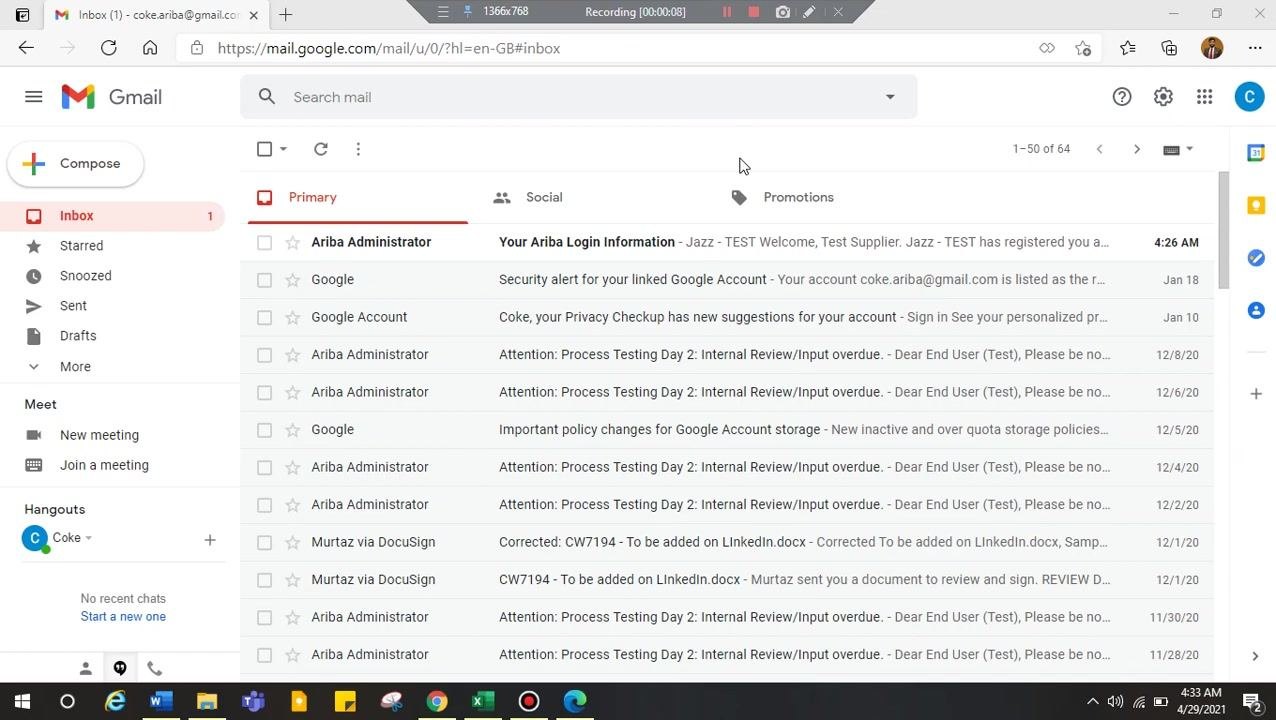
Open the registration email
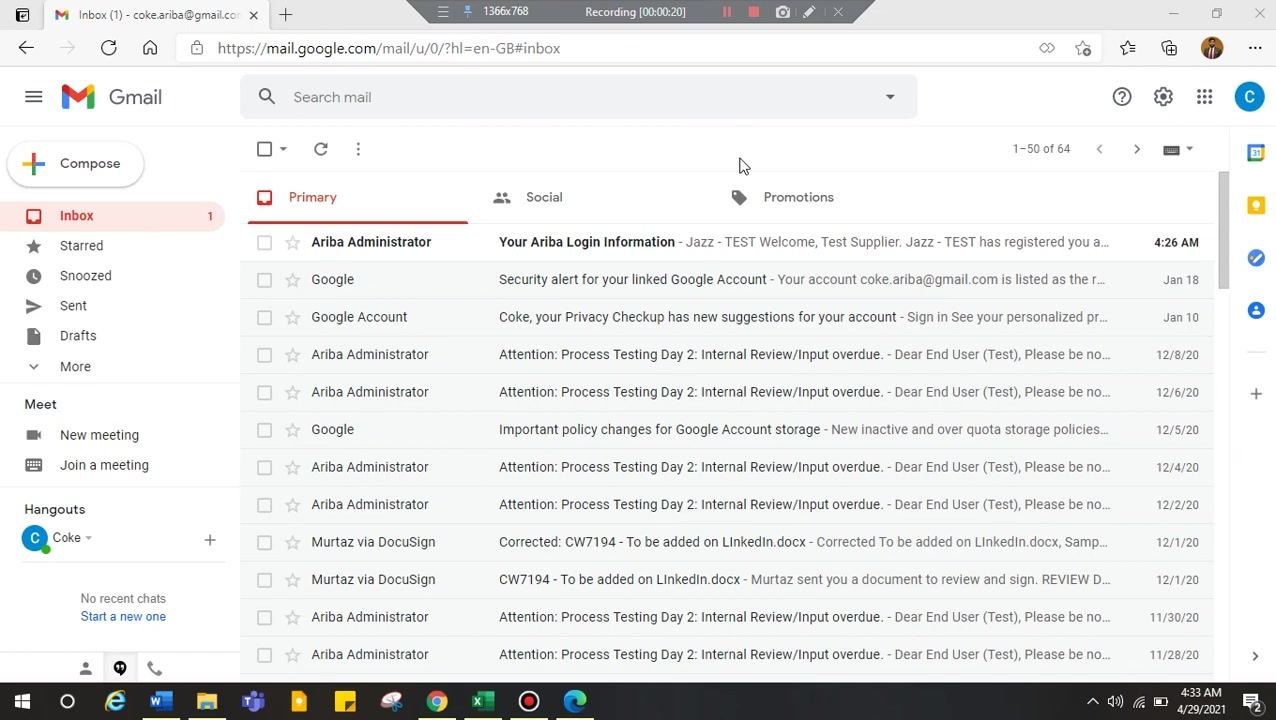
Click the email from Ariba Administrator to open it. Review the details inside, including the buyer's name, your supplier name, and the instructions for completing registration.
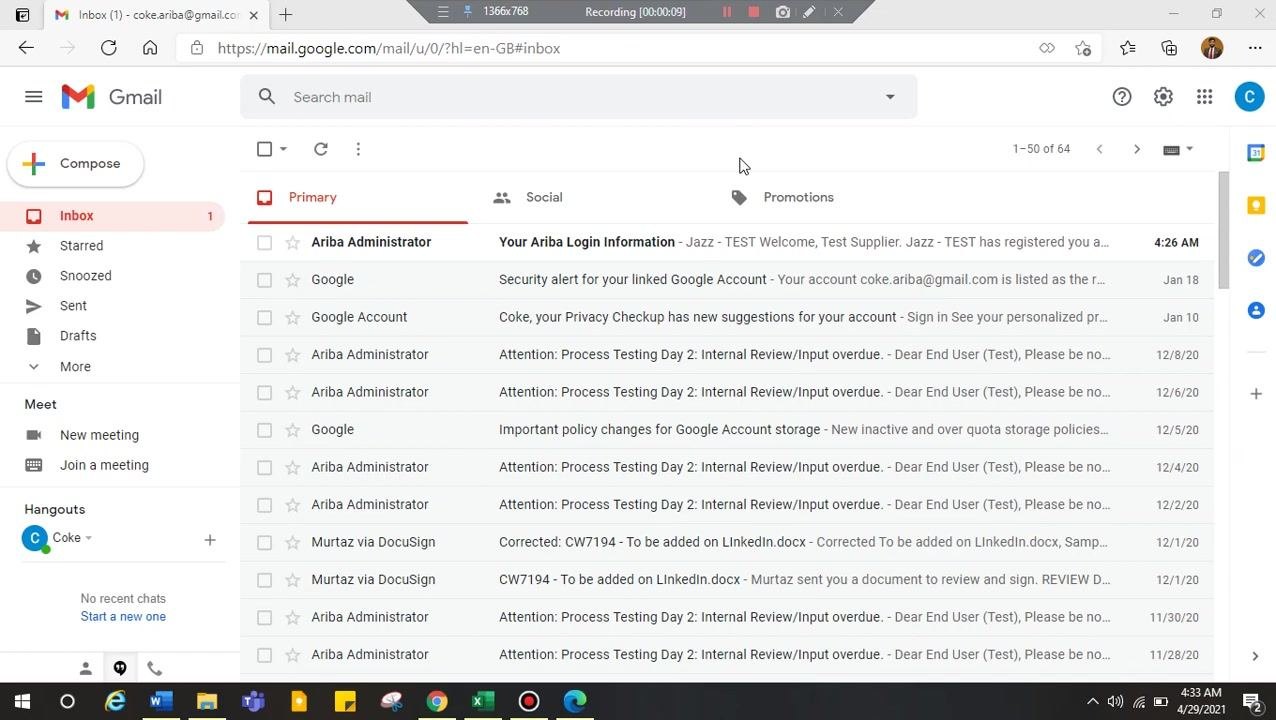
Register using the provided link
Inside the email, locate the "Click Here" hyperlink that takes you to the Ariba Commerce Cloud registration page. Click this link to start the registration process. If the link does not work, copy the full URL shown below the hyperlink and paste it directly into your browser's address bar. Complete your registration within 2 days, as the link will expire after that.
If your link expires: Contact the Ariba administrator from the buyer's organization (for example, Jazz) to request a new invitation email.
Log in or sign up on the SAP Ariba registration page
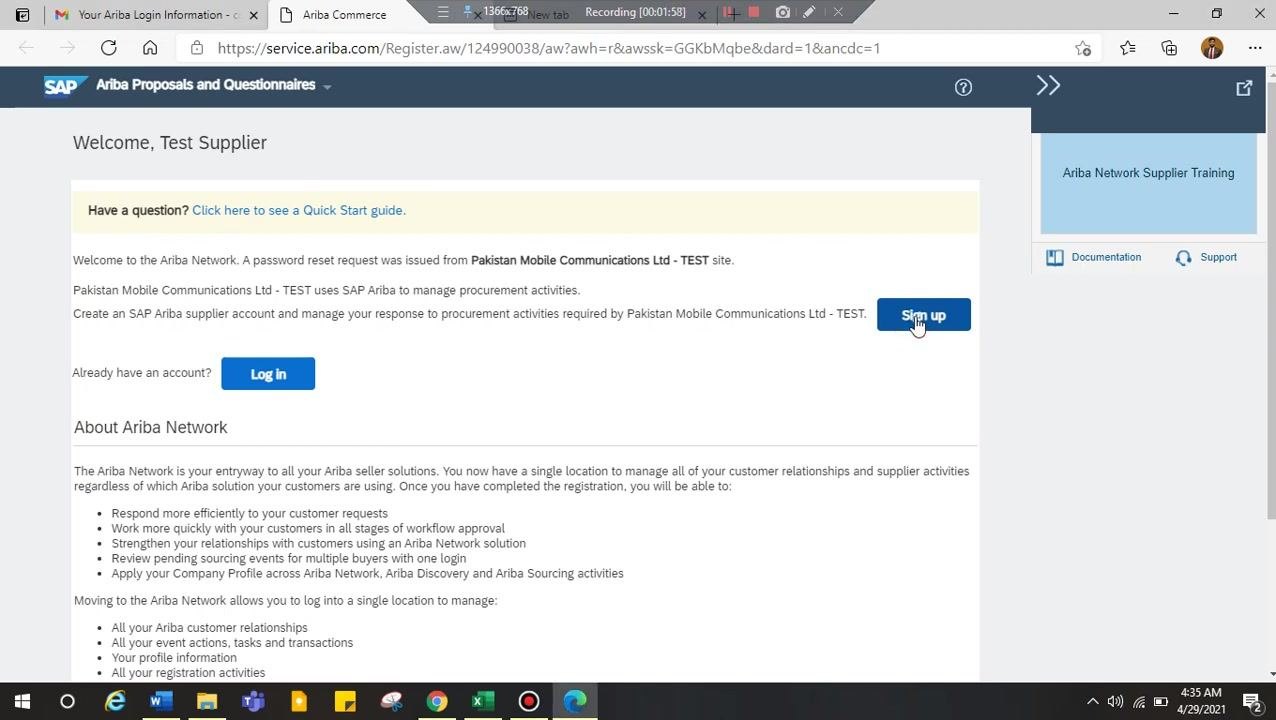
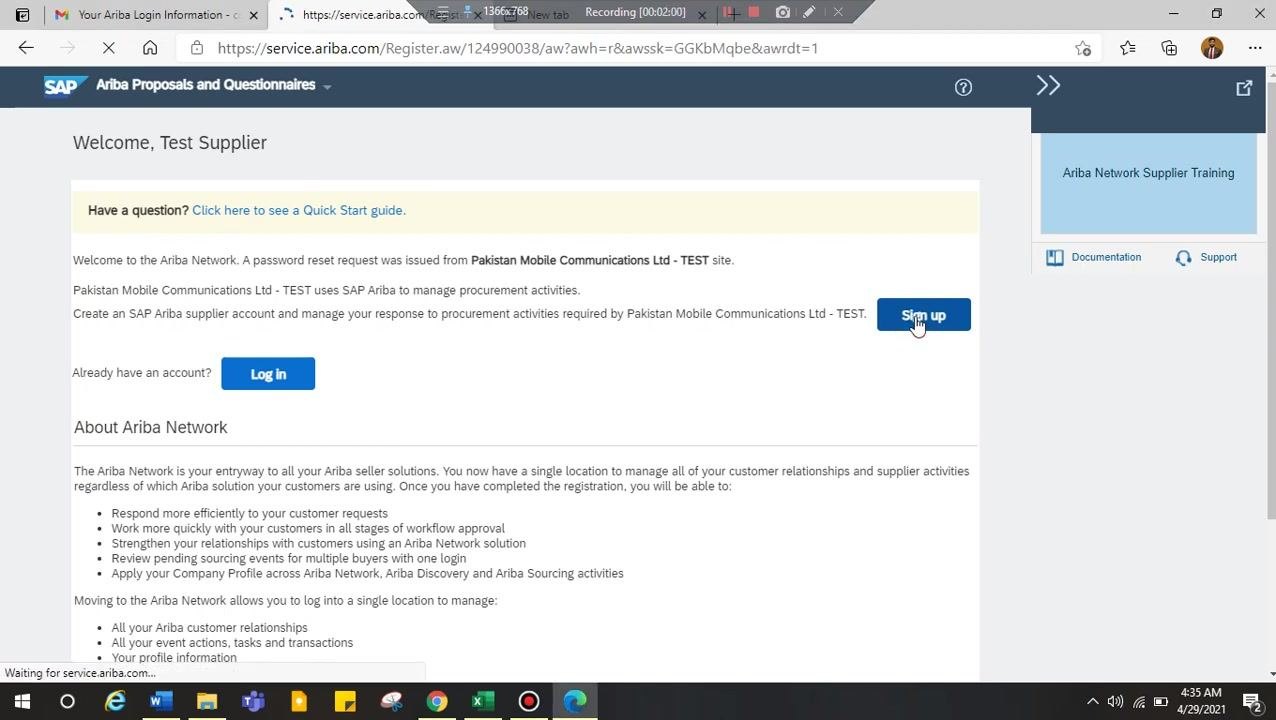
After clicking the registration link, you are redirected to the SAP Ariba registration page. The page displays a welcome message with your supplier name and the buyer's company name (for example, "Pakistan Mobile Communications Ltd - TEST"). You will see two options:
- Log in — for users who already have an SAP Ariba account.
- Sign up — for new users who need to create an SAP Ariba supplier account.
Review the information about the Ariba Network and its benefits before proceeding.
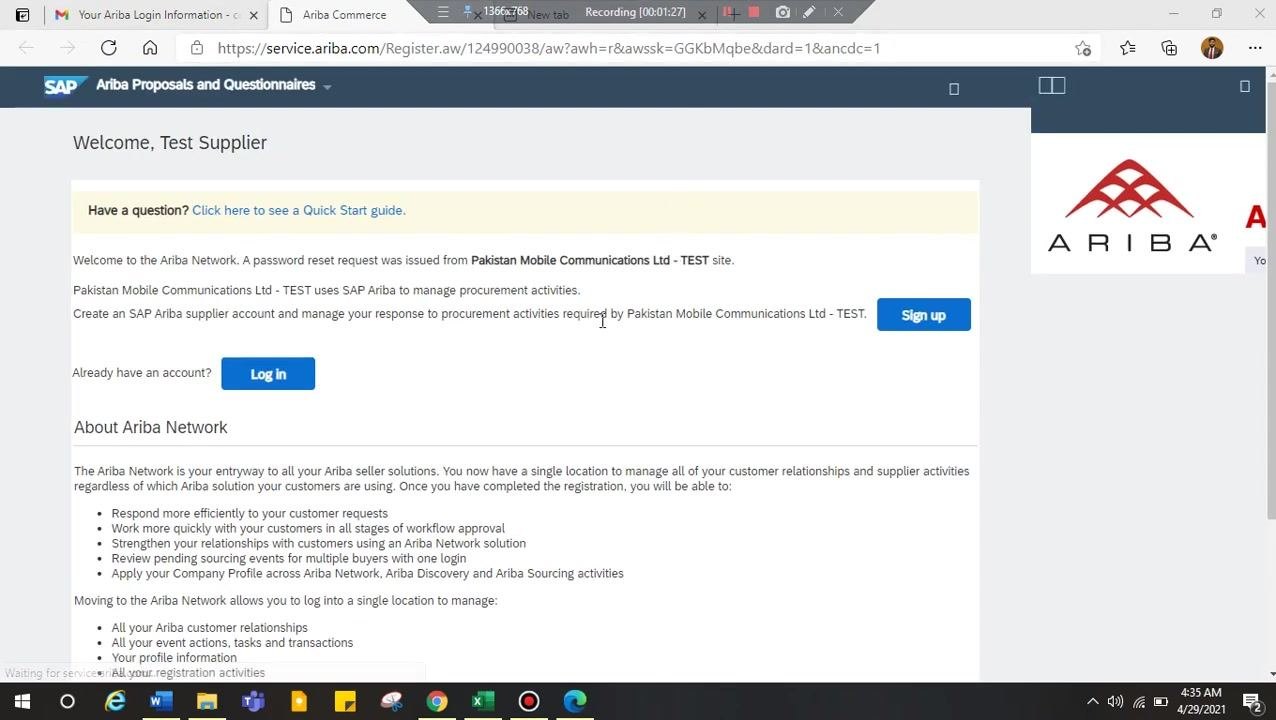
Determine your account status
If you already have an SAP Ariba account, click Log in. If this is your first time setting up an account (and you are not using an existing CBA Ariba account), click Sign up. This takes you to the registration form.
Fill out the registration form
Enter the required details in the registration form:
- Name: Your company name (for example, "Test Supplier").
- Email: Your email address (for example, "coke.ariba@gmail.com").
- Username: A username, which can be your email address or another unique identifier (for example, "test-coke.ariba@gmail.com").
- Password: A password that is at least 8 characters long, includes both upper and lower case letters, and contains numbers and special characters.
- Repeat Password: Re-enter your password to confirm it.
- Language: Your preferred language (the default is English).
Refer to the on-screen password requirements for guidance while creating your password.
Agree to the terms and conditions
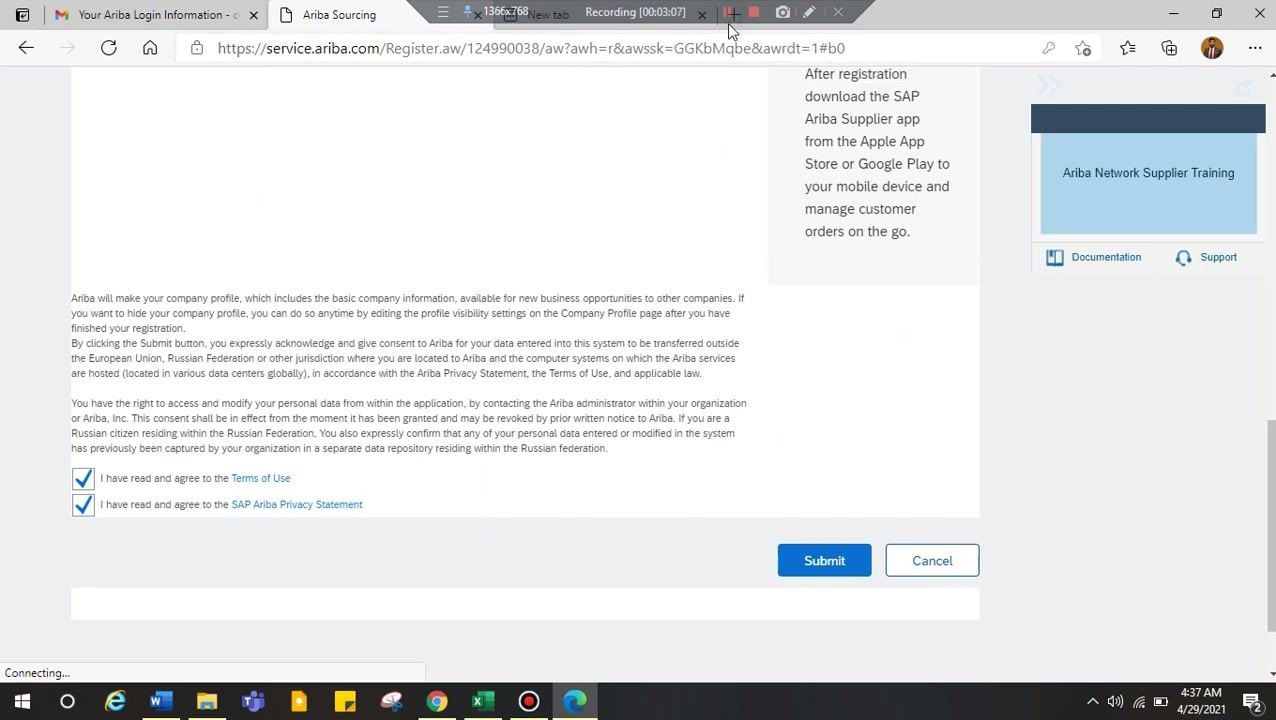
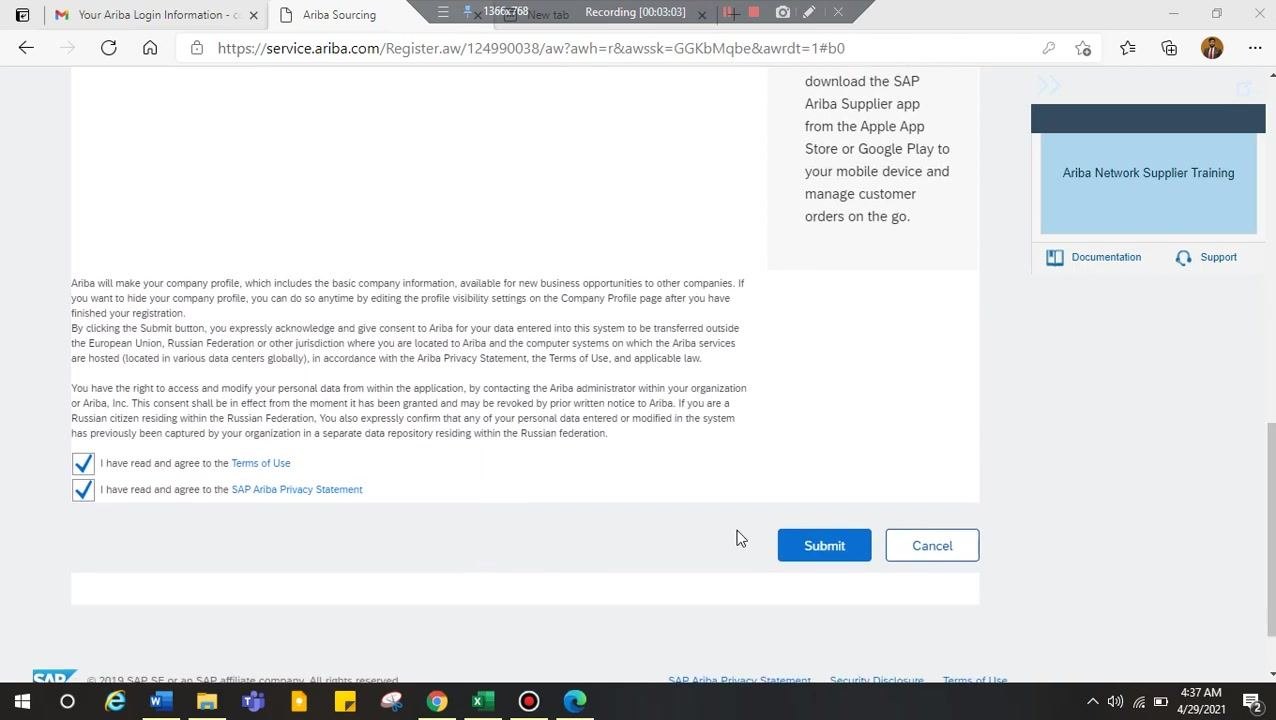
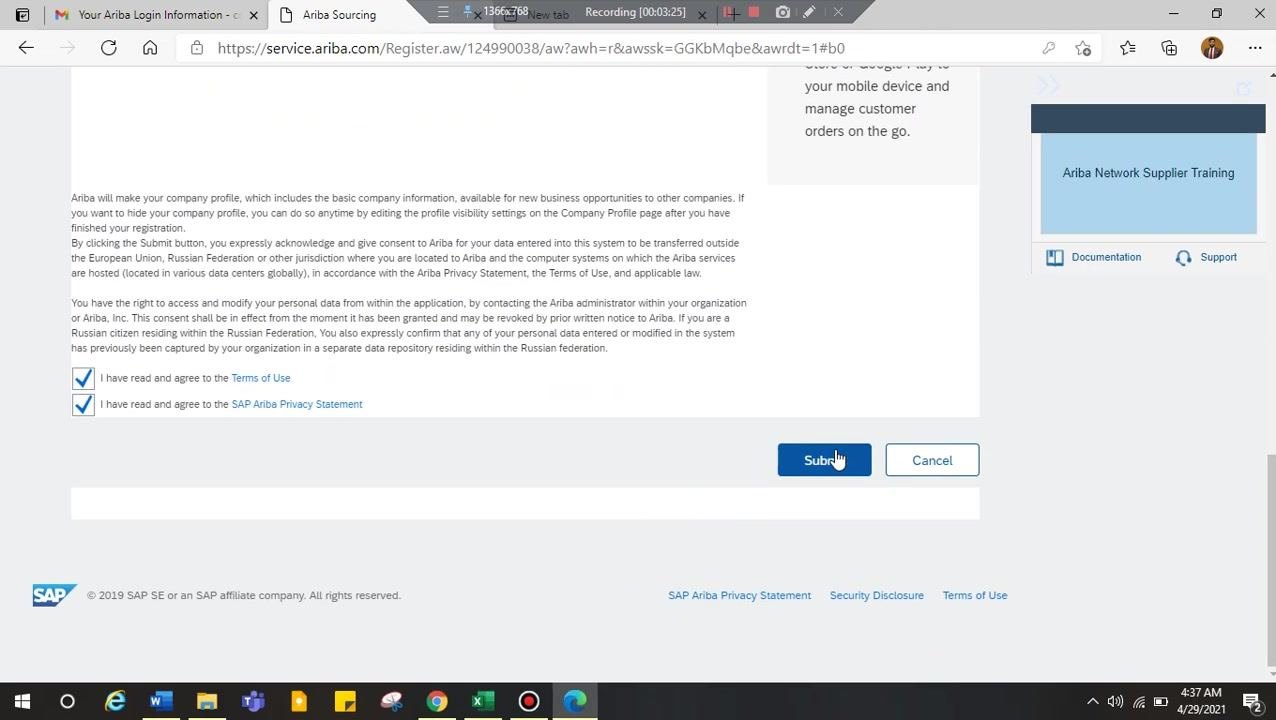
Scroll to the bottom of the registration form and check both boxes to agree to the Terms of Use and the SAP Ariba Privacy Statement.
Submit the registration
After filling in all required fields and agreeing to the terms, click Submit. If the buyer's company has additional requirements, these appear in the white area above the terms and conditions — complete any extra fields as needed before submitting.
Resolve duplicate username or email errors
If you see an error stating "User already exists. Please enter a different username," update the Username field with a unique value, such as by adding numbers or characters. Make sure the Email field is also unique if prompted. Re-enter your password and confirm your language selection before continuing.
Submit the registration form again
After correcting any errors, scroll down and confirm that both agreement checkboxes are checked — "I have read and agree to the Terms of Use" and "I have read and agree to the SAP Ariba Privacy Statement." Click Submit to proceed.
Review duplicate account notifications
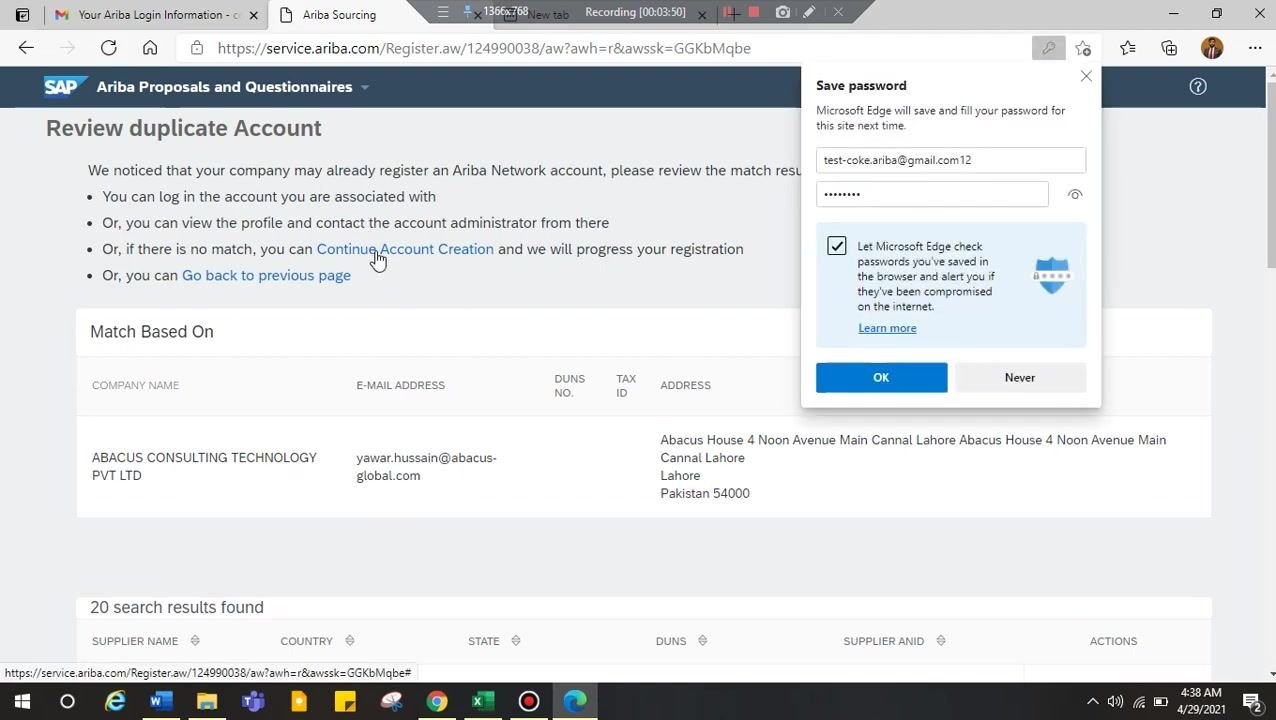
If the system detects a possible duplicate account, a Review duplicate Account page appears. Review your options:
- Log in to an existing account if you are already associated with one.
- View the profile and contact the account administrator if needed.
- Click Continue Account Creation if there is no match and you want to proceed with your registration.
- Go back to the previous page if you need to make changes.
Access your supplier dashboard
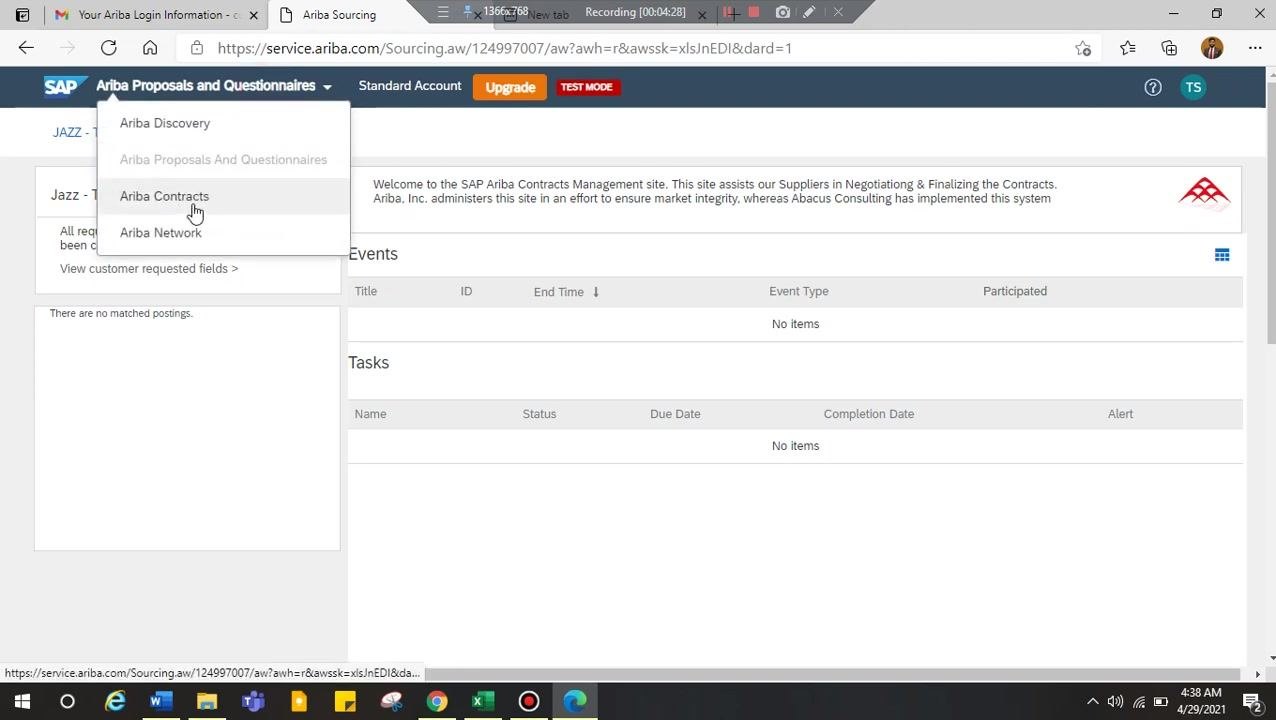
Once registration is complete, you are directed to your SAP Ariba supplier dashboard. You will see a tab for each company you do business with (for example, "JAZZ - TEST"), showing your profile status, events, and tasks. If you work with multiple companies, each one has its own tab.
Navigate to Ariba Contracts
To review contracts, hover over the Ariba Proposals and Questionnaires menu at the top of the dashboard, then select Ariba Contracts from the dropdown.
Review and manage contracts
The Ariba Contracts page displays any contract-related tasks assigned to you. Download the contract documents, review them, and upload or submit them as required. If no items are listed, check back later or contact your point of contact (POC) for updates.
Log out of SAP Ariba
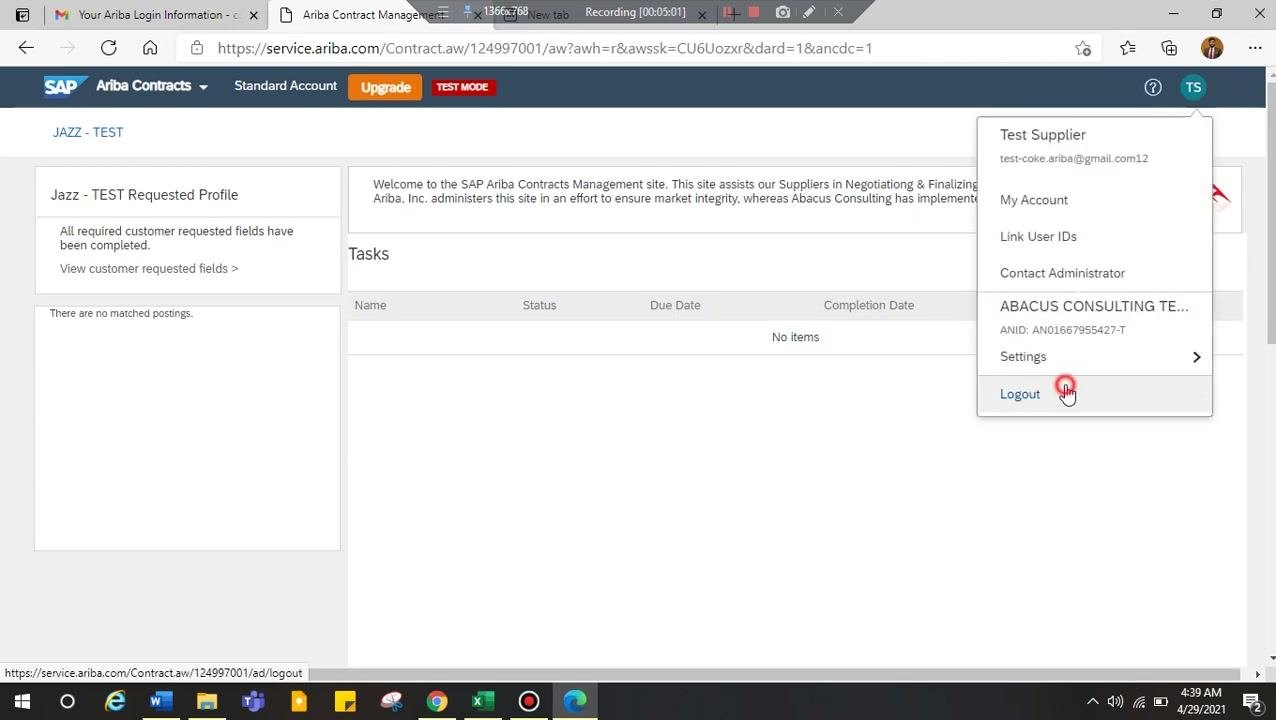
After you finish reviewing or managing contracts, log out securely to protect your information. Locate your profile icon or initials (for example, "TS") in the upper right corner of the dashboard and click it to open the dropdown menu. The menu shows your account name and email, along with options such as "My Account," "Link User IDs," "Contact Administrator," company information, and "Settings." Click Logout at the bottom of the menu to end your session.
After logging out, you are redirected to the SAP Ariba Supplier Login page, which displays the SAP Ariba logo, the "Supplier Login" heading, a username/email field (pre-filled if your browser remembers it), a password field, a Login button, and a "Forgot Username or Password" link for account recovery. You can now close your browser or log in again if needed.
Summary
- The registration link in your invitation email is valid for only 2 days — contact the buyer's Ariba administrator if it expires.
- Use the "Click Here" link or the provided URL to reach the registration page, then choose Sign up if you are new or Log in if you already have an account.
- Always use a unique username and email if the system prompts you, and carefully review any duplicate account warnings before proceeding.
- Use the dashboard tabs to switch between companies if you are registered with multiple buyers.
- Access contract documents through the Ariba Contracts section and complete any assigned tasks as required.
- Always log out after completing your tasks to keep your account secure, and use the "Forgot Username or Password" link if you have trouble logging in again.
Generation details: cost, quality tiers
Docsie billed 3,000 credits ($2.10) to analyze this 6-minute video at standard quality. The rewrite, template fill and Word/PDF exports were included. The same video at each quality tier:
| Quality | Frames sampled | Credits | Approx. cost |
|---|---|---|---|
| Draft | every 16-30 s | 1,500 | $1.05 |
| Standard (this guide) | every 8-15 s | 3,000 | $2.10 |
| Detailed | every 4-7 s | 6,000 | $4.20 |
| Ultra | every 1-3 s | 12,000 | $8.40 |
Credits priced at $0.70 per 1,000; plans include a monthly allowance. Enterprise customers on on-premise or bring-your-own-model deployments run this on their own inference and pay no per-video credits.
Generated by Docsie Video-to-Docs on 2026-10-12 from a 5-minute video. Screenshots are frames from the source video and belong to their creator, Murtaz Ali Khan, whose original is embedded above. If you own this video and want the guide removed or credited differently, contact us and we will act within one business day.