
How to View Your Work Schedule in Workday
Workday simplifies managing your work schedule, letting you easily check your shifts, upcoming tasks, and deadlines. Staying on top of your schedule helps you work smarter, not harder, and this guide walks you through how to view your work schedule in Workday so you never miss a meeting or deadline.
Video: How to View Work Schedule on Workday | Workday Training | Schedule Tutorial by Helen Baker (2025). All credit for the demonstration goes to the creator; watch the original on YouTube. The written guide below was generated from this video by Docsie. Creator? Request a change or removal.
Workday simplifies managing your work schedule, letting you easily check your shifts, upcoming tasks, and deadlines. Staying on top of your schedule helps you work smarter, not harder, and this guide walks you through how to view your work schedule in Workday so you never miss a meeting or deadline.

Prerequisites
Before you begin, make sure you have the following ready:
- A stable internet connection
- Your Workday login credentials (username and password)
- Access to the Workday application or website, via desktop or mobile device
Access the Workday platform
Open the Workday application or website on your device. Workday can be accessed via desktop or mobile, so choose whichever is most convenient. Confirm you have a stable internet connection and your login credentials ready before proceeding.
Log in with your credentials
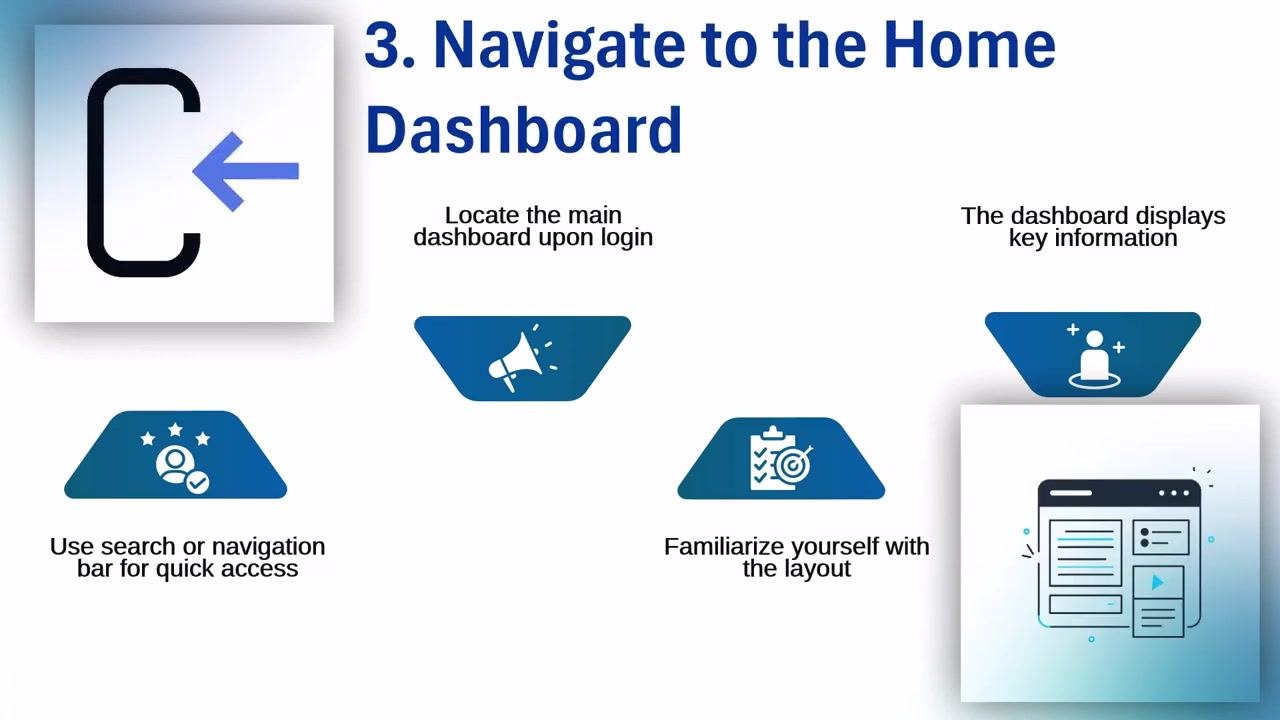
Enter your username and password into the login fields, double-checking them to avoid login issues. If your account requires two-factor authentication (2FA), enter the verification code sent to your device or email when prompted. Click the login button to proceed.

Navigate to the home dashboard
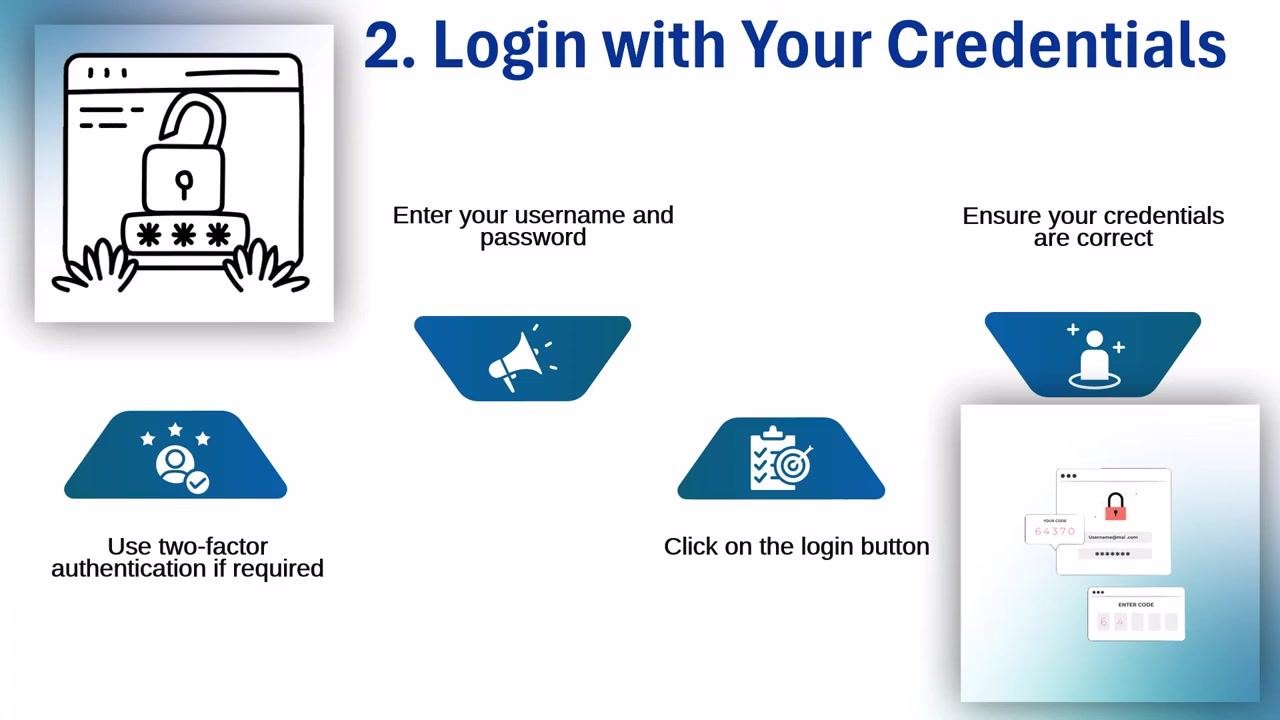
After a successful login, locate the main dashboard, often called Mission Control or Home Dashboard. This dashboard displays all your important information, including shifts, tasks, and deadlines. Use the navigation bar or search function for quick access to specific features, and take a moment to familiarize yourself with the layout so you can efficiently find what you need.
Locate the 'My Work' section
Find the My Work section in the Workday menu — this is your personal work headquarters. From here, you can access schedules, tasks, and notifications directly, and quickly locate assignments or alerts that may have been missed elsewhere. If you are a manager, use this section as the central hub to view and manage your team's schedule.
Access the team schedule (manager's view)
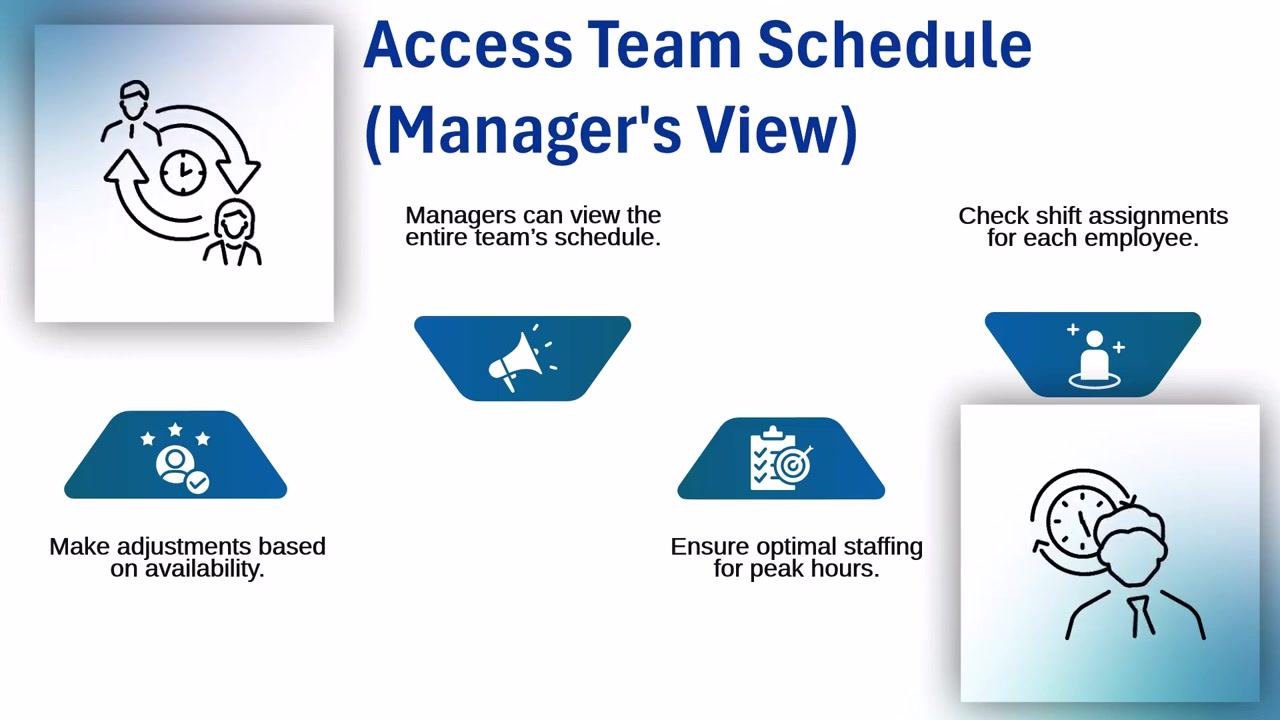
If you are a manager, open the team schedule to view the entire team's shifts and assignments. Check shift assignments for each employee to confirm everyone is scheduled appropriately, and make adjustments based on employee availability. Ensure optimal staffing for peak hours to avoid last-minute staffing surprises.
Review time off and leaves integrated into the schedule
View approved time off requests directly within the schedule to see how leaves and absences affect shift availability and overall coverage. Plan work schedules accordingly to ensure adequate coverage during absences, and use this feature to avoid discovering staffing gaps right before important deadlines.
View upcoming schedules
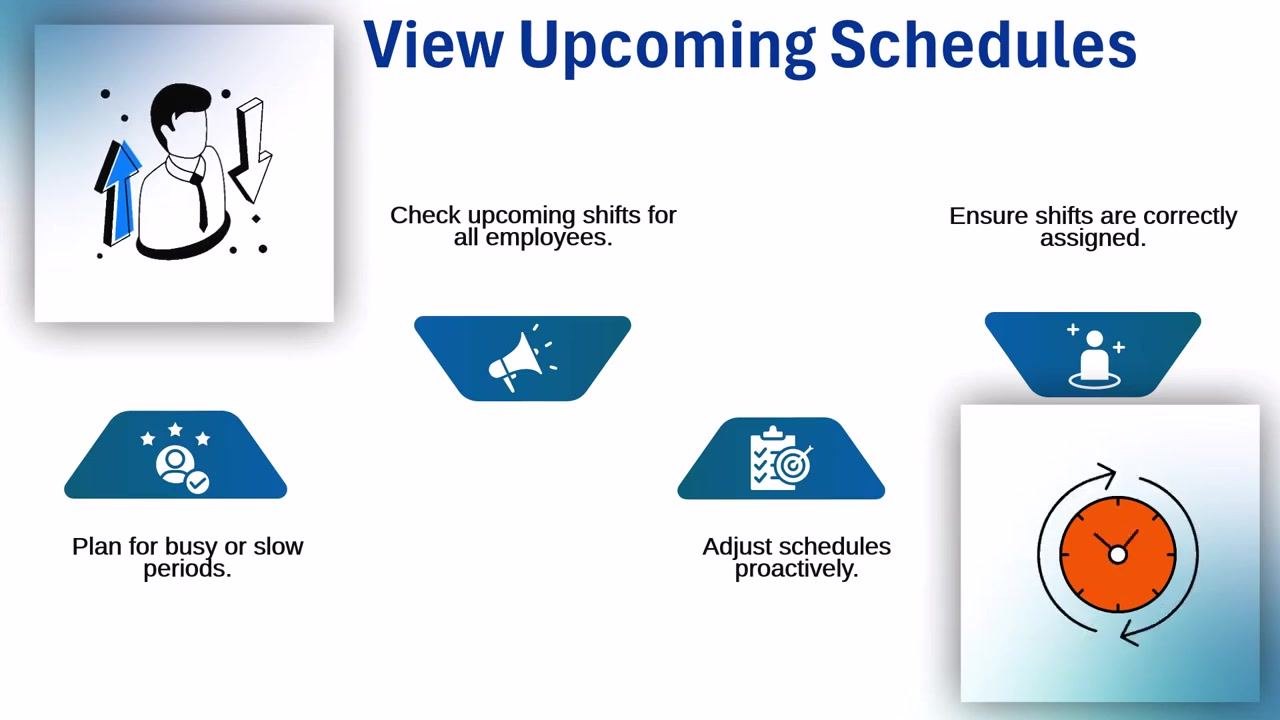
Check upcoming shifts for all employees to stay ahead of scheduling needs, reviewing the schedule in advance to plan for busy or slow periods. Adjust schedules proactively to avoid double bookings and keep everyone correctly assigned, using this overview to keep the team in sync and prevent scheduling surprises.
Check for schedule notifications
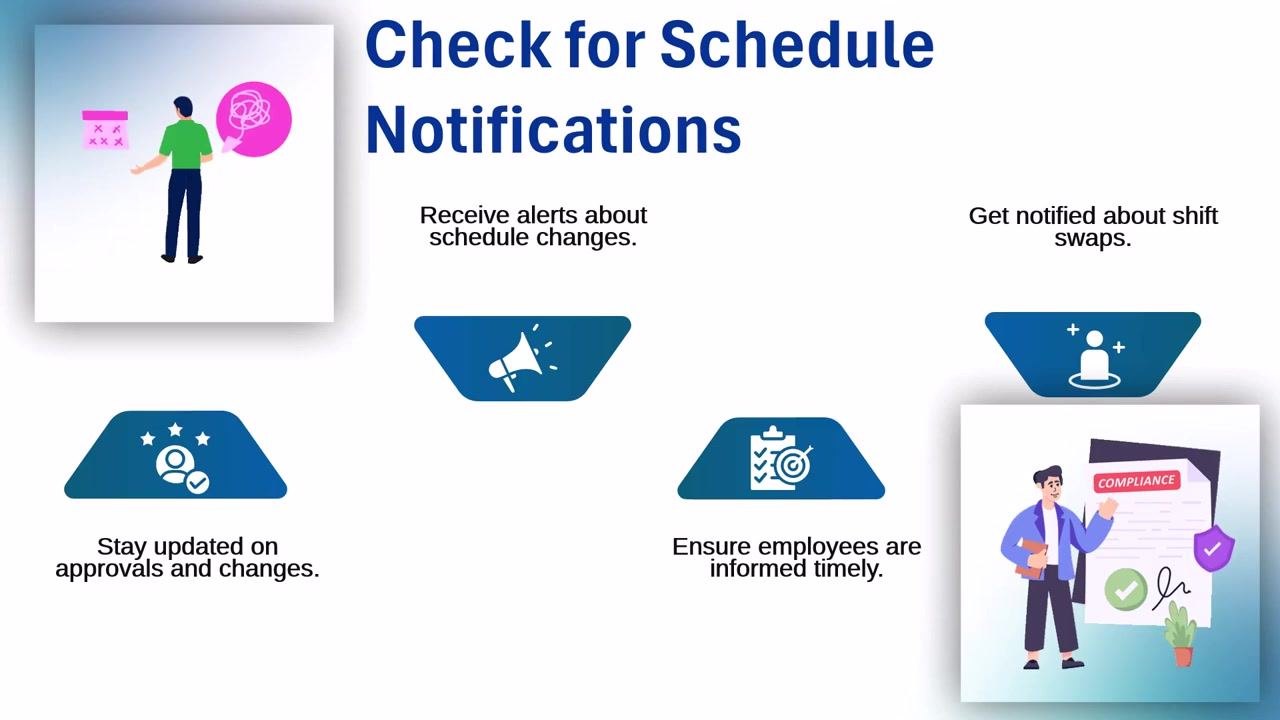
Review alerts about schedule changes, shift swaps, and requests waiting for approval. Staying updated on approvals and changes means you don't have to rely on informal communication like sticky notes or hallway conversations. This keeps employees informed in a timely manner, maintaining compliance and smooth operations.
Understand color-coded shifts
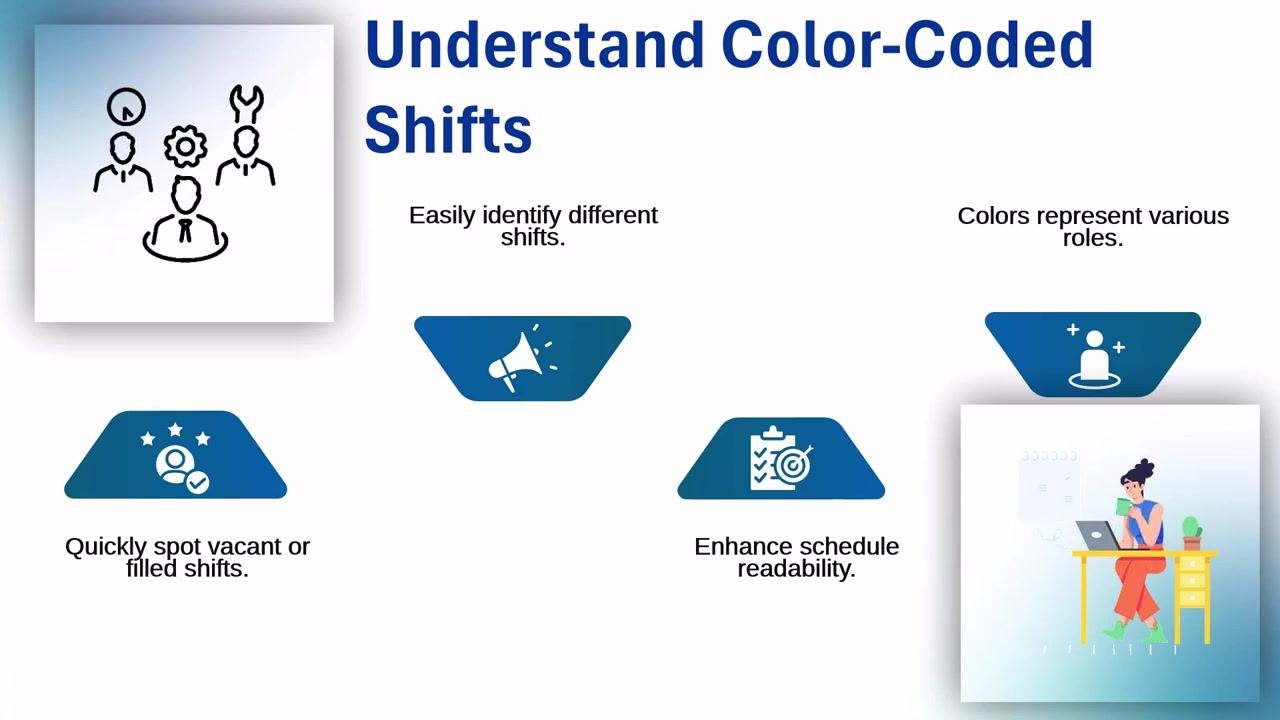
Use color codes to quickly determine who is working, what role they are in, and which shifts still need to be filled. Different colors represent different roles within the team, letting you spot vacant or filled shifts at a glance. This enhances schedule readability and reduces confusion, eliminating the need for detective work when managing shifts.
Resolve missing shifts or errors
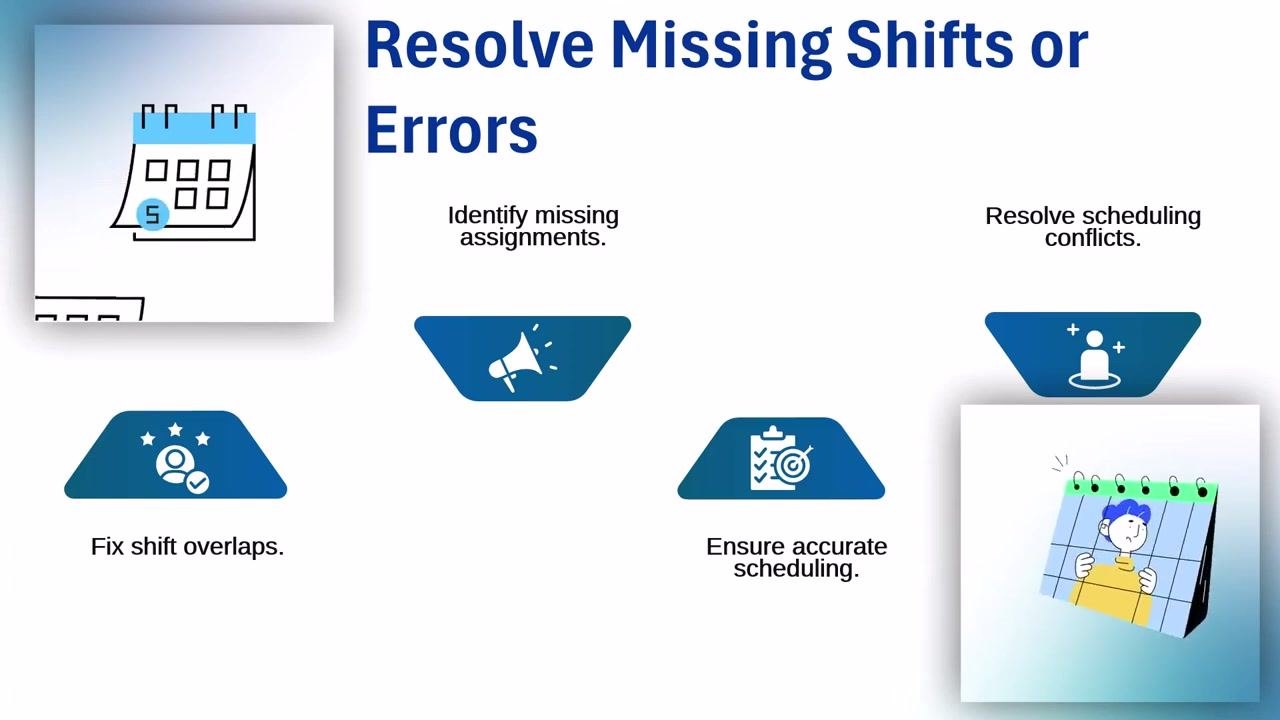
Use the scheduling tool to catch missing or double-booked shifts before they become problems. Identify missing assignments directly within the schedule and fix shift overlaps to resolve scheduling conflicts efficiently. Accurate scheduling prevents puzzled employees and last-minute surprises.
Access your schedule anywhere with the mobile app
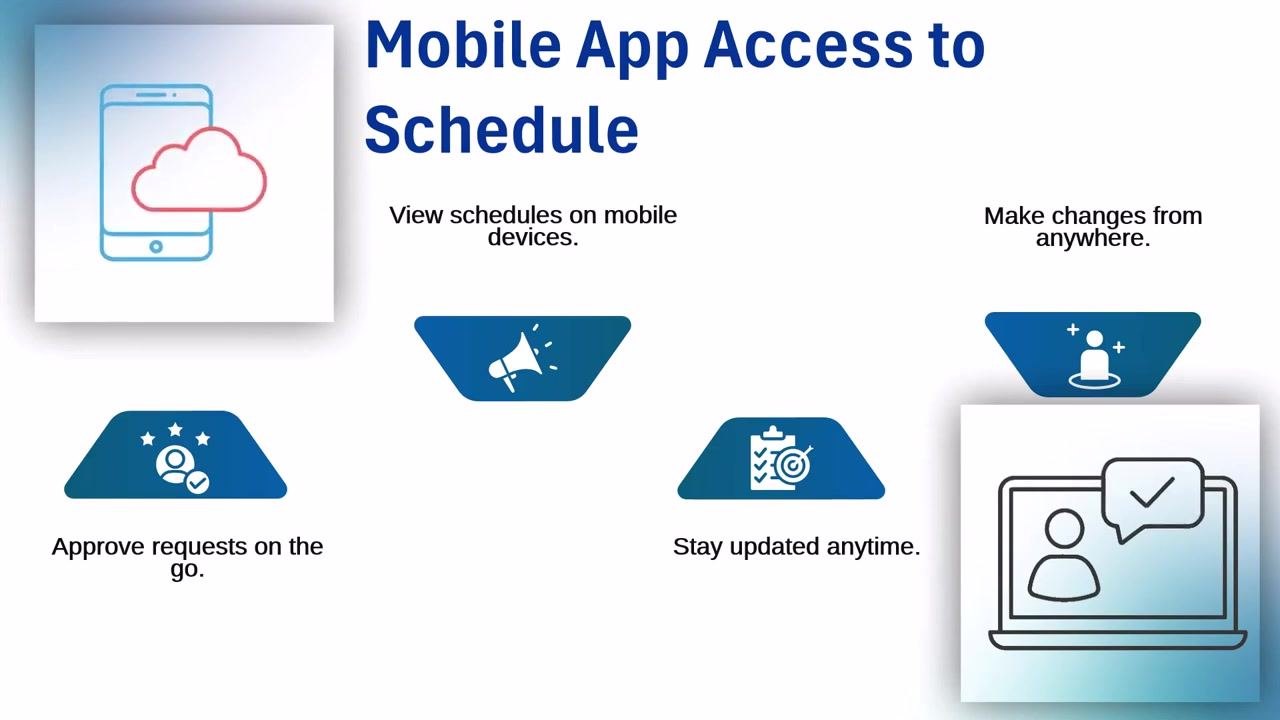
View your schedule on mobile devices without needing to scramble for a desktop. Access, update, and approve shifts from anywhere, whether at home or on the move, and approve requests on the go to stay updated anytime. You can make changes from anywhere, but take care not to approve changes accidentally while multitasking.
Export or print your schedule (if needed)
Download schedules in various formats for offline reference or record keeping. Print hard copies for easy access or to share with your team, and keep historical data for future planning. Ensure any printed copies are kept safe to avoid losing important information.
Contact HR for schedule assistance
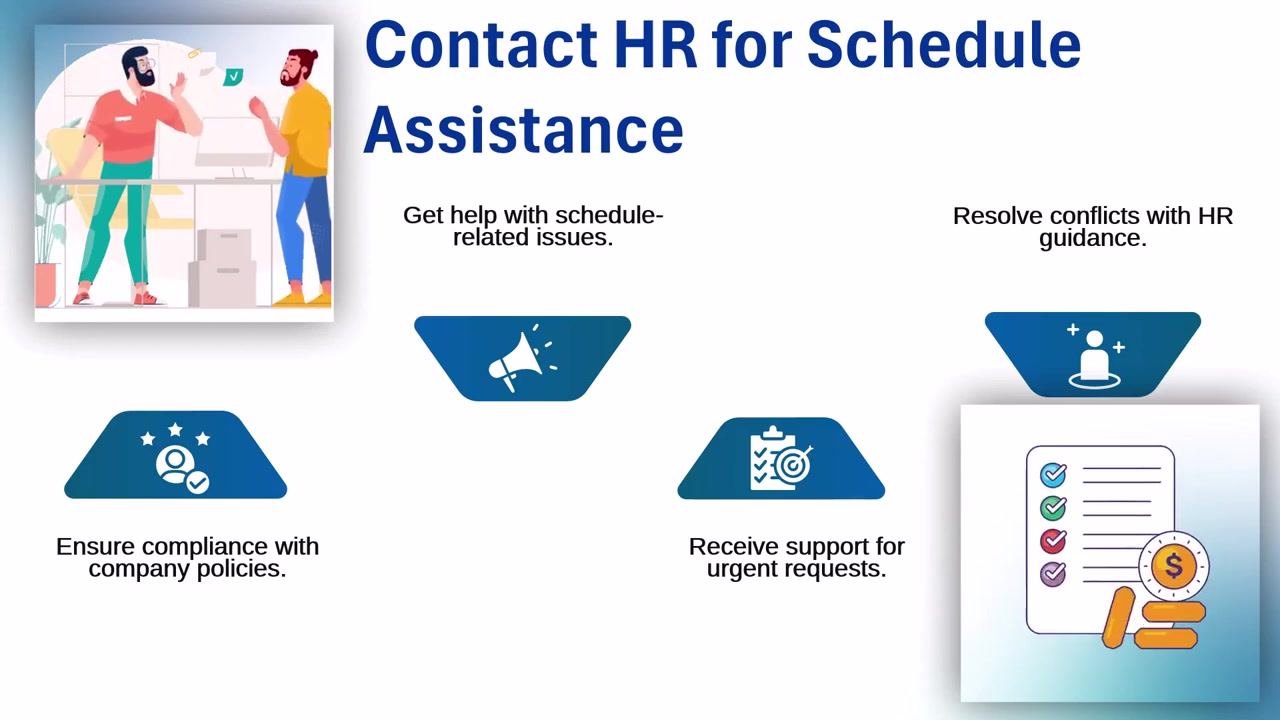
Reach out to HR if you need help with schedule-related issues, such as fixing mistakes, answering policy questions, or handling urgent changes. HR can help ensure compliance with company policies and support urgent requests or conflict resolution. Use HR as your lifeline for smooth scheduling operations, but avoid excessive contact to respect their workload.
Sync your schedule with your personal calendar
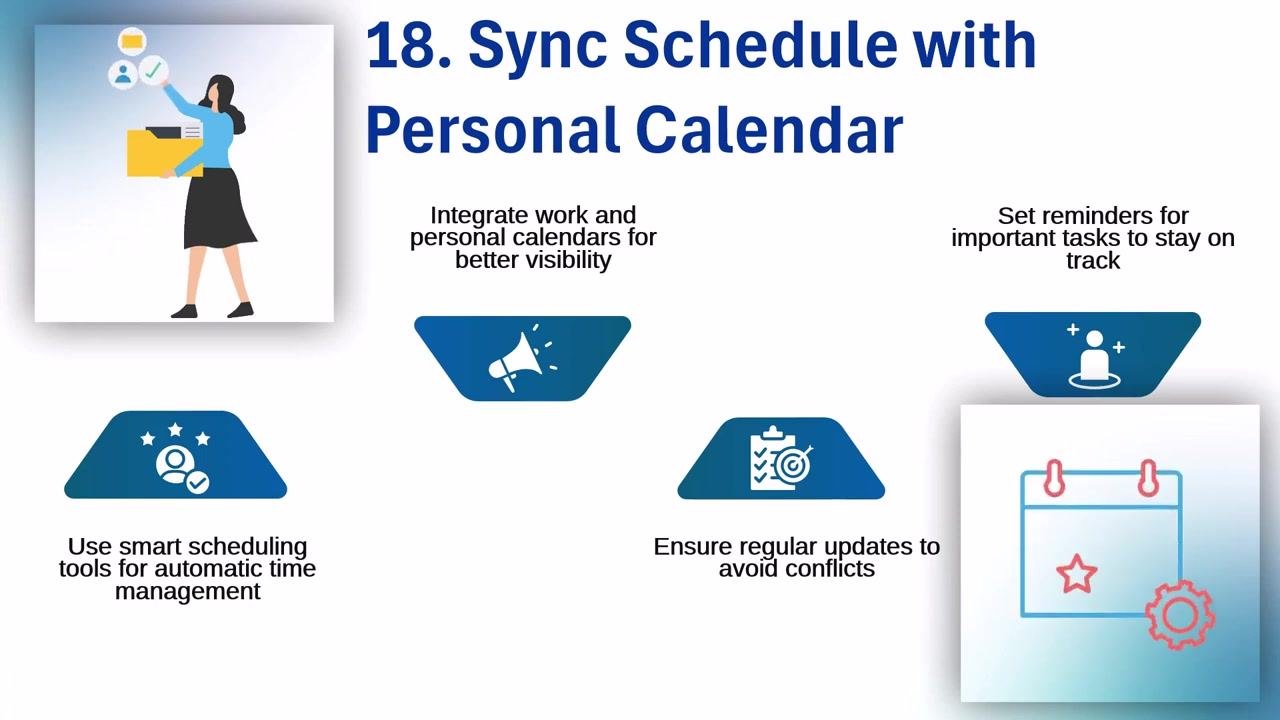
Integrate your work and personal calendars for better visibility and time management across all your commitments. Use smart scheduling tools to automate time management and reduce manual effort, and set reminders for important tasks and shifts so you never miss a critical event. Regularly update your calendar to avoid conflicts and last-minute surprises — syncing your schedule means you're always prepared, with seamless coordination between your work and personal life.
Additional tips for schedule management
Beyond the core steps, a few habits can help you manage your Workday schedule more effectively:
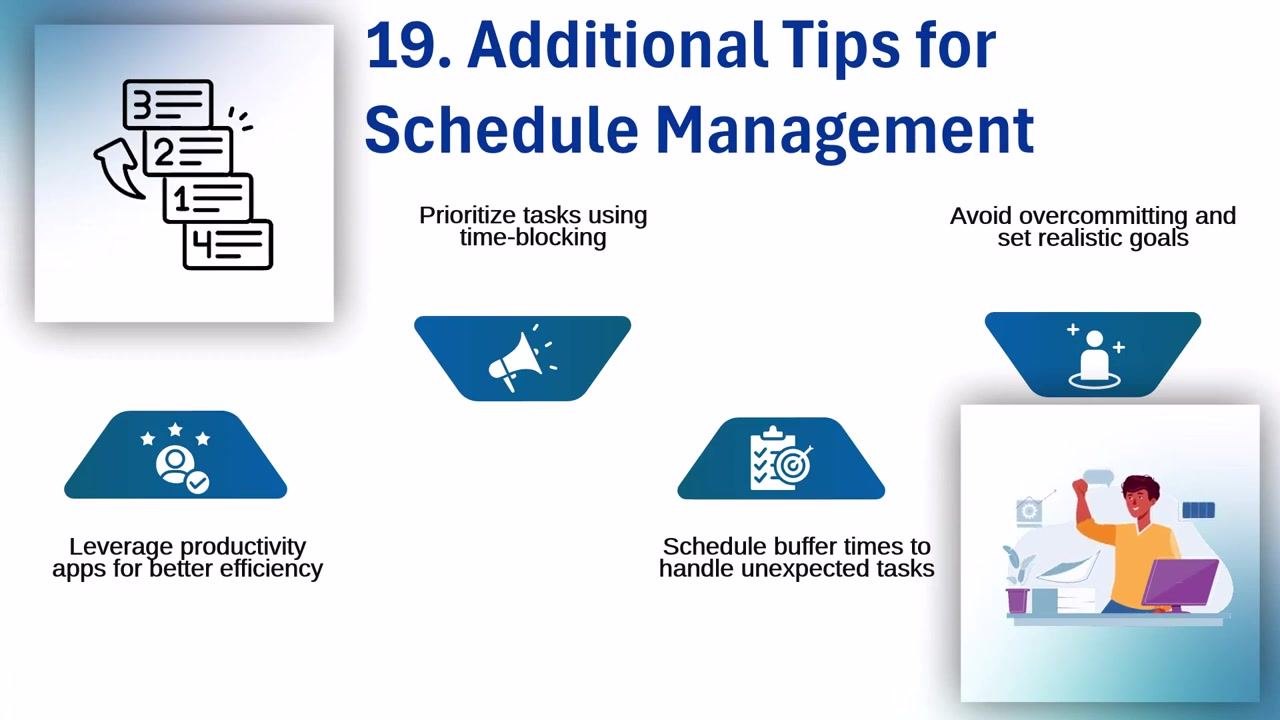
- Eliminate endless multitasking by focusing on one task at a time.
- Prioritize tasks using time-blocking to allocate specific periods for each activity.
- Avoid overcommitting and set realistic goals to maintain a manageable workload.
- Leverage productivity apps for better efficiency in managing your schedule.
- Schedule buffer times to handle unexpected tasks and prevent last-minute panic.
These strategies help you work smarter, not harder.
Summary
By following these steps, you can access and manage your work schedule efficiently in Workday — and, if you are a manager, your team's schedule as well. Workday's integrated features, including color coding, mobile access, export and print options, HR support, and calendar syncing, help you plan ahead, avoid surprises, and keep everyone informed and in sync. Using these tools consistently reduces scheduling errors, minimizes stress, and sets you up for continued success.

Generation details: cost, quality tiers
Docsie billed 3,500 credits ($2.45) to analyze this 7-minute video at standard quality. The rewrite, template fill and Word/PDF exports were included. The same video at each quality tier:
| Quality | Frames sampled | Credits | Approx. cost |
|---|---|---|---|
| Draft | every 16-30 s | 1,750 | $1.22 |
| Standard (this guide) | every 8-15 s | 3,500 | $2.45 |
| Detailed | every 4-7 s | 7,000 | $4.90 |
| Ultra | every 1-3 s | 14,000 | $9.80 |
Credits priced at $0.70 per 1,000; plans include a monthly allowance. Enterprise customers on on-premise or bring-your-own-model deployments run this on their own inference and pay no per-video credits.
Generated by Docsie Video-to-Docs on 2026-10-02 from a 6-minute video. Screenshots are frames from the source video and belong to their creator, Helen Baker, whose original is embedded above. If you own this video and want the guide removed or credited differently, contact us and we will act within one business day.