
How to Access Your Account for the First Time in Workday
This guide walks you through how to access your account for the first time in Workday using the mobile app. You'll learn how to download the app, sign in with your credentials, and set up device security so you can quickly log in going forward. The steps below apply to both iPhone and Android devices.
Video: Logging in to the Workday App by Five Star University (2019). All credit for the demonstration goes to the creator; watch the original on YouTube. The written guide below was generated from this video by Docsie. Creator? Request a change or removal.
This guide walks you through how to access your account for the first time in Workday using the mobile app. You'll learn how to download the app, sign in with your credentials, and set up device security so you can quickly log in going forward. The steps below apply to both iPhone and Android devices.
Prerequisites
Before you begin, make sure you have the following:
- The Workday mobile app downloaded from your device's app store
- Your Organization ID (for Five Star employees, this is 5SSL)
- Your Five Star employee ID number, which serves as your username
- Your Workday password, or if you're a new team member, the temporary password emailed to you along with your employee ID number
Confirm the app is installed
After downloading the Workday mobile app, check that the icon appears on your device's home screen alongside your other apps.

Launch the app and start logging in
Tap the Workday app icon to open it. On the initial screen, tap the Login button at the bottom of the app to begin.
Enter your Organization ID
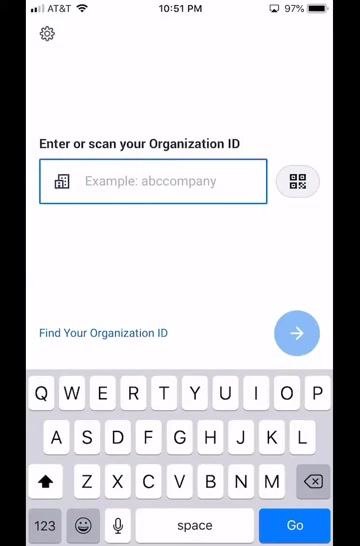
When prompted, enter your Organization ID in the field labeled Enter or scan your Organization ID. Five Star employees should type 5SSL. Tap the Go button in the bottom right corner of the keyboard to proceed.
Select your login method
You'll see two options on the next screen:
- If you have a Five Star email address, click here — tap this option if it applies to you
- Otherwise, log in with your Five Star Employee ID — tap this option if you don't have a Five Star email address
Enter your credentials and sign in
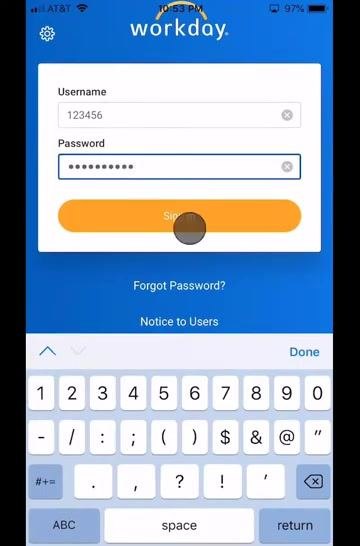
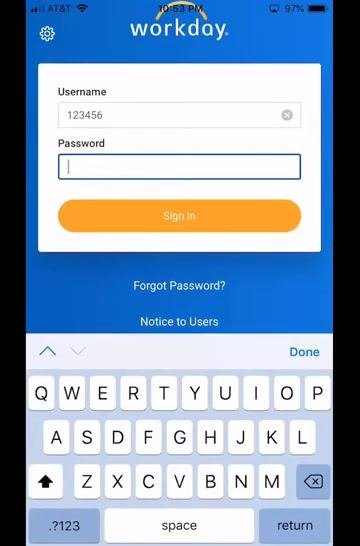
On the sign-in page, enter your username (your Five Star employee ID number) and your Workday password. Tap the orange Sign In button to proceed.
Choose whether to remember this device
If you plan to use this device for Workday regularly, check the box labeled Remember this device for easier future logins and better account protection. If you'd rather not, tap Skip at the bottom of the screen instead. Tap the orange Submit button to continue.
Once you submit, you'll see a confirmation message reading "Success. Logging you in…" before the app moves to the next step automatically.
Set up Touch ID or create a PIN
When prompted to set up Touch ID, you can either tap Use Touch ID and follow the on-screen instructions to enable biometric login, or tap Skip in the top right corner.
If you skip Touch ID, you'll be asked to create a four-digit PIN as a fast alternative way to log in. Enter a four-digit PIN using the on-screen keypad, then tap the check mark (✓) in the bottom right corner to confirm it. Re-enter the same PIN when prompted and tap the check mark (✓) again to complete setup.
Access your Workday home screen
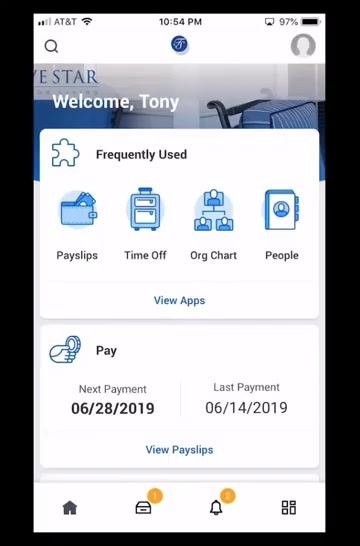
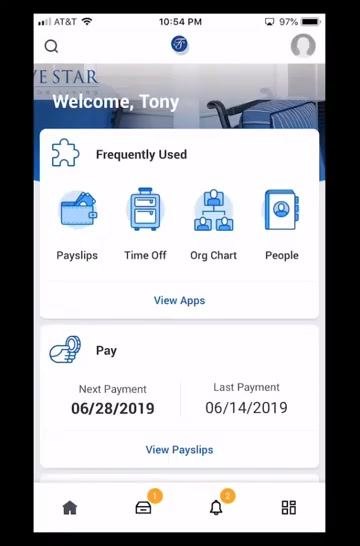
After completing login and security setup, you'll land on the Workday home screen. From here you can see:
- A welcome message with your name
- Frequently used features such as Payslips, Time Off, Org Chart, and People
- Pay information, including your next and last payment dates
- Navigation icons at the bottom for Home, Notifications, and other app sections
What's next
Now that you've accessed your account for the first time in Workday, explore the app's other features to get more comfortable with its tools. You can look into managing payslips, requesting time off, viewing the org chart, and connecting with colleagues through the People section.
Generation details: cost, quality tiers
Docsie billed 2,000 credits ($1.40) to analyze this 4-minute video at standard quality. The rewrite, template fill and Word/PDF exports were included. The same video at each quality tier:
| Quality | Frames sampled | Credits | Approx. cost |
|---|---|---|---|
| Draft | every 16-30 s | 1,000 | $0.70 |
| Standard (this guide) | every 8-15 s | 2,000 | $1.40 |
| Detailed | every 4-7 s | 4,000 | $2.80 |
| Ultra | every 1-3 s | 8,000 | $5.60 |
Credits priced at $0.70 per 1,000; plans include a monthly allowance. Enterprise customers on on-premise or bring-your-own-model deployments run this on their own inference and pay no per-video credits.
Generated by Docsie Video-to-Docs on 2026-10-02 from a 3-minute video. Screenshots are frames from the source video and belong to their creator, Five Star University, whose original is embedded above. If you own this video and want the guide removed or credited differently, contact us and we will act within one business day.