
How to Access and Run a Report in Workday
Workday offers multiple ways to locate and open reports, making it easy to retrieve the business data you need. This guide walks you through using the global search bar, search prefixes, report tags, the profile menu, menu shortcuts, and alert notifications to find and manage reports efficiently.
Video: How to Access Reports | Workday Analytics and Reporting by Workday (2025). All credit for the demonstration goes to the creator; watch the original on YouTube. The written guide below was generated from this video by Docsie. Creator? Request a change or removal.
Workday offers multiple ways to locate and open reports, making it easy to retrieve the business data you need. This guide walks you through using the global search bar, search prefixes, report tags, the profile menu, menu shortcuts, and alert notifications to find and manage reports efficiently.
Prerequisites
- You must have an active Workday account with appropriate permissions.
- Report visibility depends on your assigned role and permissions. If a report you expect to see does not appear, contact your Workday administrator.
Searching for reports using the global search bar
- Locate the global search bar. Find the global search bar at the top of your Workday homepage. It lets you find all reports you have access to.
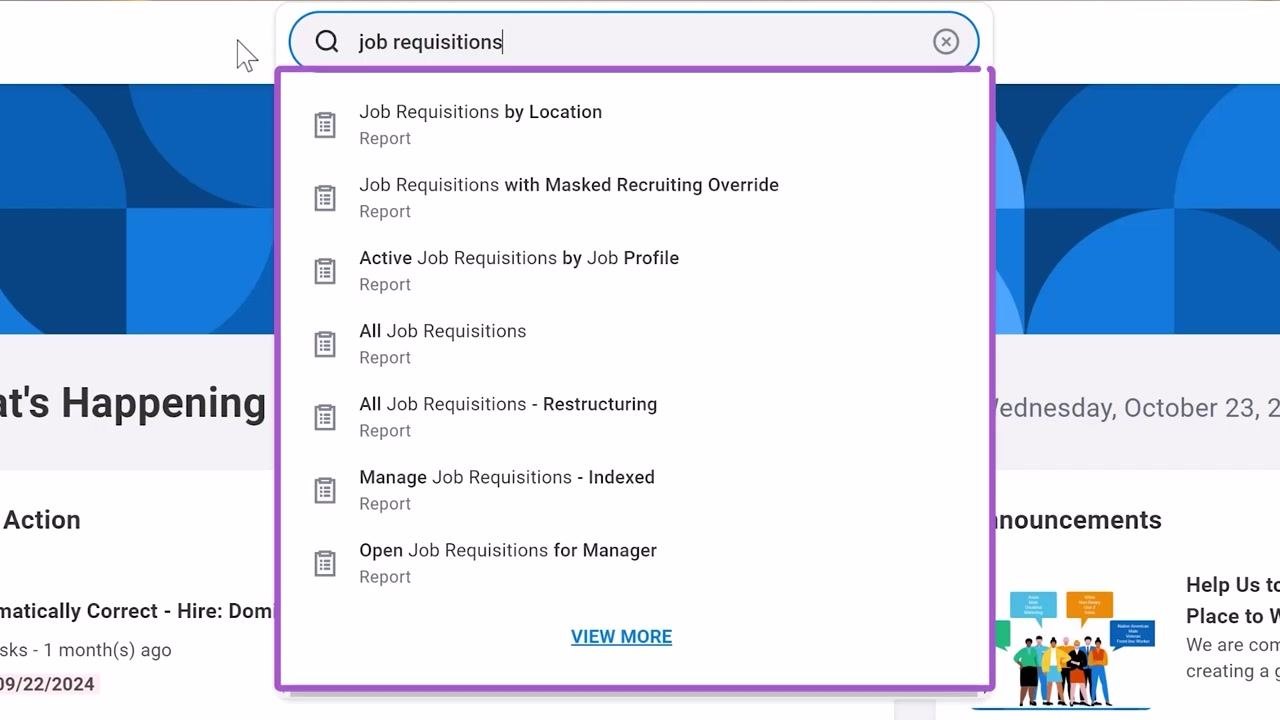
- Search for a report by name. Click into the search bar and start typing the name of the report you want (for example, "job requisitions"). Workday auto-populates possible matches below the search bar. In the results list, reports are identified by the word "Report" beneath the title.
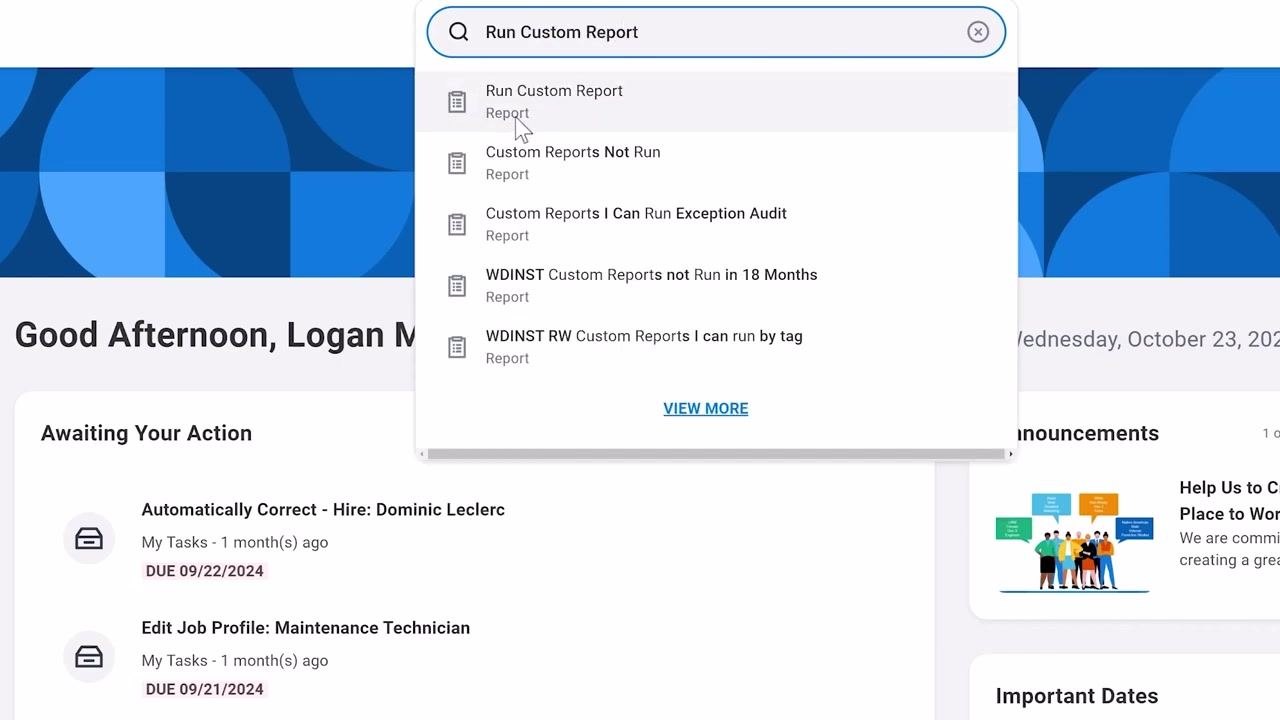
- Run a custom report. Type "Run Custom Report" in the search bar and select the matching item from the dropdown.
In the prompt window that appears, enter the name of your chosen custom report in the Report Name field. If you see an error such as "Too many results. Refine search to narrow results," refine your search terms to be more specific, then click OK to run the report.
-
Refine results with search prefixes. Search prefixes restrict results to a specific type of Workday object, making it easier to find the report you need. One of the most common reporting prefixes is RD (Report Definition). To use it, type the prefix followed by a colon and your search term (for example, "RD: recruiting"). This displays all reports associated with that category.
-
Use report tags to find categorized reports. Some reports carry report tags that help organize them for easier access. For example, a report administrator might tag all payroll-related reports with a "payroll" tag, letting you quickly locate groups of related reports.
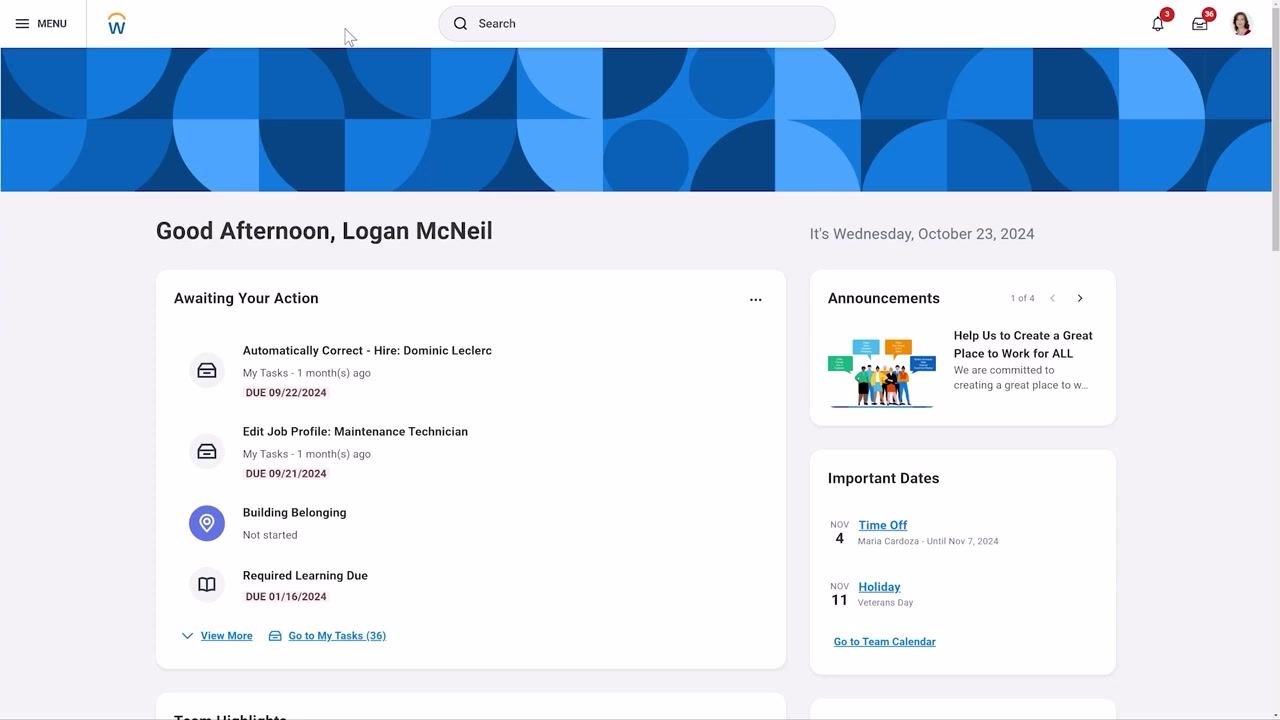
- Search by report tag using the RDT prefix. To find reports associated with a specific tag, use the RDT: prefix (Report Definition Tag) in the global search bar, followed by the tag name (for example, "rdt: payroll"). Workday displays all reports associated with that tag.
Accessing reports from the profile menu
- Open your profile menu.
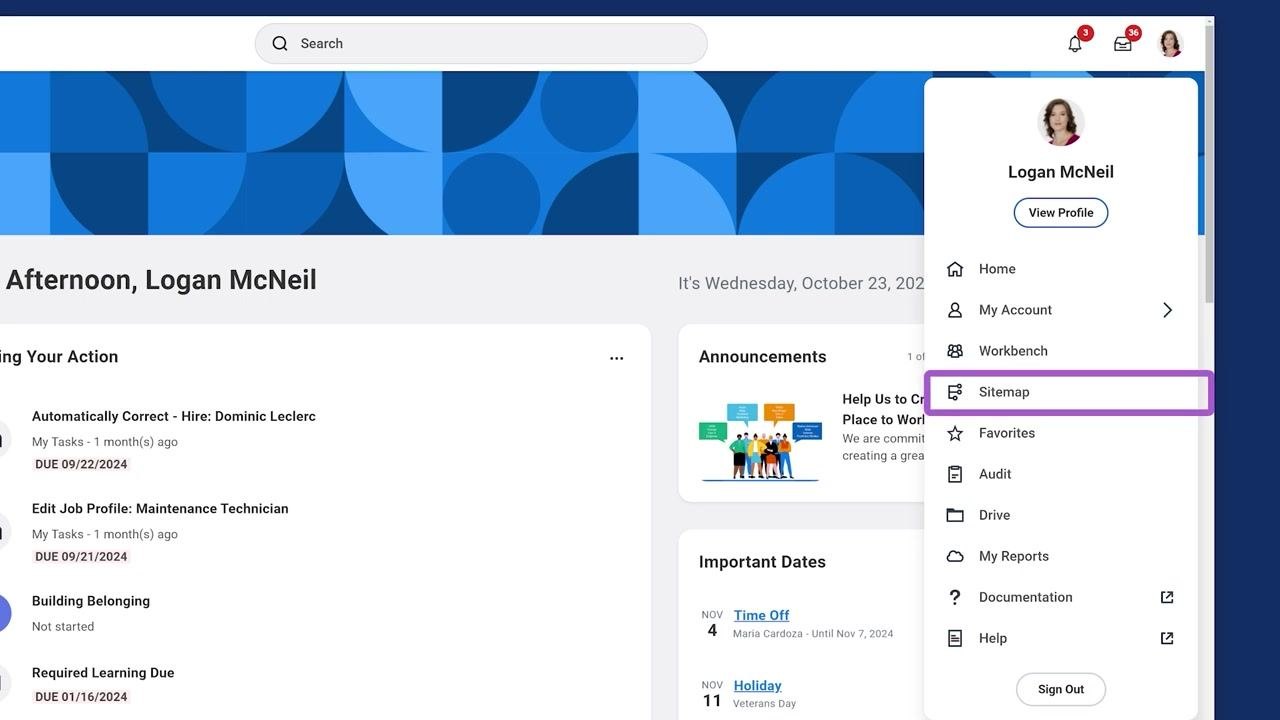
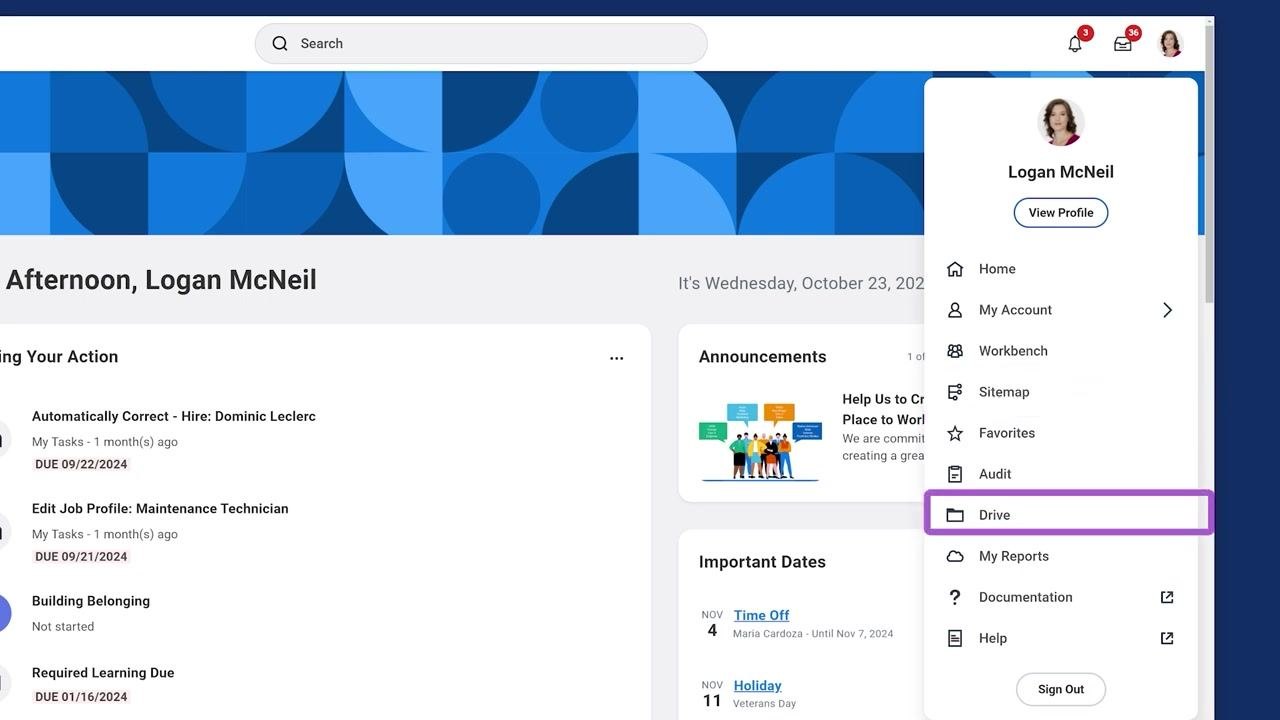
Click your profile icon in the upper right corner of the Workday homepage. From the dropdown menu, you can access reports through several options:
- Sitemap – view a sitemap of all available standard reports and tasks
- Favorites – see a list of your favorite reports and tasks
- Drive – access Workday Drive, a file management space for reporting and analytics files
- My Reports – open a virtual drive where generated reports (such as scheduled or background reports) are stored
-
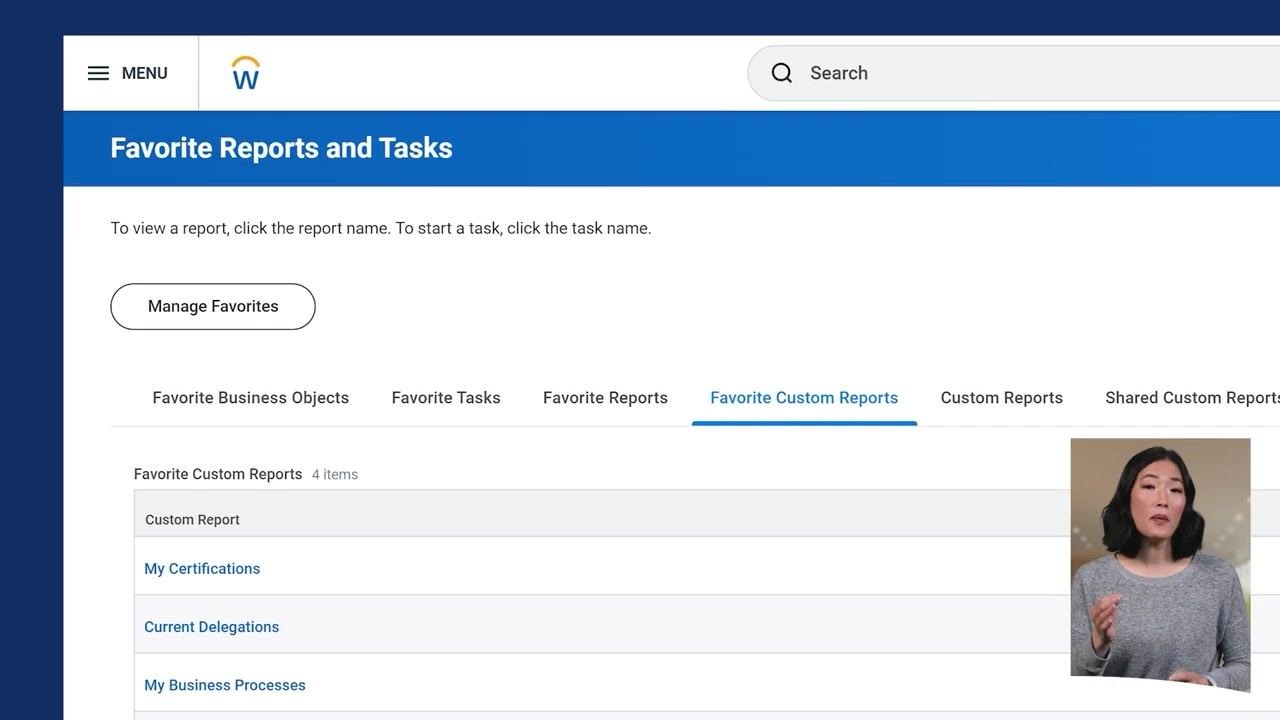
Manage your favorite reports and tasks. Select Favorites from your profile menu to view your favorite reports and tasks. Click Manage Favorites to update your list, then use the tabs to switch between Favorite Business Objects, Favorite Tasks, Favorite Reports, and Favorite Custom Reports. Click a report name to view it, or a task name to start it.
-
Manage files in Workday Drive. Select Drive from your profile menu to access Workday Drive, where you can store and manage reporting and analytics files, including Workday Discovery Boards, Slides, Worksheets, and non-Workday files such as Excel sheets. Use the search and filter options to locate files, and view details such as owner, access permissions, and last modified date.
- View generated reports in My Reports. Select My Reports from your profile menu to view your virtual drive of generated reports — those you have scheduled or run in the background. Review details such as file name, type, creator, creation date, and number of shared users. Use the Delete button to remove reports you no longer need, and the More Reports or Process Monitor buttons for additional management options.
Adding a frequently used report to your menu
-
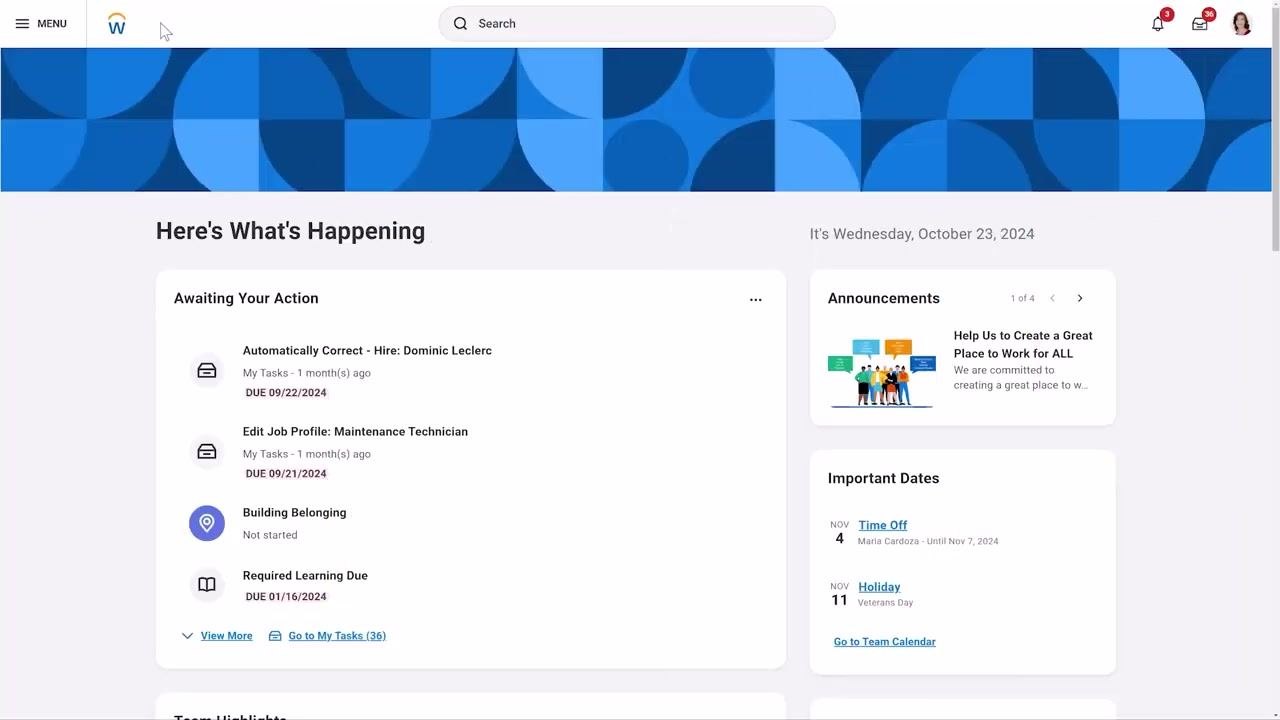
Open the Menu and add the report. If you frequently use a specific report, add it to your menu for quick access. Click the Menu button at the top left of the Workday homepage, select Add Apps, search for the desired report, and add it to your menu. This lets you open the report directly from your menu without searching each time.
-
Verify the shortcut's placement. Open the Menu again and confirm the report appears among the first four apps listed, under "Your Saved Order."
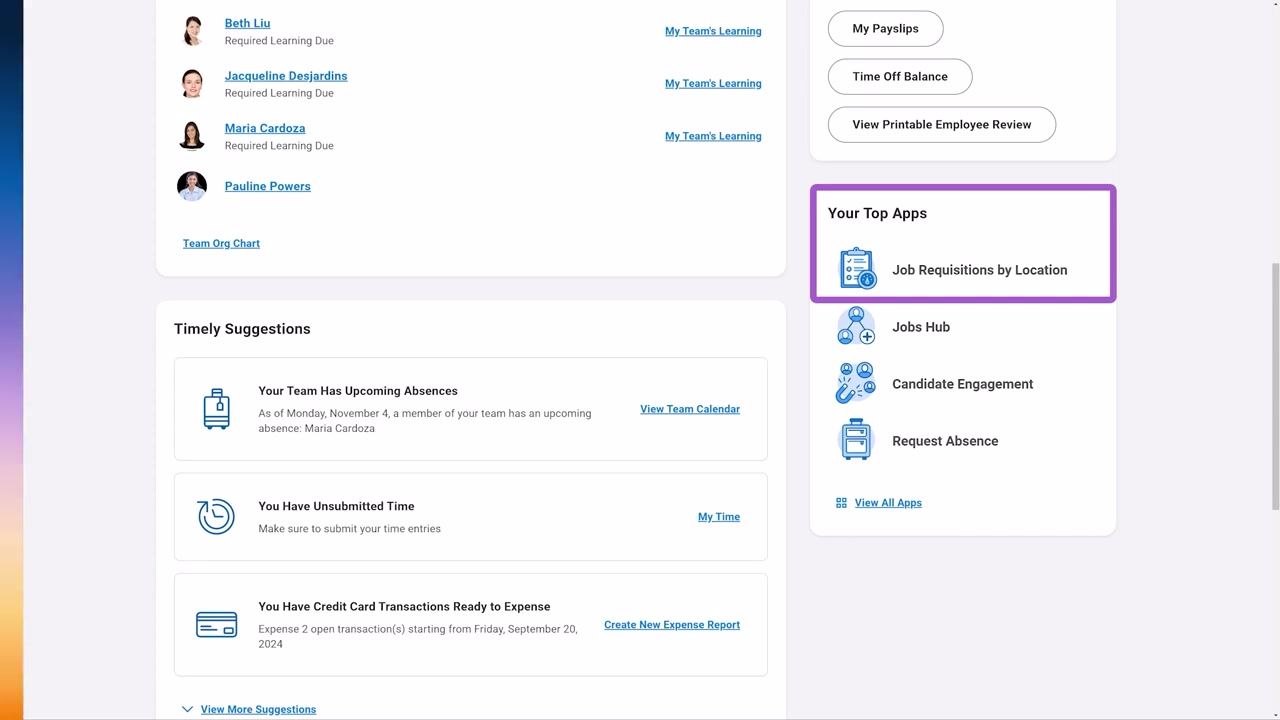
- Refresh your homepage. Refresh the Workday homepage. The newly added report shortcut now appears in the "Your Top Apps" section on the right side of the homepage, giving you direct access without additional navigation.
Understanding alert notifications from custom reports
-
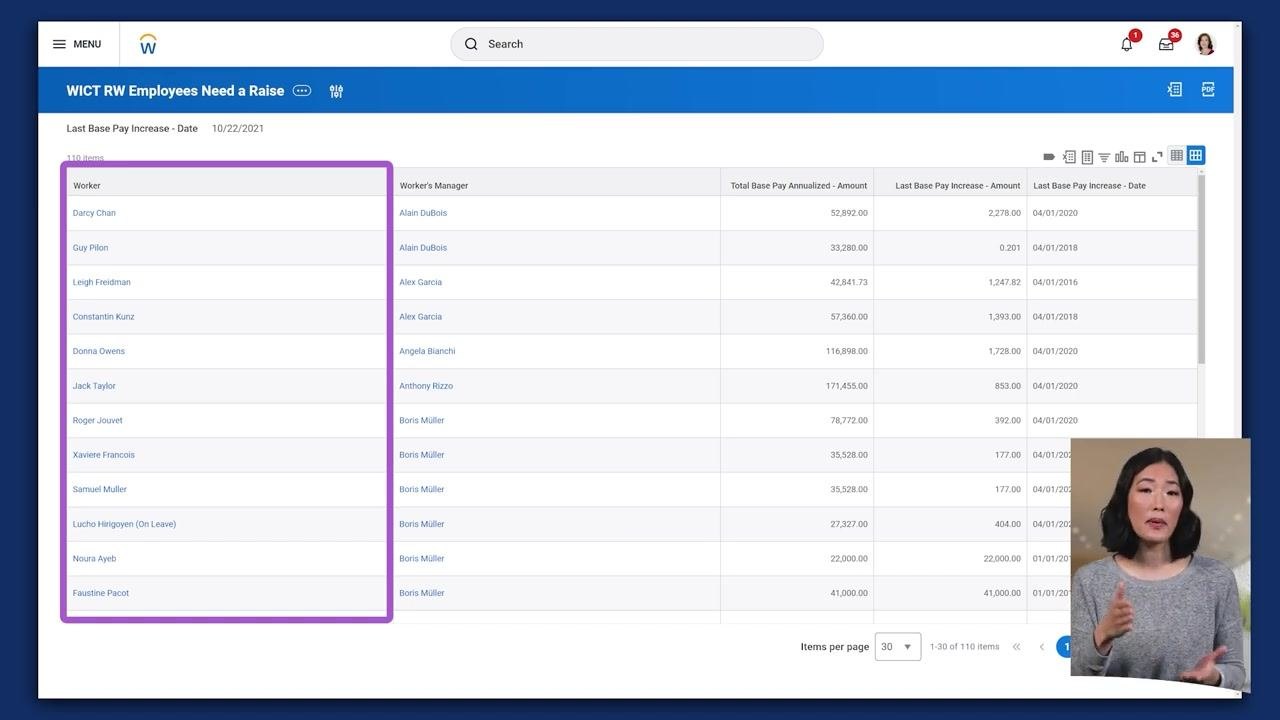
Learn how alerts are triggered. You may receive alert notifications based on the results of custom reports. For example, an alert can notify managers if a report identifies workers who have not received a pay increase in the past three years. Administrators create these alerts, which trigger based on specific report outcomes.
-
Review the custom report behind an alert. When an alert is triggered, review the custom report listing the relevant employees. The report displays columns such as Worker, Worker's Manager, Total Base Pay Annualized, Last Base Pay Increase Amount, and Last Base Pay Increase Date, helping you analyze which employees require attention.
-
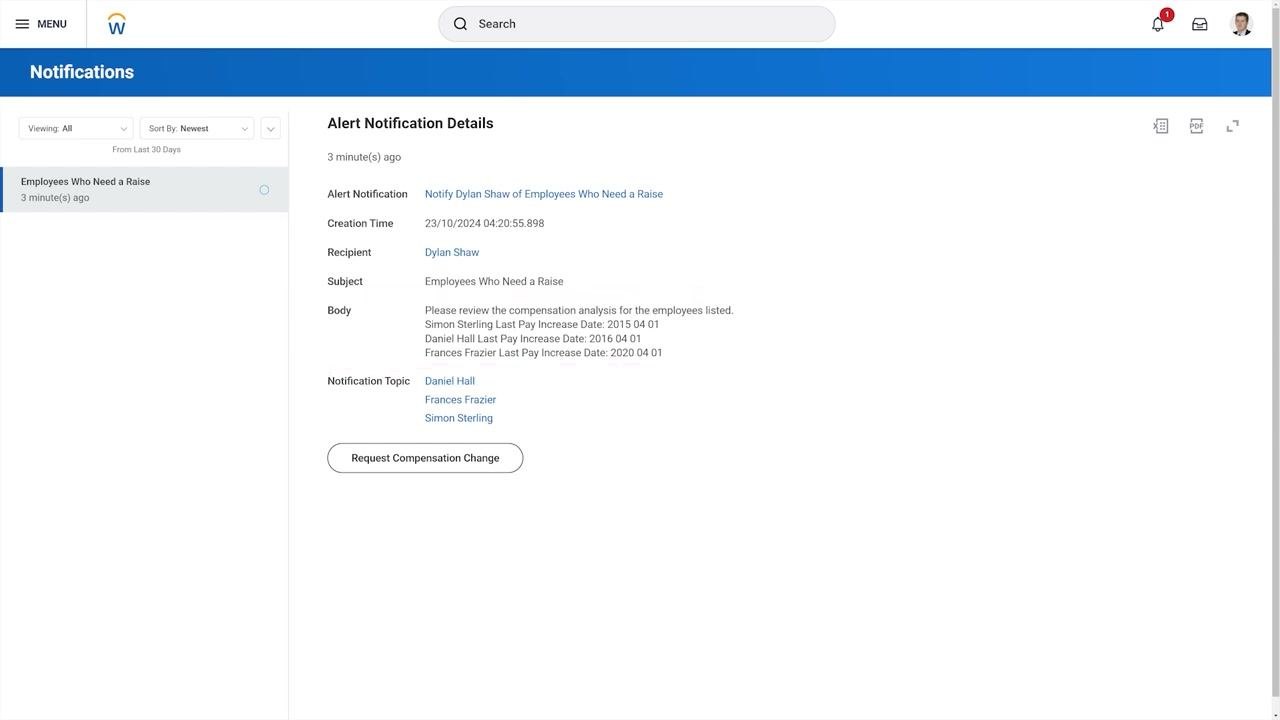
Open and review the alert notification. When you receive an alert notification, open its details and review the body, which lists employees and their last pay increase dates. Example alert body:
- "Please review the compensation analysis for the employees listed."
- Simon Sterling — Last Pay Increase Date: 2015-04-01
- Daniel Hall — Last Pay Increase Date: 2016-04-01
- Frances Frazier — Last Pay Increase Date: 2020-04-01
- "Please review the compensation analysis for the employees listed."
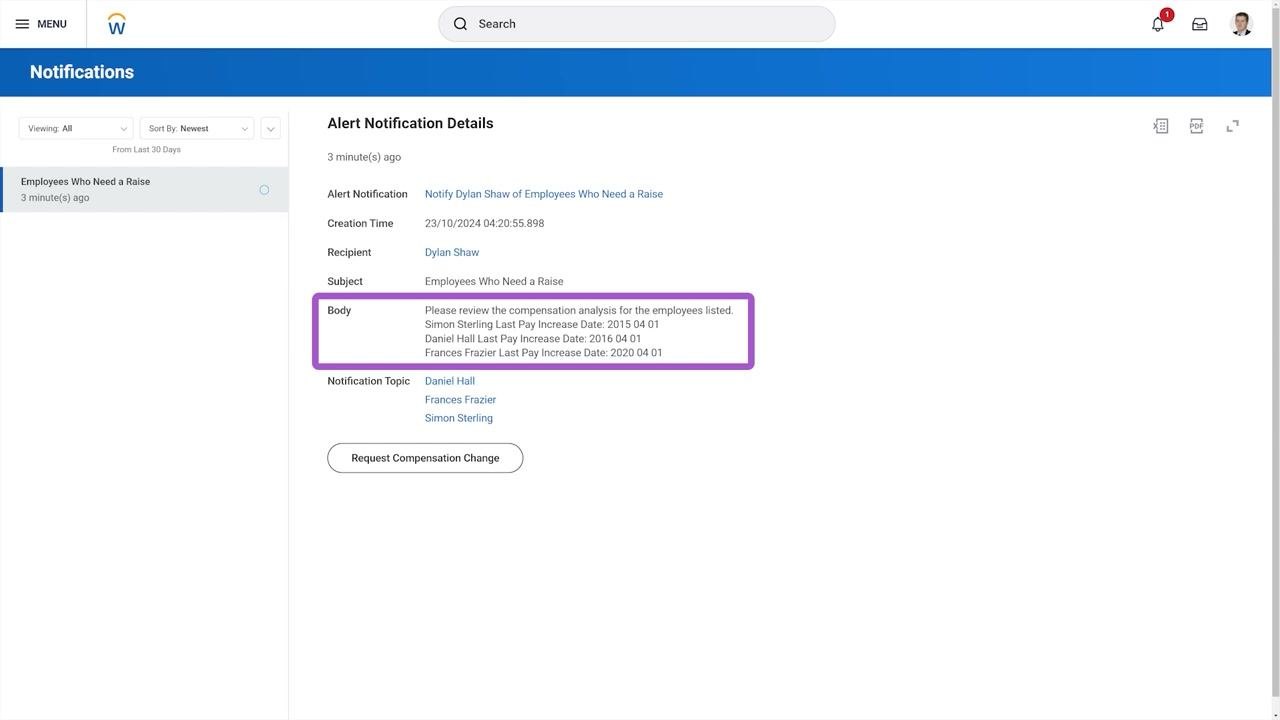
- Take action from the alert. If action is required, click Request Compensation Change within the alert notification to initiate a compensation change process directly from the alert.
Report accessibility and permissions
Your ability to view or edit reports in Workday depends on your assigned permissions and role. If you lack the necessary permissions, restricted reports will not appear in your Workday instance. Check with your administrator if you believe you are missing access to a required report.
Summary
You can locate and access reports in Workday through several complementary methods:
- The global search bar, using prefixes or keywords
- The apps menu, by adding reports as shortcuts
- The profile menu, via Favorites, Drive, and My Reports
Workday is designed to give you quick access to the insights you need, tailored to your permissions and role.
What's next
- Subscribe to the Workday video channel for more training content and updates.
- Follow Workday on social media (@Workday) for news and community engagement.
- Explore the "Learn with Workday" playlist for a curated set of educational videos covering Workday features and best practices.
- Watch related videos, such as the one on building a career with Workday technology, to learn about career opportunities and skill development within the Workday ecosystem.
Generation details: cost, quality tiers
Docsie billed 3,000 credits ($2.10) to analyze this 6-minute video at standard quality. The rewrite, template fill and Word/PDF exports were included. The same video at each quality tier:
| Quality | Frames sampled | Credits | Approx. cost |
|---|---|---|---|
| Draft | every 16-30 s | 1,500 | $1.05 |
| Standard (this guide) | every 8-15 s | 3,000 | $2.10 |
| Detailed | every 4-7 s | 6,000 | $4.20 |
| Ultra | every 1-3 s | 12,000 | $8.40 |
Credits priced at $0.70 per 1,000; plans include a monthly allowance. Enterprise customers on on-premise or bring-your-own-model deployments run this on their own inference and pay no per-video credits.
Generated by Docsie Video-to-Docs on 2026-09-08 from a 5-minute video. Screenshots are frames from the source video and belong to their creator, Workday, whose original is embedded above. If you own this video and want the guide removed or credited differently, contact us and we will act within one business day.