
How to View Your Pay Stubs in Workday
This guide walks you through how to view your pay stubs in Workday, print individual or multiple payslips, and manage your payslip printing preferences. Follow the steps below to locate your payment records and update how you receive them.
Video: Workday: View and Print Payslips by Information Technology Services (2023). All credit for the demonstration goes to the creator; watch the original on YouTube. The written guide below was generated from this video by Docsie. Creator? Request a change or removal.
This guide walks you through how to view your pay stubs in Workday, print individual or multiple payslips, and manage your payslip printing preferences. Follow the steps below to locate your payment records and update how you receive them.
Prerequisites
- An active Workday account with login access.
- Access to the Workday dashboard for your organization.
Open the Workday dashboard
When you log in, the Workday dashboard greets you with the heading "Here's What's Happening." From here you can see:
- Awaiting Your Action: displays pending tasks, such as a learning journey in progress.
- Timely Suggestions: reminders for assigned learning activities.
- Announcements: company updates and important notices.
The current date appears in the top right corner, and navigation options include a menu button on the top left, a search bar, and your user profile icon on the top right.
Navigate to the My Payslips page
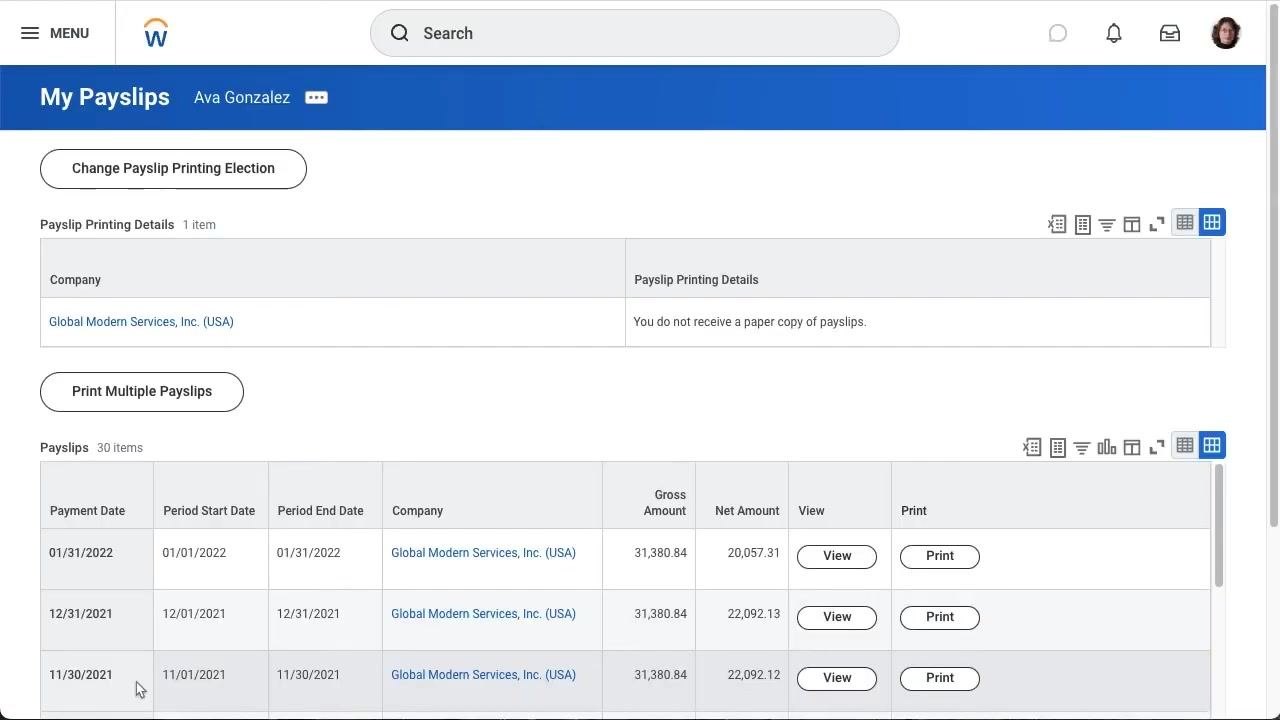
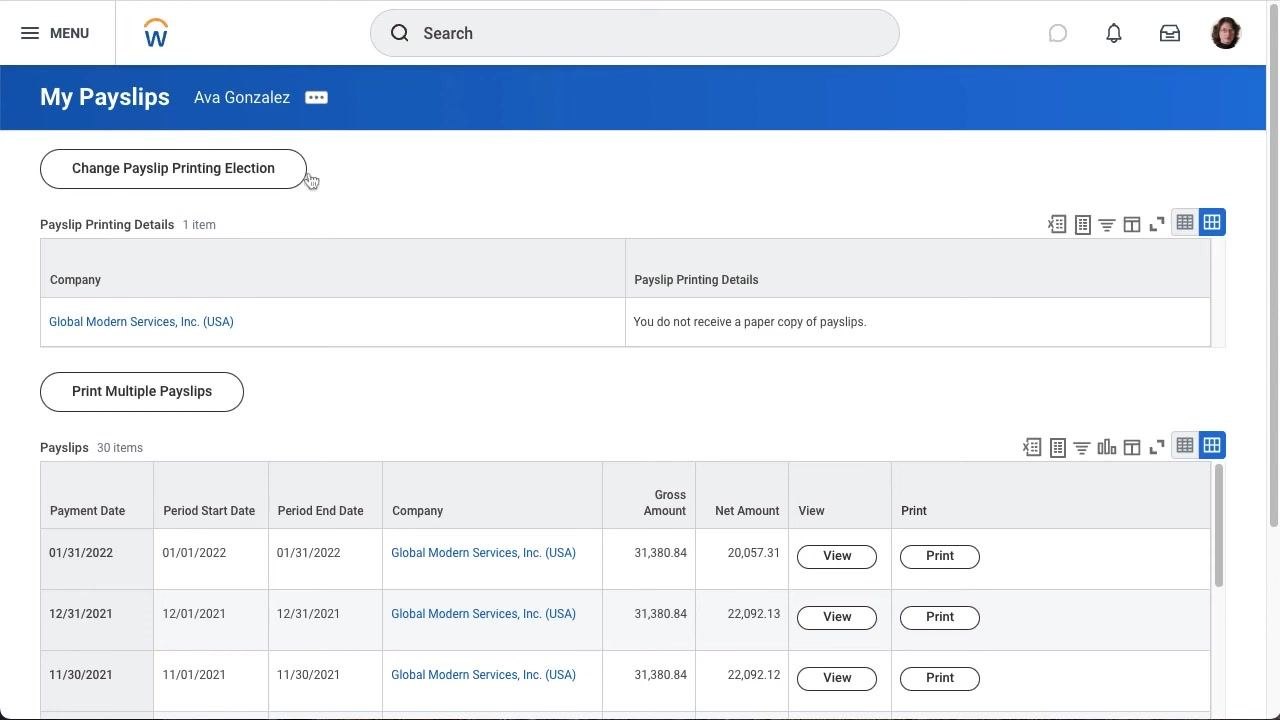
From the dashboard, open the My Payslips page. The page header shows "My Payslips" along with your name. You'll find two options:
- Change Payslip Printing Election
- Print Multiple Payslips
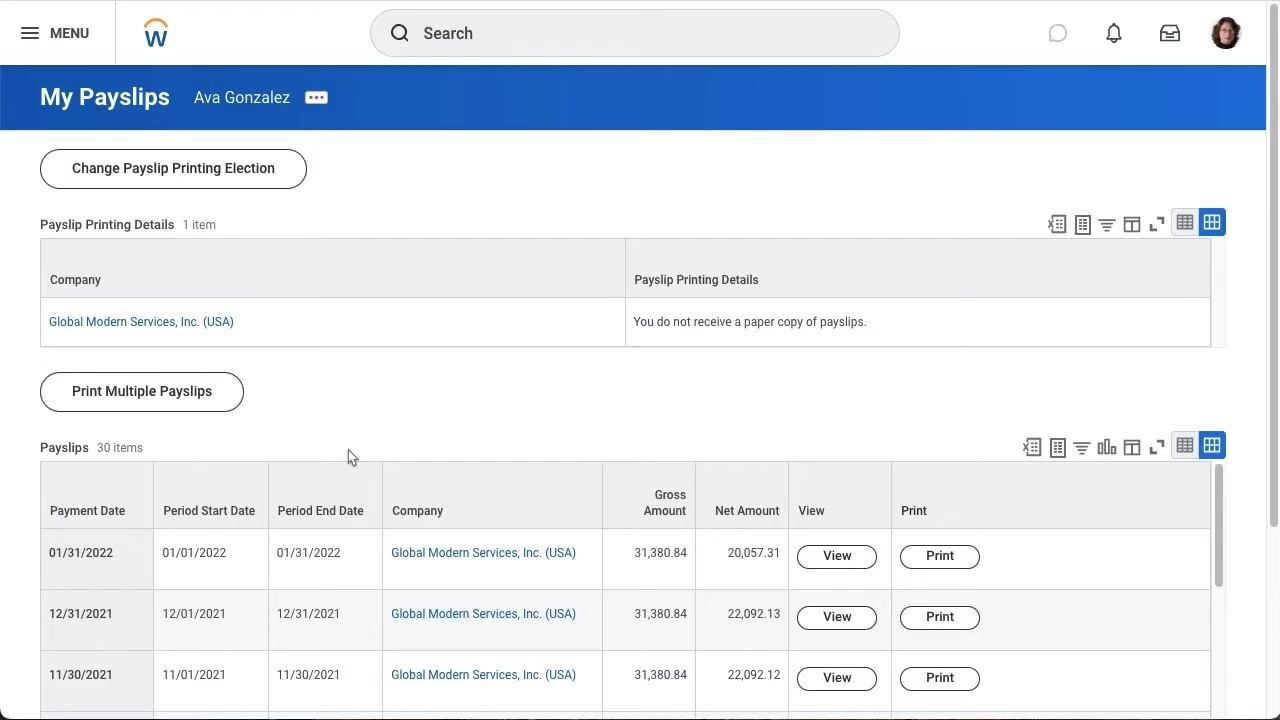
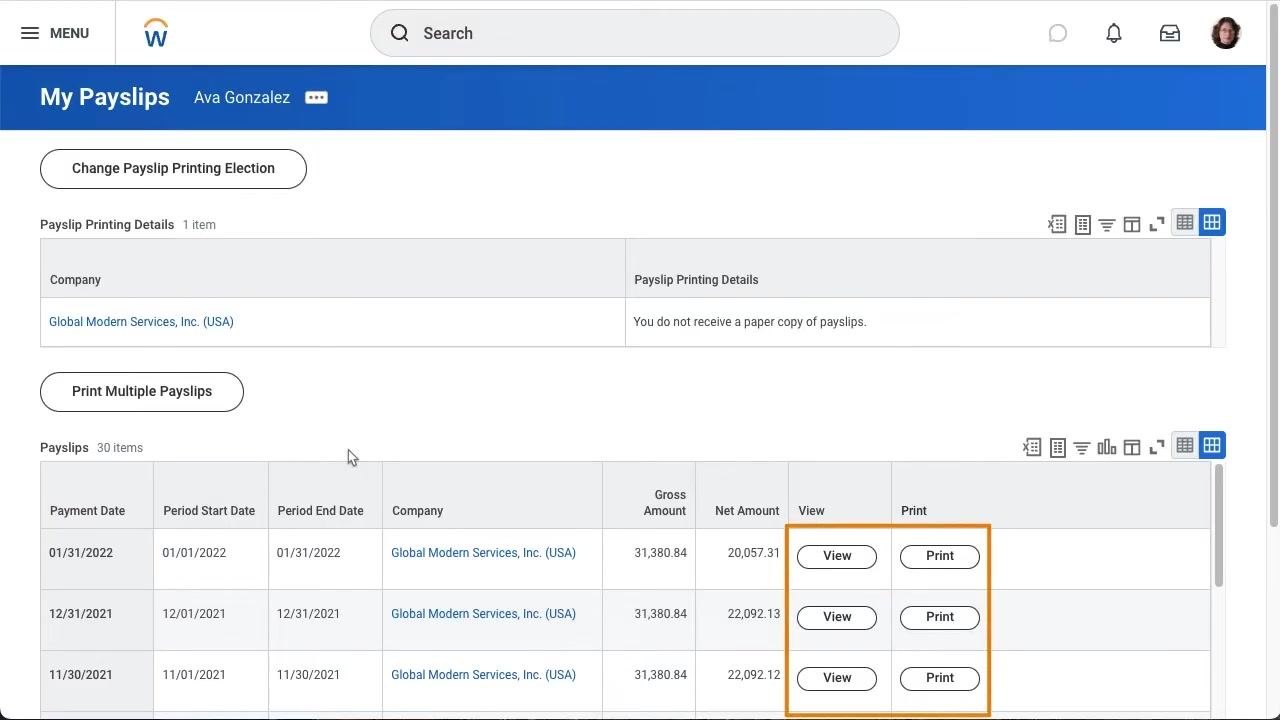
The Payslip Printing Details section shows your current delivery preference (for example, "You do not receive a paper copy of payslips"). Below this, a table lists all available payslips with columns for Payment Date, Period Start Date, Period End Date, Company, Gross Amount, Net Amount, and action buttons for View and Print.
View a specific payslip
In the payslips table, locate the row for the payment date you want to review. Click the View button in that row to open the payslip details. The selected row becomes highlighted once you click it.
Review payslip details
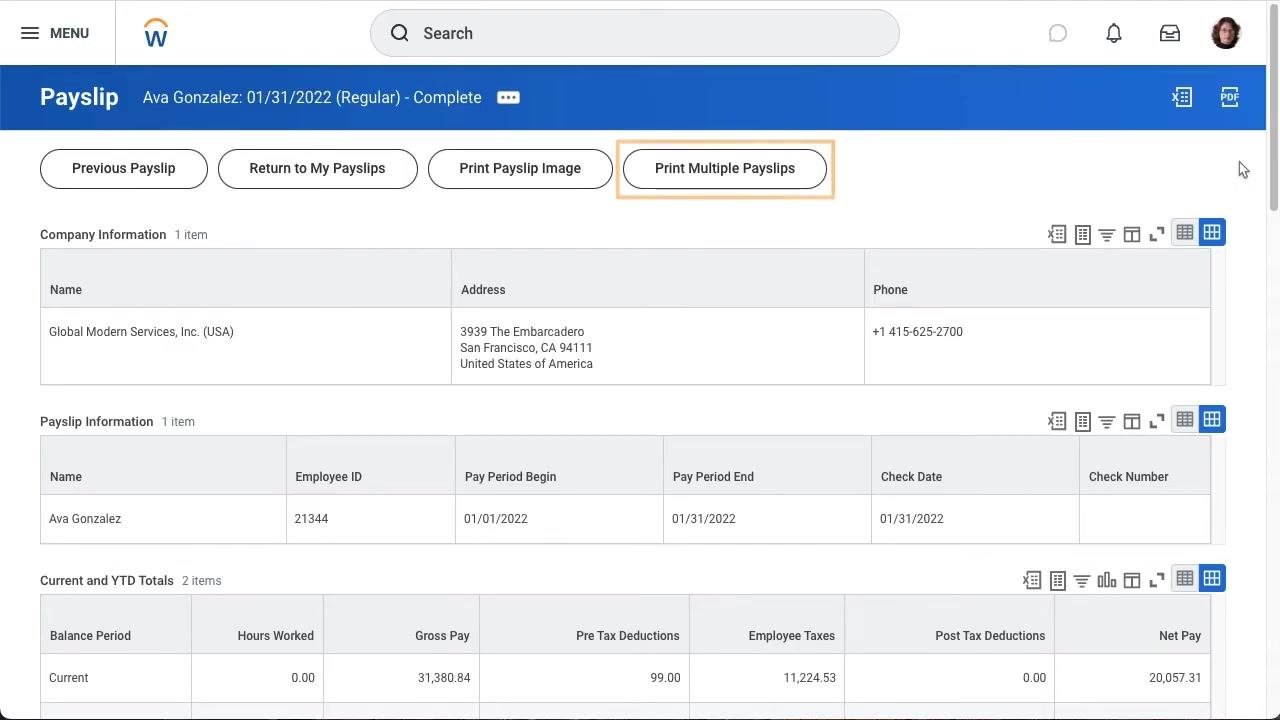
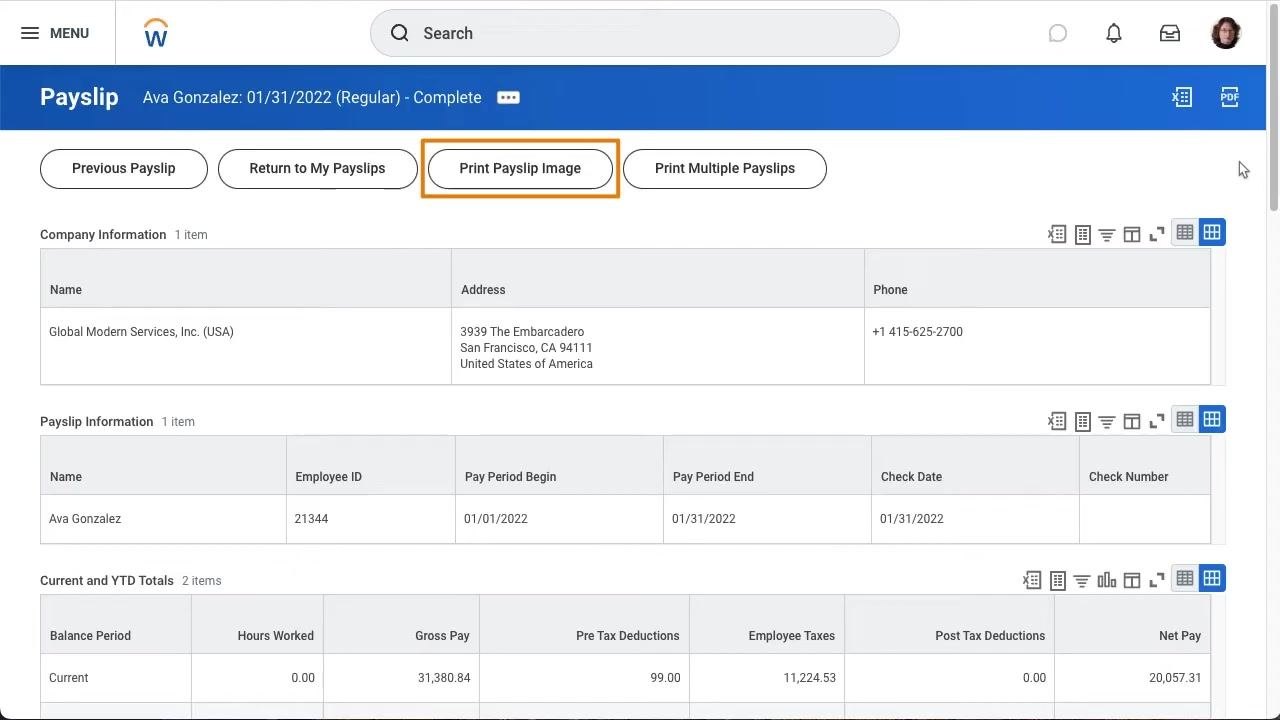
The payslip details page shows comprehensive information organized into several sections:
- Company Information: name, address, and phone number.
- Payslip Information: employee name, ID, pay period begin/end dates, check date, and check number.
- Current and YTD Totals: balance period, hours worked, gross pay, pre-tax deductions, employee taxes, post-tax deductions, and net pay.
- Withholding: marital status, allowances, and additional withholding.
- Absence Plans: accrued, reduced, and available balances for floating holidays and paid time off.
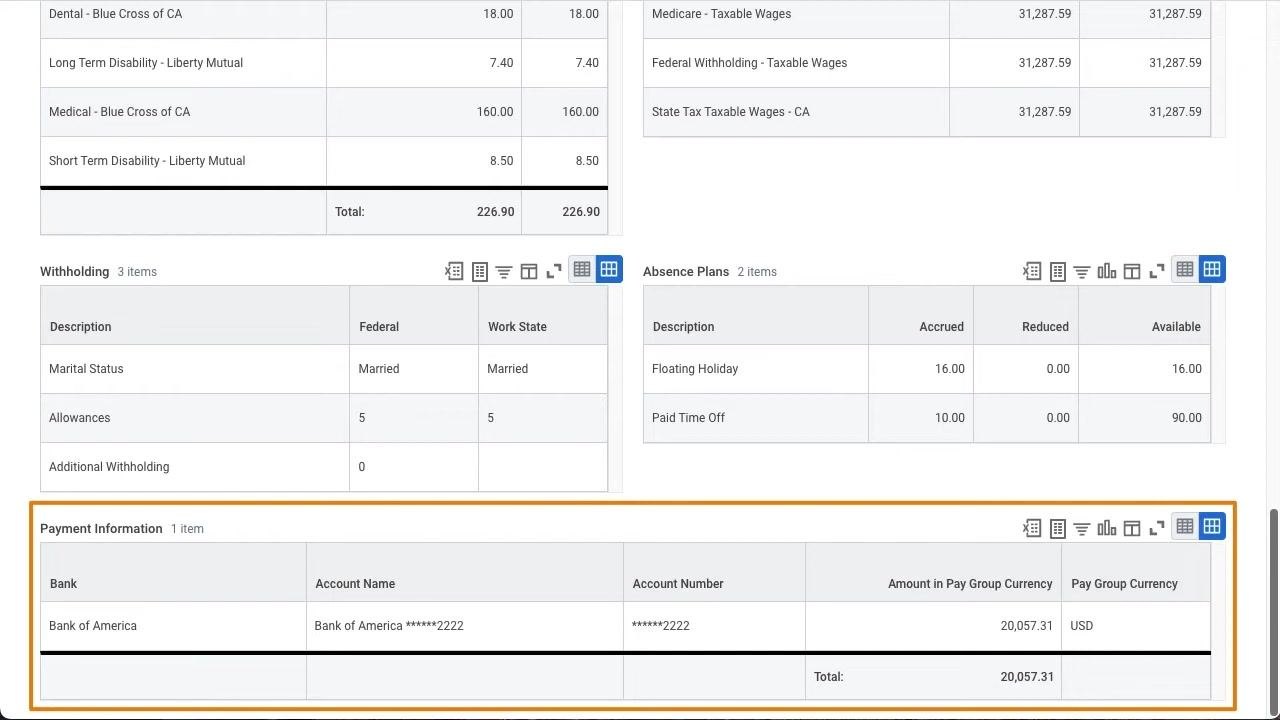
- Payment Information: bank name, account name, partially masked account number, and amount in pay group currency.
Print a payslip image
At the top of the payslip details page, click Print Payslip Image to print the payslip you're currently viewing. You'll also see additional navigation options here, including Previous Payslip, Return to My Payslips, and Print Multiple Payslips.
Print multiple payslips
To print more than one payslip at once, click Print Multiple Payslips at the top of the payslip details page. This option is useful when you need to batch print several payslips for your records.
Access the Print Multiple Payslips dialog
After clicking Print Multiple Payslips, a dialog titled "Print Multiple Payslips" opens. It displays:
- Processing Worker: your name (shown as the current logged-in user).
- Payment From Date: an empty field with a calendar picker (MM/DD/YYYY format).
- Payment To Date: an empty field with a calendar picker (MM/DD/YYYY format).
- Exclude Net Zero Payslips: a checkbox, unchecked by default.
At the bottom of the dialog, you'll find OK (highlighted in orange) and Cancel buttons. No payslips are selected until you specify a date range.
Return to payslip details
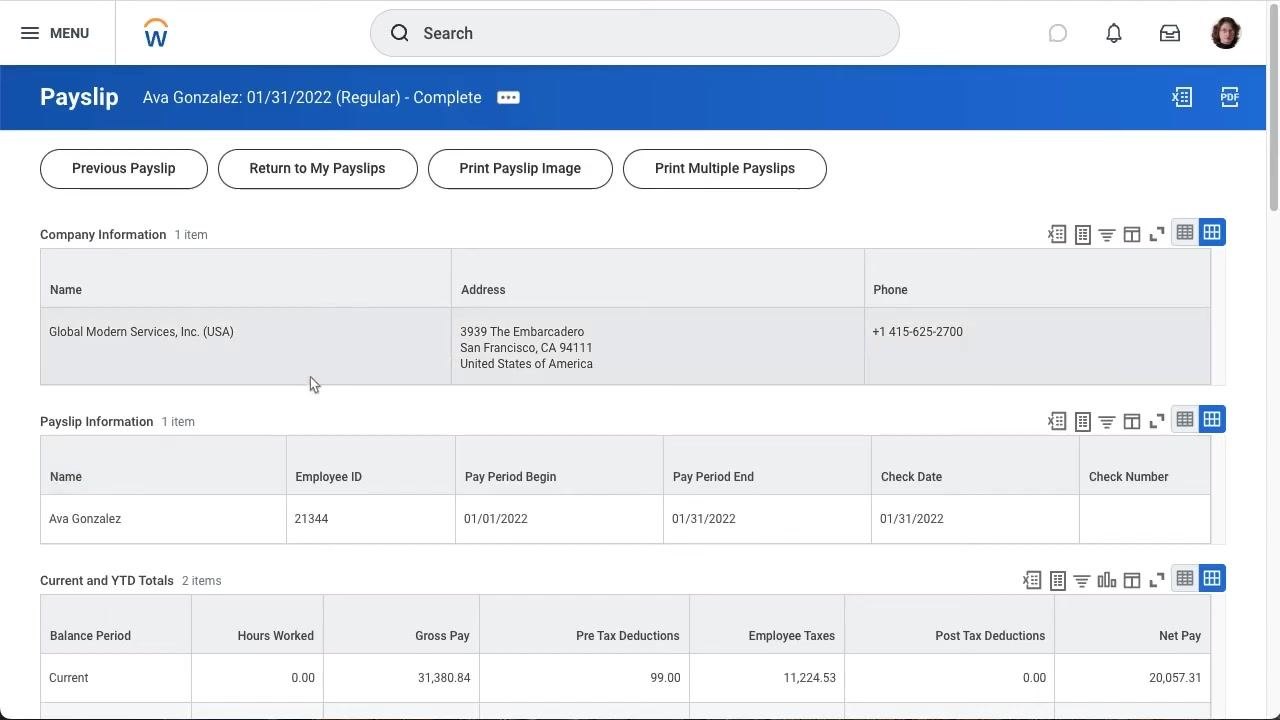
After closing or completing the batch print dialog, you return to the payslip details page. This page shows:
- Header: payslip identifier with name, date, type, and status (for example, "Payslip Ava Gonzalez: 01/31/2022 (Regular) - Complete").
- Action buttons: Previous Payslip, Return to My Payslips, Print Payslip Image, Print Multiple Payslips.
- Company Information: name, address, and phone number.
- Payslip Information: name, Employee ID, Pay Period Begin and End dates, and Check Date.
- Current and YTD Totals: balance period, hours worked, gross pay, pre-tax deductions, employee taxes, post-tax deductions, and net pay.
Return to the My Payslips overview
Navigate back to the "My Payslips" overview page. Here you'll see:
- The Change Payslip Printing Election button at the top.
- Payslip Printing Details, confirming your current delivery preference.
- The Print Multiple Payslips button.
- A payslips table listing all available entries (for example, 30 items) with columns for Payment Date, Period Start Date, Period End Date, Company, Gross Amount, Net Amount, and action buttons for View and Print.
Change your payslip printing election
Click Change Payslip Printing Election to update how you receive your payslips. The "Change Payslip Printing Election" page appears, showing:
- Worker: your name.
- Company: your employer's name.
- Last Updated: the date of the most recent change.
- Current Payslip Printing Details: your existing delivery preference.
- New Payslip Printing Election: an empty dropdown field.
At the bottom of the page, you'll find OK (highlighted in orange) and Cancel buttons.
Select a new payslip printing election
Click the dropdown under New Payslip Printing Election. Two options appear:
- Receive Electronic Copy of Payslip (Paperless)
- Receive Paper Copy of Payslip
Select the option that matches your preferred delivery method.
Return to the My Payslips page
After updating or canceling your election, you're returned to the "My Payslips" overview page. The layout and available options remain the same as described earlier.
Summary
By following these steps, you now know how to view your pay stubs in Workday, print individual or multiple payslips, and manage your printing election. These tools ensure you have access to your payment records in the format that works best for you.
Generation details: cost, quality tiers
Docsie billed 1,500 credits ($1.05) to analyze this 3-minute video at standard quality. The rewrite, template fill and Word/PDF exports were included. The same video at each quality tier:
| Quality | Frames sampled | Credits | Approx. cost |
|---|---|---|---|
| Draft | every 16-30 s | 750 | $0.52 |
| Standard (this guide) | every 8-15 s | 1,500 | $1.05 |
| Detailed | every 4-7 s | 3,000 | $2.10 |
| Ultra | every 1-3 s | 6,000 | $4.20 |
Credits priced at $0.70 per 1,000; plans include a monthly allowance. Enterprise customers on on-premise or bring-your-own-model deployments run this on their own inference and pay no per-video credits.
Generated by Docsie Video-to-Docs on 2026-10-02 from a 2-minute video. Screenshots are frames from the source video and belong to their creator, Information Technology Services, whose original is embedded above. If you own this video and want the guide removed or credited differently, contact us and we will act within one business day.