
How to Resign in Workday
This guide walks you through how to resign in Workday using the Workday mobile application. You will learn how to install the app, log in, navigate to the resignation form, complete each required field, and track the approval status of your request after you submit it.
Video: How to Resign on Workday app (Fast) by 5 Minute Solution (2025). All credit for the demonstration goes to the creator; watch the original on YouTube. The written guide below was generated from this video by Docsie. Creator? Request a change or removal.
This guide walks you through how to resign in Workday using the Workday mobile application. You will learn how to install the app, log in, navigate to the resignation form, complete each required field, and track the approval status of your request after you submit it.
Prerequisites
Before you begin, make sure you have the following:
- A mobile device (Android or iOS) with access to the Google Play Store or App Store.
- Valid employee credentials (username and password) for your organization's Workday portal.
- Knowledge of your organization's correct Workday tenant, since logging into the wrong tenant will prevent you from seeing your dashboard.
Download and install the Workday mobile app
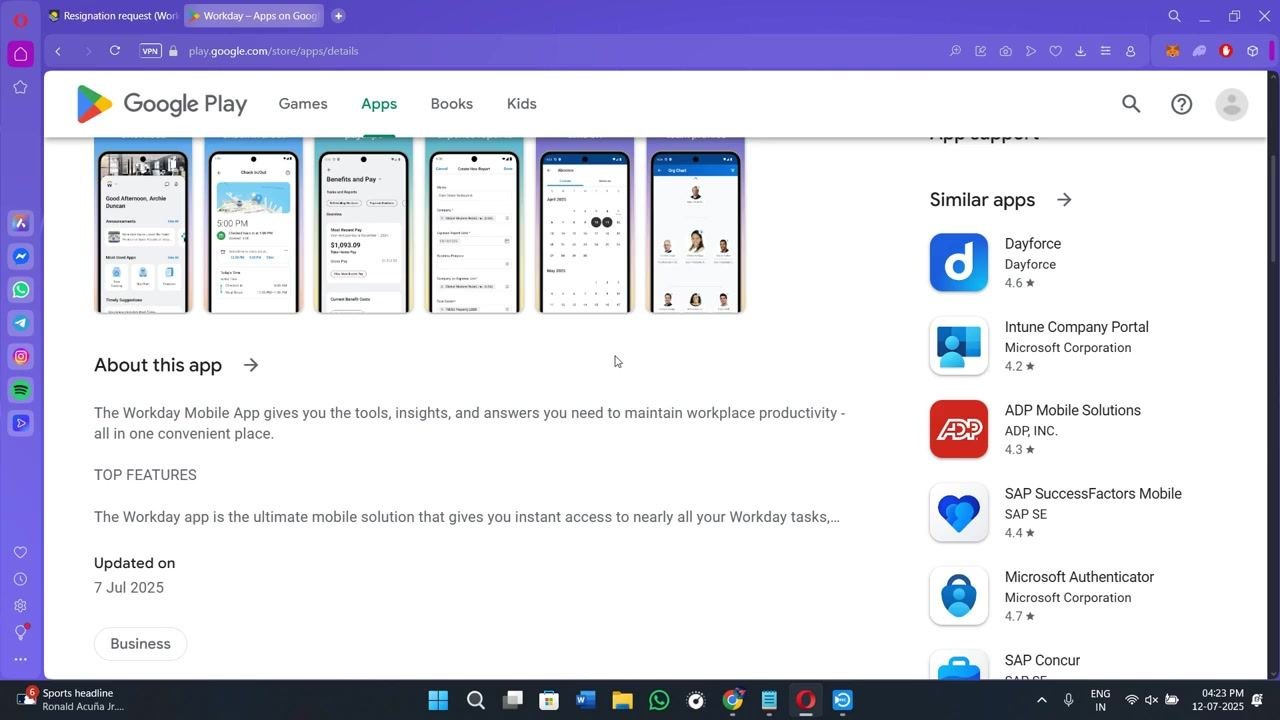
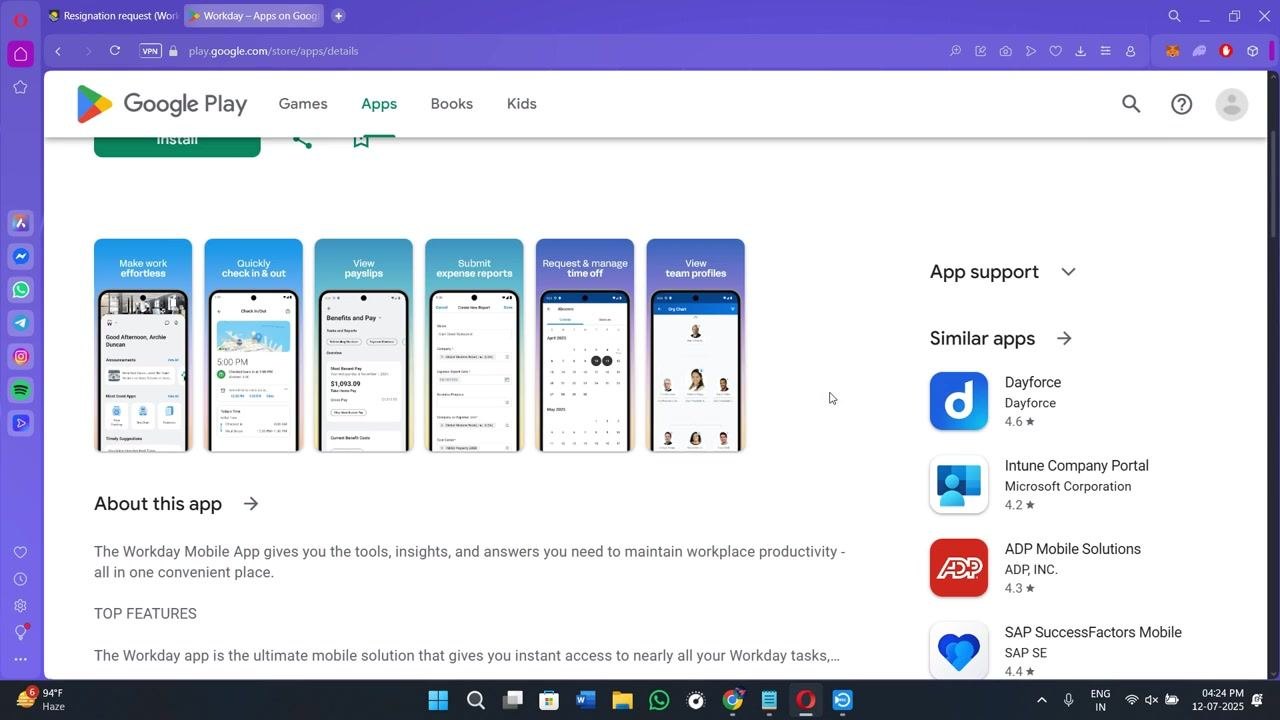
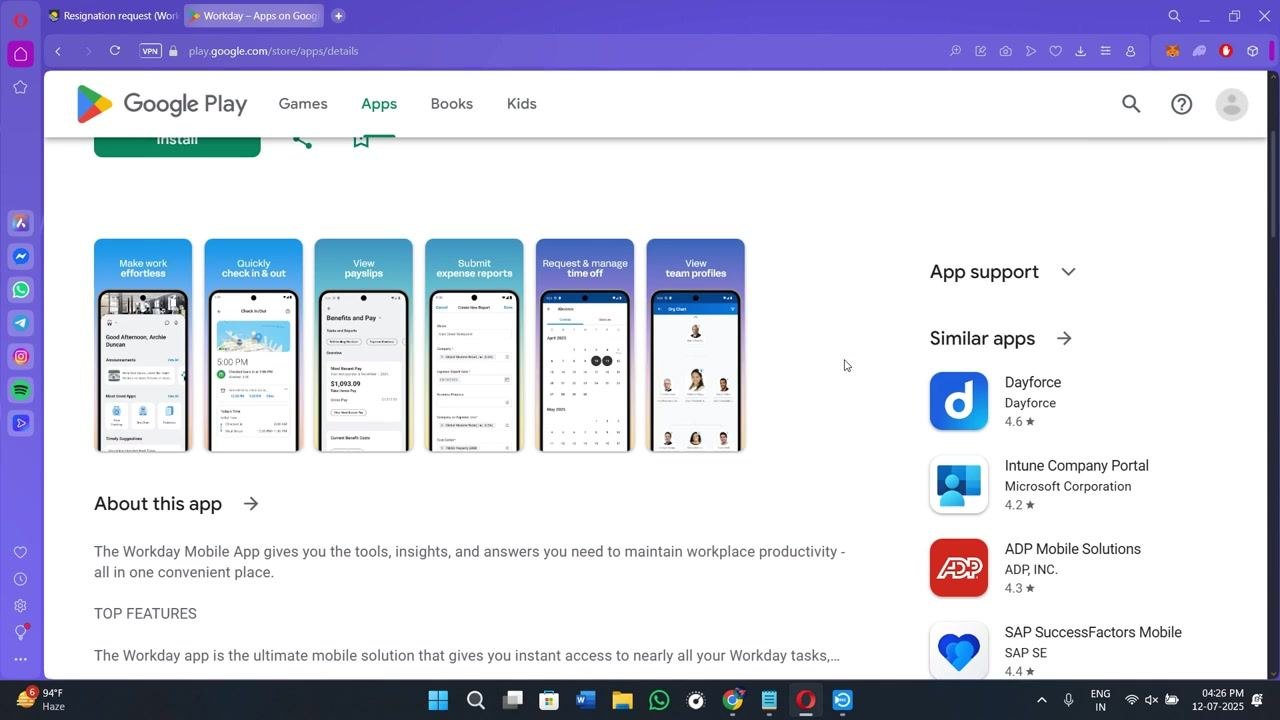
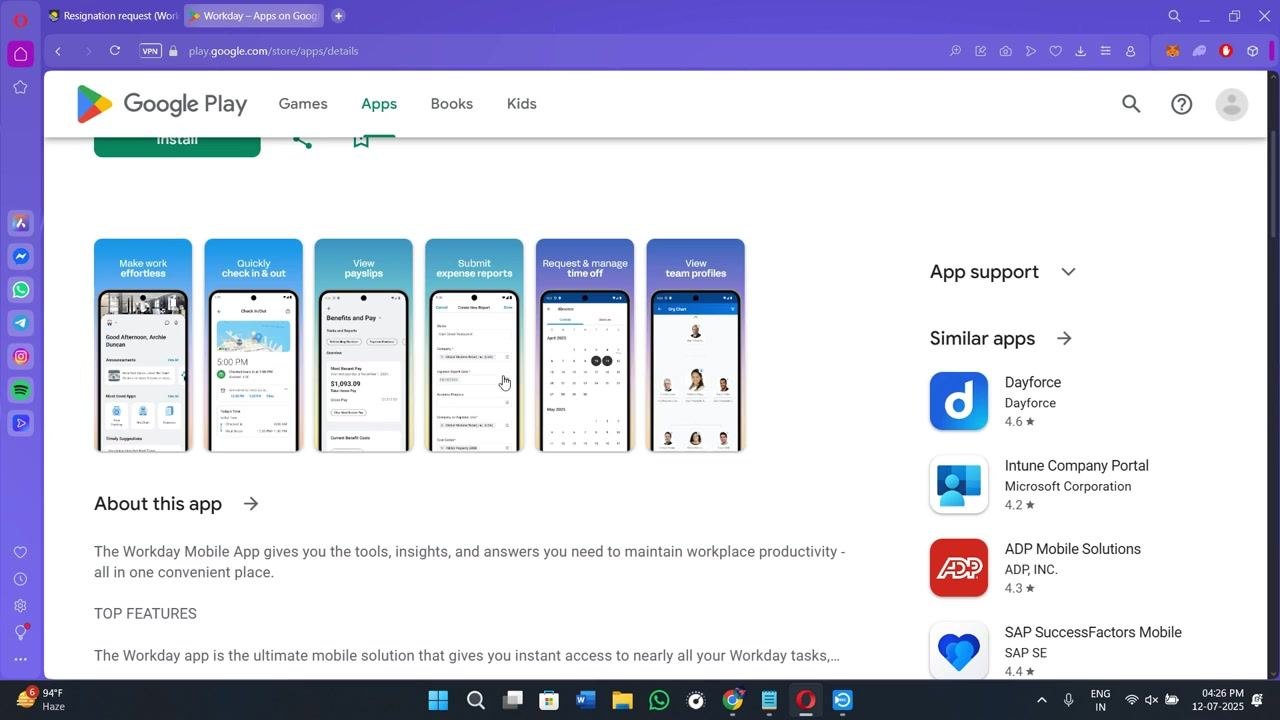
Open the Google Play Store (Android) or App Store (iOS) on your device and search for "Workday" by Workday, Inc. The official app has a 4.6★ rating, over 1 crore downloads, and is rated for ages 3+. Tap Install to download and install it.
Log in to your Workday account
Launch the Workday app once installation is complete. Enter your employee username and password to log in, and confirm you are accessing the correct company portal (tenant) for your organization. If the dashboard you expect does not appear, double-check that you are signed into the right tenant.
Open the main dashboard and your profile menu
After logging in, you will land on the main dashboard. Locate your profile icon, usually displayed at the top of the screen, and tap it to continue.
Tap the cloud icon to open the actions menu
From your profile view, look for a cloud-shaped icon and tap it to open the quick actions menu.
Navigate to Actions, Job Change, and Resign
Tapping the cloud icon opens a menu with several options. Select Actions, then tap Job Change, and finally choose Resign from the Job Change submenu.
Tap Resign to open the resignation form
In the "Change My Business Title" section, locate and tap the Resign option. Doing so opens the Submit Resignation form.
- If the Resign option does not appear, your organization may have restricted this action.
- In that case, contact your HR department directly to process your resignation manually.
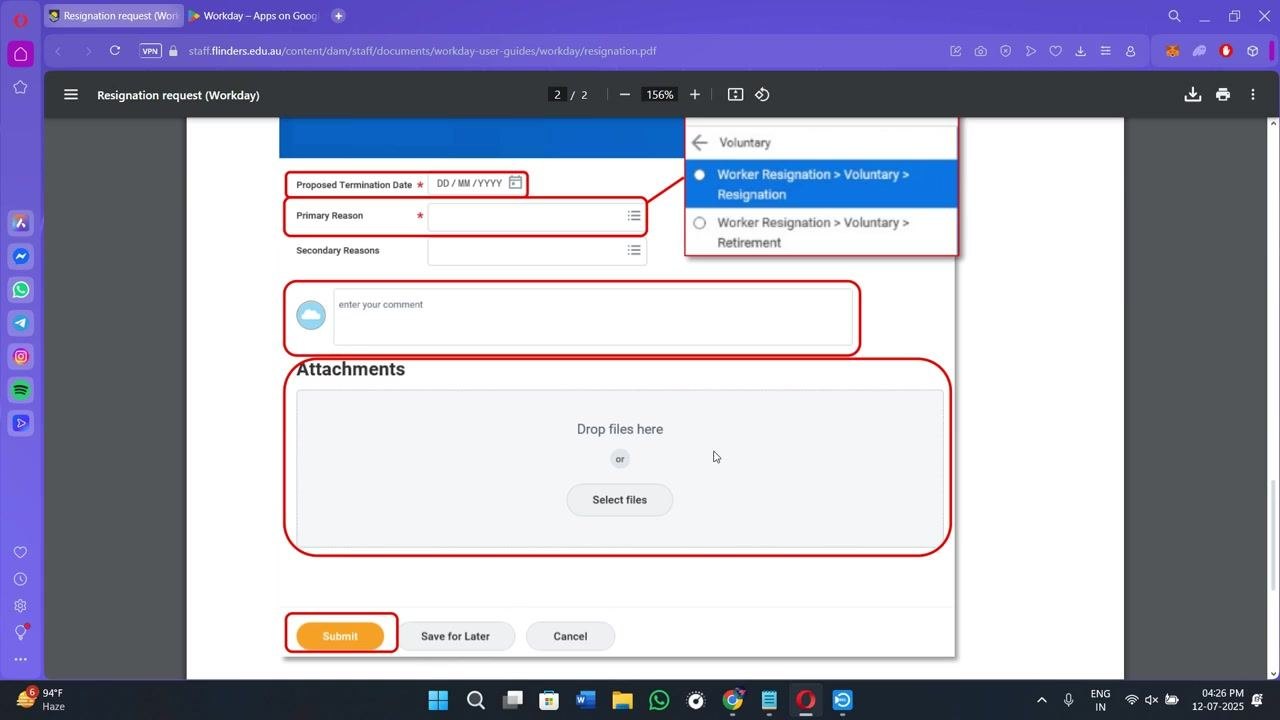
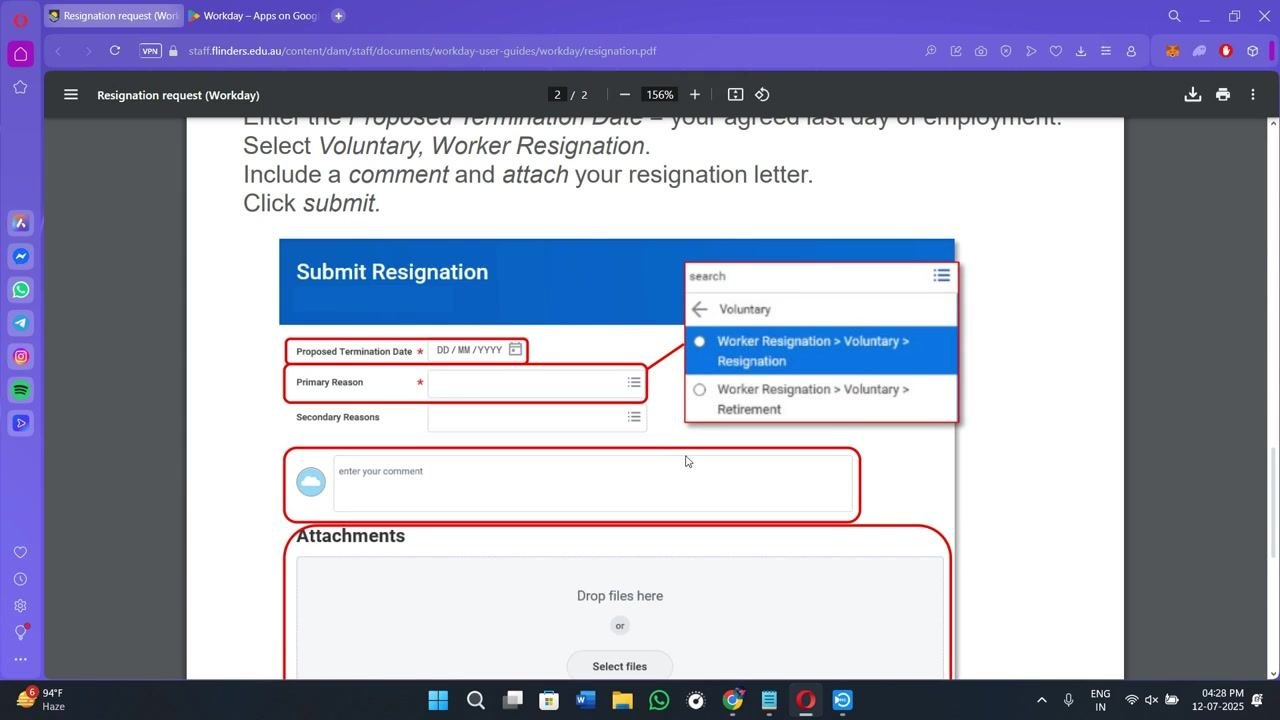
Enter your proposed termination date
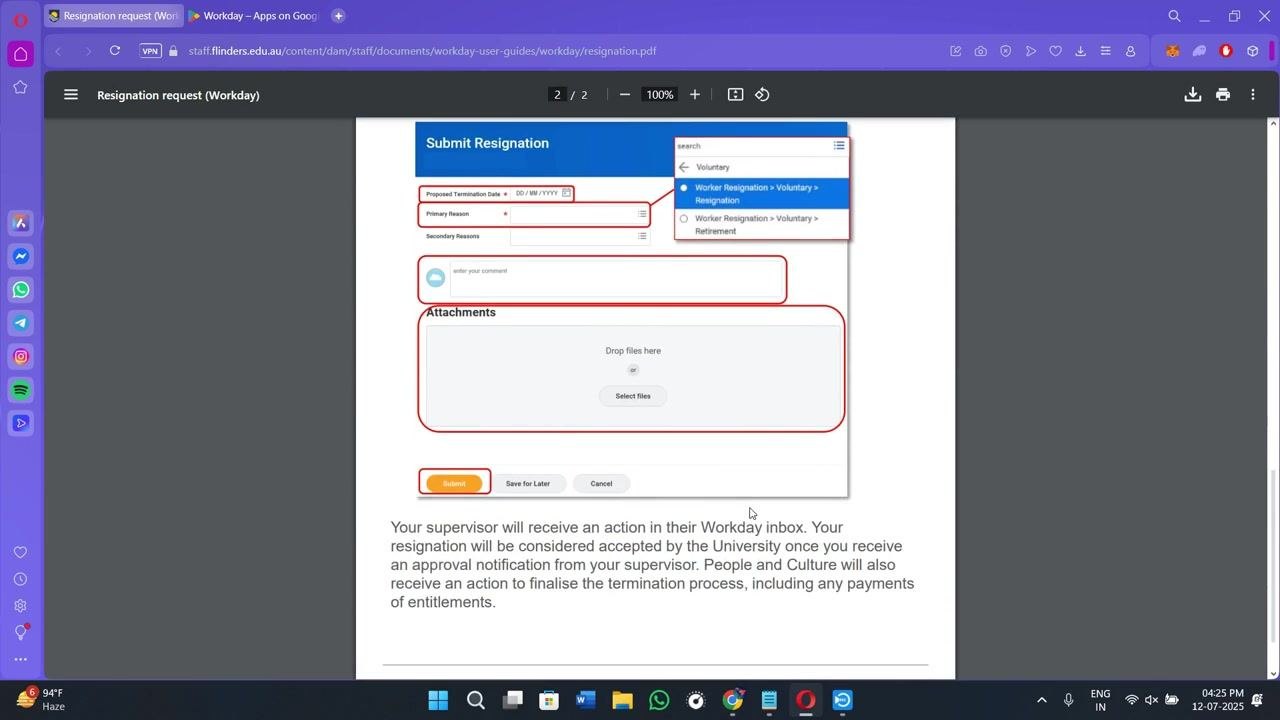
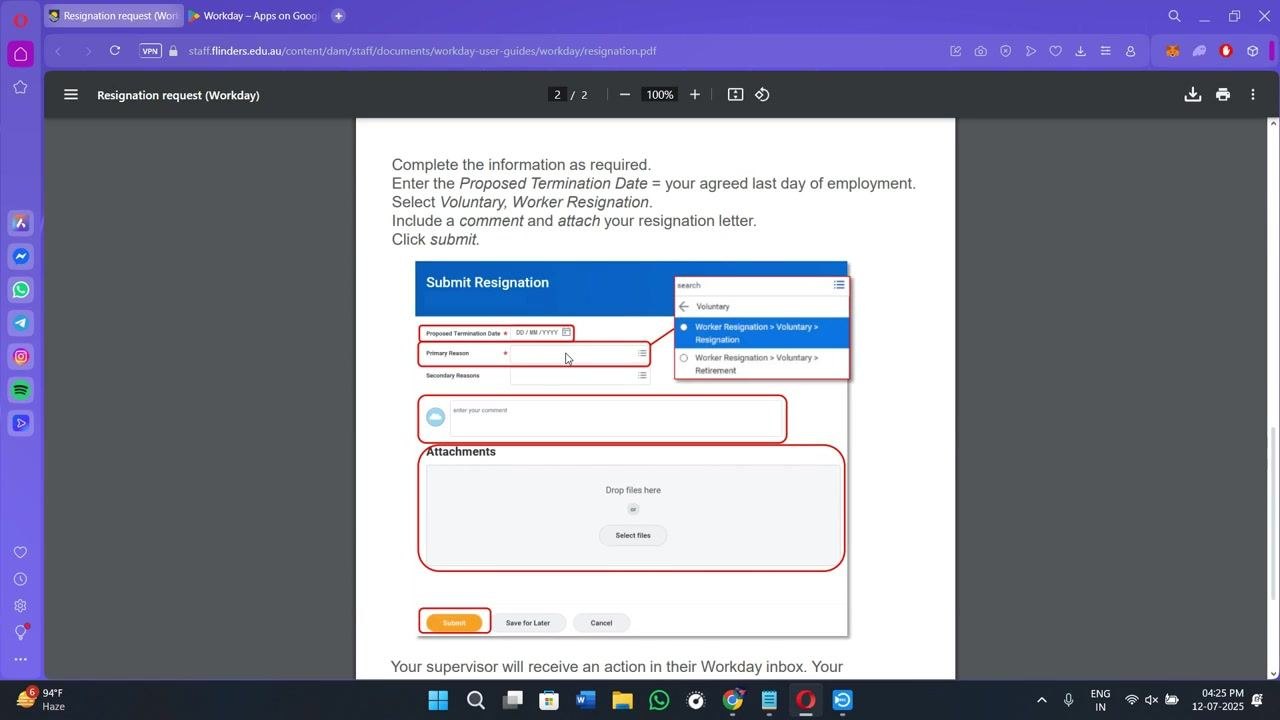
In the Proposed Termination Date field, use the date picker to select your final working day. Double-check that the date is correct before moving on.
Select your primary and secondary reasons for resigning
Tap the three horizontal lines next to the Primary Reason field and choose the most appropriate option from the dropdown (for example, "Worker Resignation > Voluntary > Resignation"). Common reasons include new job opportunities, relocation, or personal reasons.
- Tap the three lines next to Secondary Reasons to add an additional reason if applicable; this field is optional.
Add an optional comment
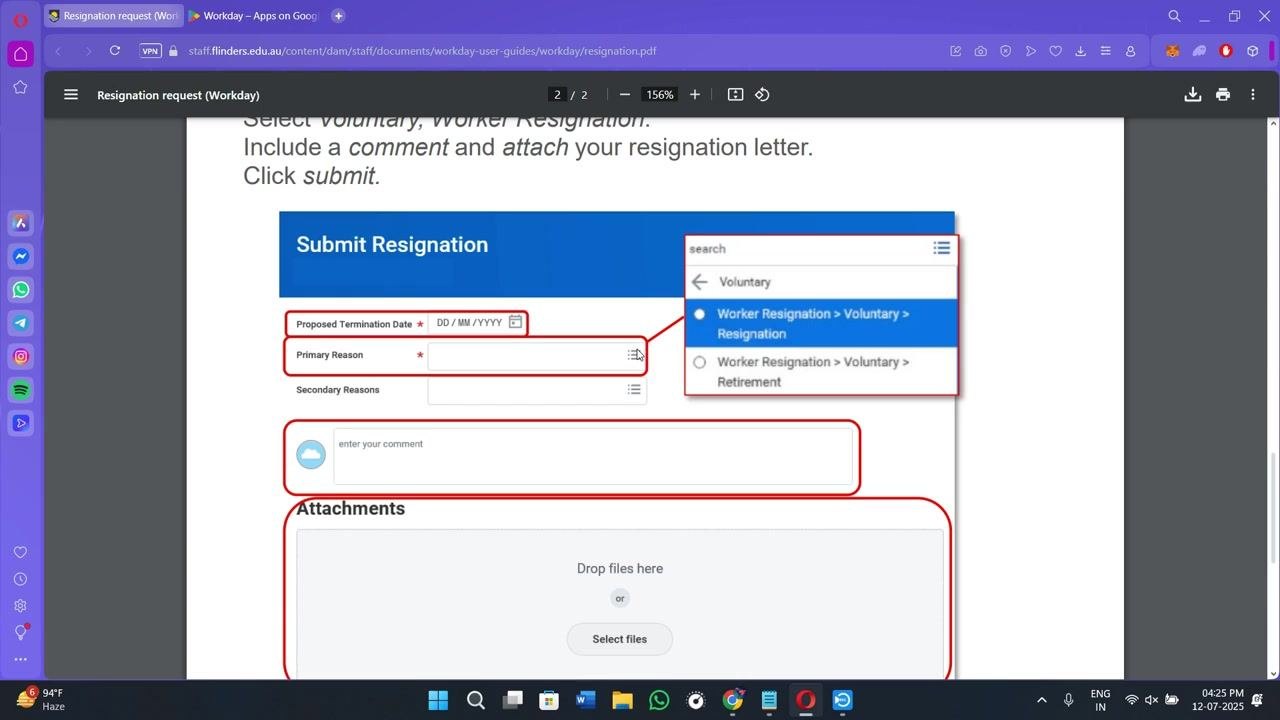
In the enter your comment field, you can type a short message to your supervisor or manager. Use this space to provide context for your resignation or leave a farewell note.
Attach supporting documents (optional)
Under Attachments, drag and drop files into the "Drop files here" area, or tap Select files to browse and upload documents such as your resignation letter.
Review all entered information
Before submitting, carefully review your proposed termination date, primary and secondary reasons, any comments, and attached files. Confirm that all details are accurate.
Submit your resignation
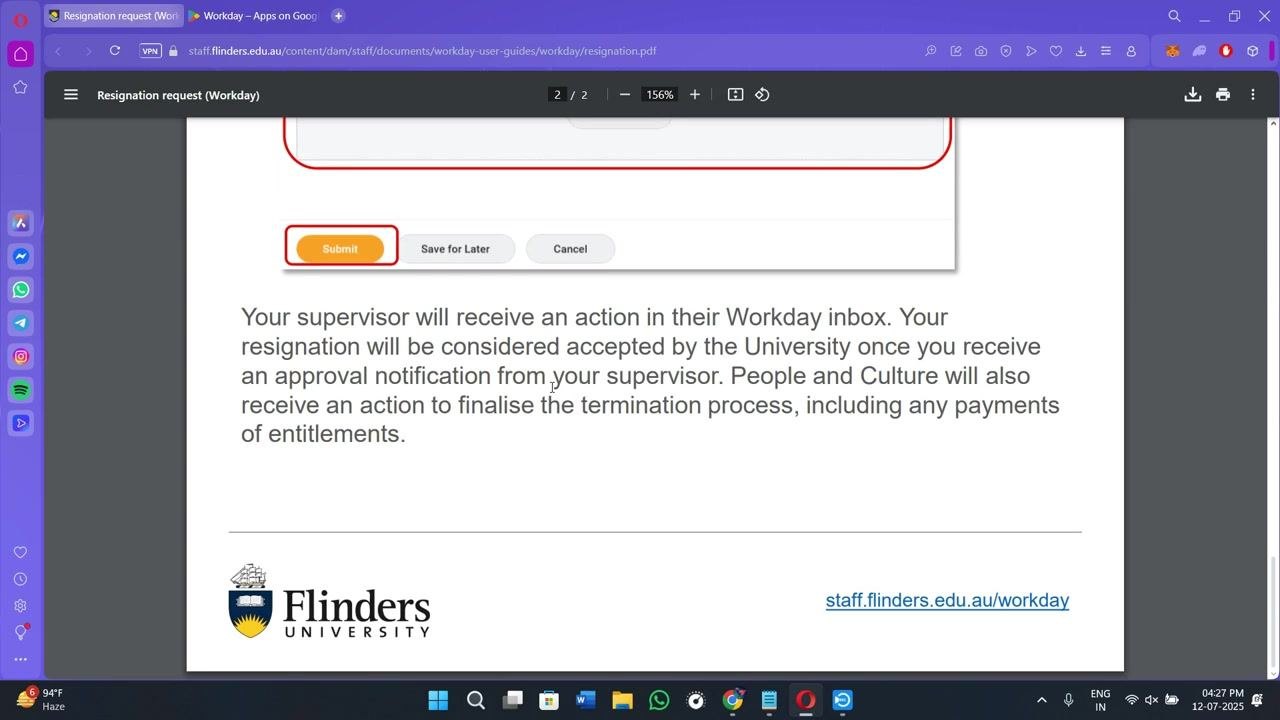
Tap the Submit button at the bottom of the form to finalize your request. If you are not ready to finish, you can choose Save for Later to complete the form at another time, or Cancel to exit without submitting.
Example: If you are resigning effective next Friday, select that date in the Proposed Termination Date field, choose Career Change as your primary reason, optionally add a note such as "Thank you for the opportunity," and submit the form to complete the process.
Confirm your resignation was submitted
After you tap Submit, the app displays a confirmation message indicating that your resignation request has been sent for approval and is pending review by your manager or HR team. At this point, no further action is required from you.
Understand what happens next
Your supervisor receives an action item in their Workday inbox to review your resignation. Your resignation is considered accepted once you receive an approval notification from your supervisor.
- The HR team may contact you about your exit interview, asset handover, account deactivation, and final pay processing.
- All access changes and offboarding steps are managed by the IT and HR departments.
Tracking your resignation status
To check on your request after submission:
- Return to the Workday home page.
- Tap the Inbox icon.
- Under Submitted or My Tasks, locate your resignation request.
- The status shows as In Progress until your manager or HR reviews and approves it.
- Once approved, you receive a confirmation message within the app or via email.
Summary
Submitting your resignation through the Workday mobile app replaces paper forms and lengthy email exchanges with a streamlined digital process. After you complete and submit the form, your supervisor reviews the request in their Workday inbox, and your resignation is accepted once you receive their approval notification. From there, HR and IT handle the remaining offboarding steps, including exit interviews, asset handover, account deactivation, and final pay processing.
What's next
After your resignation is approved, watch for communication from HR regarding your exit interview and offboarding timeline, and monitor your Workday inbox for any additional tasks related to your departure.
Generation details: cost, quality tiers
Docsie billed 3,000 credits ($2.10) to analyze this 6-minute video at standard quality. The rewrite, template fill and Word/PDF exports were included. The same video at each quality tier:
| Quality | Frames sampled | Credits | Approx. cost |
|---|---|---|---|
| Draft | every 16-30 s | 1,500 | $1.05 |
| Standard (this guide) | every 8-15 s | 3,000 | $2.10 |
| Detailed | every 4-7 s | 6,000 | $4.20 |
| Ultra | every 1-3 s | 12,000 | $8.40 |
Credits priced at $0.70 per 1,000; plans include a monthly allowance. Enterprise customers on on-premise or bring-your-own-model deployments run this on their own inference and pay no per-video credits.
Generated by Docsie Video-to-Docs on 2026-10-02 from a 5-minute video. Screenshots are frames from the source video and belong to their creator, 5 Minute Solution, whose original is embedded above. If you own this video and want the guide removed or credited differently, contact us and we will act within one business day.