
How to Register for Classes in Workday
This guide walks you through how to register for classes in Workday using your academic plan. You'll learn how to navigate from your dashboard to your academic plan, select course sections, submit your registration, and review or edit your enrolled courses afterward.
Video: How to Register for Classes from Academic Plan in Workday by NorthWest Arkansas Community College (2023). All credit for the demonstration goes to the creator; watch the original on YouTube. The written guide below was generated from this video by Docsie. Creator? Request a change or removal.
This guide walks you through how to register for classes in Workday using your academic plan. You'll learn how to navigate from your dashboard to your academic plan, select course sections, submit your registration, and review or edit your enrolled courses afterward.
Prerequisites
Before registering, make sure you have created an academic plan. If you're unsure whether your academic plan is set up, review the guide on creating an academic plan or consult your advisor. Keep in mind that your academic plan is a planning tool only—it does not automatically register you for courses.
Log in to Workday
Access the Workday portal using your credentials. Once logged in, you'll see your dashboard, which includes sections such as Here's What's Happening, Awaiting Your Action, and Quick Tasks.
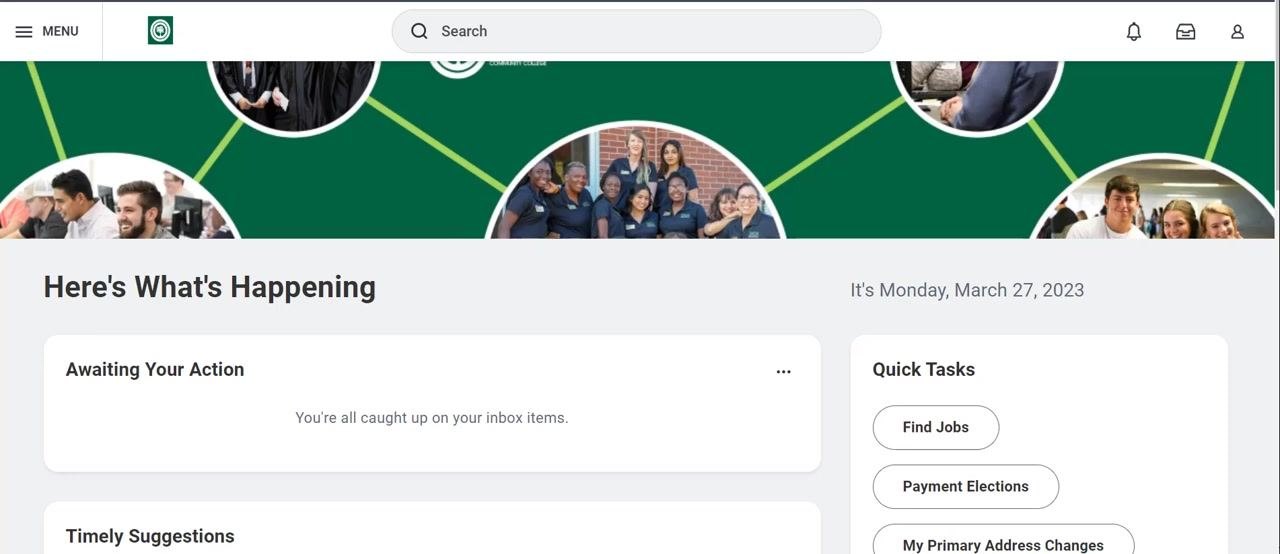
Navigate to your profile
Locate your profile icon in the upper right-hand corner of the Workday dashboard. Click on your profile icon, then select View Profile from the dropdown menu.
Access the Academics section
In your profile, look at the left-hand navigation menu and click Academics to view your academic information.
Open your academic plan
At the top center of the Academics page, select the Plan tab. Review your academic plan to confirm it contains the courses you intend to register for.
Register from your plan
Click the Register from Plan button, typically located near the top of the Plan page. You'll see a list of courses for the academic period you selected.
Select courses for registration
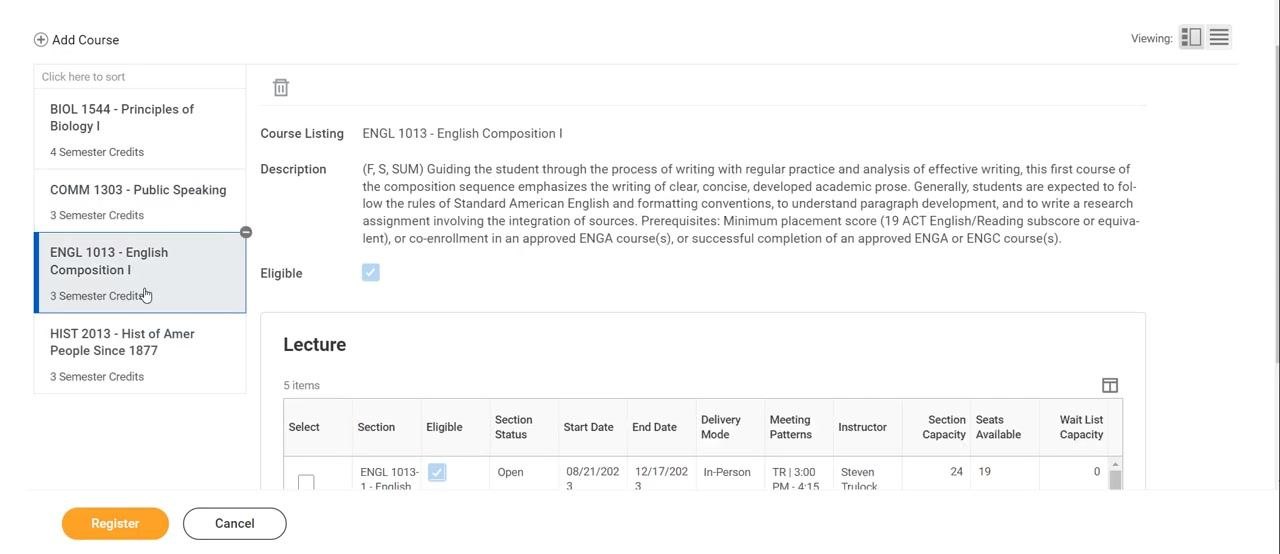
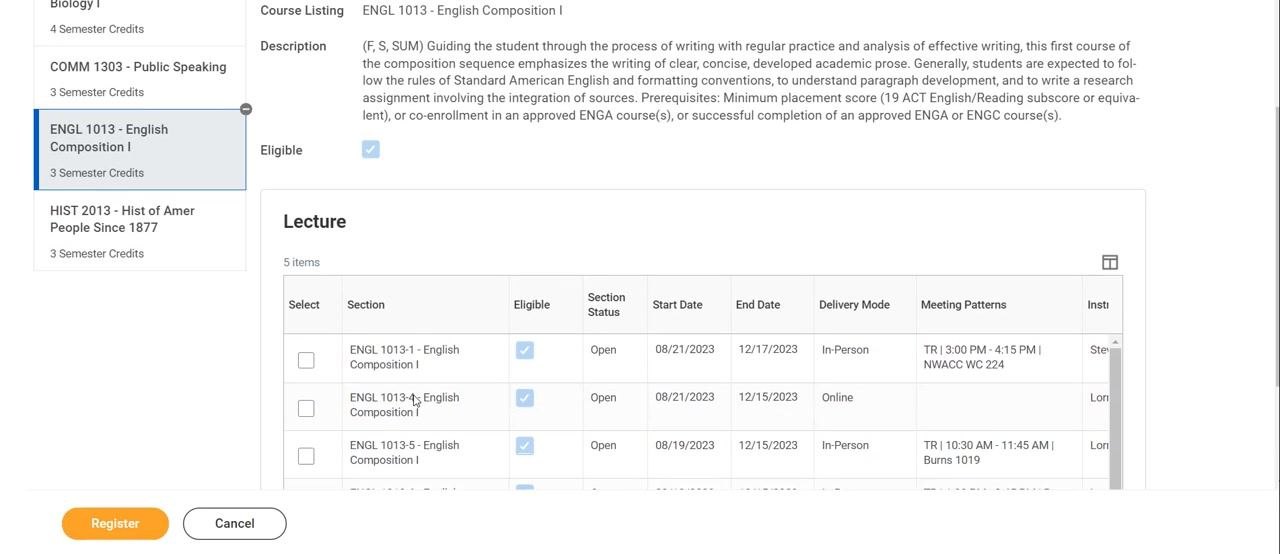
For each course listed, click on the course to view its available sections. Review the following details for each section:
- Delivery Mode (e.g., In-Person, Online)
- Meeting Pattern (days and times)
- Seats Available
- Instructor
Click the checkbox next to the section you want to register for.
Finalize and submit your registration
After selecting all desired course sections, click the Register button at the bottom left of the screen.
Once registration is complete, you'll see a confirmation screen listing the courses you've registered for. Use the available buttons to view your registered courses or your account details.
Viewing and editing your registered courses
After completing your registration, you can view your enrolled courses and make changes during the active registration period.
View your registered courses
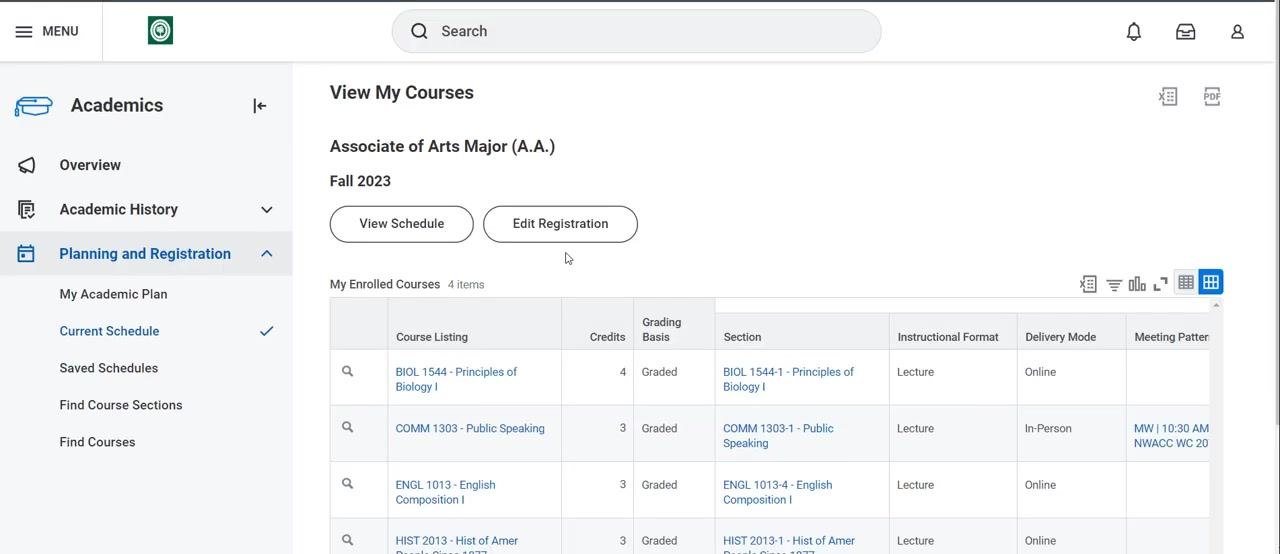
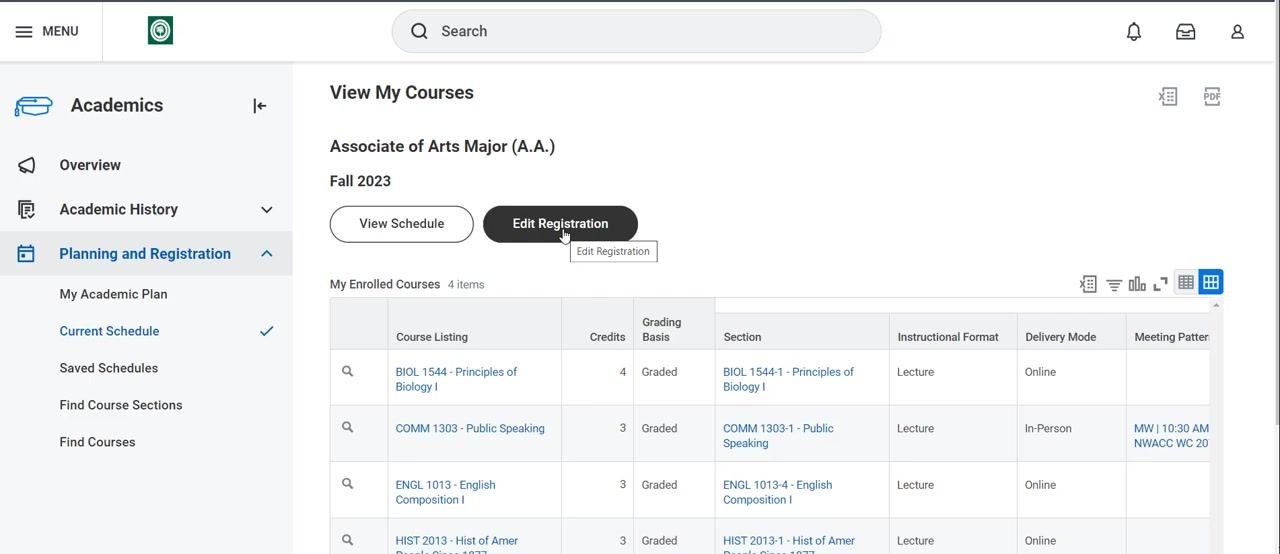
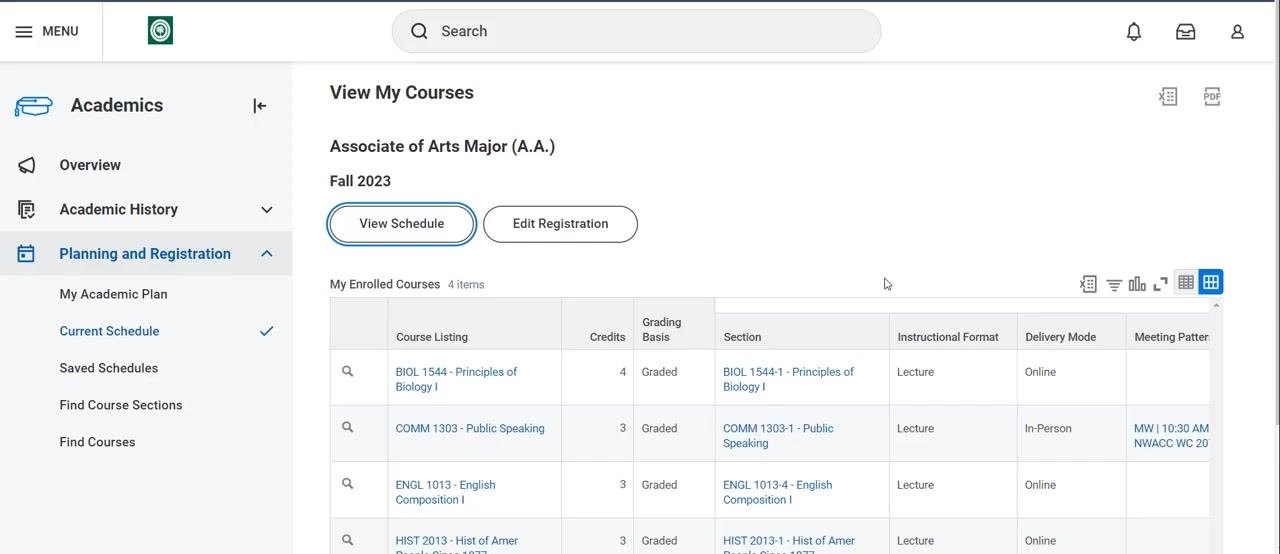
On the View My Courses page, confirm your program and term (for example, Associate of Arts Major (A.A.), Fall 2023). Review the list of your enrolled courses under My Enrolled Courses. Each course displays:
- Course Listing (e.g., BIOL 1544 - Principles of Biology I)
- Credits (e.g., 4)
- Grading Basis (e.g., Graded)
- Section (e.g., BIOL 1544-1)
- Instructional Format (e.g., Lecture)
- Delivery Mode (e.g., Online, In-Person)
- Meeting Pattern (e.g., MW | 10:30 AM)
Use the View Schedule button to see your course schedule in calendar or list format.
Edit your registration during the active registration period
If you need to change your registration—add, drop, or swap courses—click the Edit Registration button at the top of the View My Courses page. This option is only available during the active registration period. Follow the prompts to make changes to your course selections as needed.
Confirm registration completion
Once you've finalized your registration, you'll see a confirmation message indicating that your registration is complete. Your enrolled courses remain visible on the View My Courses page for future reference.
Summary
By following these steps, you can efficiently register for courses using your academic plan in Workday, and review or adjust your selections during the registration period. Always double-check your selections and consult your advisor if you have any questions about your academic plan or course choices.
Generation details: cost, quality tiers
Docsie billed 1,500 credits ($1.05) to analyze this 3-minute video at standard quality. The rewrite, template fill and Word/PDF exports were included. The same video at each quality tier:
| Quality | Frames sampled | Credits | Approx. cost |
|---|---|---|---|
| Draft | every 16-30 s | 750 | $0.52 |
| Standard (this guide) | every 8-15 s | 1,500 | $1.05 |
| Detailed | every 4-7 s | 3,000 | $2.10 |
| Ultra | every 1-3 s | 6,000 | $4.20 |
Credits priced at $0.70 per 1,000; plans include a monthly allowance. Enterprise customers on on-premise or bring-your-own-model deployments run this on their own inference and pay no per-video credits.
Generated by Docsie Video-to-Docs on 2026-10-02 from a 2-minute video. Screenshots are frames from the source video and belong to their creator, NorthWest Arkansas Community College, whose original is embedded above. If you own this video and want the guide removed or credited differently, contact us and we will act within one business day.