
How to Check Your PTO Balance in Workday
Checking your PTO balance in Workday is a quick process that lets you see how much leave you have available, how much you've accrued, and how much you've used throughout the year. This guide walks you through locating and interpreting your leave or absence balance directly from your Workday profile.
Video: How to Check Leave or Absence Balance in Workday | ZaranTech by Workday Learner Community (2024). All credit for the demonstration goes to the creator; watch the original on YouTube. The written guide below was generated from this video by Docsie. Creator? Request a change or removal.
Checking your PTO balance in Workday is a quick process that lets you see how much leave you have available, how much you've accrued, and how much you've used throughout the year. This guide walks you through locating and interpreting your leave or absence balance directly from your Workday profile.
Prerequisites
- Access to your organization's Workday portal
- Valid Workday login credentials
Steps to check your PTO balance in Workday
Log in to Workday
Open your Workday portal and log in using your credentials to access your dashboard.
Access your profile
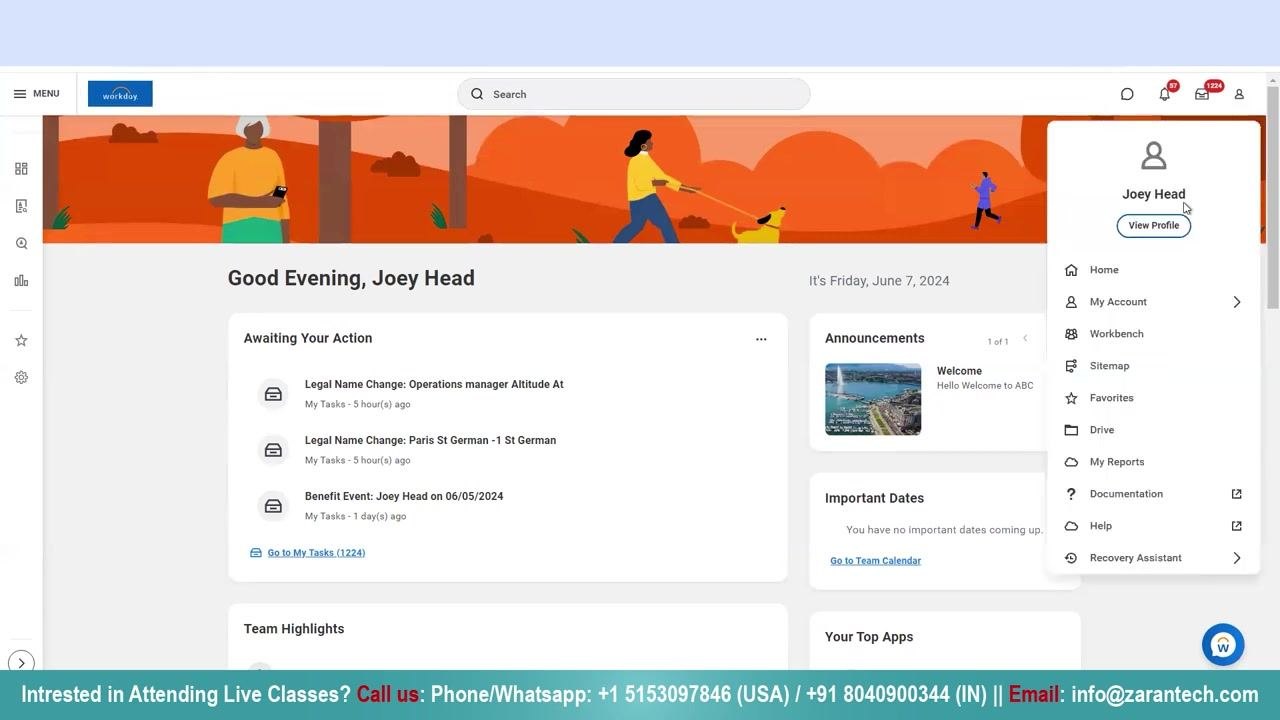
Locate your profile icon in the top right corner of the dashboard. Click on your profile icon, then select View Profile from the dropdown menu.
Open the Absence tab
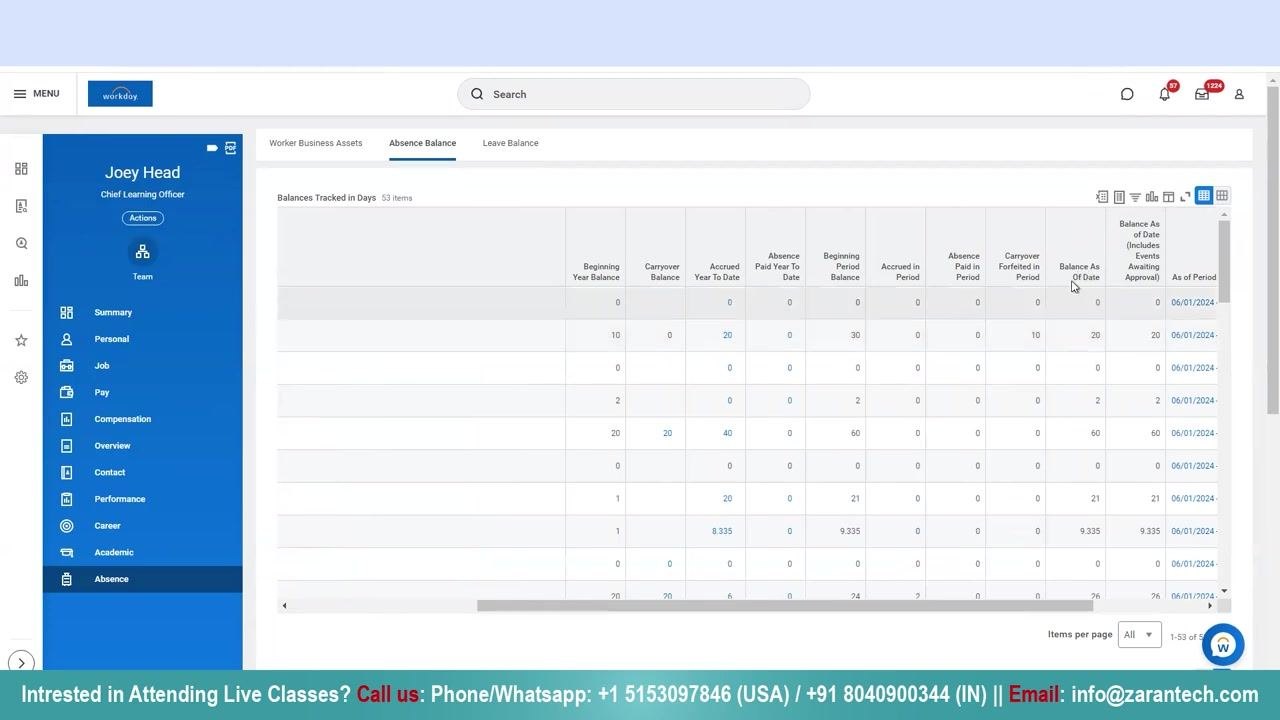
After clicking View Profile, your summary page opens with a vertical menu on the left-hand side. Scroll down in this menu and click on the Absence tab, identified by a clipboard icon.
View your absence balance
Once you're on the Absence tab, select the Absence Balance section at the top of the page. A table appears displaying your absence plans along with their corresponding balances.
Review the absence balance table
The table includes several columns that describe each absence plan in detail:
- Absence Plan: Name of the leave or absence plan (for example, AA_Vacation_US_Numeric or AA_Vacation Time off plan_US)
- Unit of Time: The unit in which leave is tracked (for example, Days)
- Beginning Year Balance: Your balance at the start of the year (for example, 10)
- Carryover Balance: Any balance carried over from the previous period
- Accrued Year To Date: Total leave accrued since the start of the year (for example, 20)
- Absence Paid Year To Date: Leave paid out during the year
- Beginning Period Balance: Your balance at the start of the current period
- Accrued in Period: Leave accrued during the current period
- Absence Paid in Period: Leave paid out during the current period
- Carryover Forfeited in Period: Leave forfeited during the period
- Balance As Of Date: Your current available balance (for example, 20)
- Balance As Of Date (Includes Events Awaiting Approval): Balance including pending approvals
- As of Period: The date for which the balance is shown (for example, 06/01/2024)
For example, the "AA_Vacation Time off plan_US" plan shows a Beginning Year Balance of 10, Accrued Year To Date of 20, Carryover Forfeited in Period of 10, and a Balance As Of Date of 20. Use these figures to understand how much leave is available, how much has been accrued, used, or forfeited, and your current balance as of the latest date.
Confirm all balance details
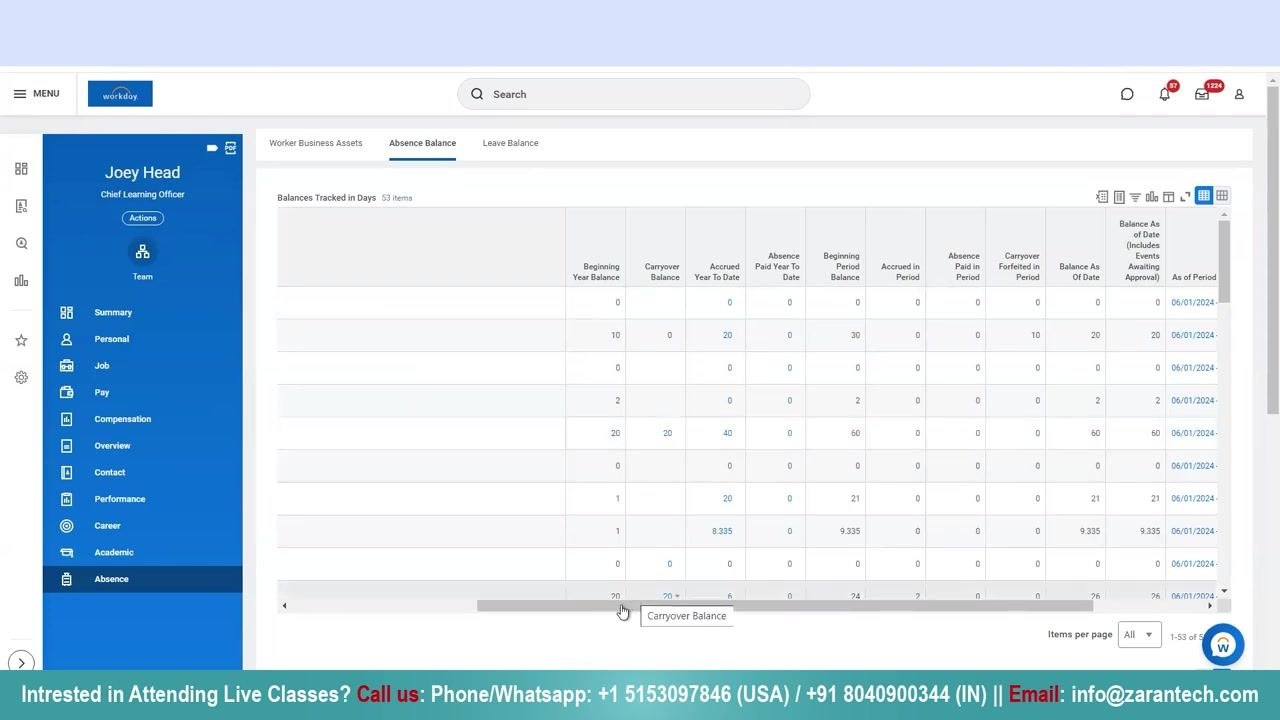
Review every column in the Absence Balance table to make sure you have a complete picture of your leave, including the Beginning Year Balance, Carryover Balance, Accrued Year To Date, Absence Paid Year To Date, Beginning Period Balance, Accrued in Period, Absence Paid in Period, Carryover Forfeited in Period, Balance As Of Date, Balance As Of Date (Includes Events Awaiting Approval), and As of Period (for example, 06/01/2024). If the table extends beyond your screen, use the scroll bar at the bottom to view all columns.
Access additional support
If you need further assistance or want to attend live training sessions, use the following contact options:
- Phone/WhatsApp (USA): +1 5153097846
- Phone/WhatsApp (IN): +91 8040900344
- Email: info@zarantech.com
- 24/7 Chat Support is also available
Summary
By following these steps, you can check your PTO balance in Workday and interpret the details of your leave or absence plans, including how much has accrued, how much has been used, and your current available balance.
What's next
If you have further questions about your leave balance or need hands-on training, reach out through the phone, WhatsApp, email, or chat support options listed above.
Generation details: cost, quality tiers
Docsie billed 1,500 credits ($1.05) to analyze this 3-minute video at standard quality. The rewrite, template fill and Word/PDF exports were included. The same video at each quality tier:
| Quality | Frames sampled | Credits | Approx. cost |
|---|---|---|---|
| Draft | every 16-30 s | 750 | $0.52 |
| Standard (this guide) | every 8-15 s | 1,500 | $1.05 |
| Detailed | every 4-7 s | 3,000 | $2.10 |
| Ultra | every 1-3 s | 6,000 | $4.20 |
Credits priced at $0.70 per 1,000; plans include a monthly allowance. Enterprise customers on on-premise or bring-your-own-model deployments run this on their own inference and pay no per-video credits.
Generated by Docsie Video-to-Docs on 2026-10-02 from a 2-minute video. Screenshots are frames from the source video and belong to their creator, Workday Learner Community, whose original is embedded above. If you own this video and want the guide removed or credited differently, contact us and we will act within one business day.