
How to Change Your Profile Picture in Workday
This guide walks you through how to change your profile picture in Workday, from preparing your photo to confirming the update on your profile page. Follow these steps in order to replace your current profile picture with a new one.
Video: How to change your profile picture in Workday by WFU Facilities (2020). All credit for the demonstration goes to the creator; watch the original on YouTube. The written guide below was generated from this video by Docsie. Creator? Request a change or removal.
This guide walks you through how to change your profile picture in Workday, from preparing your photo to confirming the update on your profile page. Follow these steps in order to replace your current profile picture with a new one.
Prerequisites
Before you begin, save the photo you want to use as your profile picture in an easily accessible folder on your device, such as Pictures under This PC. Having the file ready beforehand makes the upload process faster once you're in Workday.
Sign in to Workday
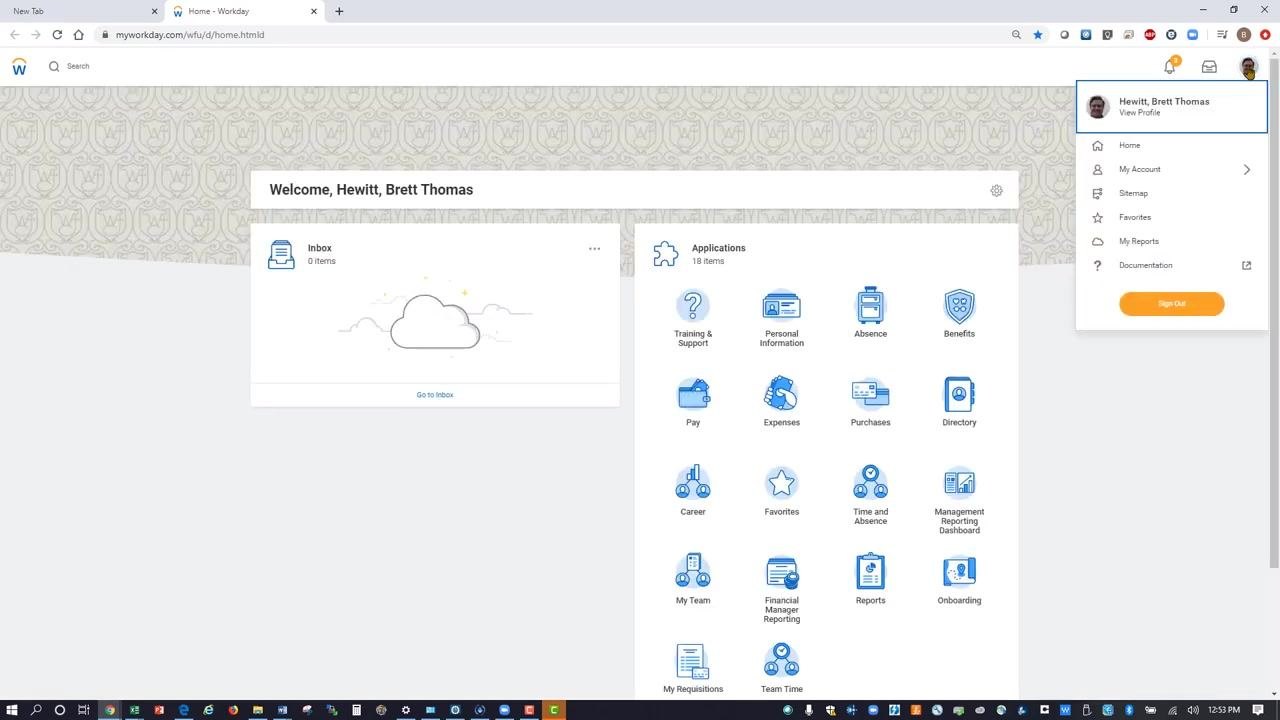
Open your web browser and navigate to your Workday login page. Sign in using your credentials, and make sure you land on the Workday home page before continuing.
Open your profile menu
Click your profile picture or icon located in the top right corner of the Workday home page. A dropdown menu opens, showing your name and a View Profile option.
View your profile
In the dropdown menu under your name, left-click View Profile.
Go to the Actions menu
Wait for your profile page to load. On the left-hand side, directly under your name and position title, left-click the Actions button.
Navigate to Personal Data
In the Actions menu that appears, hover over Personal Data in the list. A submenu opens to the right.
Select "Change My Photo"
In the submenu, move your mouse up to Change My Photo and left-click it.
Upload your new profile picture
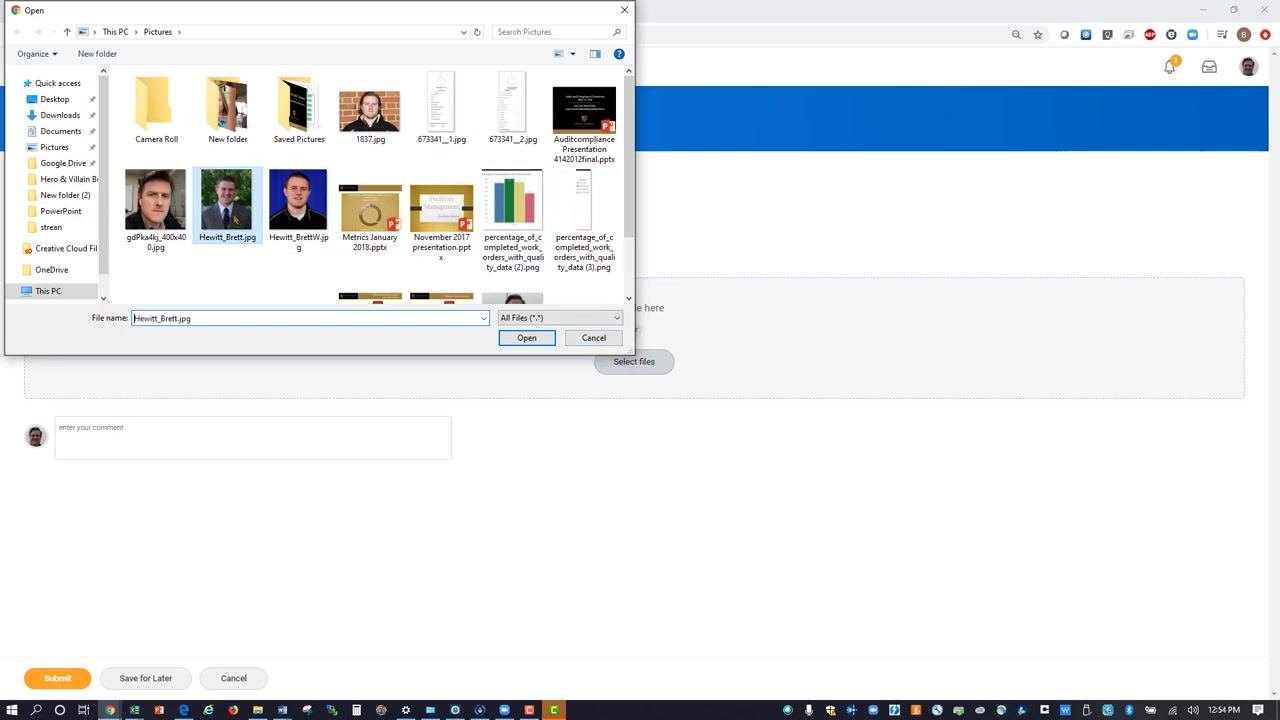
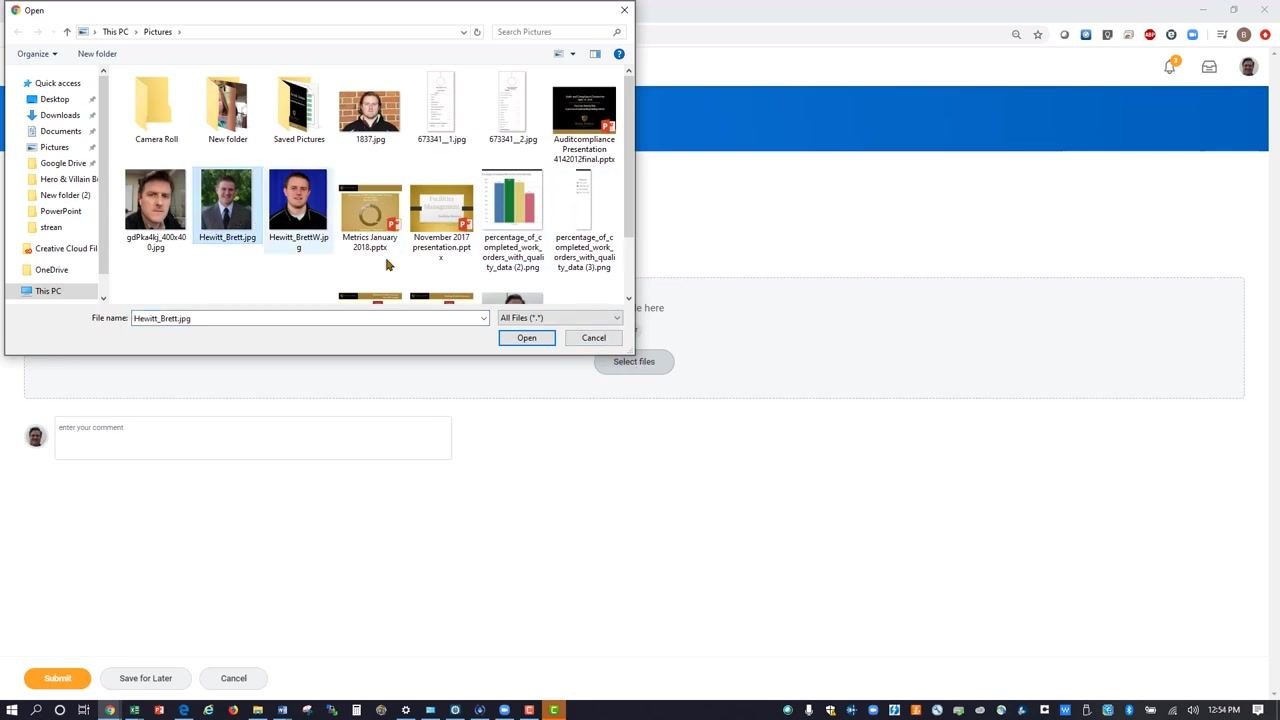
Click the Select files button in the center of the screen. In the file dialog that opens, navigate to the folder where your profile picture is saved, such as Pictures, select the desired image file, and click Open to upload it.
Adjust and position your profile picture
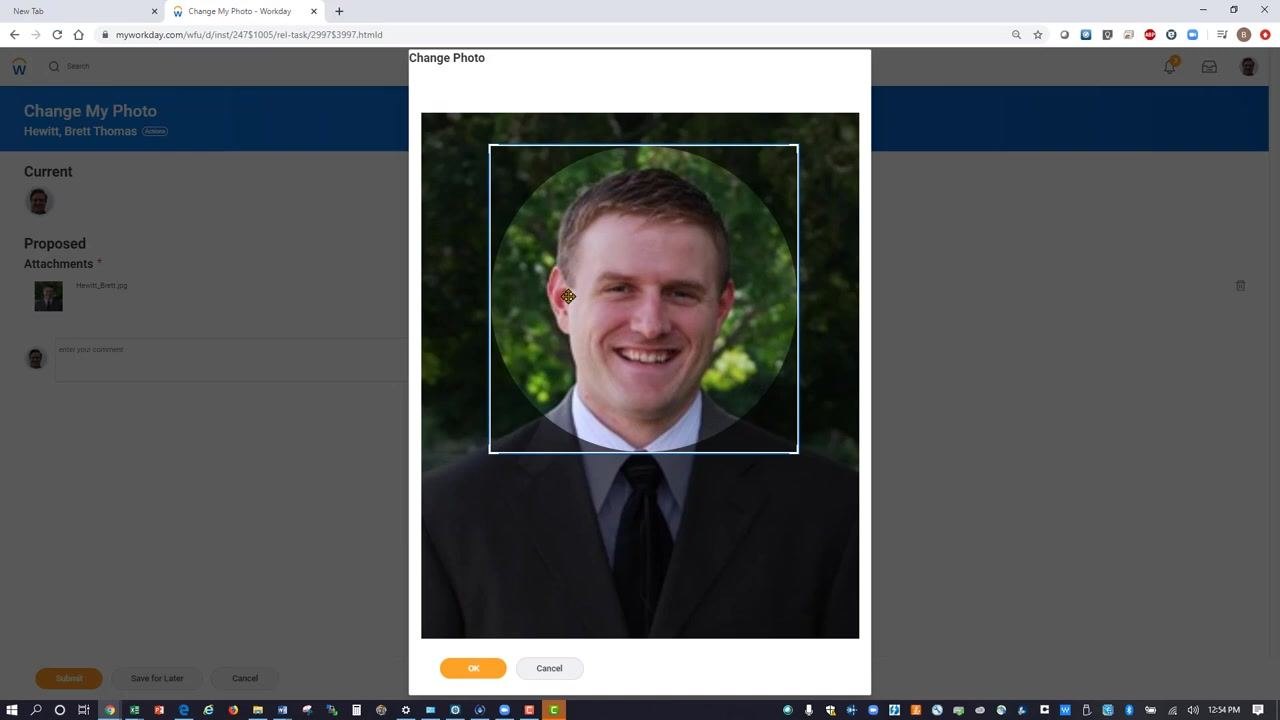
Once the image uploads, position the circle around your profile photo as desired. Click and hold the left mouse button to move the circle until the photo is positioned the way you want it.
Confirm the photo selection
After positioning your profile photo, click the orange OK button at the bottom of the Change Photo dialog to confirm your selection.
Submit the profile picture change
Review the Change My Photo page and confirm that your new photo appears under Proposed Attachments. Click the orange Submit button in the lower left corner of the screen to finalize your update.
Complete the process
Wait for the confirmation screen to appear, then click the Done button if prompted. This completes the profile picture update process.
Verify your updated profile picture
Return to your Workday profile page and confirm that your new profile picture now displays next to your name and title.
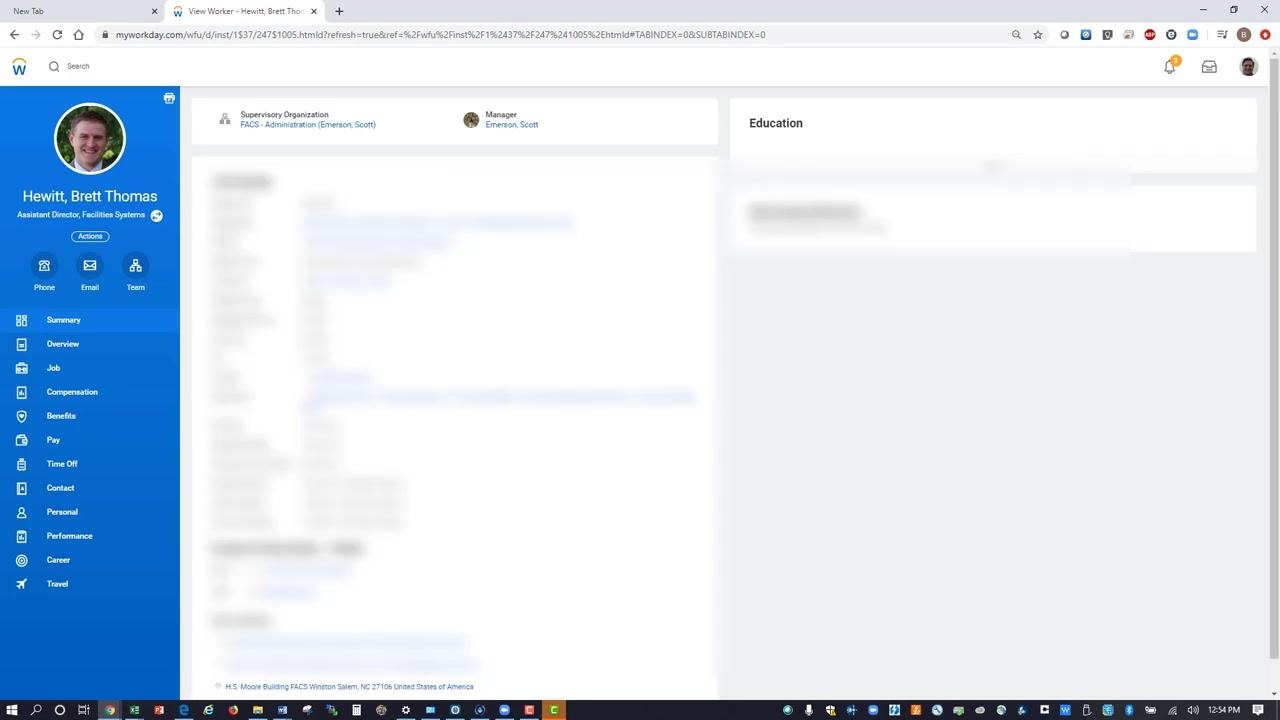
Summary
You have now successfully changed your profile picture in Workday by signing in, navigating through Actions > Personal Data > Change My Photo, uploading and positioning your image, and submitting the change for confirmation.
Note that the update may take a few moments to appear across all Workday pages. If you don't see the change immediately, refresh your browser.
Generation details: cost, quality tiers
Docsie billed 1,500 credits ($1.05) to analyze this 3-minute video at standard quality. The rewrite, template fill and Word/PDF exports were included. The same video at each quality tier:
| Quality | Frames sampled | Credits | Approx. cost |
|---|---|---|---|
| Draft | every 16-30 s | 750 | $0.52 |
| Standard (this guide) | every 8-15 s | 1,500 | $1.05 |
| Detailed | every 4-7 s | 3,000 | $2.10 |
| Ultra | every 1-3 s | 6,000 | $4.20 |
Credits priced at $0.70 per 1,000; plans include a monthly allowance. Enterprise customers on on-premise or bring-your-own-model deployments run this on their own inference and pay no per-video credits.
Generated by Docsie Video-to-Docs on 2026-10-02 from a 2-minute video. Screenshots are frames from the source video and belong to their creator, WFU Facilities, whose original is embedded above. If you own this video and want the guide removed or credited differently, contact us and we will act within one business day.