
How to Cancel Approved Time Off in Workday
If you need to cancel a previously approved time off request, Workday provides a straightforward process that includes manager approval and confirmation steps. This guide walks you through how to cancel approved time off in Workday, from locating your request to verifying it has been removed from your schedule.
Video: How To Cancel Approved Time Off In Workday (2025) by How-To Haven (2025). All credit for the demonstration goes to the creator; watch the original on YouTube. The written guide below was generated from this video by Docsie. Creator? Request a change or removal.
If you need to cancel a previously approved time off request, Workday provides a straightforward process that includes manager approval and confirmation steps. This guide walks you through how to cancel approved time off in Workday, from locating your request to verifying it has been removed from your schedule.
Prerequisites
- Access to your Workday account with your organization's login credentials.
- An existing time off request that has already been approved.
- Awareness that canceling approved time off may require manager approval and could affect your vacation or leave balance.
Steps to cancel approved time off in Workday
Open your time off requests
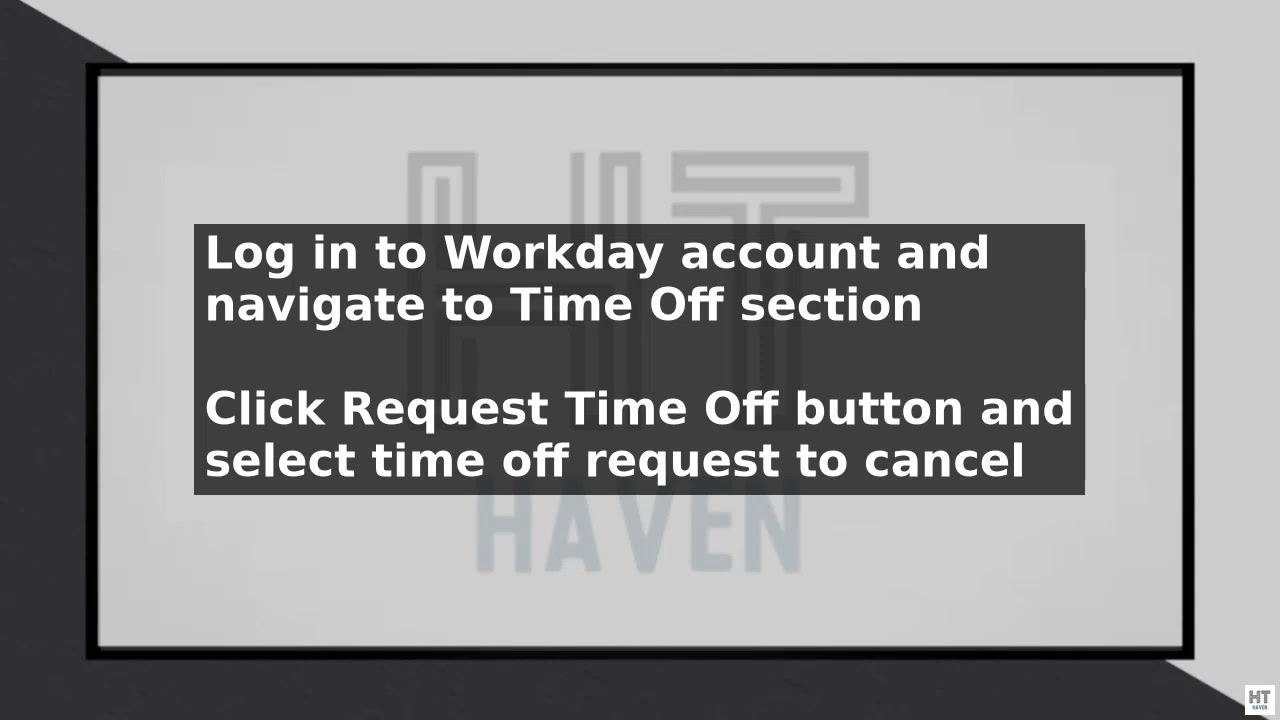
Click the Request Time Off button. Locate the time off request you wish to cancel by searching for the specific request or browsing through your request history.
Select the request and submit a cancellation reason
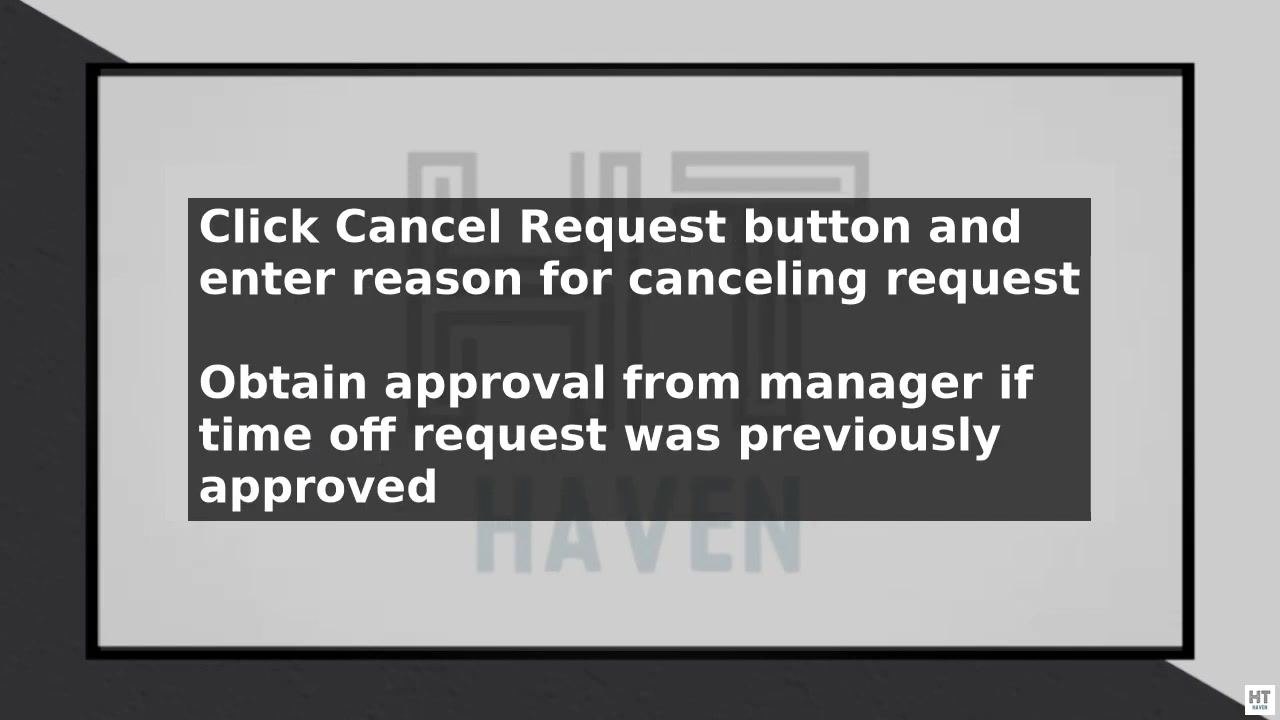
Select the time off request you want to cancel, then click the Cancel Request button. When prompted, enter a reason for canceling the request. Providing a reason is recommended for record keeping and clear communication with your manager.
If your time off request was previously approved, you will need to obtain approval from your manager to cancel it. Canceling approved time off may impact staffing and scheduling, so your manager must be informed and approve the change.
Submit the cancellation for manager approval
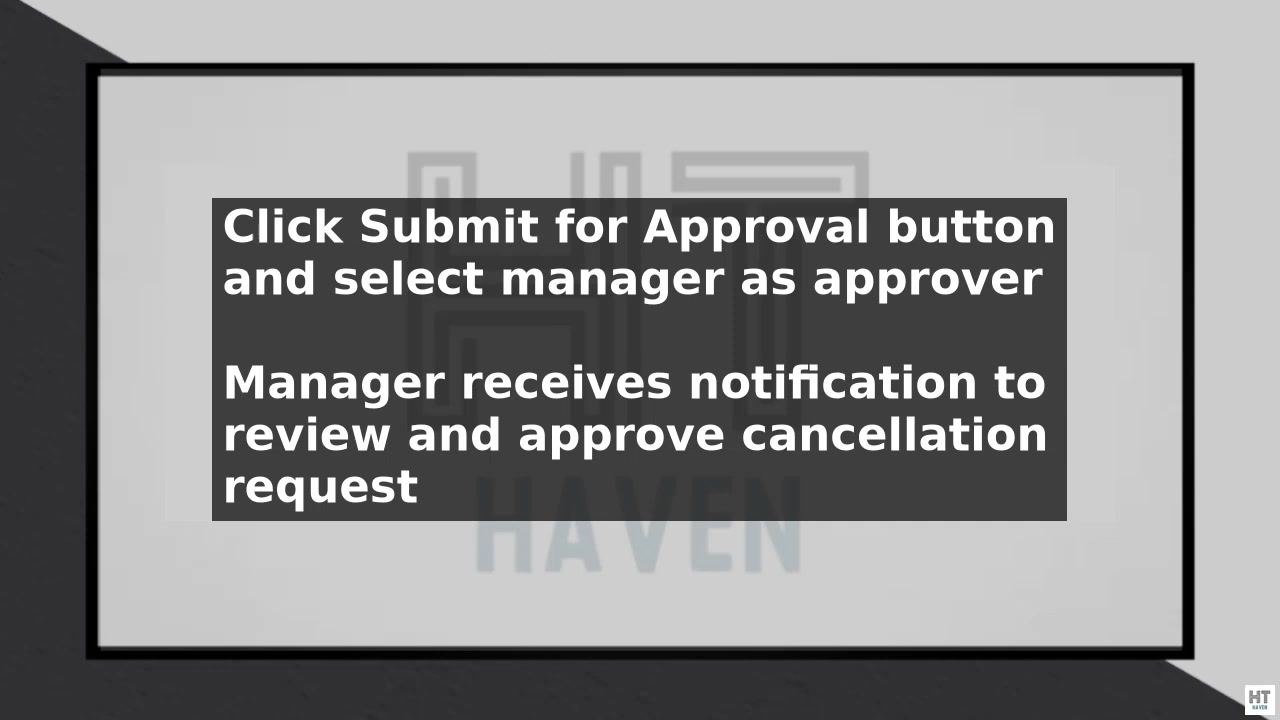
Click the Submit for Approval button, then select your manager as the approver. Your manager will receive a notification to review and approve the cancellation request.
Communicate with your manager and team in advance to let them know you are canceling your time off request. This helps avoid confusion or disruption to work schedules.
Confirm the cancellation
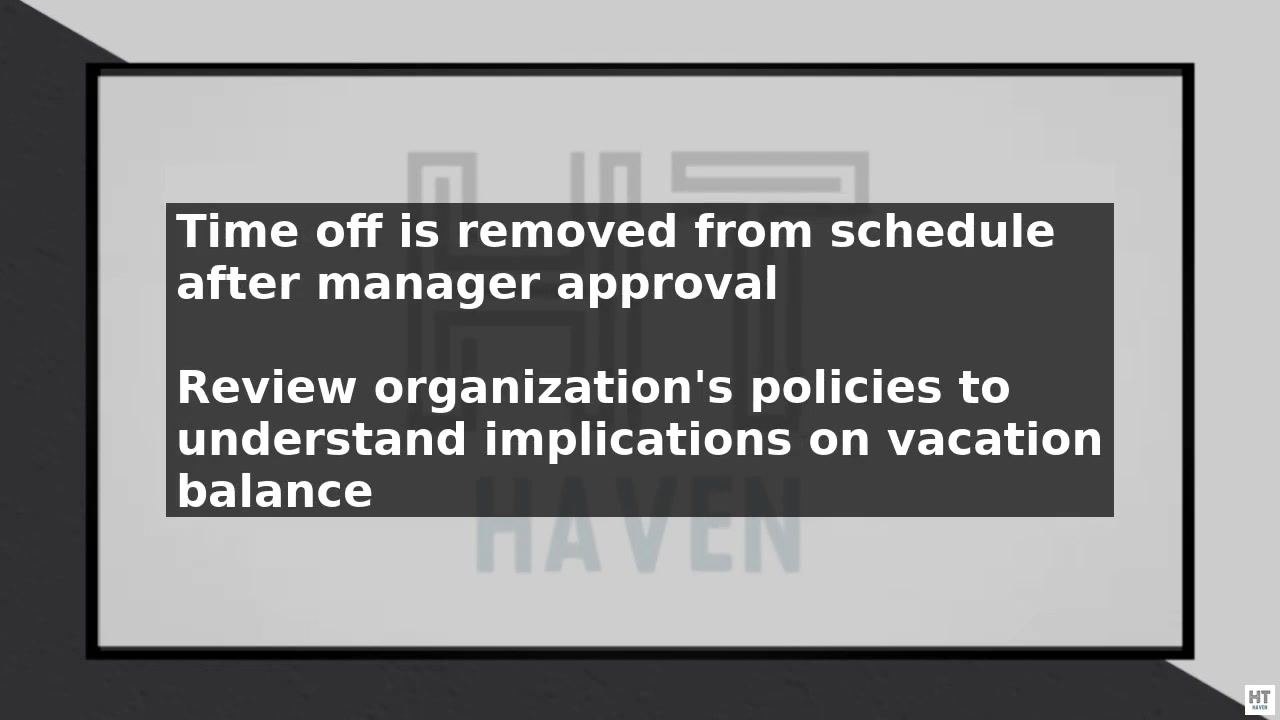
After your manager approves the cancellation request, the time off will be removed from your schedule. You will receive a confirmation notification once the cancellation is complete.
Double-check your schedule in Workday to confirm the cancellation was successful. Ensure the canceled dates no longer appear as approved absences on your calendar or schedule.
Important considerations
- Be aware that canceling approved time off may impact your vacation or leave balance. The effect on your balance depends on your organization's policies.
- Review your organization's time off policies and procedures to understand how canceling approved time off may affect benefits such as vacation accruals or leave entitlements. If unsure, consult your HR department or manager for clarification.
- Maintain clear communication with your manager and team throughout the process to avoid confusion and ensure accurate scheduling.
- Follow all organizational best practices for time off management, and adhere to your company's policies and procedures for a smooth and efficient process.
- If your time off still appears on your schedule after your manager approves the cancellation, contact your manager or HR for assistance.
- Regularly review your vacation or leave balance in Workday to ensure accuracy after any changes.
Summary
By following these steps, you can cancel approved time off in Workday while ensuring proper communication and approval processes are followed. Keeping your schedule accurate and staying informed about your organization's policies will help you manage time off changes smoothly and in compliance with company procedures.
Generation details: cost, quality tiers
Docsie billed 1,500 credits ($1.05) to analyze this 3-minute video at standard quality. The rewrite, template fill and Word/PDF exports were included. The same video at each quality tier:
| Quality | Frames sampled | Credits | Approx. cost |
|---|---|---|---|
| Draft | every 16-30 s | 750 | $0.52 |
| Standard (this guide) | every 8-15 s | 1,500 | $1.05 |
| Detailed | every 4-7 s | 3,000 | $2.10 |
| Ultra | every 1-3 s | 6,000 | $4.20 |
Credits priced at $0.70 per 1,000; plans include a monthly allowance. Enterprise customers on on-premise or bring-your-own-model deployments run this on their own inference and pay no per-video credits.
Generated by Docsie Video-to-Docs on 2026-10-02 from a 2-minute video. Screenshots are frames from the source video and belong to their creator, How-To Haven, whose original is embedded above. If you own this video and want the guide removed or credited differently, contact us and we will act within one business day.