
How to Add Goals in Workday
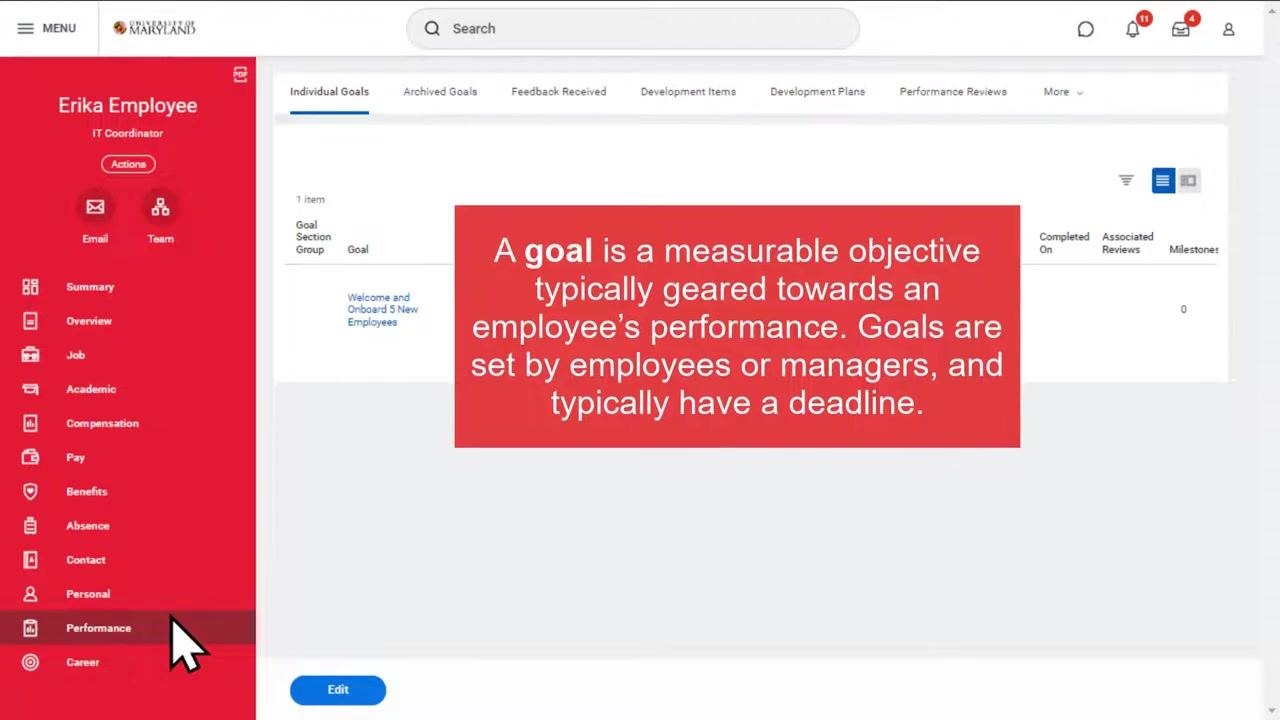
This guide shows you how to add goals in Workday and how to create development items to track your professional growth. In Workday, a goal is a measurable objective — typically tied to employee performance — that usually has a deadline. Both employees and managers can set goals, and managers can also "cascade" goals, assigning the same objective to one or many workers at once. The examples below follow an employee profile (Erika Employee) that already has a goal cascaded from her manager, then walk through adding a new goal and a new development item.
Video: Workday Demonstration: Create A Goal or Development Item by Elevate Program - UMD (2022). All credit for the demonstration goes to the creator; watch the original on YouTube. The written guide below was generated from this video by Docsie. Creator? Request a change or removal.
This guide shows you how to add goals in Workday and how to create development items to track your professional growth. In Workday, a goal is a measurable objective — typically tied to employee performance — that usually has a deadline. Both employees and managers can set goals, and managers can also "cascade" goals, assigning the same objective to one or many workers at once. The examples below follow an employee profile (Erika Employee) that already has a goal cascaded from her manager, then walk through adding a new goal and a new development item.
Prerequisites
- You must be logged in to your Workday environment as the employee whose profile you want to update.
- Your manager may have already cascaded one or more goals to you; these will appear automatically in your profile.
- You should know whether the item you want to add is a goal (a measurable, deadline-driven objective) or a development item (an incremental target for building knowledge, skills, or abilities, usually without a due date).
Reviewing cascaded goals in your profile
Before adding a new goal, it's useful to see how existing goals — including those cascaded by your manager — appear in your profile.
-
On the left navigation menu of your worker profile, click Performance. This section contains tabs for Individual Goals, Archived Goals, Feedback Received, Development Items, Development Plans, and Performance Reviews.
-
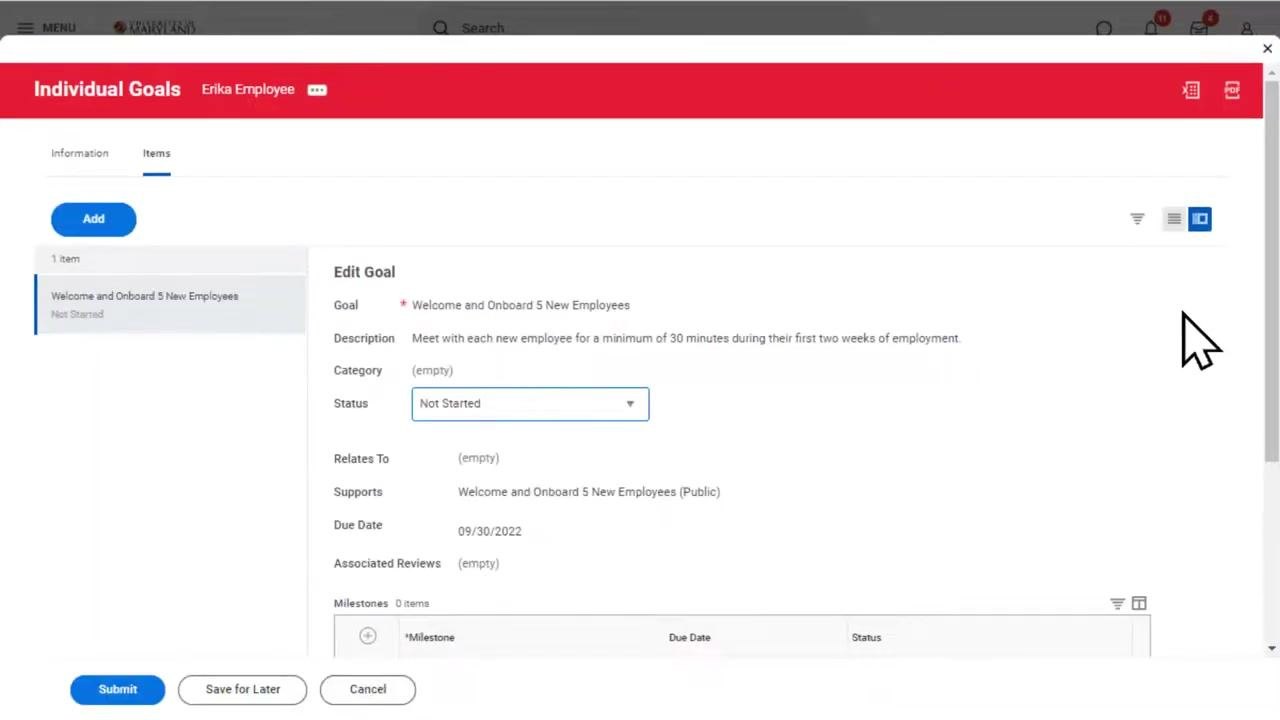
In the Individual Goals tab, review the goals currently assigned to you. For example, a cascaded goal might appear as follows:
- Goal: Welcome and Onboard 5 New Employees
- Description: Meet with each new employee for a minimum of 30 minutes during their first two weeks of employment.
- Supports: Welcome and Onboard 5 New Employees (Public)
- Status: Not Started
- Due Date: 09/30/2022
- Associated Reviews: 0
- Milestones: 0
Cascaded goals like this one are set directly by your manager, and the status reflects progress toward that specific objective.
How to add a new goal in Workday
Follow these steps to add a goal in Workday from the Individual Goals tab.
-
On the Individual Goals page, click the Edit button at the bottom of the screen. You can also use this area to edit or update progress on your existing goals.
-
In the Edit Goal dialog, click the Add button at the top left of the Items section to start creating a new goal.
-
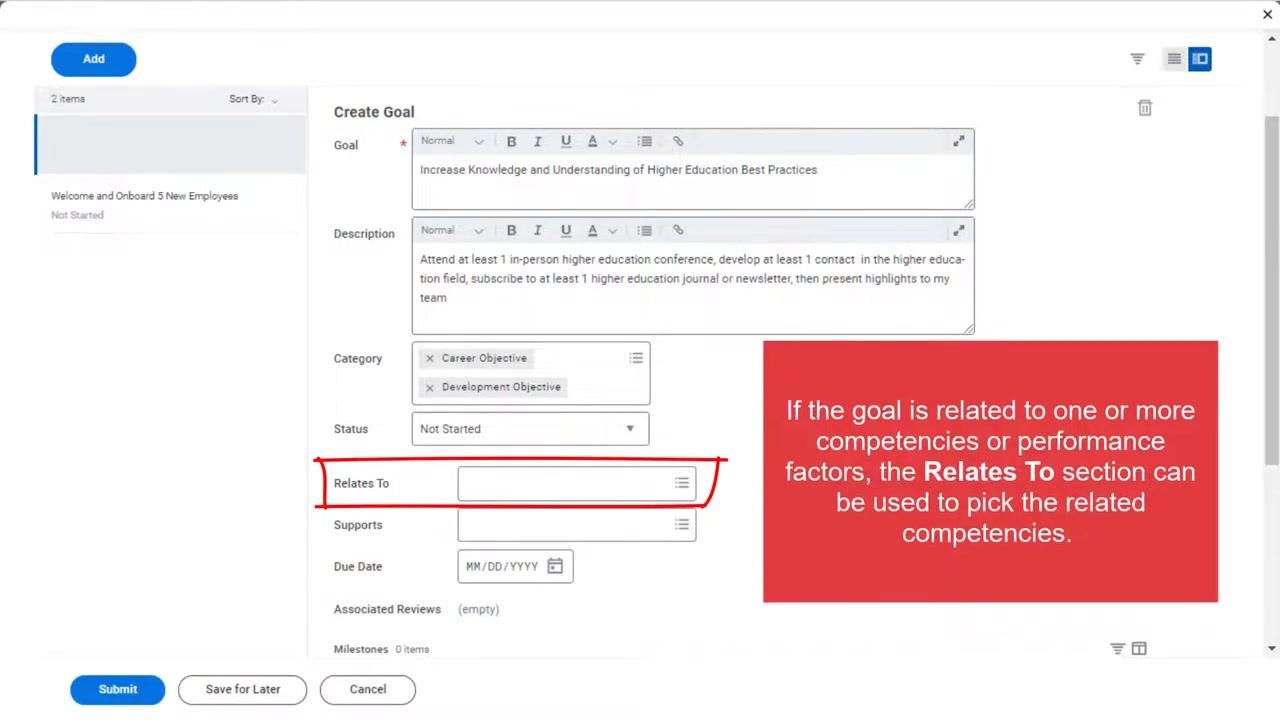
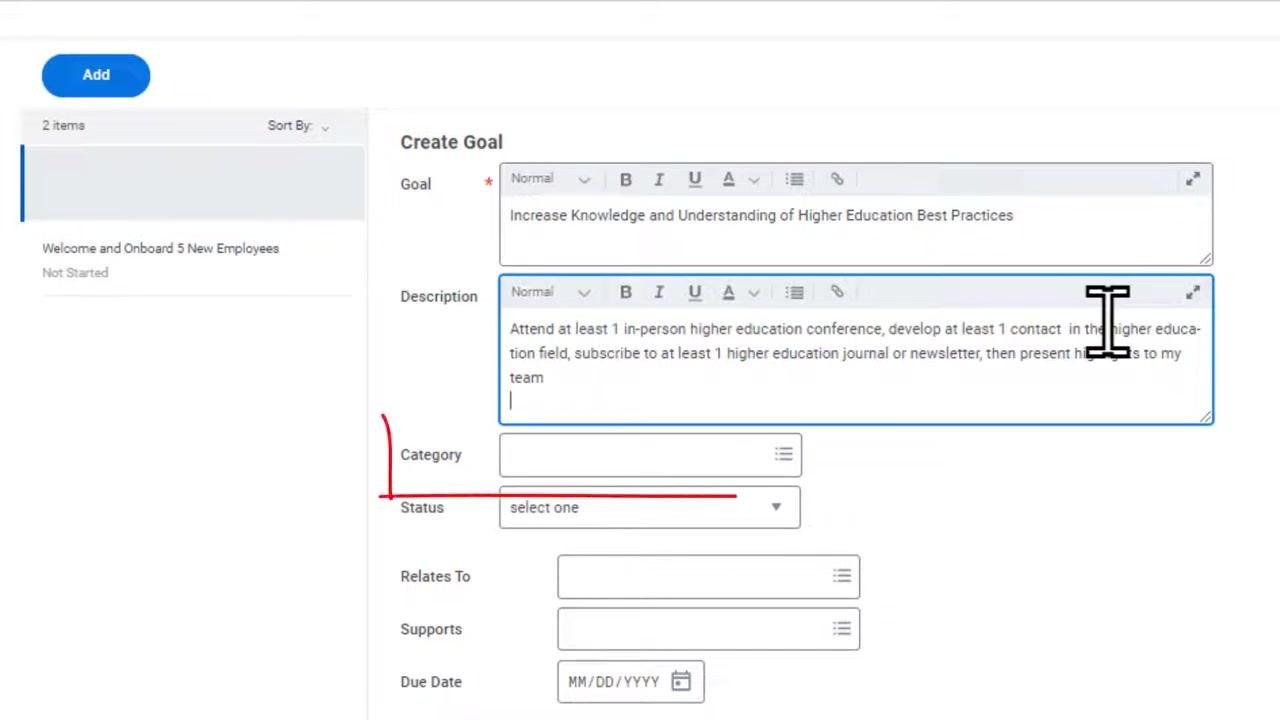
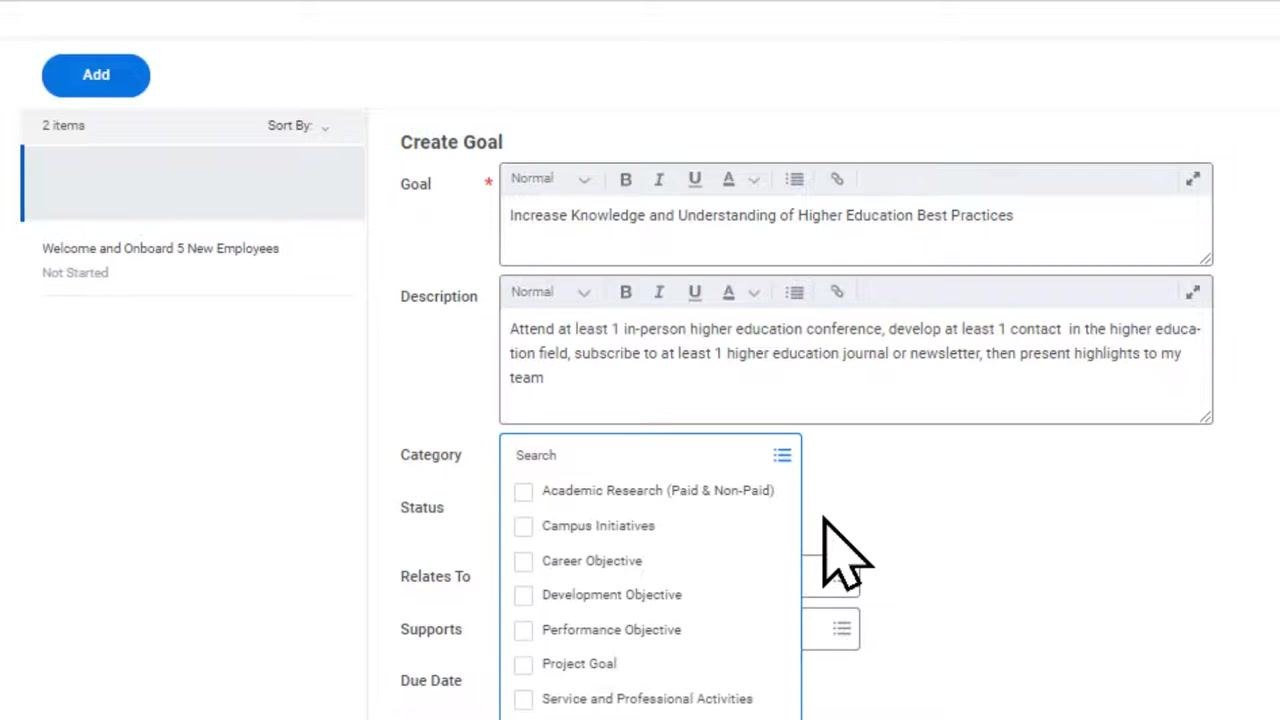
In the Goal text box, enter the name of your new goal. In the Description field, add context or specific steps for achieving it. For example:
- Goal: Increase Knowledge and Understanding of Higher Education Best Practices
- Description: Attend at least 1 in-person higher education conference, develop at least 1 contact in the higher education field, subscribe to at least 1 higher education journal or newsletter, then present highlights to my team.
-
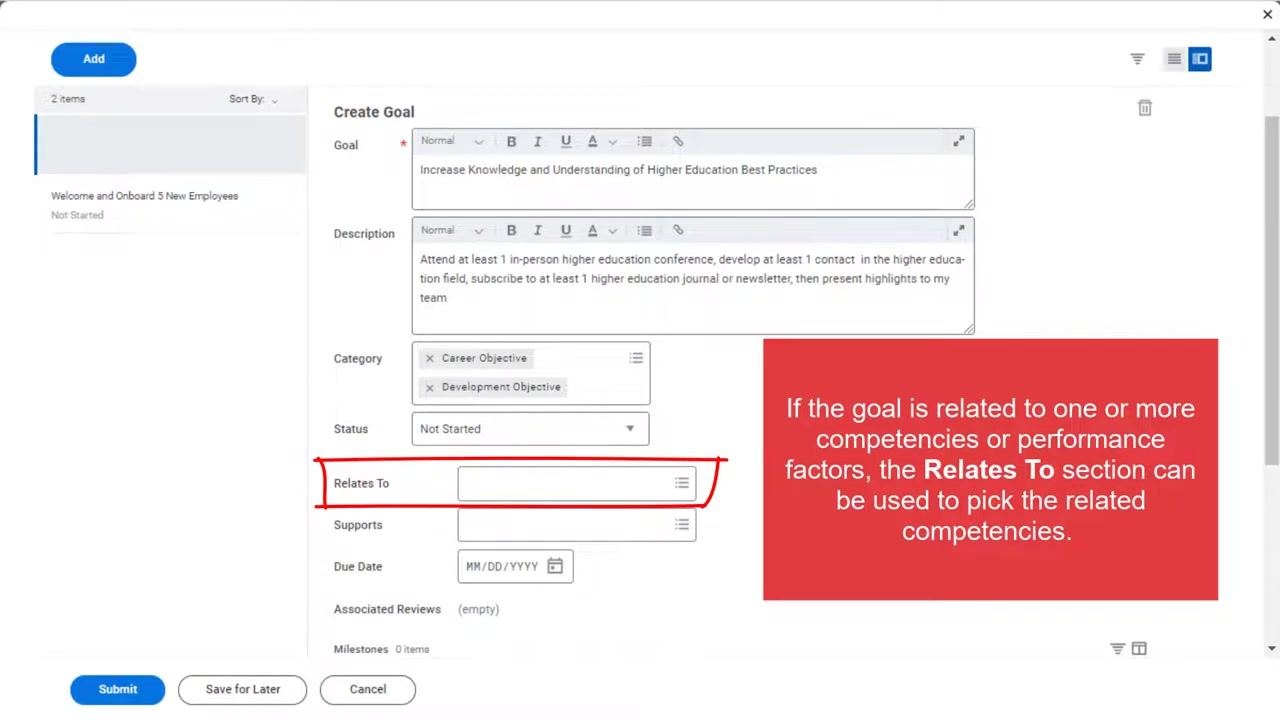
Click the Category dropdown and select all categories that apply to your goal. For this example, select Career Objective and Development Objective. Other available categories include Academic Research (Paid & Non-Paid), Campus Initiatives, Performance Objective, Project Goal, and Service and Professional Activities.
-
Click the Status dropdown and select the appropriate status. Setting a status is required when adding a new goal. Available options are:
- Not Started
- In Progress
- Completed
- Pending Review
For this example, select Not Started.
-
(Optional) If your goal relates to one or more competencies or performance factors, click the field next to Relates To and select the relevant competencies. This supports tracking and reporting but does not affect goal completion.
-
(Optional) Use the Supports field to link your individual goal to an organizational goal. Like the Relates To field, this is for tracking and reporting purposes only.
-
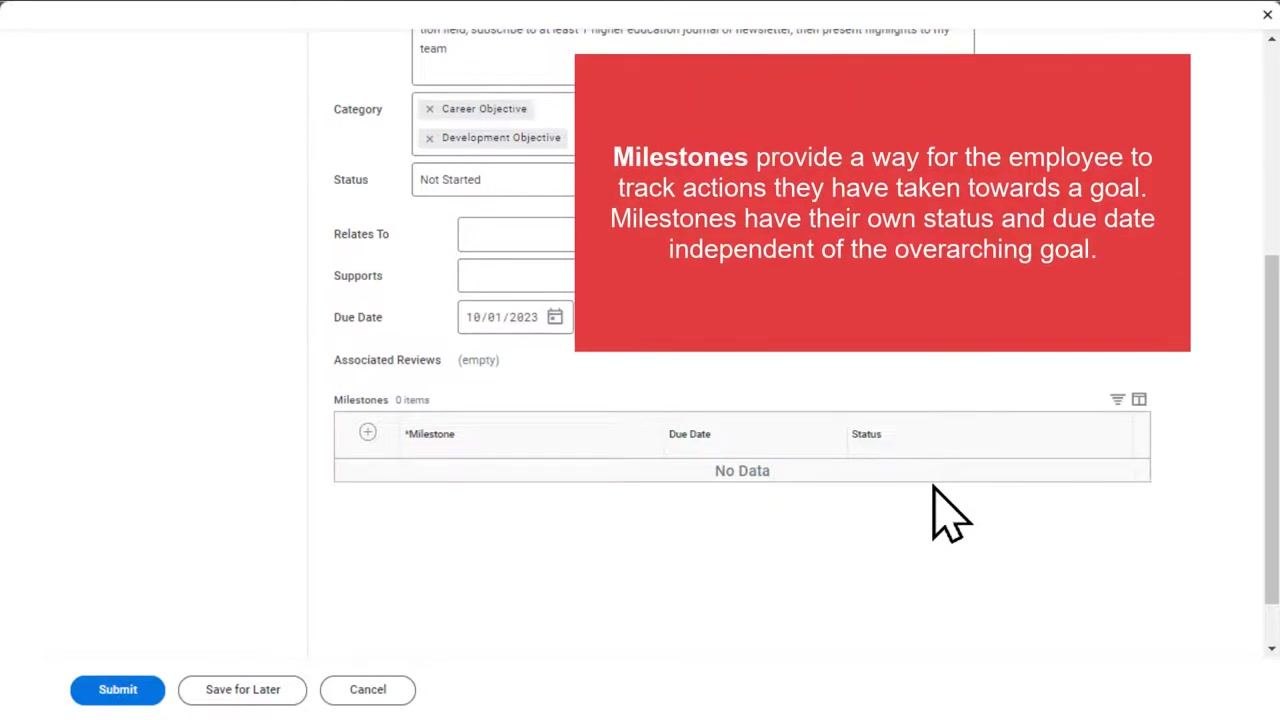
Click the Due Date field and enter a due date for your goal. For this example, enter 10/01/2023, giving the employee one year to complete the goal.
-
(Optional) Add milestones to track specific actions as you make progress. Click the + Milestone button in the Milestones section. Each milestone can have its own status and due date, independent of the main goal.
-
Review all entered information, then click Submit at the bottom left of the form. If you want to finish later, click Save for Later instead.
-
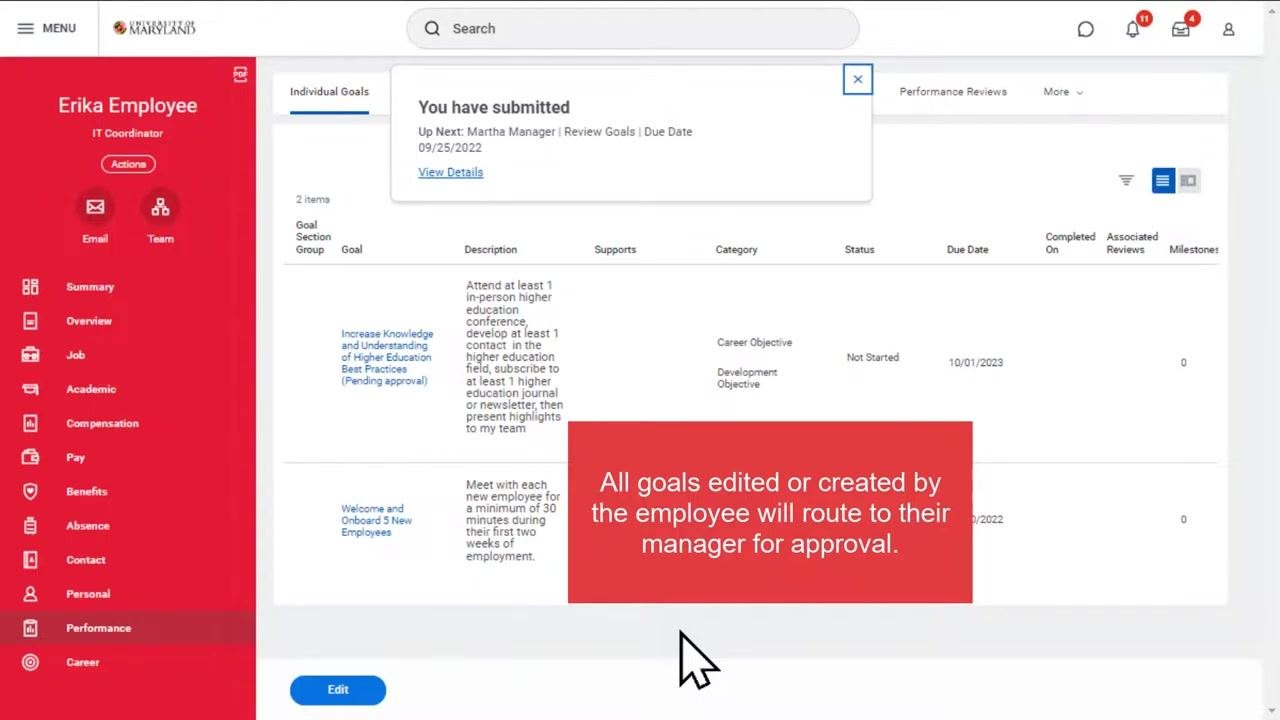
After submitting, a confirmation message appears, and the new goal is added to your Individual Goals list with the status Pending approval. All goals you create or edit automatically route to your manager for approval, and you can check approval status from the Individual Goals page.
How to create a development item
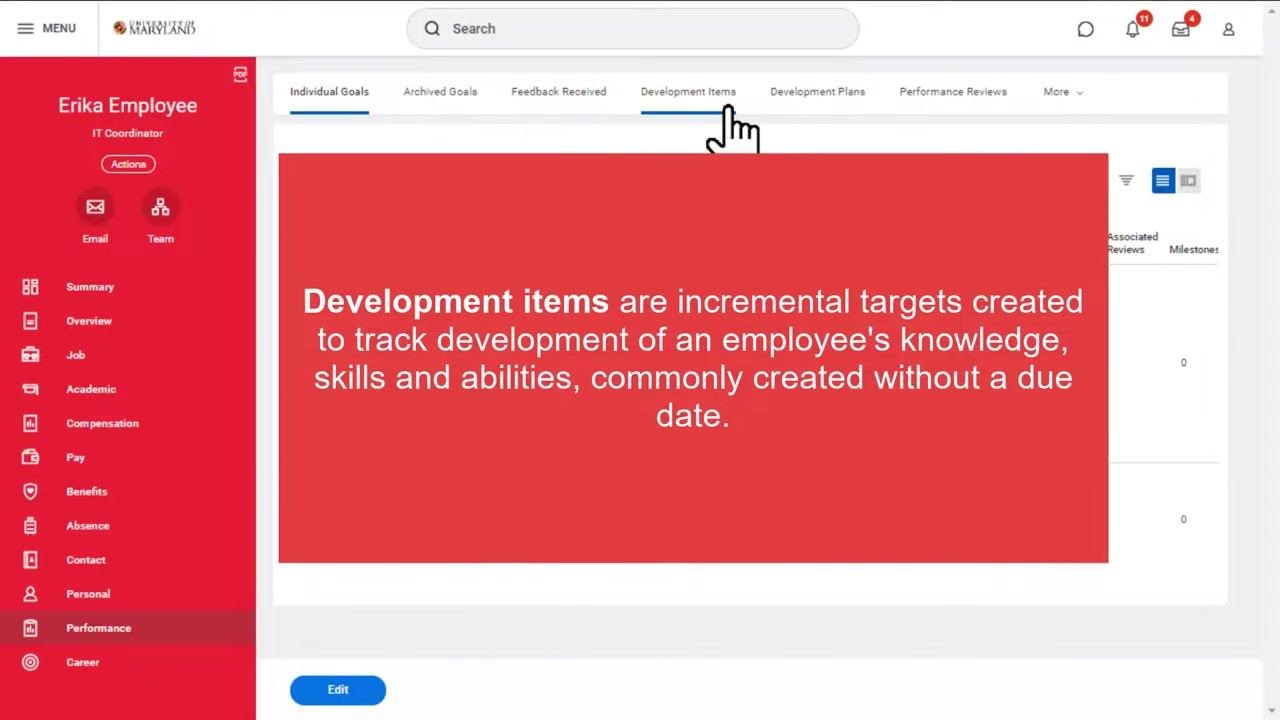
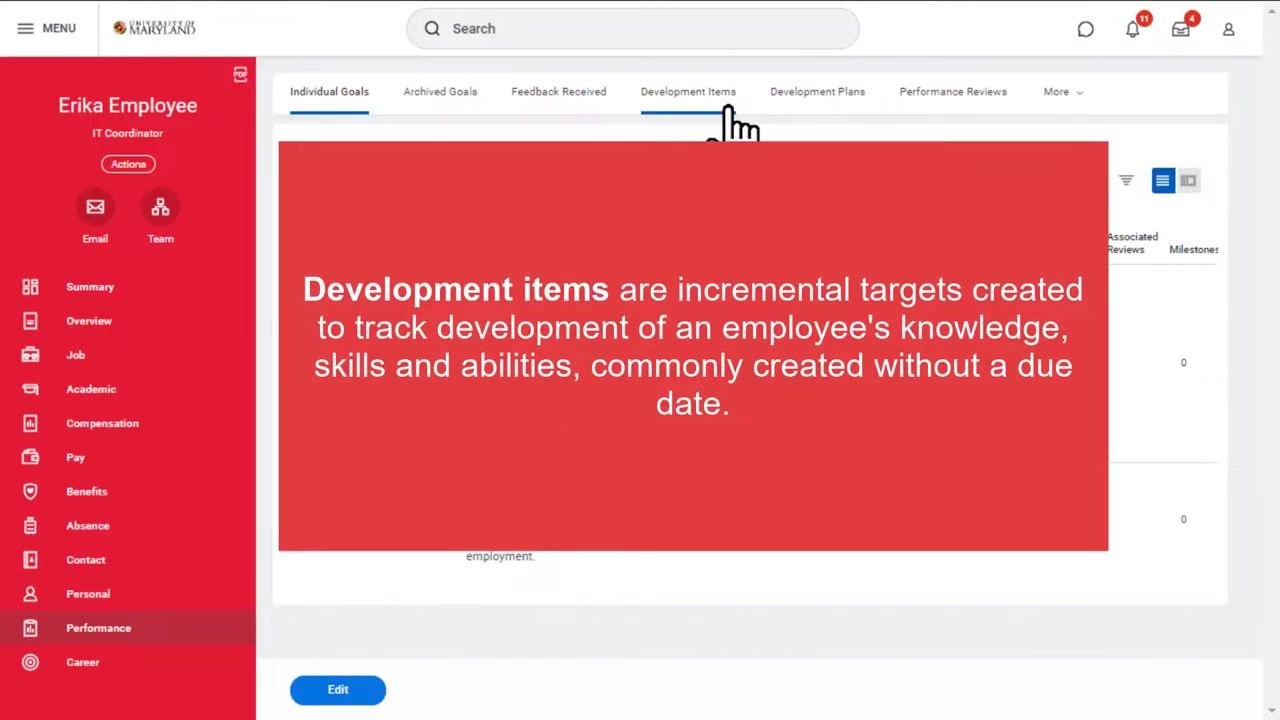
Development items are incremental targets created to track the development of an employee's knowledge, skills, and abilities. They are commonly created without a due date, which allows for flexible, ongoing progress tracking. Unlike goals, development items do not require manager approval.
-
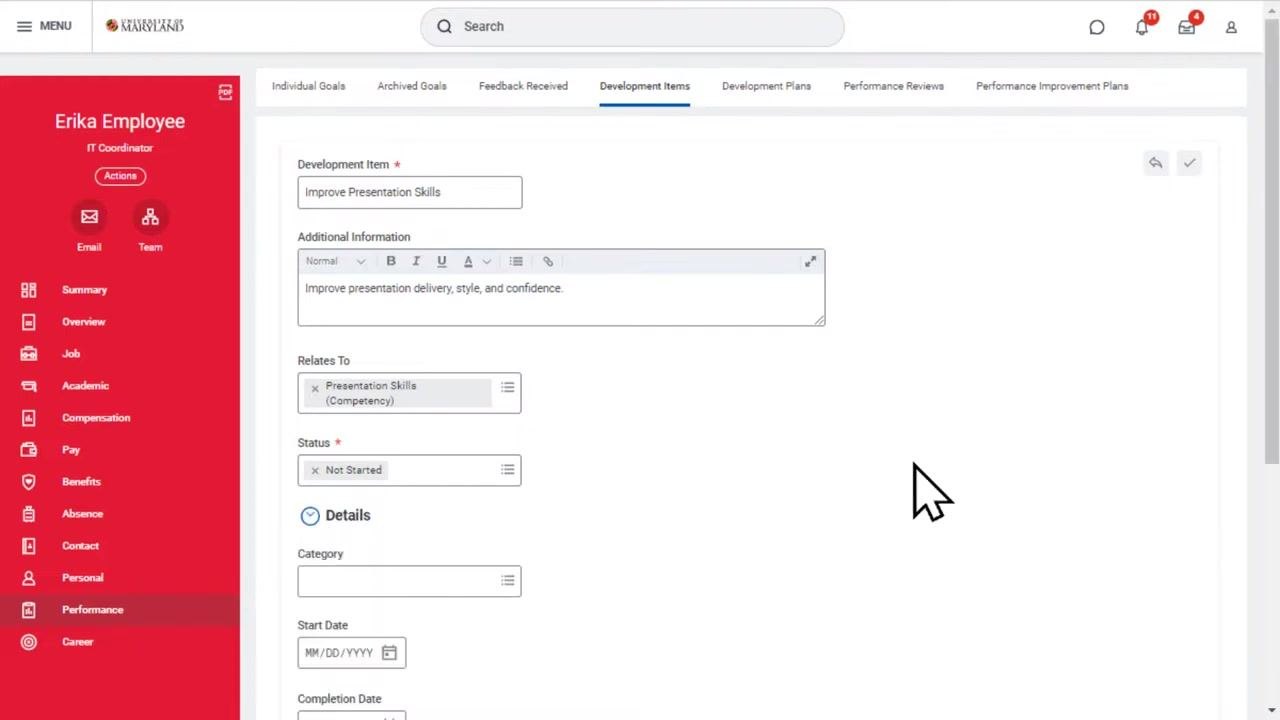
From the Performance dashboard, click the Development Items tab in the top navigation bar.
-
Click the Add button at the top left of the main panel under the Development Items tab.
-
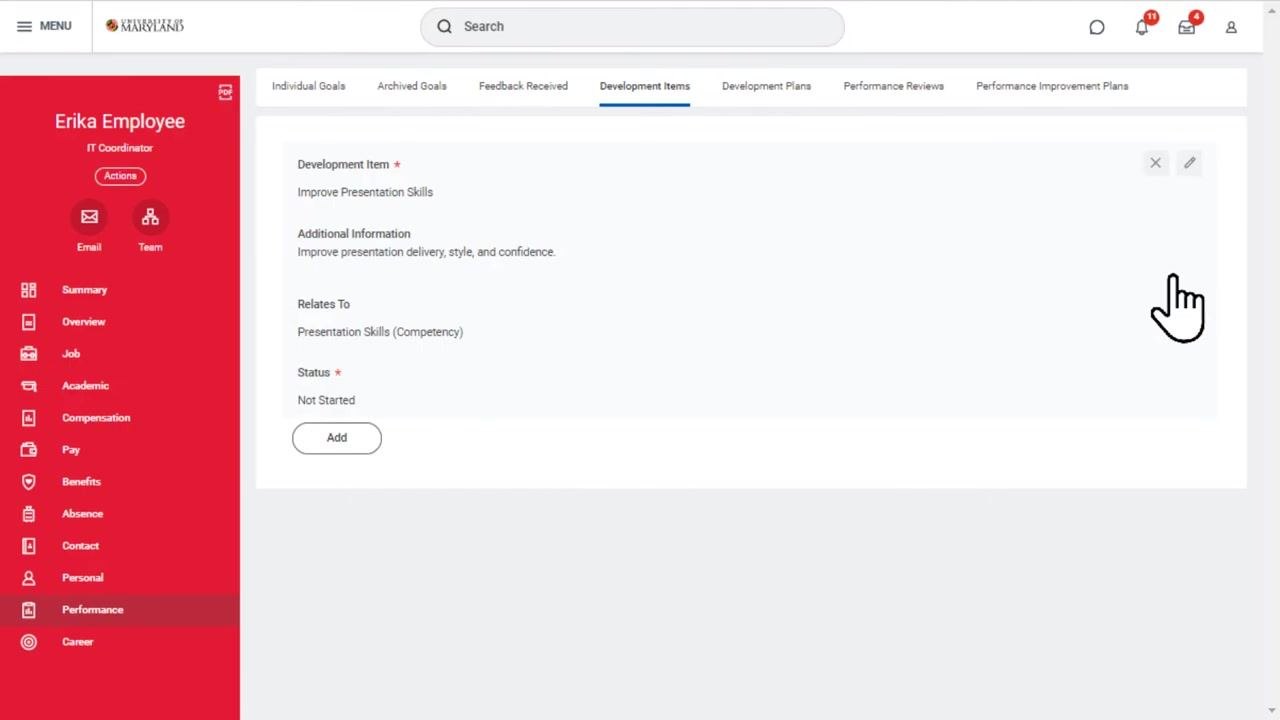
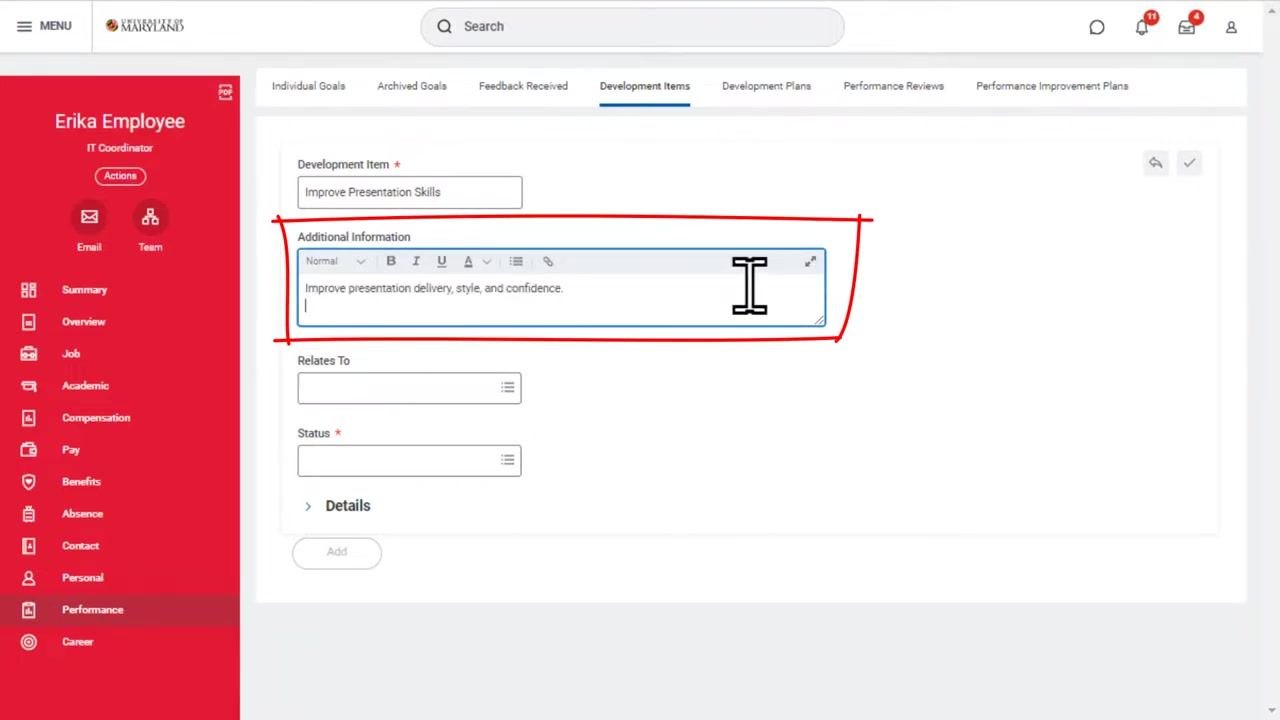
In the Development Item field, enter the specific skill or ability you want to develop. For example, enter Improve Presentation Skills.
-
In the Additional Information text box, add details to clarify the development item. The text box supports formatting options such as bold, italic, and underline. For example, enter "Improve presentation delivery, style, and confidence."
-
In the Relates To field, specify the competency or category associated with the development item. For example, select Presentation Skills (Competency) from the suggestion list.
-
Click the Status dropdown and select the appropriate status, for example Not Started.
-
(Optional) Fill in additional details such as Category, Start Date, Completion Date, and Notes under the Details section if needed.
-
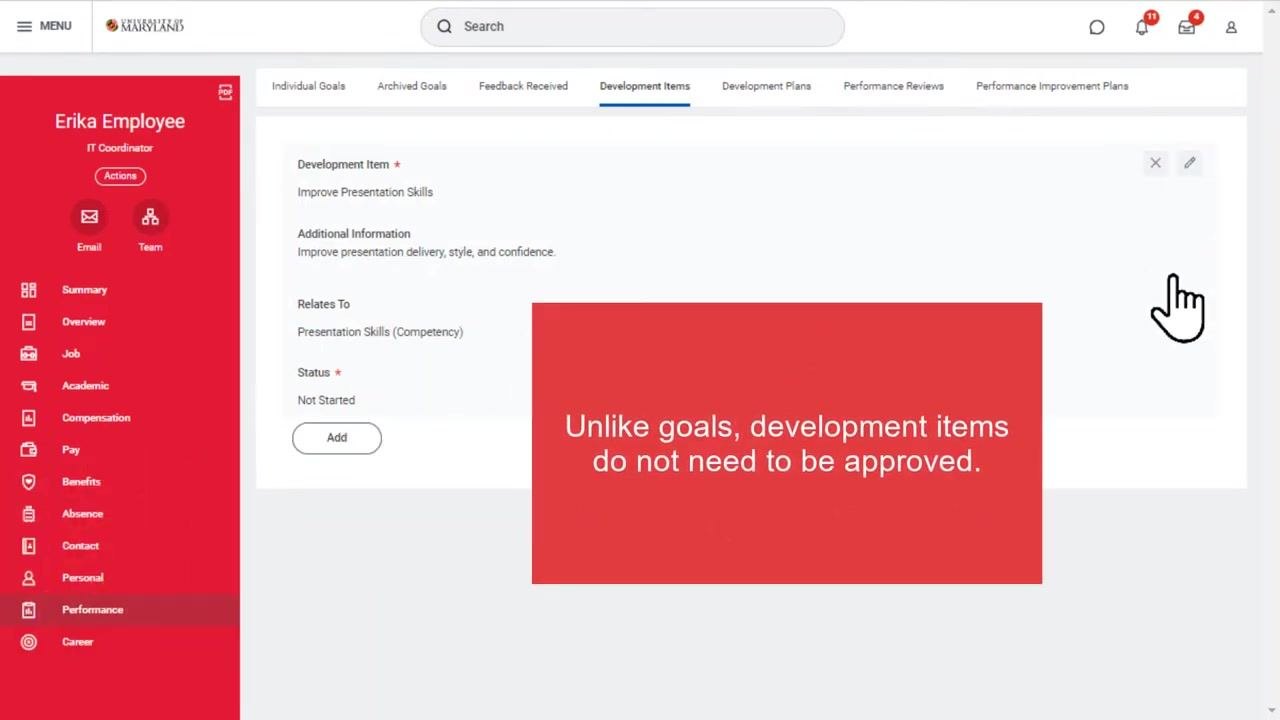
Save the development item. Unlike goals, development items do not need to be approved — once added, the item appears directly in your profile.
-
After saving, the development item appears on your profile. You can return at any time and click the edit icon next to the item to update it.
-
Review the completed entry on the Development Items tab to confirm the details, for example:
- Development Item: Improve Presentation Skills
- Additional Information: Improve presentation delivery, style, and confidence.
- Relates To: Presentation Skills (Competency)
- Status: Not Started
What's next
With your goal and development item created, you can monitor approval status on the Individual Goals page and update progress or milestones as needed. You can also return to the Development Items tab at any time to edit items and continue tracking your ongoing knowledge, skills, and abilities development. For additional resources or support, visit elevate.umd.edu.
Generation details: cost, quality tiers
Docsie billed 4,000 credits ($2.80) to analyze this 8-minute video at standard quality. The rewrite, template fill and Word/PDF exports were included. The same video at each quality tier:
| Quality | Frames sampled | Credits | Approx. cost |
|---|---|---|---|
| Draft | every 16-30 s | 2,000 | $1.40 |
| Standard (this guide) | every 8-15 s | 4,000 | $2.80 |
| Detailed | every 4-7 s | 8,000 | $5.60 |
| Ultra | every 1-3 s | 16,000 | $11.20 |
Credits priced at $0.70 per 1,000; plans include a monthly allowance. Enterprise customers on on-premise or bring-your-own-model deployments run this on their own inference and pay no per-video credits.
Generated by Docsie Video-to-Docs on 2026-10-02 from a 7-minute video. Screenshots are frames from the source video and belong to their creator, Elevate Program - UMD, whose original is embedded above. If you own this video and want the guide removed or credited differently, contact us and we will act within one business day.