
How to Clock-in and Clock-out in UKG
This guide walks you through how to clock in and clock out in UKG using the UKG Pro app on your smartphone or tablet. You'll learn how to access the time management section, submit a time punch, and troubleshoot common issues that may come up along the way.
Video: How to Clock In on UKG Pro App (NEW 2025) by The Slop Farm (2025). All credit for the demonstration goes to the creator; watch the original on YouTube. The written guide below was generated from this video by Docsie. Creator? Request a change or removal.
This guide walks you through how to clock in and clock out in UKG using the UKG Pro app on your smartphone or tablet. You'll learn how to access the time management section, submit a time punch, and troubleshoot common issues that may come up along the way.
Prerequisites
- A smartphone or tablet with the UKG Pro app installed
- Your assigned company credentials (username and password)
- A stable internet connection (Wi-Fi or cellular data)
- Location services enabled for the UKG Pro app
Open the UKG Pro app
Locate and tap the UKG Pro app icon on your smartphone or tablet. Make sure you are logged in with your assigned company credentials.
Once logged in, wait for your personalized home screen to load. Confirm that it displays various options, including time management features.
Access the clock-in feature
On the home screen, find and navigate to the section labeled Time Management or Time Entry. This section is typically clearly labeled for easy access.
Look for a prominent button or link labeled Clock In or Punch. Before tapping it, verify that your current status is displayed as Not Punched. This step is crucial to avoid accidental double punches and ensures you are ready to record your start time accurately.
Submit your time punch
Tap the Clock In button to submit your time punch. If prompted, confirm your current location or specific shift details as requested by the app, and review all information presented before proceeding.
Look for a confirmation message on your screen, such as "Punch Successful" or "Clocked In," to ensure your entry was recorded.
Troubleshooting common issues
If you run into problems while clocking in or out, try the following steps:
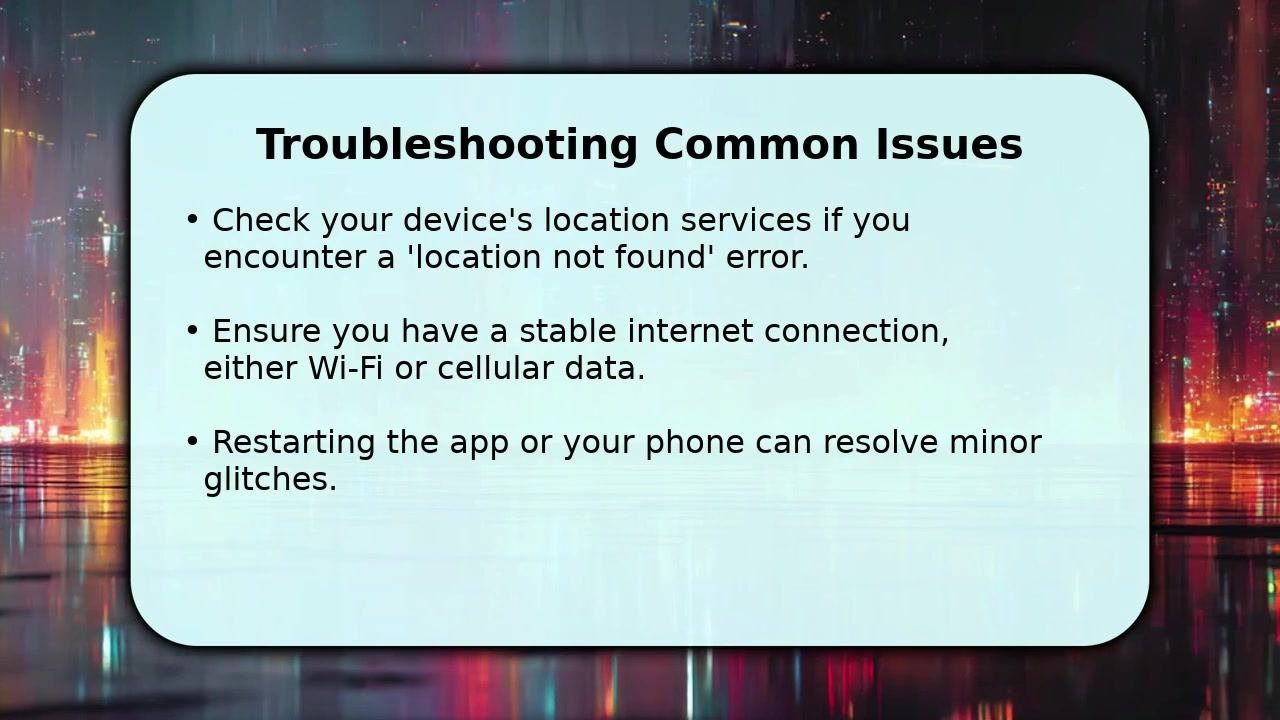
- Check your device's location services if you encounter a "location not found" error. Make sure location services are enabled and allowed for the UKG Pro app.
- Confirm you have a strong, stable internet connection, either through Wi-Fi or cellular data. Unstable connections can prevent the app from recording your punch or loading necessary features.
- Restart the UKG Pro app to resolve minor glitches. If the issue persists, restart your entire phone to clear any temporary errors.
If problems continue after checking your connection and restarting, promptly reach out to your direct supervisor or Human Resources Department for further assistance. They can provide guidance or escalate the issue as needed.
Summary
By following these steps, you can successfully clock in and clock out for your shift in UKG. If you encounter issues, checking your location services, internet connection, and restarting the app will resolve most common problems. If you are unable to resolve the problem on your own, don't hesitate to seek help from your supervisor or HR department.
Generation details: cost, quality tiers
Docsie billed 1,500 credits ($1.05) to analyze this 3-minute video at standard quality. The rewrite, template fill and Word/PDF exports were included. The same video at each quality tier:
| Quality | Frames sampled | Credits | Approx. cost |
|---|---|---|---|
| Draft | every 16-30 s | 750 | $0.52 |
| Standard (this guide) | every 8-15 s | 1,500 | $1.05 |
| Detailed | every 4-7 s | 3,000 | $2.10 |
| Ultra | every 1-3 s | 6,000 | $4.20 |
Credits priced at $0.70 per 1,000; plans include a monthly allowance. Enterprise customers on on-premise or bring-your-own-model deployments run this on their own inference and pay no per-video credits.
Generated by Docsie Video-to-Docs on 2026-10-02 from a 2-minute video. Screenshots are frames from the source video and belong to their creator, The Slop Farm, whose original is embedded above. If you own this video and want the guide removed or credited differently, contact us and we will act within one business day.