
How to Approve a Timecard in UKG
This guide walks you through how to approve a timecard in UKG, covering both the dashboard method and the email notification method. You'll learn how to review submitted hours, approve or reject timesheets, and confirm that your approvals have been processed correctly.
Video: UKG Tutorial: How to Approve Employee Timesheets by Professional Employment Group of Colorado. All credit for the demonstration goes to the creator; watch the original on YouTube. The written guide below was generated from this video by Docsie. Creator? Request a change or removal.
This guide walks you through how to approve a timecard in UKG, covering both the dashboard method and the email notification method. You'll learn how to review submitted hours, approve or reject timesheets, and confirm that your approvals have been processed correctly.
Prerequisites
- A UKG login email containing your password and login credentials. If you haven't received this email, contact your HR department to obtain your credentials.
- Access to the UKG portal with manager or approver permissions.
Logging in to UKG
Check for your UKG login email
Before you can approve timecards, confirm that you've received an email from UKG containing your password and login information. If this email never arrived, reach out to your HR department to request your credentials.
Log in to the UKG portal
Use the credentials provided in your login email to sign in to the UKG portal. Once logged in, you'll land on your main dashboard.
Approving timecards from the dashboard
Locate timesheets awaiting approval
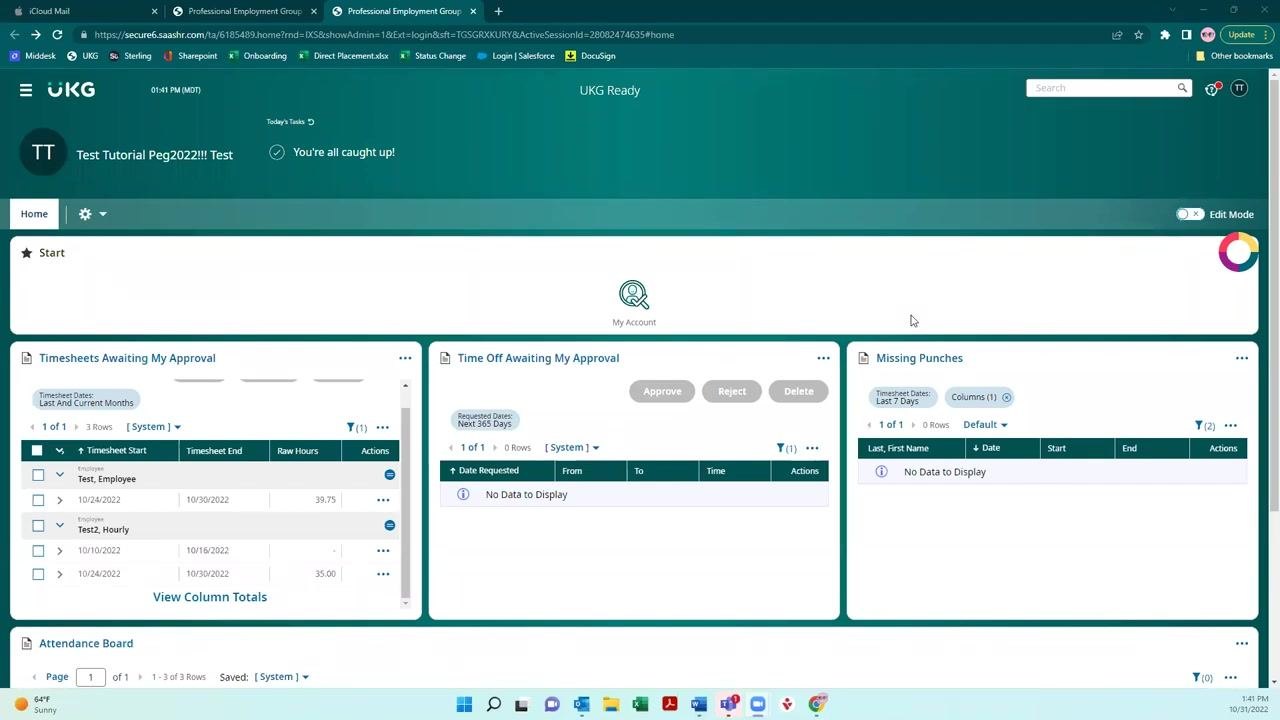
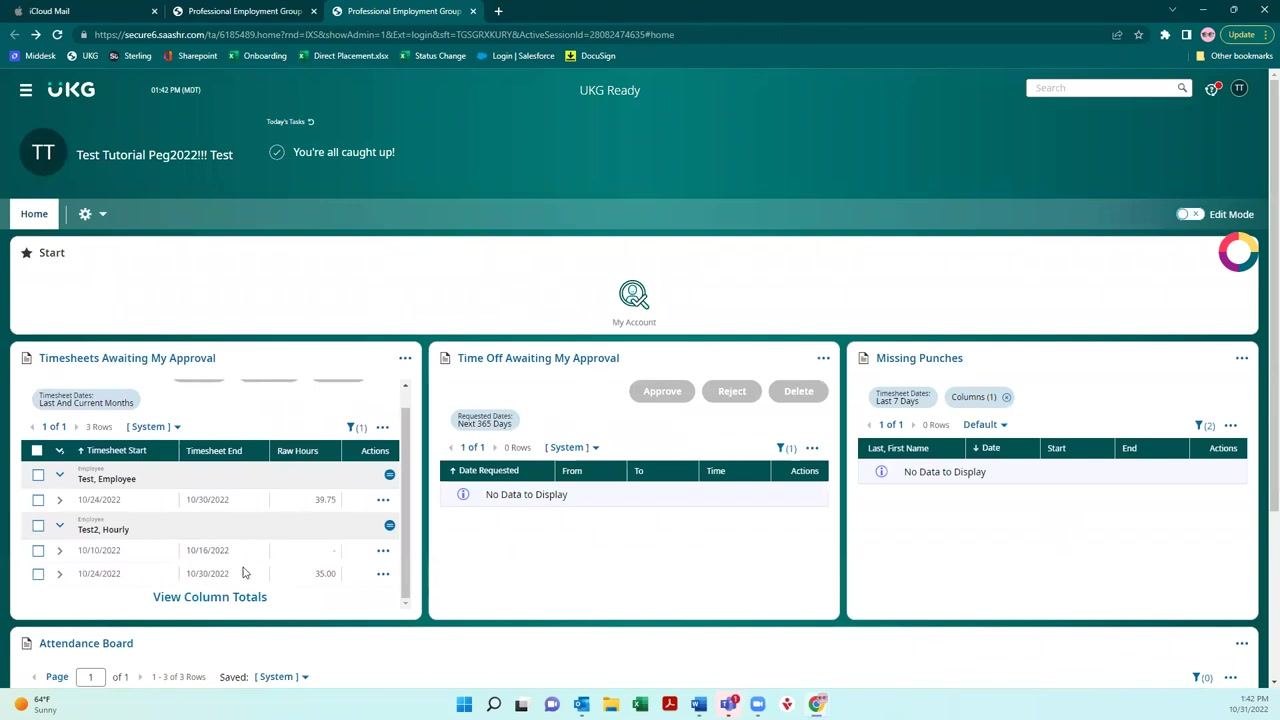
On the left side of your dashboard, look for the Timesheets Awaiting My Approval section. This area lists employees who have submitted time entries that you have not yet approved. You'll also see related sections such as Time Off Awaiting My Approval and Missing Punches.
Review submitted timesheets
Each row in the list displays the employee's name, the timesheet's start and end dates, and the total raw hours submitted. Review this list to get an overview of what's pending your approval.
View individual employee timesheet details
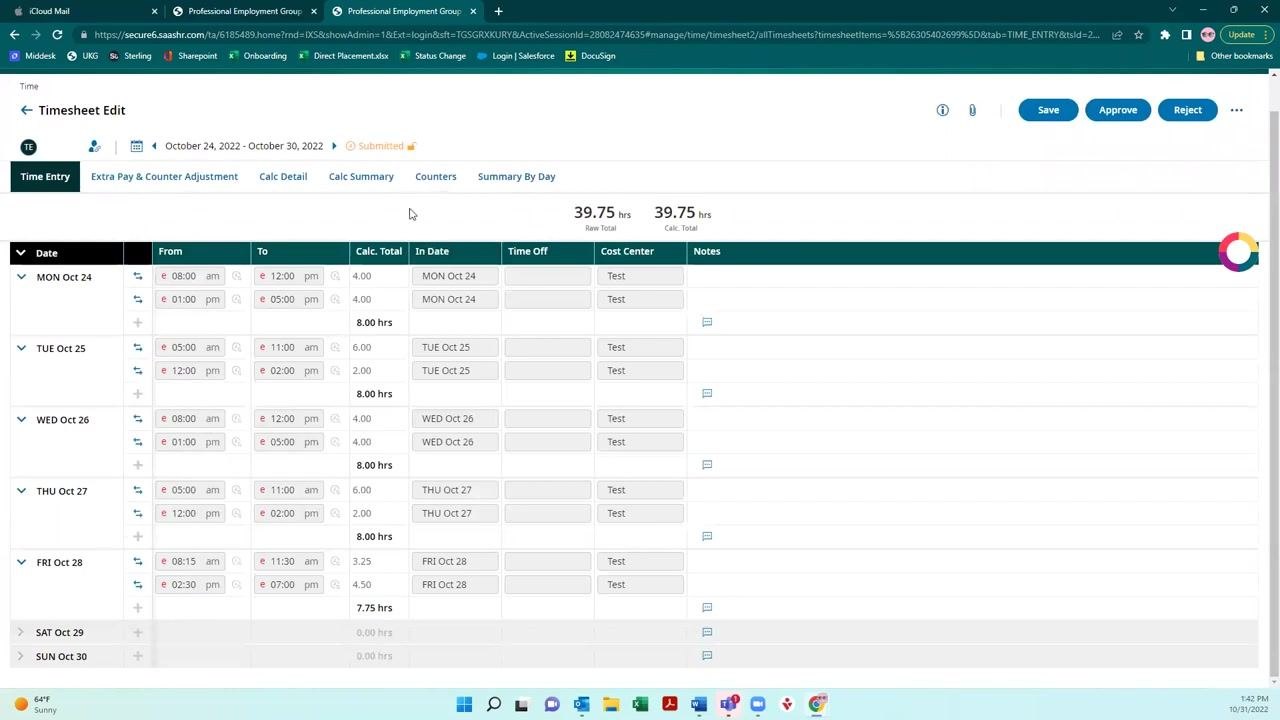
To review a specific employee's timesheet in detail, click on their name, then click View. This opens a detailed breakdown of the employee's submitted hours, including daily entries, time in/out, and any notes attached.
You cannot edit an employee's timesheet directly from this view. If corrections are needed, reject the timesheet and leave a comment explaining what needs to change.
Handle weeks with no hours submitted
If an employee has not submitted any hours for a given week, you may still approve the blank timesheet if that is appropriate for the situation.
Select timesheets for approval or rejection
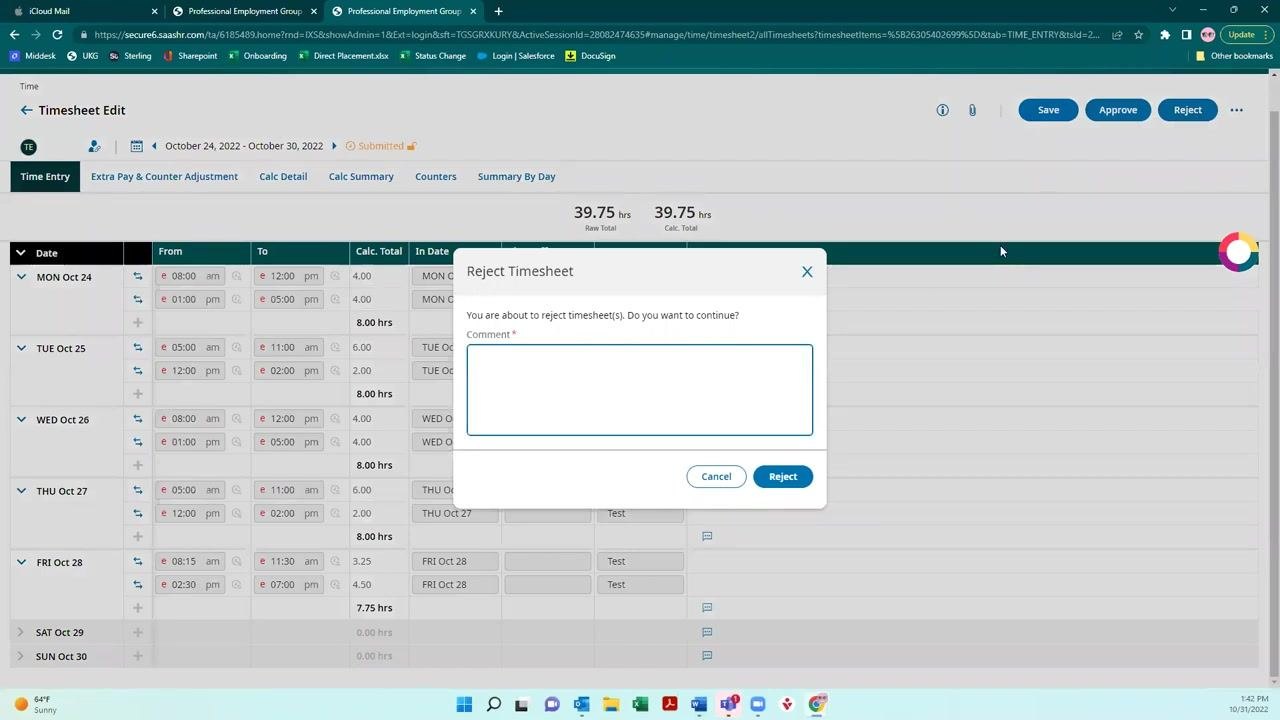
To act on multiple timesheets at once, click the checkbox at the top of the list to select all of them, or select individual checkboxes for specific employees. If everything looks correct, proceed to approve. If a timesheet appears incorrect, choose to reject it instead.
Approve timesheets
Click the Approve button at the top of the Timesheets Awaiting My Approval section. You can optionally add a comment to provide feedback or clarification, but a comment is not required to approve.
Once you approve the hours, the timesheet disappears from your Timesheets Awaiting My Approval list, confirming that the action is complete. Remember: only rejections require a comment, not approvals.
Reject timesheets if needed
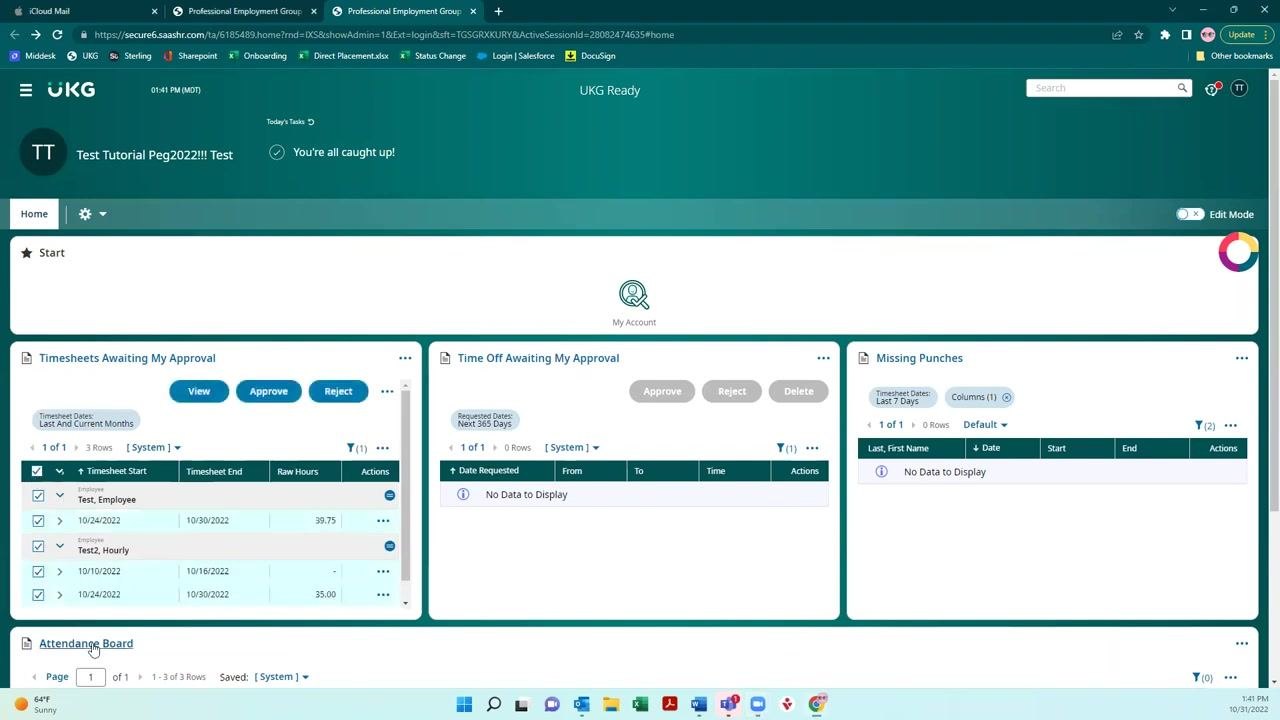
If a timesheet needs correction, click the Reject button. You must enter a comment explaining the reason for rejection — for example, "Forgot to take a lunch on Thursday." This comment helps the employee understand what to fix before resubmitting.
Verify dashboard updates after approval
After approving timesheets, return to your UKG dashboard and confirm that the approved items no longer appear under Timesheets Awaiting My Approval. Only timesheets still needing action — either approval or rejection — will remain visible.
Approving timecards from an email notification
Approve time entries via email link
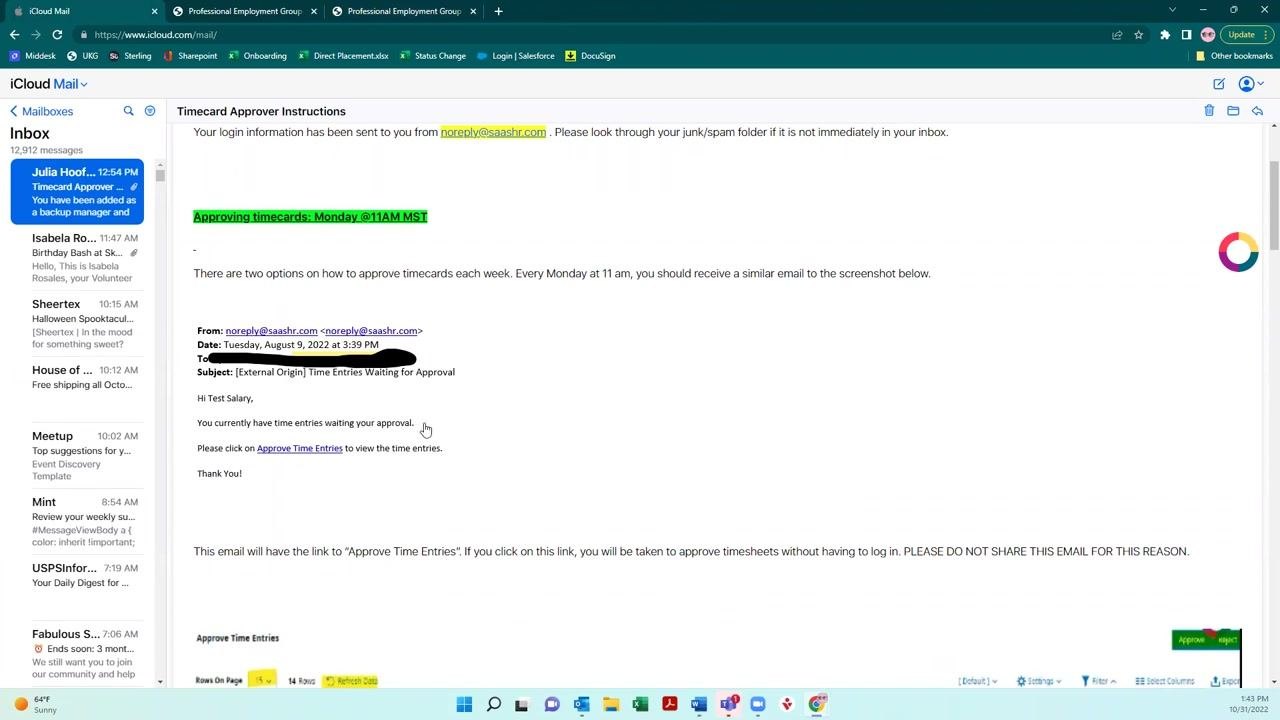
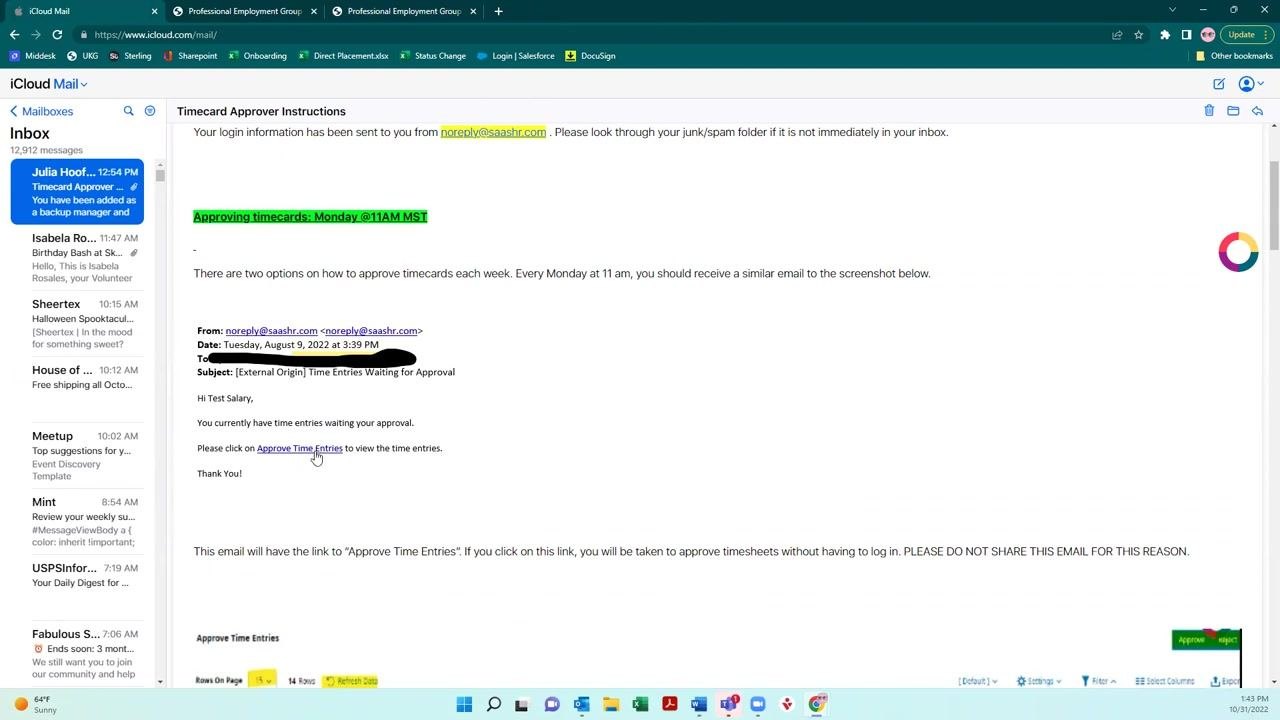
As an alternative to the dashboard, you will receive a weekly email notification whenever you have time entries awaiting your approval. The email subject line reads "Time Entries Waiting for Approval" and includes a direct link labeled Approve Time Entries.
Click the Approve Time Entries link in the email to be taken directly to your timesheets in UKG. This is a secure link, so do not share the email with others.
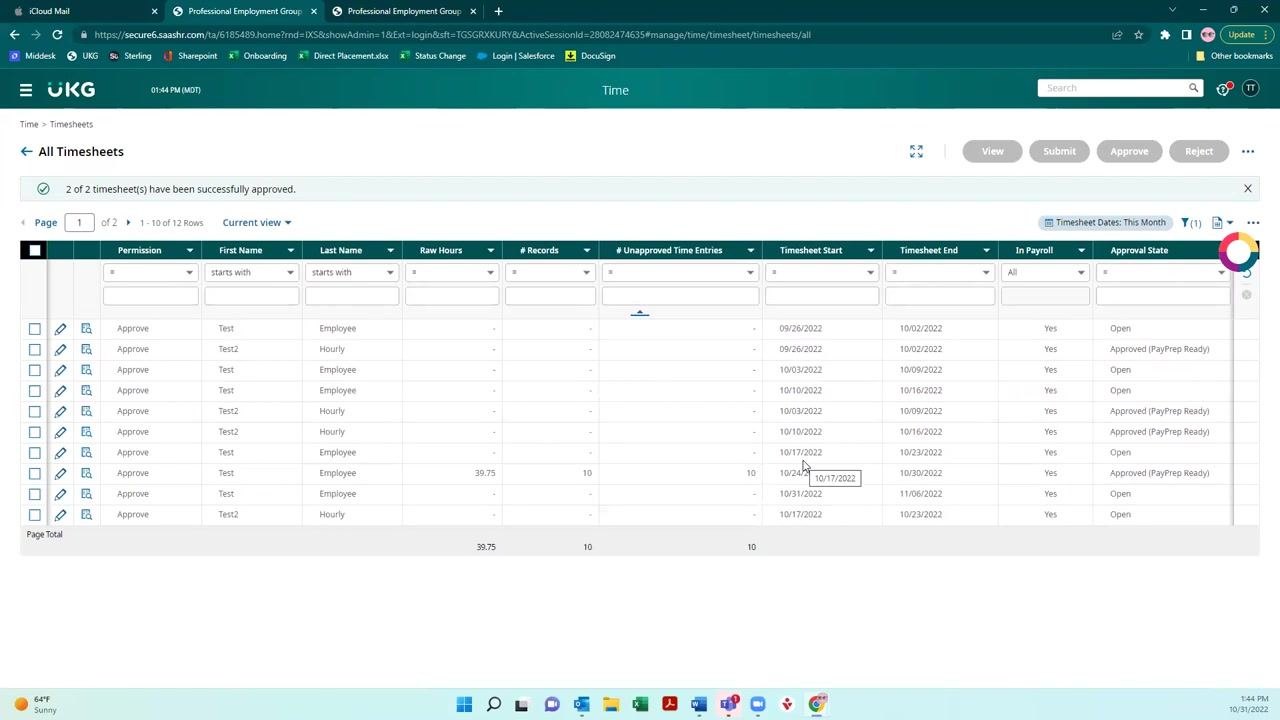
Clicking the link takes you to the All Timesheets page in UKG, where you can see every timesheet listed with columns for Permission, First Name, Last Name, Raw Hours, # Records, # Unapproved Time Entries, Timesheet Start, Timesheet End, In Payroll, and Approval State. Timesheets with hours submitted and needing approval are clearly listed here.
Approve timesheets from the "All Timesheets" page
Select the checkboxes next to the timesheets you want to approve, then click the Approve button at the top right of the page. A "Processing..." dialog appears, indicating that your approvals are being submitted.
Once processing finishes, a confirmation message appears at the top of the page — for example, "2 of 2 timesheet(s) have been successfully approved." The approved timesheets update their status and disappear from the list of items needing approval.
Summary
To ensure employees are paid on time, always approve timesheets promptly. You can approve timesheets throughout the week rather than waiting only for the email notification. If you have questions or encounter issues, reach out to your HR or payroll administrator for assistance.
Following these steps — whether through the dashboard or the email notification — lets you efficiently approve or reject employee timecards in UKG, ensuring accurate payroll processing and clear communication with your team.
Generation details: cost, quality tiers
Docsie billed 2,000 credits ($1.40) to analyze this 4-minute video at standard quality. The rewrite, template fill and Word/PDF exports were included. The same video at each quality tier:
| Quality | Frames sampled | Credits | Approx. cost |
|---|---|---|---|
| Draft | every 16-30 s | 1,000 | $0.70 |
| Standard (this guide) | every 8-15 s | 2,000 | $1.40 |
| Detailed | every 4-7 s | 4,000 | $2.80 |
| Ultra | every 1-3 s | 8,000 | $5.60 |
Credits priced at $0.70 per 1,000; plans include a monthly allowance. Enterprise customers on on-premise or bring-your-own-model deployments run this on their own inference and pay no per-video credits.
Generated by Docsie Video-to-Docs on 2026-10-12 from a 3-minute video. Screenshots are frames from the source video and belong to their creator, Professional Employment Group of Colorado, whose original is embedded above. If you own this video and want the guide removed or credited differently, contact us and we will act within one business day.