
How to Access Your Account for the First Time in UKG
This guide walks you through how to access your account for the first time in UKG Pro, from opening the login page to creating a secure new password. Follow these steps in order to complete your initial sign-in and resolve any common access issues along the way.
Video: How To Find Your Ukg Pro Username For First Time Login (Beginner's Guide) by Tutorials With Trevor. All credit for the demonstration goes to the creator; watch the original on YouTube. The written guide below was generated from this video by Docsie. Creator? Request a change or removal.
This guide walks you through how to access your account for the first time in UKG Pro, from opening the login page to creating a secure new password. Follow these steps in order to complete your initial sign-in and resolve any common access issues along the way.
Prerequisites
Before you begin, make sure you have:
- A welcome email from your employer containing your UKG Pro username and a temporary password
- Access to the email address your employer has on file
- A web browser
Open the UKG Pro login page
Open your web browser and navigate to the official UKG Pro login page.
- Enter the URL
https://launch.ukg.net/logindirectly in your browser's address bar. - Alternatively, search for "UKG Pro login" and select the official site from the results.
- Important: Confirm you are on the legitimate UKG site before entering any information.
- Consider bookmarking this page for easier access in the future.
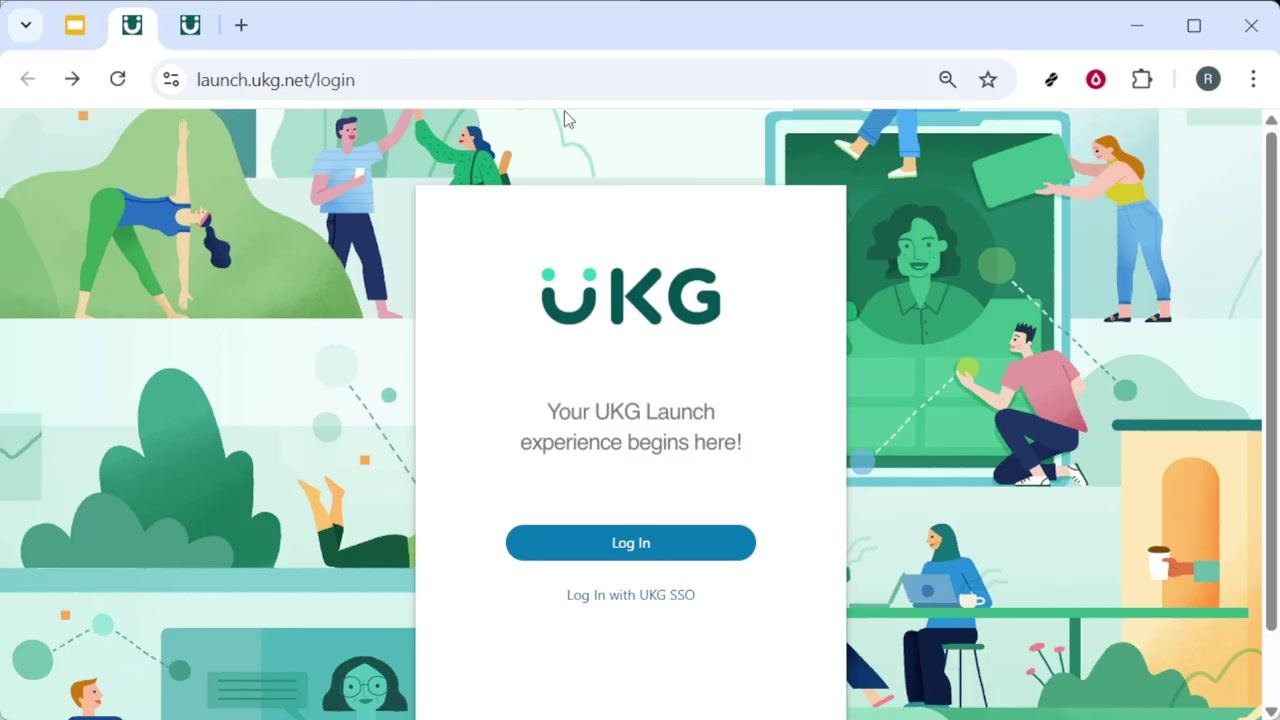
Select "Log In"
On the UKG Launch page, locate and select the Log In button. This takes you to the secure sign-in screen.
Find your account credentials
Check your email for the welcome message your company sent when your account was created. This email, sent to the address your employer has on file, contains two key pieces of information:
- Your username
- A temporary password
If you don't see the welcome email, check your spam or junk folder and confirm you're looking in the correct mailbox. If you still can't locate it, contact your HR or payroll administrator to confirm your username and request that the temporary password be resent.
Enter your credentials and sign in
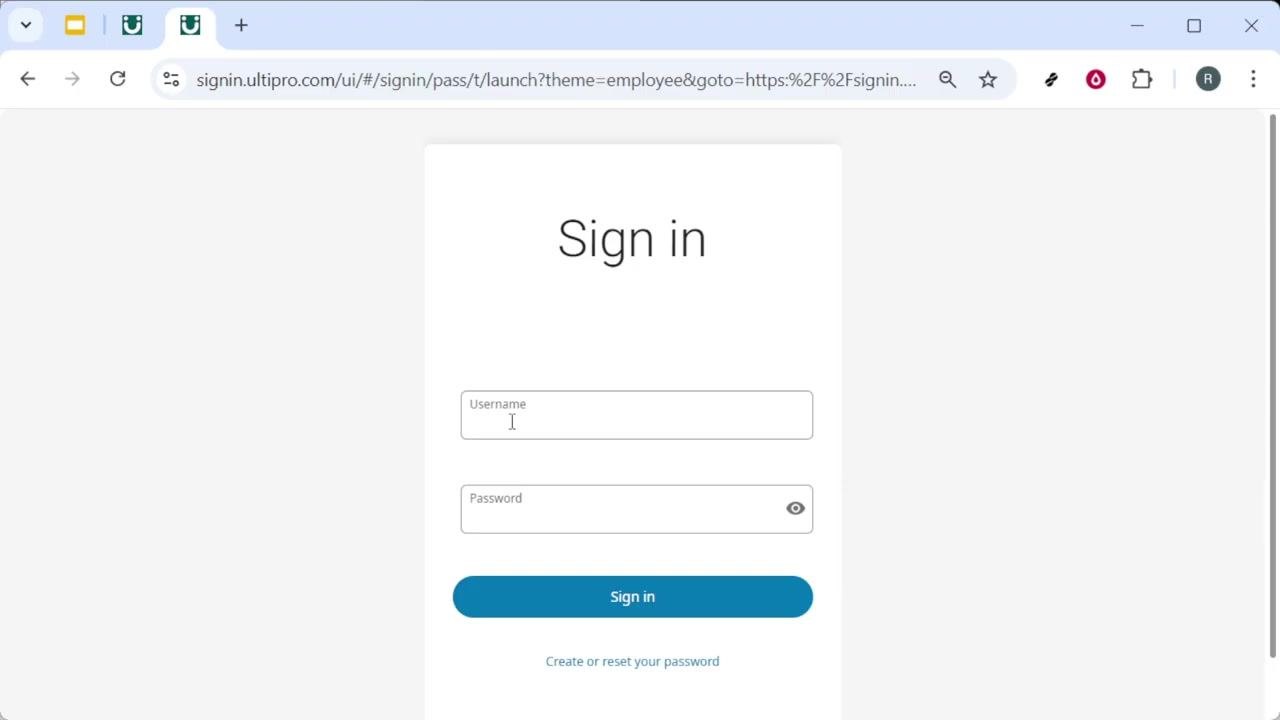
On the sign-in page, enter your username and temporary password.
- Enter your username exactly as it appears in the welcome email. Tip: Avoid extra spaces before or after the username, especially if you copy and paste it.
- Enter the temporary password from the email. Note: Passwords are case sensitive, so match capitalization and symbols precisely, and watch for unwanted spaces when pasting.
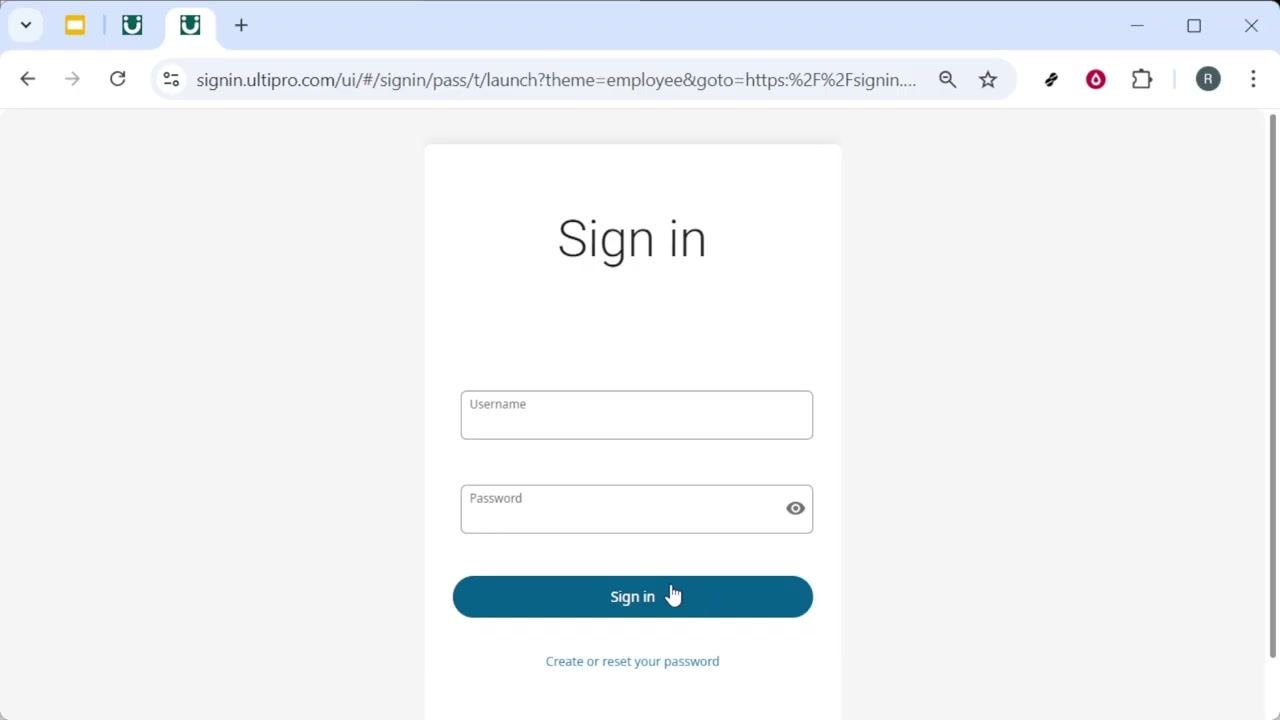
Click the Sign in button to proceed.
Create your new password
For most first-time users, UKG Pro immediately prompts you to create a new password after signing in.
- Choose a strong password that you'll remember.
- Follow any additional security steps that appear, such as setting up security questions or verifying your identity.
- Read and follow each on-screen instruction carefully, as your organization may require additional setup steps.
Security best practices
- If you're using a shared or public computer, do not save your password in the browser when prompted.
- Always log out after your session on shared devices.
- Keep your login information secure and do not share your credentials with others.
Troubleshooting sign-in issues
If your sign-in attempt fails, try the following:
- Double-check that Caps Lock is not enabled on your keyboard.
- Retype your username and password carefully, checking for extra spaces.
- Confirm you're using the most recent welcome email and the correct temporary password, since passwords are case sensitive.
If you still cannot access your account after these checks, contact your organization's HR or payroll administrator to verify your account details and request a reset of your temporary password if needed.
What's next
Once you've signed in and set your new password, bookmark the UKG Launch login page (https://launch.ukg.net/login) for quick access in the future. You're now ready to complete any additional first-time setup required by your organization.
Generation details: cost, quality tiers
Docsie billed 1,500 credits ($1.05) to analyze this 3-minute video at standard quality. The rewrite, template fill and Word/PDF exports were included. The same video at each quality tier:
| Quality | Frames sampled | Credits | Approx. cost |
|---|---|---|---|
| Draft | every 16-30 s | 750 | $0.52 |
| Standard (this guide) | every 8-15 s | 1,500 | $1.05 |
| Detailed | every 4-7 s | 3,000 | $2.10 |
| Ultra | every 1-3 s | 6,000 | $4.20 |
Credits priced at $0.70 per 1,000; plans include a monthly allowance. Enterprise customers on on-premise or bring-your-own-model deployments run this on their own inference and pay no per-video credits.
Generated by Docsie Video-to-Docs on 2026-10-06 from a 2-minute video. Screenshots are frames from the source video and belong to their creator, Tutorials With Trevor, whose original is embedded above. If you own this video and want the guide removed or credited differently, contact us and we will act within one business day.