
How to Reset a User's Password in SuccessFactors
This guide explains how to reset a user's password in SAP SuccessFactors Employee Central. You first confirm that your permission role allows password resets. Then you find the employee, set a new password, and test the login.
Video: How to Reset User Password - SAP SuccessFactors Employee Central - by Web World Design (2020). All credit for the demonstration goes to the creator; watch the original on YouTube. The written guide below was generated from this video by Docsie. Creator? Request a change or removal.
This guide explains how to reset a user's password in SAP SuccessFactors Employee Central. You first confirm that your permission role allows password resets. Then you find the employee, set a new password, and test the login.
Prerequisites
Before you begin, make sure you have the following:
- Access to the SAP SuccessFactors login page for your test or production system.
- Your own credentials.
- A permission role that includes the Reset User Passwords permission. Step 2 shows you how to check this.
Log in to SAP SuccessFactors
- Go to your SAP SuccessFactors login page.
- Enter your credentials and log in to your test or production system.
Verify that you can reset user passwords
Before you reset a user's password in SuccessFactors, confirm that your permission role includes the required permission.
-
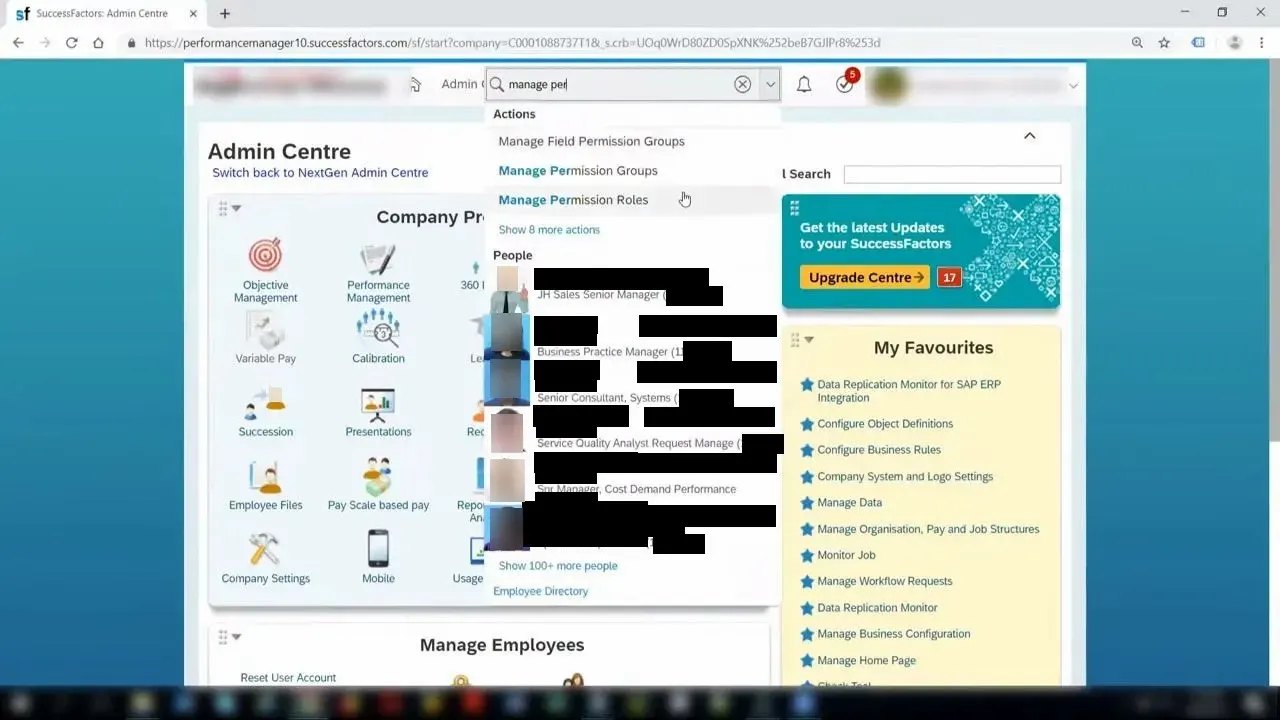
In the Admin Centre, find the search bar at the top of the screen.
-
Type "manage permission roles" into the search bar.
- Select Manage Permission Roles from the dropdown list.
-
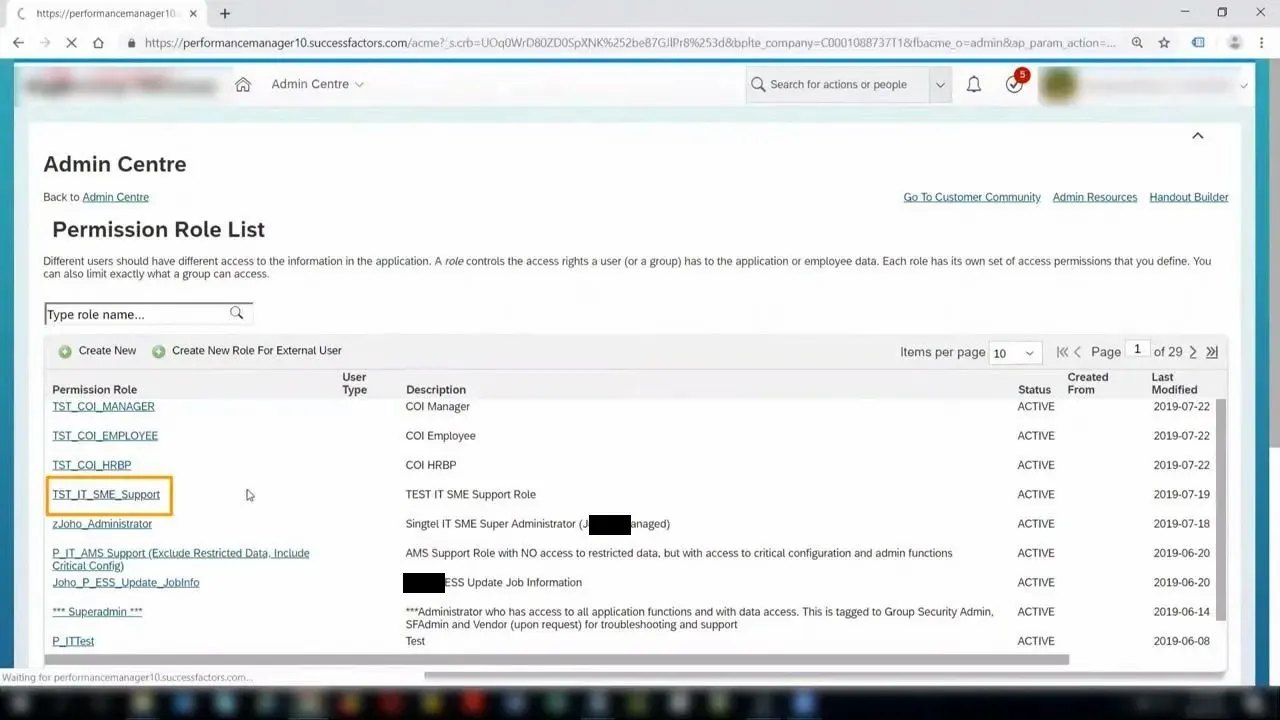
In the Permission Role List, select the permission role that you belong to. In this example, the role is "TST_IT_SME_Support".
-
In the Permission Role Details, click Permissions to view the permission settings.
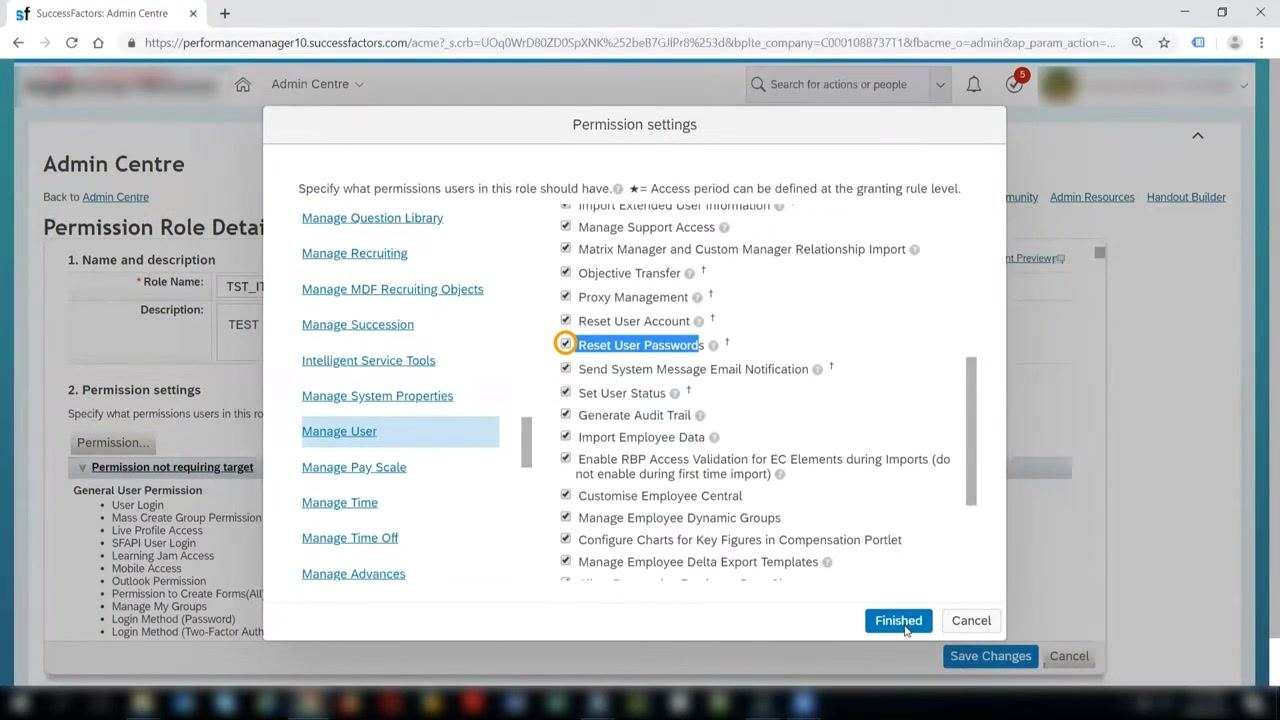
- Under Administrator Permissions, scroll to Manage User.
- Confirm that the Reset User Passwords box is checked. A checked box means you have the required permission.
Open the Reset User Passwords tool
- In the Admin Centre, go to the section for resetting user passwords.
- Select Reset User Passwords to open the reset tool.
Search for the employee
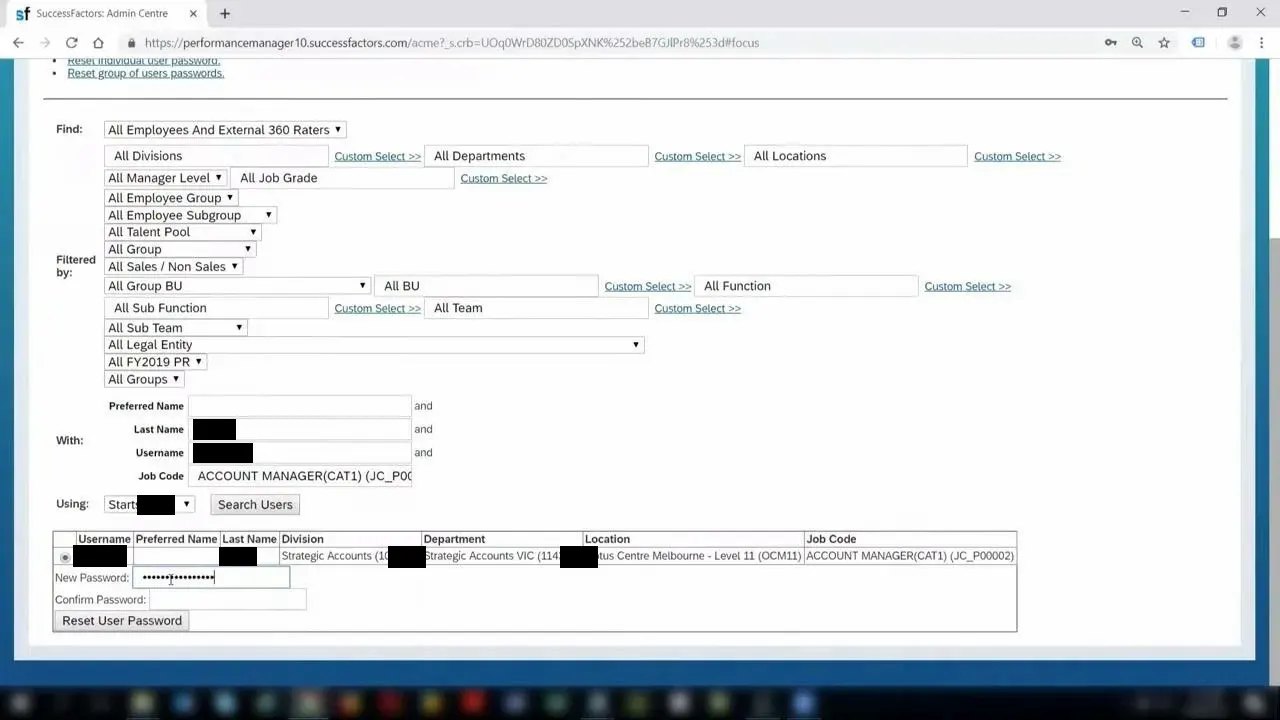
- On the "Resetting User Passwords" page, use the search filters to locate the employee. You can filter by manager level, division, legal entity, employee group, or subgroup.
- For a direct search, enter the Username or Employee ID in the appropriate field. This example uses 2000652.
- Click Search Users to display the employee details.
Reset the password
- In the search results, locate the employee. In this example, the Username is 2000652 and the Last Name is Smith.
- Enter the new password in the New Password field.
-
Re-enter the same password in the Confirm Password field to make sure it is accurate.
-
Click Reset User Password to complete the reset.
Confirm the reset and test the login
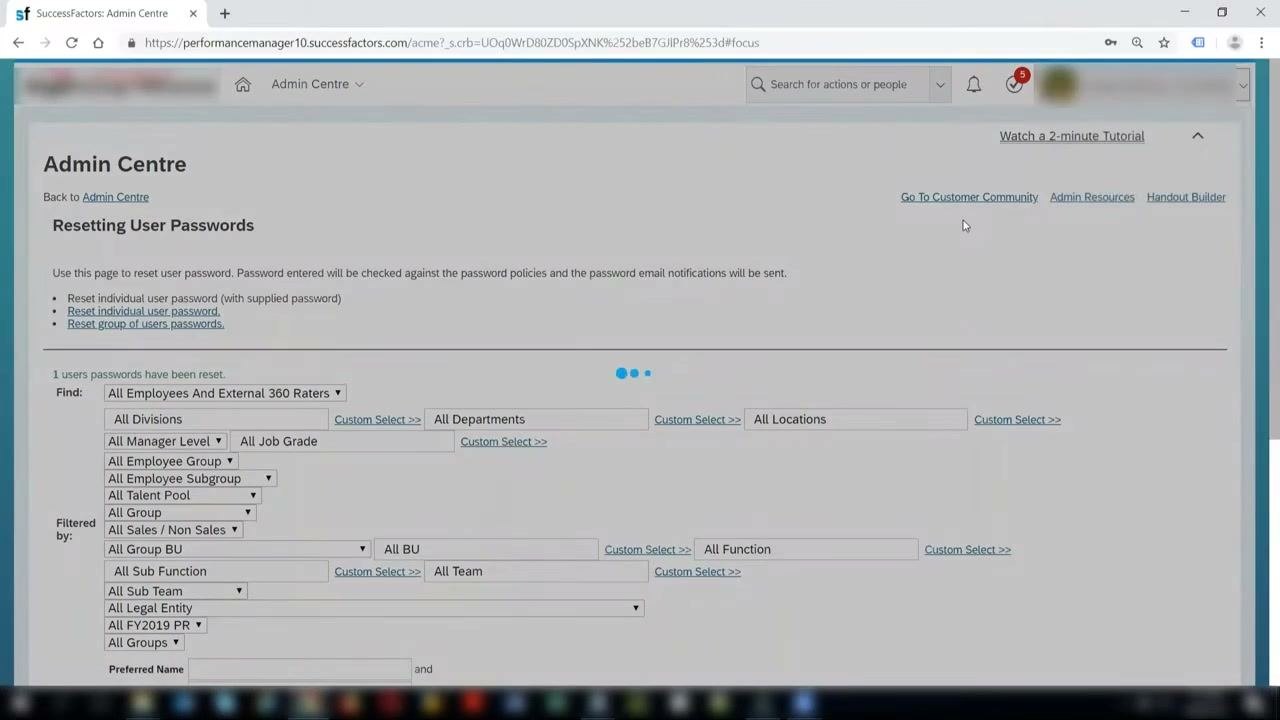
- After you click Reset User Password, check the confirmation message at the top of the "Resetting User Passwords" page. It reads "1 users passwords have been reset." This message confirms that the reset succeeded.
- Log out of SAP SuccessFactors so you can test the new credentials.
- On the login page, enter the employee's username in the username field. In this example, the username is the Employee ID 2000652.
- Enter the new password you just set in the password field.
- Click Log in.
-
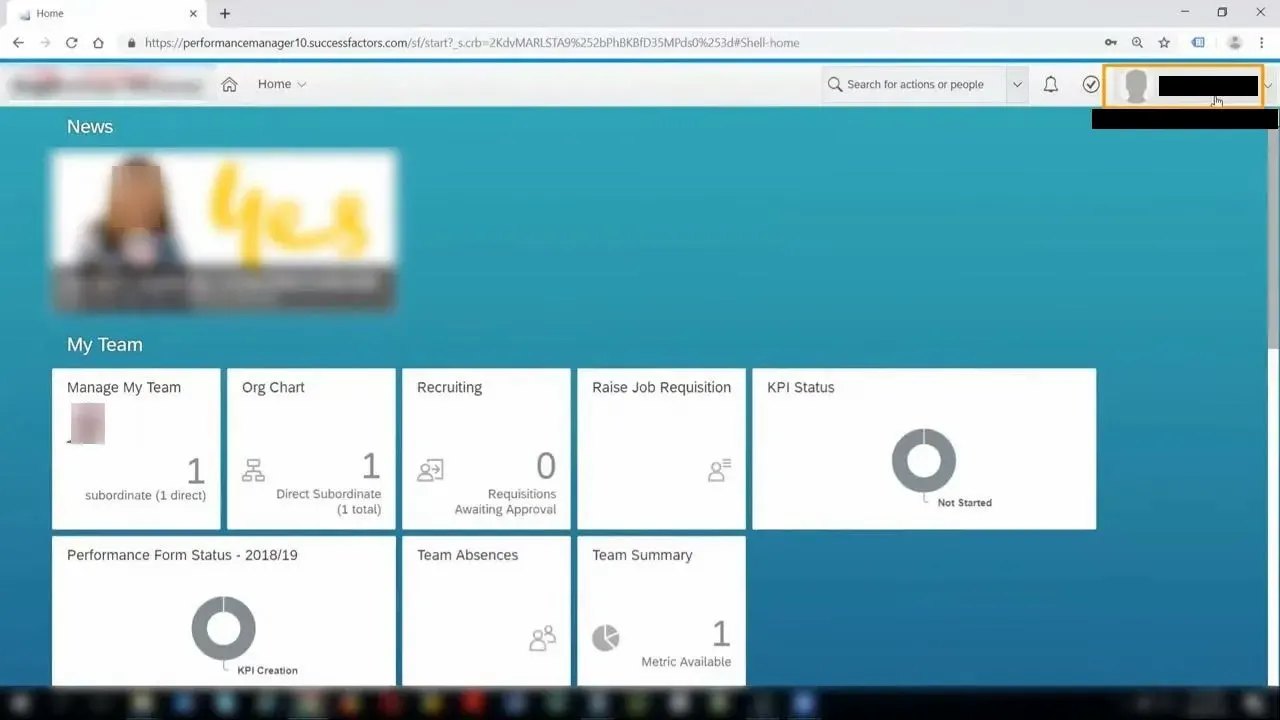
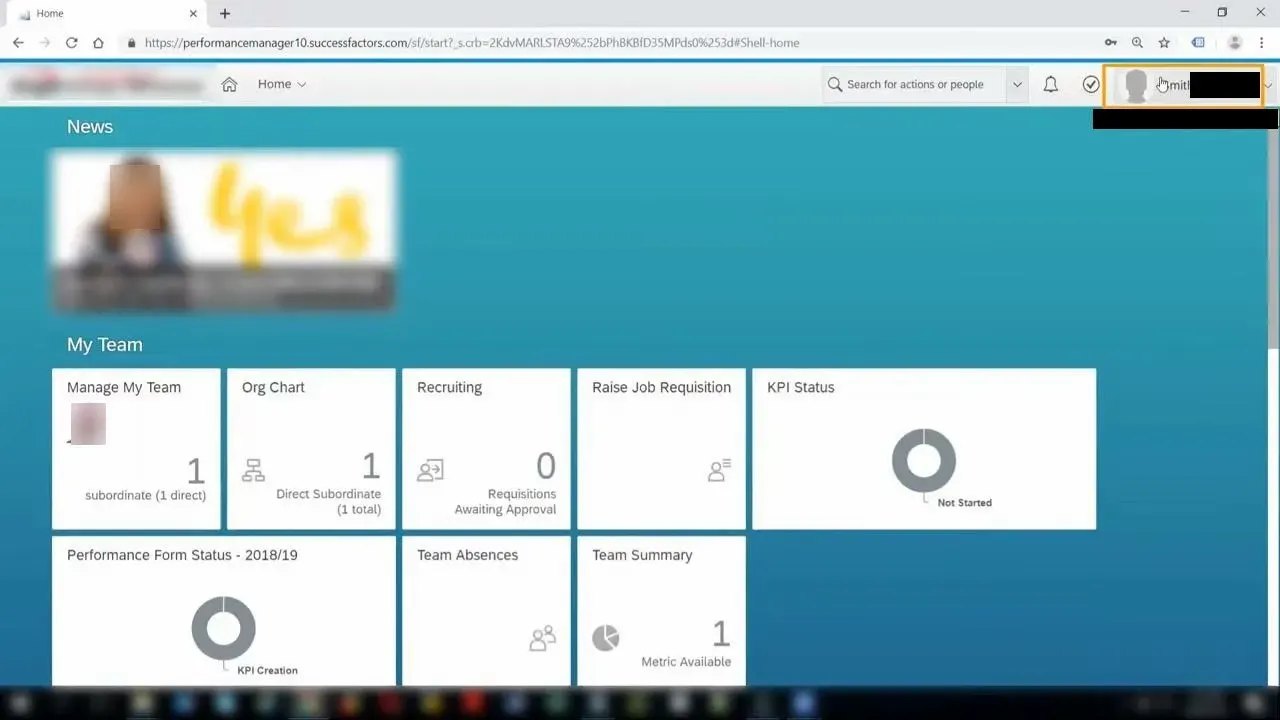
After you log in, check the top right-hand corner of the dashboard to verify that you are signed in as the correct user. The employee's name appears there, for example "Smith (2000652)".
-
Confirm that the dashboard loads correctly. The user's information should appear, including team details and other dashboard tiles.
Summary
You have reset and verified a user's password in SAP SuccessFactors Employee Central. You checked your permission, located the employee, set the new password, and confirmed the change by logging in as that user.
What's next
- Make sure the new password meets the system's password criteria.
- Communicate the new password to the user securely.
Generation details: cost, quality tiers
Docsie billed 2,000 credits ($1.40) to analyze this 4-minute video at standard quality. The rewrite, template fill and Word/PDF exports were included. The same video at each quality tier:
| Quality | Frames sampled | Credits | Approx. cost |
|---|---|---|---|
| Draft | every 16-30 s | 1,000 | $0.70 |
| Standard (this guide) | every 8-15 s | 2,000 | $1.40 |
| Detailed | every 4-7 s | 4,000 | $2.80 |
| Ultra | every 1-3 s | 8,000 | $5.60 |
Credits priced at $0.70 per 1,000; plans include a monthly allowance. Enterprise customers on on-premise or bring-your-own-model deployments run this on their own inference and pay no per-video credits.
Generated by Docsie Video-to-Docs on 2026-11-15 from a 3-minute video. Screenshots are frames from the source video and belong to their creator, Web World Design, whose original is embedded above. If you own this video and want the guide removed or credited differently, contact us and we will act within one business day.