
How to Cascade Goals in SuccessFactors
This guide shows you how to cascade goals in SuccessFactors. You open your goal plan, copy a goal from a previous plan if needed, and assign the goal to team members. It also covers navigating the home page, checking your user context, and managing goal details and status.
Video: How to cascade goals in SAP SuccessFactors PMGM by Justice Agbattey (2023). All credit for the demonstration goes to the creator; watch the original on YouTube. The written guide below was generated from this video by Docsie. Creator? Request a change or removal.
This guide shows you how to cascade goals in SuccessFactors. You open your goal plan, copy a goal from a previous plan if needed, and assign the goal to team members. It also covers navigating the home page, checking your user context, and managing goal details and status.
Prerequisites
Before you begin, make sure you have the following:
- The SuccessFactors URL for your organization and a web browser.
- Access to My Goals from the Quick Actions on the home page.
- A goal in your goal plan that you want to assign to others.
- Team members listed under My Team to receive the cascaded goal.
Steps
Open My Goals from the SuccessFactors home page
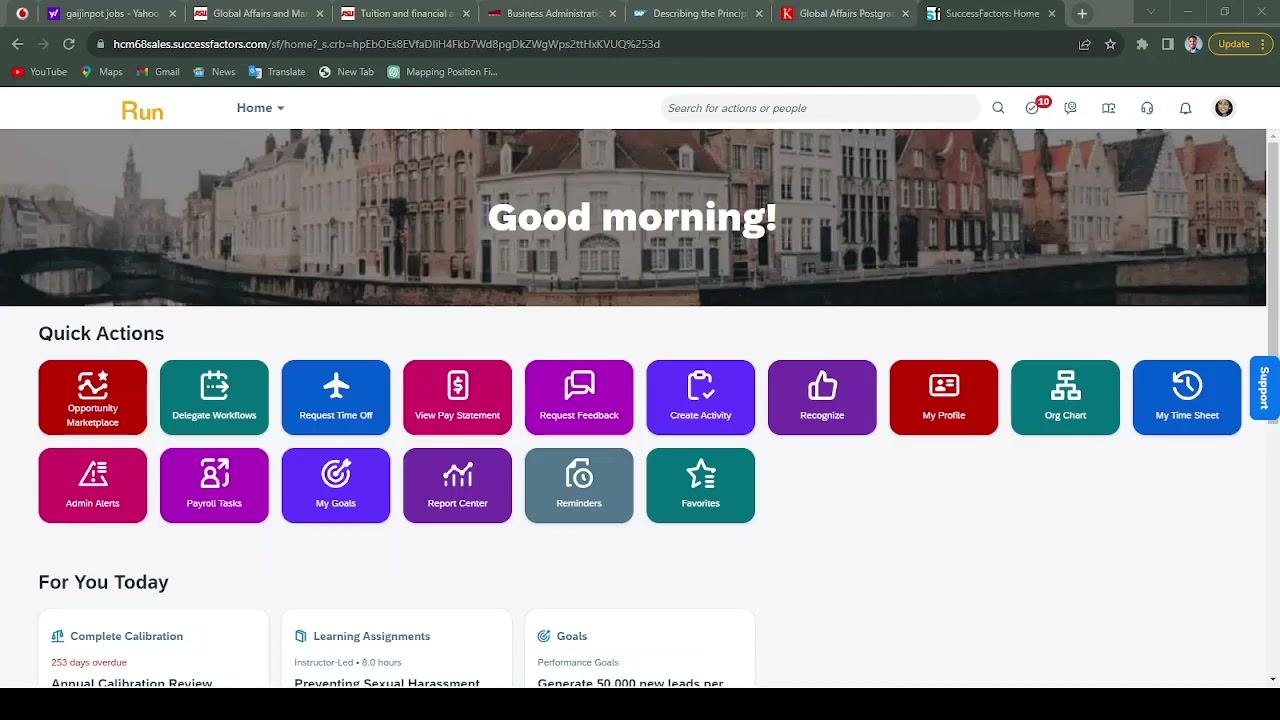
Open your browser and go to the SuccessFactors URL. The home page shows a greeting and a Quick Actions section. The top navigation bar includes a search bar, a notification bell, a help icon, and your user profile icon.
Quick Actions include Opportunity Marketplace, Delegate Workflows, Request Time Off, View Pay Statement, Request Feedback, Create Activity, Recognize, My Profile, Org Chart, My Time Sheet, Admin Alerts, Payroll Tasks, My Goals, Report Center, Reminders, and Favorites.
Select My Goals.
Review your goal plan
After you select My Goals, the 2021 Goal Plan screen opens. The left sidebar contains a People Selector with search, manager, and direct reports.
The main panel shows the plan dates (Jan 1, 2021 - Dec 31, 2021) and the number of goals. It also shows status counts for Not Started, On Track, Behind, Cancelled, and Completed.
In this example, the plan lists two goals, both Not Started, 0% Complete, and 618 days overdue:
- "Increase number of diversity hires ___% by (date)"
- "Analyze production workflow bottlenecks and make process improvement..."
Check your user context in the account menu
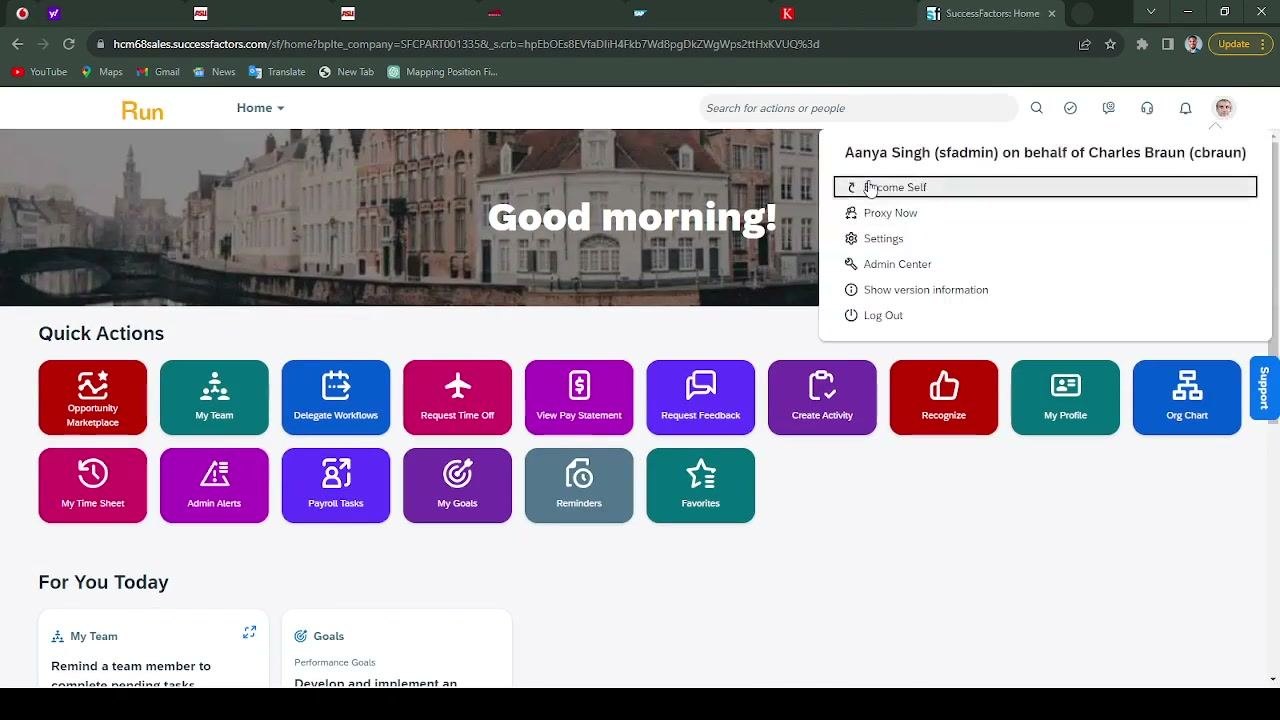
Select the user profile icon in the upper right corner to open the account menu. The menu shows the current user context, for example "Aanya Singh (sfadmin) on behalf of Charles Braun (cbraun)."
The menu offers these options:
- Become Self
- Proxy Now
- Settings
- Admin Center
- Show version information
- Log Out
To return to your own account, select Become Self. The other options let you act as a proxy for another user, open settings, or log out.
Switch to the 2022 Goal Plan
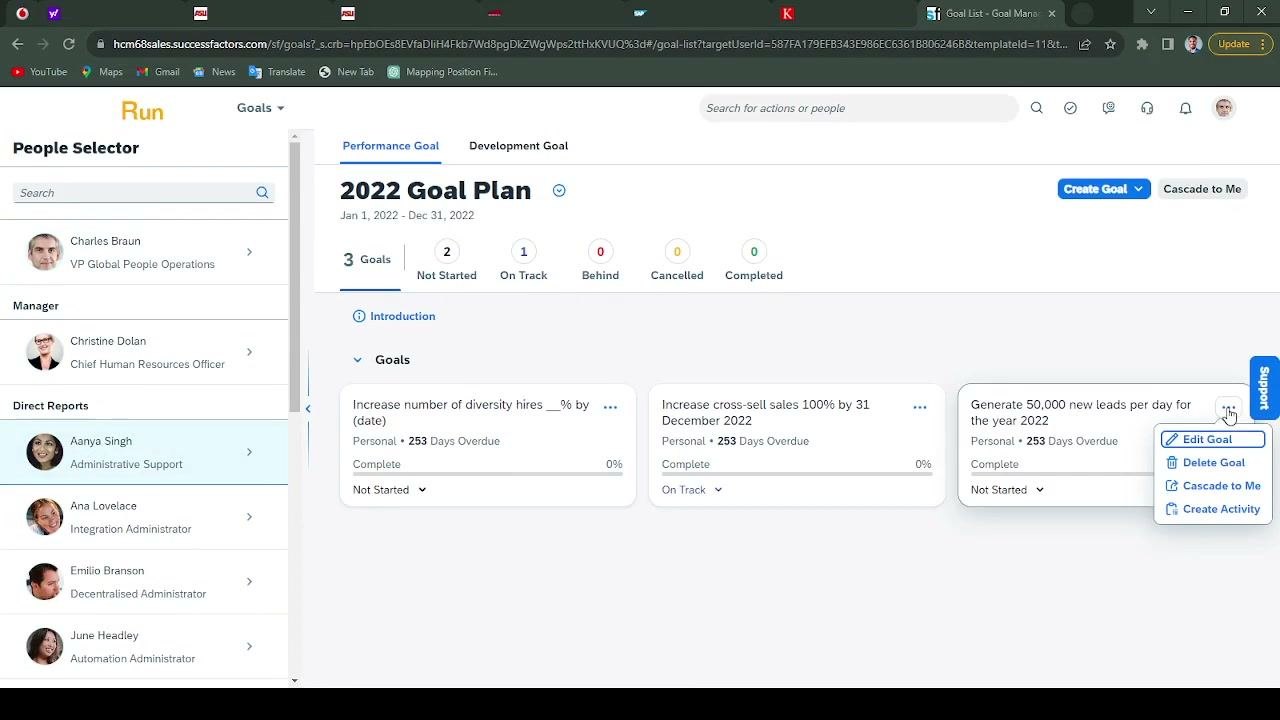
Select the 2022 Goal Plan tab. The main panel updates to show the plan dates (Jan 1, 2022 - Dec 31, 2022) and three goals. Two are Not Started and one is On Track.
The goals in this example are:
- "Increase number of diversity hires ___% by (date)" (Not Started)
- "Increase cross-sell sales 100% by 31 December 2022" (On Track)
- "Generate 50,000 new leads per day for the year 2022" (Not Started)
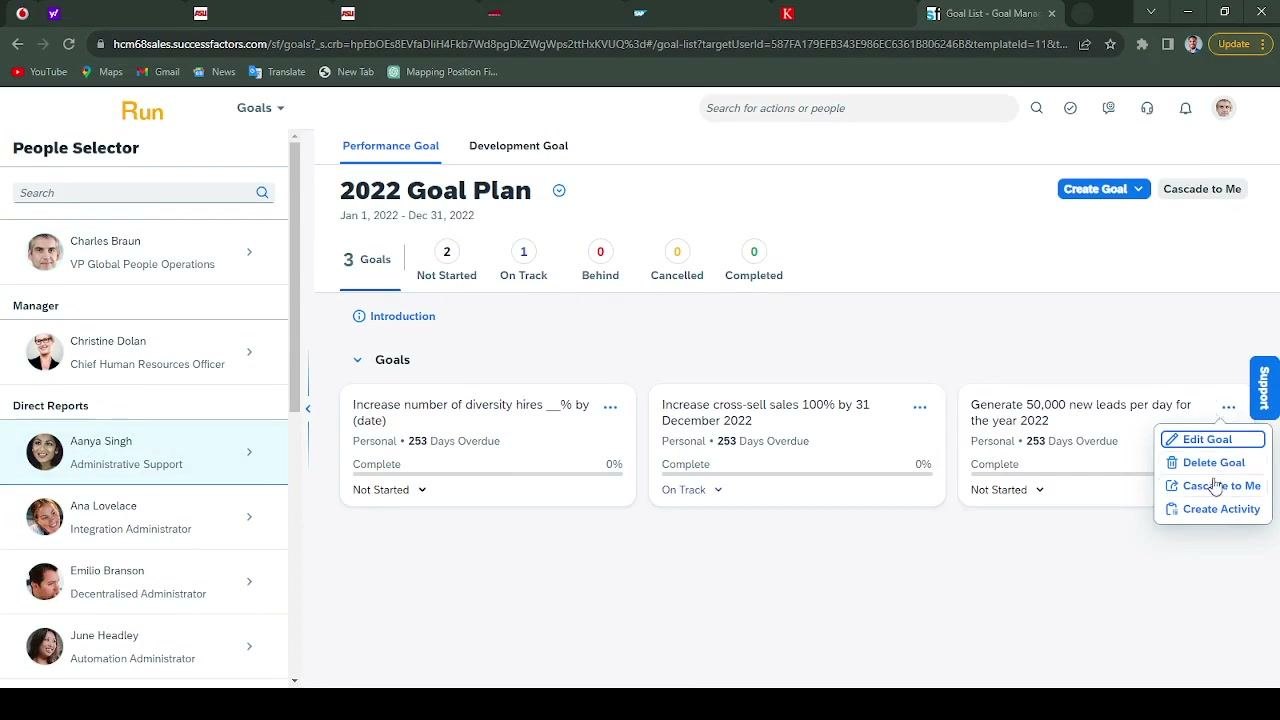
Each goal shows 253 days overdue and 0% complete. Select the three-dot menu on a goal to see Edit Goal, Delete Goal, Cascade to Me, and Create Activity.
Edit a goal before you cascade it
To change a goal's details, select the three-dot menu next to the goal, for example "Generate 50,000 new leads per day for the year 2022." Then select Edit Goal.
The same menu also includes Delete Goal, Cascade to Me, and Create Activity.
Update the goal status
Select the status dropdown for a goal, for example Not Started. Choose one of the following statuses:
- Not Started
- On Track
- Behind
- Cancelled
- Completed
The goal status updates to match your selection.
Create or copy a goal
To add a goal you can cascade later, select Create Goal in the upper right. Then choose one of these options:
- Create New
- Create from Library
- Copy from Goal Plan
Select the option that fits. You can add a new goal or copy an existing one.
Copy a goal from a previous goal plan
Select Create Goal, then select Copy from Goal Plan. In the Copy from Goal Plan dialog, start with Step 1: Select Goals.
Use the Goal Plan dropdown to choose 2021 Goal Plan. The available goals appear with checkboxes:
- "Analyze production workflow bottlenecks and make process improvement recommendations by (date)"
- "Develop and implement an employee referral program by end of year 2022"
Select the checkbox for "Develop and implement an employee referral program by end of year 2022."
Confirm the copied goal in the 2022 Goal Plan
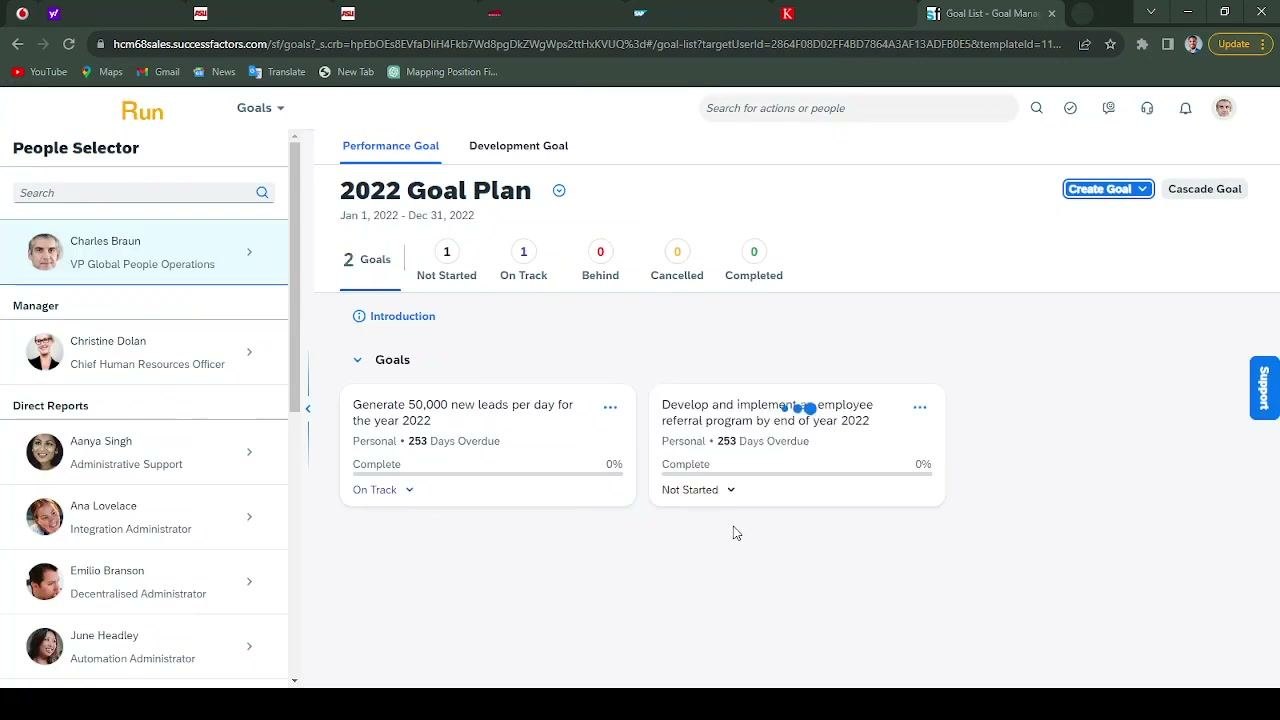
Return to the 2022 Goal Plan screen. It now lists two goals:
- "Generate 50,000 new leads per day for the year 2022" (On Track)
- "Develop and implement an employee referral program by end of year 2022" (Not Started)
Both goals show 253 days overdue and 0% complete.
Open the Cascade Goal option for the goal
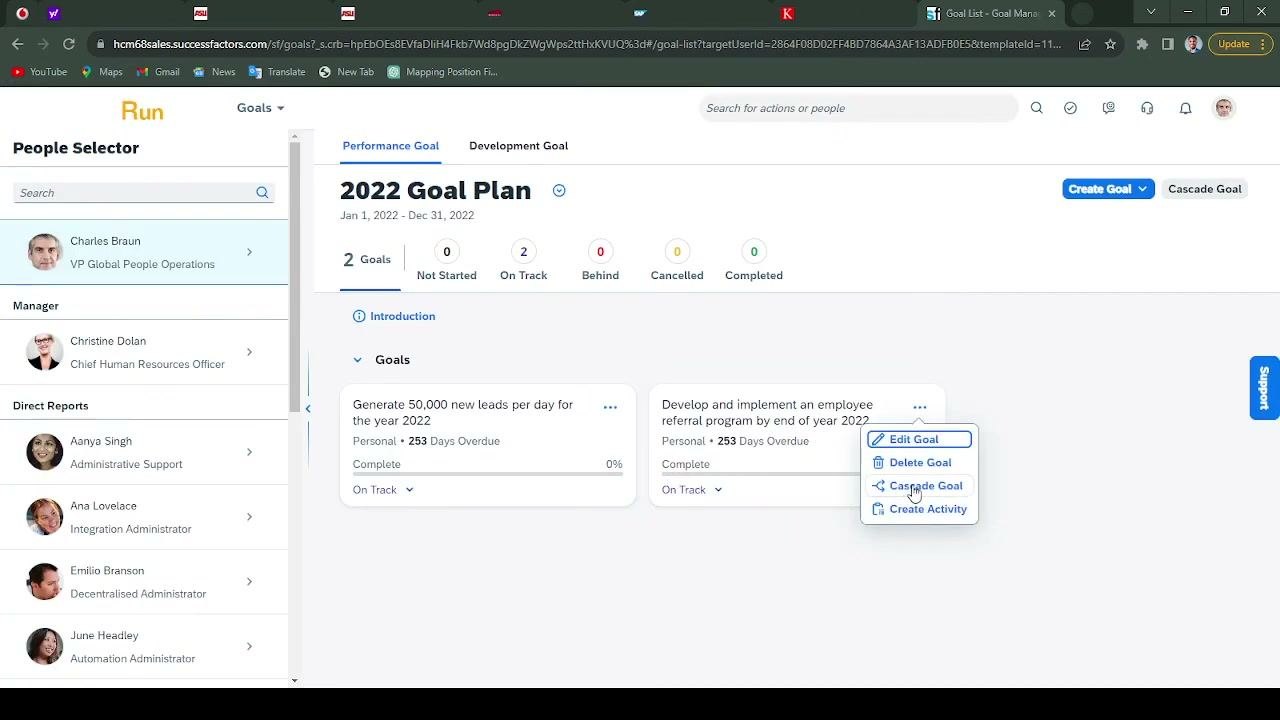
Select the three-dot menu next to "Develop and implement an employee referral program by end of year 2022." The menu shows Edit Goal, Delete Goal, Cascade Goal, and Create Activity.
Select Cascade Goal to assign this goal to others.
Cascade the goal to team members
In the Cascade Goal dialog, start with Step 1: Select Recipients. Under My Team, select the checkboxes for the people who should receive the goal, for example Aanya Singh and Ana Lovelace.
Confirm that the team members you selected are highlighted.
Switch between Performance and Development goals (optional)
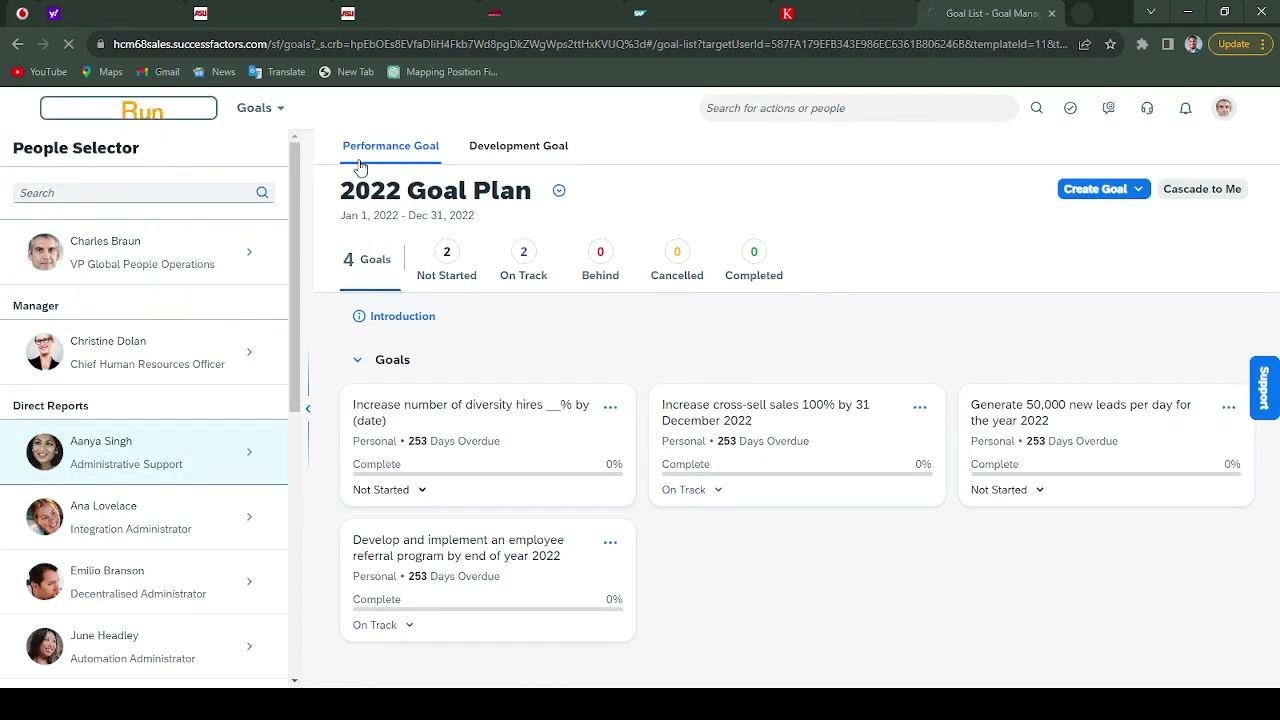
Use the Performance Goal and Development Goal tabs at the top of the goal plan screen to switch between goal types. The current view is Performance Goal.
Summary
You now know how to cascade goals in SuccessFactors. Open My Goals, select the right goal plan, and copy a goal from a previous plan if needed. Then open the goal's three-dot menu, select Cascade Goal, and choose recipients under My Team. You can also edit goals, update their status, and switch user context from the profile menu. These steps help you track and delegate objectives across your team.
Generation details: cost, quality tiers
Docsie billed 2,000 credits ($1.40) to analyze this 4-minute video at standard quality. The rewrite, template fill and Word/PDF exports were included. The same video at each quality tier:
| Quality | Frames sampled | Credits | Approx. cost |
|---|---|---|---|
| Draft | every 16-30 s | 1,000 | $0.70 |
| Standard (this guide) | every 8-15 s | 2,000 | $1.40 |
| Detailed | every 4-7 s | 4,000 | $2.80 |
| Ultra | every 1-3 s | 8,000 | $5.60 |
Credits priced at $0.70 per 1,000; plans include a monthly allowance. Enterprise customers on on-premise or bring-your-own-model deployments run this on their own inference and pay no per-video credits.
Generated by Docsie Video-to-Docs on 2026-11-15 from a 3-minute video. Screenshots are frames from the source video and belong to their creator, Justice Agbattey, whose original is embedded above. If you own this video and want the guide removed or credited differently, contact us and we will act within one business day.