
How to Set Up a Gradebook in Skyward
This guide shows you how to set up a gradebook in Skyward, from opening your classes to customizing how students and assignments appear, choosing grading periods, and configuring grading categories and weights. Most display settings apply to all your gradebooks, so you only need to configure them once. Grade period display and category setup work differently, as noted in the steps below.
Video: Setting Up Skyward Gradebook by Amarillo ISD Department of Digital Learning (2022). All credit for the demonstration goes to the creator; watch the original on YouTube. The written guide below was generated from this video by Docsie. Creator? Request a change or removal.
This guide shows you how to set up a gradebook in Skyward, from opening your classes to customizing how students and assignments appear, choosing grading periods, and configuring grading categories and weights. Most display settings apply to all your gradebooks, so you only need to configure them once. Grade period display and category setup work differently, as noted in the steps below.
Prerequisites
- A Skyward account that you can log in to
- Access to the Teacher Access section of the main menu
- Your current year classes listed in Skyward
Open your gradebook
Step 1: Log in to Skyward
Log in to your Skyward account.
Step 2: Open My Gradebook
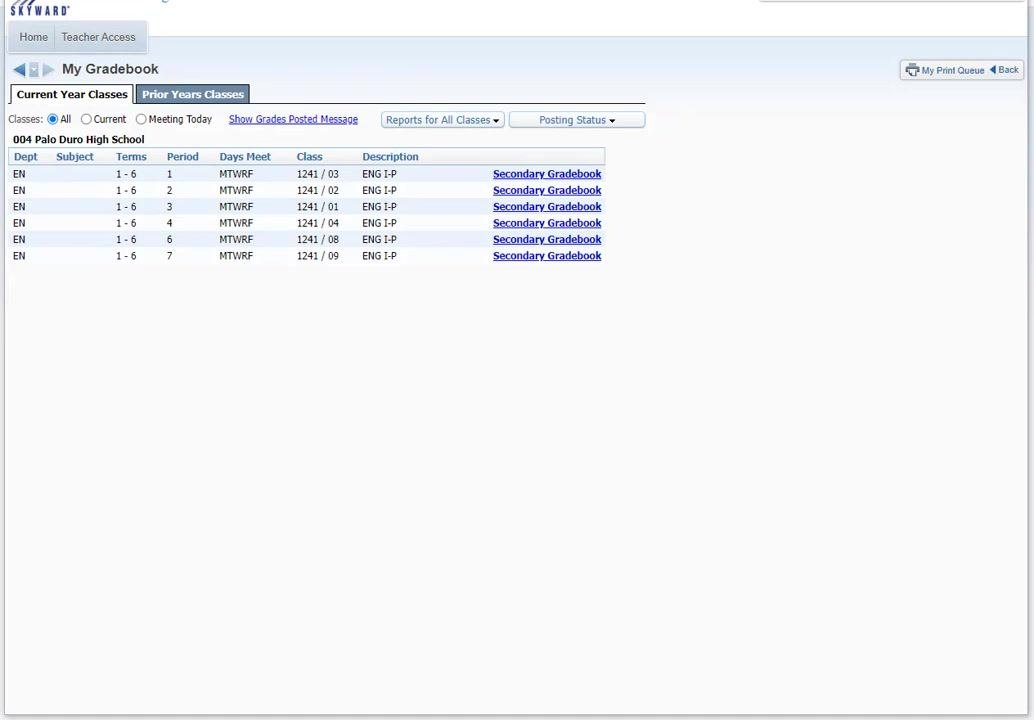
Go to the Teacher Access section from the main menu, then click My Gradebook to access your classes.
Make sure you are on the Current Year Classes tab and that all your current year classes are listed. The table shows columns for Dept, Subject, Terms, Period, Days Meet, Class, Description, and a gradebook link for each class.
Step 3: Confirm the Classes filter
Verify that the Classes filter is set to All so Skyward displays every class for the current year.
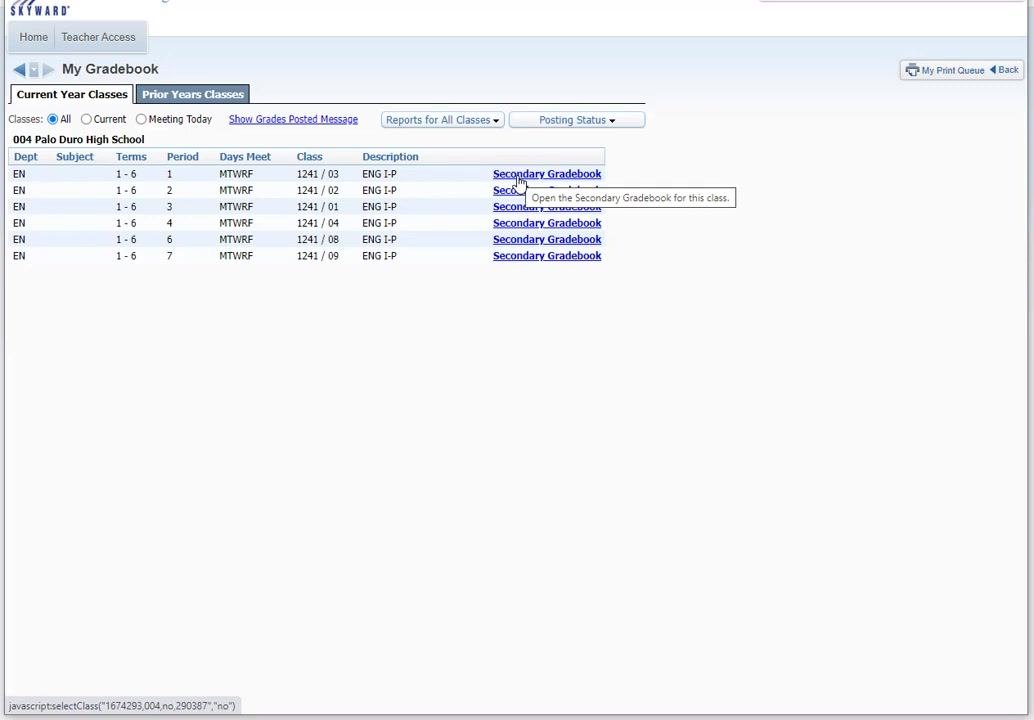
Step 4: Open the Secondary Gradebook
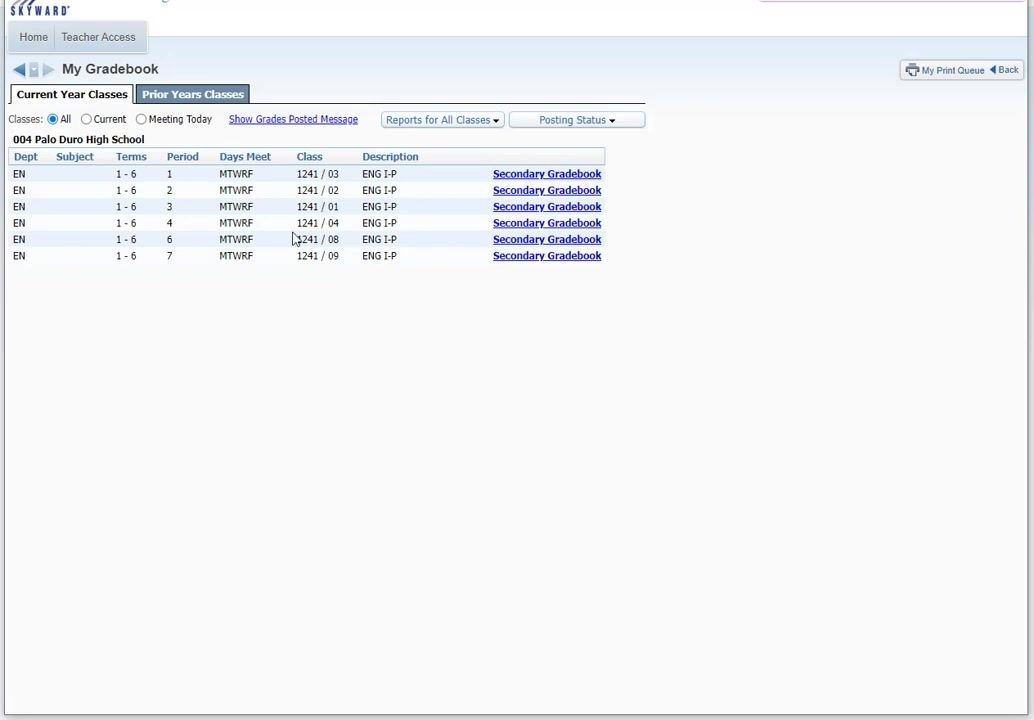
Click the Secondary Gradebook link for your first class.
The gradebook is labeled "Secondary Gradebook" whether you teach elementary or secondary classes.
Set up the student display
Step 5: Open Student Display
In the gradebook, find the tabs across the top of the screen and click Display Options. A dropdown menu appears with options such as Student Display, Assignment Display, Grade Period Display, Modify Gradesheet Sequence, Color Legend, and various tools.
Select Student Display.
Step 6: Choose the name display order
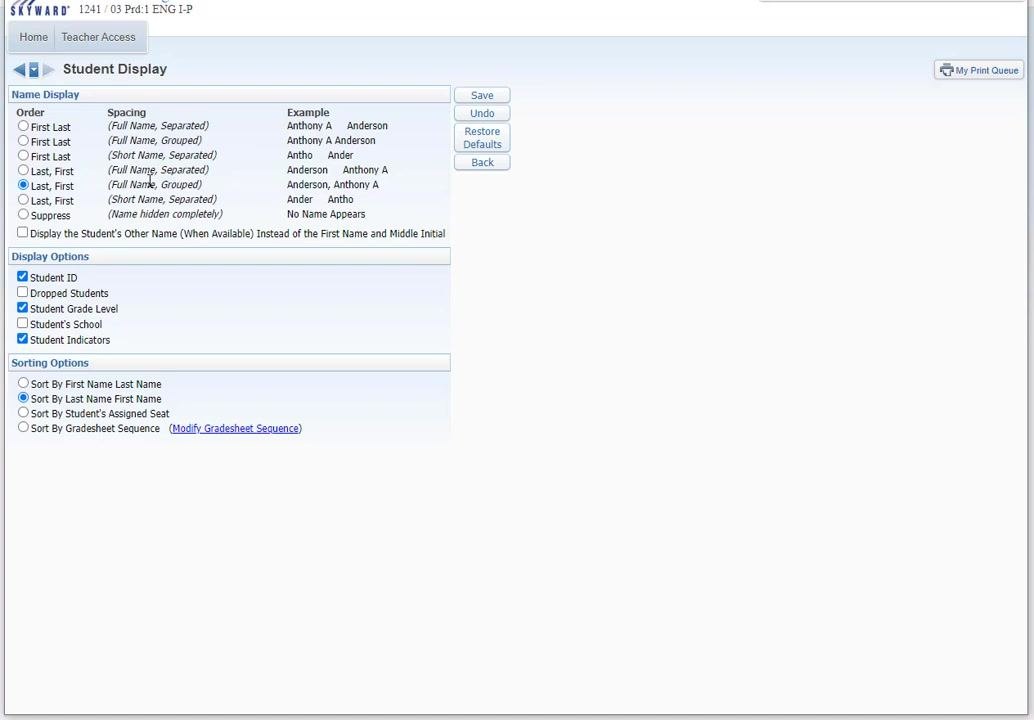
In the Student Display settings, choose the Name Display order for student names. The most common choice is Last, First (Full Name, Separated), which appears as "Anderson Anthony A".
Use the example column on the right to see how each option will look.
Step 7: Decide between grouped and separated names
Decide whether you want names grouped or separated. Grouped names display together, while separated names display apart.
Review the example on the right to confirm your selection matches your preference.
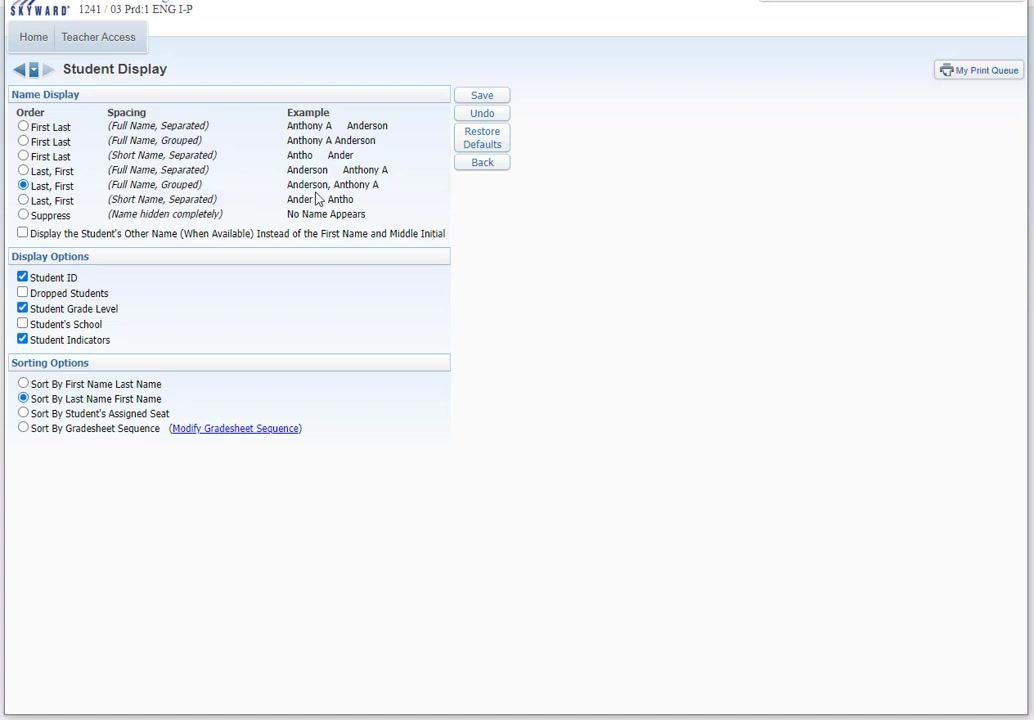
Step 8: Adjust additional display options
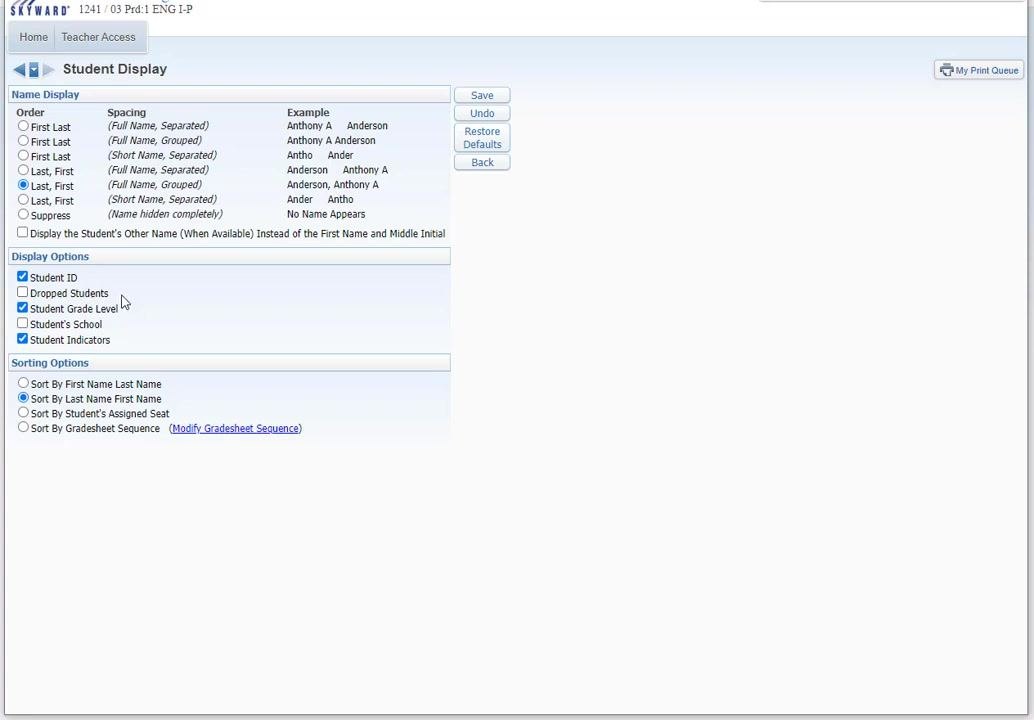
Check or uncheck the following boxes based on your preference:
- Student ID: Shows the student ID number next to the student's name.
- Dropped Students: Shows students who have dropped the class, which is useful for looking up past grades.
- Student Grade Level: Displays each student's grade level.
- Student's School: Shows the school each student is enrolled in.
- Student Indicators: Displays any indicators associated with the student.
Step 9: Choose sorting options and save
Choose how you want students sorted:
- Sort by First Name Last Name
- Sort by Last Name First Name
- Sort by Student's Assigned Seat
- Sort by Gradesheet Sequence (with an option to modify the sequence)
Click Save to apply your display and sorting preferences.
Set up the assignment display
Step 10: Open Assignment Display
From the gradebook, open the Display Options menu and select Assignment Display.
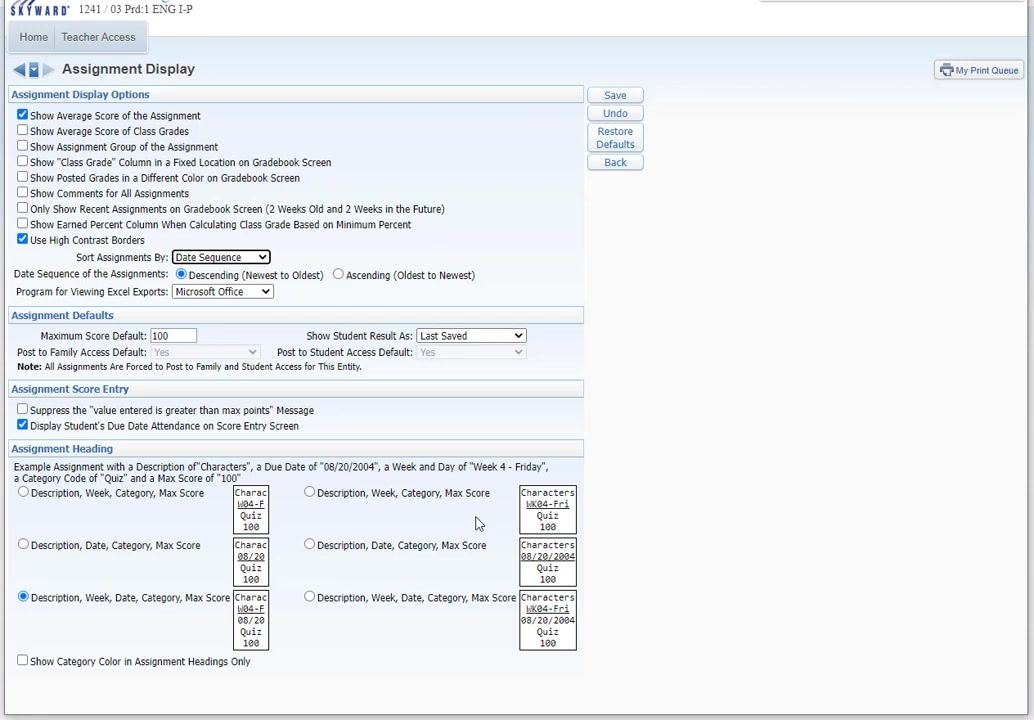
Step 11: Configure assignment display options
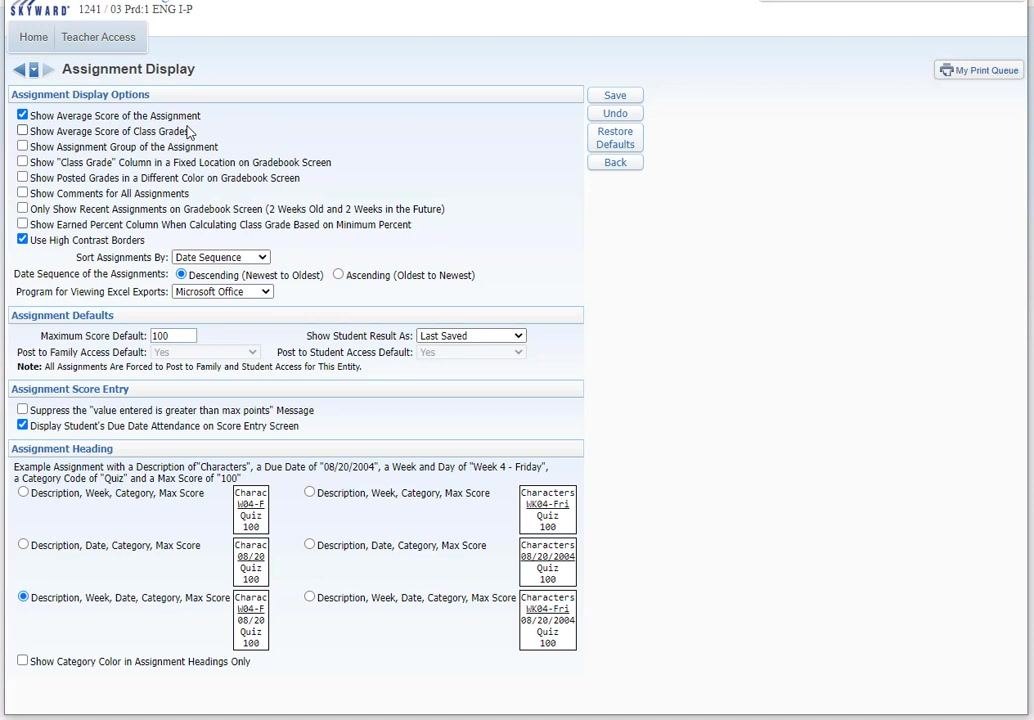
At the top of the Assignment Display screen, review the available checkboxes. Most teachers select Show Average Score of the Assignment to display the average score for each assignment.
You can also choose any of these options:
- Show average score of class grades.
- Show assignment group of the assignment.
- Show "Class Grade" column in a fixed location on the gradebook screen.
- Show posted grades in a different color.
- Show comments for all assignments.
- Only show recent assignments (2 weeks old and 2 weeks in the future).
- Show earned percent column when calculating class grade based on minimum percent.
Decide whether to enable Use High Contrast Borders for clearer separation between assignments. This setting is optional and is for visual clarity.
Step 12: Set assignment sorting preferences
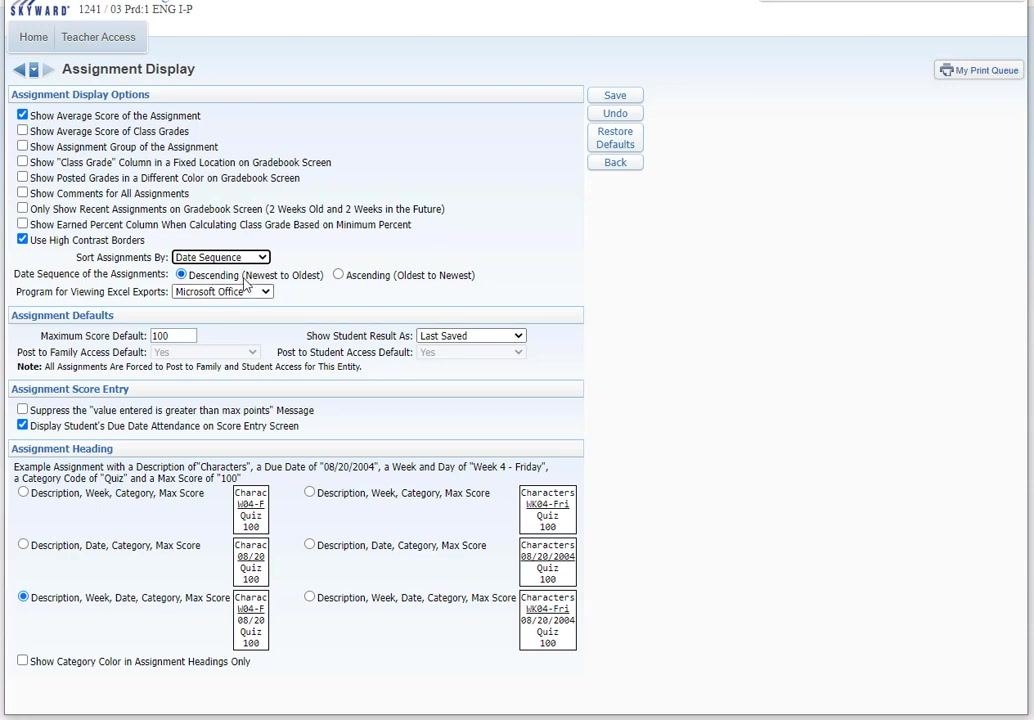
Set your sorting preferences:
- In the "Sort Assignments By" dropdown, select Date Sequence, which is the most common choice.
- For "Date Sequence of the Assignments," choose Descending (Newest to Oldest) to show the newest assignments on the left. Choose Ascending (Oldest to Newest) if you prefer to see older assignments first.
- Under "Program for Viewing Excel Exports," leave the default, Microsoft Office, unless you have a specific need to change it.
Step 13: Adjust assignment defaults
If needed, adjust the Assignment Defaults:
- Set the Maximum Score Default. The default is 100.
- Choose how to display student results. The default is Last Saved.
- Leave "Post to Family Access Default" and "Post to Student Access Default" set to Yes unless your school policy requires otherwise.
Step 14: Configure assignment score entry
Configure the Assignment Score Entry options:
- Check "Suppress the 'value entered is greater than max points' Message" if you do not want to see this warning.
- Decide whether to display the student's due date attendance on the score entry screen.
Step 15: Set assignment heading preferences
Under Assignment Heading, choose how assignment headings appear. The most common selection is Description, Week, Date, Category, Max Score.
Check "Show Category Color in Assignment Headings Only" if you want category colors to appear only in headings.
Step 16: Save your assignment display settings
Click Save to apply all assignment display and sorting preferences.
Changes you make in Assignment Display or Student Display apply automatically to all of your gradebooks. You do not need to update each gradebook individually.
Choose which grade periods display
Step 17: Open Grade Period Display
From the main gradebook screen, open the Display Options menu and select Grade Period Display.
Step 18: Configure grade period display
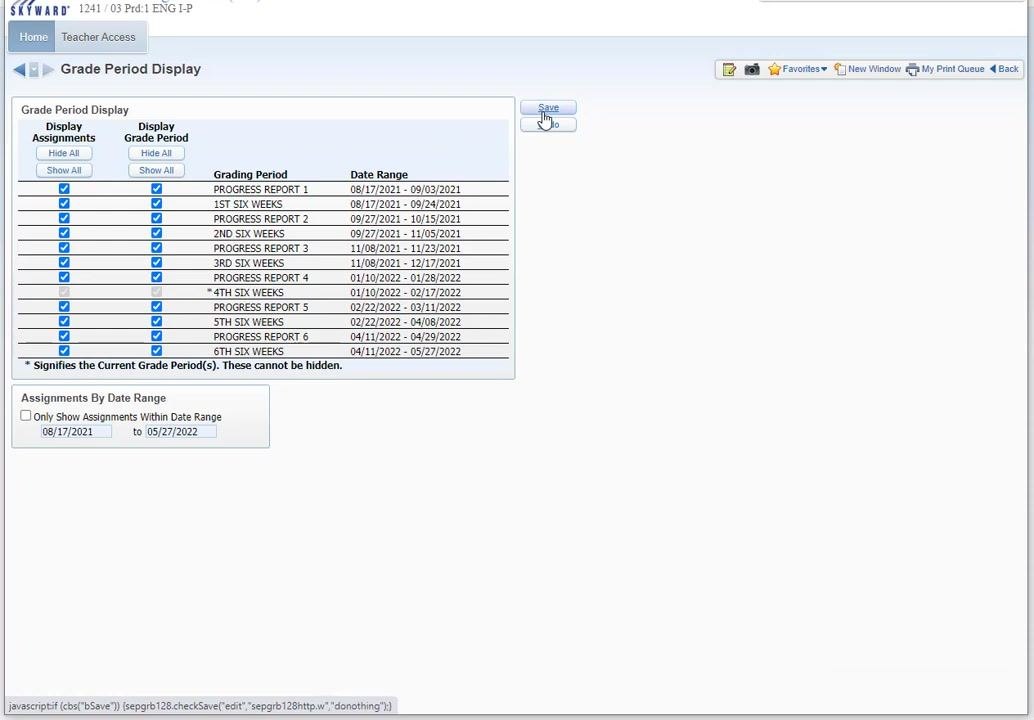
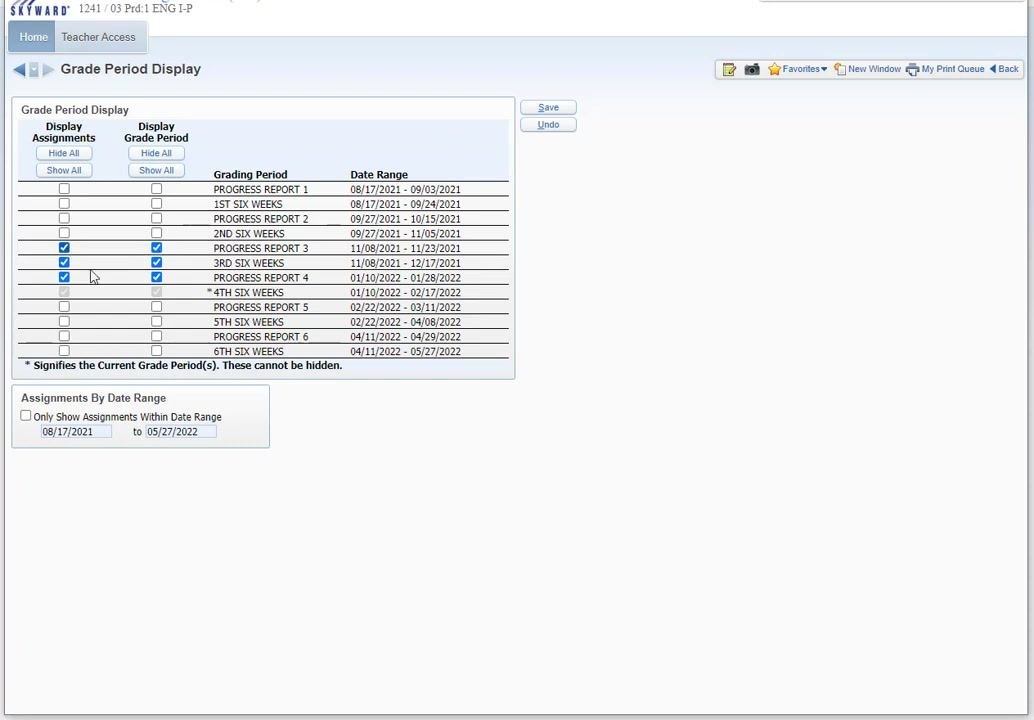
The Grade Period Display screen lists the grading periods and their date ranges. By default, all grading periods are selected, which shows assignments for the entire school year.
Customize the display with these options:
- Click Hide All under both "Display Assignments" and "Display Grade Period" to hide all periods.
- Click Show All to show all periods.
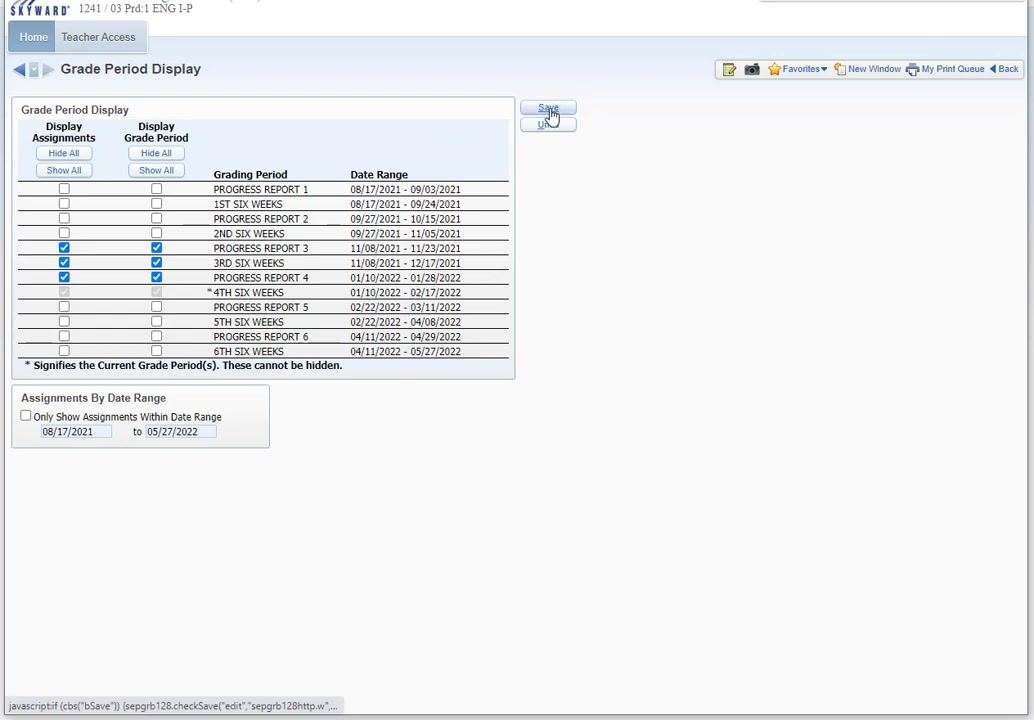
- Check or uncheck specific grading periods to choose which ones display.
- Under Assignments By Date Range, check Only Show Assignments Within Date Range and enter a date range, such as
08/17/2021to05/27/2022.
The current grading periods are marked with an asterisk () and cannot be hidden. Click Save* to apply your preferences.
Step 19: Repeat for each gradebook
Grade period display settings are unique to each gradebook. You must update them manually for each class or gradebook you manage.
Set up grading categories
Step 20: Open Category Maintenance
From the main screen, hover over or click Categories in the top navigation bar to access category options.
Step 21: Review your categories and score method
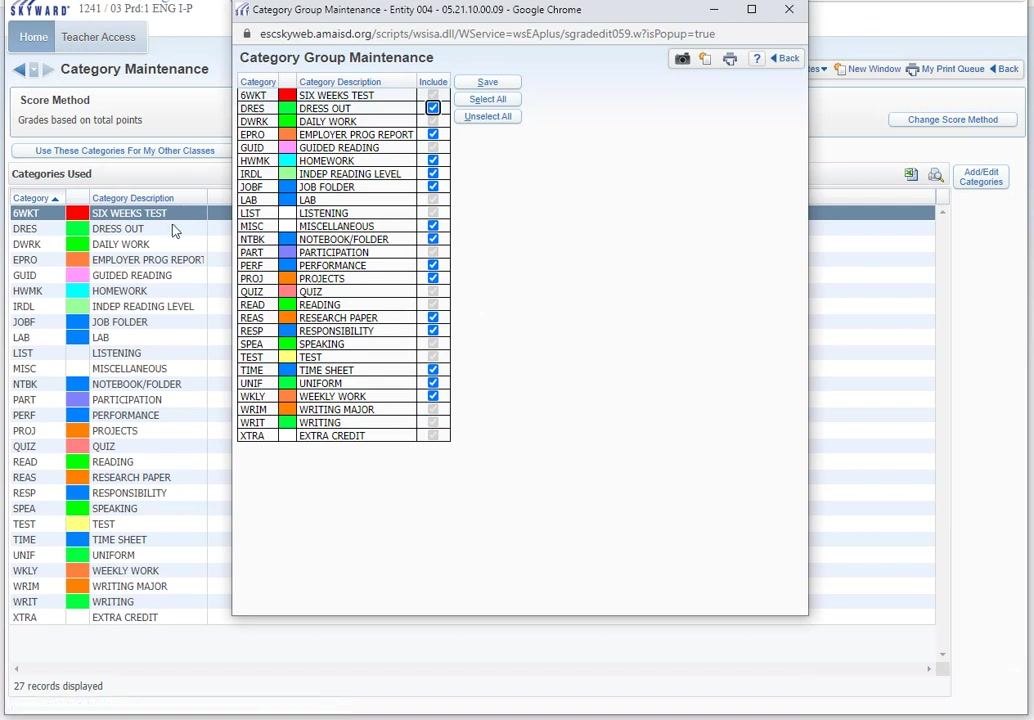
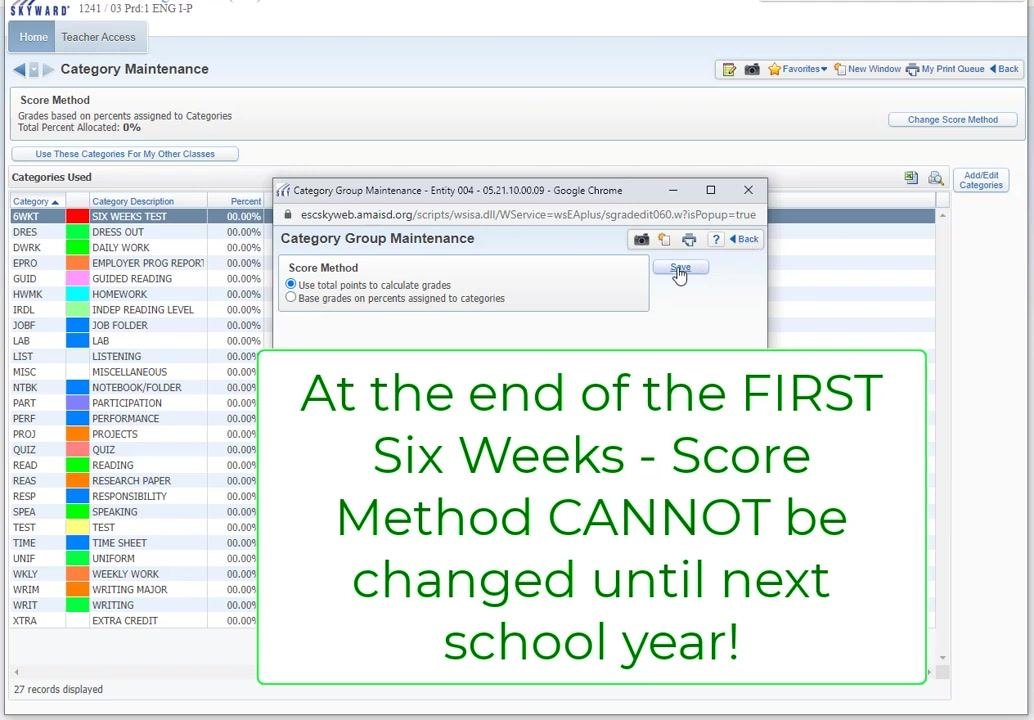
In the Category Maintenance window, review the list of categories used in your gradebook. Examples include "6WKT (SIX WEEKS TEST)", "DRES (DRESS OUT)", "DWRK (DAILY WORK)", and "EPRO (EMPLOYER PROG REPORT)". Each category is color-coded for easy identification.
The "Score Method" section lets you choose how grades are calculated:
- Use total points to calculate grades (default)
- Base grades on percents assigned to categories
Step 22: Know when the score method locks
At the end of the first six weeks of the school year, you cannot change the Score Method until the next school year. This restriction applies to all classes and keeps grading consistent for the rest of the year.
The Category Maintenance screen displays this reminder: "At the end of the FIRST Six Weeks - Score Method CANNOT be changed until next school year!"
After the first six weeks, all grading must continue with the selected score method. Complete any changes to your grading method before the end of the first six weeks.
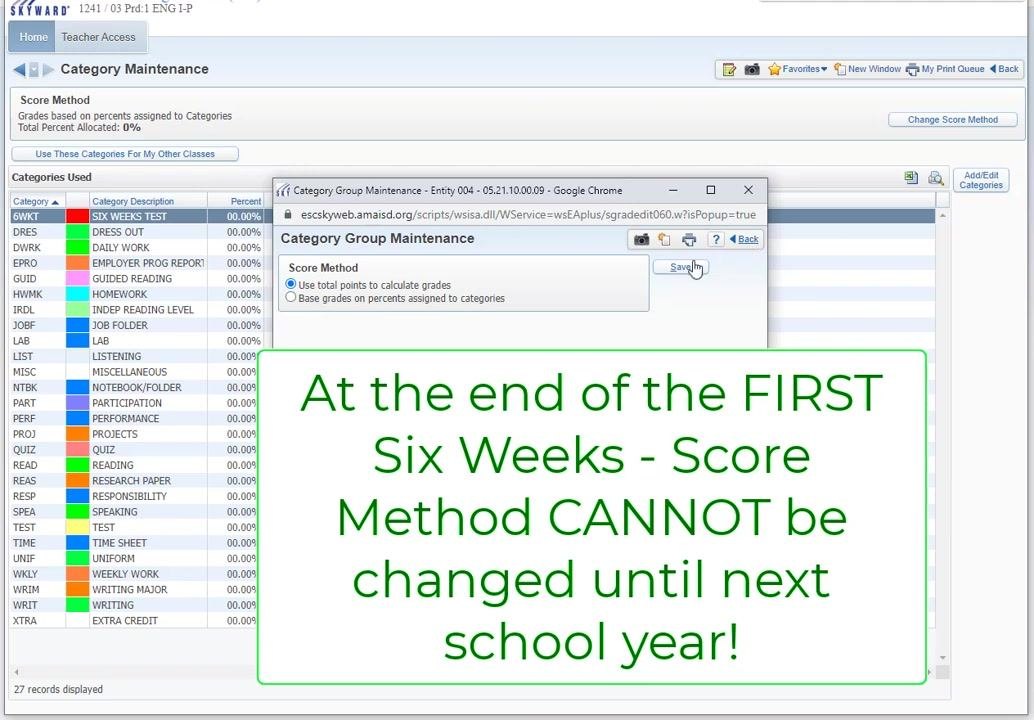
Step 23: Change the score method
Select either "Use total points to calculate grades" or "Base grades on percents assigned to categories". Then click Save to apply your selection.
Step 24: Include or exclude categories
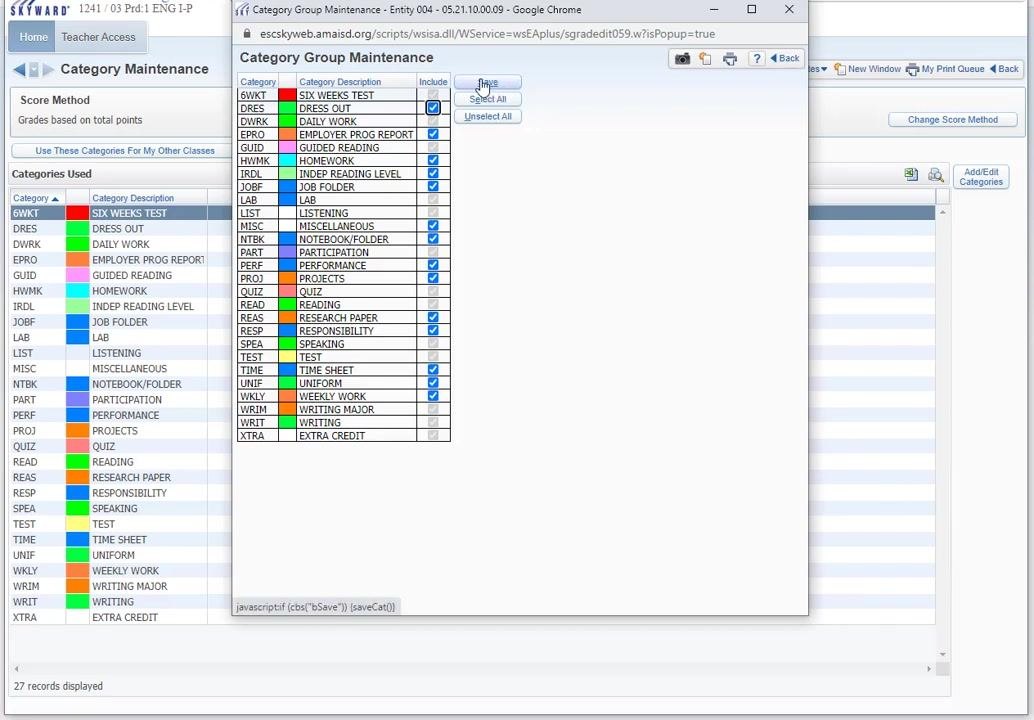
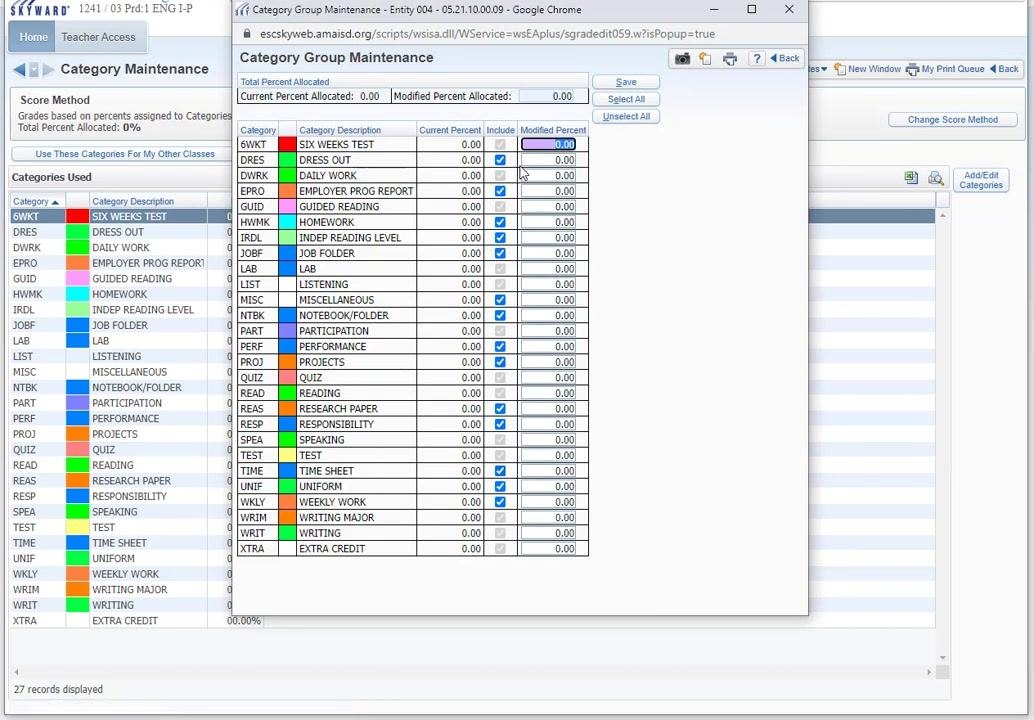
In the Category Group Maintenance popup, check or uncheck the "Include" box next to each category as needed. Use "Select All" or "Unselect All" for bulk actions.
Step 25: Save your category selections
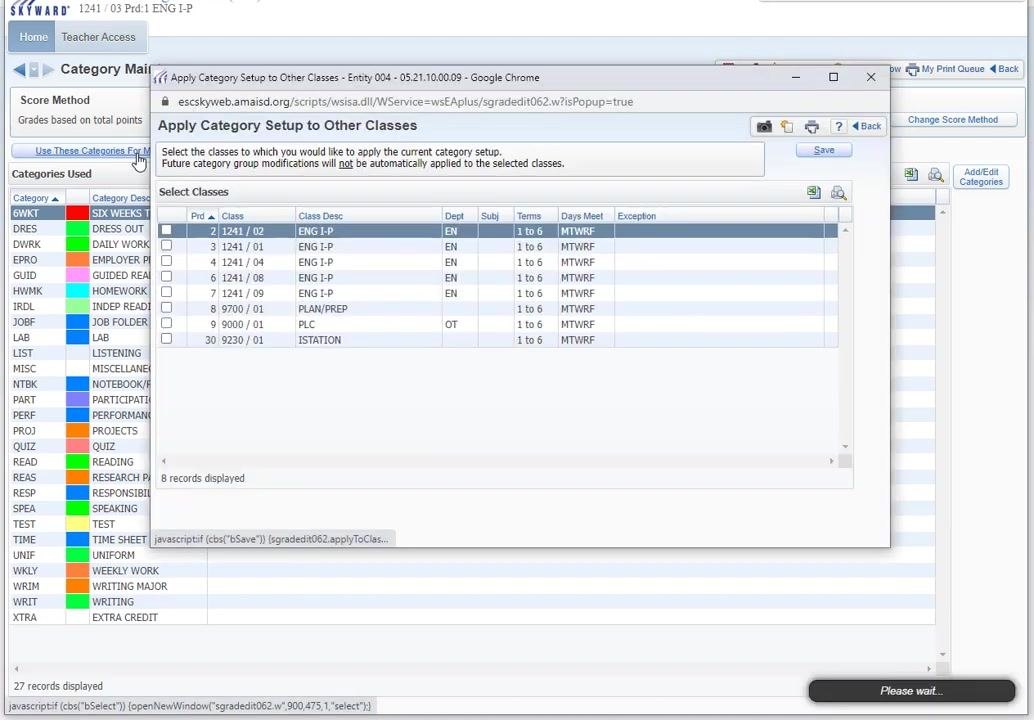
Click Save to confirm your choices. You can also use these categories for other classes by clicking "Use These Categories for My Other Classes" and selecting the classes you want.
Step 26: Apply your categories to other classes
Click Use These Categories For My Other Classes to open the "Apply Category Setup to Other Classes" popup window. The popup lists all your classes, with columns for period, class number, class description, department, subject, terms, days met, and exceptions.
Select the checkboxes next to the classes you want to apply the current category setup to, then click Save.
Step 27: Go back without saving
To return to the previous screen without saving, click Back in the popup window. The popup closes and you return to the Category Maintenance screen.
Set up weighted categories
Step 28: Assign weights to categories
The Category Group Maintenance window displays a table of all categories. Each row shows the category code, description, current percent, inclusion checkbox, and a field for the modified percent.
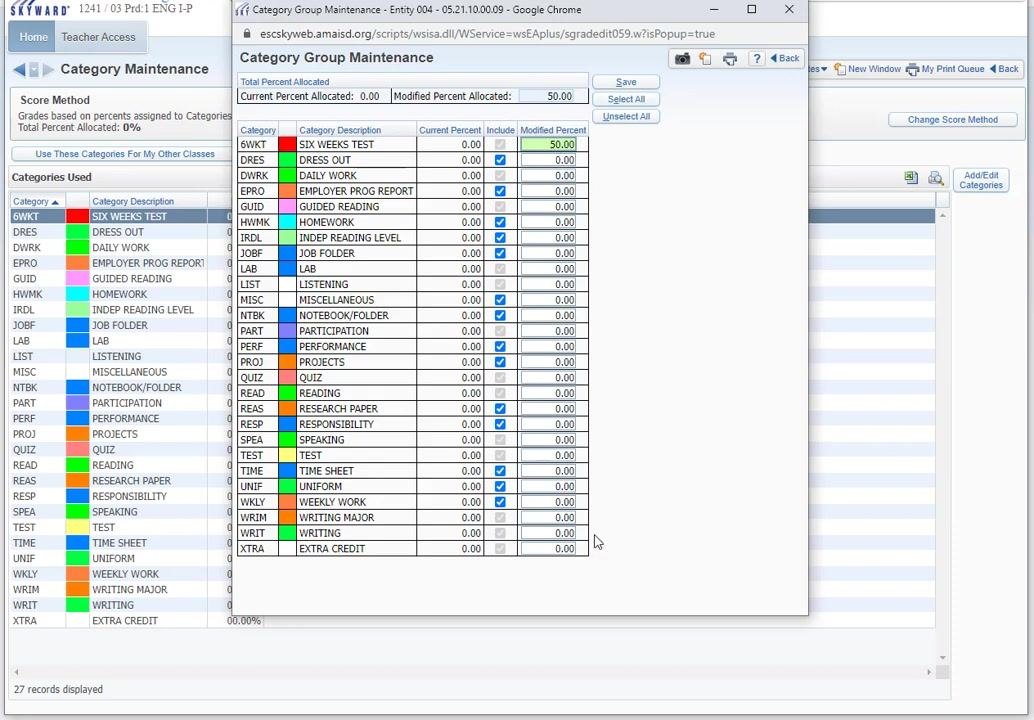
The top of the window displays "Total Percent Allocated," "Current Percent Allocated," and "Modified Percent Allocated." By default, all included categories have 0.00% allocated.
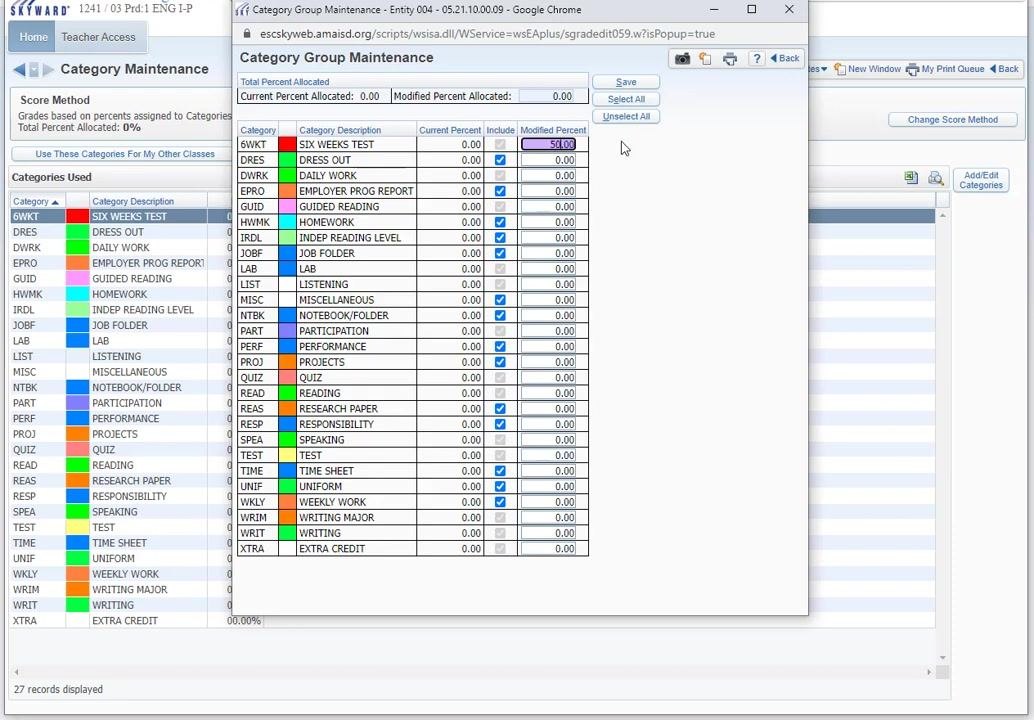
To assign weights, check the Include box for each category you want to use. Then enter the percentage in the Modified Percent field for each included category. For example, enter 50.00 for "SIX WEEKS TEST" to make it 50% of the grade.
Step 29: Make a category 100% of the grade
To make one category the entire grade, enter 100.00 in its Modified Percent field, such as "SIX WEEKS TEST". Make sure all other included categories are set to 0.00% or are unchecked.
Step 30: Review your allocations
Confirm that the Modified Percent Allocated at the top of the window matches your intended total, such as 100.00. If you need assistance, consult your digital learning specialist or administrator.
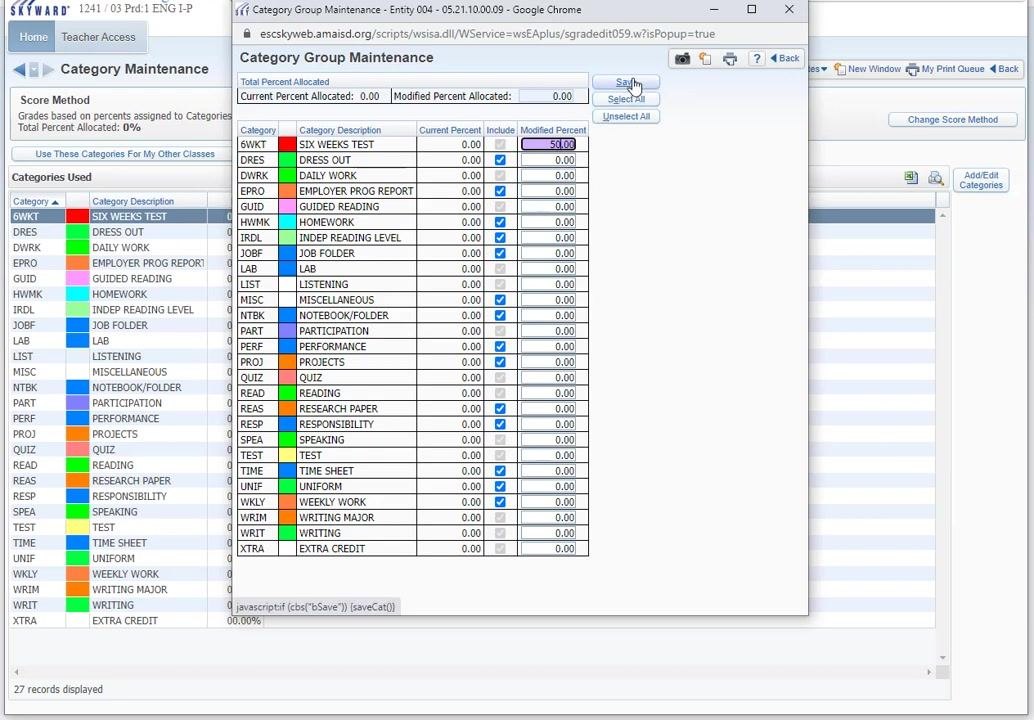
Step 31: Save your weights
Click Save to apply your changes. If the total percent allocated does not equal 100%, the system notifies you. Adjust the percentages until the total equals 100%.
Step 32: Finish your session
When you finish your category and score method setup, exit the Category Maintenance screen. The system may display a "Please wait..." message while it processes your changes.
Summary
You now know how to set up a gradebook in Skyward. You configured student and assignment display settings that apply to all your gradebooks, chose which grade periods display in each gradebook, and set up grading categories, the score method, and category weights. Remember that the score method locks after the first six weeks, so finalize it before then.
What's next
- Repeat the Grade Period Display steps for each additional class or gradebook you manage.
- Use Use These Categories For My Other Classes to apply your category setup to your other classes.
- Continue to entering and managing assignments in your gradebook.
Generation details: cost, quality tiers
Docsie billed 5,000 credits ($3.50) to analyze this 10-minute video at standard quality. The rewrite, template fill and Word/PDF exports were included. The same video at each quality tier:
| Quality | Frames sampled | Credits | Approx. cost |
|---|---|---|---|
| Draft | every 16-30 s | 2,500 | $1.75 |
| Standard (this guide) | every 8-15 s | 5,000 | $3.50 |
| Detailed | every 4-7 s | 10,000 | $7.00 |
| Ultra | every 1-3 s | 20,000 | $14.00 |
Credits priced at $0.70 per 1,000; plans include a monthly allowance. Enterprise customers on on-premise or bring-your-own-model deployments run this on their own inference and pay no per-video credits.
Generated by Docsie Video-to-Docs on 2026-11-01 from a 9-minute video. Screenshots are frames from the source video and belong to their creator, Amarillo ISD Department of Digital Learning, whose original is embedded above. If you own this video and want the guide removed or credited differently, contact us and we will act within one business day.