
How to Print a Class Roster in Skyward
You can generate, preview, and print a class roster from Skyward Educator Access Plus. This guide shows you how to print a class roster in Skyward for one class or all your classes. It also shows how to export the roster to Excel instead.
Video: Skyward: Printing a Class Roster by Camas School District- Educational Technology (2016). All credit for the demonstration goes to the creator; watch the original on YouTube. The written guide below was generated from this video by Docsie. Creator? Request a change or removal.
You can generate, preview, and print a class roster from Skyward Educator Access Plus. This guide shows you how to print a class roster in Skyward for one class or all your classes. It also shows how to export the roster to Excel instead.
Prerequisites
Before you begin, make sure you have:
- A login for Skyward Educator Access Plus
- Access to the Teacher Access tab and My Gradebook
- At least one class in your gradebook
Steps
Log in to Skyward Educator Access Plus
Log in and confirm that you are on the Educator Access Plus Home screen. You should see your district information and your print queue.
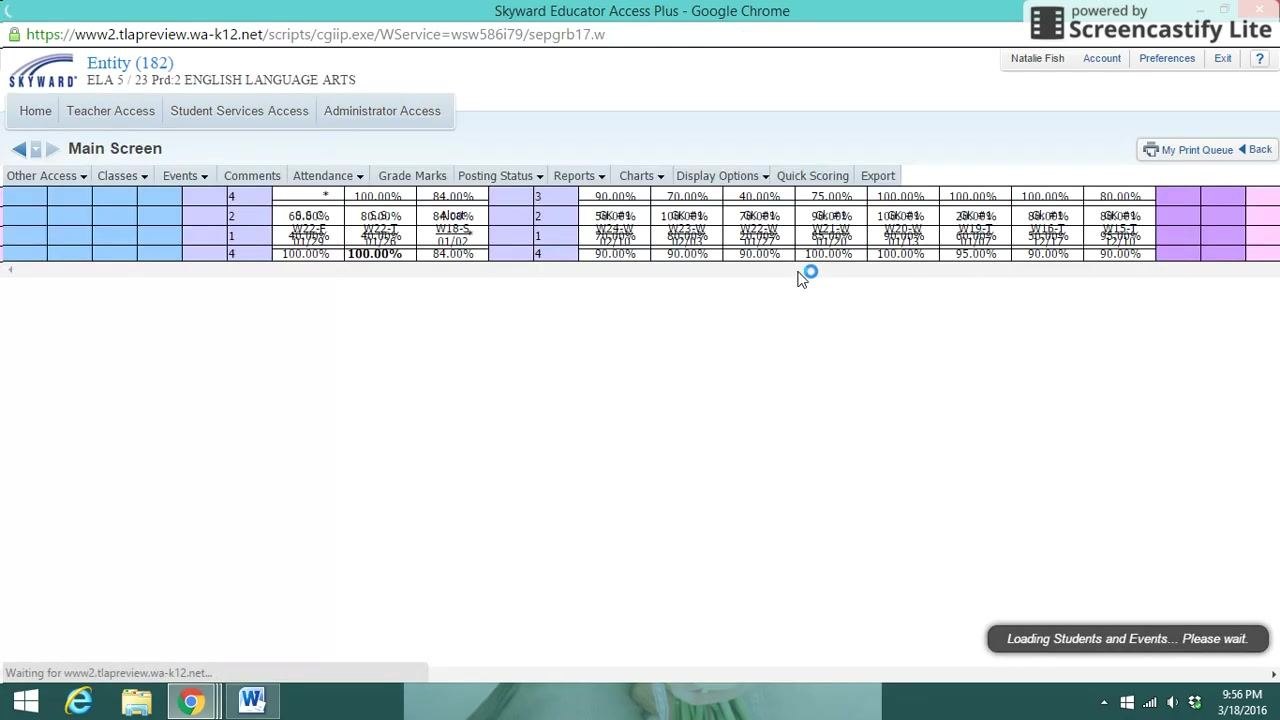
Go to your gradebook
Click the Teacher Access tab at the top of the screen. Then select My Gradebook from the dropdown menu.
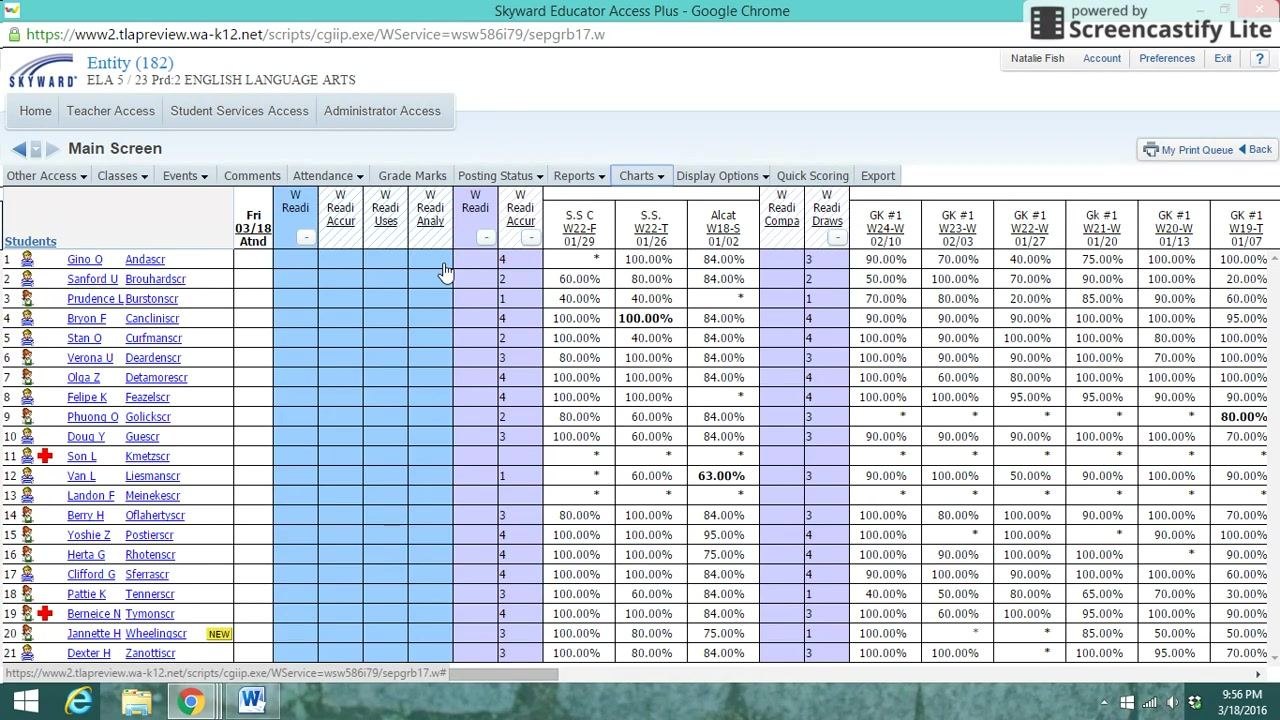
Select the class
In your gradebook, find the class you want to print a roster for and select it. If you are prompted, choose the Standards Gradebook for that class.
Open the Reports tab
Inside the gradebook, find the row of tabs along the top of the screen. Click Reports.
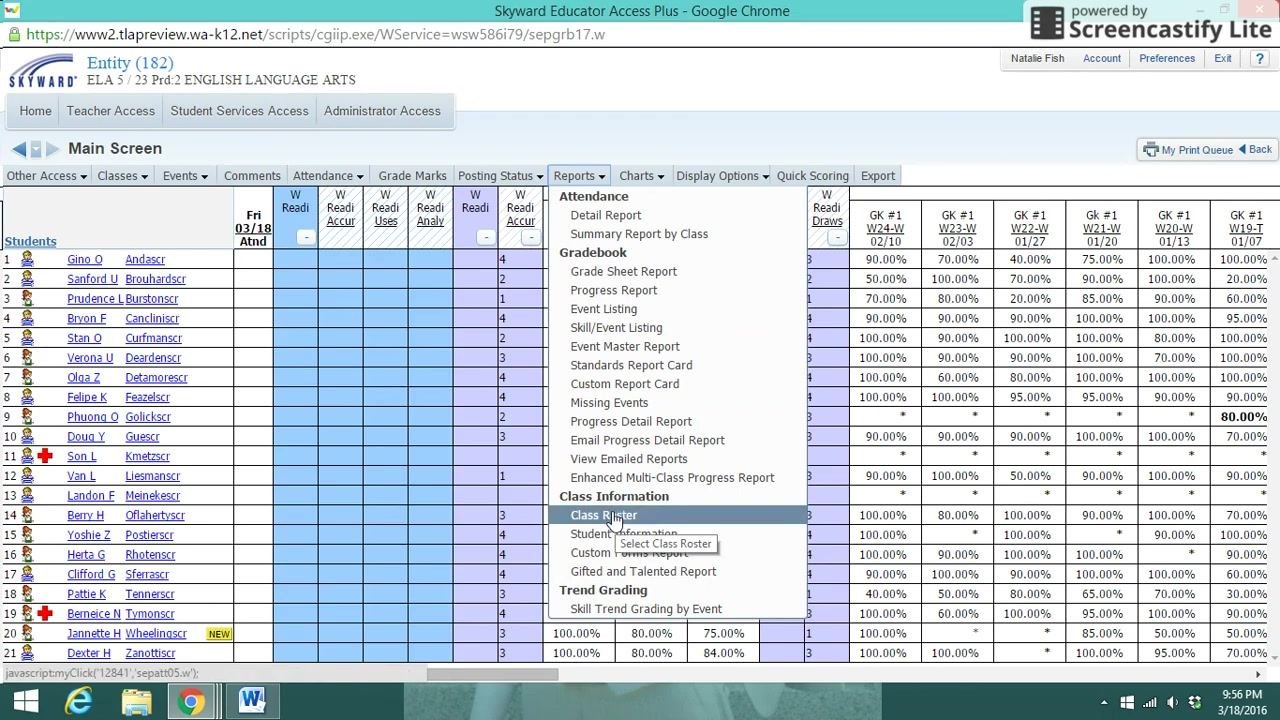
Open the Class Roster report
In the Reports dropdown menu, scroll down to the Class Information section. Click Class Roster.
Choose a report template and an output option
In the Report Templates window, select the template you prefer, such as Student Name & Student Info. Then choose how you want to output the roster:
- Click Export to Excel to save the roster as a spreadsheet. This saves you from typing in all the names manually.
- Click Print to print the roster directly.
To print the roster, click Print.
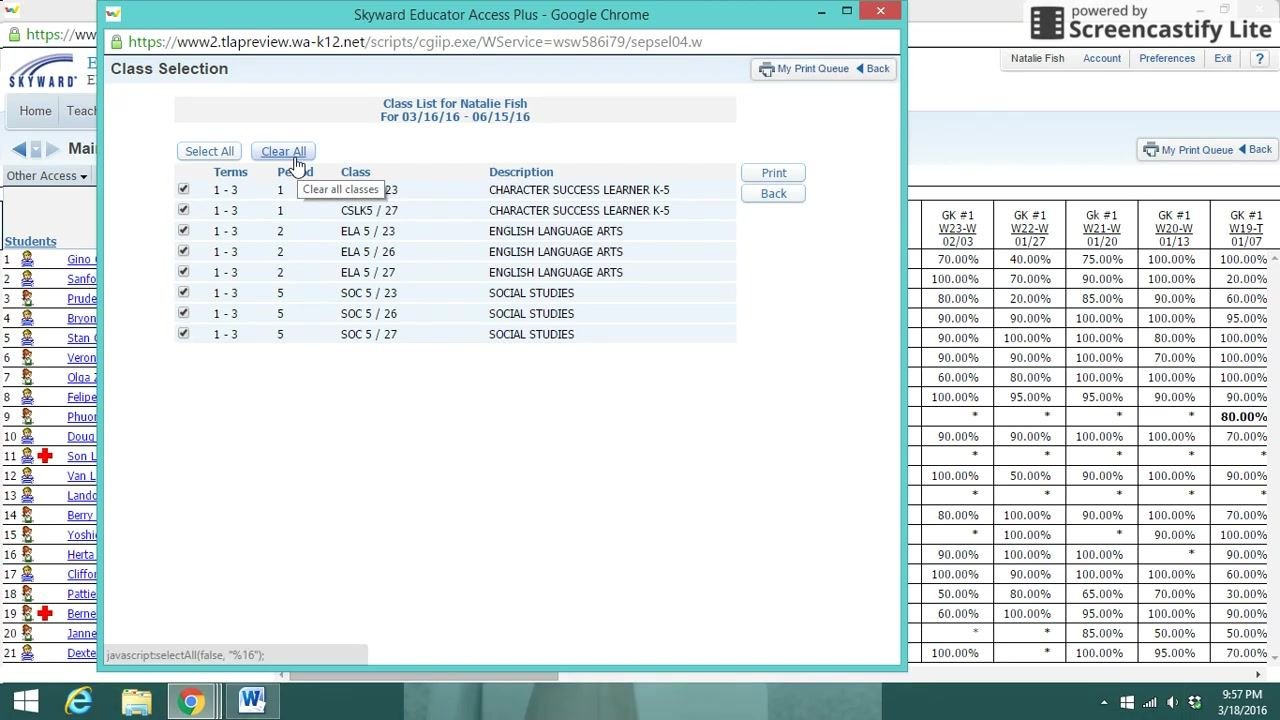
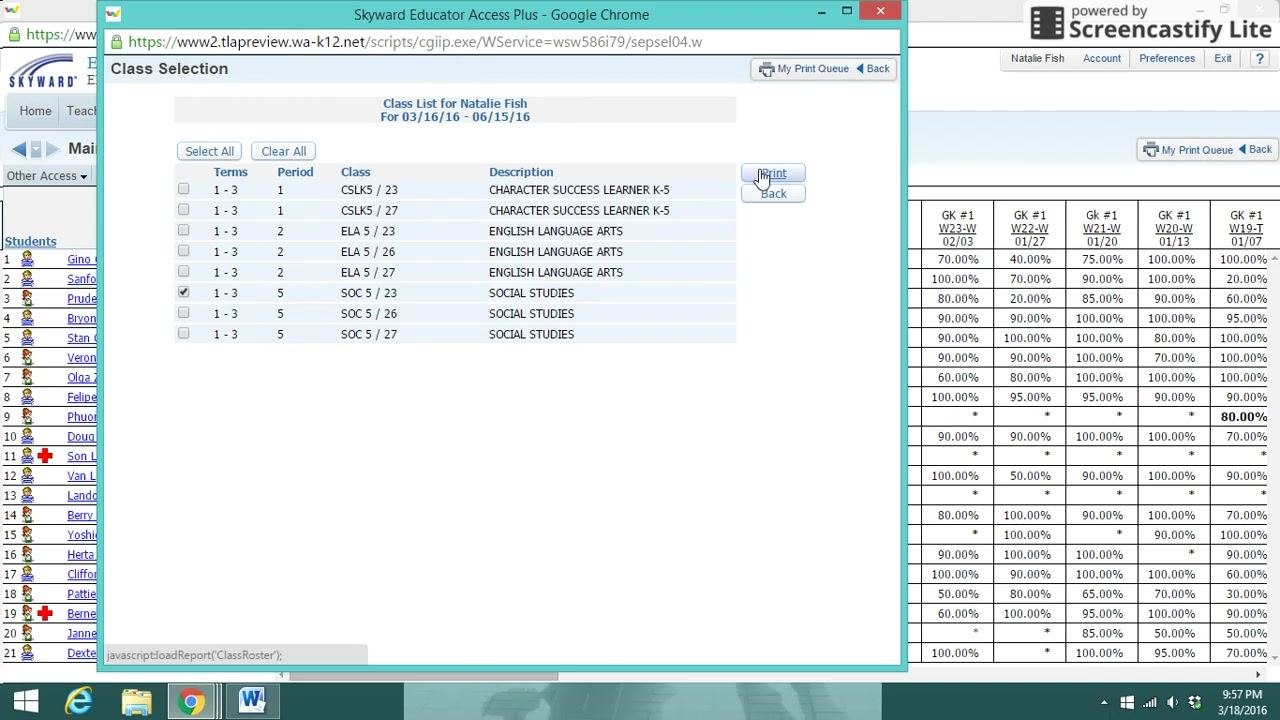
Select the classes to include
Choose which classes appear in the roster:
- To print rosters for all your classes, make sure all the boxes are checked.
- To print a roster for one class, click Clear All. Then check only the box for the class you want.
Send the roster to the print queue
After you select your classes, click Print. Skyward adds your print job to the print queue, where you can also see other items you have printed.
Wait for the report to finish processing
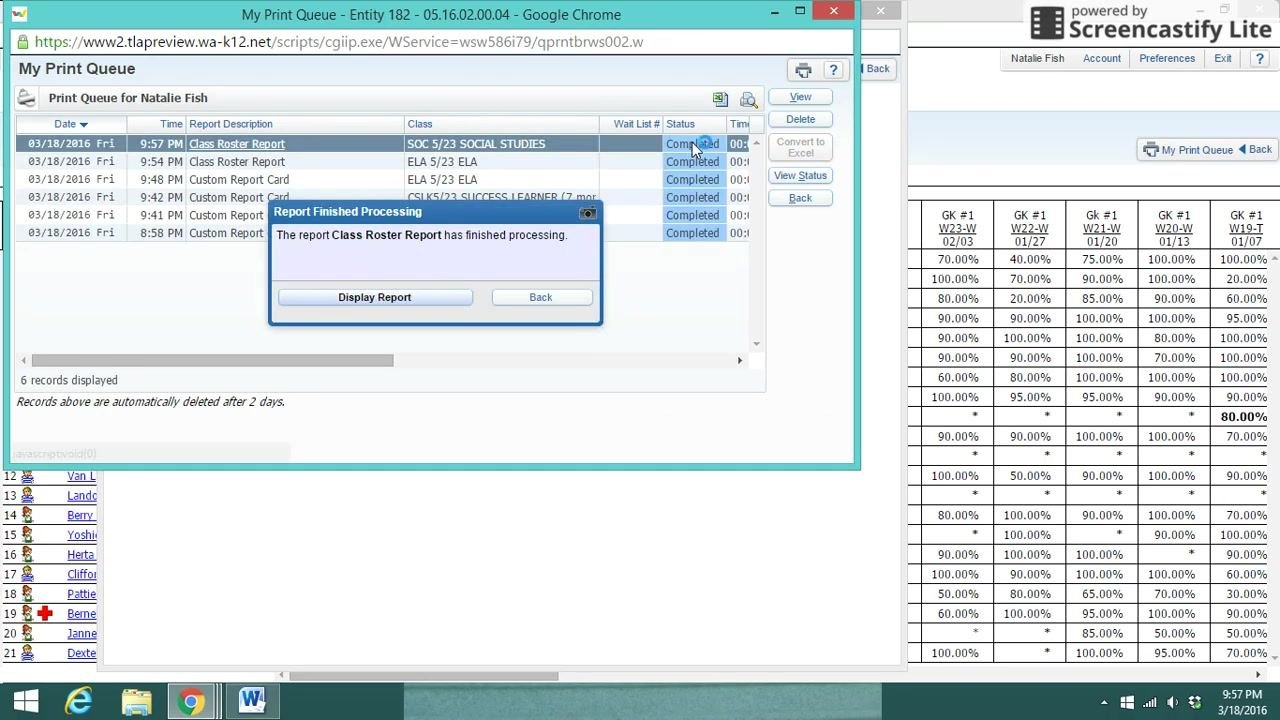
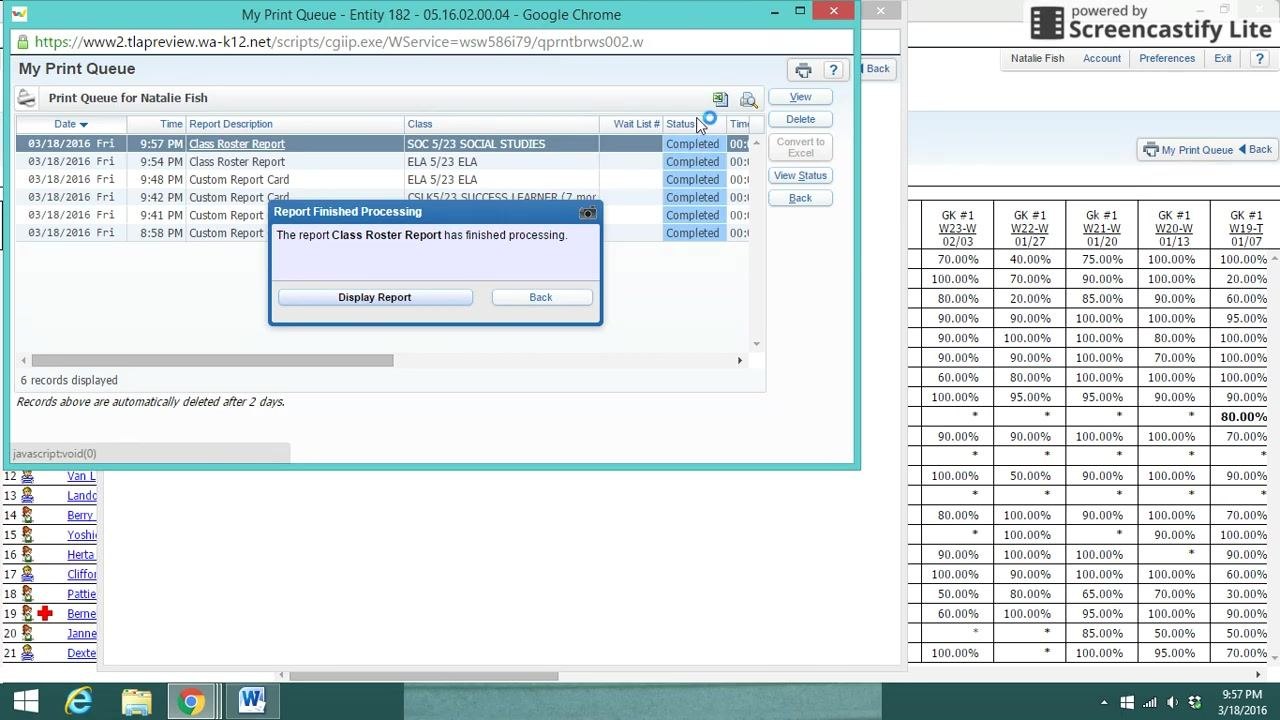
Watch the Status column in your print queue. The status shows Running while Skyward generates the report. When processing finishes, the status changes to Completed and the row turns blue.
A Report Finished Processing dialog box also appears. It states that the report Class Roster Report has finished processing.
Display the completed report
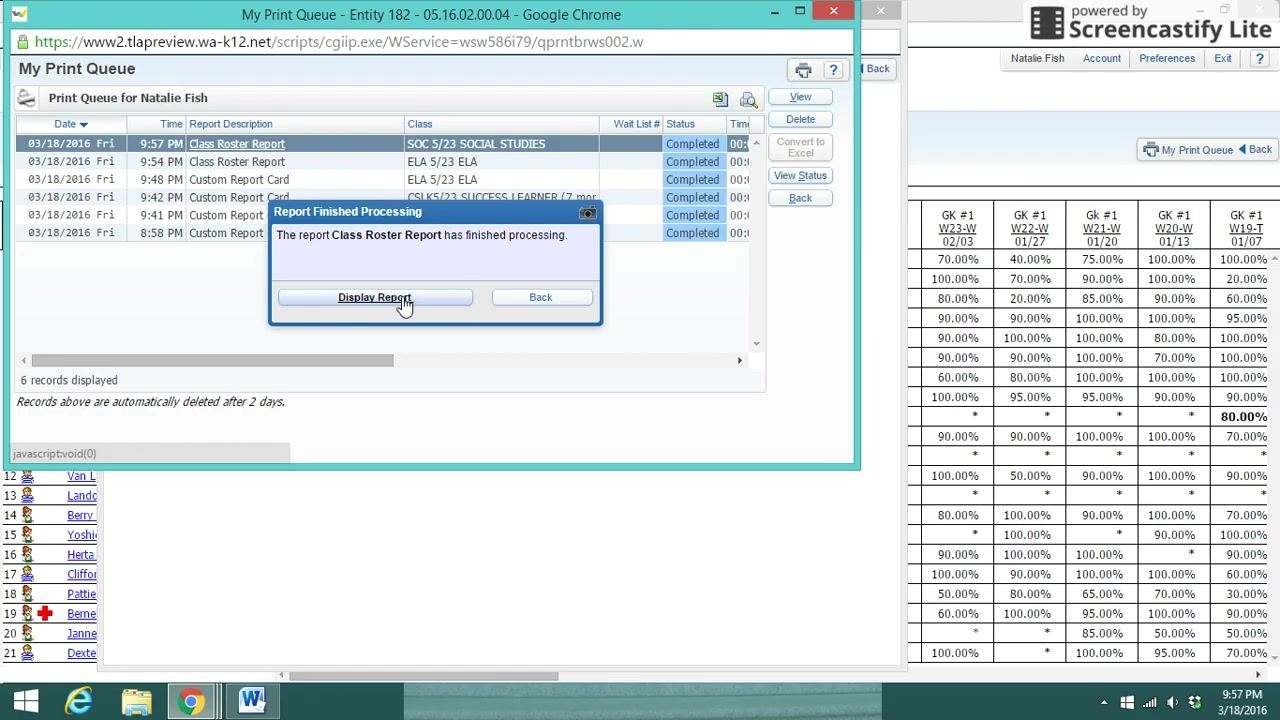
In the Report Finished Processing dialog box, click Display Report. A print preview of your class roster opens in a new window or tab.
Review and print your class roster
In the print preview, check that all the student information is correct. The report shows these details:
- Teacher name
- Course and section
- School year, period, and room number
- Student names, grades, birth dates, phone numbers, gender, email addresses, and graduation year
- Total number of students, with a breakdown by gender
When everything looks right, use the print icon or your browser's print function to print the roster.
Summary
You can now print a class roster in Skyward for a single class or for all your classes. Open the Class Roster report from the Reports tab in your gradebook. Choose a template, select your classes, and click Print. When the report finishes processing, click Display Report to preview and print it. You can also use Export to Excel to save the roster as a spreadsheet.
Generation details: cost, quality tiers
Docsie billed 1,500 credits ($1.05) to analyze this 3-minute video at standard quality. The rewrite, template fill and Word/PDF exports were included. The same video at each quality tier:
| Quality | Frames sampled | Credits | Approx. cost |
|---|---|---|---|
| Draft | every 16-30 s | 750 | $0.52 |
| Standard (this guide) | every 8-15 s | 1,500 | $1.05 |
| Detailed | every 4-7 s | 3,000 | $2.10 |
| Ultra | every 1-3 s | 6,000 | $4.20 |
Credits priced at $0.70 per 1,000; plans include a monthly allowance. Enterprise customers on on-premise or bring-your-own-model deployments run this on their own inference and pay no per-video credits.
Generated by Docsie Video-to-Docs on 2026-11-01 from a 2-minute video. Screenshots are frames from the source video and belong to their creator, Camas School District- Educational Technology, whose original is embedded above. If you own this video and want the guide removed or credited differently, contact us and we will act within one business day.