
How to Create a Generic Inquiry in Acumatica
Generic Inquiries (GIs) let you build custom reports by pulling data directly from Acumatica's underlying tables. This guide walks you through how to create a generic inquiry in Acumatica, from opening the Generic Inquiry screen to identifying the correct data tables and adding them as a data source, using a sales order report as a working example.
Video: How to Create a Generic Inquiry in Acumatica | Custom Reports Tutorial Part 1/4 by The ERP Platform Experts (2026). All credit for the demonstration goes to the creator; watch the original on YouTube. The written guide below was generated from this video by Docsie. Creator? Request a change or removal.
Generic Inquiries (GIs) let you build custom reports by pulling data directly from Acumatica's underlying tables. This guide walks you through how to create a generic inquiry in Acumatica, from opening the Generic Inquiry screen to identifying the correct data tables and adding them as a data source, using a sales order report as a working example.
Prerequisites
- You must be logged in to Acumatica.
- You should have access to the Customization workspace or the global search bar.
- Familiarity with the Sales Order Entry form is helpful for identifying field tables.
Navigate to the Generic Inquiry screen
Open Acumatica and confirm you're logged in. You can reach the Generic Inquiry screen in one of two ways:
- Go to the Customization workspace and select More Items to find the Generic Inquiry option.
- Use the global search bar at the top of the screen and type "Generic Inquiry" to locate it quickly.
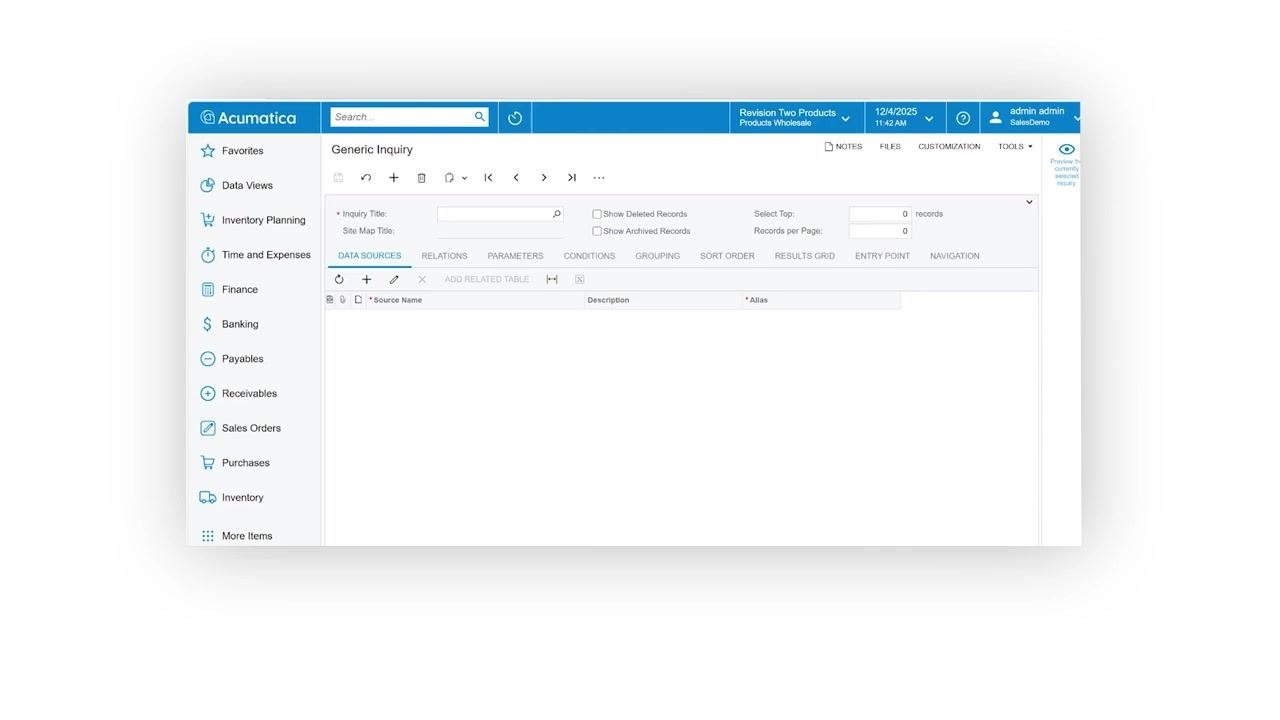
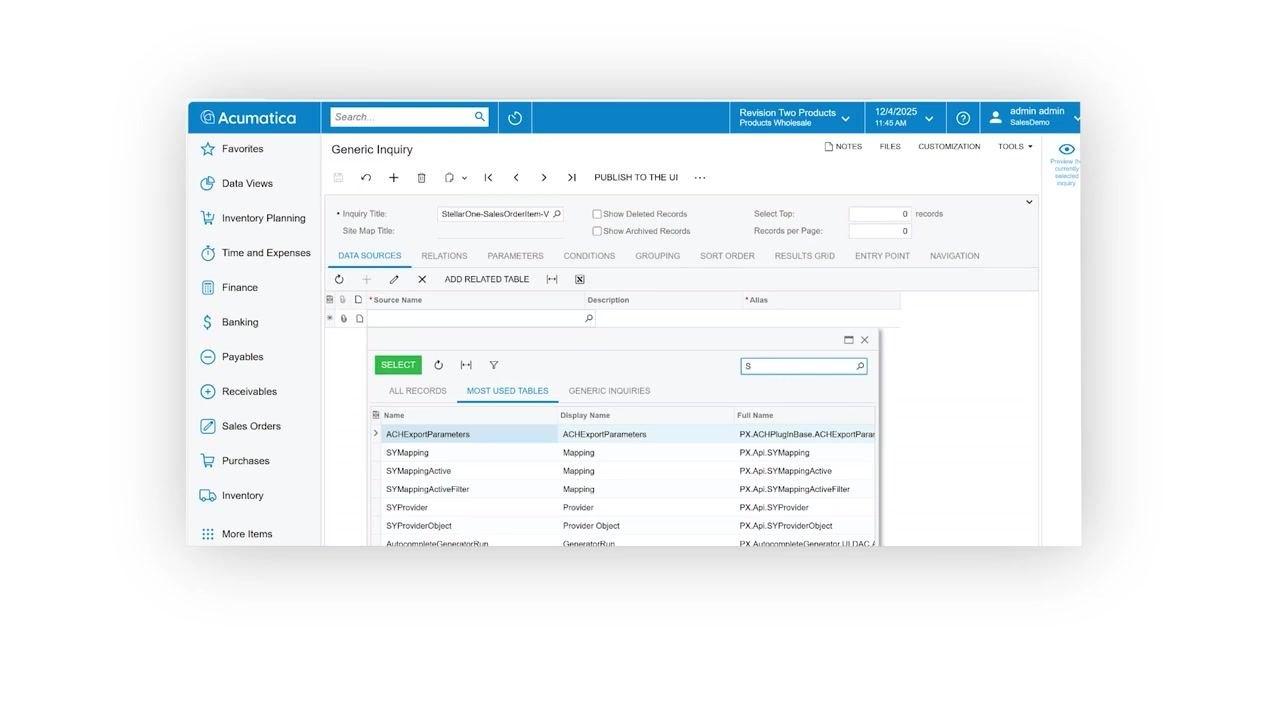
The Generic Inquiry screen displays a structured grid with tabs including Data Sources, Relations, Parameters, Conditions, Grouping, Sort Order, Results Grid, Entry Point, and Navigation. The left navigation menu includes modules such as Favorites, Data Views, Inventory Planning, Time and Expenses, Finance, Banking, Payables, Receivables, Sales Orders, Purchases, Inventory, and More Items. The top bar shows the current company, date/time, user, and quick access to notes, files, customization, and tools.
Start a new generic inquiry
Click the plus (+) button at the top of the Generic Inquiry screen to create a new GI. The Inquiry Title and Site Map Title fields become editable, ready for you to configure.
Enter the inquiry title
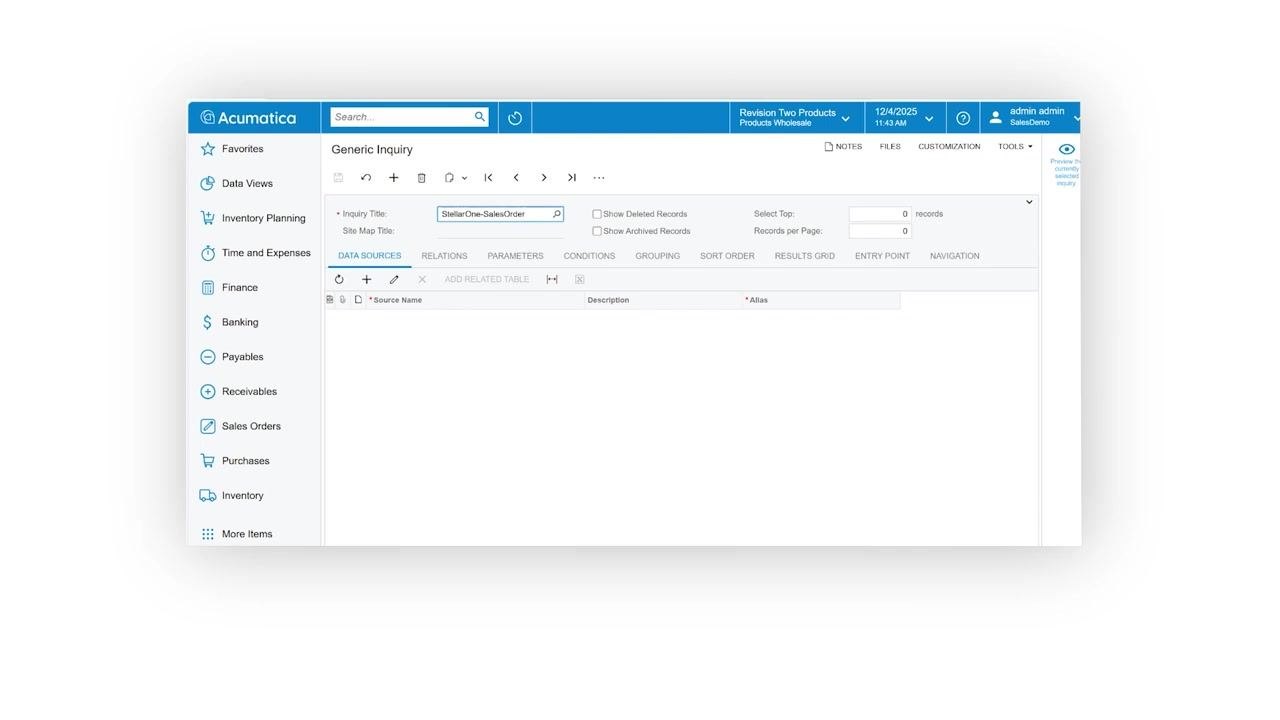
In the Inquiry Title field, enter a name for your GI—for example, StellarOne-SalesOrder. Press Tab or click outside the field to save the title.
Open the Sales Order Entry form to identify data tables
Before configuring your GI's data sources, open the Sales Order Entry form in a separate tab or window. Keeping this form open helps you identify which tables store the fields you want to include in your report.
Note that transaction documents store data across multiple tables:
- Header fields (the gray area at the top of the Sales Order form) are stored in one table and typically include Order Type, Order Number, Status, Date, and Customer.
- Line-level fields (the grid below) are stored in a separate table and include Branch, Inventory ID, Warehouse, Line Description, UOM, and Quantity.
Use Inspect Element to identify field tables
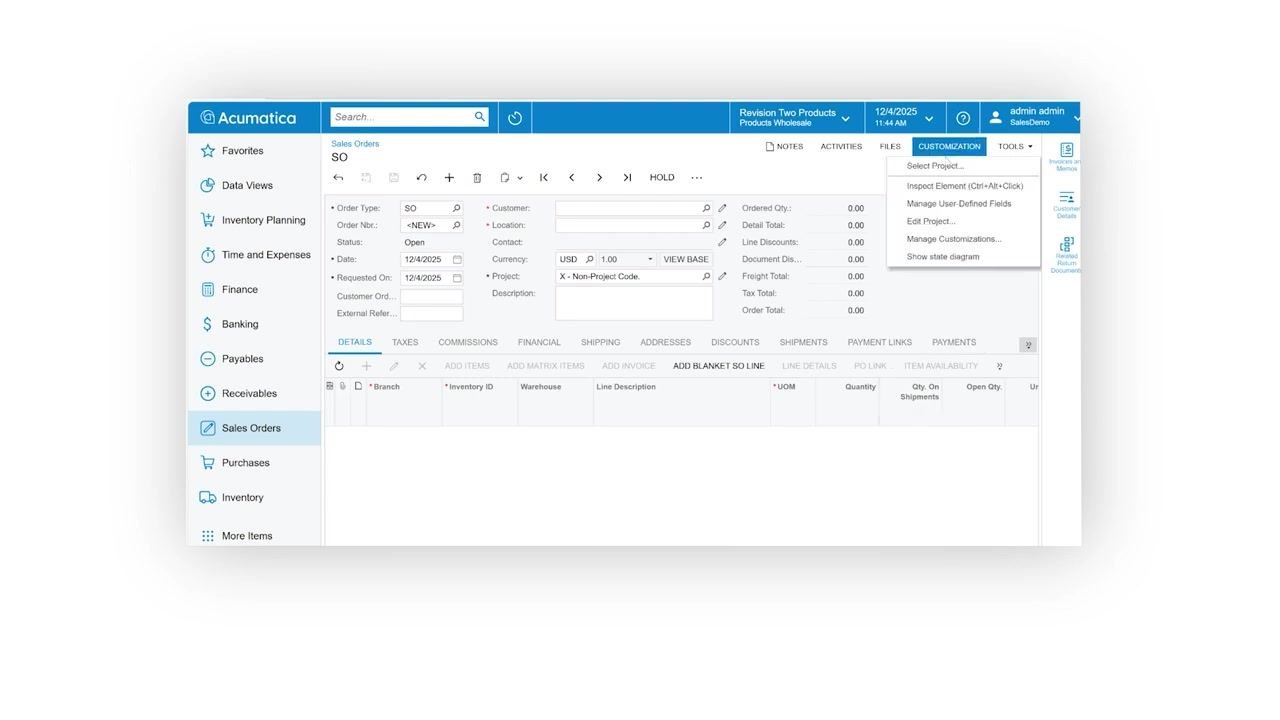
Click the CUSTOMIZATION menu at the top of the Sales Order Entry screen, then select Inspect Element from the dropdown. Your cursor changes to a question mark, indicating you can now select a field to inspect.
Click the Order Type field in the Sales Order Entry form. The Element Properties window displays the following details:
- Data Class: SOOrder
- Data Field: OrderType
- View Name: Document
- Business Logic: SOOrderEntry
The data field name for the Order Type field is "OrderType" (sometimes referred to as "document" in the view).
Document the table names
Record the table names for both the header-level and line-level fields you plan to use in your GI. You'll use these table names when configuring your Generic Inquiry's data sources and relations.
Following these steps lets you accurately identify the correct tables for your Generic Inquiry, ensuring you pull the necessary data from Acumatica's sales order module. This step is essential for building effective and accurate reports.
Add the SOOrder table as a data source
Navigate back to the Generic Inquiry screen and confirm you're on the Data Sources tab—this is the default tab when creating a new GI. This is where you specify which table or object the GI will pull data from.
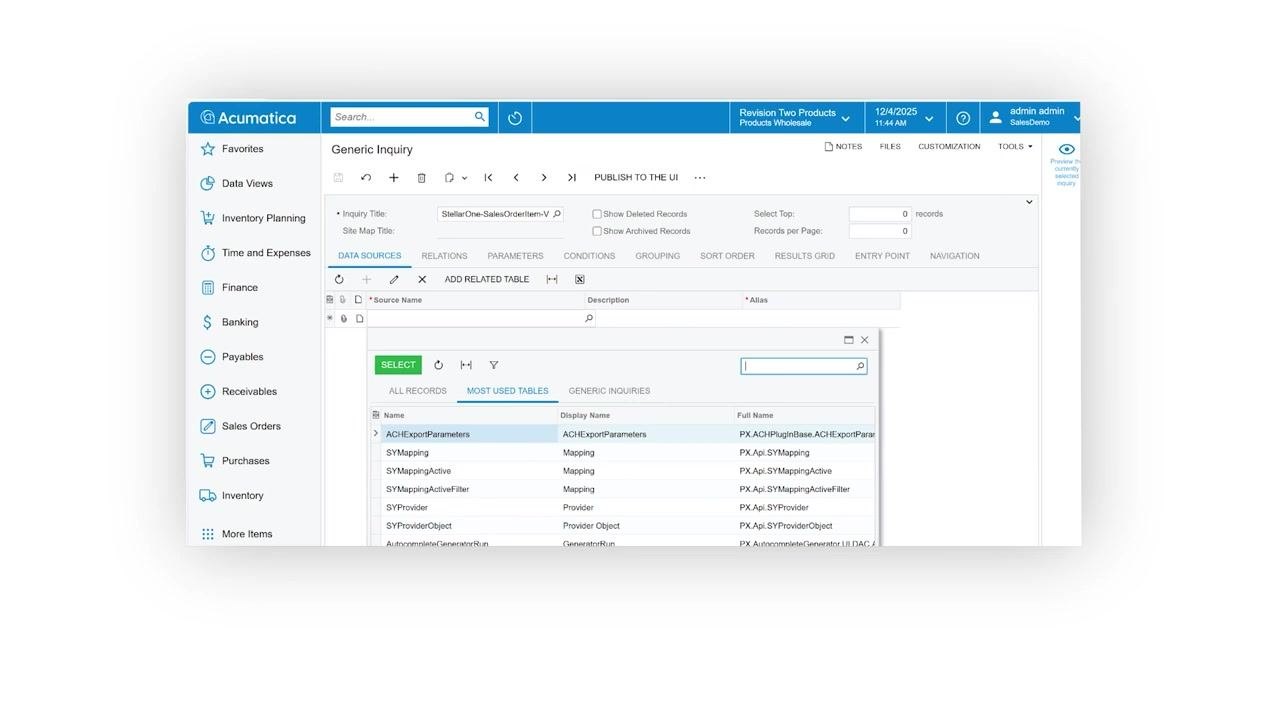
In the Data Sources tab, click to add a new table. In the pop-up window, type "SOOrder" in the search box to filter the available tables, then locate and select the SOOrder table from the list.
Confirm the table selection
Verify that the SOOrder table now appears as a data source for your Generic Inquiry. This table contains the header-level fields, including Order Type, that you need for your report.
Summary
By following these steps, you've identified the correct data field and added the necessary table to your Generic Inquiry, ensuring your report pulls accurate header-level sales order data from Acumatica.
What's next
With the SOOrder table added as your data source, you can continue configuring your Generic Inquiry by setting up Relations, Parameters, Conditions, Grouping, Sort Order, and the Results Grid to further refine the data your report returns.
Generation details: cost, quality tiers
Docsie billed 2,000 credits ($1.40) to analyze this 4-minute video at standard quality. The rewrite, template fill and Word/PDF exports were included. The same video at each quality tier:
| Quality | Frames sampled | Credits | Approx. cost |
|---|---|---|---|
| Draft | every 16-30 s | 1,000 | $0.70 |
| Standard (this guide) | every 8-15 s | 2,000 | $1.40 |
| Detailed | every 4-7 s | 4,000 | $2.80 |
| Ultra | every 1-3 s | 8,000 | $5.60 |
Credits priced at $0.70 per 1,000; plans include a monthly allowance. Enterprise customers on on-premise or bring-your-own-model deployments run this on their own inference and pay no per-video credits.
Generated by Docsie Video-to-Docs on 2026-10-25 from a 3-minute video. Screenshots are frames from the source video and belong to their creator, The ERP Platform Experts, whose original is embedded above. If you own this video and want the guide removed or credited differently, contact us and we will act within one business day.