
How to Set Up a Gradebook in Schoology
This guide shows you how to set up a gradebook in Schoology from start to finish. You create grading categories, weight them, choose a final grade scale, and decide which grades students see. You then save your settings and, if you like, copy them to your other courses.
Video: Schoology Gradebook Setup by Gilda Gearhart - tcaedtech (2016). All credit for the demonstration goes to the creator; watch the original on YouTube. The written guide below was generated from this video by Docsie. Creator? Request a change or removal.
This guide shows you how to set up a gradebook in Schoology from start to finish. You create grading categories, weight them, choose a final grade scale, and decide which grades students see. You then save your settings and, if you like, copy them to your other courses.
Prerequisites
- A course in Schoology where you want to set up the gradebook.
Open Grade Setup
Step 1: Open the Gradebook
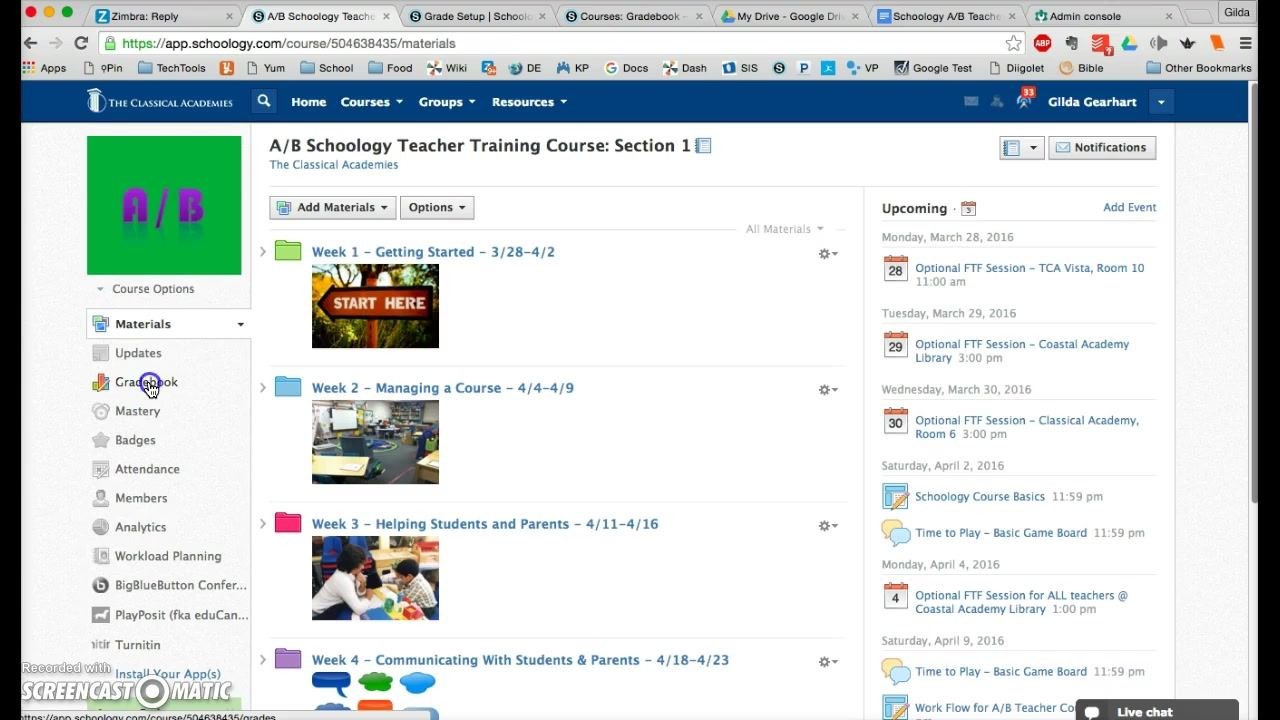
Open your course in Schoology. In the left navigation bar under Materials, click the Gradebook link.
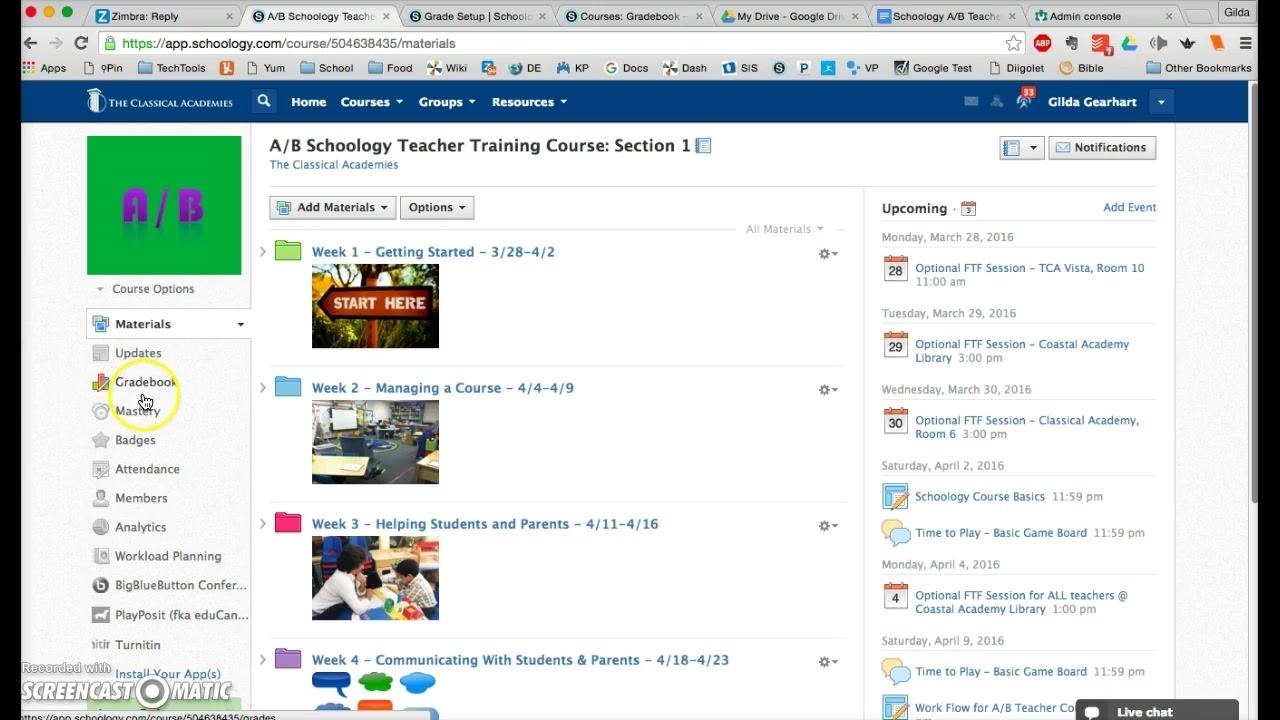
Step 2: Go to Grade Setup
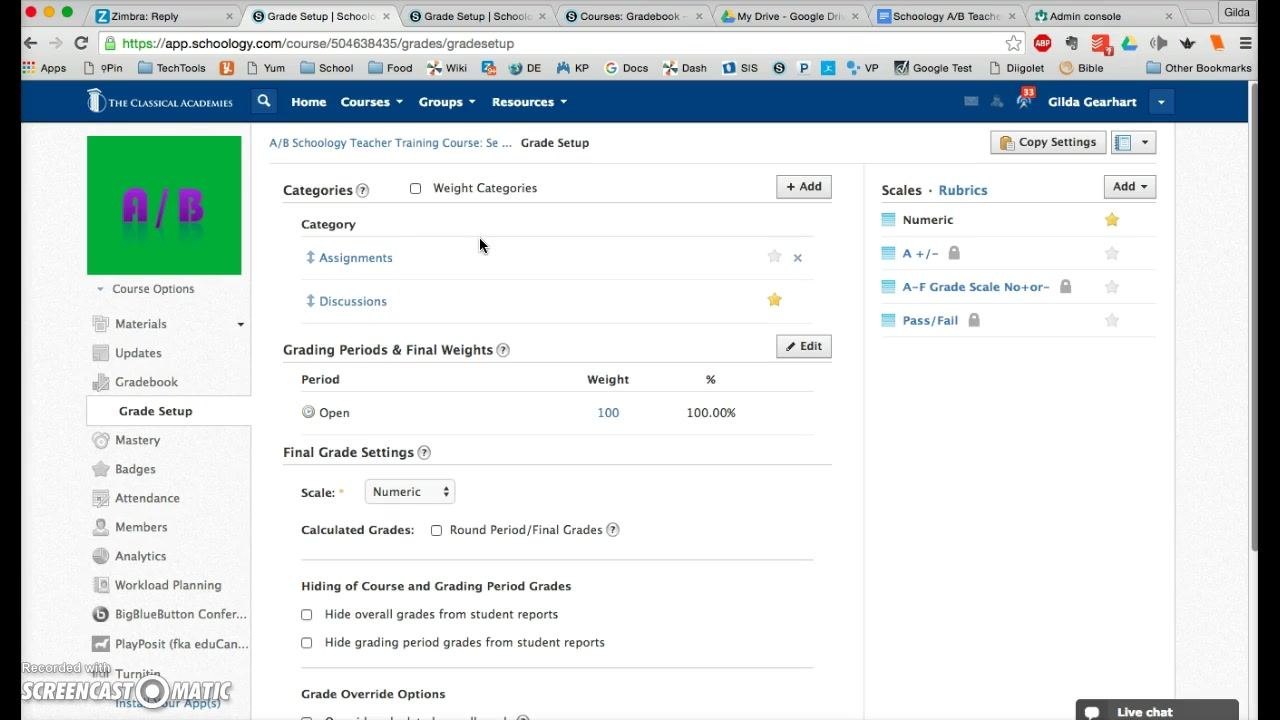
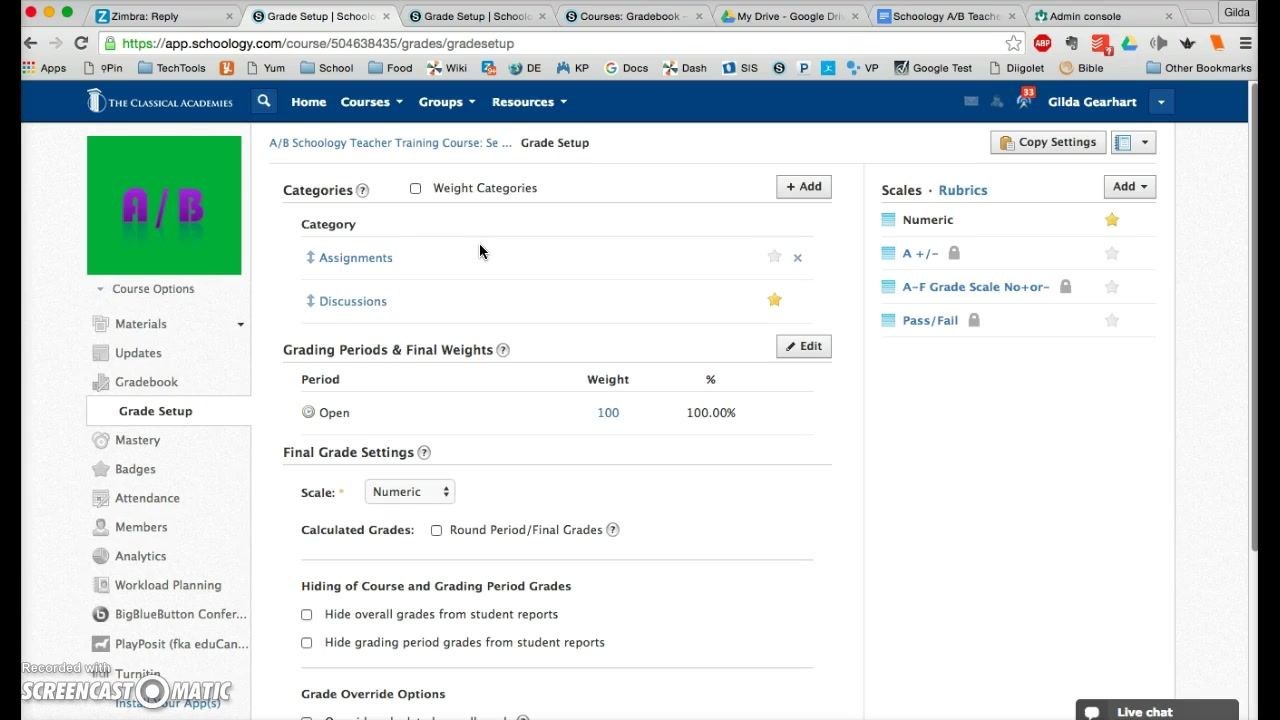
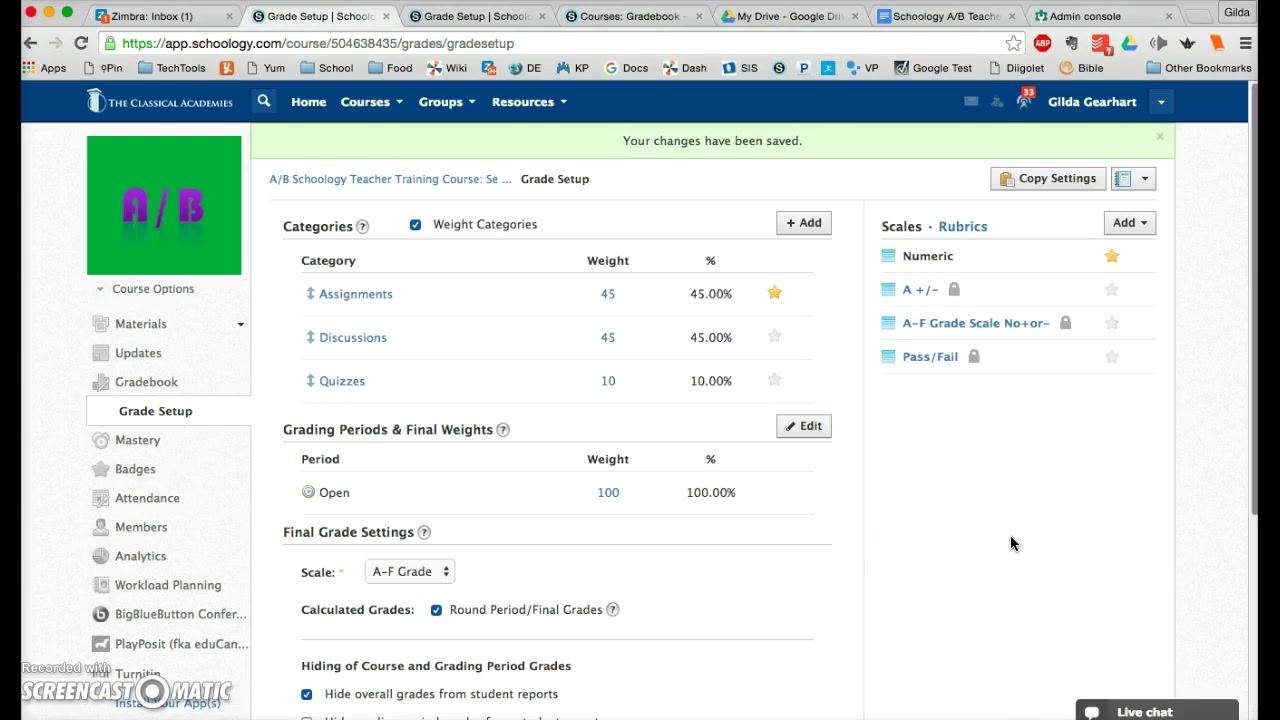
In the Gradebook section, click Grade Setup in the left navigation bar. The Grade Setup page opens, where you can manage categories, grading periods, and final grade settings.
Create and weight categories
Step 3: Plan your categories and click Add
Start by adding categories. You must create at least one category, even if you want all assignments grouped together. For a single category, you can name it "Everything".
Fewer categories make grade calculations simpler. Common categories include "Assignments", "Homework", and "Quizzes". Some teachers add "Participation" or "Discussion", but keep the total to three or four at most.
To add a category, click the Add button in the Categories section.
Step 4: Name the category and create it
In the "Add Grading Category" dialog, set up the new category:
- Type the category name, for example "Quizzes".
- Choose how the category is calculated. Select Total pts from the dropdown menu. Points are recommended over percent.
- Set the "Drop lowest" value if you want Schoology to automatically drop the lowest score or scores in this category. You can select from 0 to 10.
- Click Create.
Step 5: Confirm the new category appears
Check that your new category, for example "Quizzes", appears in the list alongside your existing categories. A green message confirms: "Your grading category has been added."
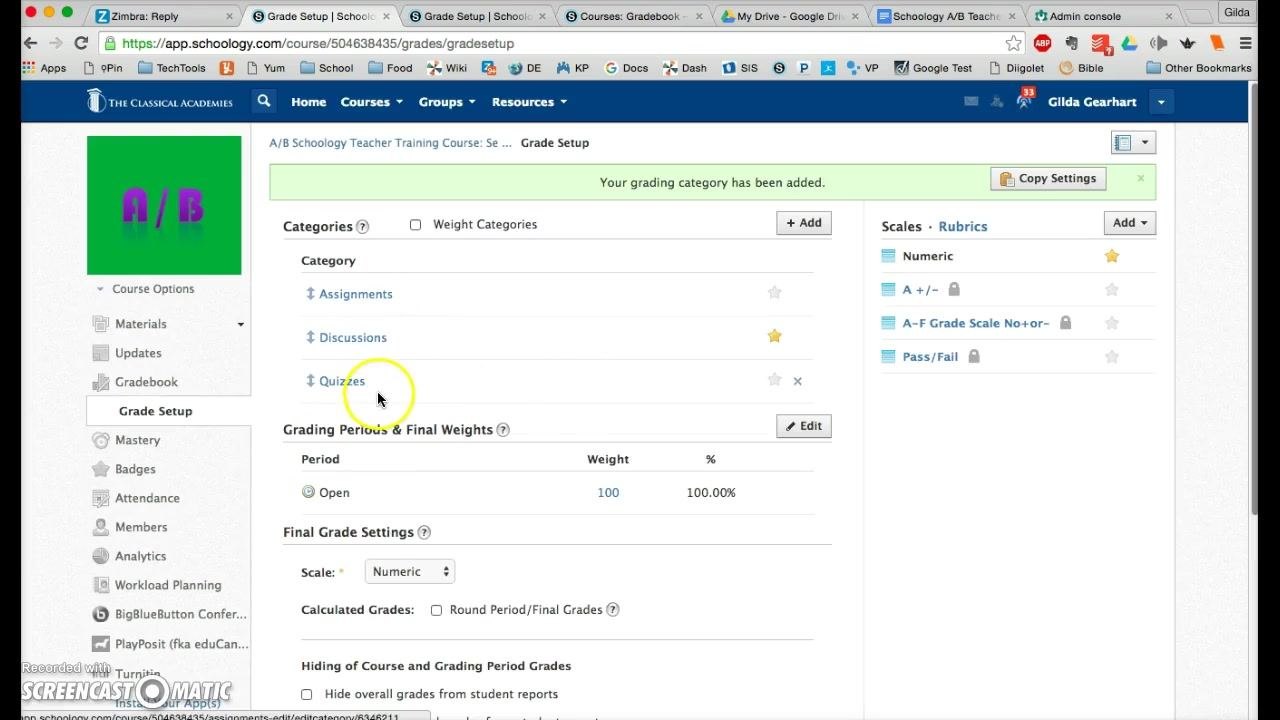
Step 6: Turn on category weighting
Check the Weight Categories box at the top of the Categories section. Schoology automatically assigns random weights to each category so that the total equals 100%. The table displays each category's weight and percentage.
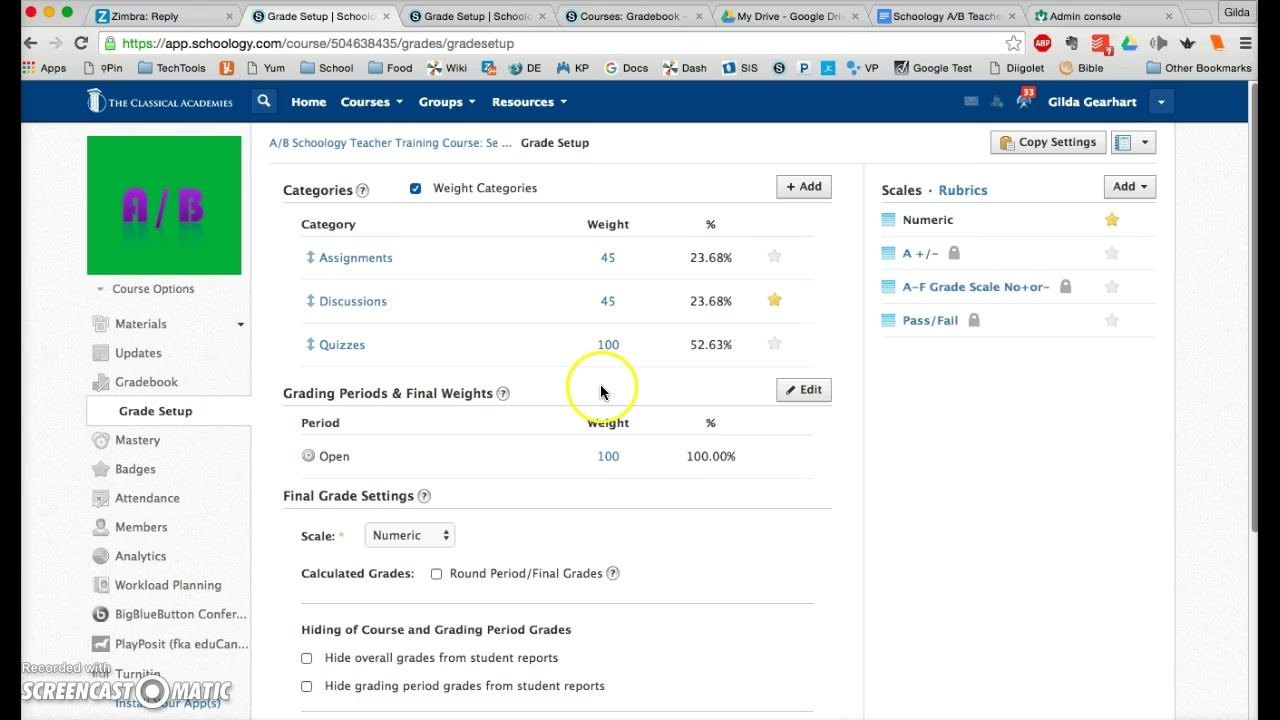
Step 7: Adjust the weights to add up to 100%
Adjust the weights to reflect your grading policy. Enter the weight you want for each category in the "Weight" column. For example, set "Assignments" to 45, "Discussions" to 45, and "Quizzes" to 10.
The percentage column (%) updates automatically. Make sure the total equals 100% so grade calculation stays clear and consistent.
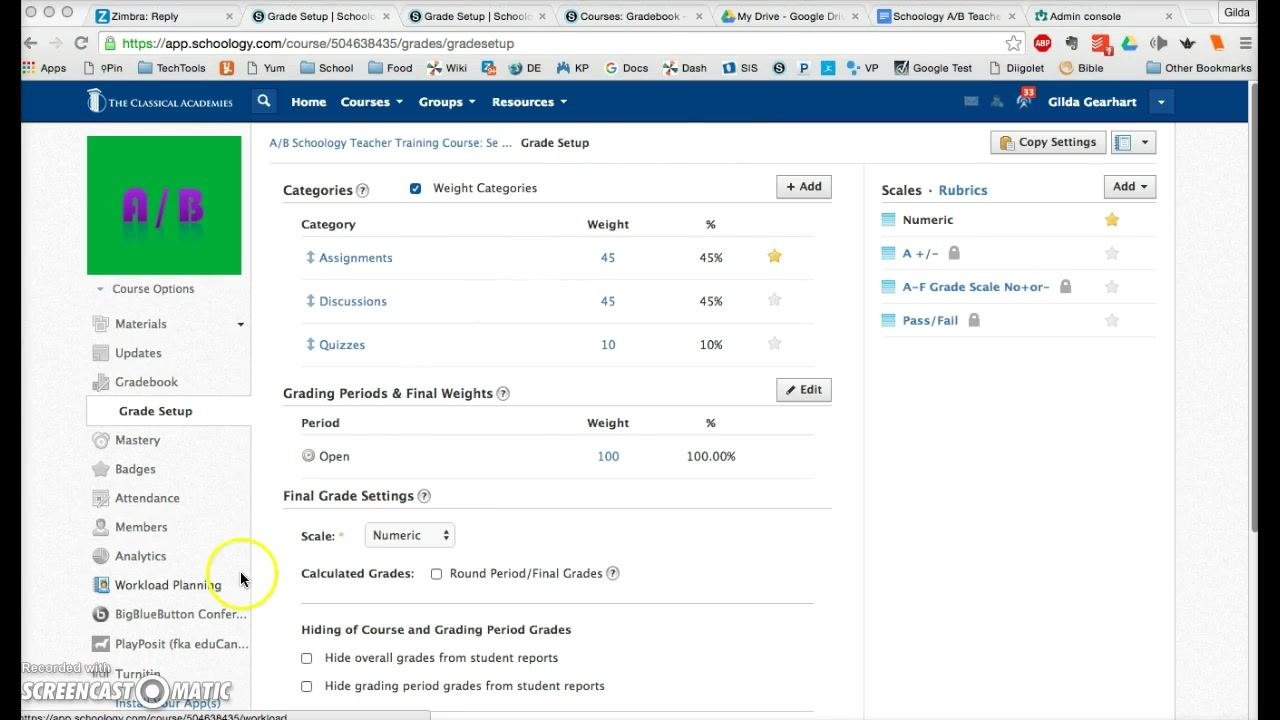
Step 8: Choose a favorite category
Click the star icon next to the category you use most often, for example "Assignments". That category becomes the default when you create new materials.
You can change the favorite at any time by clicking a different star. The setting only affects the default, so you can always choose another category when you create or edit materials.
Set grading periods and final grade settings
Step 9: Review grading periods and final weights
In the "Grading Periods & Final Weights" section, verify your grading periods. In this example, the period is set to "Open" with a weight of 100 (100.00%).
Your course may show periods such as "Fall 2016" and "Spring 2017". If you don't average semesters together, set each period's weight to 100.
Step 10: Select the final grade scale
In the "Final Grade Settings" section, click the dropdown menu under "Scale". Choose A–F Grade Scale No+or–.
This scale was created to match report cards that don't use plus or minus grades. Other options include "Numeric", "A +/–", and "Pass/Fail". Choose the scale that fits your reporting requirements.
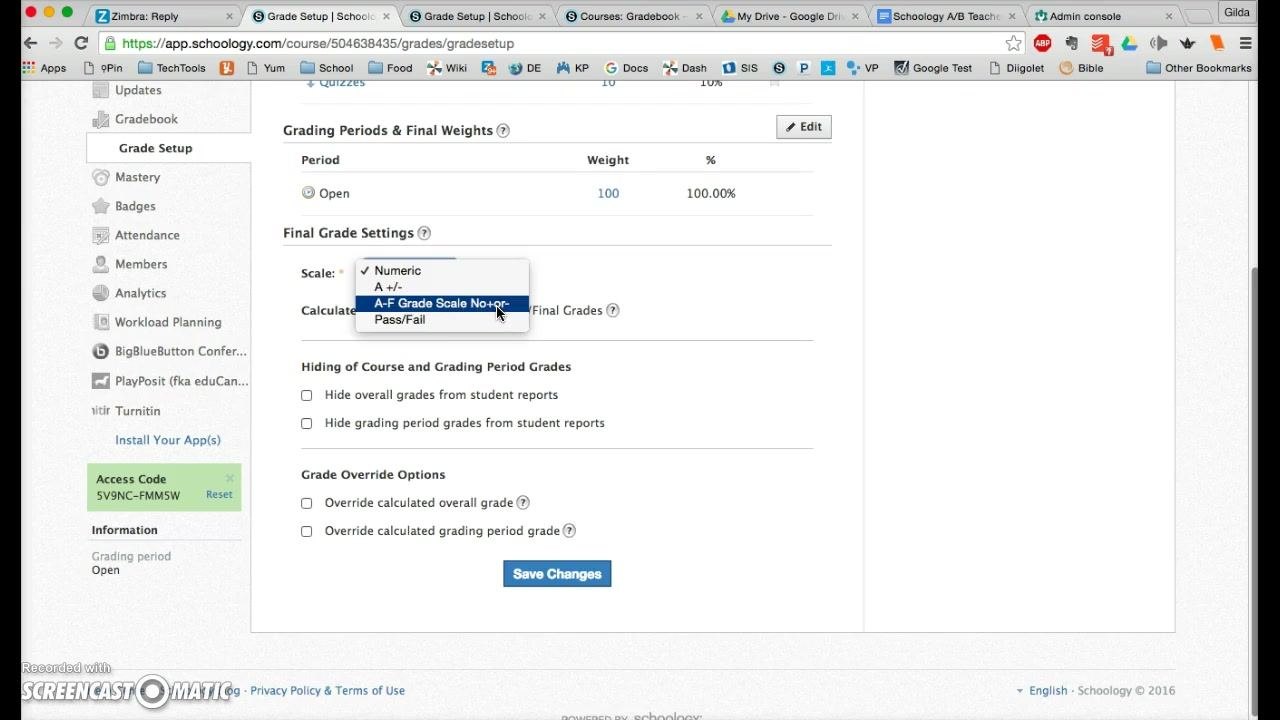
Step 11: Round period and final grades
Check the Round Period/Final Grades box so grades are rounded in reports.
Step 12: Hide overall grades from student reports
Under "Hiding of Course and Grading Period Grades", check Hide overall grades from student reports.
This stops Schoology from displaying an averaged overall grade, such as fall and spring semesters combined, when your school doesn't use one. It also helps you avoid confusing students.
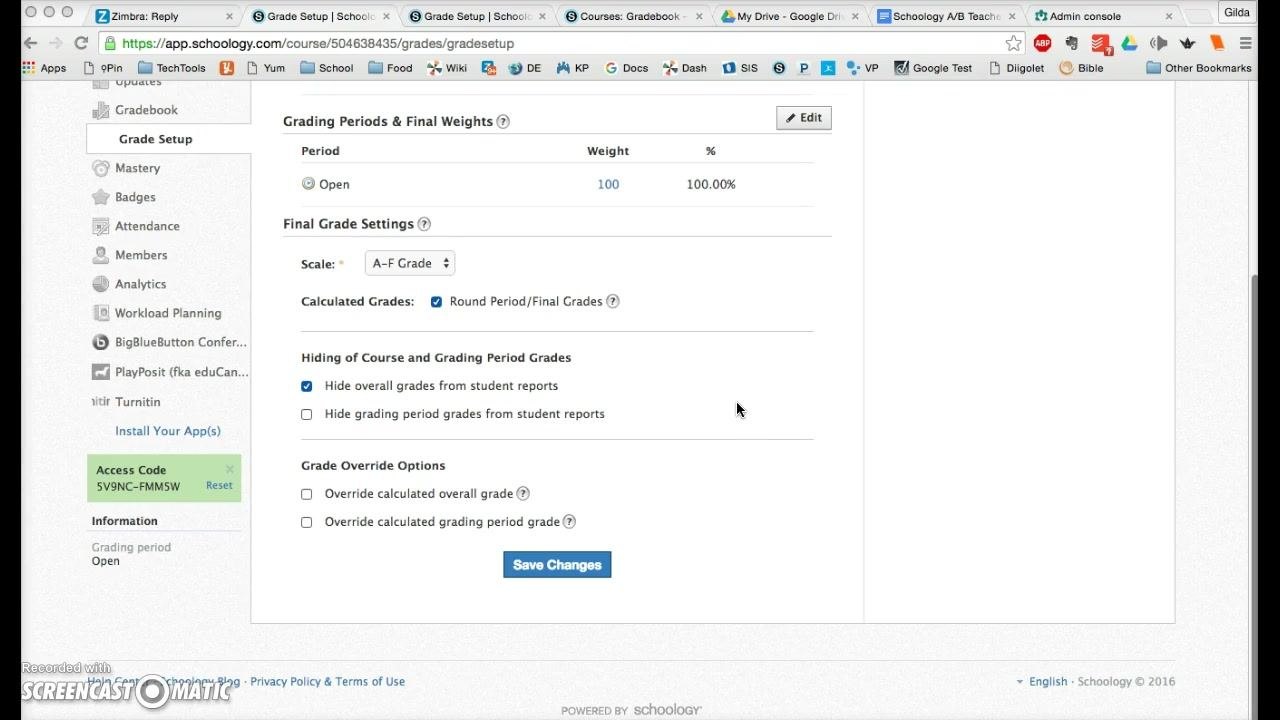
Step 13: (Optional) Hide grading period grades
If you also want to hide grades for individual grading periods, check Hide grading period grades from student reports.
Step 14: Leave the grade override options unchecked
Leave both Override calculated overall grade and Override calculated grading period grade unchecked. Enabling them adds extra columns to your gradebook, which can clutter your screen.
If you later need to override grades manually, you can return and enable these options.
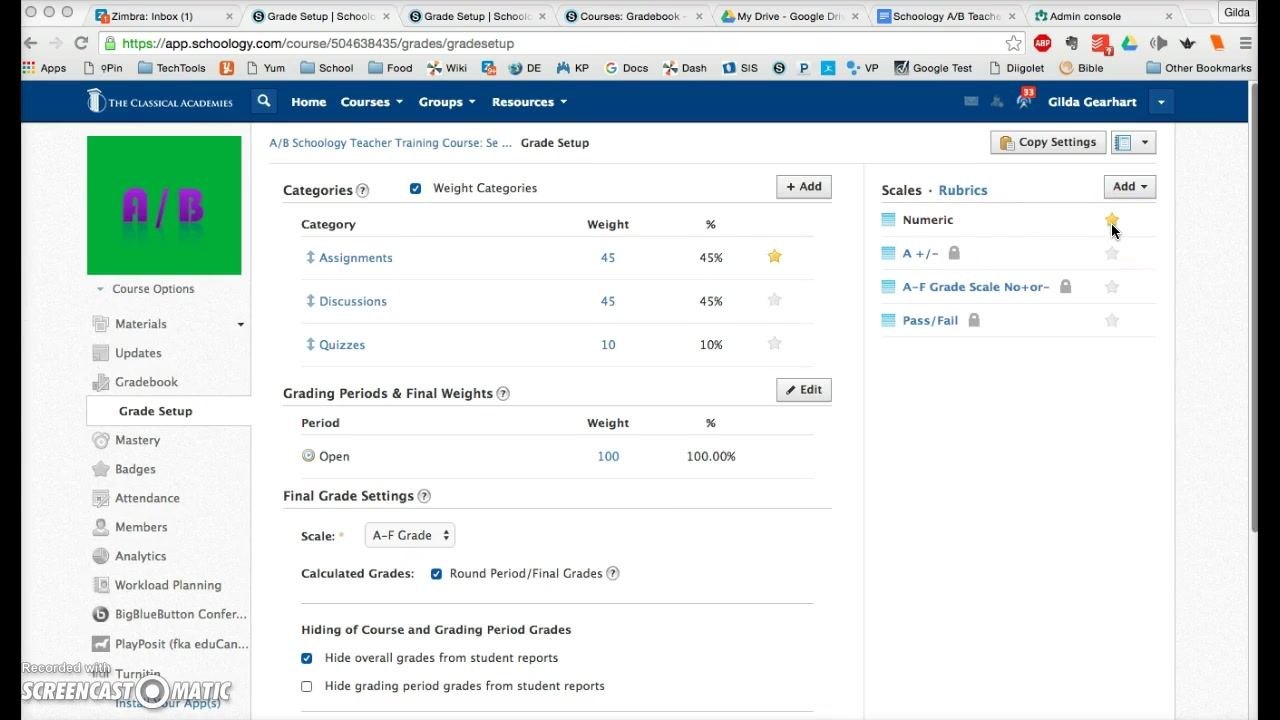
Step 15: Set your default scale for assignments
Move to the "Scales" area on the right side of the Grade Setup page. Click the star icon next to Numeric to make it your favorite scale.
"Numeric" then becomes the default for new assignments. You can still select a different scale or rubric for individual assignments. The "Numeric" scale is recommended for daily assignments and regular coursework.
Step 16: Save your changes
Scroll down and click the blue Save Changes button to apply all your settings.
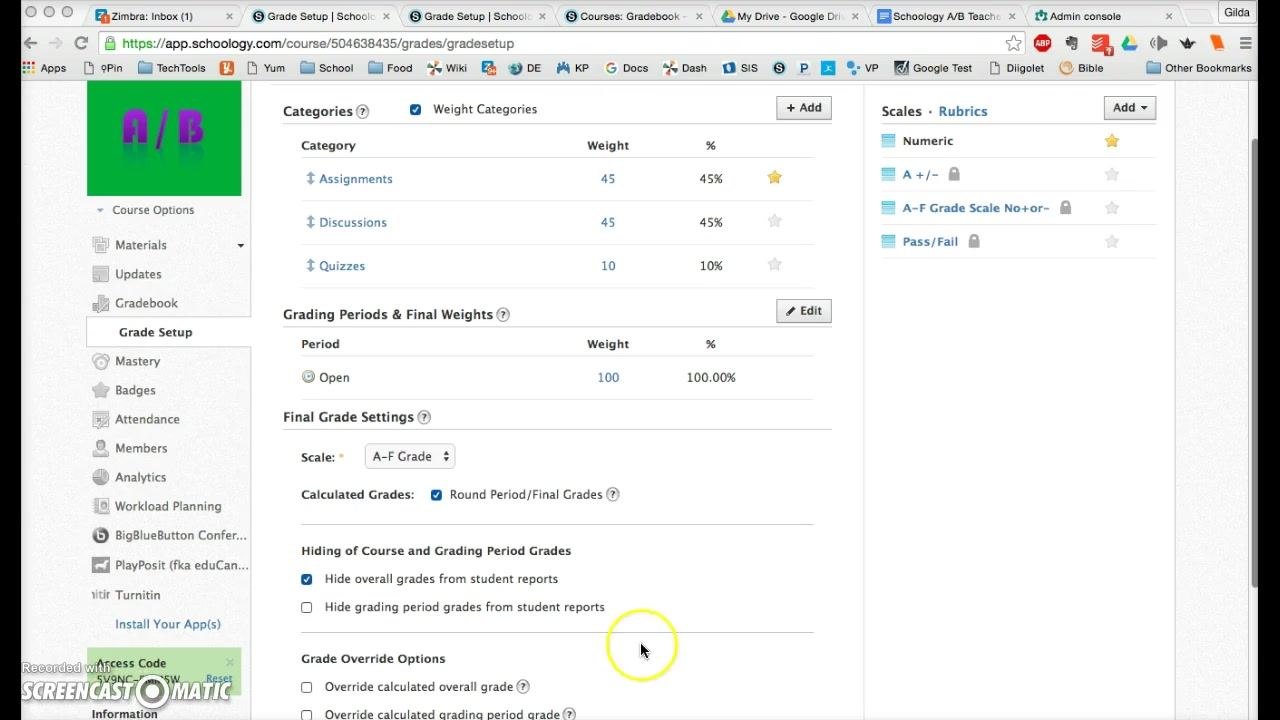
Your Schoology gradebook now uses the correct grading scale, hides unnecessary overall grades from student reports, and defaults to your preferred scoring method for assignments.
Copy your gradebook settings to other courses
After you set up a gradebook in Schoology, you can duplicate its configuration in your other courses.
Step 17: Open Copy Settings
On the Grade Setup page, find the Copy Settings button in the upper right corner, above the "Scales" section. Click it. A dialog titled Edit Course appears, showing which settings to copy.
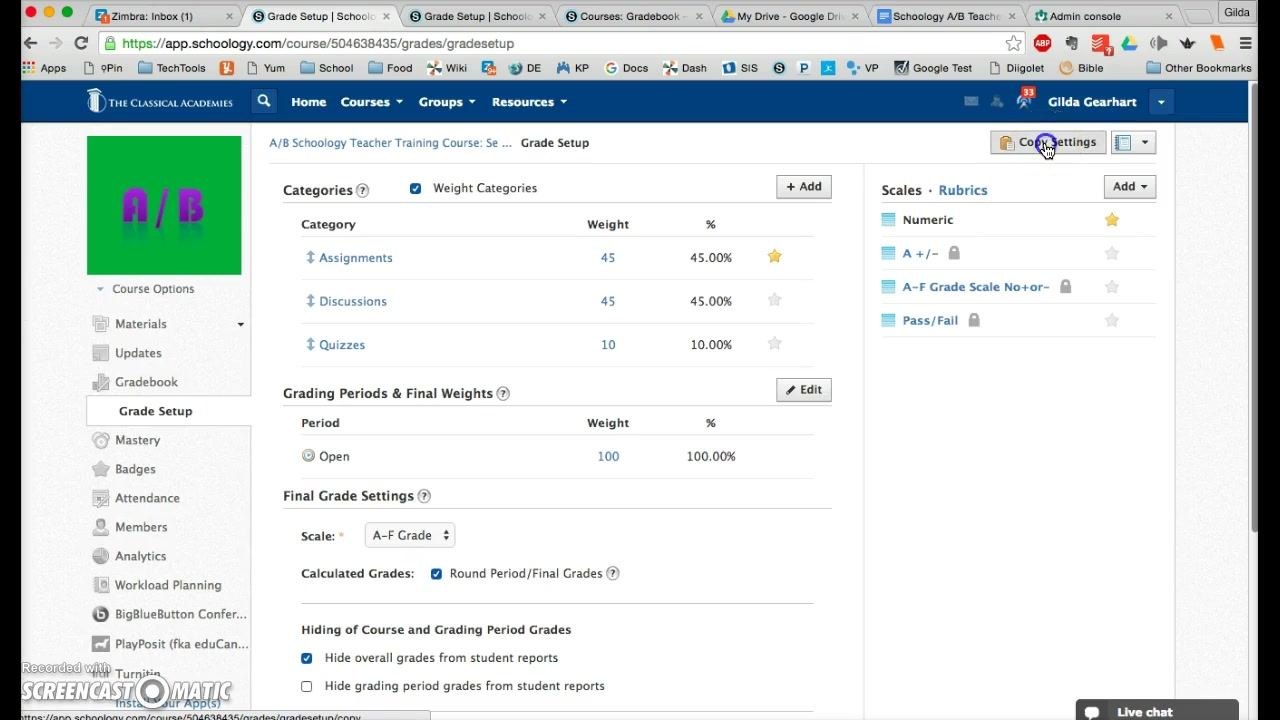
Step 18: Confirm the settings to copy
Make sure these items are checked:
- Categories
- Grading Scales
- Rubrics
These options are typically checked by default, so all relevant grading structures are included.
Step 19: Select the target courses
In the Select Course(s) section, scroll through your available courses. Check the box next to each course you want to apply these settings to. You can select one course or several.
Step 20: Copy the settings
Click the blue Copy button at the bottom of the dialog. Your categories, grading scales, and rubrics are copied to the selected courses.
Summary
You have created and weighted grading categories, chosen a final grade scale, controlled which grades students see, and set default category and scale options. You also learned how to copy these settings to other courses, which standardizes your gradebook setup and saves time.
What's next
- Adjust your categories or weights at any time from the Grade Setup page.
- Return to Grade Setup to enable grade override options if you later need to override grades manually.
- Select a different category, scale, or rubric for individual assignments when you create or edit materials.
Generation details: cost, quality tiers
Docsie billed 3,000 credits ($2.10) to analyze this 6-minute video at standard quality. The rewrite, template fill and Word/PDF exports were included. The same video at each quality tier:
| Quality | Frames sampled | Credits | Approx. cost |
|---|---|---|---|
| Draft | every 16-30 s | 1,500 | $1.05 |
| Standard (this guide) | every 8-15 s | 3,000 | $2.10 |
| Detailed | every 4-7 s | 6,000 | $4.20 |
| Ultra | every 1-3 s | 12,000 | $8.40 |
Credits priced at $0.70 per 1,000; plans include a monthly allowance. Enterprise customers on on-premise or bring-your-own-model deployments run this on their own inference and pay no per-video credits.
Generated by Docsie Video-to-Docs on 2026-11-01 from a 5-minute video. Screenshots are frames from the source video and belong to their creator, Gilda Gearhart - tcaedtech, whose original is embedded above. If you own this video and want the guide removed or credited differently, contact us and we will act within one business day.