
How to Archive a Course in Schoology
This guide shows you how to archive a course in Schoology by saving it to your personal resources. You can then add the saved content to a new or existing course for the next semester or year. The process copies your course materials, content, and grades to your resource library, and you can transfer everything at once instead of moving files one by one.
Video: Schoology - Archiving Courses by Victor Fitzjarrald (2015). All credit for the demonstration goes to the creator; watch the original on YouTube. The written guide below was generated from this video by Docsie. Creator? Request a change or removal.
This guide shows you how to archive a course in Schoology by saving it to your personal resources. You can then add the saved content to a new or existing course for the next semester or year. The process copies your course materials, content, and grades to your resource library, and you can transfer everything at once instead of moving files one by one.
Prerequisites
- Access to the course you want to archive.
- Access to the Resources tab in the top navigation bar.
- A destination course, if you plan to reuse the content right away.
Save the course to resources
Step 1: Go to the course you want to archive
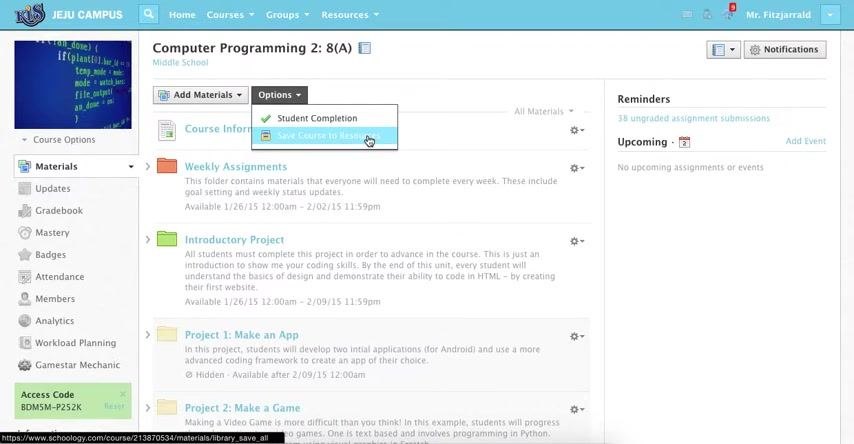
Log in and find the course in your course list. This guide uses "Computer Programming 2: 8(A)" as an example. Make sure you are on the main course page.
Step 2: Open the Materials tab
In the left sidebar, click Materials. Confirm that the materials list appears in the main section.
Step 3: Open the Options menu and choose Save Course to Resources
At the top of the materials list, click Options. A dropdown menu appears with two actions: Student Completion and Save Course to Resources. Click Save Course to Resources.
Step 4: Choose where to save the archived course
The Save Course to Resources dialog appears. Under Collection, select Home to save the course to your personal resources.
Avoid Group Resources and School Resources unless you want to share the course with those groups. You can also use the Folder and Save as fields to organize or rename the saved course.
Step 5: Submit the save
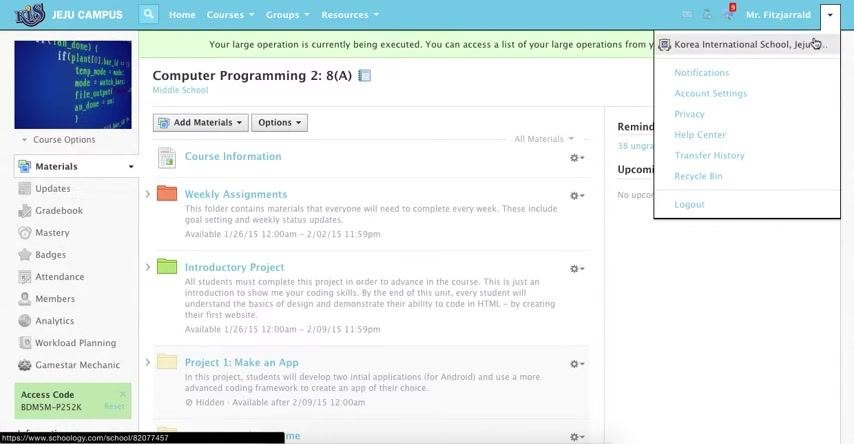
Click Submit. The system begins transferring all course materials, content, and grades to your resource library. A notification bar at the top tells you a large operation is being executed.
Check the transfer progress
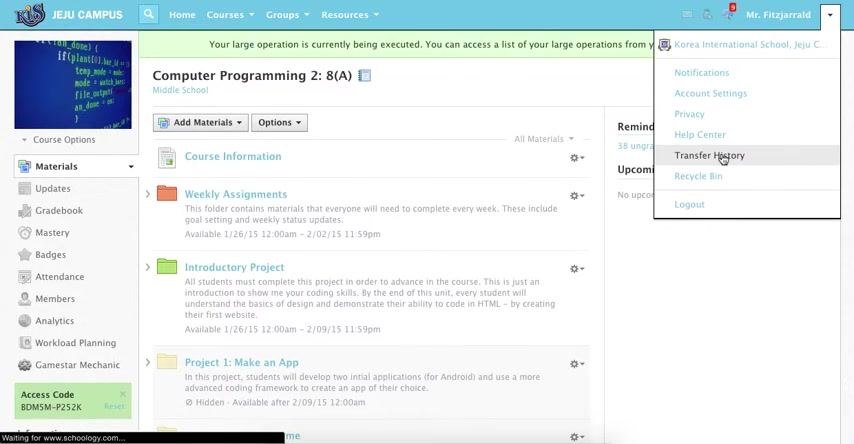
Step 6: Open Transfer History
To monitor the transfer, click the dropdown arrow next to your name in the upper right corner. Select Transfer History.
Find your archived course in personal resources
Step 7: Open your Personal resources
When the transfer is complete, click Resources in the top navigation bar. Select Personal from the dropdown menu. Then locate the folder named after your course, for example "Computer Programming 2: 8(A)".
Step 8: Verify the archived course folder
Navigate to your Home directory under Personal resources. Confirm that the archived course folder appears in the list alongside other folders, such as "Example Lesson Folder," "Schoology Training," and "Technology." Make sure the folder is visible and accessible for future use.
Add the archived content to a new course
Step 9: Open Add to Course for the archived folder
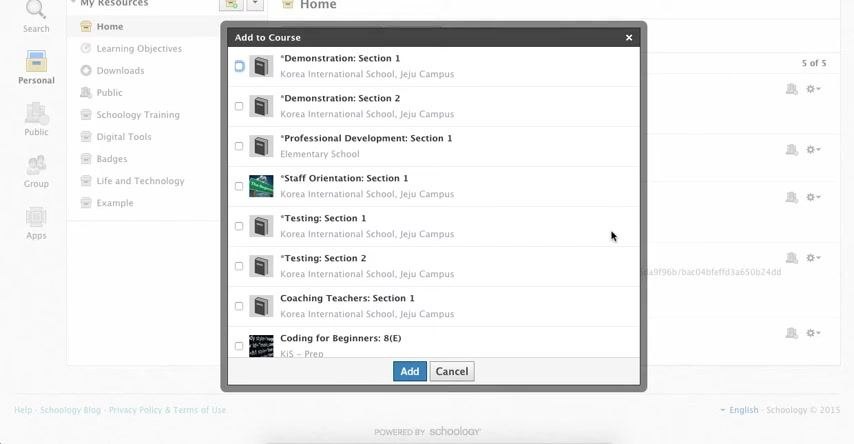
You can move all materials from the archived folder into a new or existing course. Click the sprocket (settings) icon next to the folder, for example "Computer Programming 2: 8(A)". Then select Add to Course from the dropdown menu.
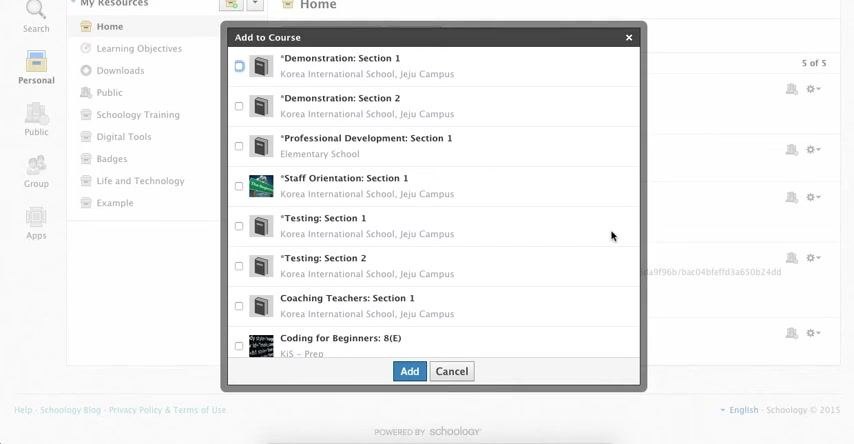
This transfers all contents at once, so you don't need to move individual files. The Add to Course dialog appears and lists all available courses.
Step 10: Select the destination course and add the content
In the Add to Course dialog, review the list of available courses, such as "Demonstration: Section 1," "Professional Development: Section 1," "Testing: Section 1," and "Coding for Beginners: 8(E)." Select the checkbox next to each course you want to transfer the content into. Then click the blue Add button.
The system archives everything into the selected course or courses and your resources, so you keep a copy even if you leave the institution.
Step 11: Wait for the transfer to finish
Wait while the system processes the transfer. All materials from the selected folder are copied into the chosen course or courses. The entire folder and its contents move at once, and your resources remain archived for future access or export.
Summary
You now know how to archive a course in Schoology: save it to your personal resources, confirm the folder, and add its content to another course. Always check that you are saving to your personal collection unless you intend to share the course with a group or the entire school.
What's next
- Use Transfer History to confirm that a transfer has finished.
- Reopen your archived folder in Personal resources whenever you need the content for a future semester or year.
- Use Add to Course to reuse the archived content in any additional course.
Generation details: cost, quality tiers
Docsie billed 1,500 credits ($1.05) to analyze this 3-minute video at standard quality. The rewrite, template fill and Word/PDF exports were included. The same video at each quality tier:
| Quality | Frames sampled | Credits | Approx. cost |
|---|---|---|---|
| Draft | every 16-30 s | 750 | $0.52 |
| Standard (this guide) | every 8-15 s | 1,500 | $1.05 |
| Detailed | every 4-7 s | 3,000 | $2.10 |
| Ultra | every 1-3 s | 6,000 | $4.20 |
Credits priced at $0.70 per 1,000; plans include a monthly allowance. Enterprise customers on on-premise or bring-your-own-model deployments run this on their own inference and pay no per-video credits.
Generated by Docsie Video-to-Docs on 2026-11-01 from a 2-minute video. Screenshots are frames from the source video and belong to their creator, Victor Fitzjarrald, whose original is embedded above. If you own this video and want the guide removed or credited differently, contact us and we will act within one business day.