
How to Create a Banner in Schoology
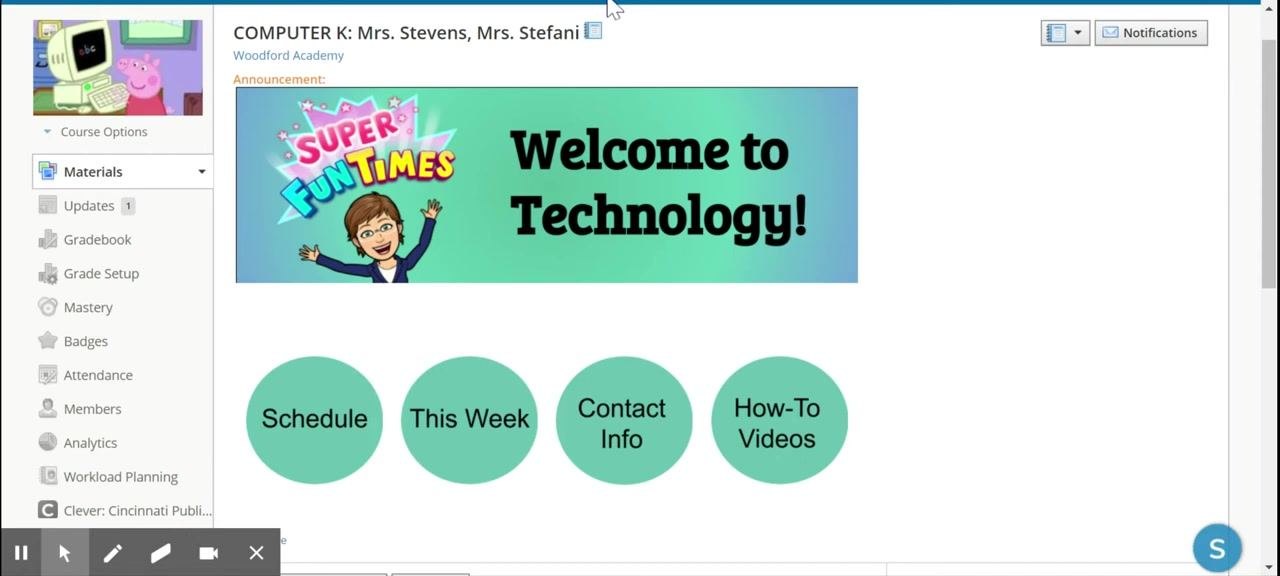
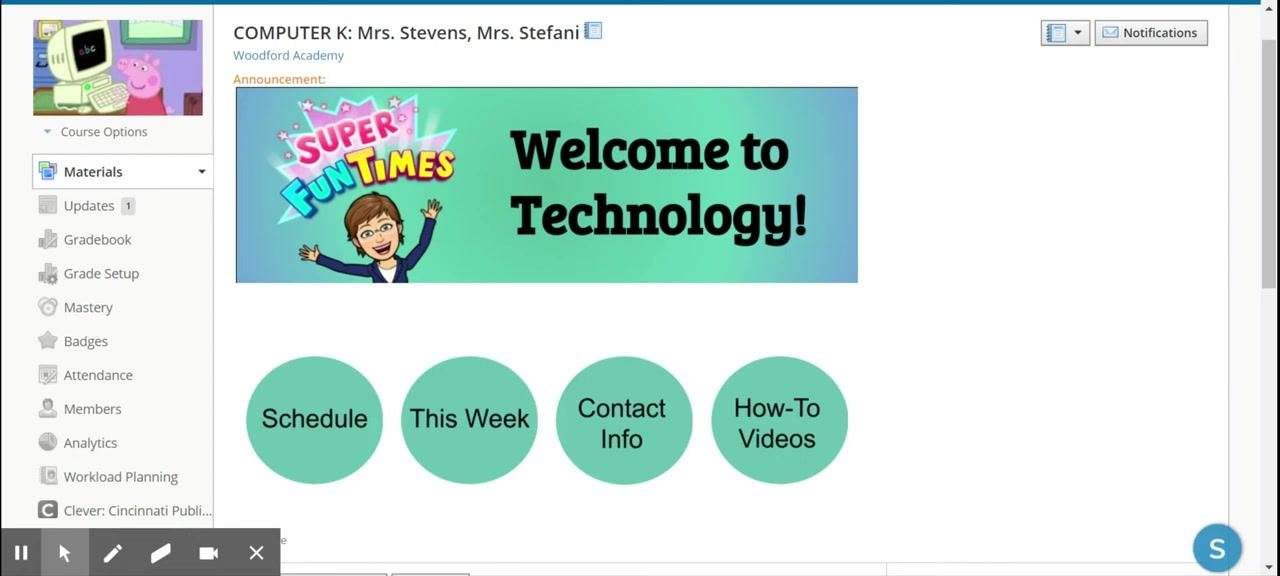
If you want to learn how to create a banner in Schoology, this guide covers the whole process. You design a custom banner in Google Drawings, then add it to your course as a pinned announcement at the top of the page. The banner can include graphics, text, and links to important sections such as "Schedule," "This Week," "Contact Info," and "How-To Videos."
Video: How to add a banner to Schoology by Jennifer Folz (2020). All credit for the demonstration goes to the creator; watch the original on YouTube. The written guide below was generated from this video by Docsie. Creator? Request a change or removal.
If you want to learn how to create a banner in Schoology, this guide covers the whole process. You design a custom banner in Google Drawings, then add it to your course as a pinned announcement at the top of the page. The banner can include graphics, text, and links to important sections such as "Schedule," "This Week," "Contact Info," and "How-To Videos."
Prerequisites
Before you start, make sure you have:
- A Schoology course where you want to display the banner
- A web browser to open Google Drawings at drawing.google.com
- Optional: a Bitmoji or another image to include in the banner
Part 1: Design the banner in Google Drawings
Step 1: Open Google Drawings
Enter https://drawing.google.com in your browser. A blank canvas opens, ready for editing.
The image below shows an example Schoology page with a banner and navigation buttons, similar to what you are building.
Step 2: Set the banner size
- In Google Drawings, click the File menu in the top left corner.
-
Select Page setup from the dropdown menu.
-
In the Page setup dialog, choose Custom and enter the dimensions 8 x 2 inches.
- Click Apply to set the canvas to the banner size.
Step 3: Draw the banner background
- Click the Shape tool in the toolbar.
- Select Shapes > Rectangle from the dropdown.
- Draw a rectangle that covers the entire canvas.
Step 4: Choose a background color
With the rectangle selected, click the Fill color tool in the toolbar. Choose any color you like. You can select a solid color or a gradient.
Step 5: Add graphics (optional)
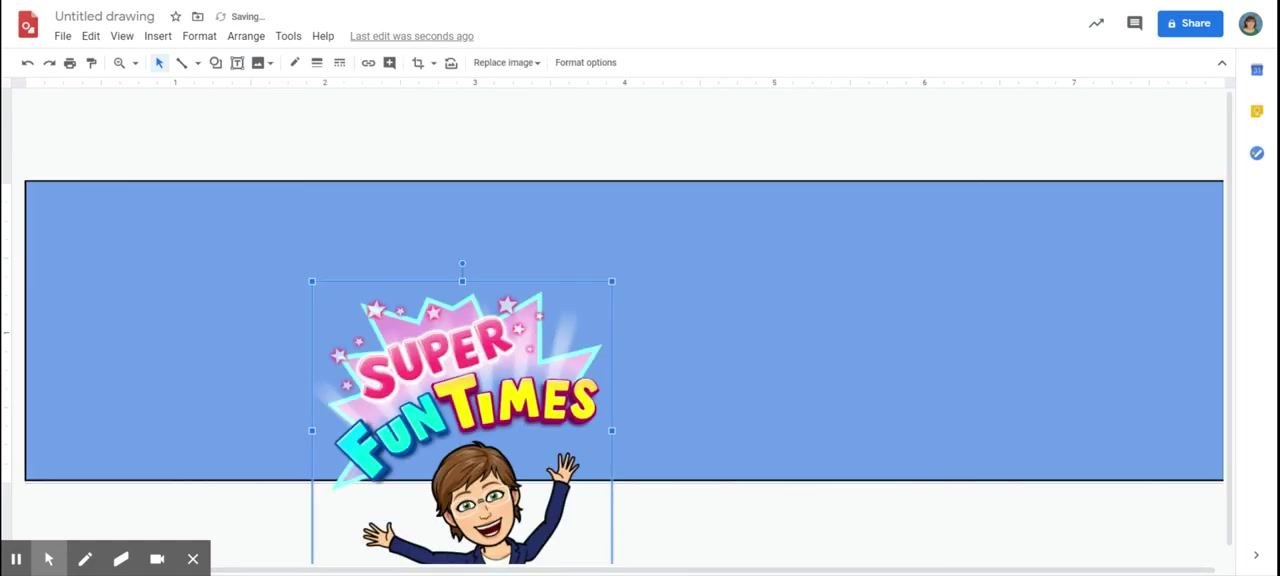
To include a Bitmoji or other image, use the Bitmoji extension or drag and drop your image onto the canvas. Then resize and position the image as you want.
Step 6: Insert and format text
- Click the Text box tool in the toolbar.
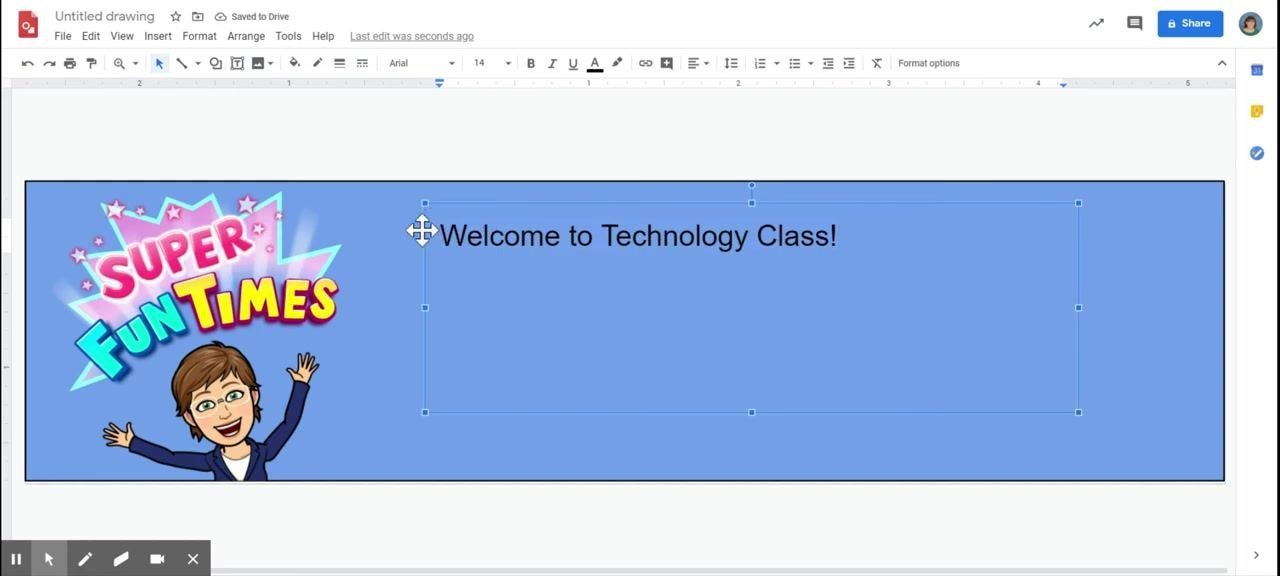
- Draw a text box on the banner and type your message, such as "Welcome to Technology Class!"
- Format the text as you would in a word processor.
You can change the font style (for example, Arial), adjust the font size (for example, 36 pt), and center or align the text as needed.
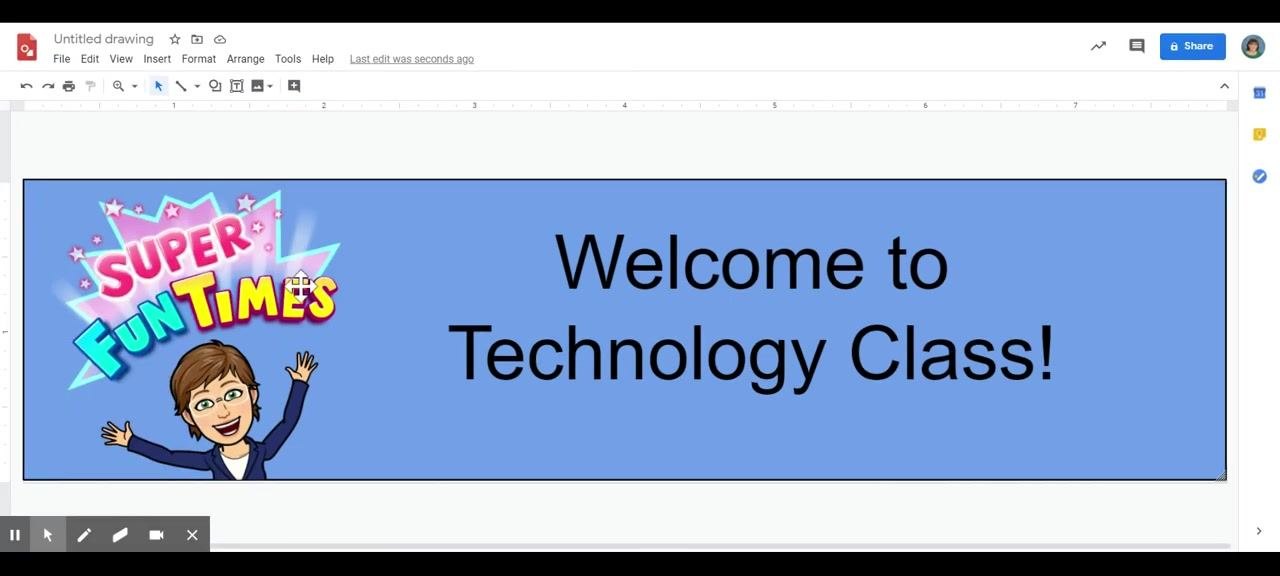
Step 7: Finalize and download the banner
- Make any final adjustments to the layout, colors, and text.
- Go to the File menu.
- Select Download, then choose PNG image (.png) to save your banner.
Part 2: Add the banner to your Schoology course
Step 8: Open your course
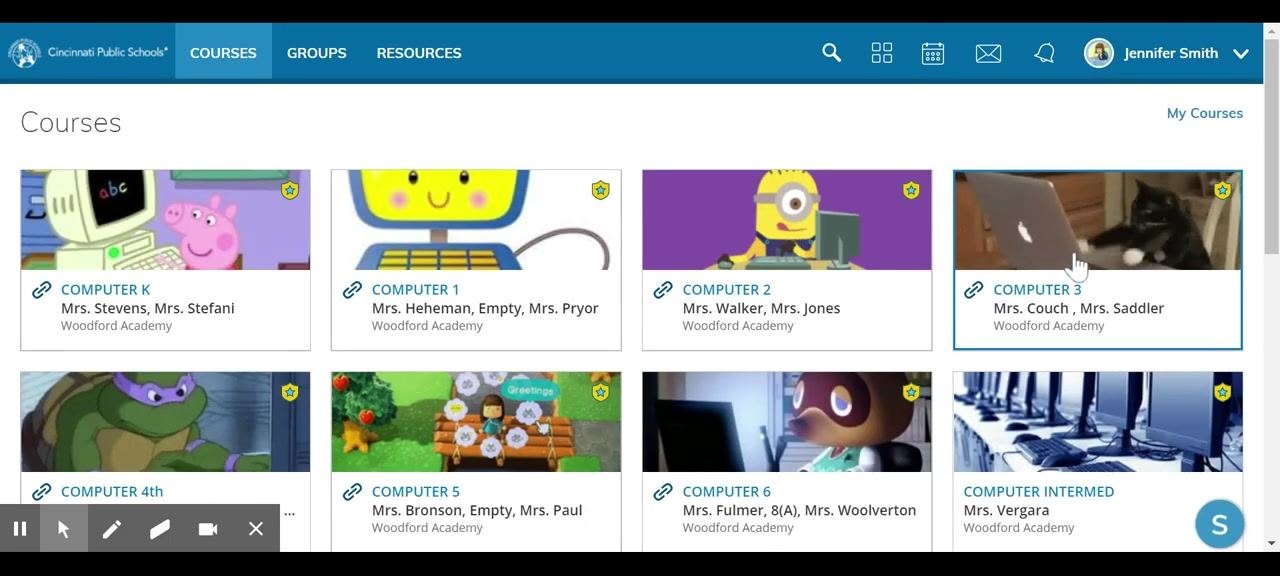
From the Schoology dashboard, click the course where you want to add the banner. For example, click "COMPUTER 3: Mrs. Couch, Mrs. Saddler" in the list of courses.
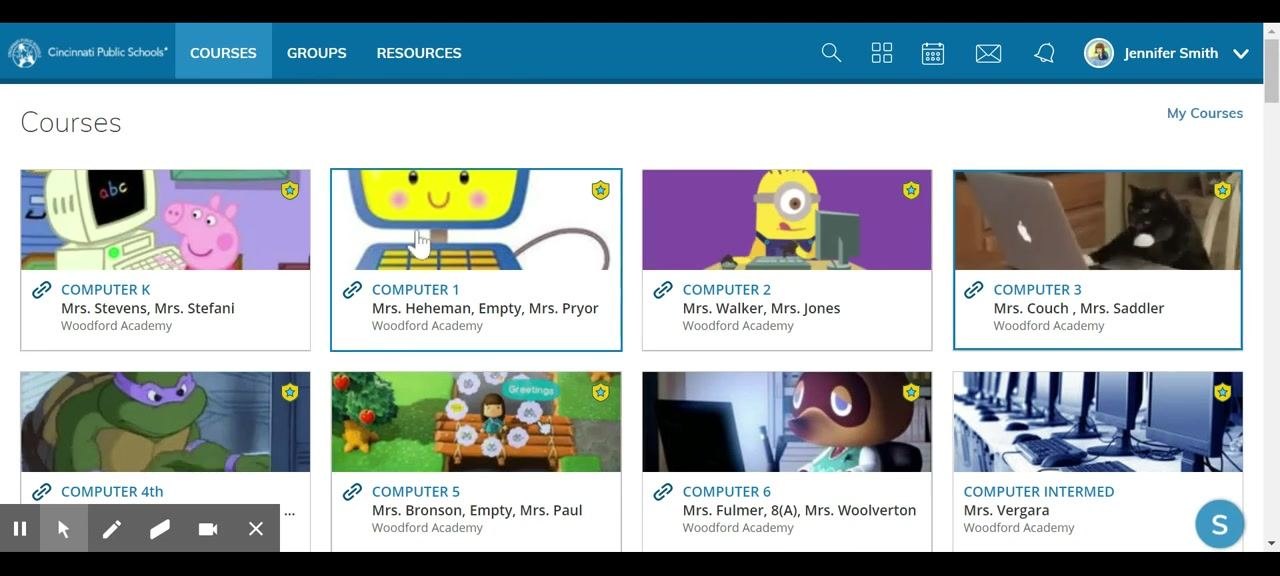
Step 9: Add a new page to Materials
- In your course, click the Add Materials button.
- From the dropdown menu, select Add Page.
Step 10: Insert the banner image
- In the new page editor, click the Insert Content button. It is usually shown as an image or media icon.
- Select Image or Insert Media.
- In the Insert Media dialog, click Attach File under the Upload Media tab.
- Locate and select the banner image file you saved, such as the PNG file from Google Drawings.
Step 11: Add a page title and create the page
- Enter a title in the Page Title field, for example "banner".
- Make sure your banner image appears in the content area.
- Check any required boxes at the bottom of the page, such as "Display on Course Page" or similar, if available.
- Click Create to save the page.
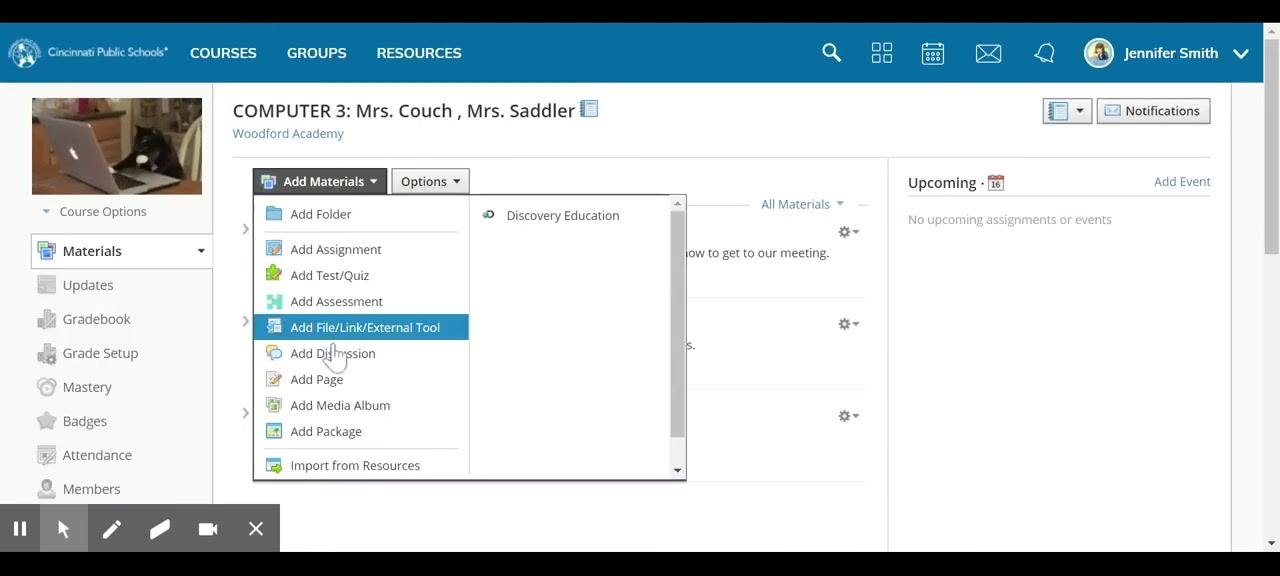
Step 12: Copy the banner image
- Find the new page in your Materials list.
- Click the gear icon next to the page and select Edit.
- In the editor, select the banner image and copy it. Right-click and select Copy, or press Ctrl+C.
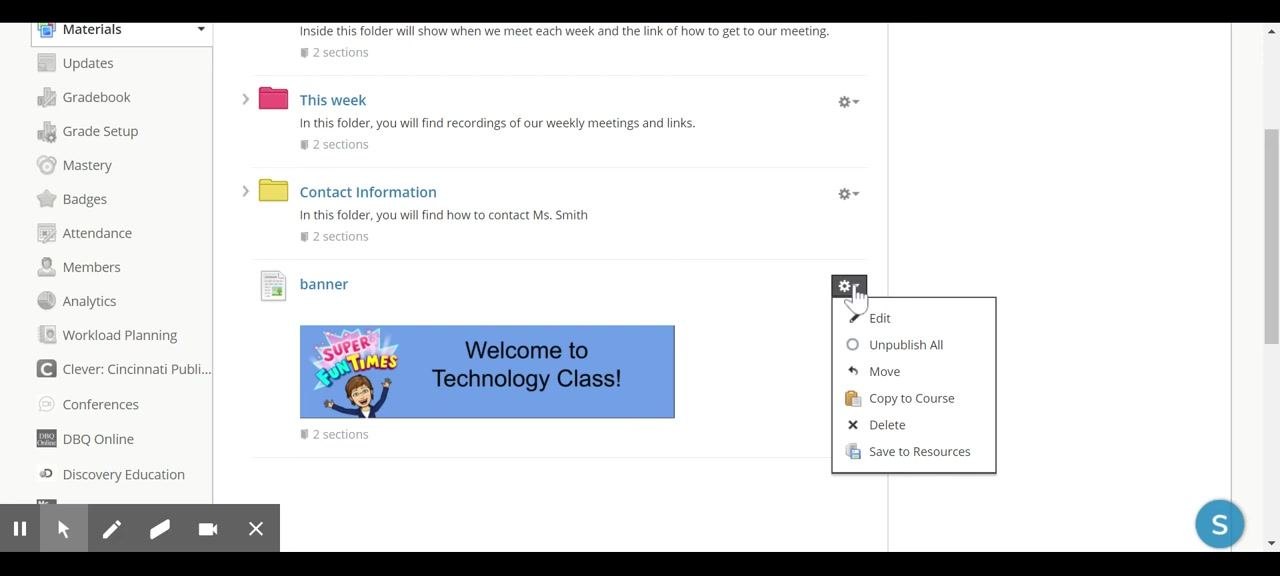
Step 13: Paste the banner into an update and pin it
- Go to the Updates section in your course menu.
- Create a new update or announcement.
- Paste the copied banner image into the content area with Ctrl+V, or right-click and select Paste.
- If needed, click and drag the image corners to resize the banner.
- Click the bell icon to pin the announcement to the top of the page.
- Click Post to publish the update.
Step 14: Verify the banner placement
Return to your course page and confirm that the banner appears at the top as an announcement.
Summary
You now know how to create a banner in Schoology. You designed an 8 x 2 inch banner in Google Drawings and downloaded it as a PNG. You then added it to a course page, copied it into a pinned update, and confirmed it appears at the top of your course. Your students now see a welcoming, organized introduction when they open the course.
Generation details: cost, quality tiers
Docsie billed 2,000 credits ($1.40) to analyze this 4-minute video at standard quality. The rewrite, template fill and Word/PDF exports were included. The same video at each quality tier:
| Quality | Frames sampled | Credits | Approx. cost |
|---|---|---|---|
| Draft | every 16-30 s | 1,000 | $0.70 |
| Standard (this guide) | every 8-15 s | 2,000 | $1.40 |
| Detailed | every 4-7 s | 4,000 | $2.80 |
| Ultra | every 1-3 s | 8,000 | $5.60 |
Credits priced at $0.70 per 1,000; plans include a monthly allowance. Enterprise customers on on-premise or bring-your-own-model deployments run this on their own inference and pay no per-video credits.
Generated by Docsie Video-to-Docs on 2026-11-01 from a 3-minute video. Screenshots are frames from the source video and belong to their creator, Jennifer Folz, whose original is embedded above. If you own this video and want the guide removed or credited differently, contact us and we will act within one business day.