
How to See Members in Schoology
This guide shows you how to see members in Schoology from your course's Members section. You can view everyone enrolled in the course, then manage roles, send messages, and preview the course as a student. You can also create grading groups and work with access codes.
Video: Using the Members Section of a Schoology Course by Amy Alvis (2021). All credit for the demonstration goes to the creator; watch the original on YouTube. The written guide below was generated from this video by Docsie. Creator? Request a change or removal.
This guide shows you how to see members in Schoology from your course's Members section. You can view everyone enrolled in the course, then manage roles, send messages, and preview the course as a student. You can also create grading groups and work with access codes.
Prerequisites
- Access to your Schoology course homepage.
- For some options, your district's settings. Section-level roles and password changes are available only if your district allows them.
Open the Members section to see members in Schoology
- Go to your Schoology course homepage.
- In the left-hand menu, click Members.
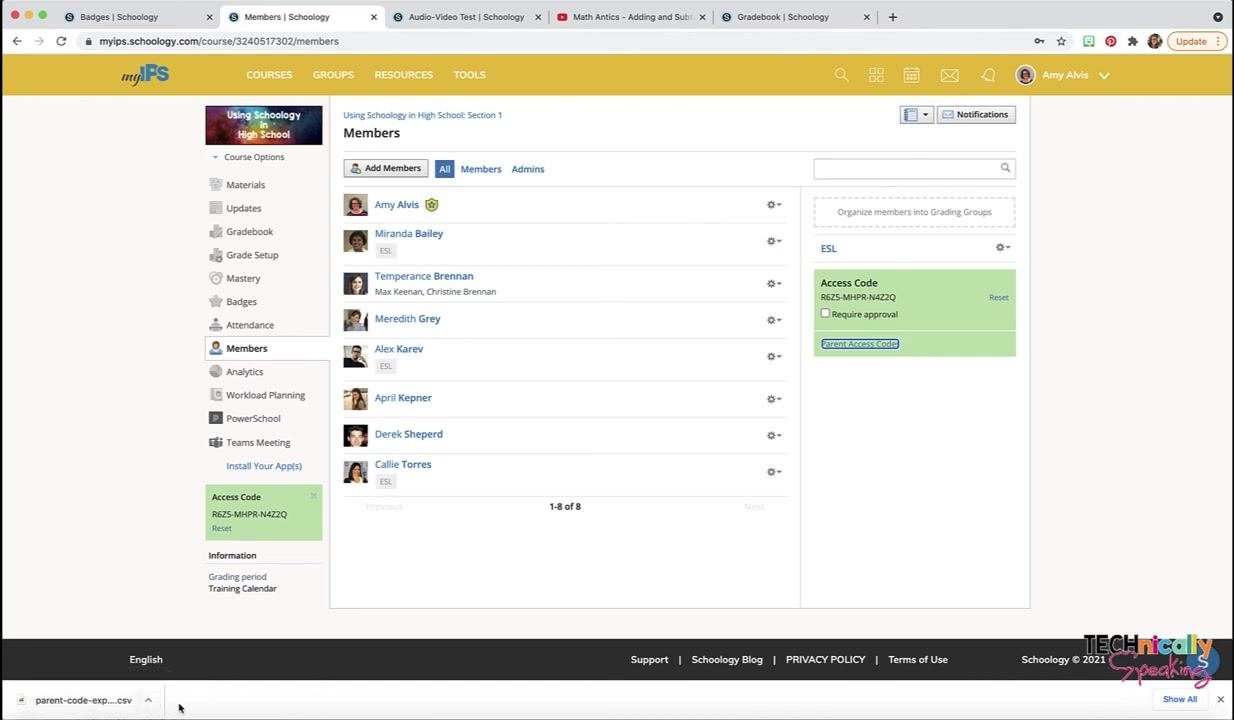
After you click Members, you see a list of everyone enrolled in the course. Each member appears with a name and profile picture. A small shield icon next to a name means that member is an admin for the course.
Make a member an admin or unenroll a member
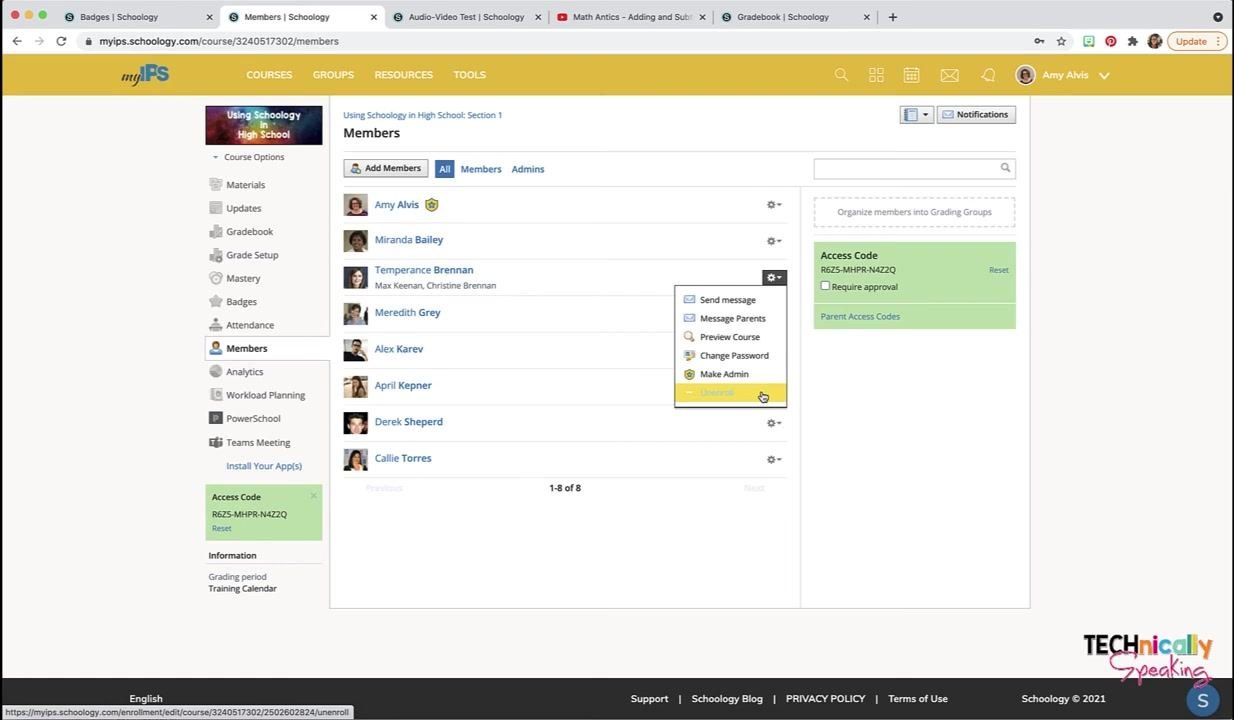
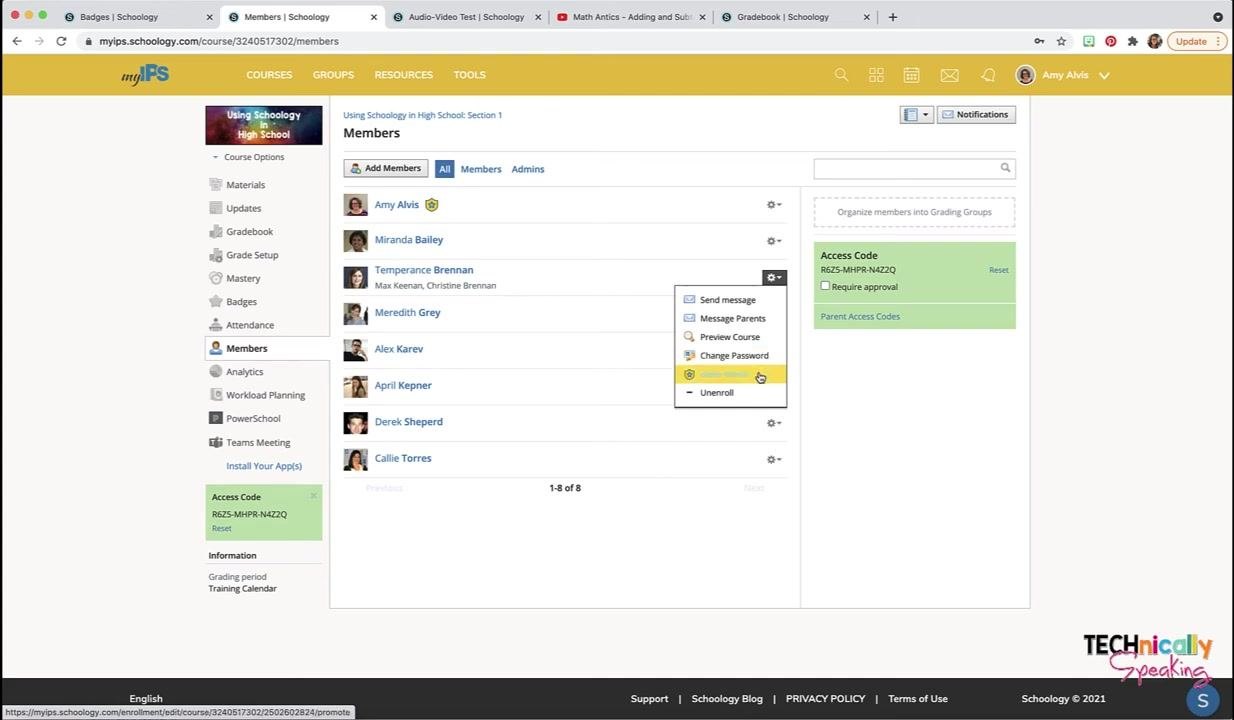
- Click the cogwheel next to the member's name.
- Select Make Admin to grant admin rights, or select Unenroll to remove the member from the course.
In some districts, unenrolling students isn't recommended if a student information system (for example, PowerSchool) manages enrollments. The system may add the students back automatically.
Set a section-level role
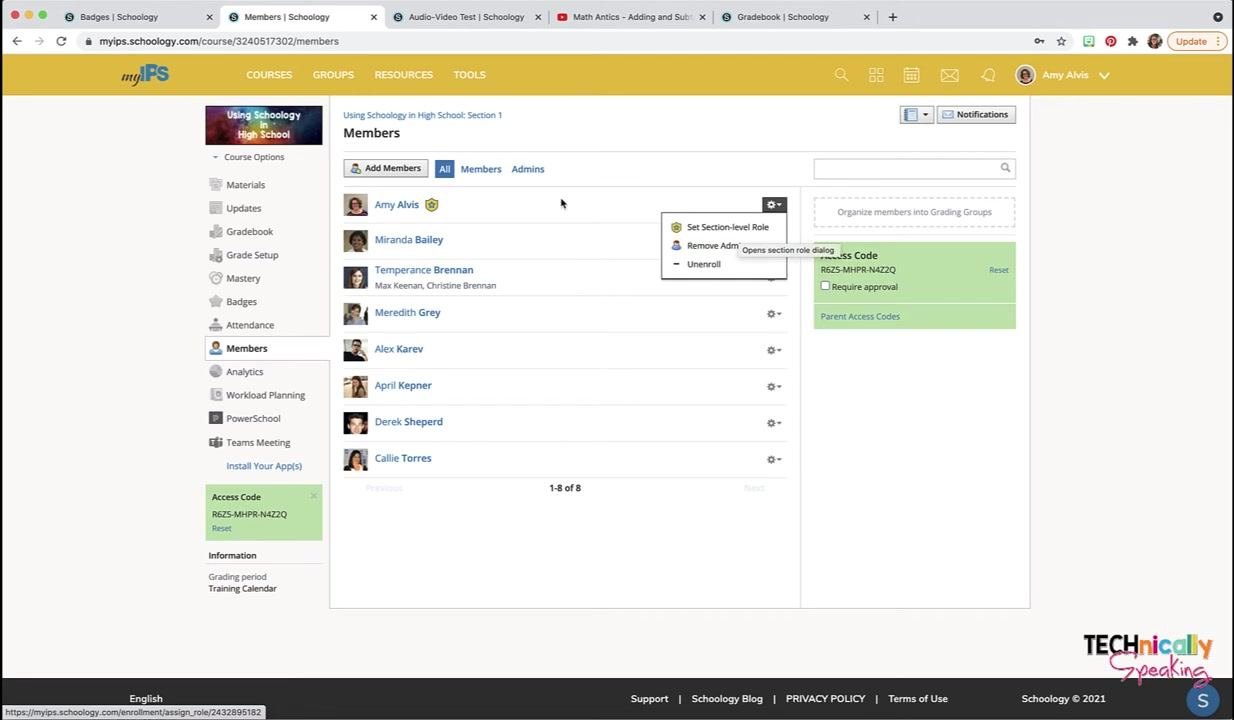
- Click the cogwheel next to the member's name.
- Select Set Section-level Role to limit what the member can do within the course.
This option appears only if your district has enabled section-level roles.
Message a student or their parents
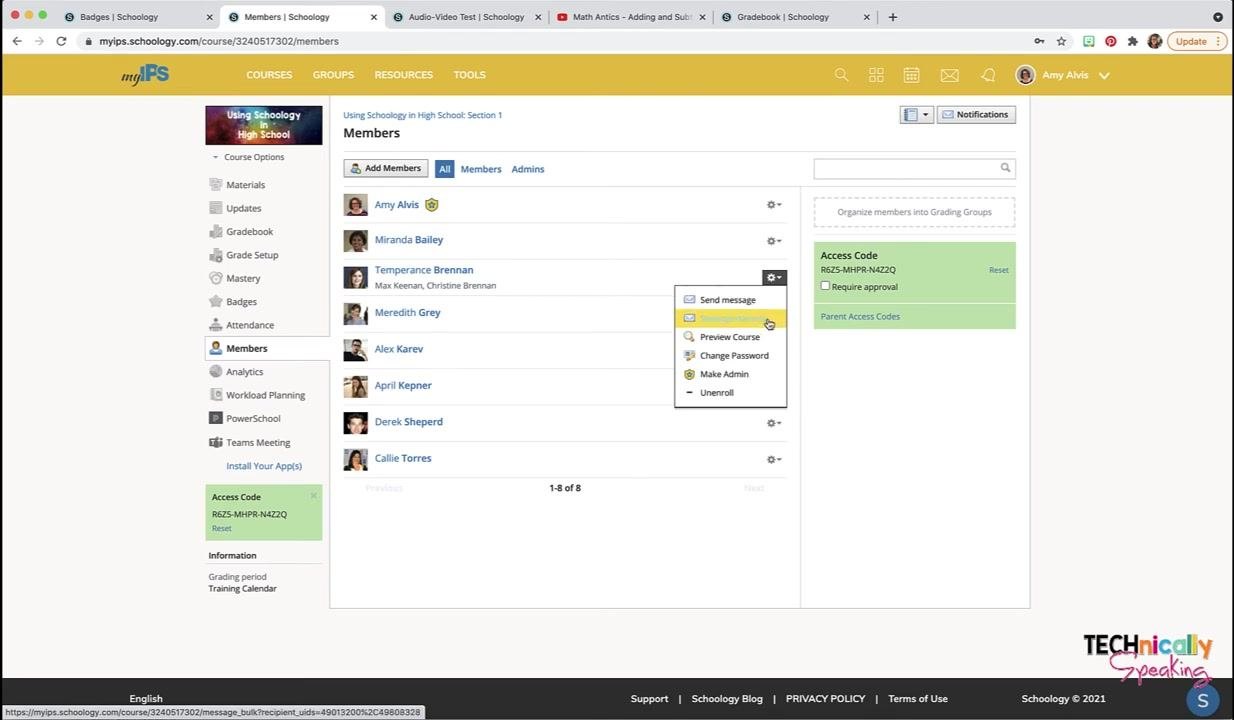
When you see members in Schoology, names listed underneath a student's name are the parents associated with that student.
- Click the cogwheel next to the student's name.
- Select Send Message to message the student directly, or select Message Parents to message the associated parents.
Preview the course as a student
- Click the cogwheel next to the student's name.
- Select Preview Course.
You now see the course from that student's perspective.
Change a student's password
- Click the cogwheel next to the student's name.
- Select Change Password.
This option may be disabled if your district doesn't allow password changes.
Create a grading group for specific students
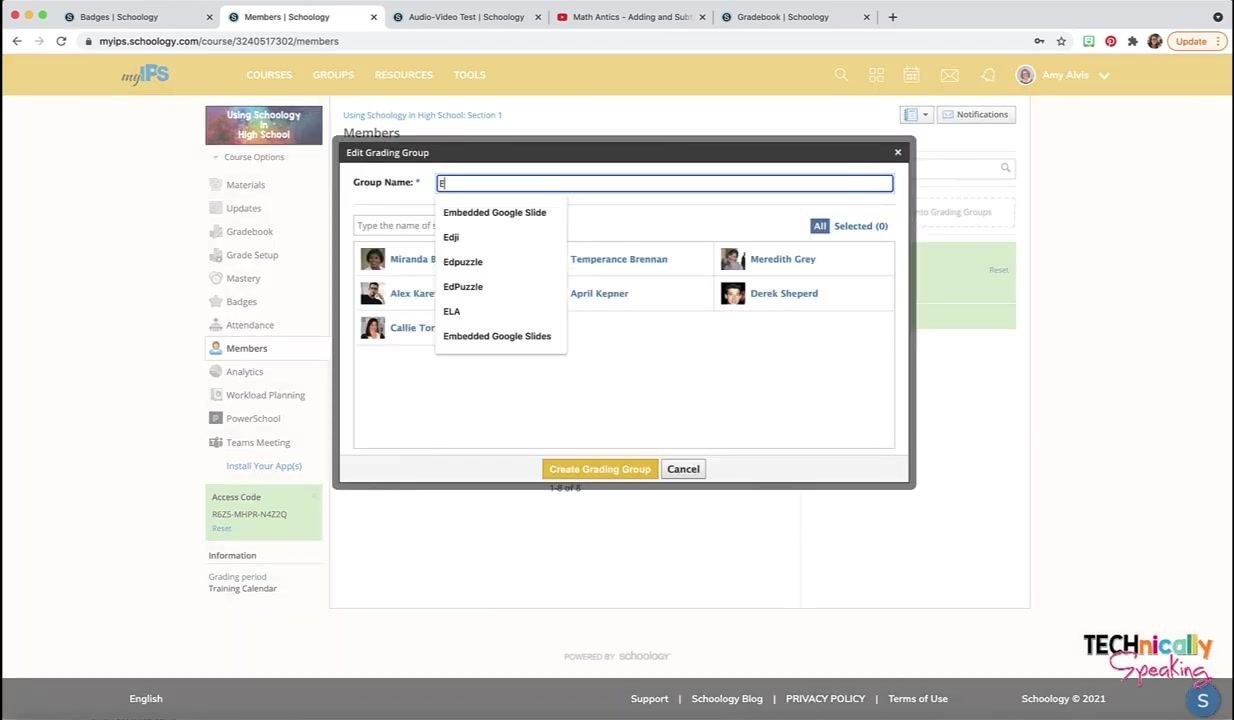
- In the Members section, click Add Grading Group on the right side of the screen.
- In the pop-up window, enter a name in the Group Name field (for example, "ESL").
- Click the names of the students you want in the group (for example, Miranda Bailey, Alex Karev, and Callie Torres).
- Click Create Grading Group.
Assign work to a grading group
- When you create an assignment, type the group name (for example, "ESL") in the assign-to field.
- Schoology assigns the work to every student in that group (in this example, Miranda, Alex, and Callie), so you don't have to enter each name.
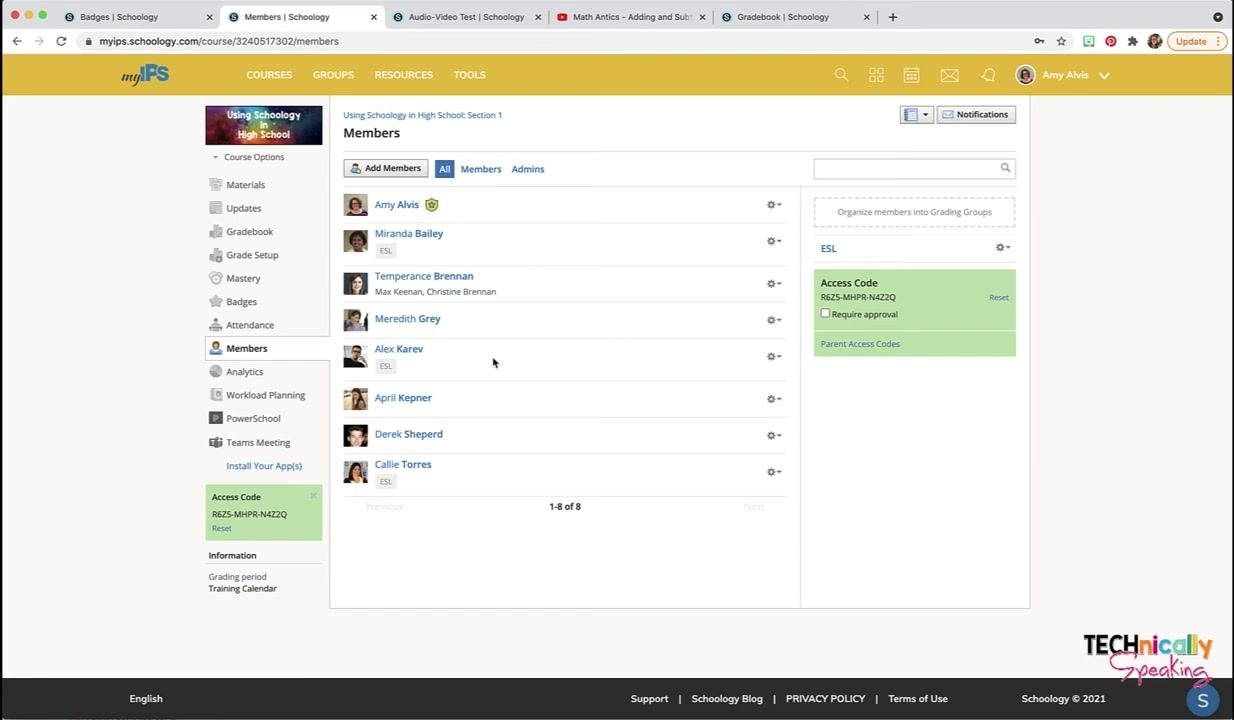
Grading groups now appear next to student names in the Members list.
Find the course access code
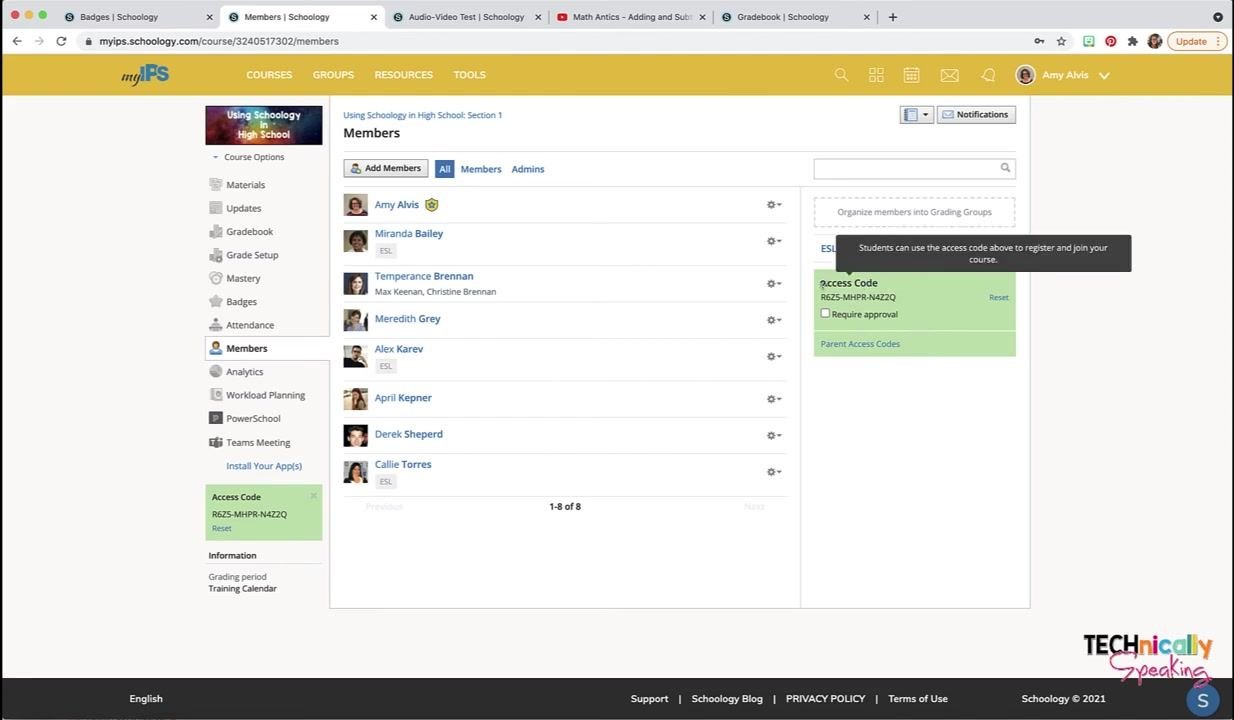
The Access Code for the course appears on the right side of the Members page (for example, RG25-MHPR-NA4ZQ).
- Students can use this code to register and join your course if manual enrollment is allowed.
- If a Student Information System (SIS) enrolls your students, you typically don't need the code.
- You can use the access code to add another teacher to the class.
Download parent access codes
- If your district uses parent access codes, click Parent Access Codes under the Access Code section.
- Click Download when prompted.
A CSV file (for example, parent-code-export.csv) downloads to your computer. It contains the parent access codes you can distribute to parents.
Summary
Now you know how to see members in Schoology and use the Members section to manage them. You can assign roles, communicate with students and parents, adjust permissions, and preview the course as a student. You can also organize students into grading groups, streamline assignment distribution, and manage both student and parent access codes.
Generation details: cost, quality tiers
Docsie billed 1,500 credits ($1.05) to analyze this 3-minute video at standard quality. The rewrite, template fill and Word/PDF exports were included. The same video at each quality tier:
| Quality | Frames sampled | Credits | Approx. cost |
|---|---|---|---|
| Draft | every 16-30 s | 750 | $0.52 |
| Standard (this guide) | every 8-15 s | 1,500 | $1.05 |
| Detailed | every 4-7 s | 3,000 | $2.10 |
| Ultra | every 1-3 s | 6,000 | $4.20 |
Credits priced at $0.70 per 1,000; plans include a monthly allowance. Enterprise customers on on-premise or bring-your-own-model deployments run this on their own inference and pay no per-video credits.
Generated by Docsie Video-to-Docs on 2026-11-01 from a 2-minute video. Screenshots are frames from the source video and belong to their creator, Amy Alvis, whose original is embedded above. If you own this video and want the guide removed or credited differently, contact us and we will act within one business day.