
How to Make Buttons in Schoology
If you want to know how to make buttons in Schoology, you can design circular images in PowerPoint, upload them to a Schoology page, and link each one to a Google resource. This guide walks you through the full workflow. You design the buttons, export them as images, build an unpublished storage page, add links, and post the buttons as an announcement. You can then reuse the page whenever you need to update your course.
Video: How to Create and Add Clickable Buttons to Schoology by Anna Monteil (2020). All credit for the demonstration goes to the creator; watch the original on YouTube. The written guide below was generated from this video by Docsie. Creator? Request a change or removal.
If you want to know how to make buttons in Schoology, you can design circular images in PowerPoint, upload them to a Schoology page, and link each one to a Google resource. This guide walks you through the full workflow. You design the buttons, export them as images, build an unpublished storage page, add links, and post the buttons as an announcement. You can then reuse the page whenever you need to update your course.
Prerequisites
Before you start, make sure you have the following:
- Microsoft PowerPoint installed on your computer
- Access to a Schoology course where you can add materials
- Google Drive documents you want to link to (for example, a daily schedule, contact info, or weekly newsletter)
- A Google Drive folder that holds those documents, such as a "Linked to Schoology" folder
Create circular buttons in PowerPoint
Step 1: Set the slide size
Open PowerPoint, then set the slide size so every button is a perfect square.
- Go to the menu bar and select File.
- Click Page Setup....
- Set both Width and Height to 4.86 inches. This equals 350 by 350 pixels.
- Click OK.
Step 2: Add a blank slide
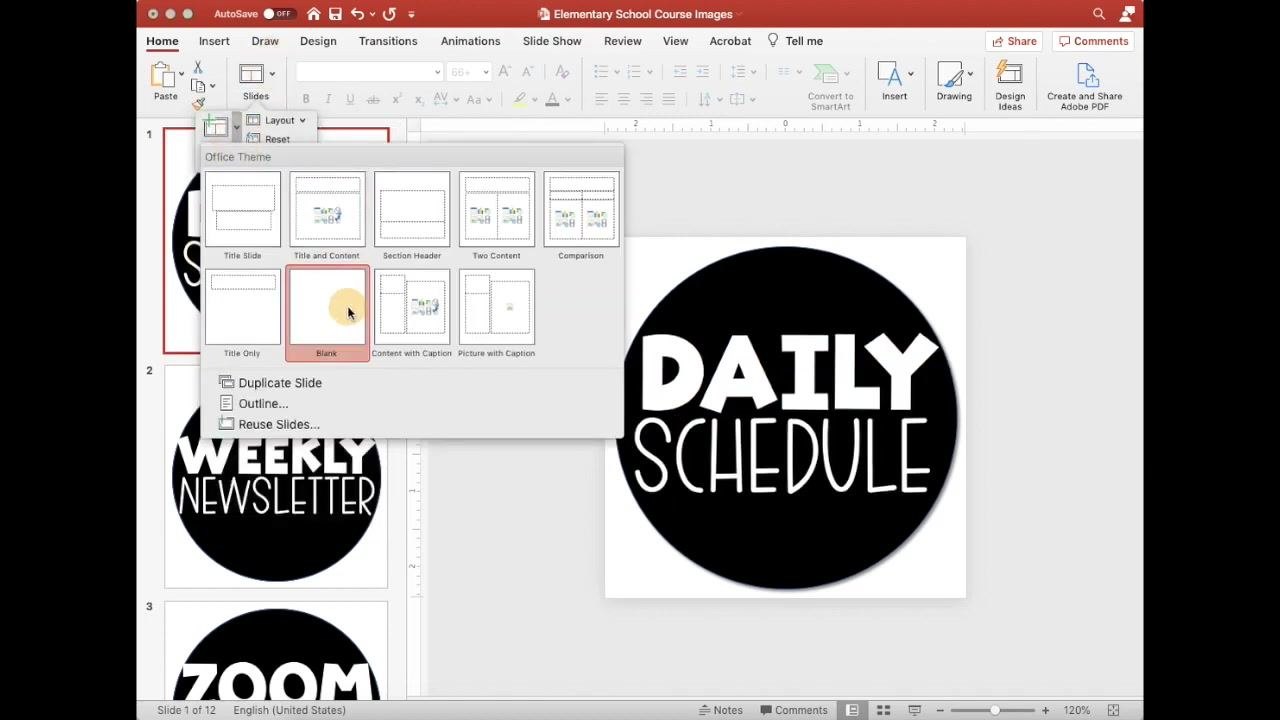
In the Slides pane, right-click and select New Slide. Choose the Blank layout.
Step 3: Insert a circle shape
Draw the circle that forms the base of your button.
- Go to the Insert tab or open the Shapes dropdown in the toolbar.
- Select the circle (ellipse) from the Basic Shapes section.
- Click and drag on the slide to draw the circle. Hold the Shift key while you drag so the shape stays a perfect circle.
- Center the circle so it nearly touches the slide edges without going all the way to them.
Step 4: Fill the circle with color
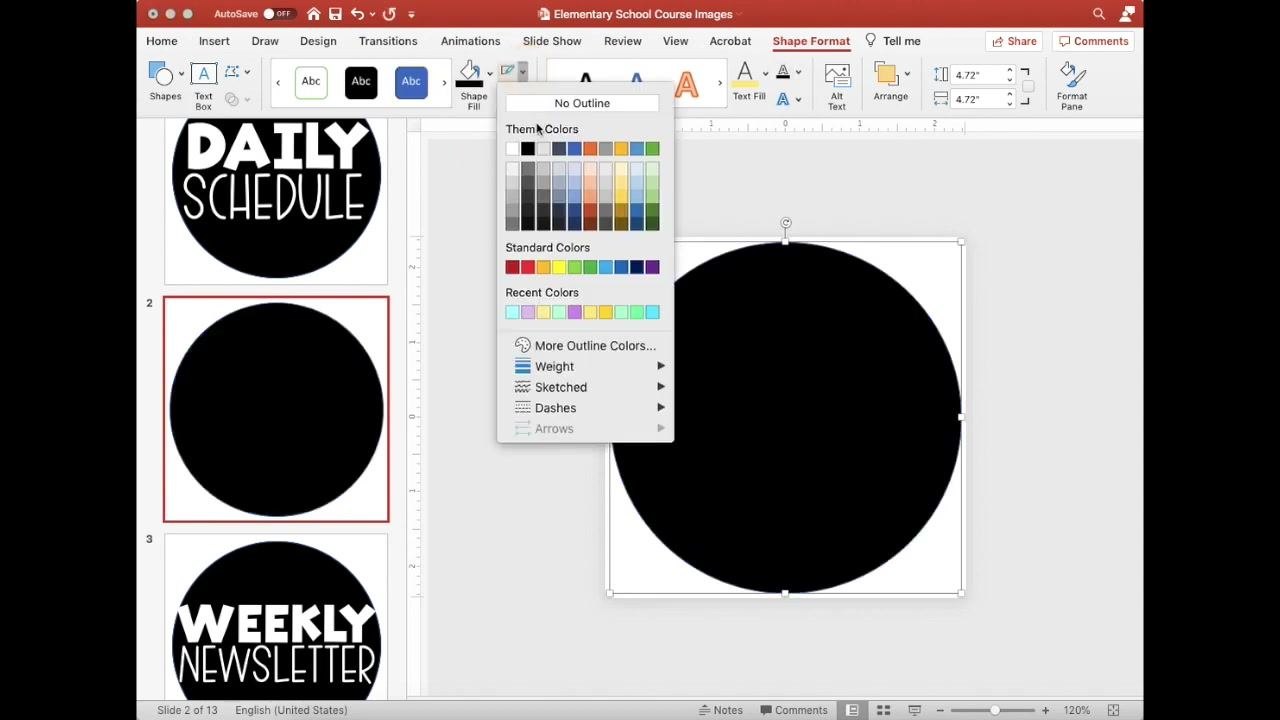
- Select the circle and go to the Shape Format tab.
- Click Shape Fill and choose a color, such as black.
- Optionally, set Shape Outline to No Outline for a cleaner look.
Step 5: Add text to the button
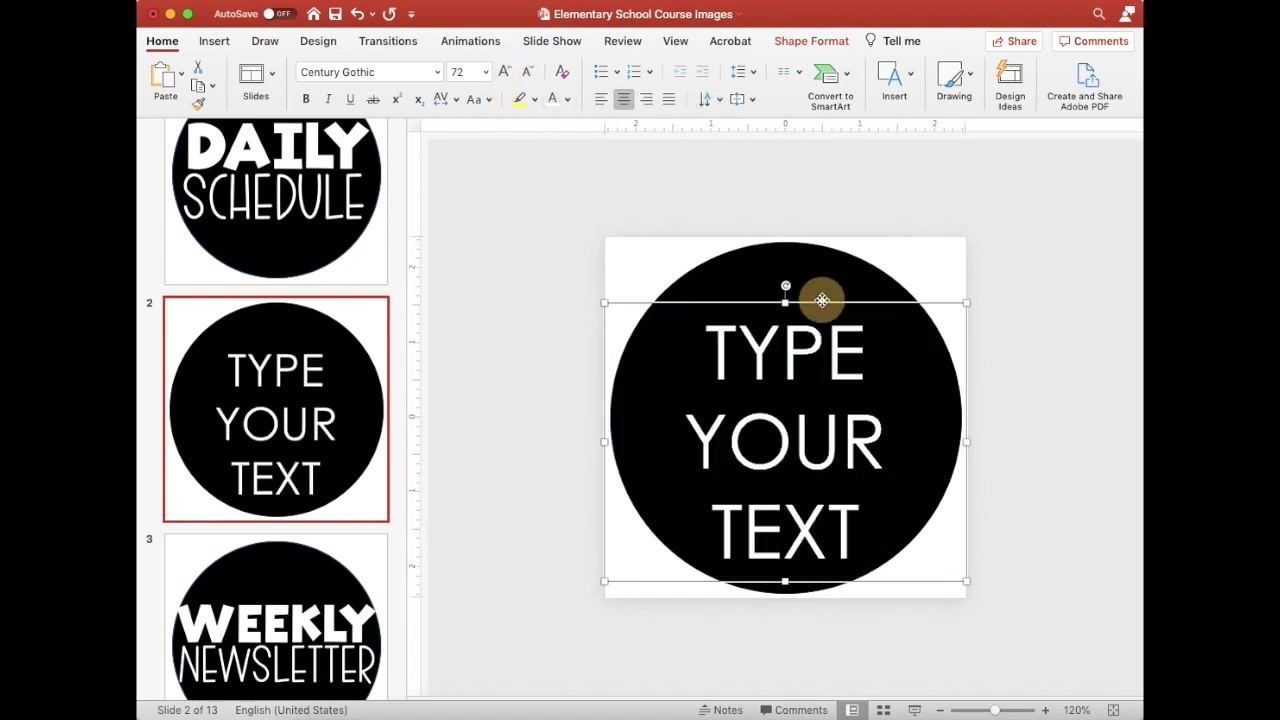
- Click Insert > Text Box, then draw a text box over the circle.
- Type your button text, such as "TYPE YOUR TEXT".
- Choose a simple, widely available font, such as Century Gothic or Calibri, for compatibility.
- Center the text horizontally and vertically in the circle.
- Adjust the font size so the text is clear and well positioned.
Step 6: Customize and repeat (optional)
You can add icons or other design elements on top of the button. Repeat the process on new slides to make more buttons, such as "DAILY SCHEDULE" and "WEEKLY NEWSLETTER".
Export the slides as images
Step 7: Prepare your slides
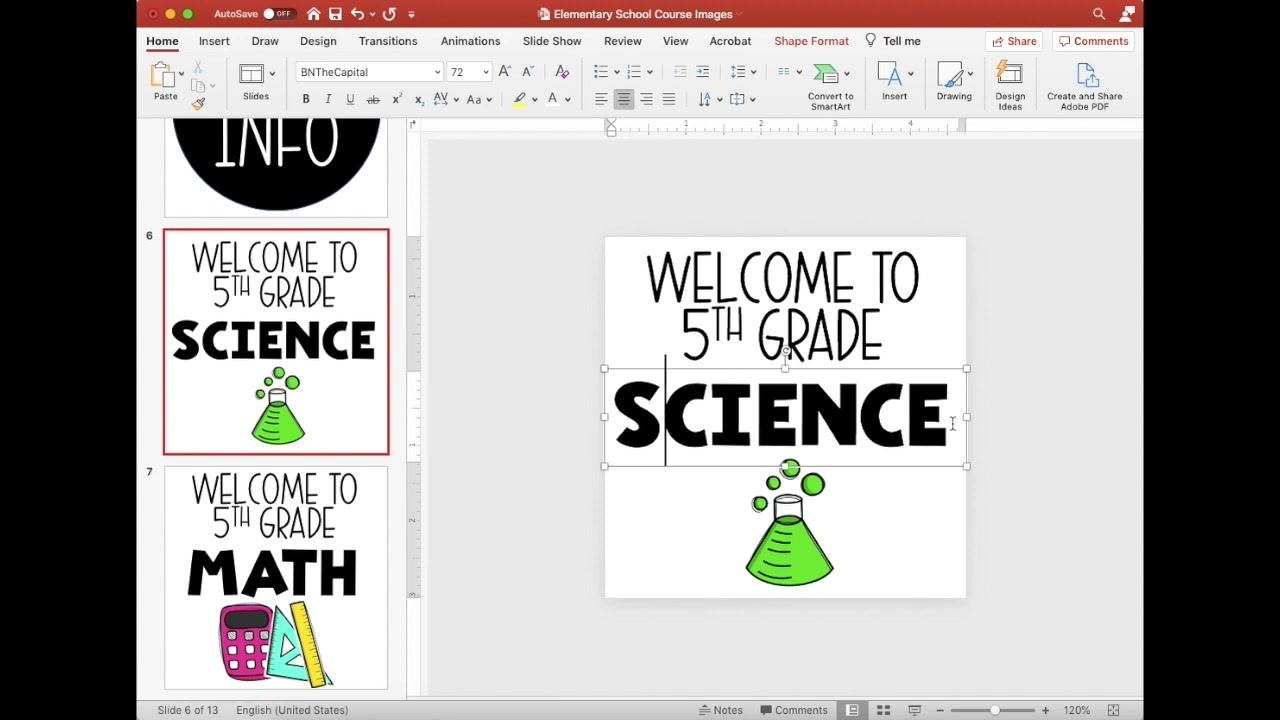
Before you export, check that each design is complete. Each slide should hold a single, centered design, such as "TYPE YOUR TEXT" or "WELCOME TO 5TH GRADE SCIENCE". Confirm that all text and graphics are centered within the square slide so they look right on your dashboard.
Step 8: Export every slide as an image file
- Go to the menu bar, click File, and select Export....
- Enter a name for the export, such as "Elementary School Course Images".
- Set the destination folder, such as Desktop.
- For File Format, select PNG or JPEG. PNG is recommended for higher quality.
- Click Export.
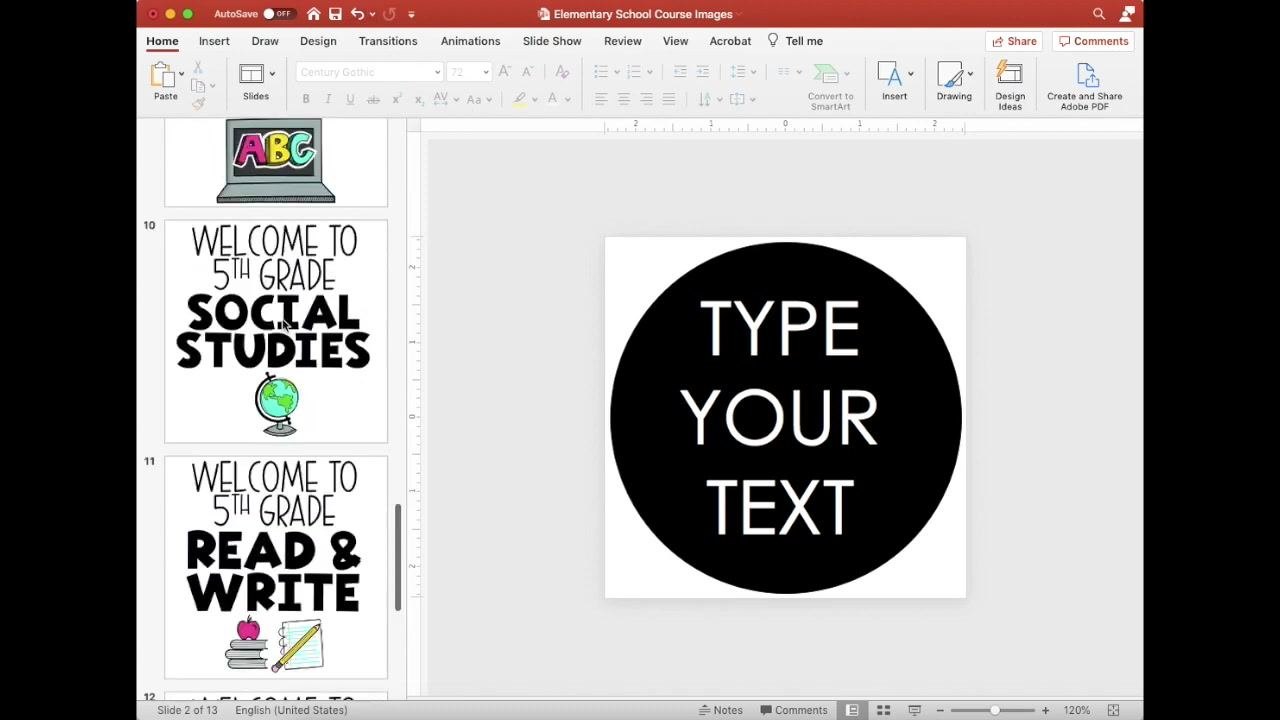
When prompted, choose Save Every Slide so each slide becomes its own image file. If a folder with the same name already exists, click Replace to confirm.
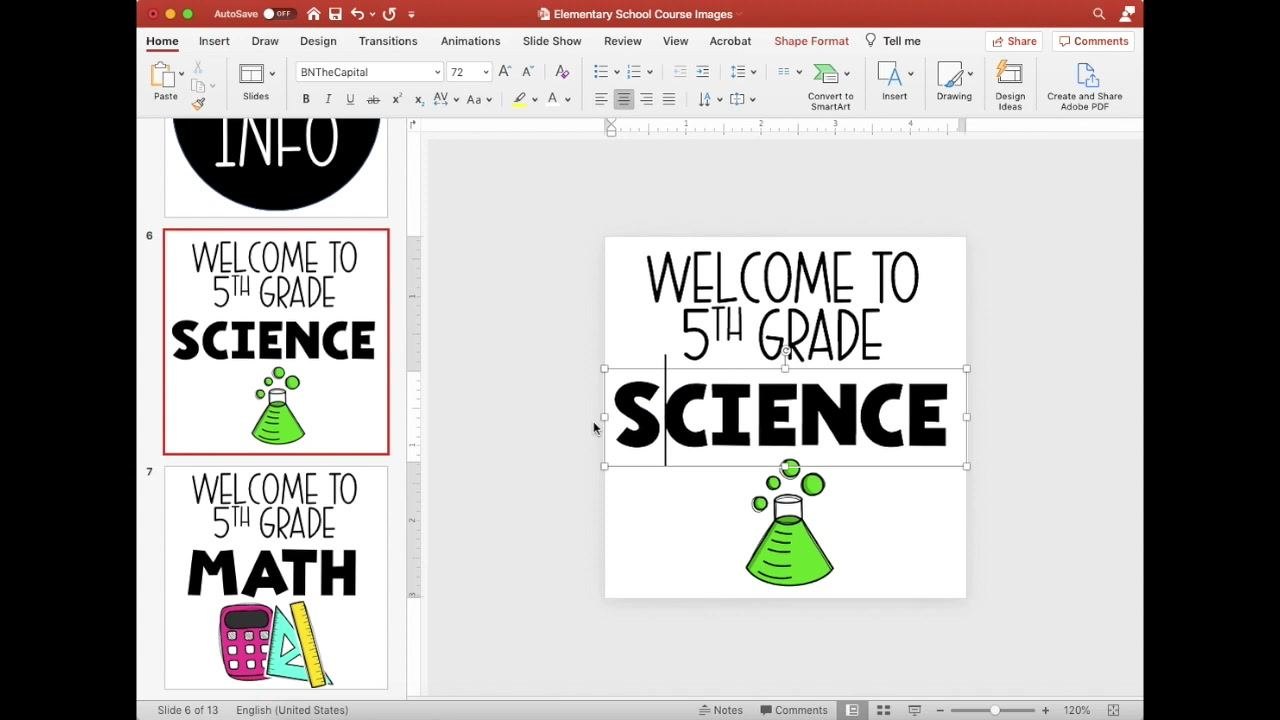
Wait for the export to finish. A confirmation dialog states that each slide has been saved as a separate file in the folder you chose. Click OK to close it.
Step 9: Check image centering (recommended)
Review your exported images to confirm that all text and graphics are centered. This matters most for course covers and dashboard images.
Build the Schoology page
Step 10: Open your course
Log in to Schoology and select the course where you want to add your custom images. The course page shows options to add and organize materials.
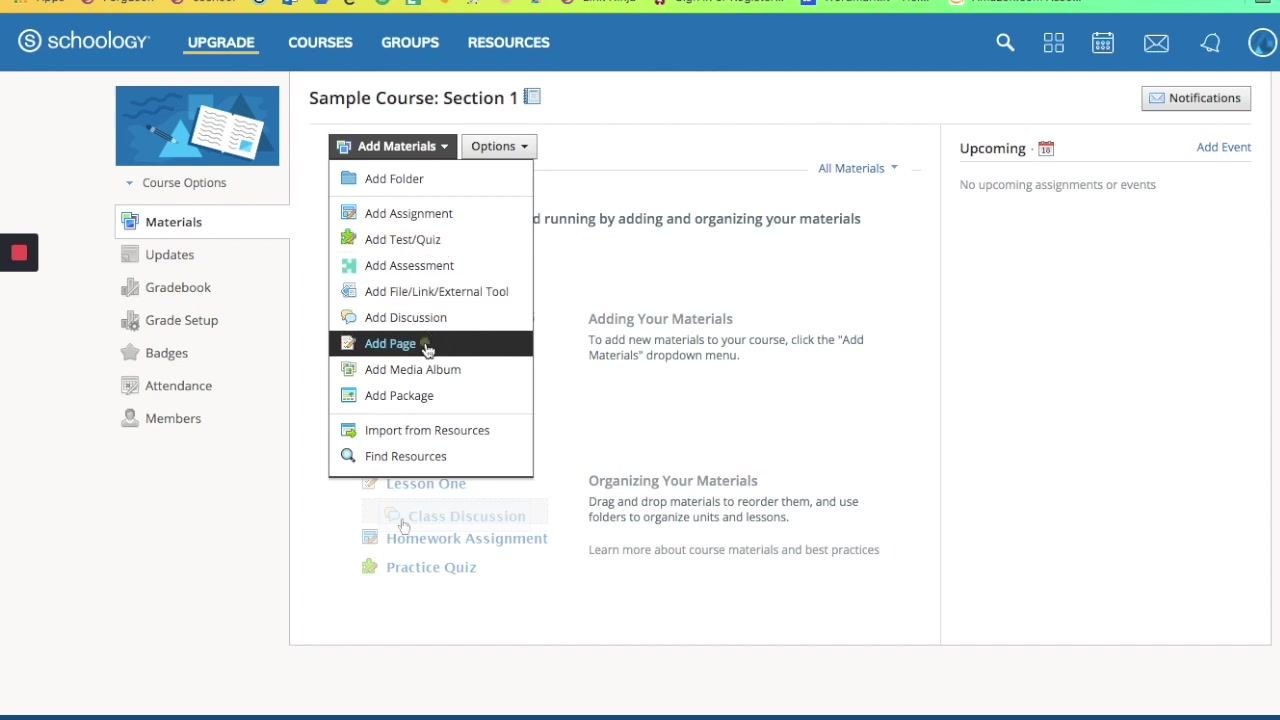
Step 11: Add a new page
Click Add Materials, then select Add Page from the dropdown.
Step 12: Name the page and keep it unpublished
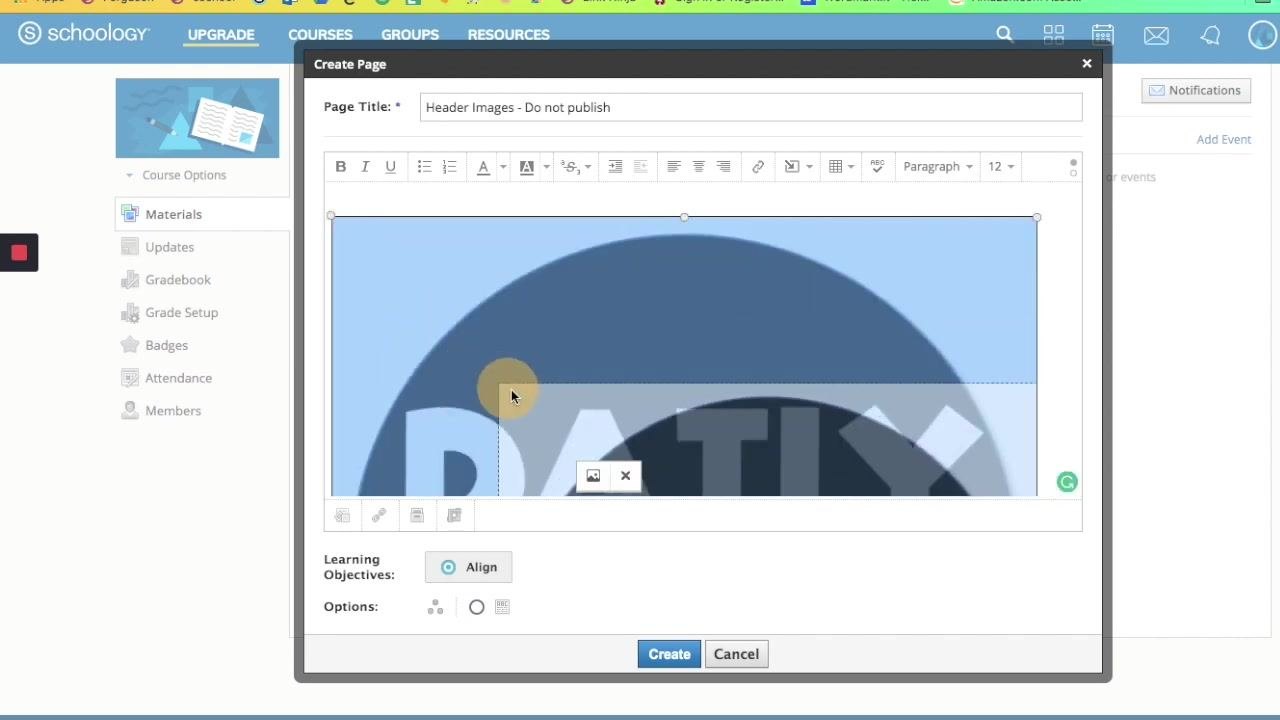
In the Create Page dialog, enter a title such as Header Images - Do not publish. This page works as a storage area for your images, so leave it unpublished. Make sure the page title field is filled in and the rich text editor is visible with its formatting options.
Step 13: Gather your exported images
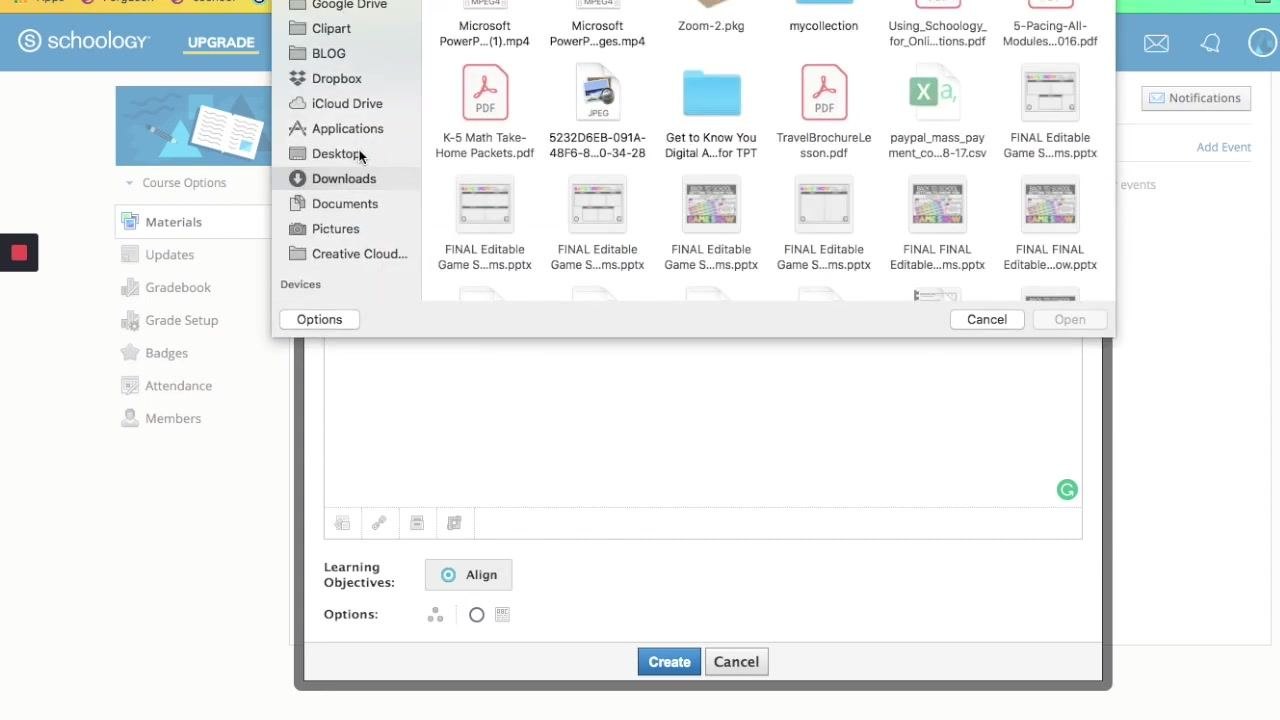
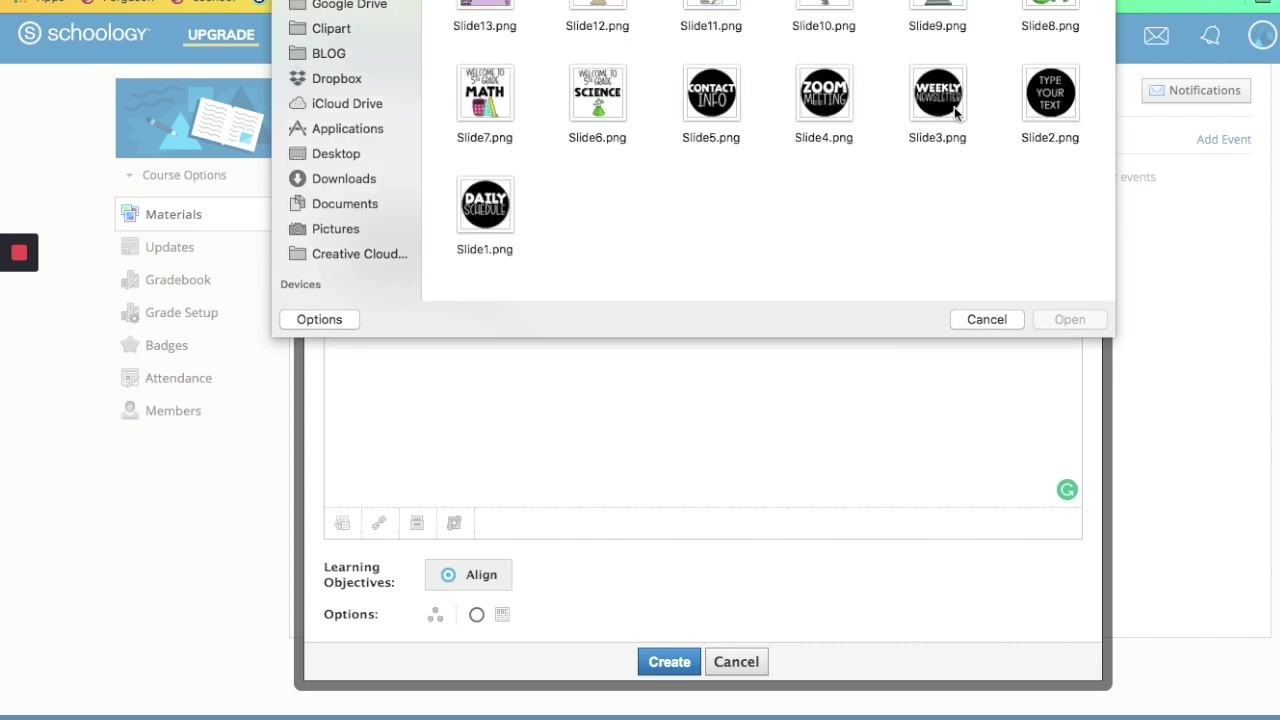
Confirm that all your PNG or JPEG files are saved together in one folder so they're easy to find when you upload. Open the folder where you saved your exported images.
Step 14: Attach images one at a time
- In the page editor, click Insert Content and select Image/Media.
- In the file picker, navigate to your folder of exported images.
- Select the first image, such as
Slide1.pnglabeled "DAILY SCHEDULE". - Click Open to attach it.
Step 15: Resize the inserted image
The image may look very large in the editor. Click the image to select it, then drag the corner handles inward to shrink it.
You can also double-click the image to open the dimension settings. Enter specific dimensions, such as 350 x 350 pixels, and confirm the change.
Step 16: Fine-tune size and placement
Keep adjusting the size by dragging or entering new dimensions. For a smaller icon, try 100 x 100 pixels. Use your keyboard arrow keys to nudge the image into position, and use the on-screen guidelines in Schoology to align it.
Step 17: Arrange the images in a row
Repeat the upload and resize steps for each button. Align "DAILY SCHEDULE", "CONTACT INFO", "ZOOM MEETING", and "WEEKLY NEWSLETTER" horizontally in the editor.
Link each button to a Google resource
Step 18: Start a link on the first image
Click the first image ("DAILY SCHEDULE") to select it. Then click the Link button (chain icon) in the editor toolbar.
Step 19: Find your resource in Google Drive
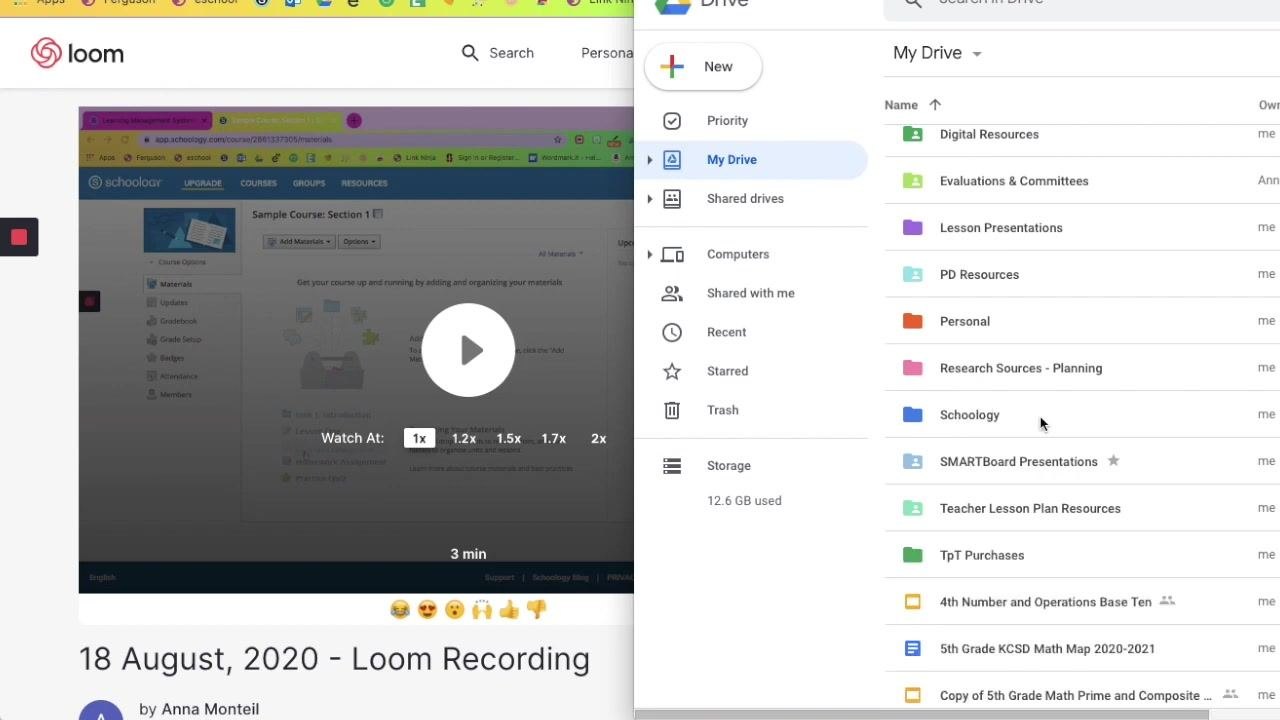
Open Google Drive and go to My Drive, then the Schoology folder. Open the Linked to Schoology subfolder to see your documents, such as "Assignment Agenda Slides", "Contact Info", "Linked to Schoology Agenda Slides", and "Weekly Newsletter".
Step 20: Get the shareable link
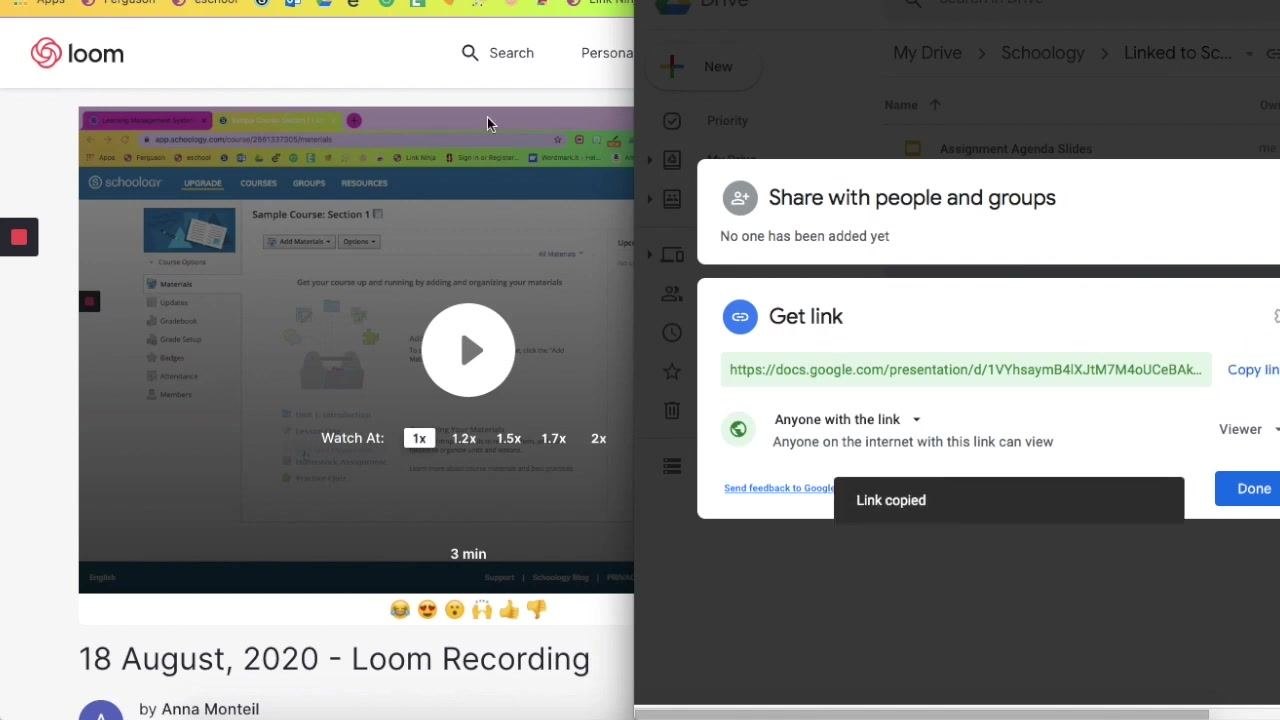
- Right-click the document you want to link, such as "Assignment Agenda Slides".
- Select Get shareable link.
- Make sure the sharing setting is Anyone with the link can view.
- Click Copy link.
Step 21: Confirm the link was copied
A notification such as "Link copied" appears when the copy succeeds.
Step 22: Paste the link in Schoology
Return to Schoology and paste the copied link into the hyperlink dialog for the selected image. Repeat the linking steps (select the image, click Link, copy the Google Drive link, and paste it) for each header image so that each one points to its own Google resource.
Post the buttons as an announcement
Step 23: Select all the header images
After you link every image, select all the content in the editor so you can copy it for use elsewhere.
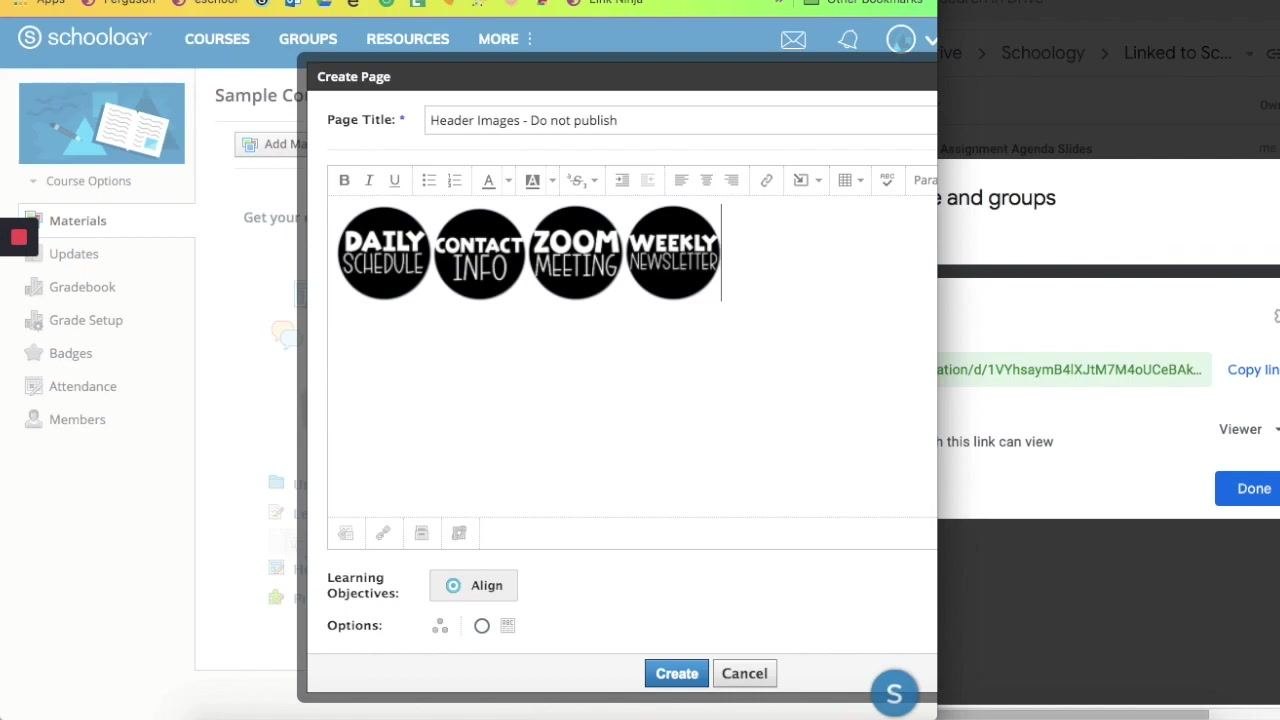
Step 24: Copy the header images
Use the menu bar to select Edit > Copy, or use a keyboard shortcut such as Command+C on a Mac. Make sure all four images ("DAILY SCHEDULE", "CONTACT INFO", "ZOOM MEETING", and "WEEKLY NEWSLETTER") are selected before you copy.
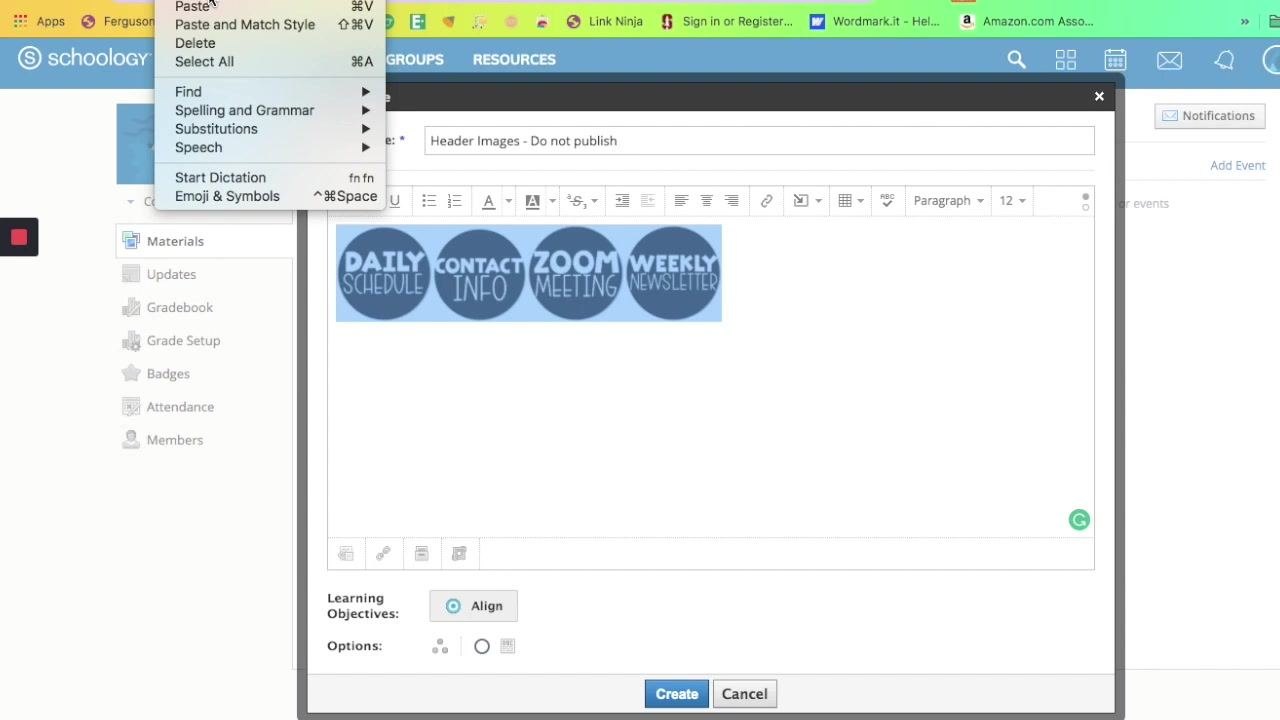
Step 25: Save the page
Confirm the page title is "Header Images - Do not publish". Then click the blue Create button at the bottom of the dialog.
Step 26: Go to Updates
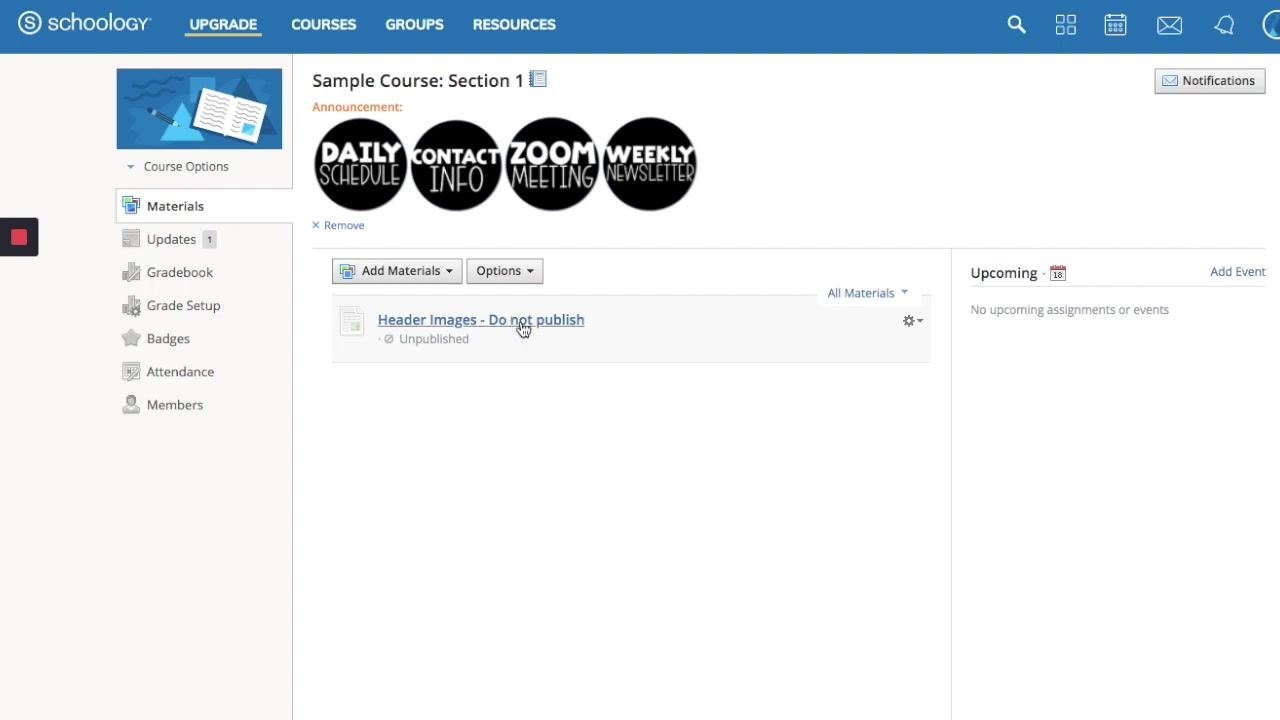
In the left sidebar, click Updates under the Materials section. The main area shows the updates feed for your course. The "Header Images - Do not publish" page appears in your materials as unpublished.
Step 27: Paste the images into an announcement
- Click into the announcement text box at the top of the Updates page.
- Paste the header images with Command+V or Ctrl+V. The images appear in the announcement editor.
- Click Post to publish the announcement.
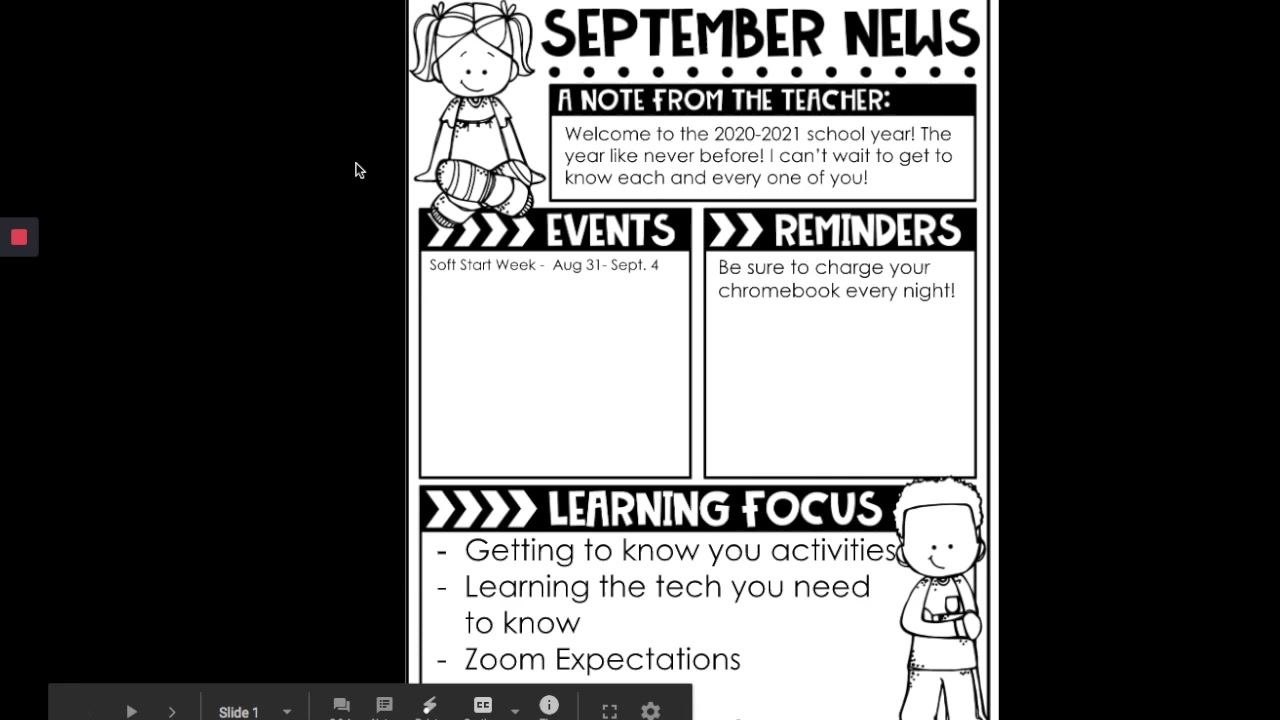
Step 28: Test the button links
In the posted announcement, click one of the header images, such as "WEEKLY NEWSLETTER". Confirm that it opens the matching Google resource, such as a Google Slides presentation.
Step 29: Review the course homepage
Check your course homepage. The four header images should appear at the top under Announcement. The "Header Images - Do not publish" page stays unpublished and available for future editing or copying.
Step 30: Reuse the unpublished page
Treat the unpublished page as a template. Add, edit, or rearrange header images on it as needed. Then copy and paste the updated images into new announcements throughout the year.
Summary
You now know how to make buttons in Schoology. You designed uniform circular buttons in PowerPoint, exported them as images, and placed them on an unpublished Schoology page. You linked each one to a Google resource and posted them as an announcement. Because the storage page stays unpublished, you can update it and repost the buttons whenever your course needs fresh communication.
What's next
- Add more buttons for other resources, using the same slide size and process.
- Edit the unpublished page and paste updated images into new announcements as the school year progresses.
Generation details: cost, quality tiers
Docsie billed 4,500 credits ($3.15) to analyze this 9-minute video at standard quality. The rewrite, template fill and Word/PDF exports were included. The same video at each quality tier:
| Quality | Frames sampled | Credits | Approx. cost |
|---|---|---|---|
| Draft | every 16-30 s | 2,250 | $1.57 |
| Standard (this guide) | every 8-15 s | 4,500 | $3.15 |
| Detailed | every 4-7 s | 9,000 | $6.30 |
| Ultra | every 1-3 s | 18,000 | $12.60 |
Credits priced at $0.70 per 1,000; plans include a monthly allowance. Enterprise customers on on-premise or bring-your-own-model deployments run this on their own inference and pay no per-video credits.
Generated by Docsie Video-to-Docs on 2026-11-01 from a 8-minute video. Screenshots are frames from the source video and belong to their creator, Anna Monteil, whose original is embedded above. If you own this video and want the guide removed or credited differently, contact us and we will act within one business day.