
How to Enable Submissions in Schoology
Learn how to enable submissions in Schoology and how to disable them for individual assignments. The submissions toggle controls whether students can turn in work digitally. This guide uses the assignment "Personal Introduction" as an example.
Video: Schoology: Assignment Submissions Enabled/Disabled by Jessie Metzger (2020). All credit for the demonstration goes to the creator; watch the original on YouTube. The written guide below was generated from this video by Docsie. Creator? Request a change or removal.
Learn how to enable submissions in Schoology and how to disable them for individual assignments. The submissions toggle controls whether students can turn in work digitally. This guide uses the assignment "Personal Introduction" as an example.
Prerequisites
- A Schoology account that you can log in to.
- A course that contains an assignment you want to edit.
Steps
Open your courses
- Log in to your Schoology account.
- From the dashboard, find the Courses tab at the top of the page.
- Click Courses to see all your available courses.
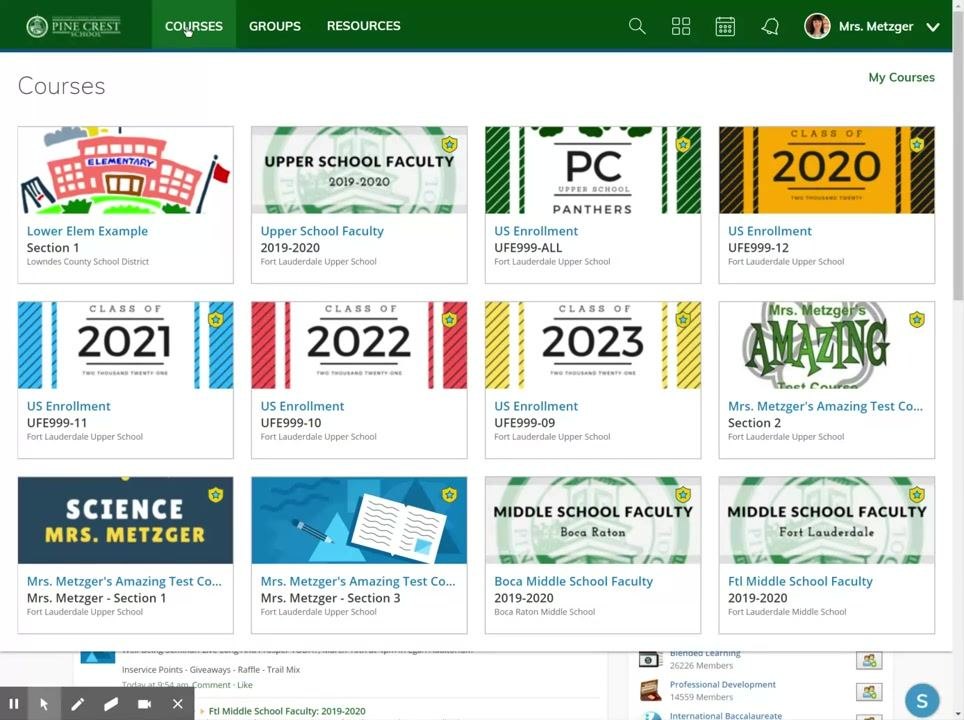
Select the course
Find the course where you want to manage assignment submissions and click it. In this example, select "Mrs. Metzger's Amazing Test Course: Section 2".
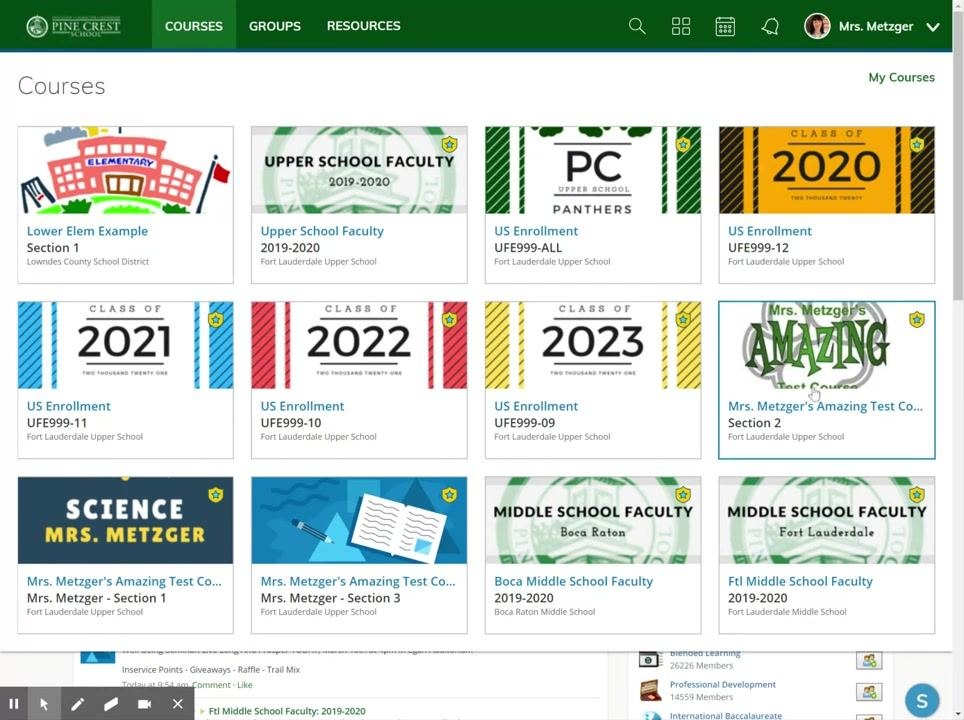
Go to Materials and find the assignment
Make sure you are in the Materials section. If your course opens to another section, such as Updates, click Materials in the left-hand navigation bar.
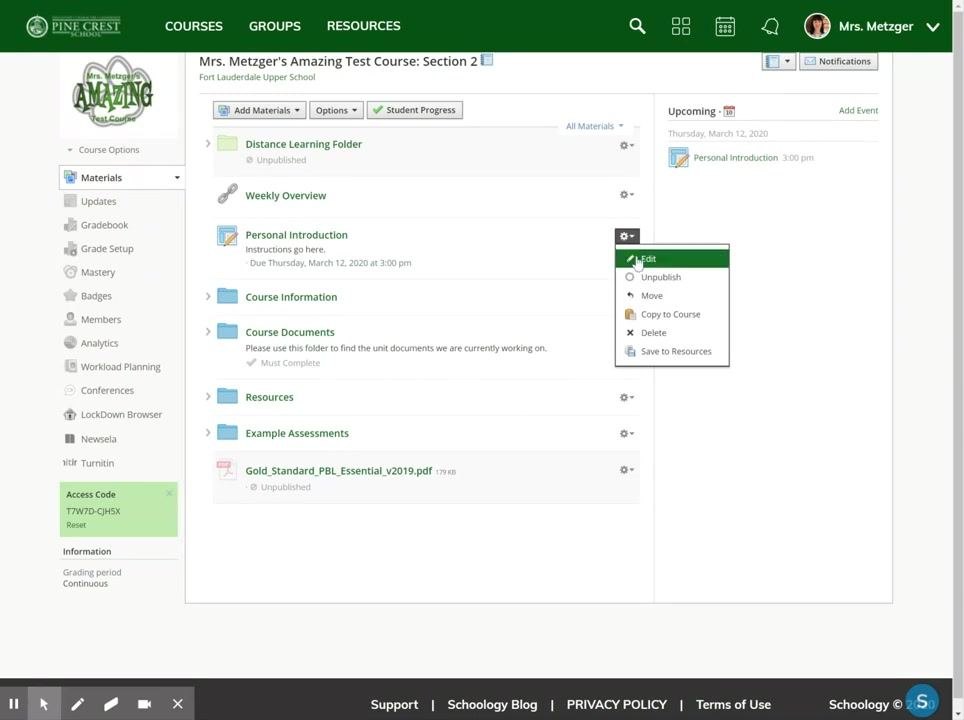
Then find the assignment you want to edit. In this example, it's "Personal Introduction".
Open the assignment editor
You can edit an assignment in two ways:
- Click the assignment name.
- Click the gear icon next to the assignment.
Use the gear icon, because it's a consistent place to find editing options. Click the gear icon next to "Personal Introduction", then select Edit from the dropdown menu.
Locate the submissions setting
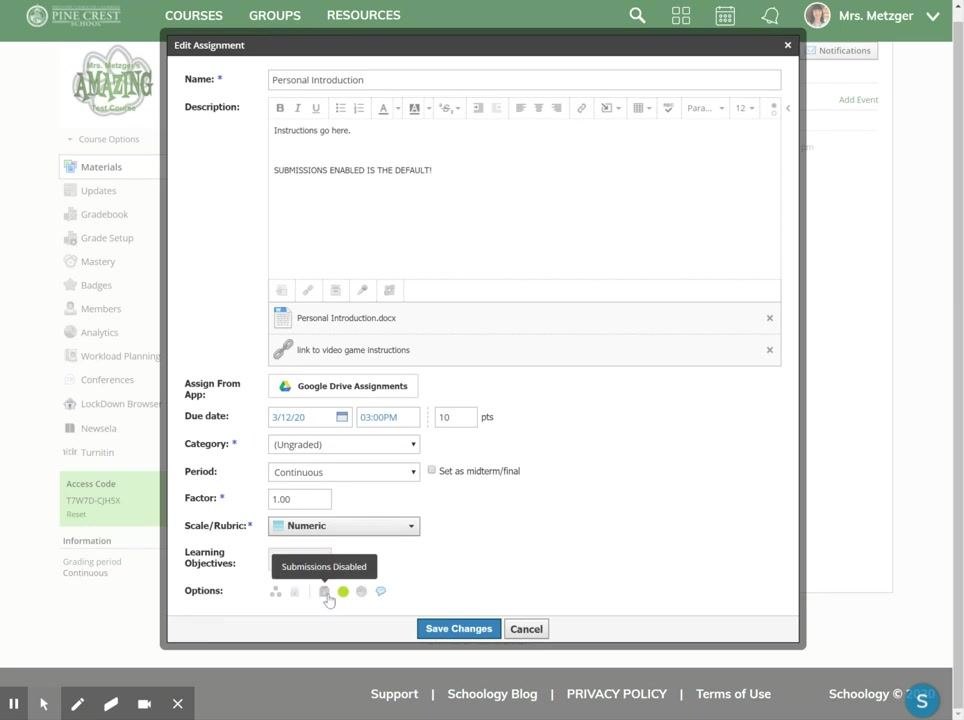
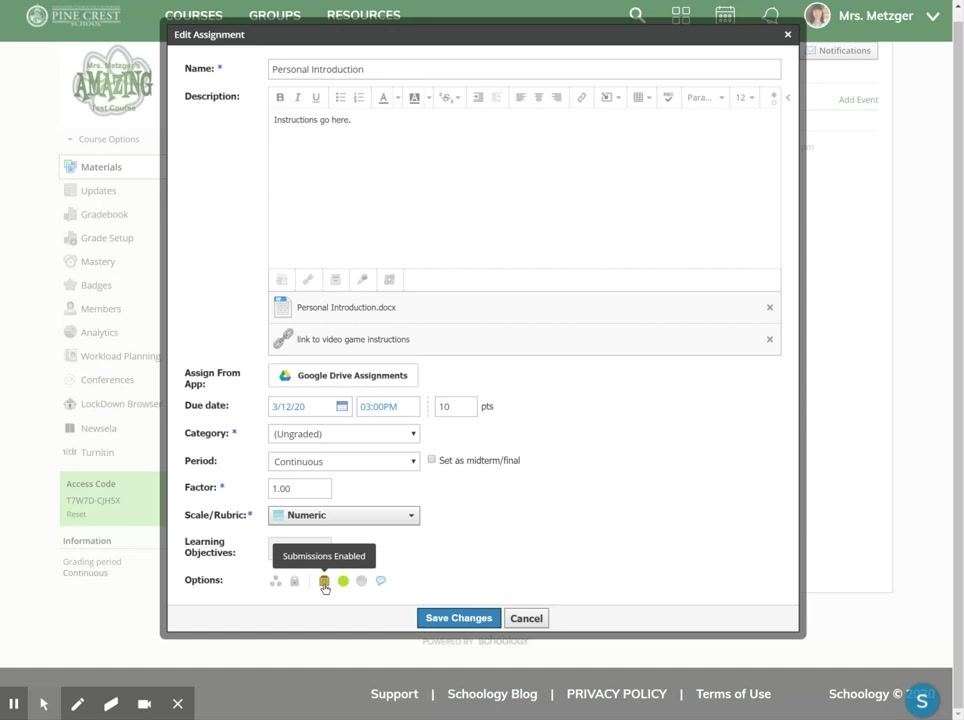
- In the Edit Assignment window, scroll down to the Options section near the bottom.
- Find the small button that looks like a box with a green arrow. This is the submissions toggle.
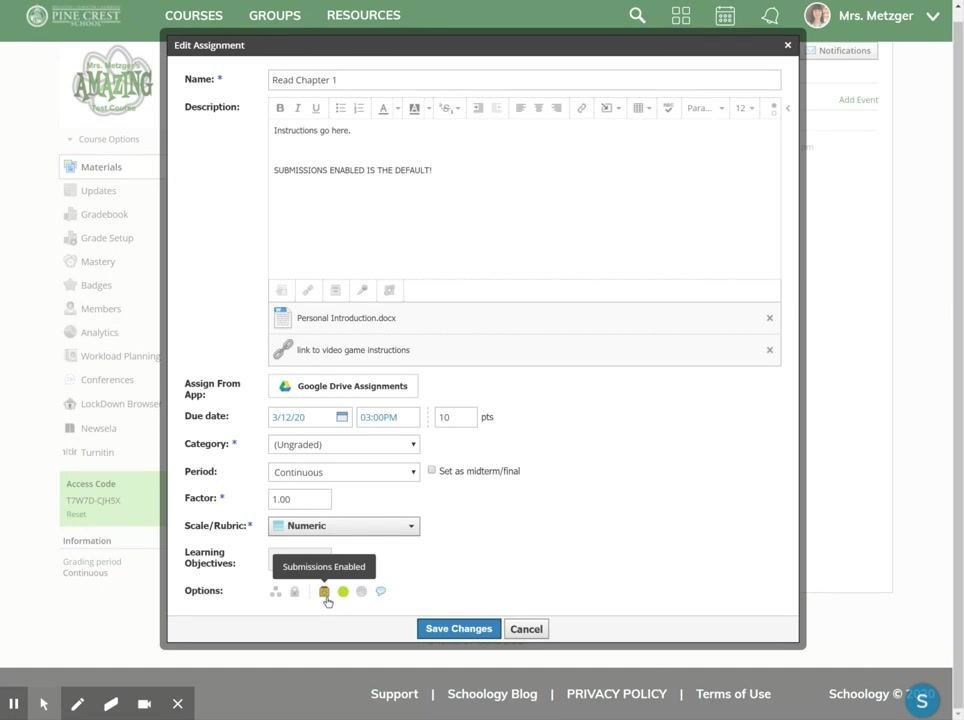
- Hover over the button to see its tooltip. When submissions are on, it reads "Submissions Enabled".
Disable submissions
If the button is colored in, submissions are enabled. This is the default setting.
Click the button to turn submissions off. The button appears greyed out, and the tooltip reads "Submissions Disabled".
Decide when to disable submissions
Consider disabling submissions when you don't want students to turn in digital work. For example:
- Assignments you collect in person during class.
- Assignments that act as reminders or checklists, such as reading homework like "Read chapters one through three".
- Tasks where students have nothing to submit online, but you still want the assignment to appear in their list.
Enable submissions in Schoology
When "Submissions Enabled" is active, students can submit their responses digitally, including any files or documents they need to upload. This is the default setting. If you want students to turn in work digitally, make sure it is on.
If you previously disabled submissions, click the submissions toggle again. When submissions are enabled, the button is colored in and the tooltip reads "Submissions Enabled".
Save your changes
Click Save Changes at the bottom of the Edit Assignment window to apply your update.
Summary
- Use the submissions toggle to control whether students can submit an assignment digitally.
- Disable submissions for in-person or reminder assignments.
- Enable submissions for assignments that students turn in digitally.
- Always click Save Changes after you edit assignment settings.
Generation details: cost, quality tiers
Docsie billed 1,500 credits ($1.05) to analyze this 3-minute video at standard quality. The rewrite, template fill and Word/PDF exports were included. The same video at each quality tier:
| Quality | Frames sampled | Credits | Approx. cost |
|---|---|---|---|
| Draft | every 16-30 s | 750 | $0.52 |
| Standard (this guide) | every 8-15 s | 1,500 | $1.05 |
| Detailed | every 4-7 s | 3,000 | $2.10 |
| Ultra | every 1-3 s | 6,000 | $4.20 |
Credits priced at $0.70 per 1,000; plans include a monthly allowance. Enterprise customers on on-premise or bring-your-own-model deployments run this on their own inference and pay no per-video credits.
Generated by Docsie Video-to-Docs on 2026-11-01 from a 2-minute video. Screenshots are frames from the source video and belong to their creator, Jessie Metzger, whose original is embedded above. If you own this video and want the guide removed or credited differently, contact us and we will act within one business day.