
How to Embed a Video in Schoology
This guide shows you how to embed a video in Schoology by adding it to an assignment description. You can upload a video file of up to 100 MB, or paste an embed code for larger or externally hosted videos. This guide covers embed codes from Outklip and YouTube.
Video: How to Embed Videos in Schoology Fast by All Things Screen Recording by Klip (2020). All credit for the demonstration goes to the creator; watch the original on YouTube. The written guide below was generated from this video by Docsie. Creator? Request a change or removal.
This guide shows you how to embed a video in Schoology by adding it to an assignment description. You can upload a video file of up to 100 MB, or paste an embed code for larger or externally hosted videos. This guide covers embed codes from Outklip and YouTube.
When you embed a video, students watch it directly in Schoology. They don't need to open a new tab or leave the platform.
Prerequisites
Before you begin, make sure you have:
- A Schoology account with access to your course (for example, "Technology: Section 1").
- A video to add. This can be a file on your computer, an Outklip video, or a YouTube video.
- Access to the Share options for any Outklip or YouTube video you want to embed.
Create the assignment
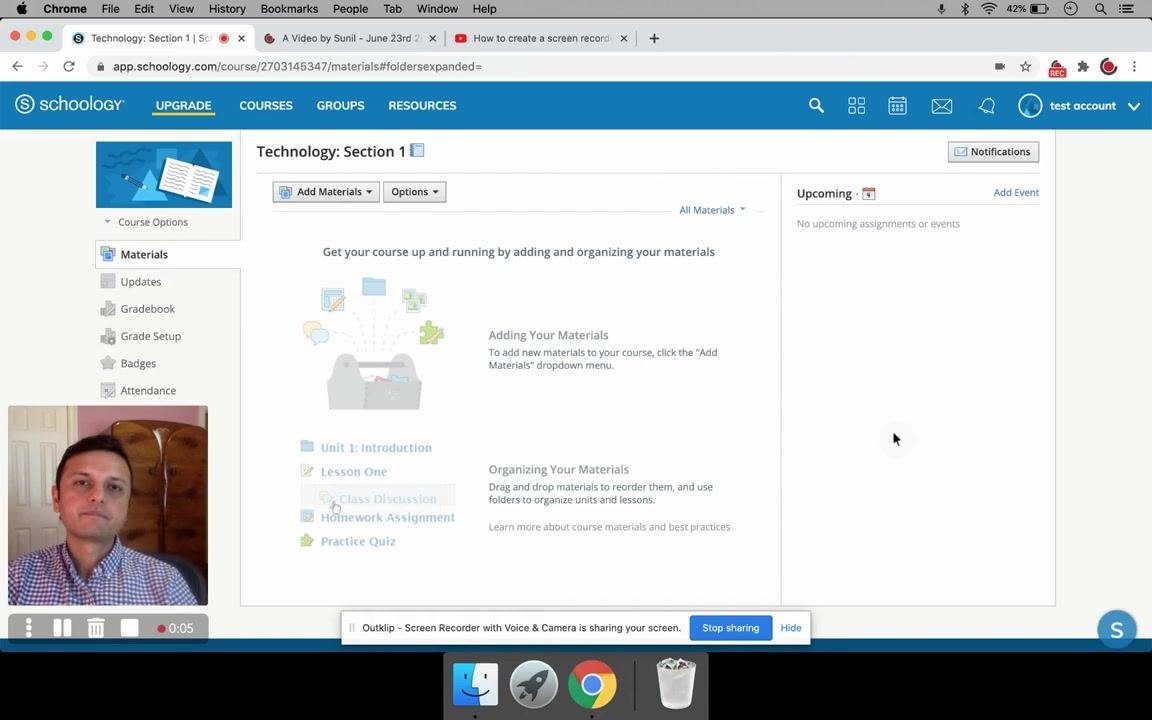
Step 1: Open Schoology and go to your course
- Open your web browser and go to Schoology.
- Log in and select your course.
- Confirm that you are on the course materials page.
Step 2: Add a new assignment
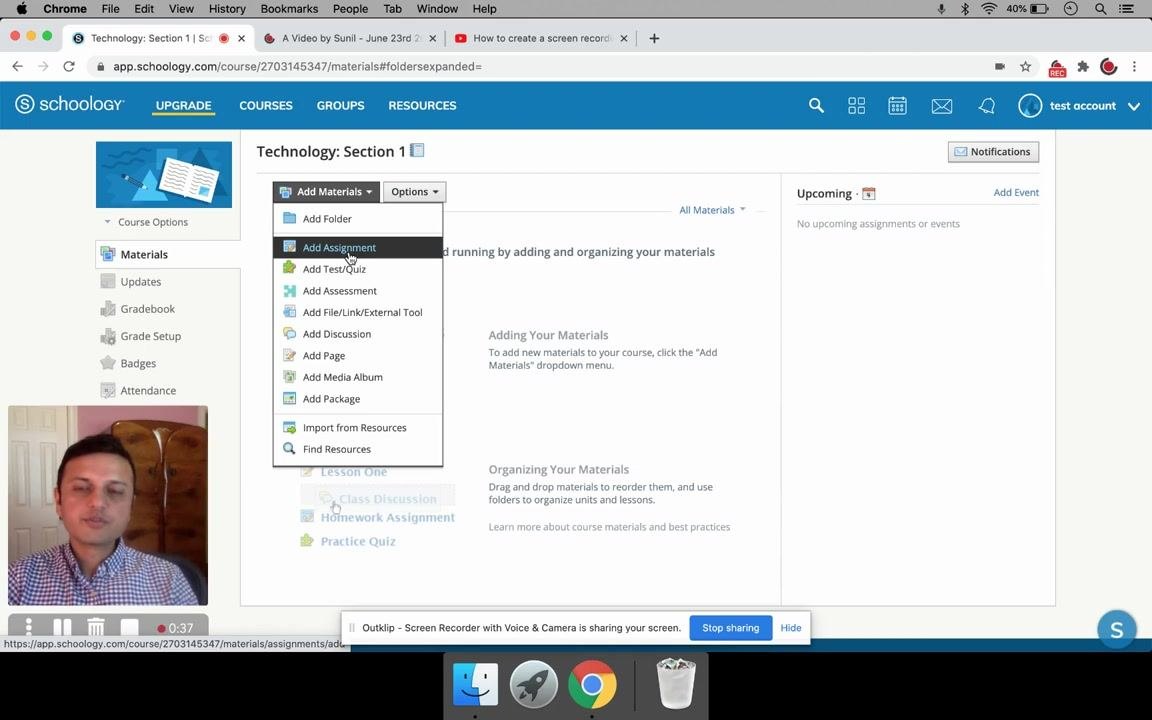
- At the top of the Materials section, click Add Materials.
- From the dropdown menu, select Add Assignment.
Step 3: Fill out the assignment details
- In the Create Assignment dialog, enter a name for the assignment in the Name field (for example, "test").
- Optionally, complete the description and other fields, such as Due Date, Category, Period, Factor, Scale/Rubric, and Learning Objectives.
Step 4: Open the media options in the description
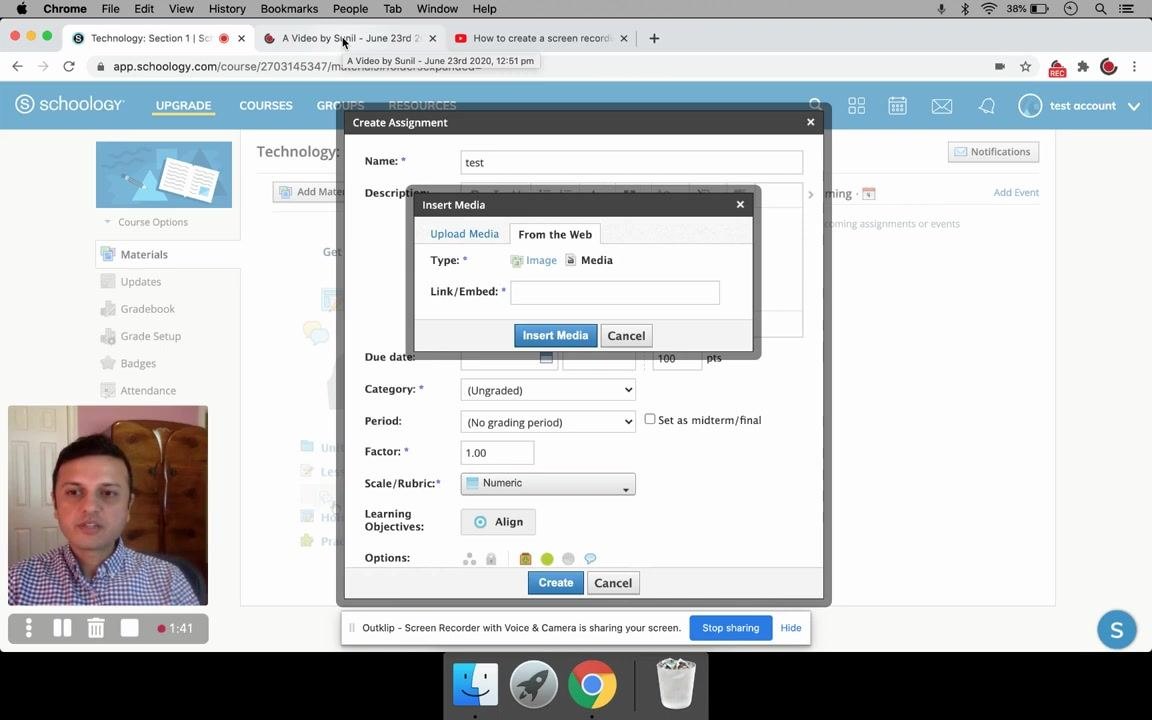
- In the Description box, click the Insert Content button, which appears as a filmstrip or media icon.
- Select Image/Media from the dropdown.
The Insert Media dialog opens. Before you use it, get an embed code from your video host as described in the next section. If you are uploading a file instead, skip to Step 7.
Get the embed code
Step 5: Copy the embed code from an Outklip video
- Go to the main page of the Outklip video you want to embed.
- Click Share.
- In the dialog that appears, click Embed. The dialog displays the HTML code for embedding the video.
- Click Copy link to copy the entire embed code to your clipboard.
- Click OK to close the dialog.
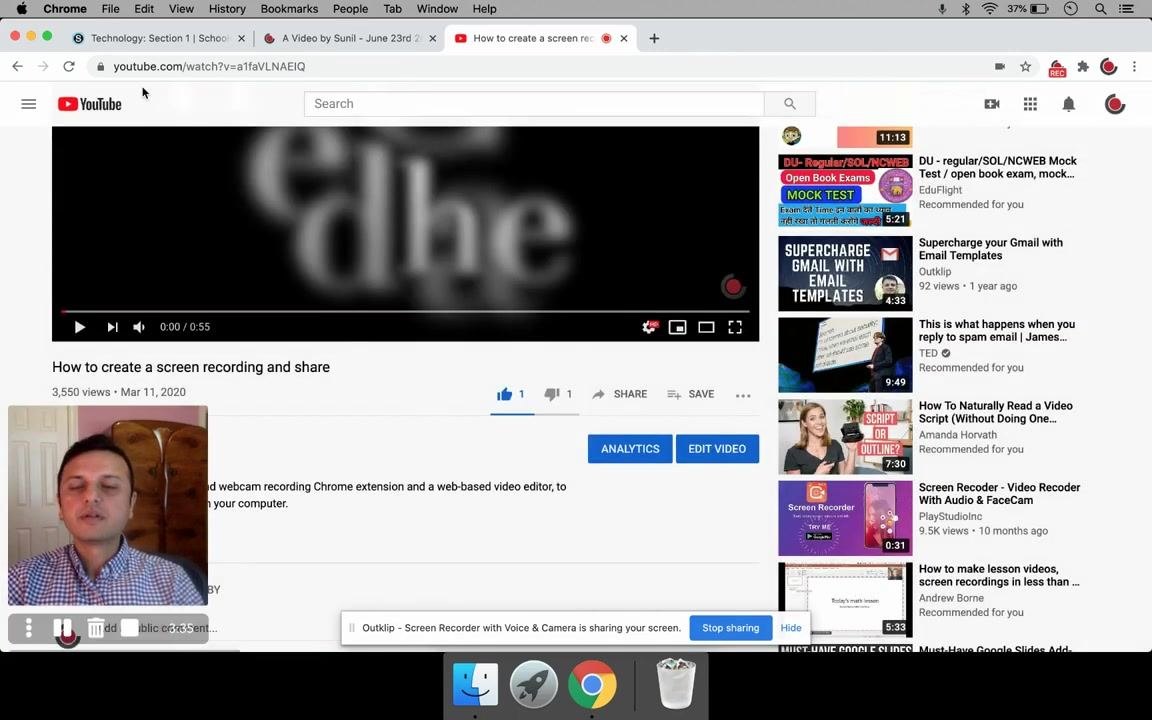
Step 6: Copy the embed code from a YouTube video
- Open the YouTube video in a new browser tab.
- Click Share below the video.
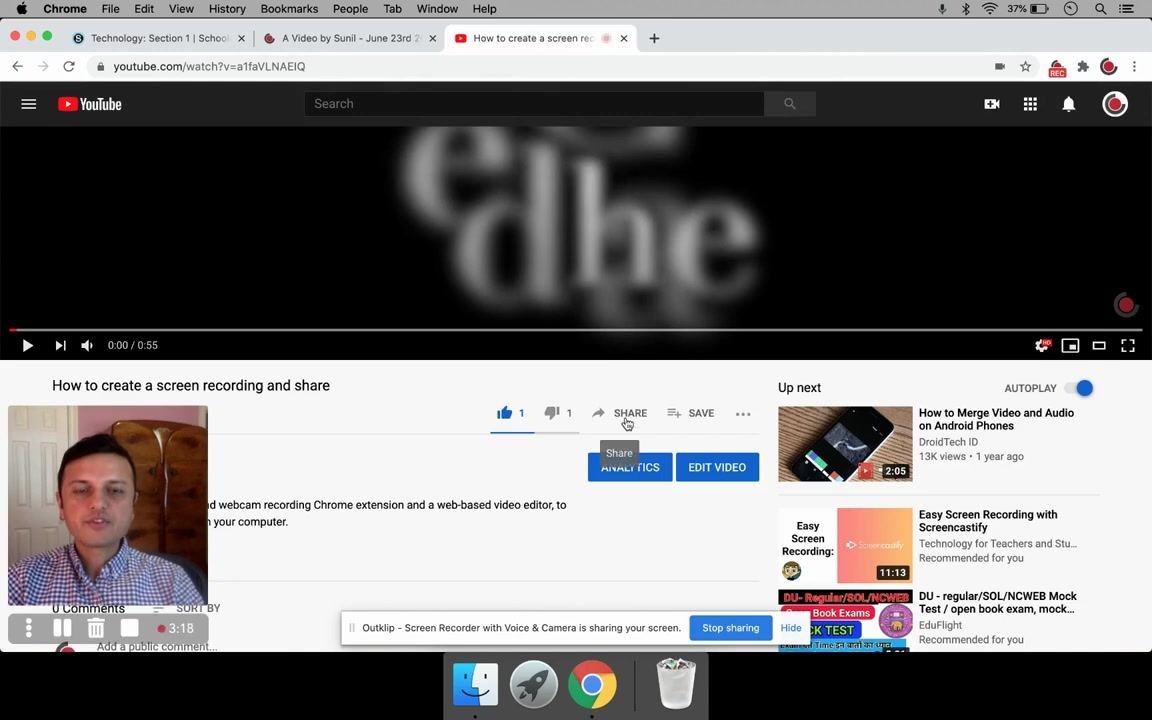
- In the sharing dialog, select Embed.
- Copy the entire embed code provided.
- Close the YouTube sharing dialog.
Insert the media into the assignment
Step 7: Choose how to add your video
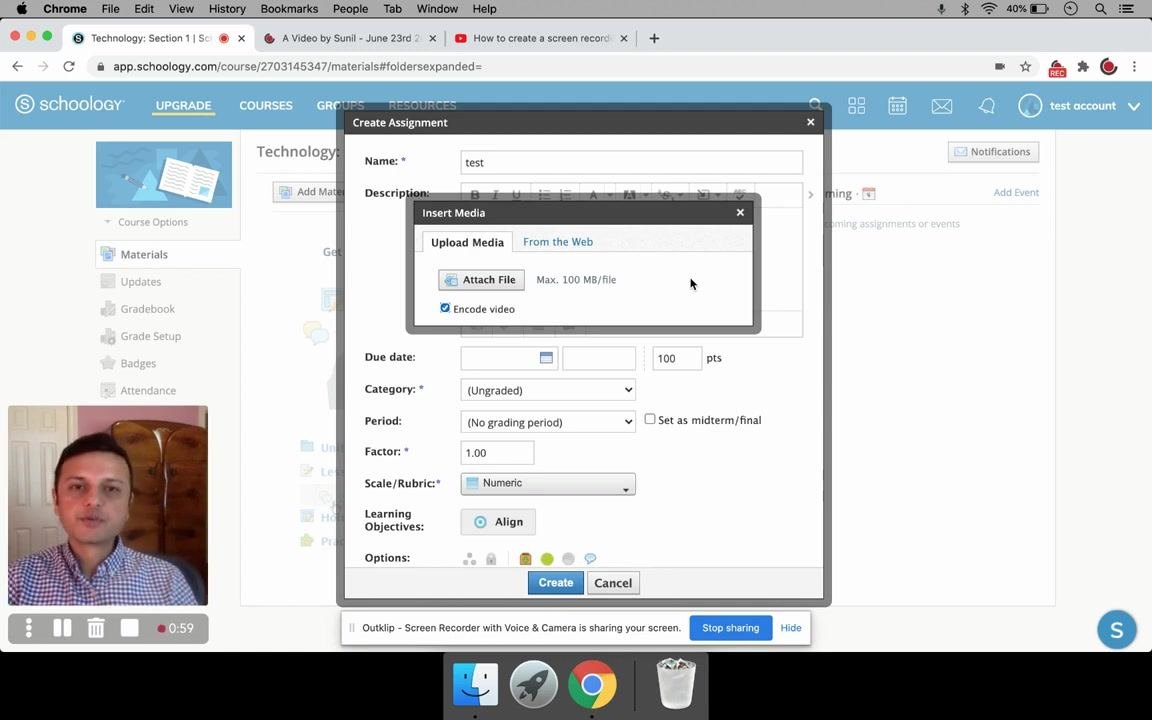
In the Insert Media dialog, you have two options:
- Upload Media: Click Attach File to upload a video file from your computer. The maximum file size is 100 MB.
- From the Web: If your video is larger than 100 MB or hosted online, click the From the Web tab.
Step 8: Paste the embed link for large or hosted videos
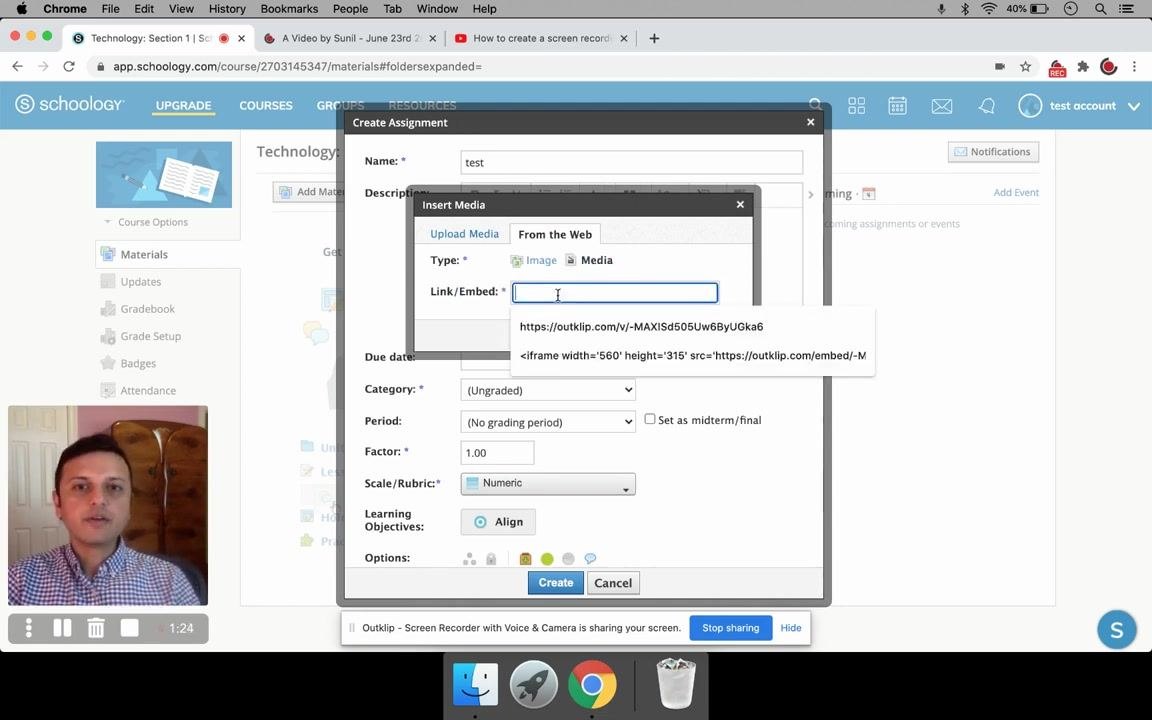
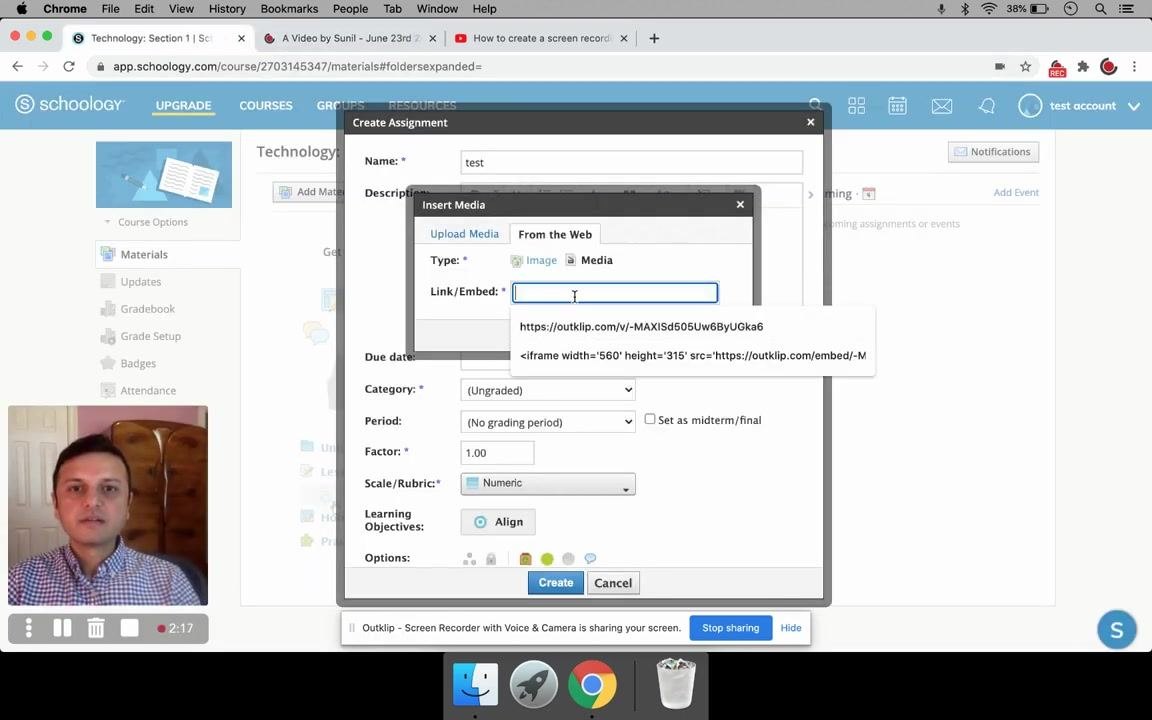
- On the From the Web tab, select Media as the type.
- Paste the embed link into the Link/Embed field. Use the embed code or direct embed link from your video hosting service, not just the video URL.
Step 9: Insert the media
After you enter the embed link, click Insert Media to add the video to your assignment description.
Step 10: Create the assignment
- Review all assignment details.
- Click Create to post the assignment, with the embedded video, to your Schoology course.
Verify the embedded video
Step 11: Check an embedded Outklip video
- Click the new assignment (for example, "test") to open it.
- Confirm that the Outklip video appears and plays directly within Schoology.
Step 12: Check an embedded YouTube video
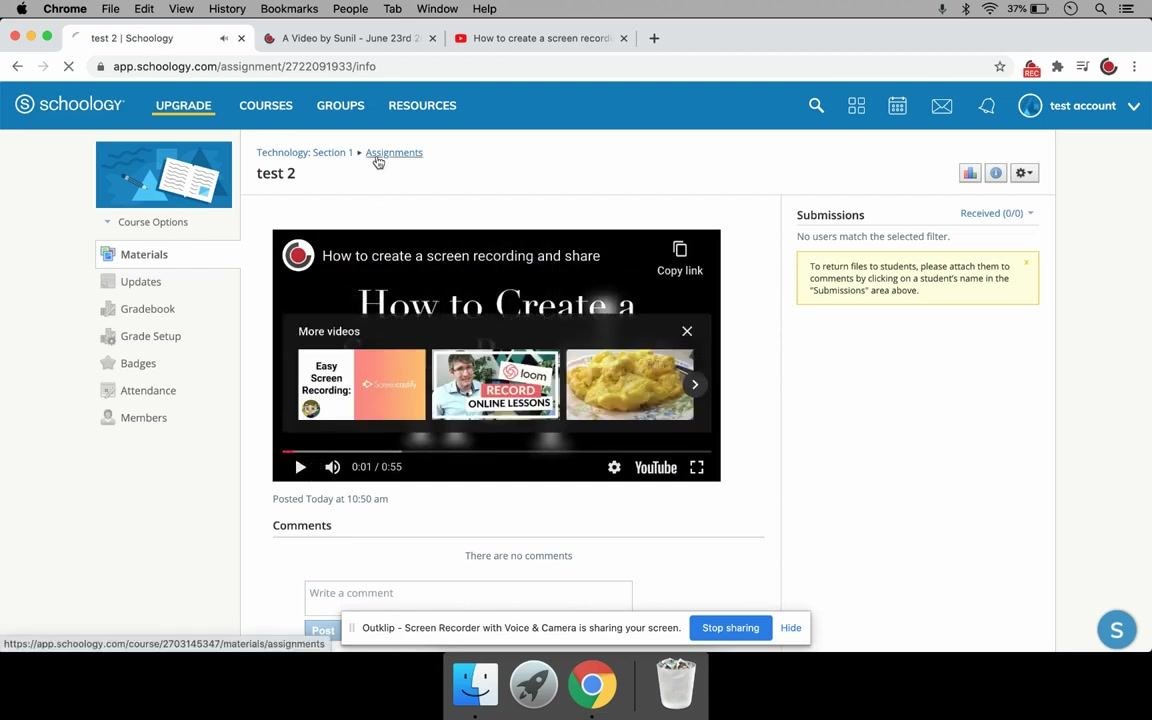
- Click the new assignment (for example, "test 2") to open it.
- Confirm that the YouTube video appears and plays directly within Schoology.
Summary
You can add a video to a Schoology assignment by uploading a file of up to 100 MB or by pasting an embed link for larger or externally hosted videos. Embedding is preferable to posting a link because students can watch the video without leaving Schoology. This improves accessibility and streamlines the learning experience.
What's next
- Add embedded videos to other assignments in your course.
- Fill in optional fields such as Due Date, Category, and Learning Objectives to complete your assignments.
Generation details: cost, quality tiers
Docsie billed 2,500 credits ($1.75) to analyze this 5-minute video at standard quality. The rewrite, template fill and Word/PDF exports were included. The same video at each quality tier:
| Quality | Frames sampled | Credits | Approx. cost |
|---|---|---|---|
| Draft | every 16-30 s | 1,250 | $0.88 |
| Standard (this guide) | every 8-15 s | 2,500 | $1.75 |
| Detailed | every 4-7 s | 5,000 | $3.50 |
| Ultra | every 1-3 s | 10,000 | $7.00 |
Credits priced at $0.70 per 1,000; plans include a monthly allowance. Enterprise customers on on-premise or bring-your-own-model deployments run this on their own inference and pay no per-video credits.
Generated by Docsie Video-to-Docs on 2026-11-01 from a 4-minute video. Screenshots are frames from the source video and belong to their creator, All Things Screen Recording by Klip, whose original is embedded above. If you own this video and want the guide removed or credited differently, contact us and we will act within one business day.