
How to Embed a Bitmoji Classroom in Schoology
This guide shows you how to embed a Bitmoji classroom in Schoology from Google Slides. The embedded classroom appears as an announcement at the top of your course page. You unlock the embed option, add the classroom to Updates, replace the default embed code with a custom Google Slides code, and post the update.
Video: Embed your bitmoji classroom as an announcement in Schoology by Nicole Woolf (2020). All credit for the demonstration goes to the creator; watch the original on YouTube. The written guide below was generated from this video by Docsie. Creator? Request a change or removal.
This guide shows you how to embed a Bitmoji classroom in Schoology from Google Slides. The embedded classroom appears as an announcement at the top of your course page. You unlock the embed option, add the classroom to Updates, replace the default embed code with a custom Google Slides code, and post the update.
Prerequisites
Before you begin, make sure you have:
- A Bitmoji classroom created in Google Slides and saved in Google Drive.
- Access to your Schoology course with permission to add materials and post updates.
- Access to your browser's developer tools (you open them with Inspect).
Unlock the embed option
Schoology requires one preliminary step before you can embed in Updates. You start adding an assignment, insert the embed, and then cancel.
Start adding an assignment
- Open your Schoology course.
- Select Materials in the left sidebar.
- Click Add Materials.
- Select Add Assignment.
You will not create an assignment. This step only unlocks the embed option.
Open the Resource menu
In the assignment creation window, find the toolbar above the description field. Click the Resource button.
Insert your Bitmoji classroom from Google Drive
- In the Attach From Resources window, select the Apps tab on the left.
- Choose Google Drive Resource App.
- Find your Bitmoji Classroom file in the list.
- Click the gear icon next to the file.
- Select Insert Embed.
Cancel the assignment
Do not complete or save the assignment. Cancel or close the assignment creation window. This unlocks the embed option for use in Updates.
Add the Bitmoji classroom to Updates
Go to the Updates section
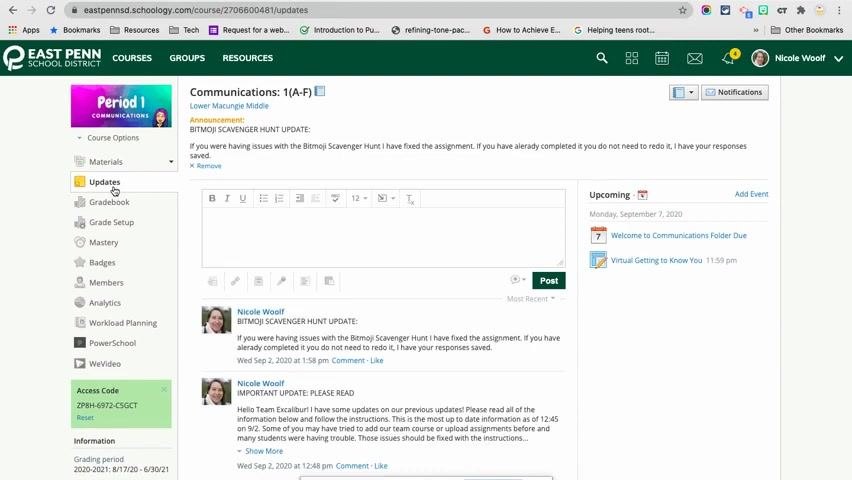
In your course, click the Updates tab in the left sidebar.
Remove a previous post (optional)
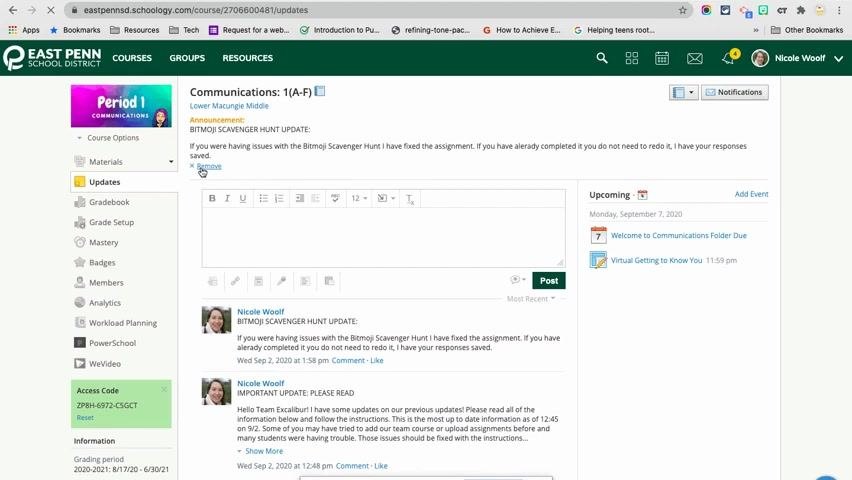
If needed, click the Remove link under your last update to delete it.
Embed a Bitmoji classroom in Schoology Updates
- In the update post box, click the Resource button.
- Open the Apps tab and select Google Drive Resource App.
- Find your Bitmoji Classroom file.
- Click the gear icon next to the file and select Insert Embed.
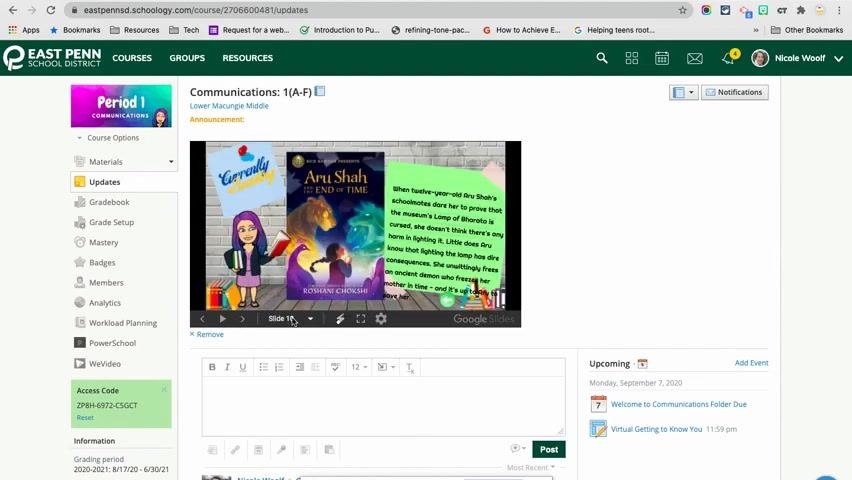
Review the default embed
The classroom now appears in the update, but the default embed has some drawbacks:
- The slide appears small.
- There is significant white space on the sides.
- A navigation bar below the slide lets students skip or move linearly through slides.
To make the classroom larger and have students reach slides only through your interactive links, generate a custom embed code from Google Slides instead of using the default Schoology embed.
Publish your slides to the web
Open your Bitmoji classroom in Google Slides
Open a new browser tab and go to your Bitmoji Classroom presentation in Google Slides.
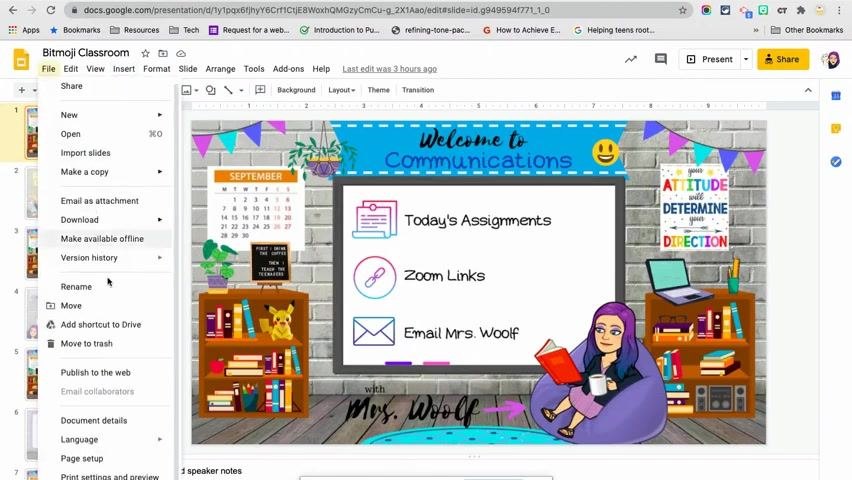
Open Publish to the web
In Google Slides, click the File menu in the top left corner. Select Publish to the web.
Configure the embed settings
In the Publish to the web dialog:
- Click the Embed tab.
- Set the slide size to Medium (960x569), or choose your preferred size.
- Set auto-advance to every 1 minute, or choose your preferred interval.
- Leave Start slideshow as soon as the player loads unchecked if you do not want auto-advancement.
- Check or uncheck Restart the slideshow after the last slide based on your preference.
- Copy the generated
<iframe>embed code from the box below the settings.
Confirm the publishing status
If you have not already, click Publish to the web at the bottom of the dialog so your slides are available for embedding. Confirm that the status shows as published.
Replace the existing embed code
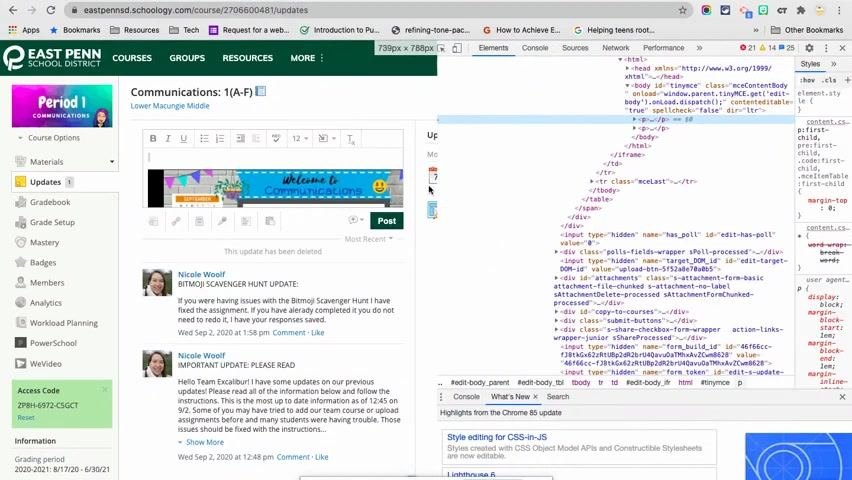
Return to Updates in Schoology
Go to your course in Schoology and open the Updates section where your Bitmoji classroom is embedded.
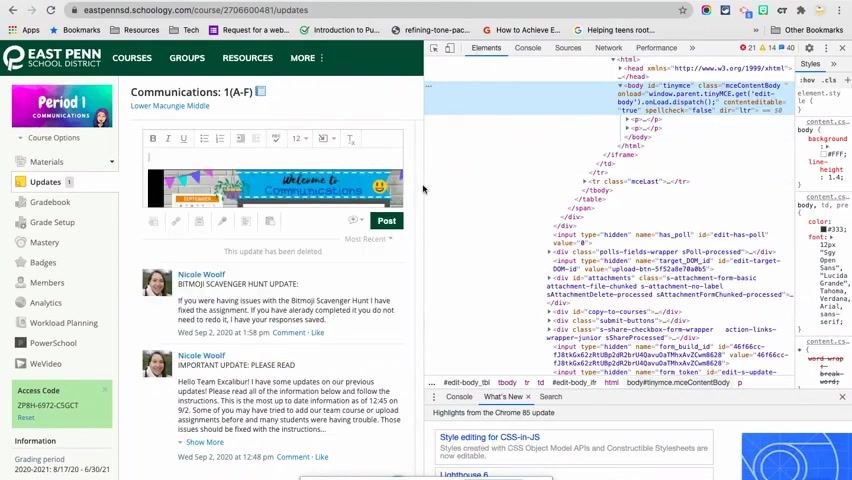
Open the browser's Inspect tool
Right-click inside the text box that contains your embedded Bitmoji classroom. From the context menu, select Inspect to open the developer tools.
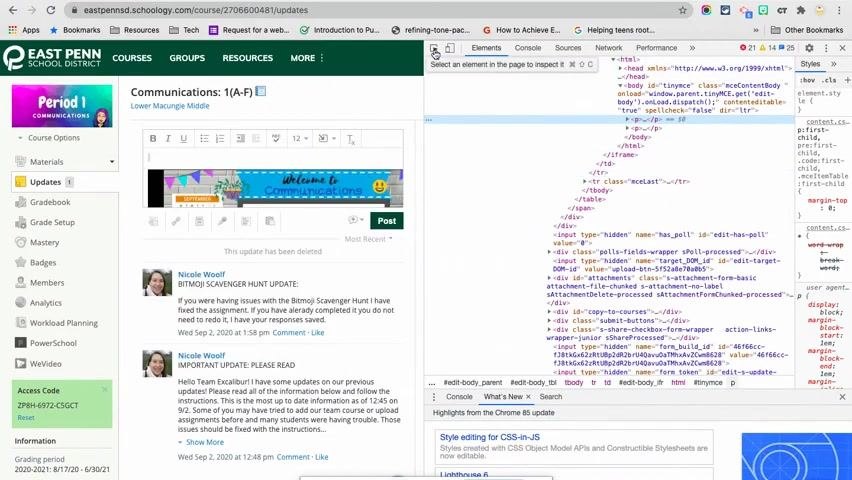
Use the element selector
If you are not comfortable navigating HTML, use the element selector. It is the icon in the top left of the developer tools panel and often looks like a cursor or target.
Click the selector, then click the text box in Schoology that contains your classroom. The matching HTML is highlighted in the developer tools.
Find the body section
The developer tools panel shows the HTML structure of the page. You are not editing the website itself, only the content of the text box for your post.
Look for the <body> section, which typically contains the content of your update.
Expand the paragraph tags
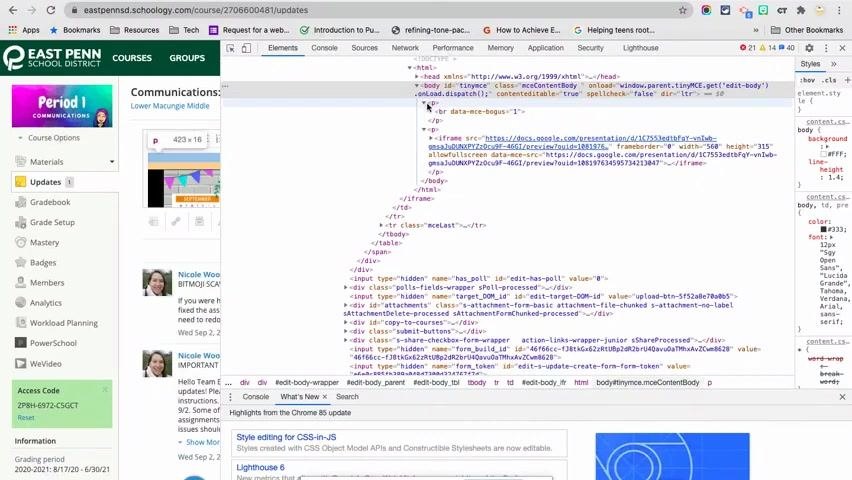
Inside <body>, look for <p> (paragraph) tags. Click the dropdown arrows to expand them and reveal their contents.
Identify the iframe
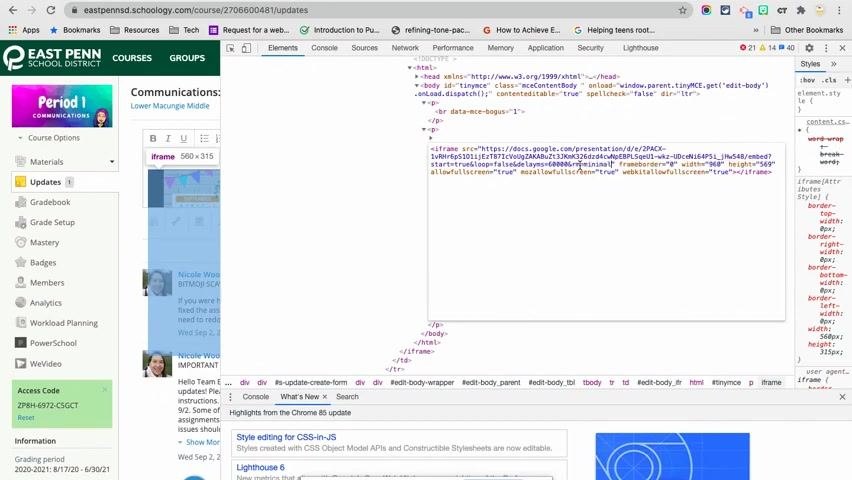
Find the <iframe> tag, which is your current embed code. Confirm it is the correct one by checking that it contains a link to your Google Slides presentation. This is the code you will replace.
Edit the iframe as HTML
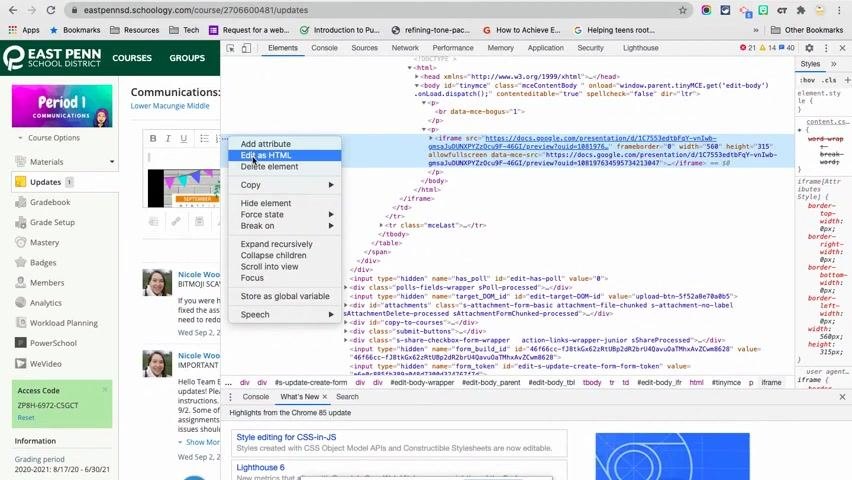
- Make sure the developer tools are open and the correct
<iframe>tag is highlighted. - Right-click the
<iframe>tag in the HTML panel. - Select Edit as HTML.
The current embed code becomes editable in place.
Paste your custom embed code
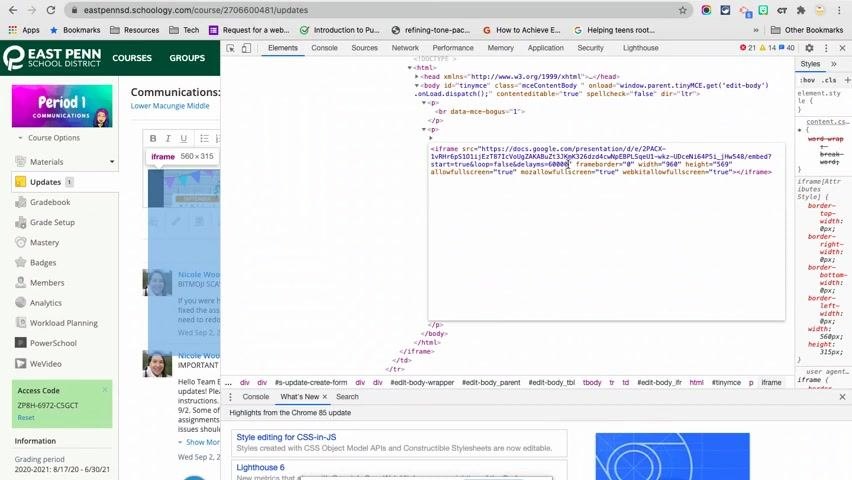
Delete the existing embed code and paste the Google Slides embed code you copied. The code is pasted directly into the HTML, replacing or adding to existing content as needed. An example looks like this:
<iframe src="https://docs.google.com/presentation/d/e/2PACX-1vR6rB5iQ5IlT2fOjY2kA3ubZ3n3K2d6dcam0b4pEpSeU4X-ubC4b1G6PLs_jH548/embed?start=false&loop=false&delayms=3000" frameborder="0" width="960" height="569" allowfullscreen="true" mozallowfullscreen="true" webkitallowfullscreen="true"></iframe>
Review the Updates page
After pasting the code, check the Updates page to confirm the presentation appears as expected. If it looks too small or not as intended, adjust the width and height attributes in the iframe code.
Embedding Google Slides this way may display a navigation bar at the bottom of the presentation, which students can use to click through slides. This bar is a default feature of the Google Slides embed and cannot be removed through standard embed options.
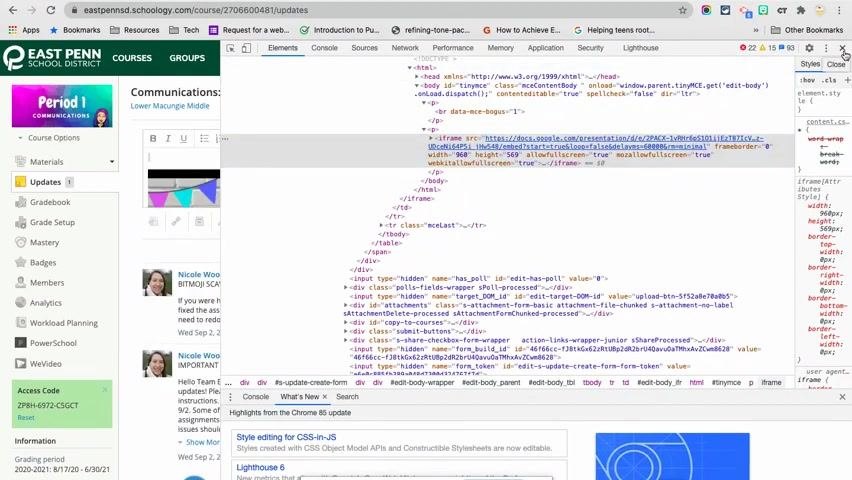
Close the developer tools
To exit the developer tools, click the X button in the top right corner of the panel. This returns you to the standard Schoology interface.
Post the update
Post the announcement
When you are satisfied with the placement and appearance of the embedded presentation, click Post to publish the update to your course. If prompted, select the sections or groups to post to by checking the appropriate boxes.
Verify the announcement
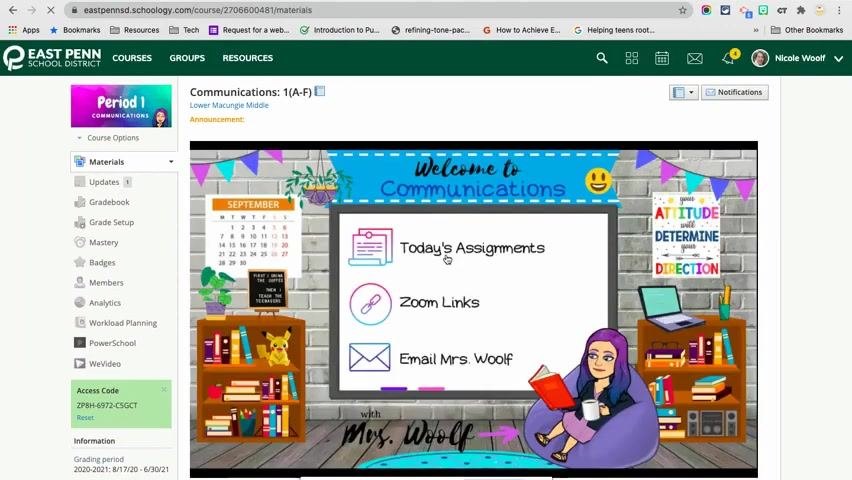
Confirm that the update with the embedded Google Slides presentation appears at the top of your Schoology course. It should be prominently displayed, with the embedded presentation and any additional content you included.
Check your resources and links
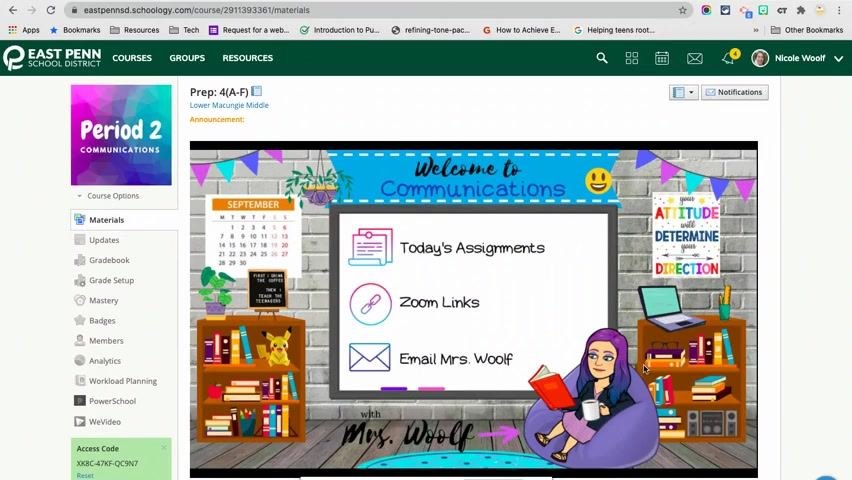
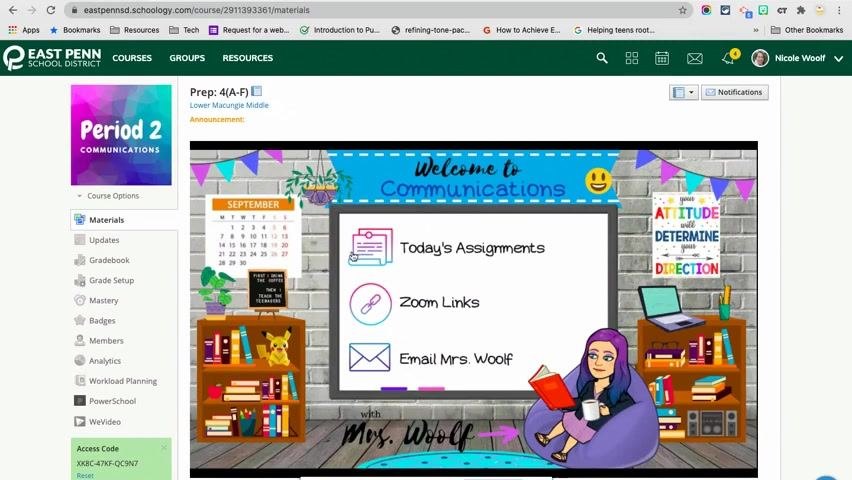
Confirm that all intended resources and links, such as assignments, Zoom links, and email, are clearly displayed and accessible to students within the announcement.
Summary
You now know how to embed a Bitmoji classroom in Schoology as a large announcement. You unlocked the embed option through the assignment workaround, added the classroom to Updates, published your slides to the web, and replaced the default iframe with your custom code. After posting, your embedded presentation appears at the top of your course page for students.
Generation details: cost, quality tiers
Docsie billed 4,000 credits ($2.80) to analyze this 8-minute video at standard quality. The rewrite, template fill and Word/PDF exports were included. The same video at each quality tier:
| Quality | Frames sampled | Credits | Approx. cost |
|---|---|---|---|
| Draft | every 16-30 s | 2,000 | $1.40 |
| Standard (this guide) | every 8-15 s | 4,000 | $2.80 |
| Detailed | every 4-7 s | 8,000 | $5.60 |
| Ultra | every 1-3 s | 16,000 | $11.20 |
Credits priced at $0.70 per 1,000; plans include a monthly allowance. Enterprise customers on on-premise or bring-your-own-model deployments run this on their own inference and pay no per-video credits.
Generated by Docsie Video-to-Docs on 2026-11-01 from a 7-minute video. Screenshots are frames from the source video and belong to their creator, Nicole Woolf, whose original is embedded above. If you own this video and want the guide removed or credited differently, contact us and we will act within one business day.