
How to Create an Assignment in Schoology
This guide shows you how to create an assignment in Schoology so you can collect and grade student work. You add the assignment to a course, write instructions, set a due date, choose grading options, and post it. The example assignment is "Voting Theory" in the course "Math in Society: 201-B" at Cedar Park University.
Video: Schoology Assignments - Part 1 by schoology (2017). All credit for the demonstration goes to the creator; watch the original on YouTube. The written guide below was generated from this video by Docsie. Creator? Request a change or removal.
This guide shows you how to create an assignment in Schoology so you can collect and grade student work. You add the assignment to a course, write instructions, set a due date, choose grading options, and post it. The example assignment is "Voting Theory" in the course "Math in Society: 201-B" at Cedar Park University.
Prerequisites
- Access to a Schoology course where you can add materials.
- A grading category, scale, or rubric set up in your gradebook beforehand. You can add a new category while creating the assignment or in your gradebook setup.
Steps
Open your course and go to the Materials tab
Navigate to your course in Schoology. In the example, the course is "Math in Society: 201-B."
Make sure you are on the Materials tab so you can see the course folders and units.
Select Add Materials, then Add Assignment
To start creating an assignment in Schoology, click the Add Materials button at the top of the Materials list. Then select Add Assignment from the dropdown menu.
The menu also includes options for adding folders, tests/quizzes, files/links, discussions, pages, media albums, and packages, and for importing resources. You can also add materials by clicking the green line within a folder.
Enter the assignment name and description
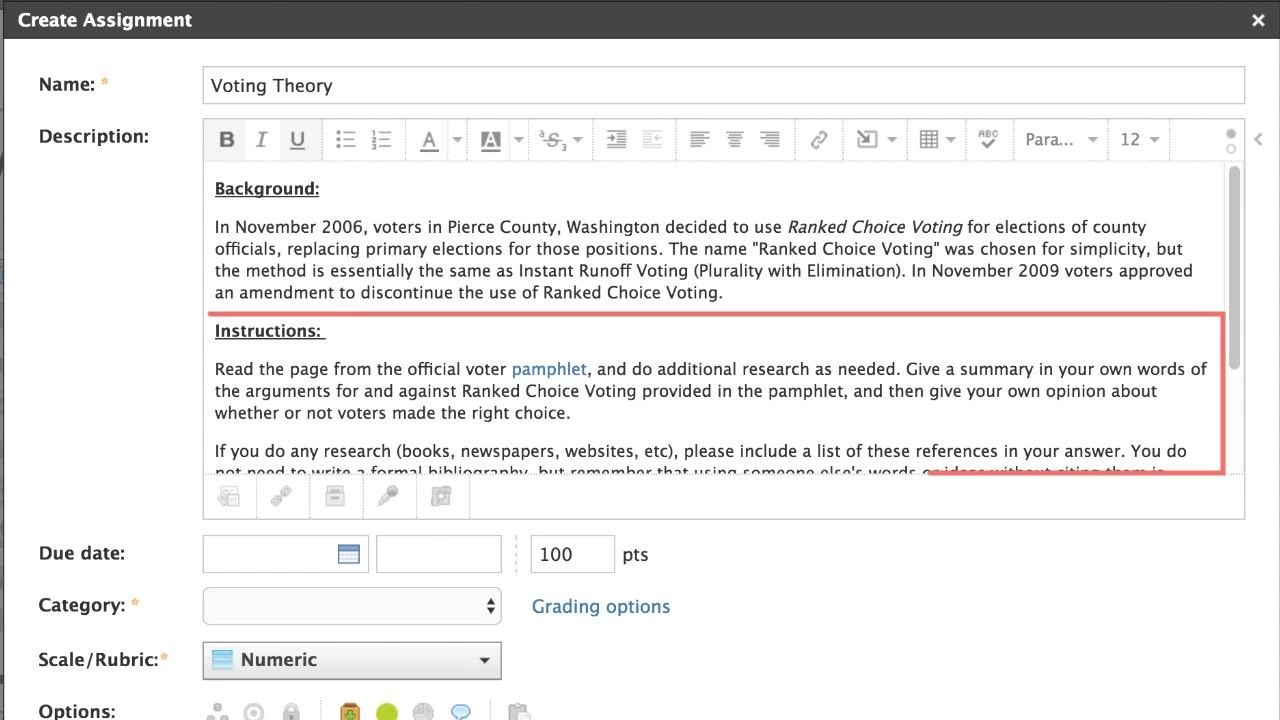
In the Create Assignment window, enter a Name for the assignment. In the example, the name is "Voting Theory."
In the Description field, give students the information they need to complete the work:
- The assignment background or context.
- Clear instructions and submission guidelines.
In the example, the background reads: "In November 2006, voters in Pierce County, Washington decided to use Ranked Choice Voting for elections of county officials..." The instructions read: "Read the page from the official voter pamphlet, and do additional research as needed. Give a summary in your own words of the arguments for and against Ranked Choice Voting provided in the pamphlet, and then give your own opinion about whether or not voters made the right choice."
Specify how students submit their work
Students can submit work in any of these ways:
- Write submissions directly in Schoology.
- Upload documents.
- Import files from the cloud.
- Record audio and video.
If you require a specific submission method, state it clearly in the description.
Add content and attach supporting files
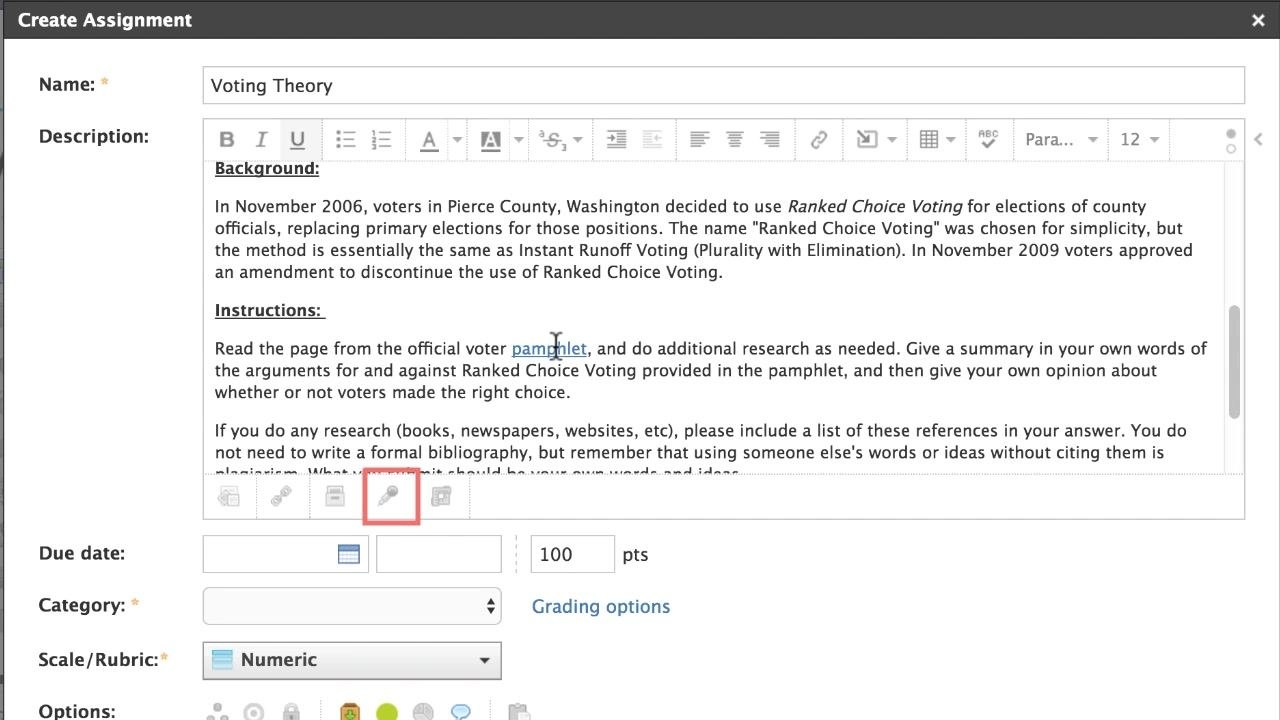
To add images, equations, or videos to the assignment, use the Insert Content button in the description editor toolbar.
To attach supporting files, links, or other items from your resources, use the buttons below the description box. In the example, a file named "rcvamendment.gif" is attached for students to reference.
Set the due date and time
After you write the instructions, set the Due date and Time. This adds the assignment to the course calendar.
Items with due dates automatically appear in student calendars and in the upcoming list on the homepage and mobile app.
Understand how late submissions are handled
Schoology automatically marks any student submission made after the due date as late. This helps you identify and manage late work.
Choose a grading category
Select an existing grading category, such as "Written Homework," from the Category dropdown. If needed, add a new category here or in your gradebook setup.
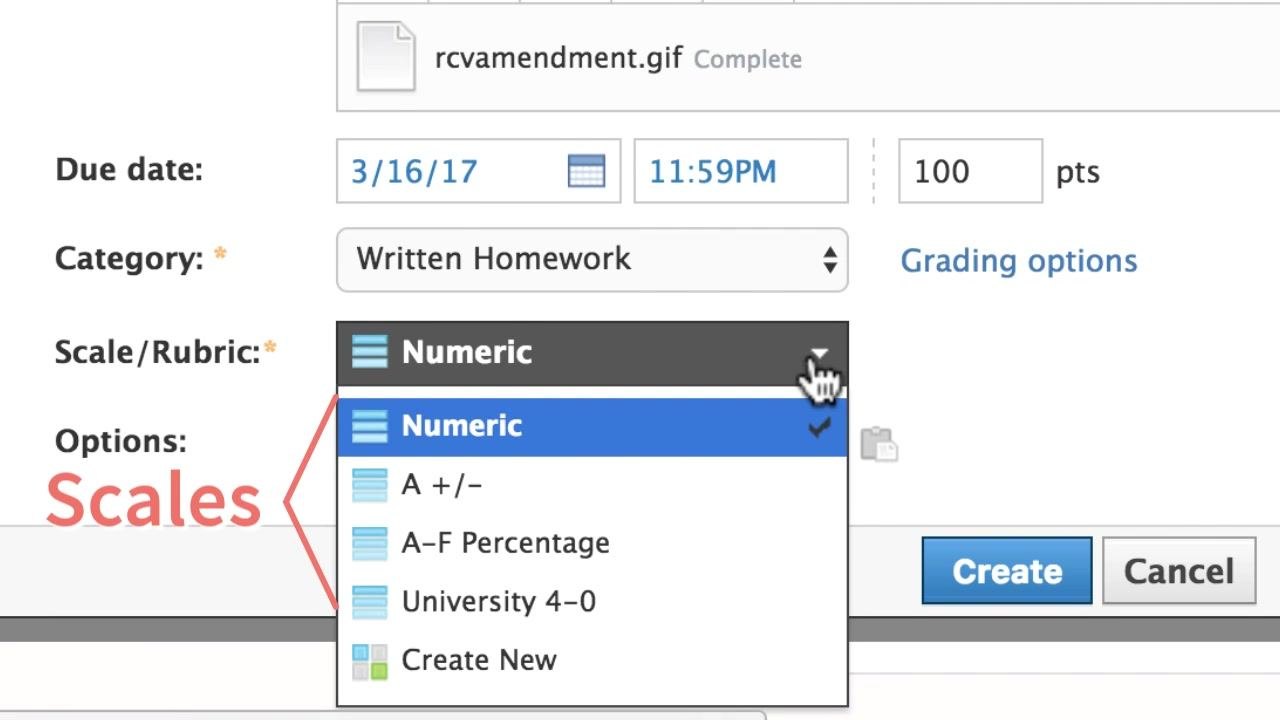
Choose a scale or rubric
Open the Scale/Rubric dropdown menu and select one of the available options:
- Numeric
- A +/-
- A–F Percentage
- University 4–0
- Create New (to define a custom rubric)
Scales and rubrics are typically set up in your gradebook beforehand.
Check grade settings if you use Schoology Enterprise
If you use Schoology Enterprise, administrators can configure grading options, such as categories, scales, and rubrics, for the entire organization. These settings may be managed in System Settings under Grade Settings.
Adjust the total point value
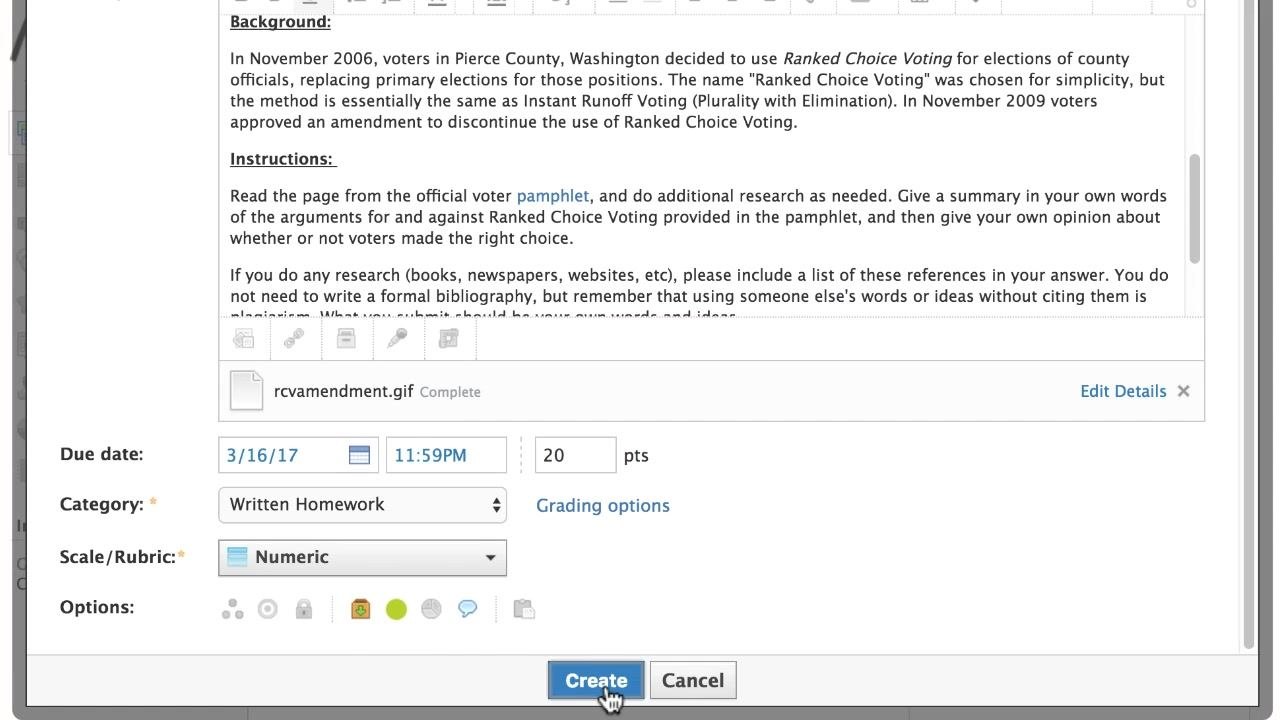
The default point value is 100. Enter the value that suits your assignment in the Points field. In the example, the value is 20 points.
Create the assignment
Review all the information for accuracy, then click Create to add the assignment to your course.
Confirm the assignment is visible
After you create the assignment, it appears in your course materials list and in the upcoming events sidebar.
Students see it in their calendars and upcoming lists, so they know the due date and requirements.
Summary
To create an assignment in Schoology, open your course's Materials tab and choose Add Materials > Add Assignment. Enter a name, description, and submission guidelines, and attach any supporting content. Set the due date and time, choose a category, scale or rubric, and point value, and click Create. The assignment then appears in your materials list and in student calendars.
Generation details: cost, quality tiers
Docsie billed 1,500 credits ($1.05) to analyze this 3-minute video at standard quality. The rewrite, template fill and Word/PDF exports were included. The same video at each quality tier:
| Quality | Frames sampled | Credits | Approx. cost |
|---|---|---|---|
| Draft | every 16-30 s | 750 | $0.52 |
| Standard (this guide) | every 8-15 s | 1,500 | $1.05 |
| Detailed | every 4-7 s | 3,000 | $2.10 |
| Ultra | every 1-3 s | 6,000 | $4.20 |
Credits priced at $0.70 per 1,000; plans include a monthly allowance. Enterprise customers on on-premise or bring-your-own-model deployments run this on their own inference and pay no per-video credits.
Generated by Docsie Video-to-Docs on 2026-11-01 from a 2-minute video. Screenshots are frames from the source video and belong to their creator, schoology, whose original is embedded above. If you own this video and want the guide removed or credited differently, contact us and we will act within one business day.