
How to Create a Test in Schoology
If you want to know how to create a test in Schoology, this guide walks you through the full process. You start in your resources folder, name a new test/quiz, and add a text passage and a short-answer or essay question. You then configure the question settings, reorder content, and preview the assessment as students will see it.
Video: How to create a Test/Quiz in Schoology by Kenna Porter (2020). All credit for the demonstration goes to the creator; watch the original on YouTube. The written guide below was generated from this video by Docsie. Creator? Request a change or removal.
If you want to know how to create a test in Schoology, this guide walks you through the full process. You start in your resources folder, name a new test/quiz, and add a text passage and a short-answer or essay question. You then configure the question settings, reorder content, and preview the assessment as students will see it.
Prerequisites
- Prepare your test or quiz content in advance, including all the information and questions you want to include. Keep it in a document, such as Google Docs, so you can copy and paste it easily.
- Have access to the Resources tab in Schoology.
Create the test/quiz
Step 1: Prepare your content
Gather your passages and questions in a document before you open Schoology. This makes copying them into the editor quick and straightforward.
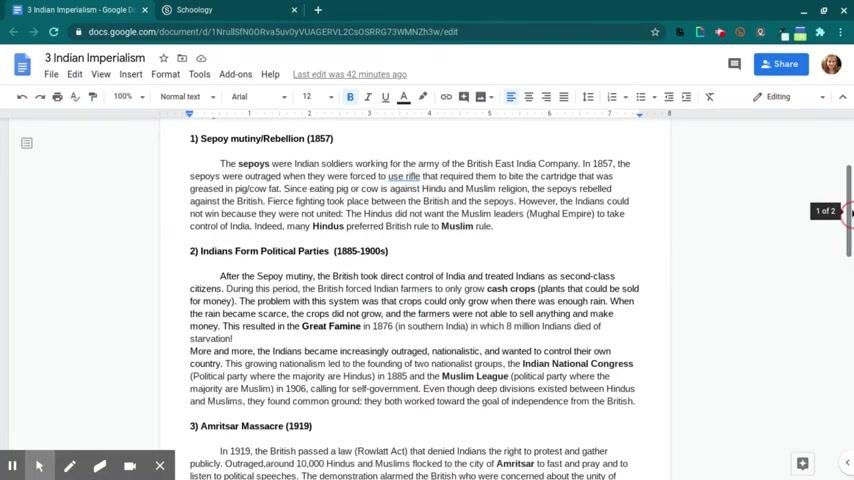
Step 2: Open your resources folder
Click the Resources tab to access your saved materials. You can store tests and quizzes in the resources folder for future use and easy retrieval.
Step 3: Start creating a test in Schoology
In the resources folder, click Add Resources. From the dropdown menu, select Add Test/Quiz.
Step 4: Name your test or quiz
Enter a name in the Name field. This example uses "Indian Imperialism," but you can use your own title. Click Submit to create the test/quiz template.
Add a text passage
Step 5: Open the editor and add a text block
Open the newly created test/quiz. The editor screen appears. Click + Add Question to begin adding content.
To add a passage at the top of your test/quiz, click + Add Question and select Text from the dropdown menu.
Step 6: Copy your prepared passage
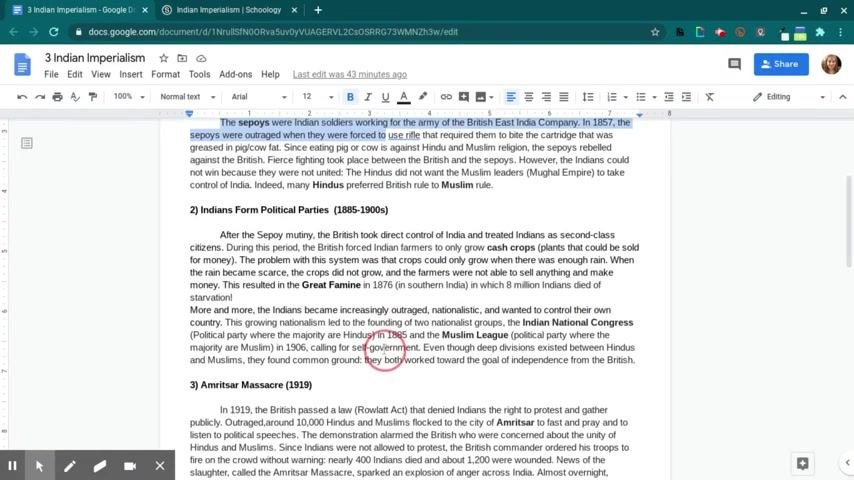
Switch to the document that contains your passage, for example in Google Docs. Highlight the text, right-click, and select Copy.
Step 7: Paste the passage into the text field
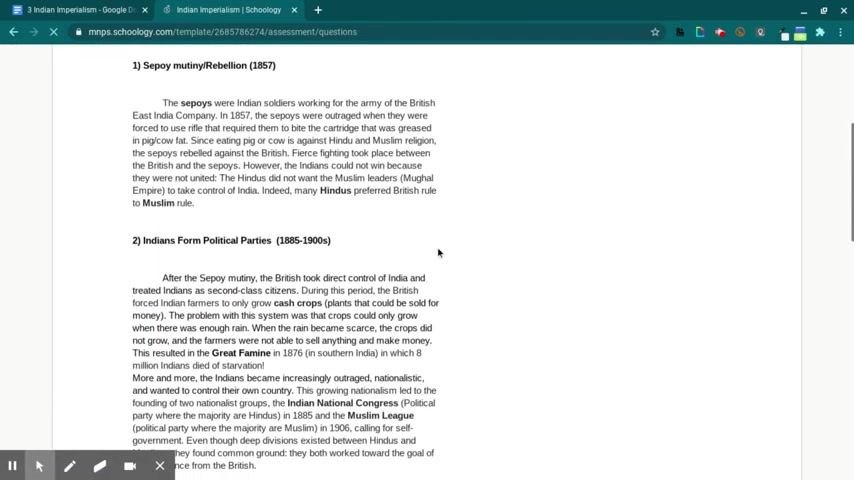
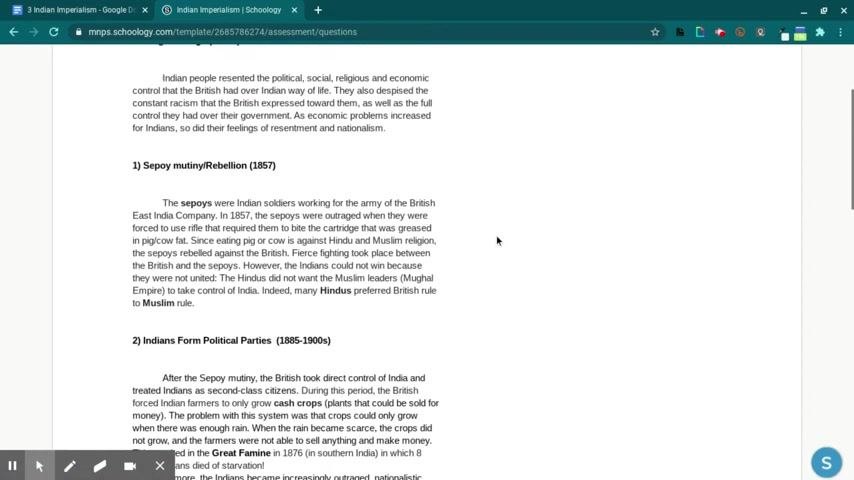
Return to the Schoology test/quiz editor and paste the copied passage into the text box. You can edit or format the text with the toolbar, which includes bullets, numbering, and indentation.
Step 8: Create the text
Click Create Text to add the passage to your test/quiz.
Step 9: Confirm the passage appears at the top
Review the editor to make sure your passage appears at the top of the test/quiz and displays correctly.
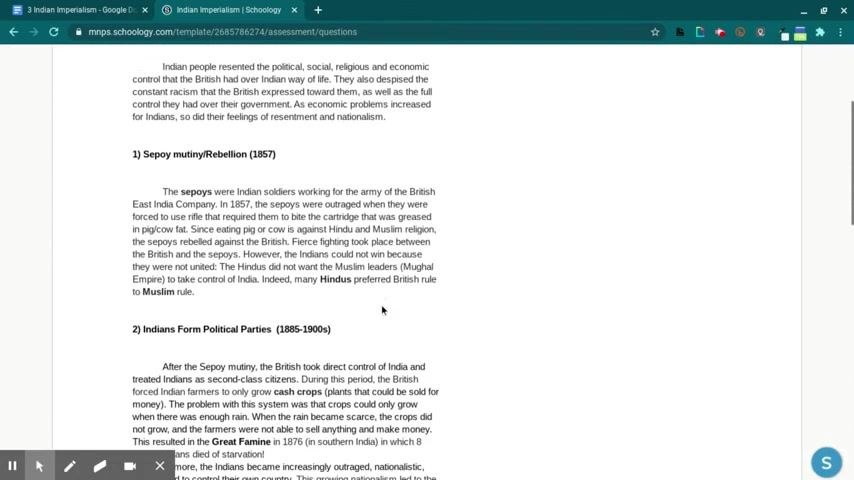
At this point, you have a new test/quiz with a text passage, ready for questions. You can add any of these question types as needed: true/false, multiple choice, ordering, short answer, essay, fill in the blank, or matching.
Add a question
Step 10: Choose a question type
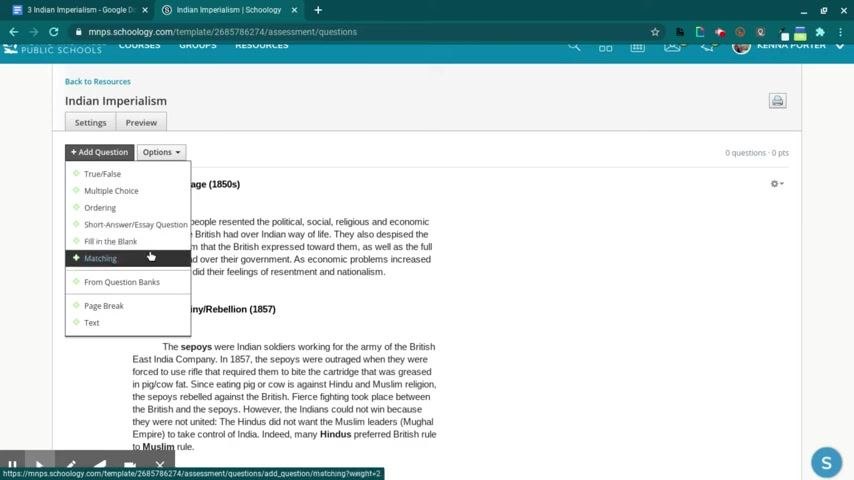
Click + Add Question in the editor. The available question types are:
- True/False
- Multiple Choice
- Ordering
- Short-Answer/Essay Question
- Fill in the Blank
- Matching
- From Question Banks
- Page Break
- Text
Select Short-Answer/Essay Question for open-ended responses, or choose another type that suits your assessment. Ordering is especially useful for history timelines and other sequence-based questions.
Step 11: Copy your question
Open the document that contains your prepared questions and highlight the question text. This example uses: "Why did the Sepoys rebel against the British? Were they successful? Why?"
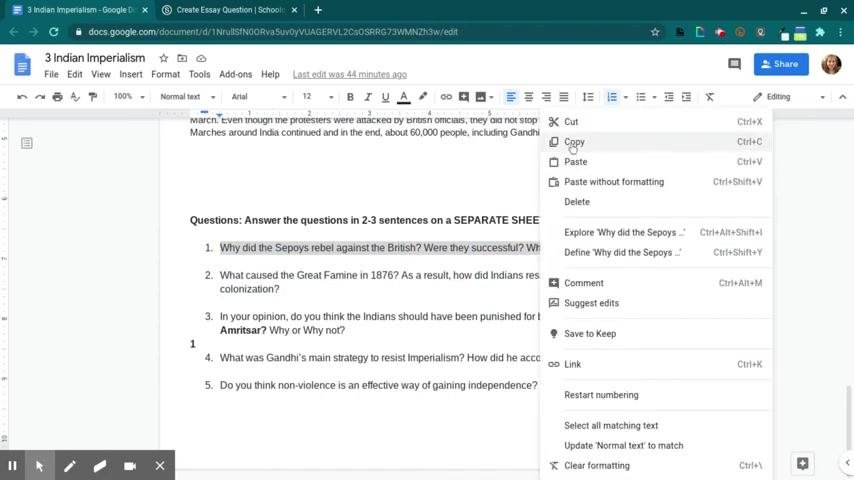
Right-click the highlighted question and select Copy from the context menu.
Step 12: Paste the question into Schoology
Return to the Schoology test/quiz editor. Paste the copied question into the question text field for the question type you selected.
Step 13: Configure the question settings
Set up how students respond to the question:
- Choose whether to set a character limit for student responses.
- Check the appropriate boxes to allow rich-text answers, allow video or audio answers, or make the question timed.
- Select Short answer for brief responses or Essay question for longer, more detailed answers.
- Enter the point value in the Grading field. For example, type "10."
Step 14: Attach a rubric or align learning objectives (optional)
If you use rubrics for grading, select one from the dropdown menu or copy one from your resources. Click Align if you want to link learning objectives.
Step 15: Create the question
Click Create Question to add the question to your test/quiz.
Step 16: Confirm the question was added
Check that your passage appears at the top of the test/quiz, followed by your new question. The editor should display both in order.
Step 17: Review and reorder content
Use the options at the top of the editor to reorder questions or text blocks. Click and drag a question or passage up or down to adjust the sequence.
You can continue adding questions or passages using the same process for each new item.
Preview your test/quiz
Step 18: Open the preview
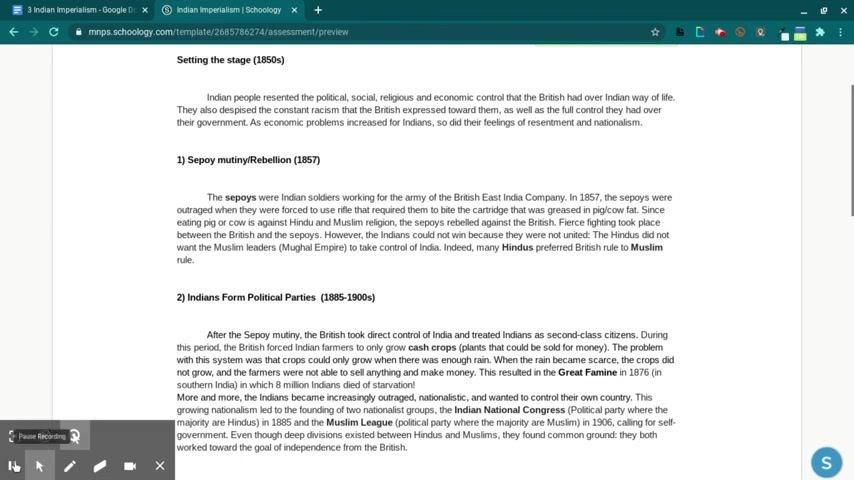
Click Preview to review the assessment as students will see it. Double-check that all passages and questions are in the correct order and formatted as intended.
Step 19: Begin the preview
Click Begin to start preview mode. This lets you experience the assessment as your students will. Review the passage and questions in the student view to confirm that:
- Instructions, passages, and questions display clearly.
- Formatting is correct.
- Everything appears in the intended order.
Step 20: Complete your review
If you are satisfied with the layout and content, exit preview mode. If you need changes, return to the editor and make adjustments before publishing.
Summary
You now know how to create a test in Schoology. You created a test/quiz in your resources folder, added a text passage and a question, configured the question settings, and reviewed the assessment in preview mode.
What's next
- Add more passages and questions, using the same process for each new item.
- Try other question types, such as Ordering, Matching, or Multiple Choice.
- Attach rubrics or align learning objectives to your questions.
- Return to the editor to make any changes before you publish.
Generation details: cost, quality tiers
Docsie billed 2,000 credits ($1.40) to analyze this 4-minute video at standard quality. The rewrite, template fill and Word/PDF exports were included. The same video at each quality tier:
| Quality | Frames sampled | Credits | Approx. cost |
|---|---|---|---|
| Draft | every 16-30 s | 1,000 | $0.70 |
| Standard (this guide) | every 8-15 s | 2,000 | $1.40 |
| Detailed | every 4-7 s | 4,000 | $2.80 |
| Ultra | every 1-3 s | 8,000 | $5.60 |
Credits priced at $0.70 per 1,000; plans include a monthly allowance. Enterprise customers on on-premise or bring-your-own-model deployments run this on their own inference and pay no per-video credits.
Generated by Docsie Video-to-Docs on 2026-11-01 from a 3-minute video. Screenshots are frames from the source video and belong to their creator, Kenna Porter, whose original is embedded above. If you own this video and want the guide removed or credited differently, contact us and we will act within one business day.