
How to Create a Landing Page in Schoology
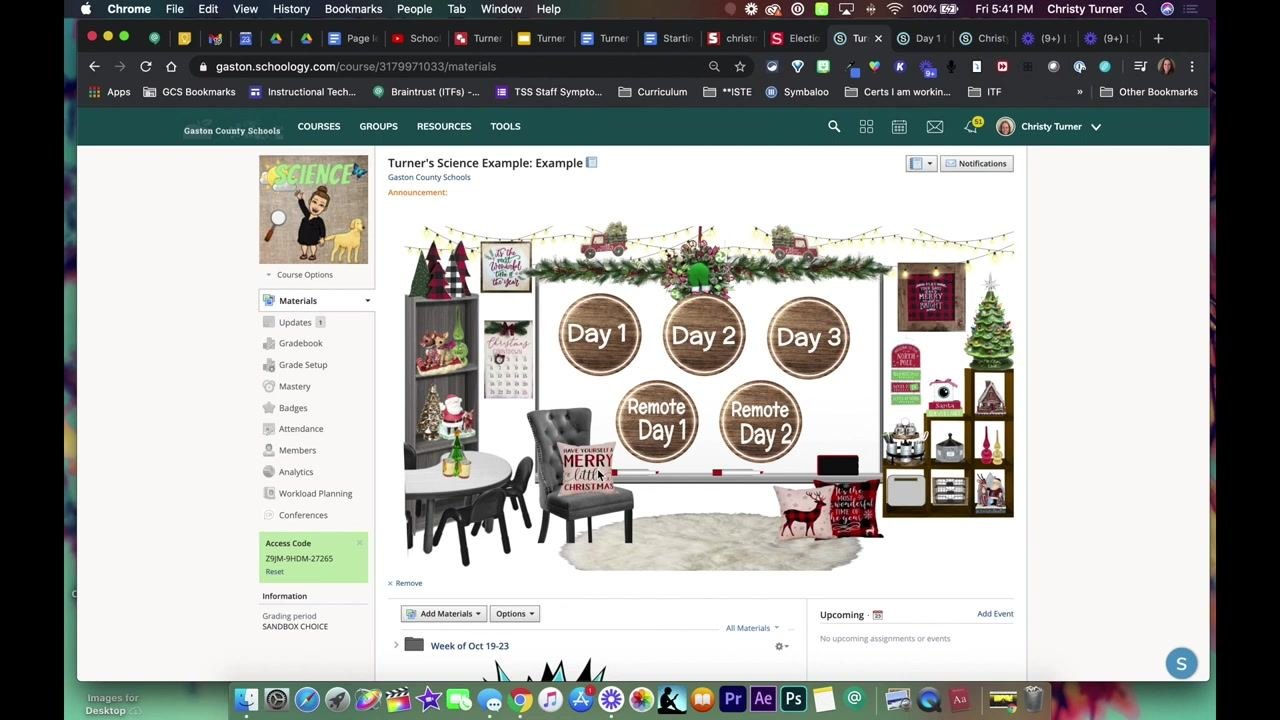
This guide shows you how to create a landing page in Schoology by designing it in Google Drawings, linking each button to your course materials, and embedding it in a Schoology page. You can also post the landing page in Schoology Updates and add a Home button for navigating back. A Google Drawings landing page is larger and more customizable than one built in Google Slides, which gives a smaller display area.
Video: Schoology: Creating Landing Pages and Navigation Buttons by DLFs of GCS (2020). All credit for the demonstration goes to the creator; watch the original on YouTube. The written guide below was generated from this video by Docsie. Creator? Request a change or removal.
This guide shows you how to create a landing page in Schoology by designing it in Google Drawings, linking each button to your course materials, and embedding it in a Schoology page. You can also post the landing page in Schoology Updates and add a Home button for navigating back. A Google Drawings landing page is larger and more customizable than one built in Google Slides, which gives a smaller display area.
Prerequisites
Before you begin, make sure you have:
- A Schoology course where you want to add or update the landing page.
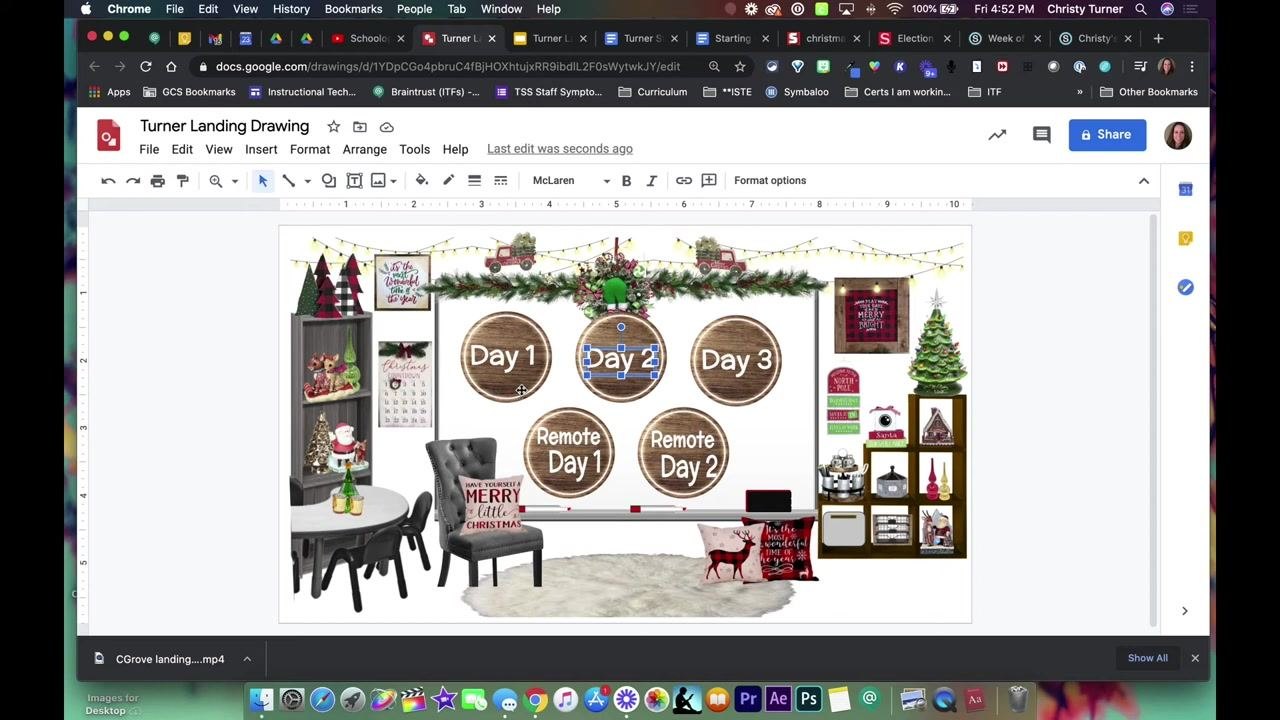
- A Google Drawings file (for example, "Turner Landing Drawing") with your layout ready.
- Labeled buttons for each day or activity.
- Word Art for your button text, so the text appears as an image that you can hyperlink.
Create the landing page in Google Drawings
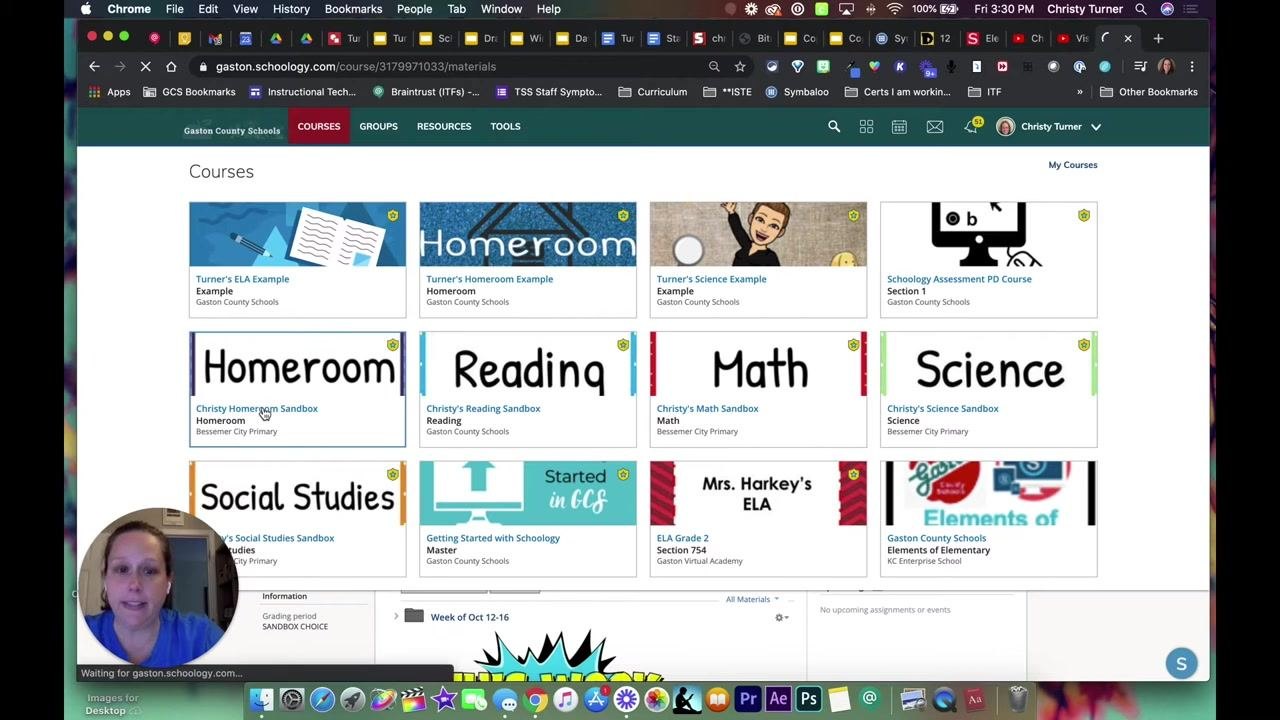
Step 1. Open your Schoology courses
Open Schoology and view your list of courses. Identify the course where you want to add or update the landing page.
Step 2. Open your landing page in Google Drawings
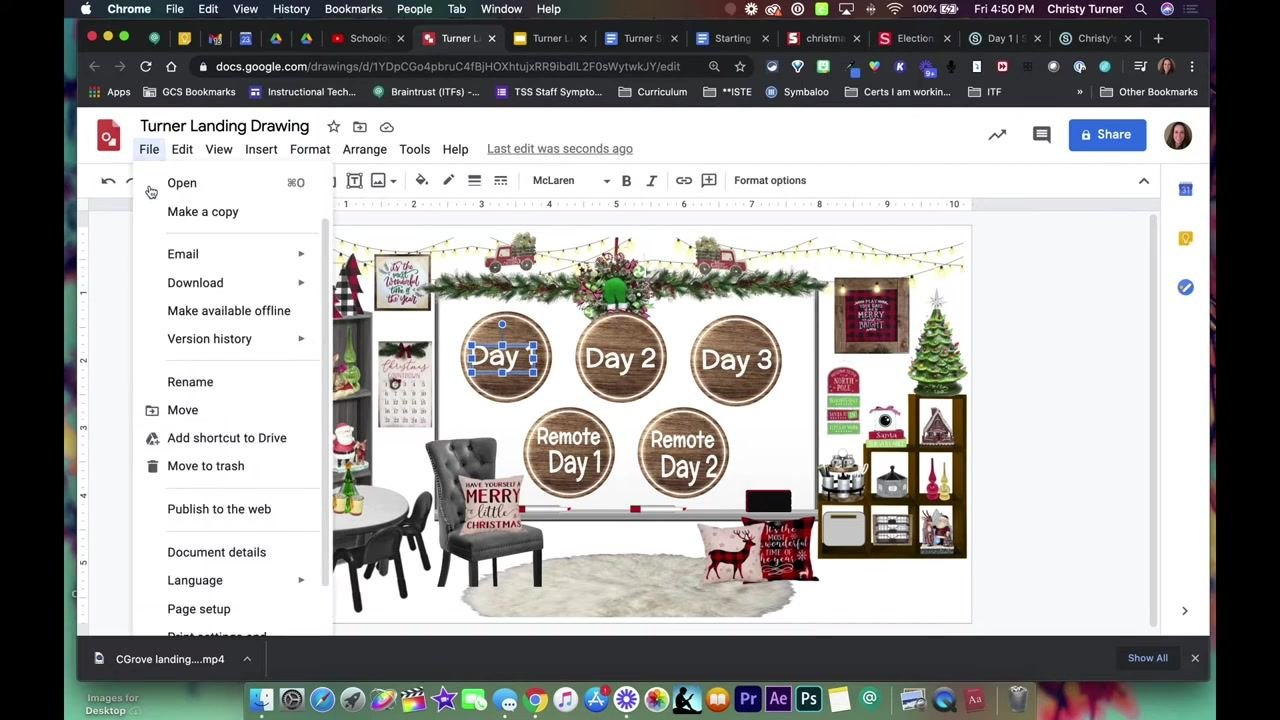
Open your Google Drawings file. Confirm that your layout is ready, with a labeled button for each day or activity. Use Word Art for the text so it behaves like an image that you can hyperlink.
Step 3. Set the page to widescreen (optional)
In Google Drawings, go to File > Page setup and change the aspect ratio to widescreen if you want. This helps the landing page fit well when you embed or link it.
Link course materials to your buttons
Step 4. Copy the URL of a Schoology folder
In Schoology, go to the folder or material you want to link from your landing page. Click the folder (for example, "Day 1") to open it, then copy the URL from the browser's address bar.
Step 5. Link the first button in Google Drawings
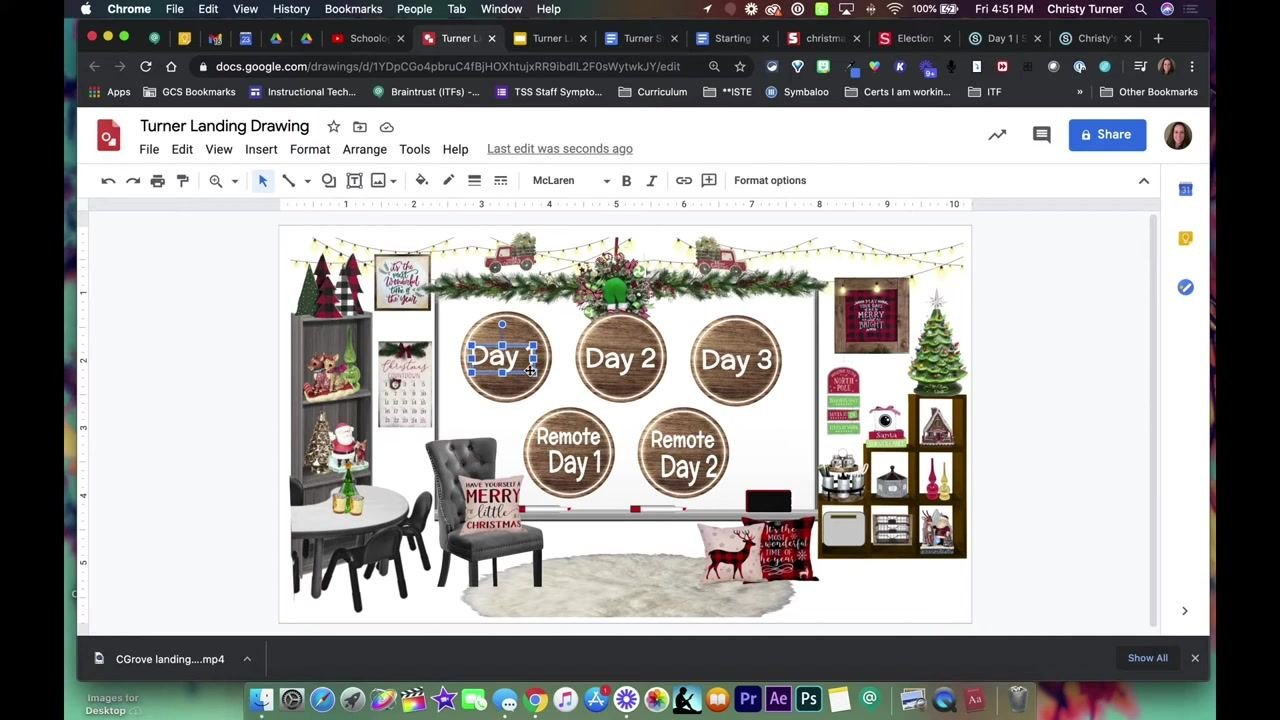
Return to your Google Drawings landing page and select the Word Art or shape you want to hyperlink (for example, "Day 1"). Then follow these steps:
- Click the Insert link icon, or press
Ctrl+K(Cmd+Kon Mac). - Paste the copied Schoology URL.
- Click Apply.
Step 6. Link the remaining buttons
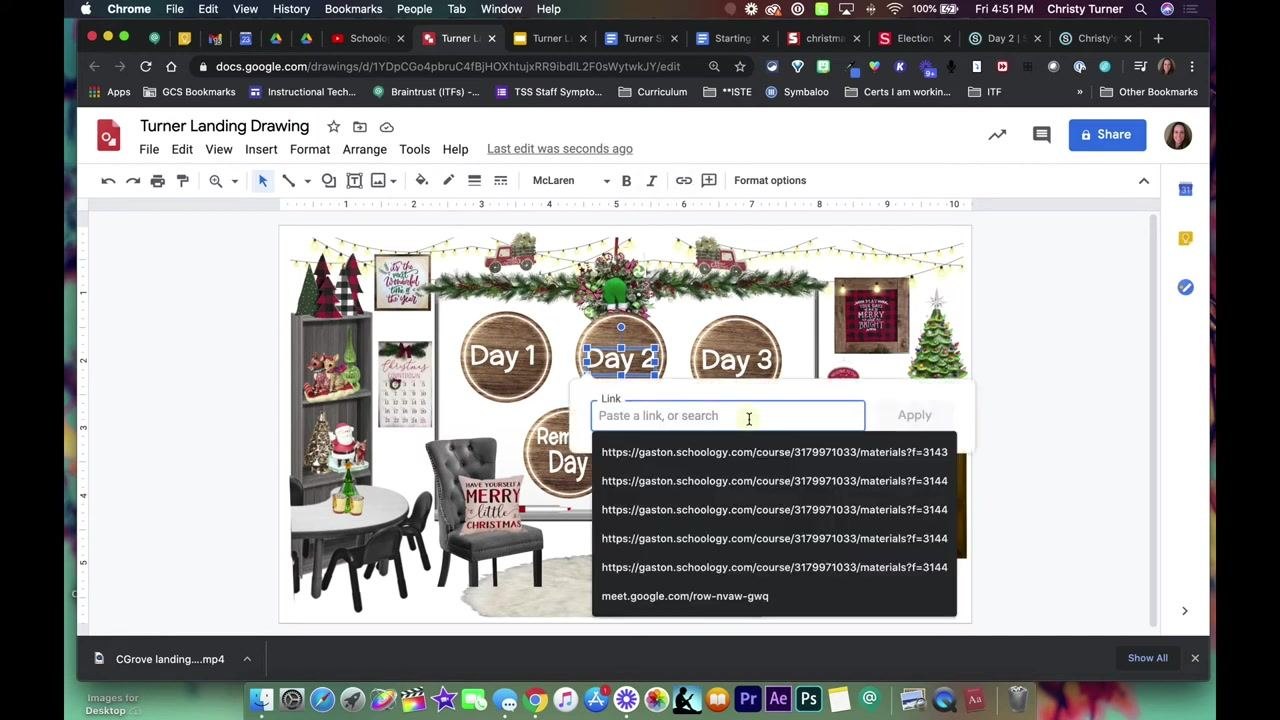
Repeat the process for each additional button, such as "Day 2":
- Open the matching folder or material in Schoology.
- Copy the URL from the browser's address bar.
- Return to your Google Drawings landing page and select the Word Art or shape for that button.
- Click the Insert link icon or press
Ctrl+K(Cmd+Kon Mac). - Paste the URL and click Apply.
Repeat this for every button you want to link.
Step 7. Verify all links
Check that each button points to the correct Schoology folder or activity. Links can point to any resource, including folders, assignments, or even different courses. Always use the exact URL from Schoology for each button.
Embed the landing page in Schoology
Step 8. Add a new page to your course
With all links set, open your Schoology course. Click Add Materials and select Add Page. In the page dialog, enter a title such as "Landing page."
Step 9. Insert the Google Drawings file
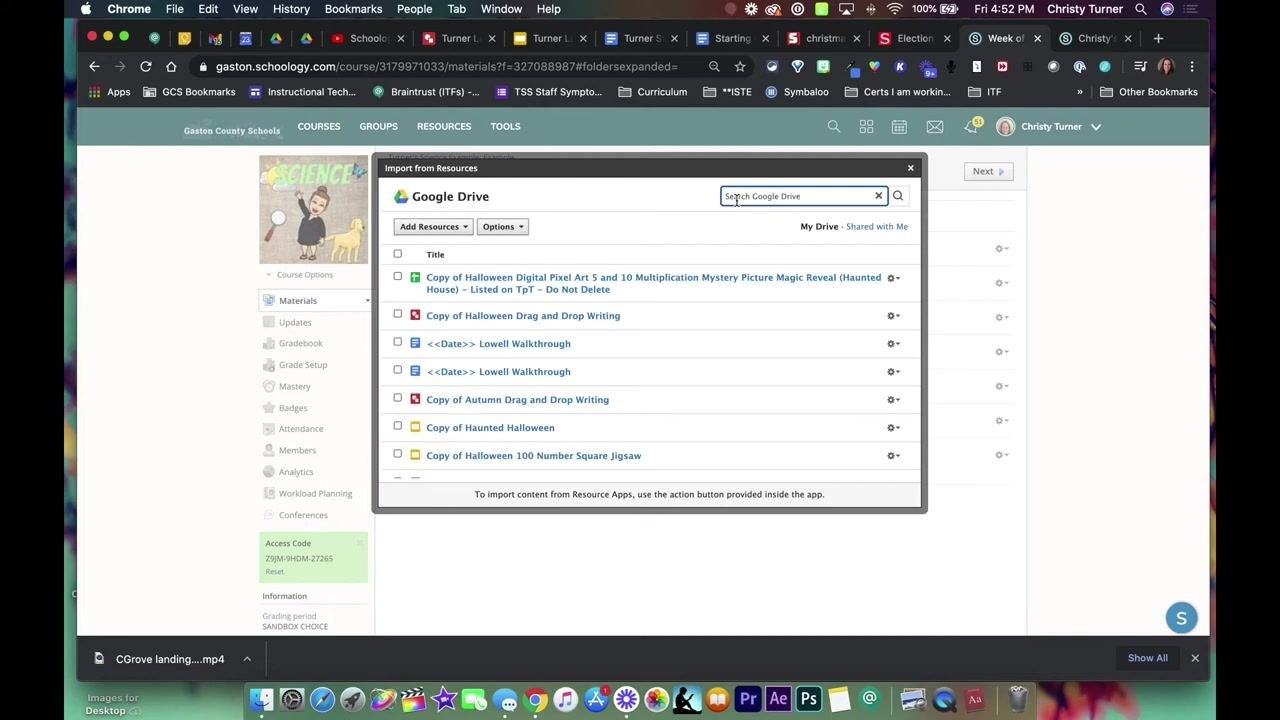
In the page editor, click Insert Content and choose Google Drive Resource App. Search for your Google Drawings file by name or browse your drive, then select your landing page drawing from the list.
Step 10. Resize the embedded drawing
The embedded drawing may appear small by default. Resize it so your landing page displays at a usable size:
- Click the embedded image to select it. It turns blue.
- Click the Edit or Insert/Edit Embedded Media button.
- In the Dimensions field, change the width to 900 or 1000 (for example, 1000 x 563).
- Make sure Constrain proportions is checked so the image scales properly.
- Click Insert.
Step 11. Create and manage the page
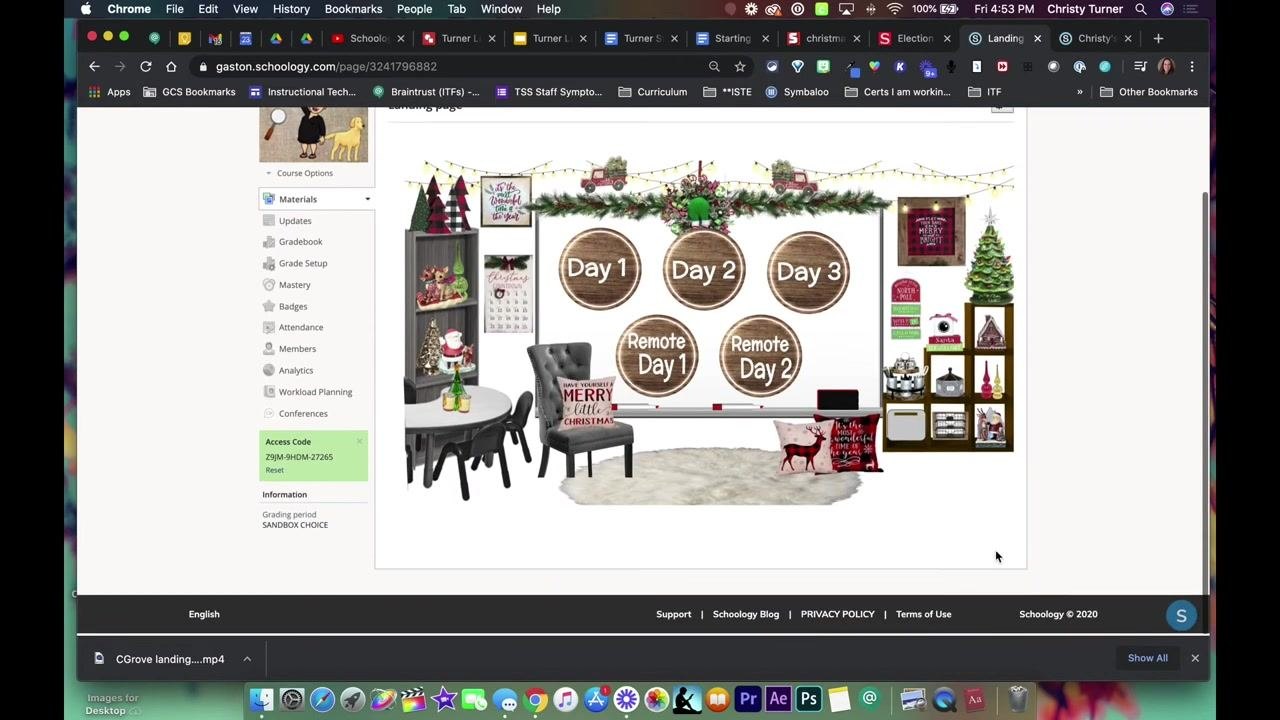
Click Create to add the page to your course. The landing page now appears in your course materials list. If you don't want students to see it right away, you can unpublish it. Click the page to preview how it appears to users.
Share the landing page in Updates
Step 12. Copy the landing page image
Open your landing page in Schoology. Click and drag your cursor over the white space of the landing page to highlight the image. Proceed even if it looks like not everything is highlighted. Press Ctrl+C (Windows) or Cmd+C (Mac) to copy it.
Step 13. Paste the landing page into an update
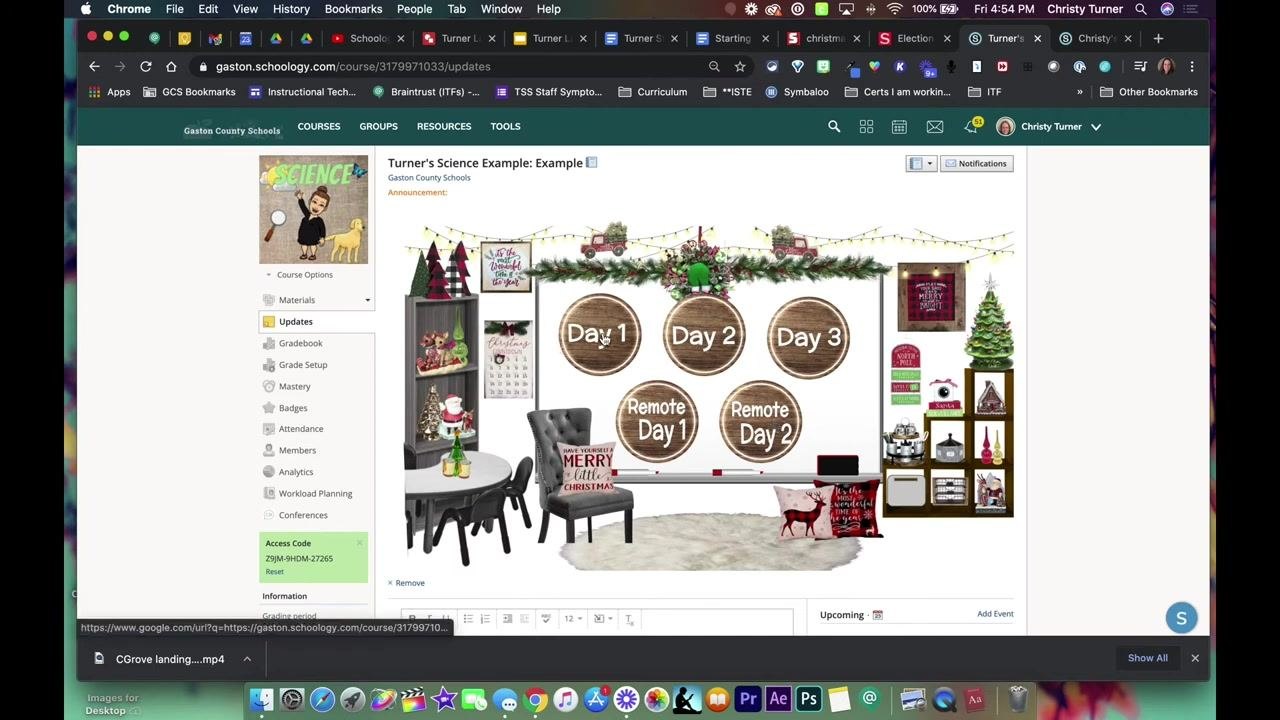
Click Updates in the left sidebar of your Schoology course, then click inside the update text box. Press Ctrl+V (Windows) or Cmd+V (Mac) to paste the image. It appears at its original size in the update box. Click Post to publish.
Step 14. Verify the links in the update
After posting, check that the landing page image displays at full width. Click an interactive button (for example, "Day 1") to confirm it opens the correct Schoology folder or activity.
Add a Home navigation button
A Home button lets users return to the landing page from other sections of your course.
Step 15. Copy the Home button graphic
Open the Google Slides or Google Drawings file that contains your landing page buttons. Select the "Home" button graphic and press Ctrl+C (Windows) or Cmd+C (Mac).
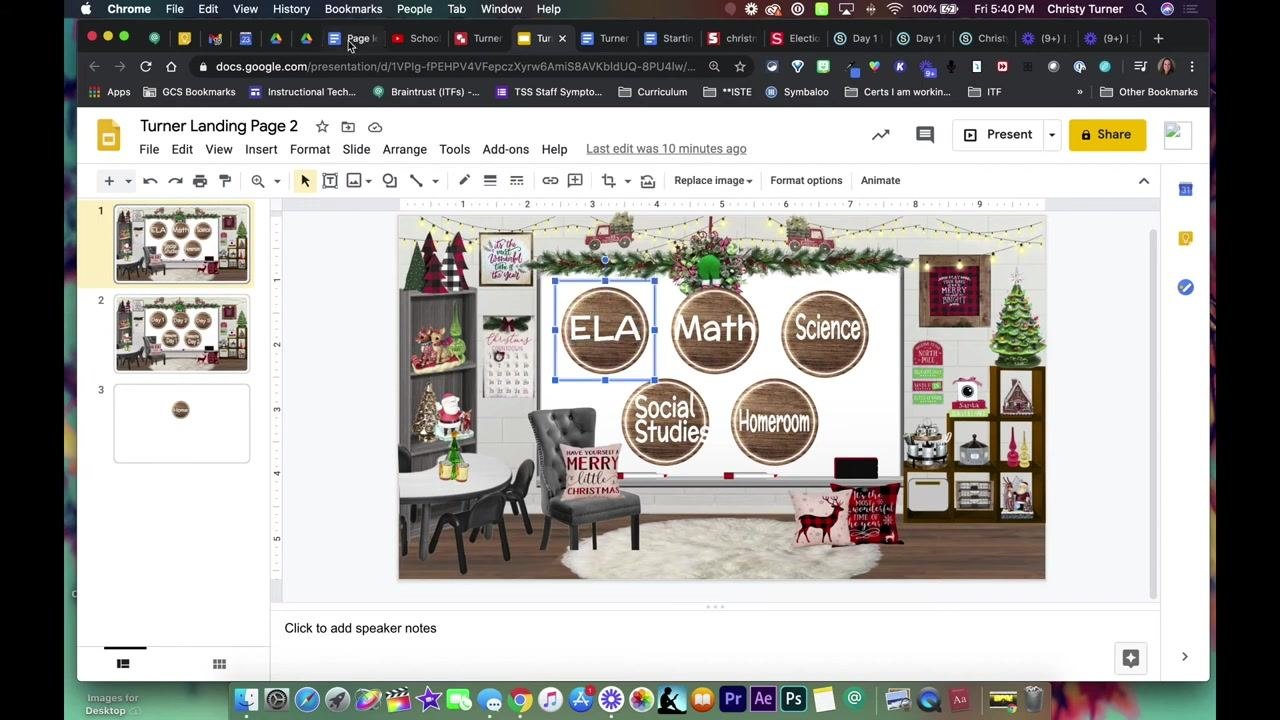
Step 16. Insert the Home button into a Google Doc
Open the Google Doc where you want the navigation button and place your cursor where it should go. Then follow these steps:
- Select Insert > Drawing > + New.
- In the drawing dialog, paste the "Home" button graphic.
- Resize the button as needed for clarity and visibility.
Step 17. Add Word Art to the drawing
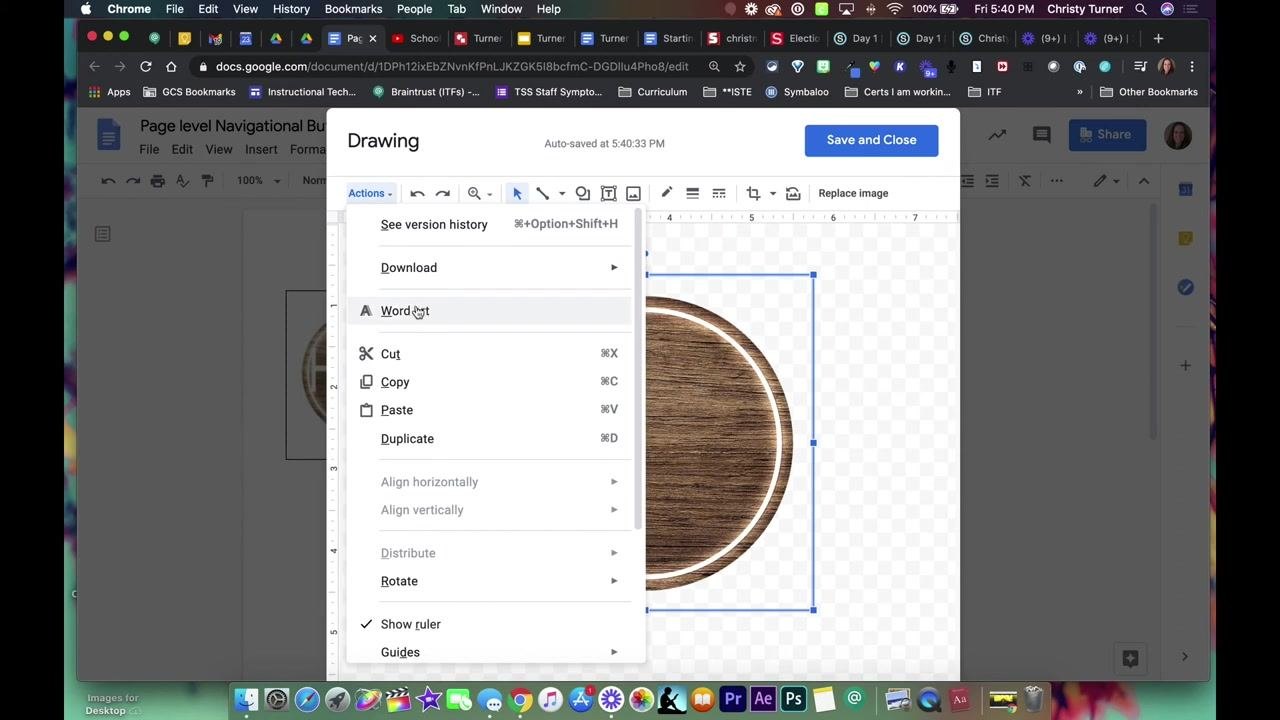
With the Drawing dialog open in your Google Doc, right-click inside the drawing canvas, or click the Actions menu. Select Word art. You can use stylized text to label the Home button or any other navigation element.
The canvas shows the selected circular wooden button graphic. The Save and Close button is at the top right of the dialog.
Step 18. Copy the URL of the Schoology page you want as Home
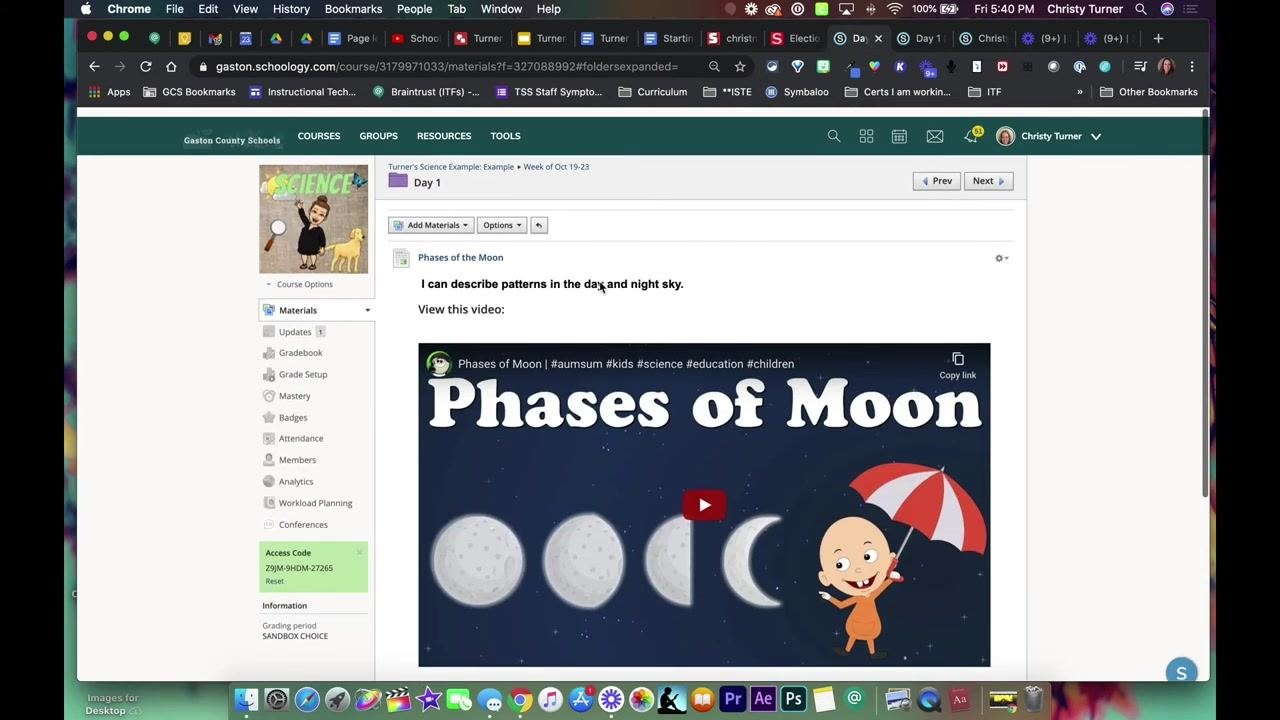
Decide which page in your Schoology course users should land on when they click Home. Open that page in your browser (for example, a course page with a lesson called "Phases of the Moon"). Click the address bar to highlight the URL, then right-click and select Copy, or press Ctrl+C (Cmd+C on Mac).
Step 19. Link the Home button
Return to your Google Doc with the navigation buttons and click the "Home" button image to select it. Make sure it has a blue border. Then follow these steps:
- Click the Insert link icon (the chain symbol) in the toolbar or just below the image.
- Paste the copied Schoology URL into the link field.
- Click Apply.
Step 20. Save and test the navigation
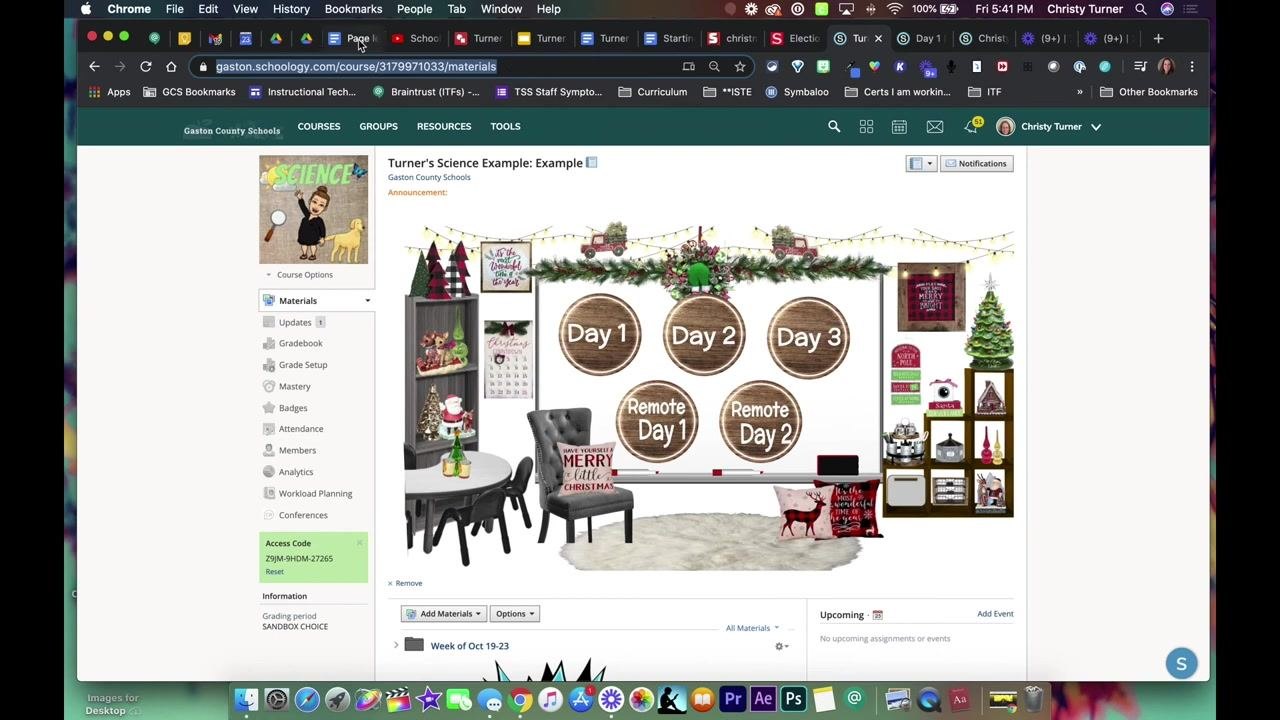
Save any changes, then click the Home button in your Google Doc. Your browser should open the Schoology page you linked. A confirmation message such as "The page has been successfully created" may appear in Schoology.
Summary
You now know how to create a landing page in Schoology. You designed it in Google Drawings, linked each button to Schoology materials, embedded it in a course page, and resized it. You also posted it in Updates and added a Home button for navigating back to your landing page.
What's next
- Label your Home button with Word Art to make the navigation element clear.
- Link the Home button to the Schoology page you want users to return to.
- Test each button on your landing page after any update to confirm it opens the correct folder or activity.
Generation details: cost, quality tiers
Docsie billed 3,500 credits ($2.45) to analyze this 7-minute video at standard quality. The rewrite, template fill and Word/PDF exports were included. The same video at each quality tier:
| Quality | Frames sampled | Credits | Approx. cost |
|---|---|---|---|
| Draft | every 16-30 s | 1,750 | $1.22 |
| Standard (this guide) | every 8-15 s | 3,500 | $2.45 |
| Detailed | every 4-7 s | 7,000 | $4.90 |
| Ultra | every 1-3 s | 14,000 | $9.80 |
Credits priced at $0.70 per 1,000; plans include a monthly allowance. Enterprise customers on on-premise or bring-your-own-model deployments run this on their own inference and pay no per-video credits.
Generated by Docsie Video-to-Docs on 2026-11-01 from a 6-minute video. Screenshots are frames from the source video and belong to their creator, DLFs of GCS, whose original is embedded above. If you own this video and want the guide removed or credited differently, contact us and we will act within one business day.