
How to Create a Group in Schoology
This guide shows you how to create a group in Schoology, set its privacy and access, and manage it after it exists. It also covers how to join an existing group with an access code or by browsing available groups. You can use groups for clubs, advising, sports, and other purposes that fit your school.
Video: Schoology - Creating and Managing Groups by MrMattperreault (2012). All credit for the demonstration goes to the creator; watch the original on YouTube. The written guide below was generated from this video by Docsie. Creator? Request a change or removal.
This guide shows you how to create a group in Schoology, set its privacy and access, and manage it after it exists. It also covers how to join an existing group with an access code or by browsing available groups. You can use groups for clubs, advising, sports, and other purposes that fit your school.
Prerequisites
- A Schoology account that you can log in to.
- An access code from the group administrator, if you want to join a group that way.
Join an existing group
Step 1. Open your Schoology home page
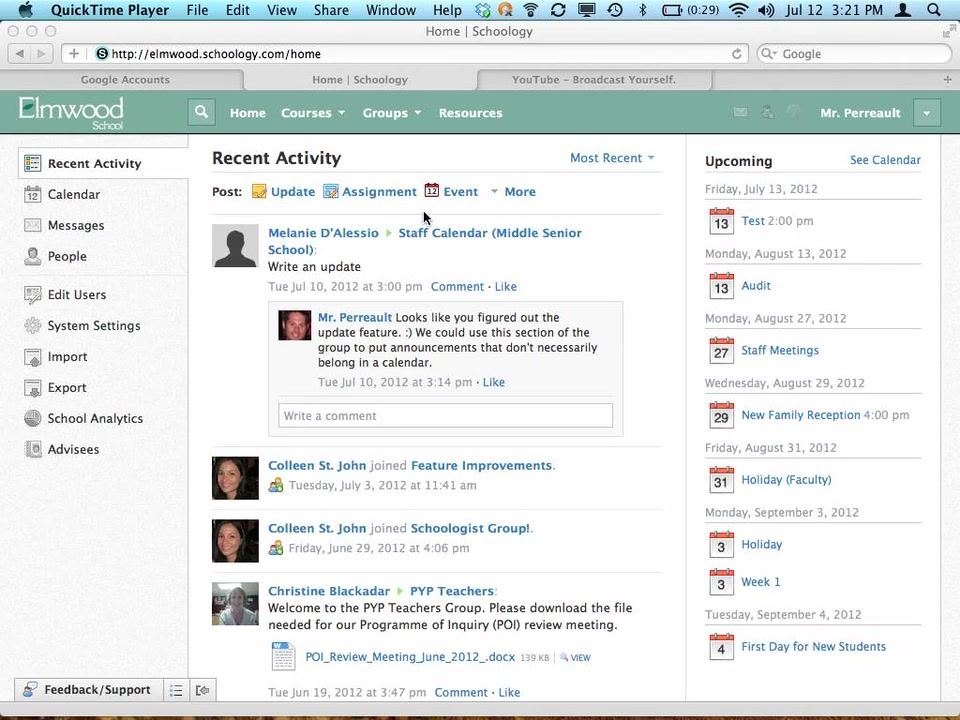
Log in to your Schoology account and go to the home page. The home page displays the Recent Activity feed, the navigation menus, and your upcoming events.
Step 2. Open the Groups menu
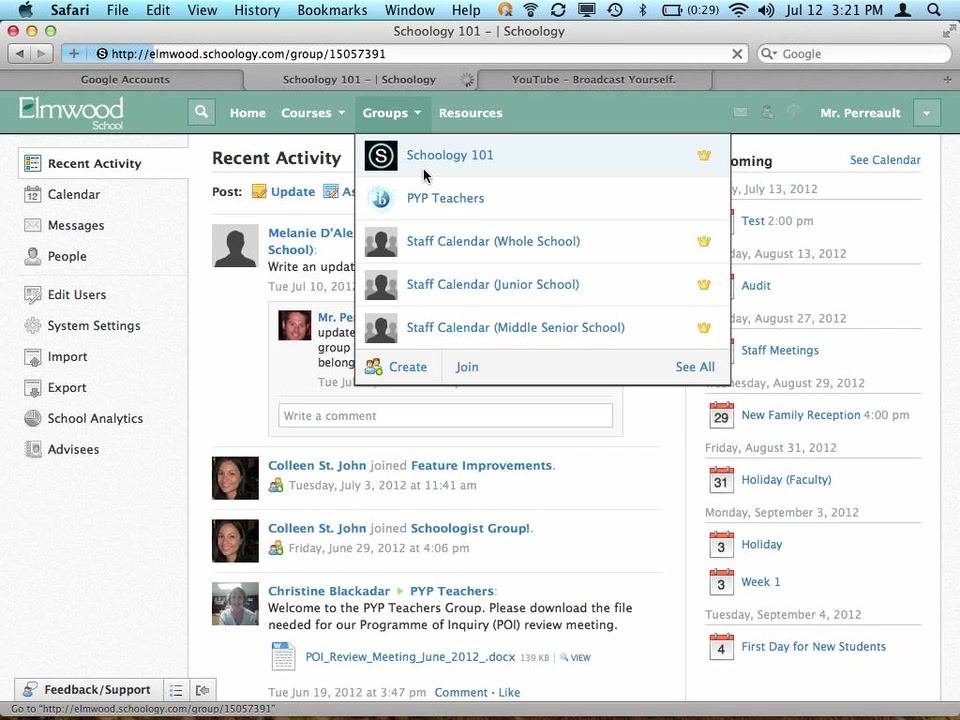
In the top navigation bar, click Groups. The dropdown lists the groups you already belong to. It also gives you options to create or join groups.
Step 3. Join a group with an access code
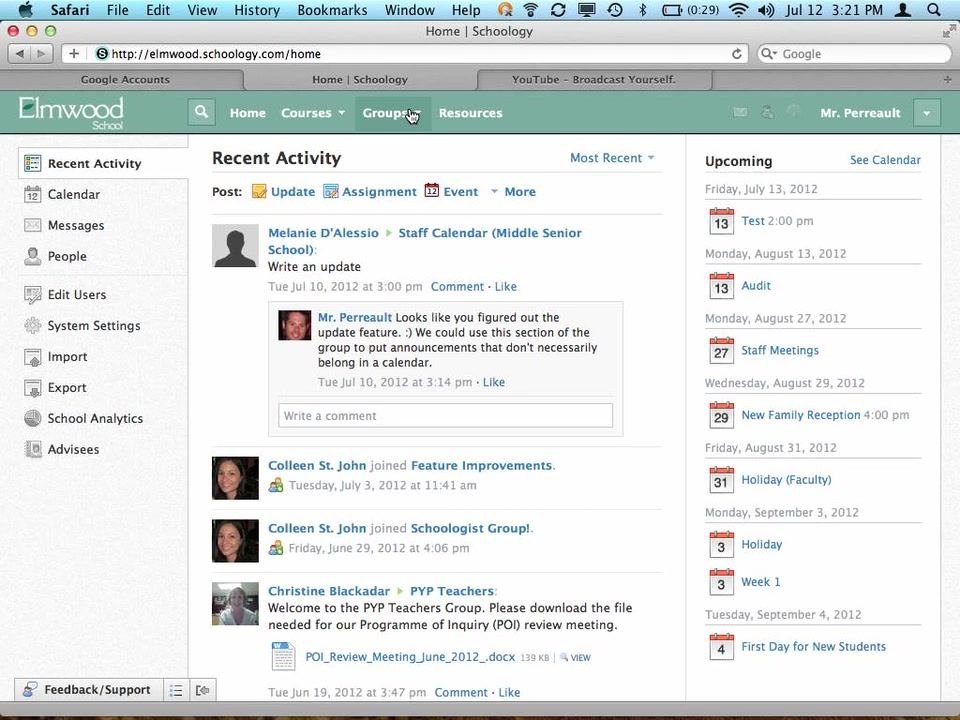
Get the access code from the group administrator. For example, the Schoology 101 group uses the code "84XTB-TZBQM". Then follow these steps:
- In the Groups dropdown, click Join.
- Enter the access code in the field provided.
Step 4. Browse available groups and request to join
If you don't have an access code, you can browse the available groups instead:
- In the Groups dropdown, click See All.
- Browse the list of available groups, such as "Competitive Robotics" or "Elmwood Arts".
- Click a group name to view its details and request to join.
Create a group
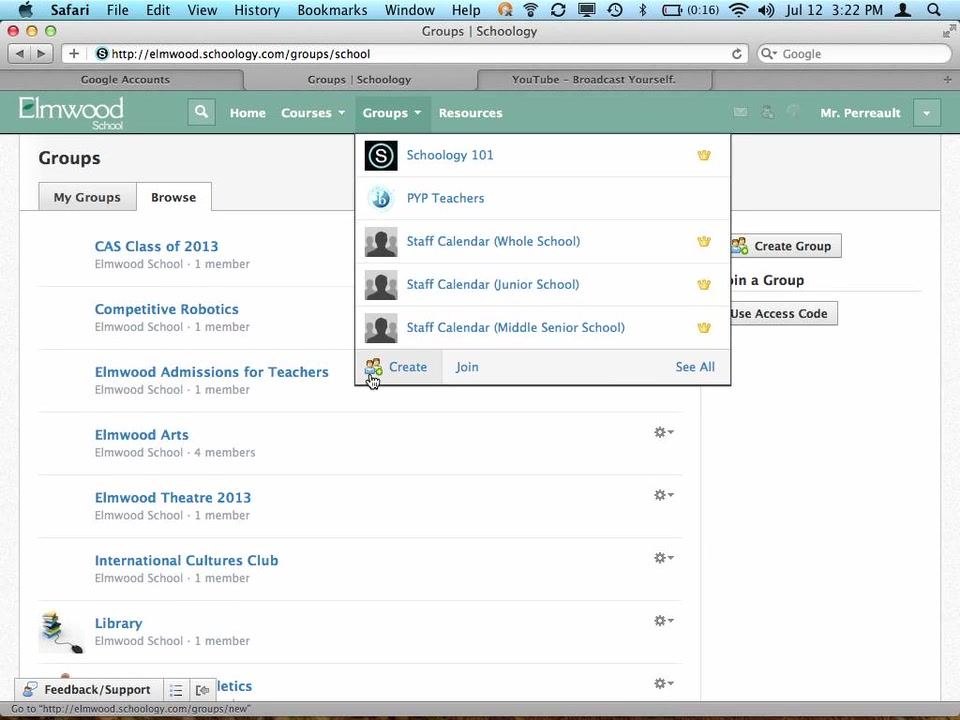
Step 5. Click Create in the Groups menu
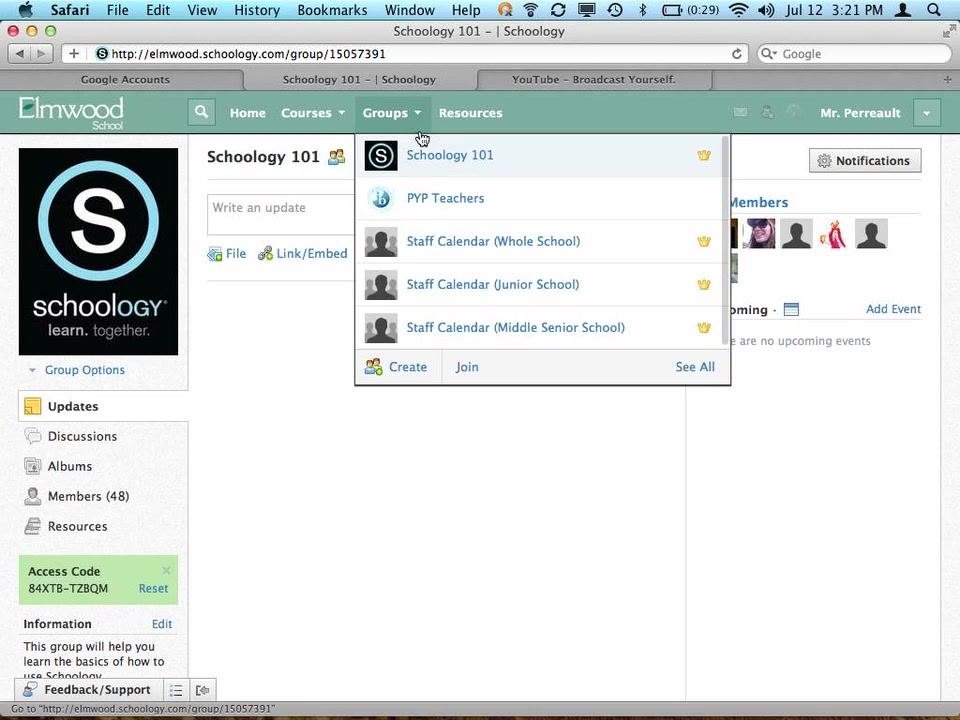
To create your own group in Schoology, open the Groups dropdown and click Create.
Step 6. Fill out the group creation form
In the Create Group dialog, complete the following fields:
- Name: Enter the group name (for example, "Test").
- Description: Enter a brief description (for example, "description").
- Privacy: Select who can see the group.
- Access: Choose how people can join. Select Invite Only if you want members to be invited.
The Privacy options are:
- Everyone: The group is accessible to everyone.
- School: Only people in your school can access the group.
- Group: Only group members can see the group.
- Custom: Only invited people can see the group.
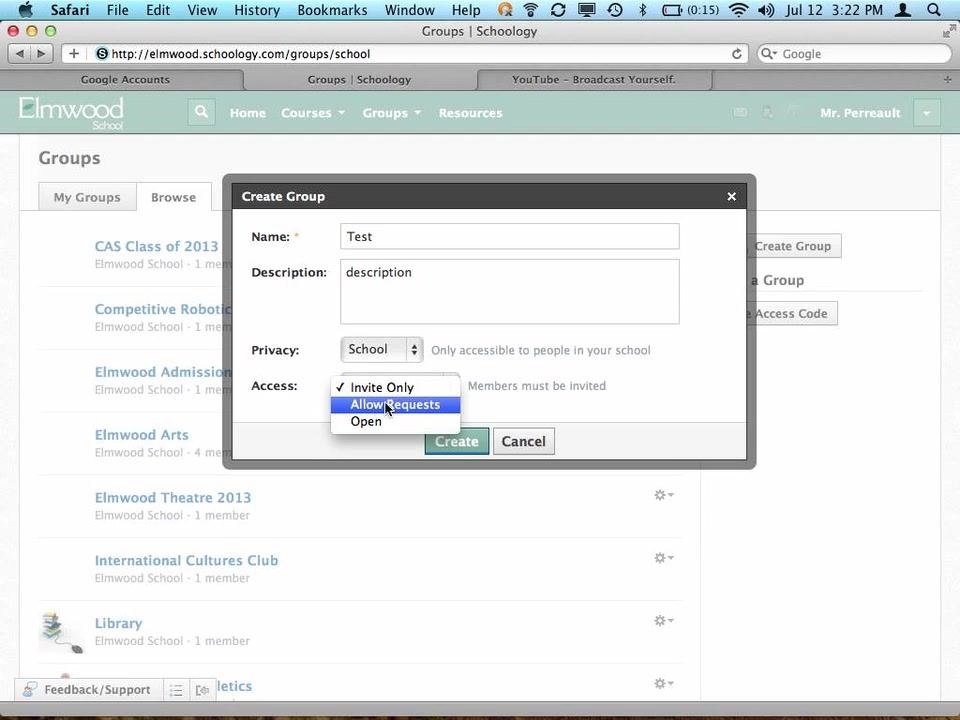
Step 7. Choose an Access option: Allow Requests
The Access setting controls how members join your group. The three options are:
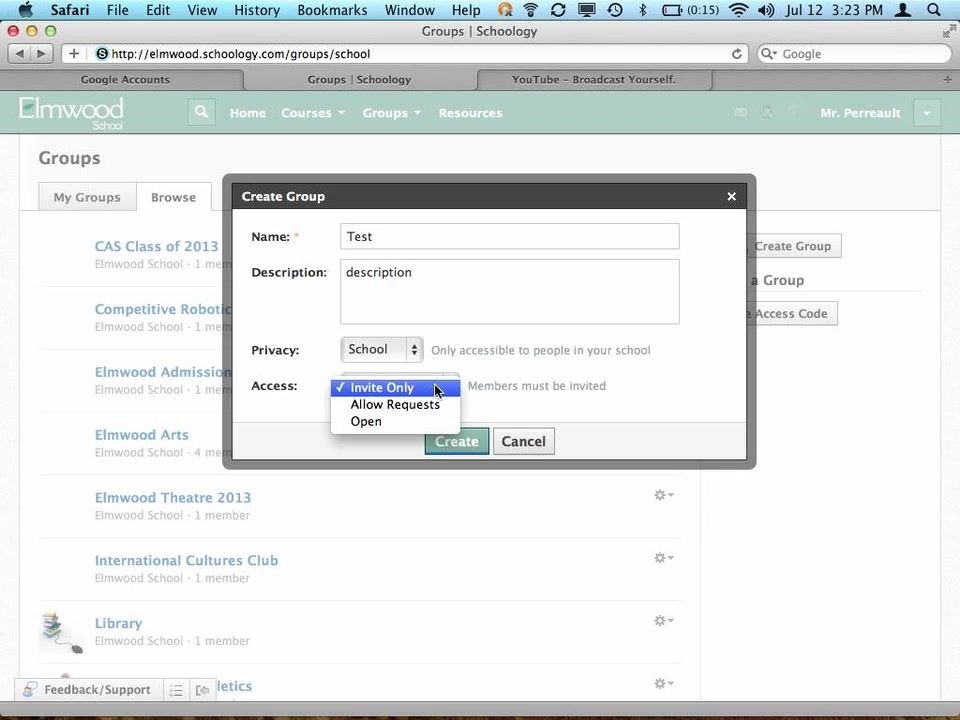
- Invite Only: Only invited members can join.
- Allow Requests: Users can request to join, and you approve or deny their requests.
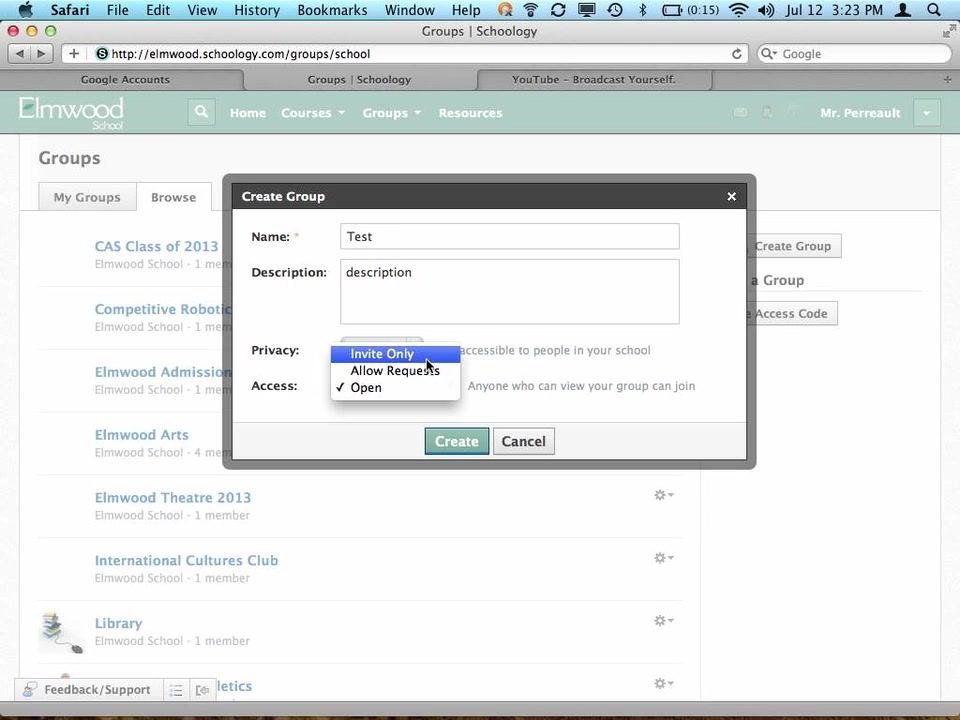
- Open: Anyone who can view the group can join without approval.
Use Allow Requests if you want people to find the group and ask to join, such as for a school club.
Step 8. Choose an Access option: Open
Use Open for groups that anyone in the school can join freely.
Step 9. Choose an Access option: Invite Only
Use Invite Only for private groups, such as a group where teachers organize something together.
Step 10. Click Create to finish
Click Create to finalize your new group.
Explore your new group
Step 11. Review the group homepage and sidebar
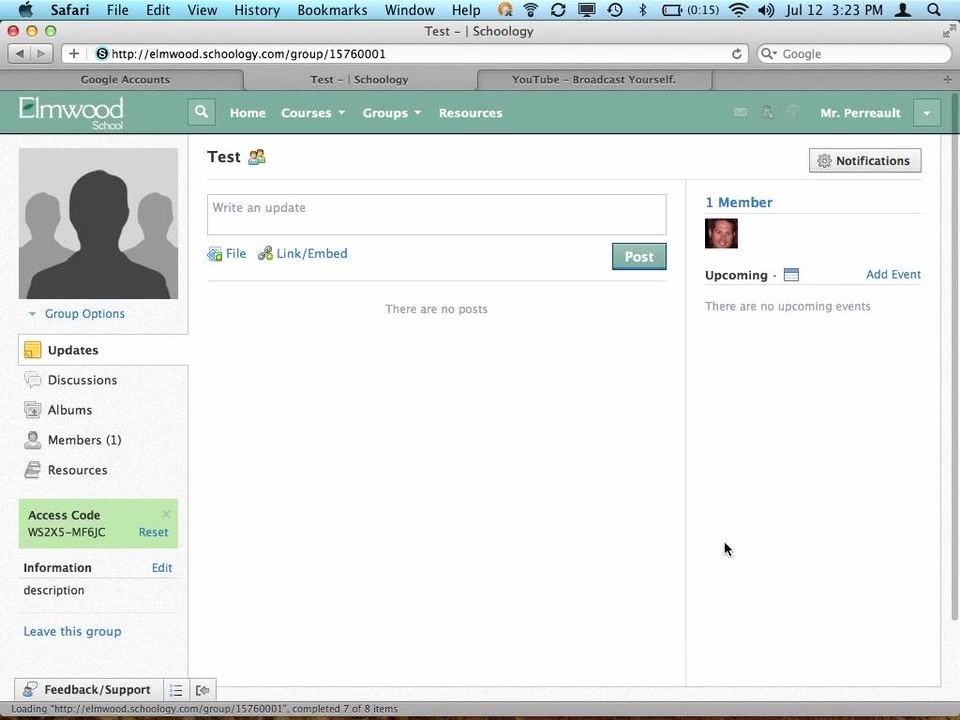
After you create the group, Schoology takes you to the group homepage. The page looks similar to a class page. You can post updates, view the group calendar, and see group members. The group access code is displayed so you can invite others.
The left sidebar gives you access to Updates, Discussions, Albums, Members, and Resources.
Step 12. Use the sidebar to navigate group features
Each sidebar item has a specific purpose:
- Updates: Post announcements or updates to the group.
- Discussions: Start or participate in group discussions.
- Albums: Organize and share media albums.
- Members: View and manage group members.
- Resources: Add and organize files, links, assignments, and more.
Step 13. Add resources to your group
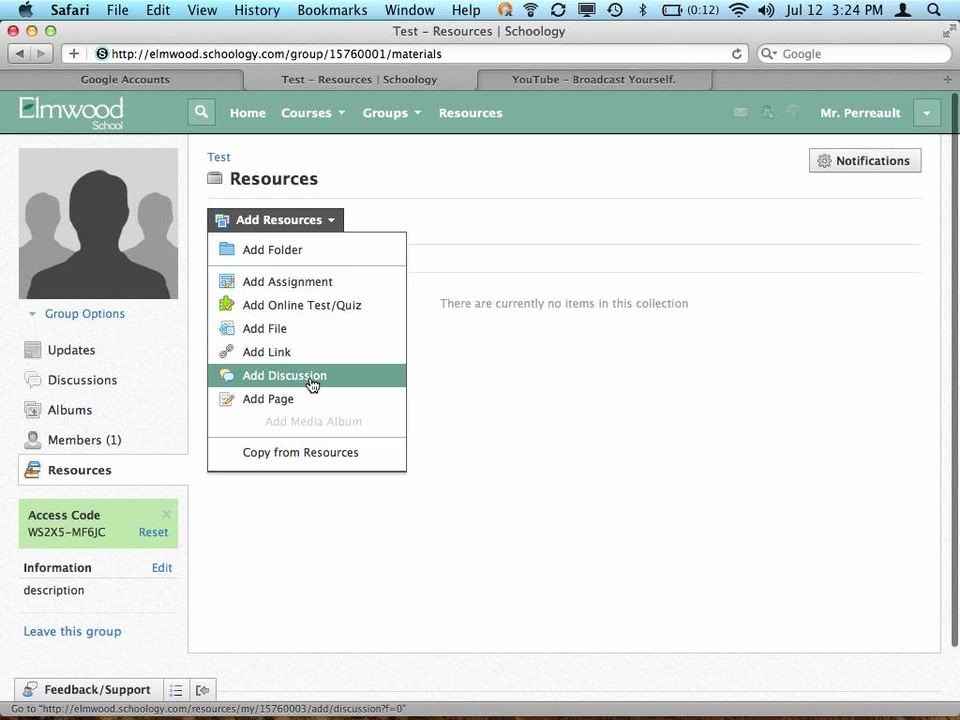
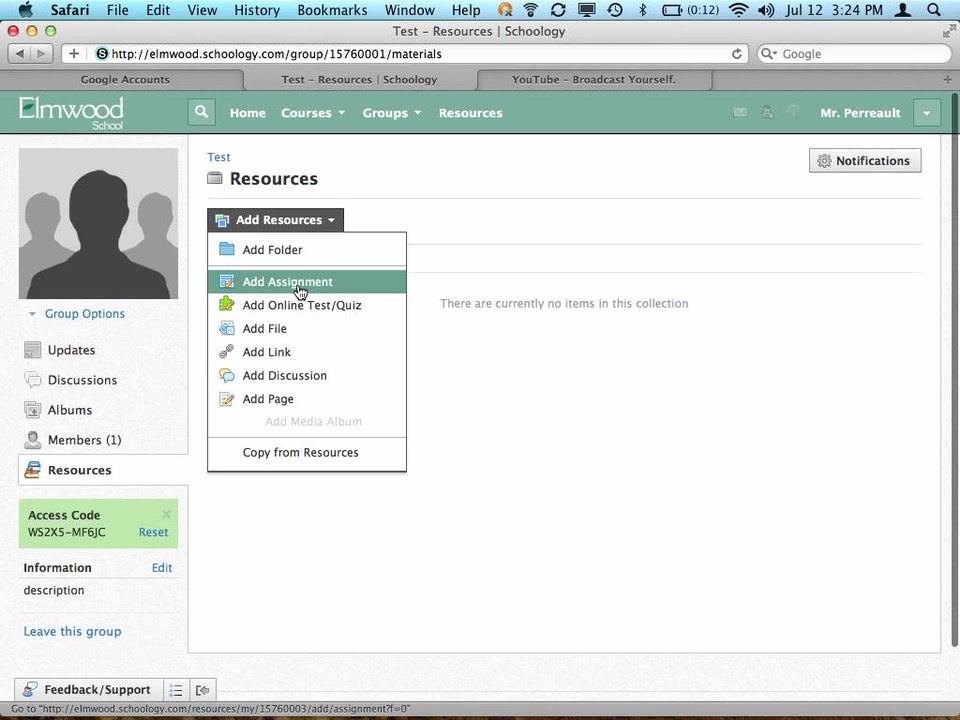
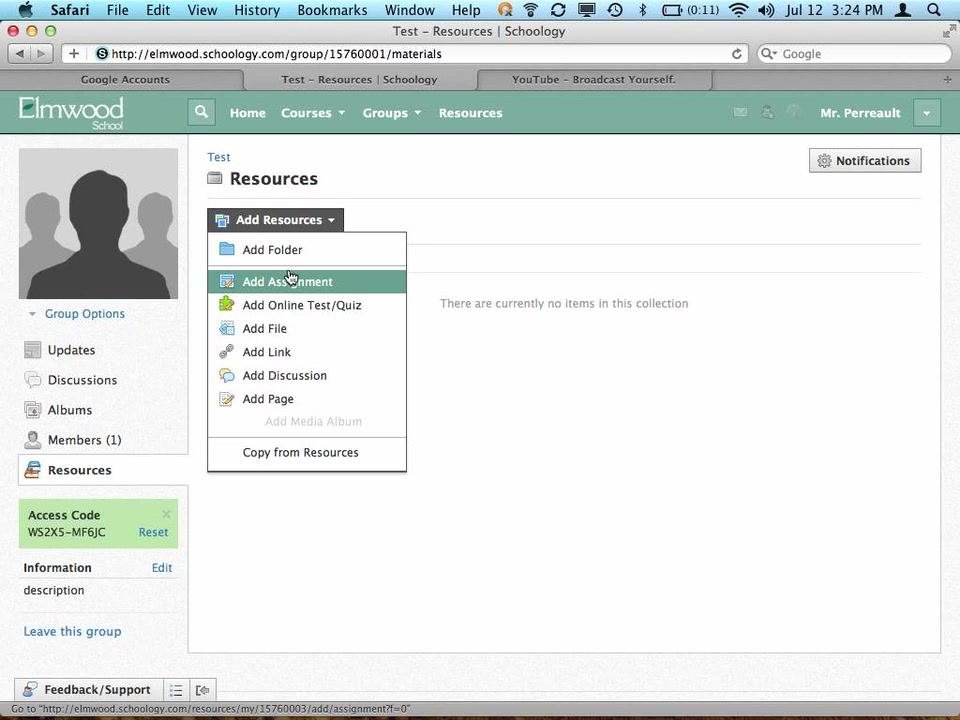
Open the Resources tab and click Add Resources. You can choose from these options:
- Add Folder: Organize materials into folders.
- Add Assignment: Create assignments.
- Add Online Test/Quiz: Create tests or quizzes for reference.
- Add File or Add Link: Share files or web links.
- Add Discussion: Start a new discussion topic.
- Add Page: Create informational pages.
Group members can view assignments and tests that you create in a group. They cannot submit work or take tests the way they would in a class.
Step 14. Start a discussion
To start a discussion with your group or club, use the Add Discussion option under either the Discussions tab or the Resources tab.
Edit your group
Step 15. Open Edit Info
To edit your group after you create it, click Group Options in the left sidebar and select Edit Info.
Step 16. Update the group details
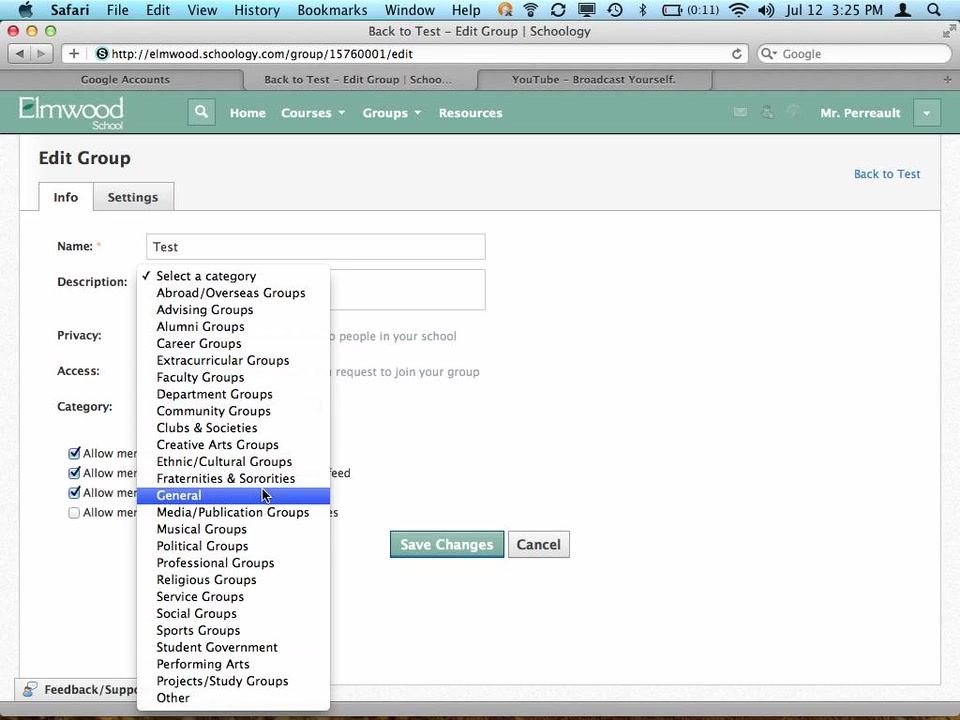
In the Edit Group window, update these fields as needed:
- Name: Enter the group name (for example, "Test").
- Description: Enter a description for your group.
- Privacy: Choose who can access the group (for example, "School" for only people in your school).
- Access: Select how members can join (for example, "Allow Requests" to let people request to join).
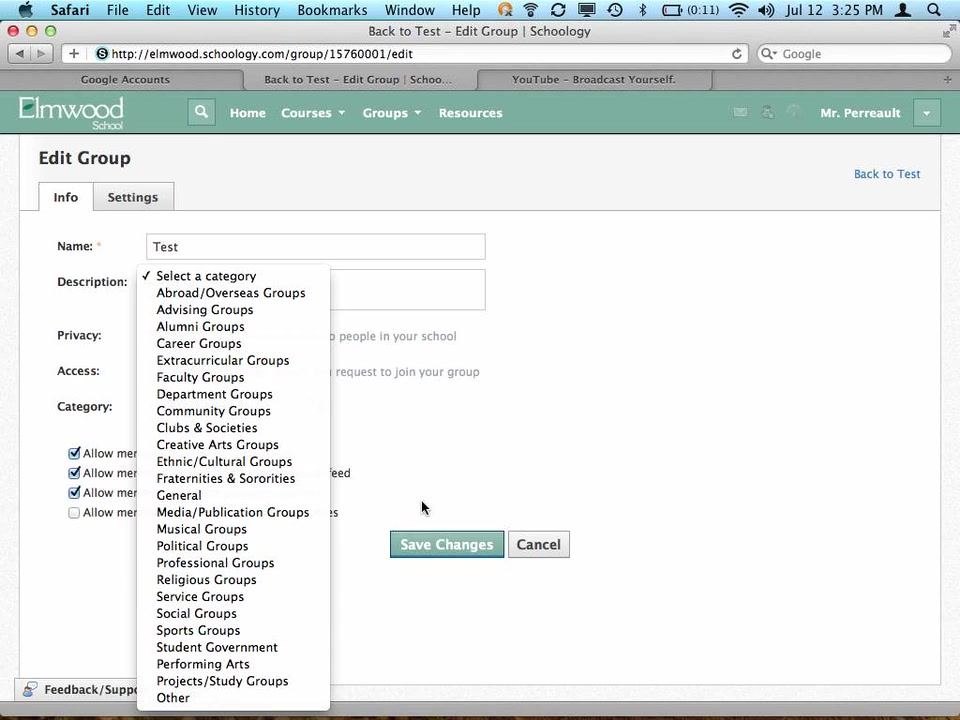
- Category: Open the dropdown and select a category for your group, such as "General", "Advising Groups", or "Sports Groups".
Step 17. Adjust member permissions
Check or uncheck the following options based on your group's needs:
- Allow members to post on group feed
- Allow members to post comments on group feed
- Allow members to create group discussions
- Allow members to post files/links to resources
Step 18. Save your changes
Click Save Changes to apply your updates.
Control group privacy by component
Step 19. Open the Privacy settings
To control who can see different parts of your group, go to the Settings tab and select Privacy.
Step 20. Set visibility for each component
On the Group Privacy Settings screen, set visibility for each part of the group:
- Group Profile: Choose who can see the group profile: "Everyone", "Schoology Users", "School", "Group", or "No One".
- Updates, Calendar, Materials, Roster, Discussion Board: Set visibility for each item separately, for example only "School" or only "Group" members.
For example, you can let the whole school see the group profile, but allow only group members to see the updates, calendar, materials, roster, and discussion board.
Step 21. Save your privacy settings
Click Save Changes. A confirmation message, "Your changes have been saved.", appears at the top of the screen.
Summary
You now know how to create a group in Schoology, choose its privacy and access settings, and add resources and discussions. You can also join existing groups, edit group details, set member permissions, and control the visibility of each group component. This flexibility lets you use groups for clubs, advising, social, or sports groups that suit your school's needs.
Generation details: cost, quality tiers
Docsie billed 2,500 credits ($1.75) to analyze this 5-minute video at standard quality. The rewrite, template fill and Word/PDF exports were included. The same video at each quality tier:
| Quality | Frames sampled | Credits | Approx. cost |
|---|---|---|---|
| Draft | every 16-30 s | 1,250 | $0.88 |
| Standard (this guide) | every 8-15 s | 2,500 | $1.75 |
| Detailed | every 4-7 s | 5,000 | $3.50 |
| Ultra | every 1-3 s | 10,000 | $7.00 |
Credits priced at $0.70 per 1,000; plans include a monthly allowance. Enterprise customers on on-premise or bring-your-own-model deployments run this on their own inference and pay no per-video credits.
Generated by Docsie Video-to-Docs on 2026-11-01 from a 4-minute video. Screenshots are frames from the source video and belong to their creator, MrMattperreault, whose original is embedded above. If you own this video and want the guide removed or credited differently, contact us and we will act within one business day.