
How to Reset Company Code Data in SAP
This guide explains how to reset company code data in SAP by using the Reset Transaction Data function. You inspect the ACDOCA table, count the existing entries for a company code, and run a test reset. You then run the actual reset and confirm in the Data Browser that no data remains. The example uses Company Code Z100.
Video: How to Reset Transaction Data In SAP (S/4HANA) by Super Gluestick (2021). All credit for the demonstration goes to the creator; watch the original on YouTube. The written guide below was generated from this video by Docsie. Creator? Request a change or removal.
This guide explains how to reset company code data in SAP by using the Reset Transaction Data function. You inspect the ACDOCA table, count the existing entries for a company code, and run a test reset. You then run the actual reset and confirm in the Data Browser that no data remains. The example uses Company Code Z100.
Prerequisites
- You are working in the SAP GUI environment.
- You know the company code whose transaction data you want to reset. This guide uses
Z100. - You can open the Dictionary: Display Table, Data Browser, and Reset Transaction Data screens.
Steps
Open the dictionary display table for ACDOCA
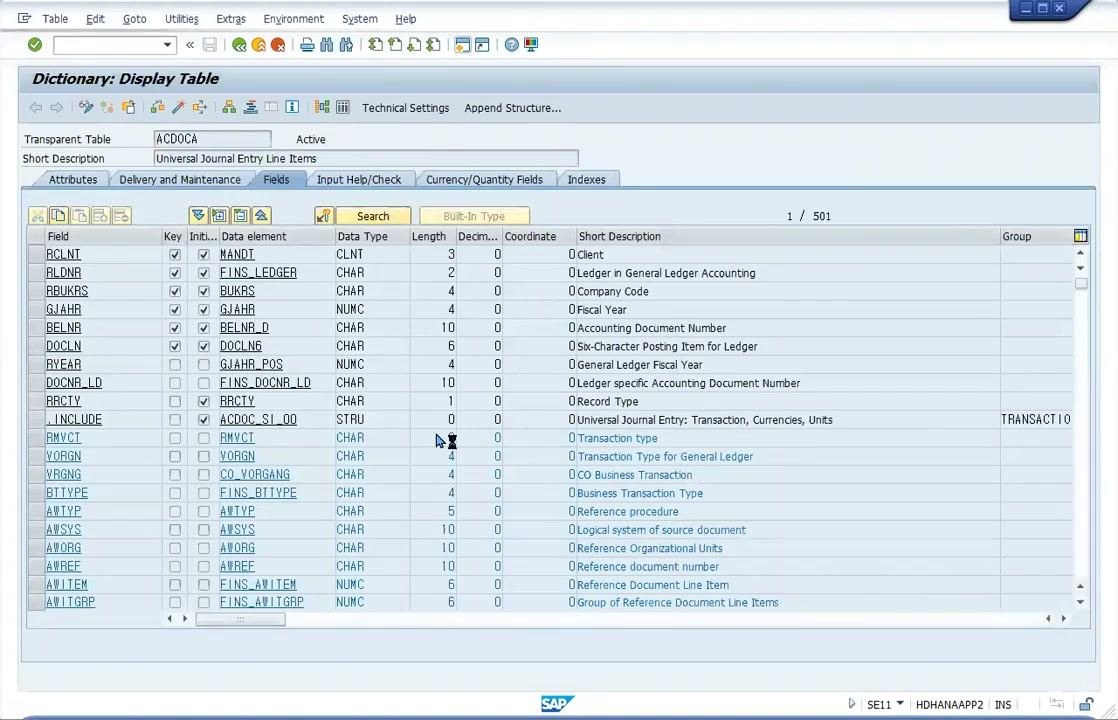
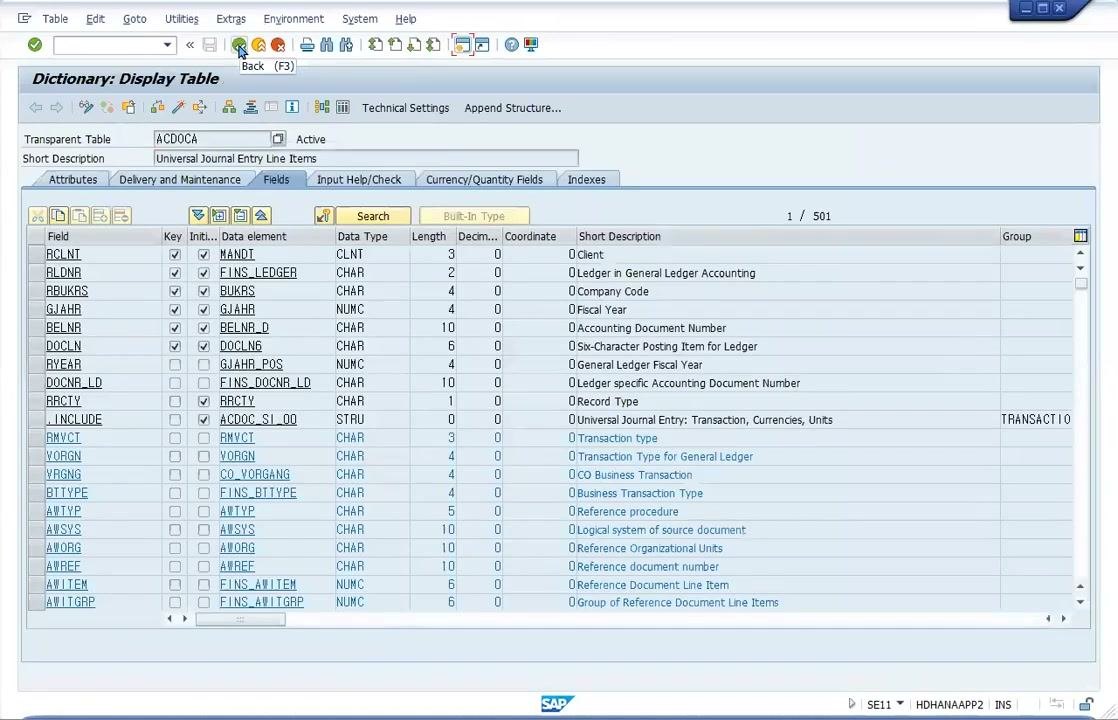
Before you reset company code data in SAP, review the table that holds the transaction line items. Open the Dictionary: Display Table screen and confirm that the table name is ACDOCA (Universal Journal Entry Line Items).
Review the table structure. The fields include:
MANDT(Client)FINS_LEDGER(Ledger in General Ledger Accounting)BUKRS(Company Code)GJAHR(Fiscal Year)BELNR_D(Accounting Document Number)
Check the data type, length, and short description of each field. Use the tabs to view additional attributes, delivery and maintenance, fields, input help/check, currency/quantity fields, and indexes.
Check the number of entries before the reset
Open the Data Browser: Table ACDOCA: Selection Screen and enter your filter criteria. In this example, set Company Code to Z100. You can also fill in other fields, such as Ledger, Fiscal Year, Document Number, and Line Item.
Click Number of Entries to count the matching records. The Display Number of Entries pop-up shows the message "Number of entries that meet the selection criteria: 96". Click the yellow checkmark button (Close) to dismiss the pop-up.
Select the company code on the Reset Transaction Data screen
Open the Reset Transaction Data screen. Under General selections, select Reset Transaction Data of a Company Code. In the Company Code field, enter or select Z100. The dropdown shows CoCd = Z100, Company Name = AA.COM, City = Seoul, and Crcy = KRW.
You can reset data for a controlling area instead. Under Deletion Scope, you can select Do Not Reset Planning Data or Reset Credit Limit as needed.
Under Program control, the Test Run checkbox is selected. This simulates the reset without changing any data.
Review the test run results
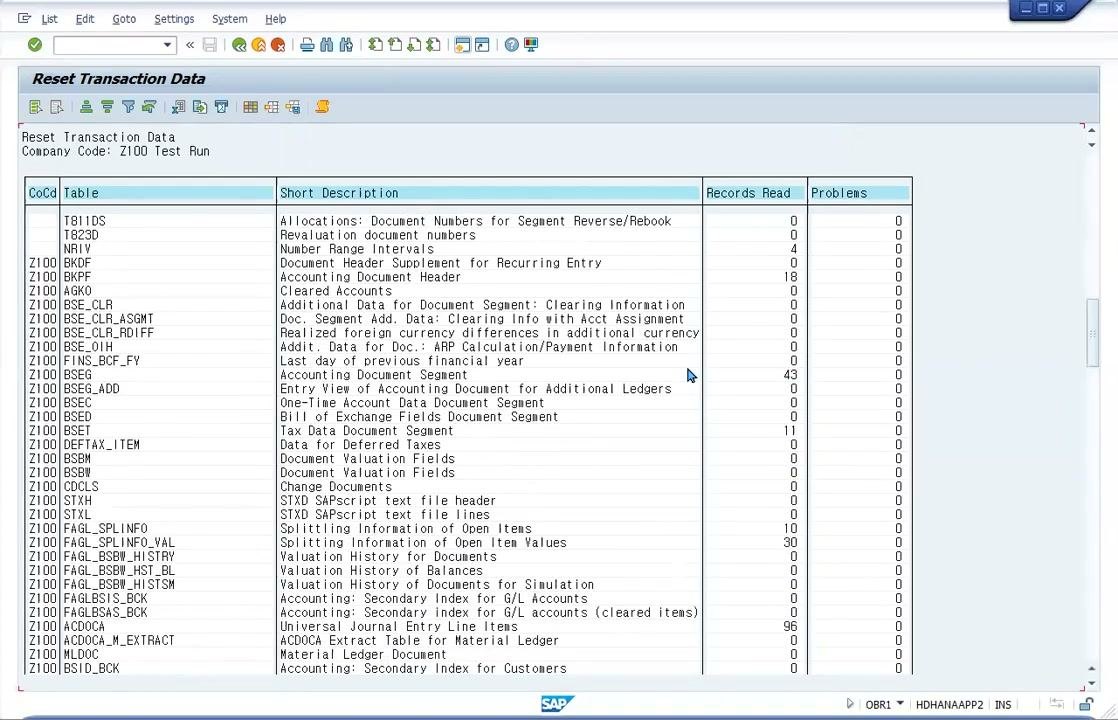
Run the test. The results screen lists the tables affected by the reset for Company Code Z100. The columns are:
CoCd(Company Code)Table(Table Name)Short DescriptionRecords ReadProblems
Table ACDOCA (Universal Journal Entry Line Items) shows 96 records read and 0 problems. This matches the count from step 2. Other tables, such as BKPF, BSEG, and BSET, appear with their own record counts.
Scroll through the remaining tables
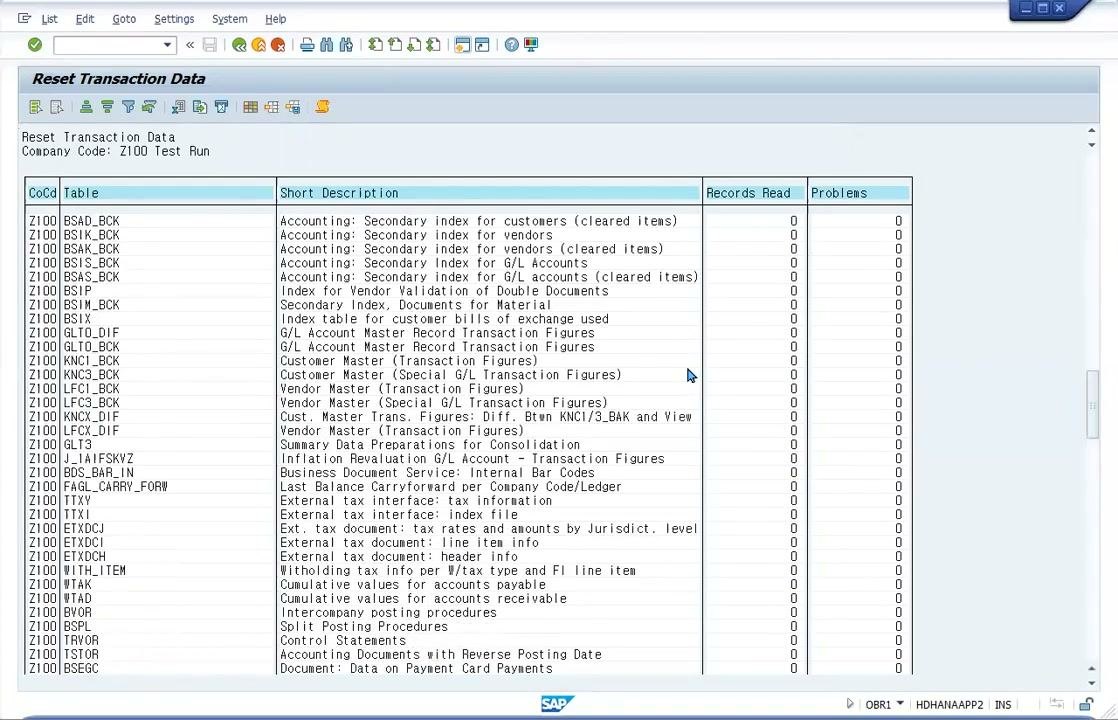
Scroll through the results to review every table affected by the reset. Further tables include BSAD_BCK, BSIK_BCK, GLTO_DIF, KNC1_BCK, COEP, and COEJ. Most show 0 records read and 0 problems, except tables that contain relevant data.
Keep scrolling to see tables related to CO Objects, Project Info, and Dynamic Items. For example, table COBK (CO Object: Document Header) shows 15 records read and 0 problems.
Return to the Reset Transaction Data screen
After you review the results, return to the main Reset Transaction Data screen. It still shows your previous selections, such as Company Code = Z100 and Test Run selected. An hourglass icon may appear while the system processes or waits for your next action.
Run the update and review the results
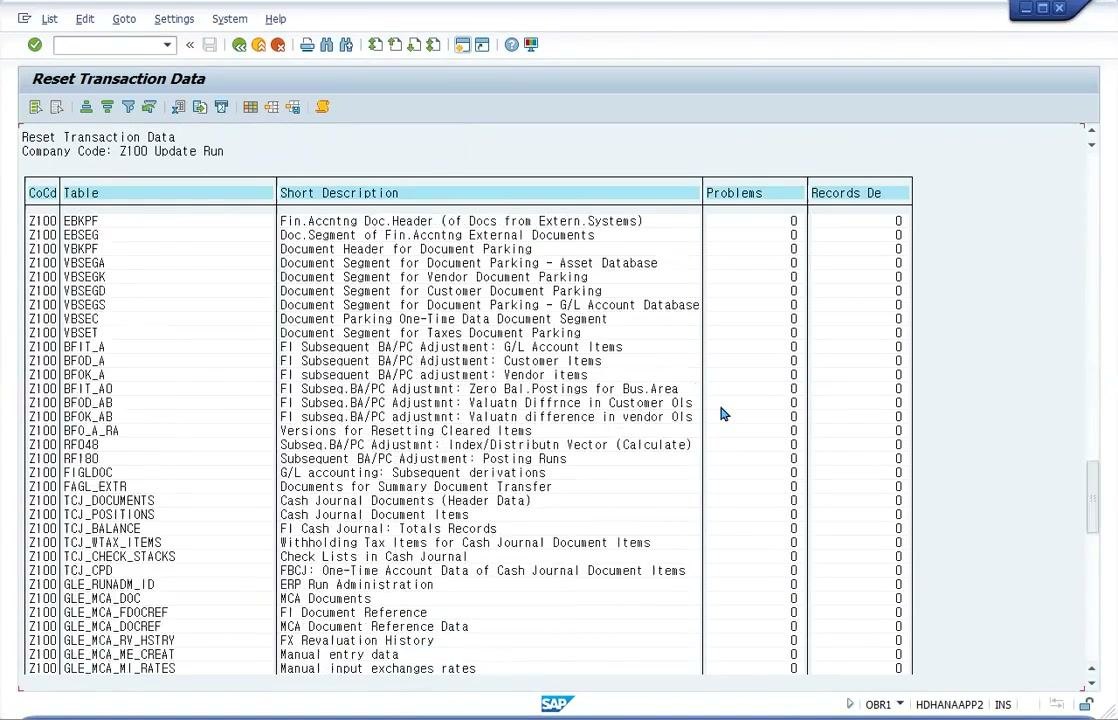
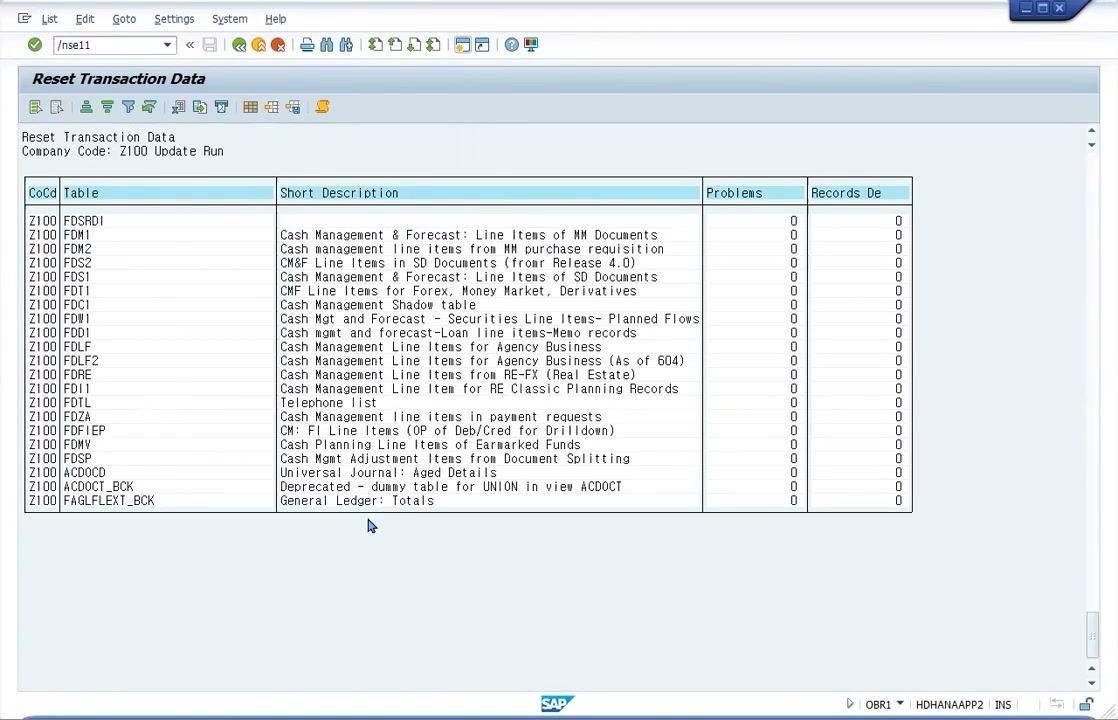
To perform the actual reset, proceed with an update run instead of a test run. The results header now reads "Reset Transaction Data, Company Code: Z100 Update Run". The screen lists the tables, descriptions, and record counts as before.
Scroll through the list to verify all tables processed during the update run. The Problems column must stay at 0 for every table. This indicates a successful operation.
Confirm the final reset results
On the results screen, confirm the update run for Company Code Z100. Each row shows the following:
CoCd: Z100Table: the table name, such as FSDRDI, FDM1, FDM2, or FDS2Short Description: a description such as "Cash Management & Forecast: Line Items of MM Documents", "Universal Journal: Aged Details", or "General Ledger: Totals"Problems: 0 for every tableRecords De: 0 for every table, confirming that no records remain
Scroll through the list to make sure all relevant tables appear and no problems are reported.
Verify the data removal in the Data Browser
Open the Data Browser: Table ACDOCA: Selection Screen again and confirm that Company Code is set to Z100. Run the selection.
The message "No table entries found for specified key" appears at the bottom of the screen. This confirms that the reset removed all transaction data for Company Code Z100 from table ACDOCA.
Return to the SAP Easy Access menu
Navigate back to the SAP Easy Access main menu. The SAP Menu tree shows these folders:
- Favorites
- Connector for Multi-Bank Connectivity
- Office
- Cross-Application Components
- Logistics
- Accounting
- Human Resources
- Information Systems
- Service
- Tools
- WebClient UI Framework
You can now continue with other SAP tasks or log out.
Summary
You now know how to reset company code data in SAP. You inspected the ACDOCA table, counted the entries for Company Code Z100 (96), and ran a test reset. You then ran the update and confirmed that no records remain in ACDOCA. Always check that the Problems column is 0 and that no data remains for the company code before you conclude the reset.
What's next
- Return to the SAP Easy Access menu to continue with other SAP tasks.
- Before you run a live reset for another company code, repeat the test run and review its results for problems.
Generation details: cost, quality tiers
Docsie billed 2,000 credits ($1.40) to analyze this 4-minute video at standard quality. The rewrite, template fill and Word/PDF exports were included. The same video at each quality tier:
| Quality | Frames sampled | Credits | Approx. cost |
|---|---|---|---|
| Draft | every 16-30 s | 1,000 | $0.70 |
| Standard (this guide) | every 8-15 s | 2,000 | $1.40 |
| Detailed | every 4-7 s | 4,000 | $2.80 |
| Ultra | every 1-3 s | 8,000 | $5.60 |
Credits priced at $0.70 per 1,000; plans include a monthly allowance. Enterprise customers on on-premise or bring-your-own-model deployments run this on their own inference and pay no per-video credits.
Generated by Docsie Video-to-Docs on 2026-11-15 from a 3-minute video. Screenshots are frames from the source video and belong to their creator, Super Gluestick, whose original is embedded above. If you own this video and want the guide removed or credited differently, contact us and we will act within one business day.