
How to Get Data from a Submit Program in SAP
This guide shows you how to get data from a submit program in SAP ABAP when the program displays an ALV (ABAP List Viewer) report. You first confirm that the program is a report and identify the structure or transparent table behind the ALV output. Then you write a program that submits the report, captures its output in memory, and loads it into an internal table. Finally, you check the result in the ABAP Debugger.
Video: SAP ABAP desde cero - #33 SUBMIT PT2: Para obtener datos de otros prog - mundo abaper - Sandra Solís by Mundo Abaper -Sandra Solís (2022). All credit for the demonstration goes to the creator; watch the original on YouTube. The written guide below was generated from this video by Docsie. Creator? Request a change or removal.
This guide shows you how to get data from a submit program in SAP ABAP when the program displays an ALV (ABAP List Viewer) report. You first confirm that the program is a report and identify the structure or transparent table behind the ALV output. Then you write a program that submits the report, captures its output in memory, and loads it into an internal table. Finally, you check the result in the ABAP Debugger.
Prerequisites
Before you start, make sure you have the following:
- A transaction that displays the ALV report you want to read. This guide uses an ALV report screen titled "ALV OO".
- An associated program of type Report. You can use the
SUBMITstatement only if the program behind your transaction is a report. - Access to the Data Dictionary, in case you need to create a custom Z structure.
- Access to the ABAP Editor and the ABAP Debugger.
Run the ALV report
- Open the transaction that displays the ALV report.
- On the selection screen, enter
P_BUKRS = 1000andP_GJAHR = 2011. - Click Execute (or press F8) to run the report.
Open the system status
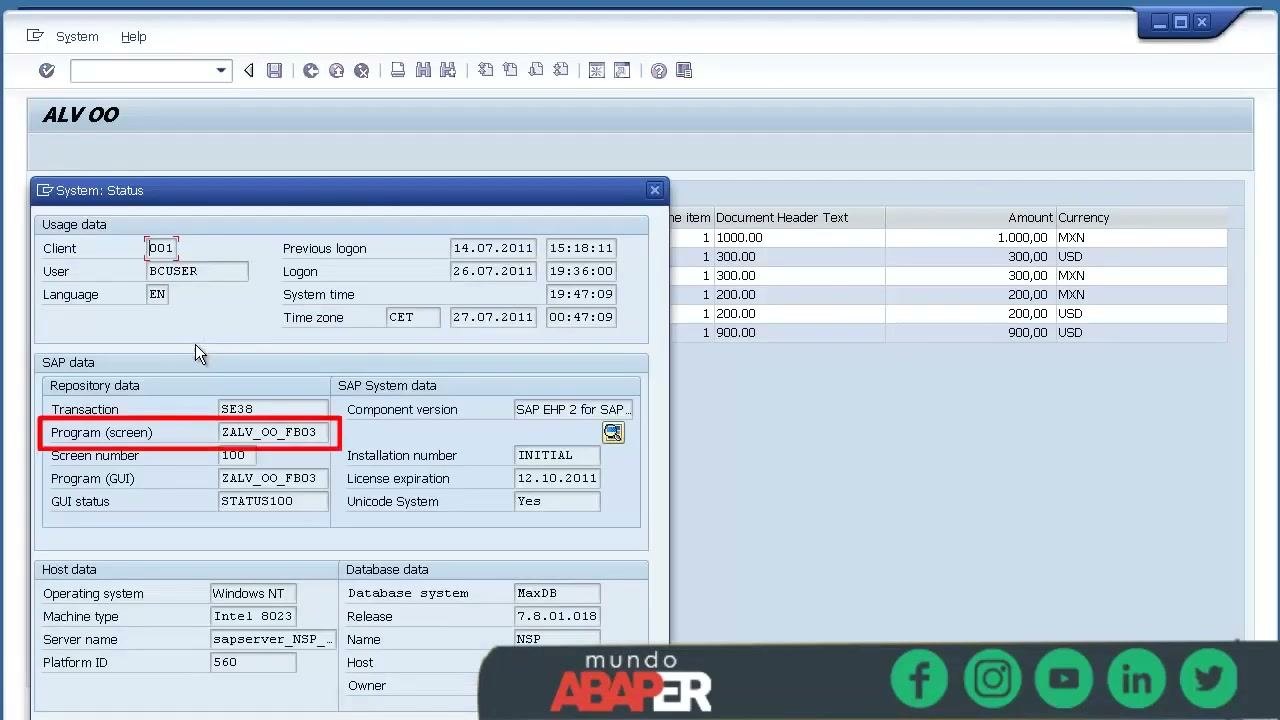
With the ALV report displayed, open the top menu and choose System > Status....
Verify the program type
- In the System: Status window, find the Program (screen) field and note the program name, for example
ZALV_OO_FB03. - Double-click the program name to open its properties.
- Go to the Attributes section.
- Confirm that Type is set to Report.
If the program is not a report, you cannot use SUBMIT to get its data.
Identify the structure or transparent table used in the ALV
- Click any cell in the ALV grid.
- Press
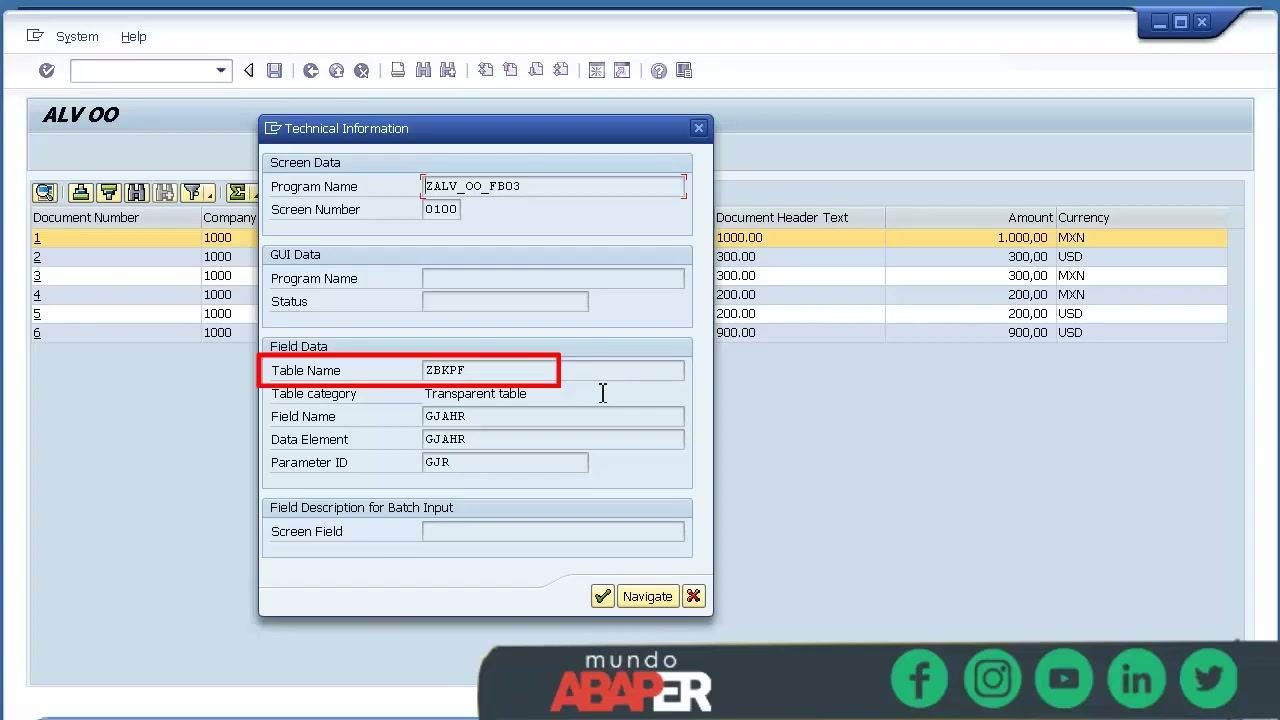
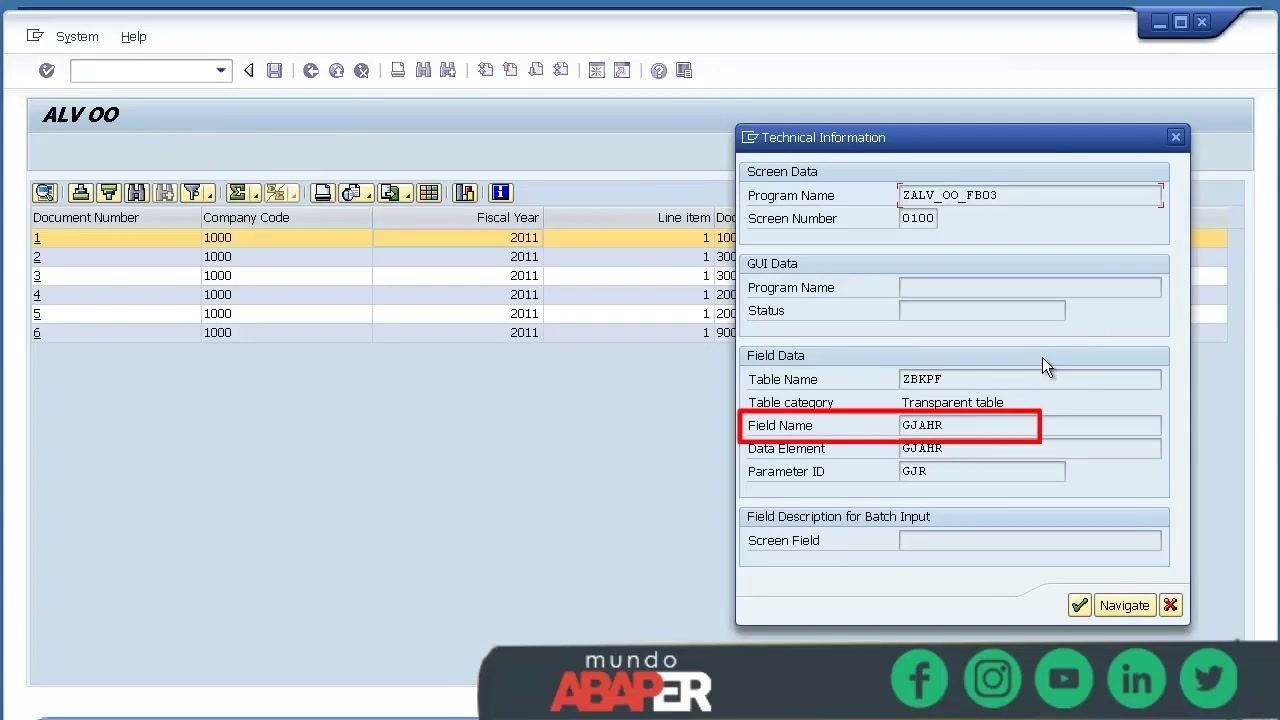
F1to open the field help. - In the Technical Information window, note the Table Name (for example,
ZBKPF), the Table Category (for example, Transparent table), the Field Name (for example,GJAHR), and the Data Element (for example,GJAHR).
You need the table or structure name later to process the report data after the submit.
Different ALV reports often use different structures or transparent tables. Always confirm the correct structure or table for each report you want to process with SUBMIT.
Create a Z structure in the Data Dictionary (if needed)
If the ALV report fields come from different structures (for example, BSEC and T001), create a custom Z structure in the Data Dictionary. Include all the fields you need from the ALV output, or only the ones your processing requires.
Make sure each field in your Z structure:
- Has the same name as in the original structure or table.
- Uses the same data element as in the original definition.
If you use different field names or data types, the SUBMIT statement does not recognize the fields. Those fields stay empty in your internal table.
Create a new program to submit to the ALV report
Create a new ABAP report program, for example Z_SUBMIT_2. This guide puts all the code in one program for clarity. In practice, modularize your code with includes and a proper structure.
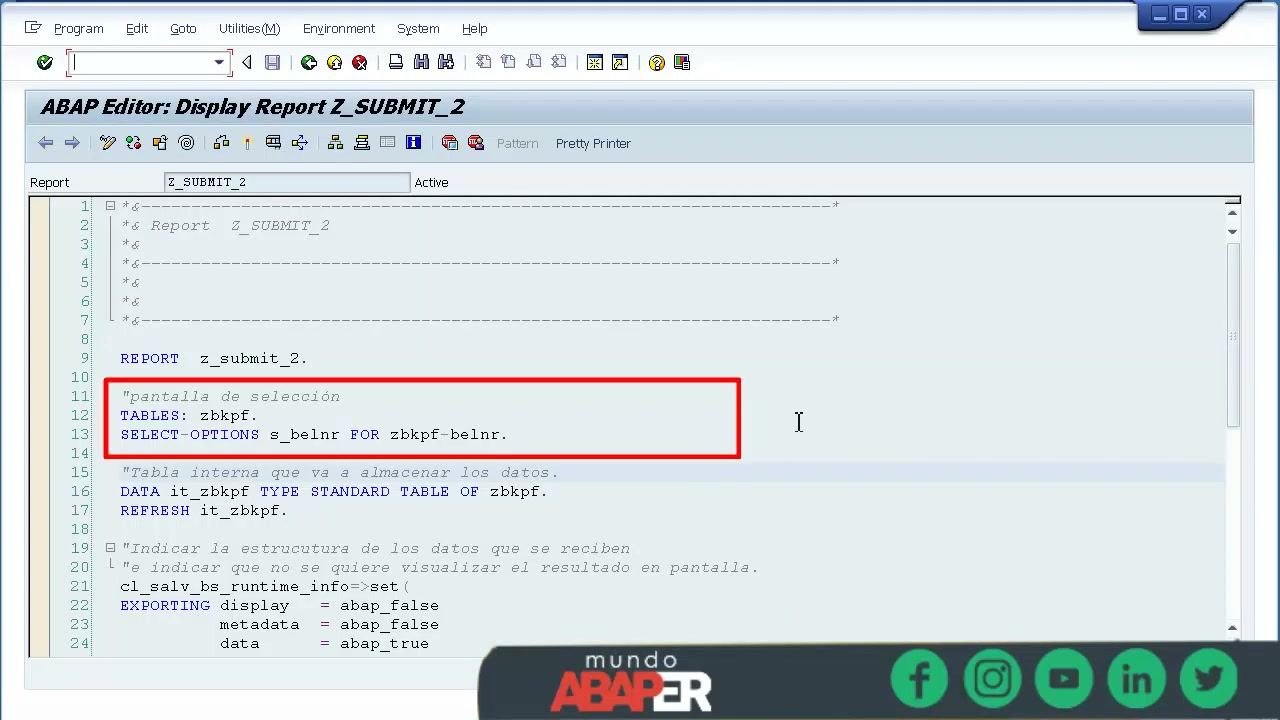
Define the selection screen
Add the selection parameters your use case needs. For example, add a range for document numbers:
TABLES: zbkpf.
SELECT-OPTIONS s_belnr FOR zbkpf-belnr.
You can add any other selection parameters your main screen requires.
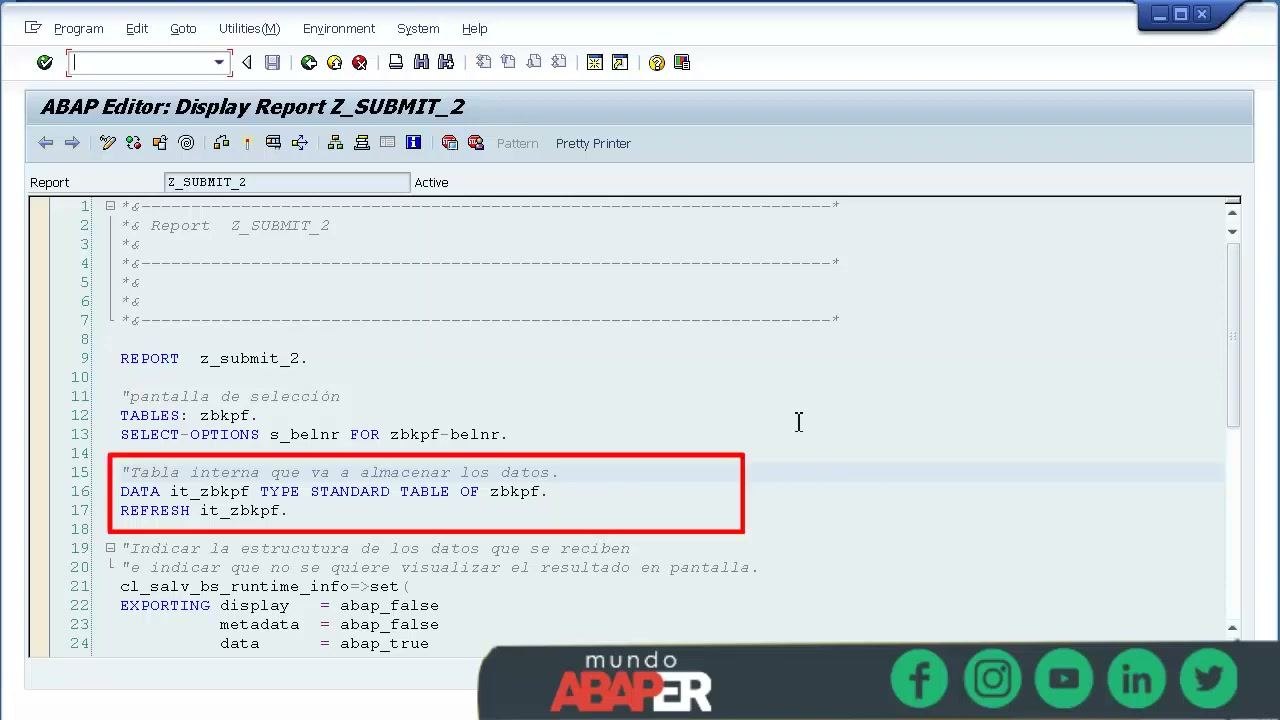
Declare the internal table for the results
Declare an internal table to store the output of the submitted ALV report. Base it on the structure or table you identified earlier, for example ZBKPF.
DATA it_zbkpf TYPE STANDARD TABLE OF zbkpf.
REFRESH it_zbkpf.
Set up the runtime information to get data from the submit program
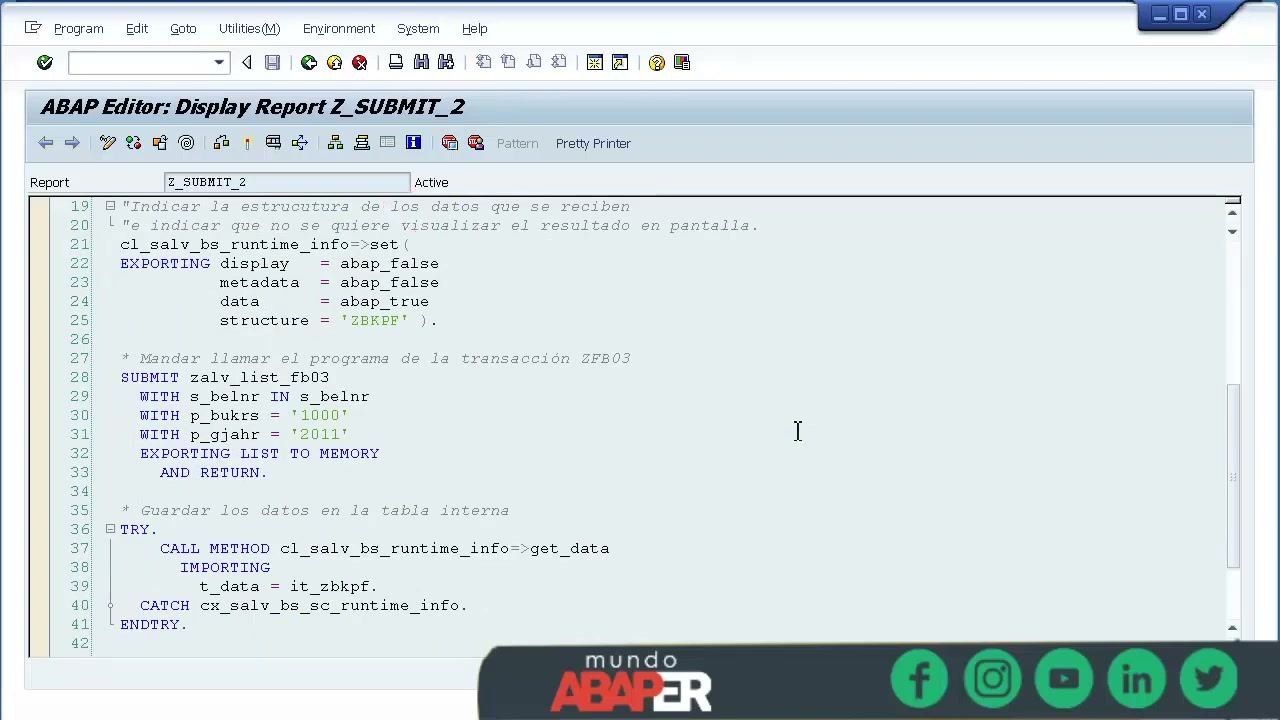
Use the class cl_salv_bs_runtime_info to configure how the submit runs. Set it so that the result and its selection screen are not displayed and only the data is retrieved. Also specify the structure (ZBKPF) that stores the data.
cl_salv_bs_runtime_info=>set(
  EXPORTING
    display   = abap_false
    metadata  = abap_false
    data      = abap_true
    structure = 'ZBKPF'
).
This captures the ALV output directly into your internal table structure.
Submit the ALV report and export the output to memory
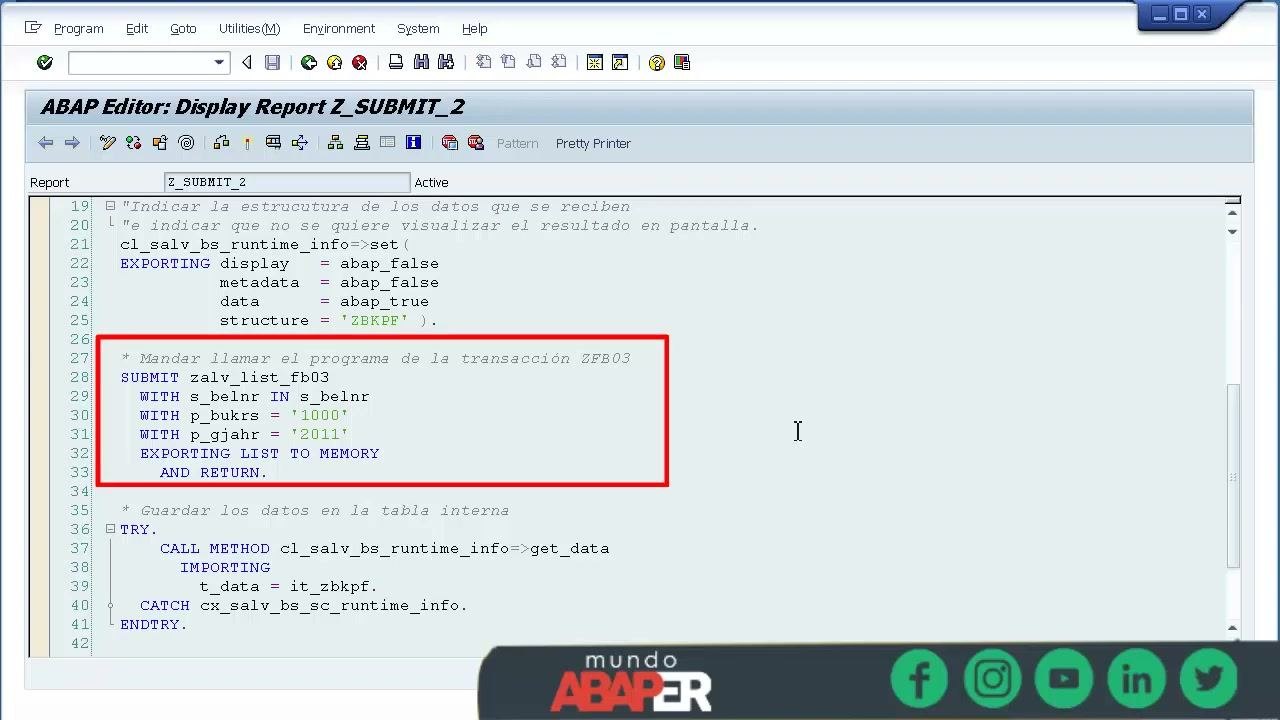
Use the SUBMIT statement to call the ALV report program, for example zalv_list_fb03. Pass the required selection parameters:
s_belnrfor the document number rangep_bukrsfor the company code, for example'1000'p_gjahrfor the fiscal year, for example'2011'
Add EXPORTING LIST TO MEMORY AND RETURN so the output is stored in memory and not displayed.
SUBMIT zalv_list_fb03
  WITH s_belnr IN s_belnr
  WITH p_bukrs = '1000'
  WITH p_gjahr = '2011'
  EXPORTING LIST TO MEMORY
  AND RETURN.
Retrieve the data from memory into the internal table
After the submit, call the method cl_salv_bs_runtime_info=>get_data to transfer the data from memory into your internal table, it_zbkpf. Wrap the call in a TRY...ENDTRY block to handle exceptions.
TRY.
  CALL METHOD cl_salv_bs_runtime_info=>get_data
    IMPORTING t_data = it_zbkpf.
CATCH cx_salv_bs_sc_runtime_info.
ENDTRY.
The data from the ALV report is now available in your program for further processing.
Clear the runtime information
Finish by clearing the runtime information. This prevents memory leaks and leftover data, and it is a best practice.
cl_salv_bs_runtime_info=>clear_all( ).
Debug the data retrieval
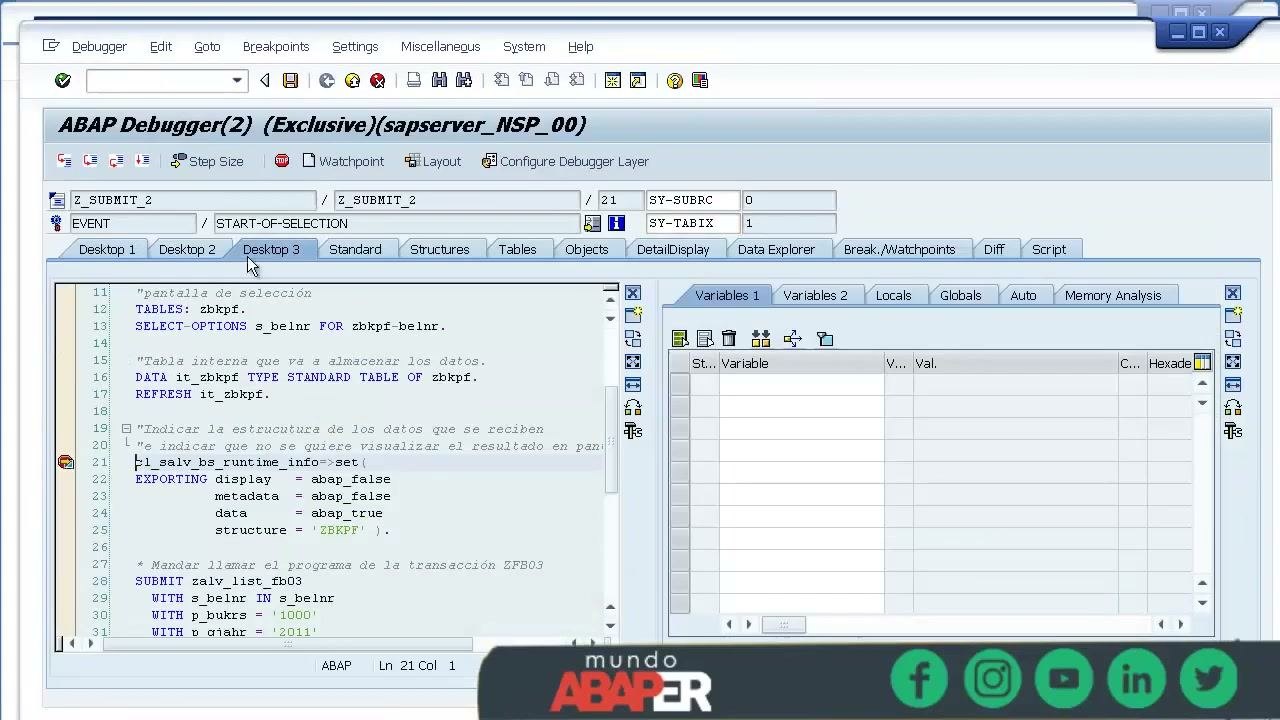
Use the ABAP Debugger to step through the code and verify each stage:
- Confirm the runtime info is set correctly.
- Make sure the submit runs with the correct parameters.
- Check that the internal table
it_zbkpfis empty at first. - After
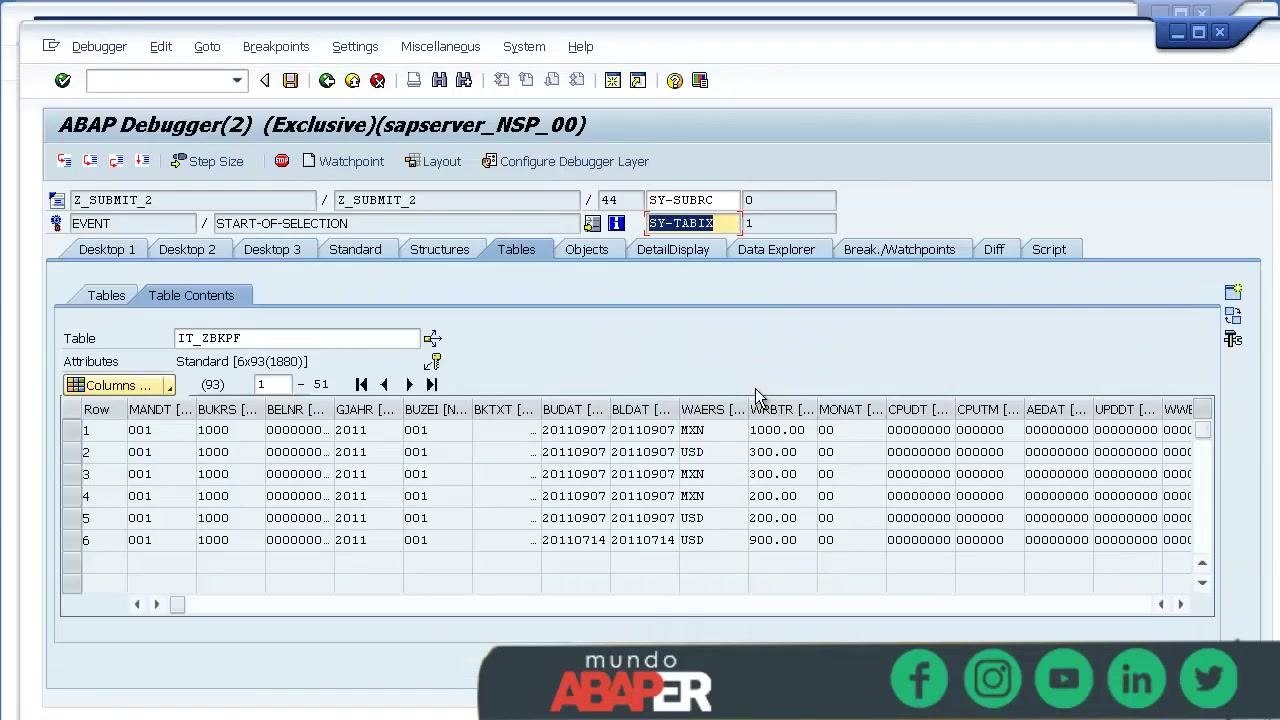
get_dataruns, verify thatit_zbkpfcontains the expected data.
Verify the retrieved data in the ABAP Debugger
- Open the ABAP Debugger after you run your program.
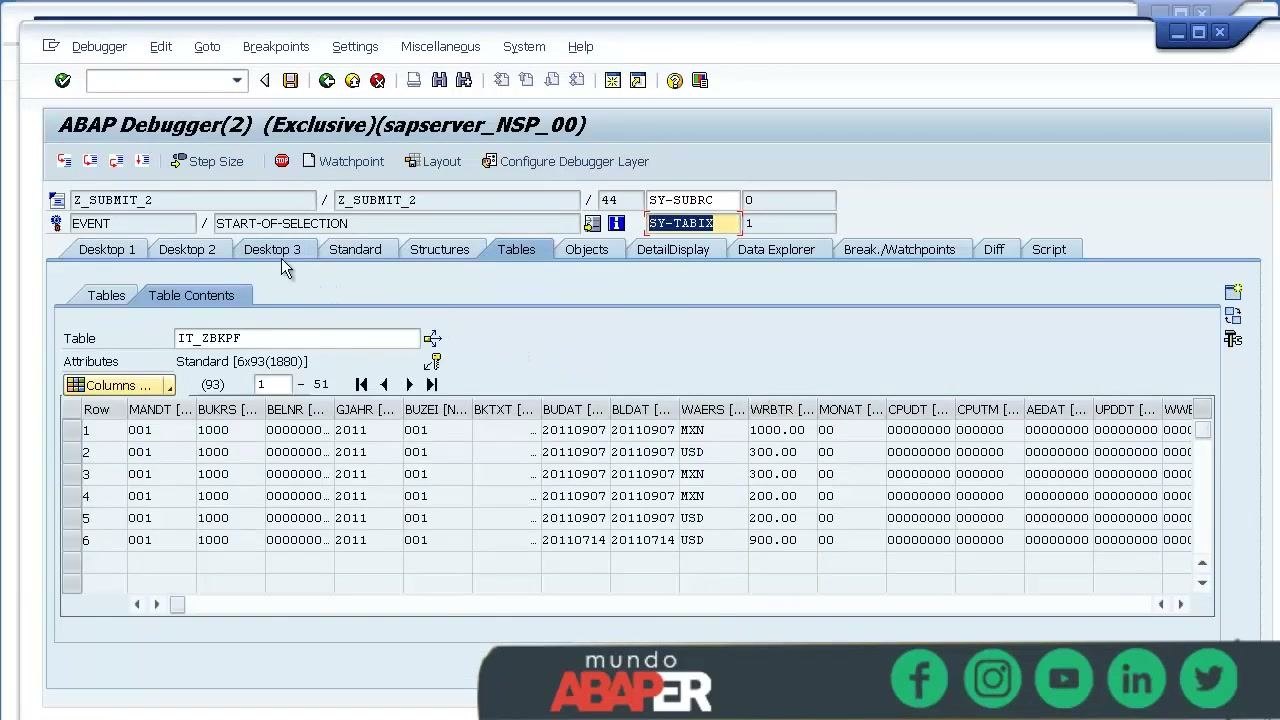
- Go to the Tables tab and select Table Contents.
- Locate the internal table
IT_ZBKPF. - Confirm that it contains the expected fields and values.
Expected fields include MANDT, BUKRS, BELNR, GJAHR, BUZEI, BUDAT, BLDAT, WAERS, and WRBTR. Example values are MANDT = 001, BUKRS = 1000, BELNR = 0000000001, GJAHR = 2011, WAERS = MXN, and WRBTR = 1000.00.
Use the navigation controls to scroll through all rows and columns and check that the data is complete and accurate.
Summary
You confirmed that the program behind your transaction is a report and identified the structure or transparent table used in the ALV output. If needed, you created a Z structure with matching field names and data elements. You then set the runtime information, submitted the report with EXPORTING LIST TO MEMORY AND RETURN, read the data into it_zbkpf with get_data, cleared the runtime information, and verified the result in the ABAP Debugger.
What's next
- Process the data in
it_zbkpfin your program. - Move your code into includes and a proper program structure instead of keeping everything in one program.
- Repeat the structure check from Step 4 for each ALV report you want to process with
SUBMIT.
Generation details: cost, quality tiers
Docsie billed 3,000 credits ($2.10) to analyze this 6-minute video at standard quality. The rewrite, template fill and Word/PDF exports were included. The same video at each quality tier:
| Quality | Frames sampled | Credits | Approx. cost |
|---|---|---|---|
| Draft | every 16-30 s | 1,500 | $1.05 |
| Standard (this guide) | every 8-15 s | 3,000 | $2.10 |
| Detailed | every 4-7 s | 6,000 | $4.20 |
| Ultra | every 1-3 s | 12,000 | $8.40 |
Credits priced at $0.70 per 1,000; plans include a monthly allowance. Enterprise customers on on-premise or bring-your-own-model deployments run this on their own inference and pay no per-video credits.
Generated by Docsie Video-to-Docs on 2026-11-15 from a 5-minute video. Screenshots are frames from the source video and belong to their creator, Mundo Abaper -Sandra Solís, whose original is embedded above. If you own this video and want the guide removed or credited differently, contact us and we will act within one business day.