
How to Create a User Defined Table (UDT) in SAP Business One
This guide shows you how to create a user defined table (UDT) in SAP Business One. You open the User-Defined Tables – Setup window, choose an object type, and add tables. The examples cover a No Object table, a Master Data table, a Master Data Rows table, and a Document table. You also learn how to open a table to enter data.
Video: 1. SAP Business One UDT (User Defined Table) by SAP Business One Technical (2015). All credit for the demonstration goes to the creator; watch the original on YouTube. The written guide below was generated from this video by Docsie. Creator? Request a change or removal.
This guide shows you how to create a user defined table (UDT) in SAP Business One. You open the User-Defined Tables – Setup window, choose an object type, and add tables. The examples cover a No Object table, a Master Data table, a Master Data Rows table, and a Document table. You also learn how to open a table to enter data.
Prerequisites
- You have SAP Business One open on the main menu screen.
- You can disconnect other users from the company database. Changing data structures requires all other users to be disconnected.
- You know which object type each table needs: No Object, Master Data, Master Data Rows, Document, or Document Rows.
Open the User-Defined Tables – Setup window
Step 1: Start from the main menu
Open SAP Business One and make sure you are on the main menu screen. The main menu lists modules such as Administration, Financials, Sales Opportunities, Sales - A/R, Purchasing - A/P, Business Partners, Banking, Inventory, Resources, Production, MRP, Service, Human Resources, and Reports.
Step 2: Go to User-Defined Tables – Setup
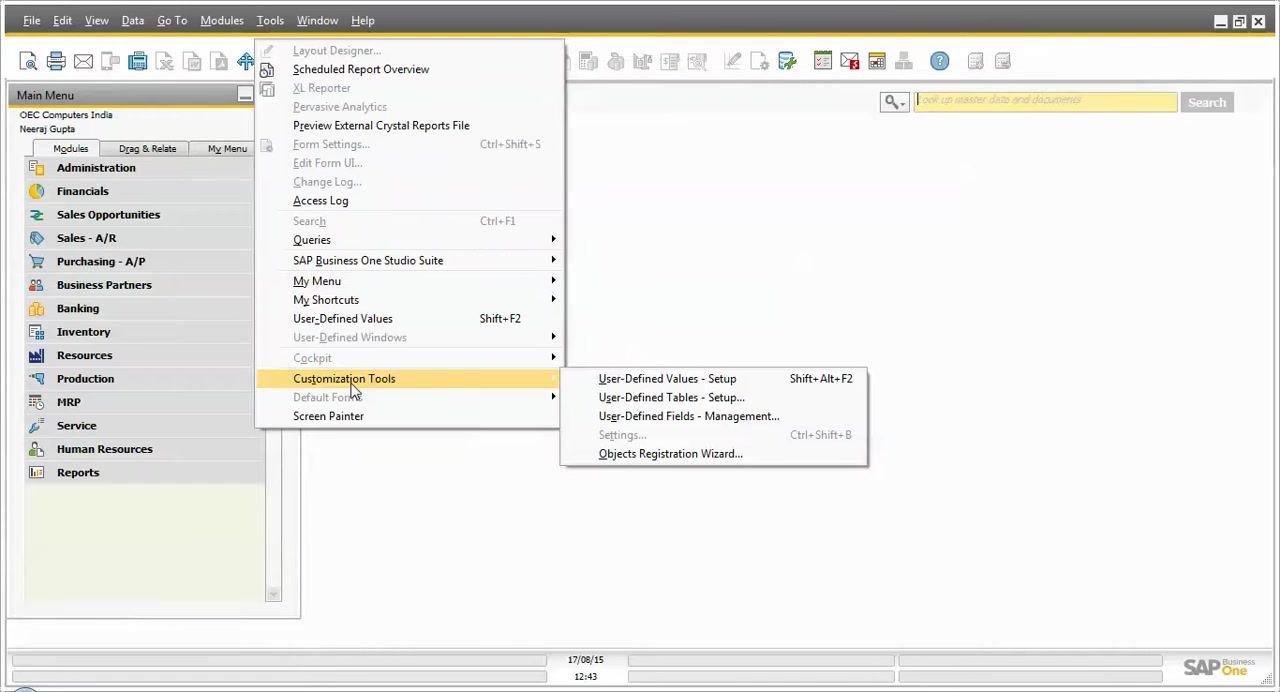
- In the top menu bar, click Tools.
- Hover over Customization Tools to expand its submenu.
- Click User-Defined Tables – Setup.
You can also press Shift + Alt + F2.
Step 3: Review the window
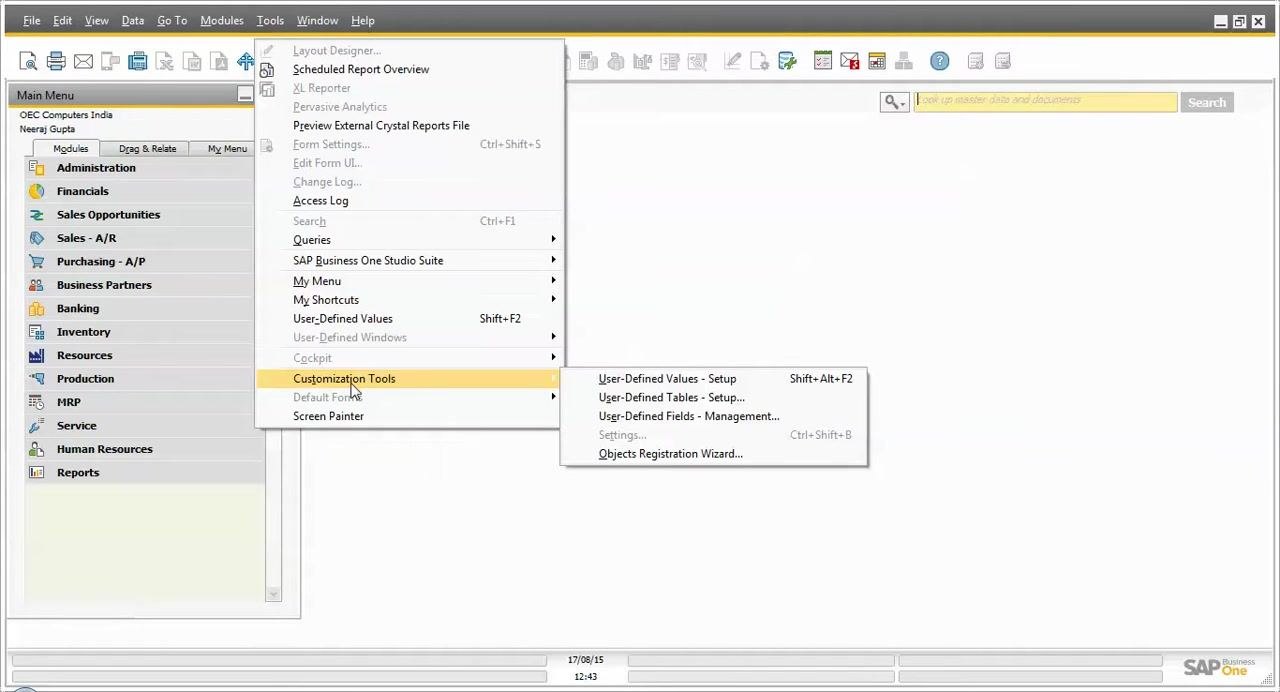
The User-Defined Tables – Setup window opens. It contains the columns Table Name, Description, Object Type, Archivable, and Archive Date. Table Name and Object Type are mandatory.
Choose an object type
Step 4: Open the Object Type dropdown
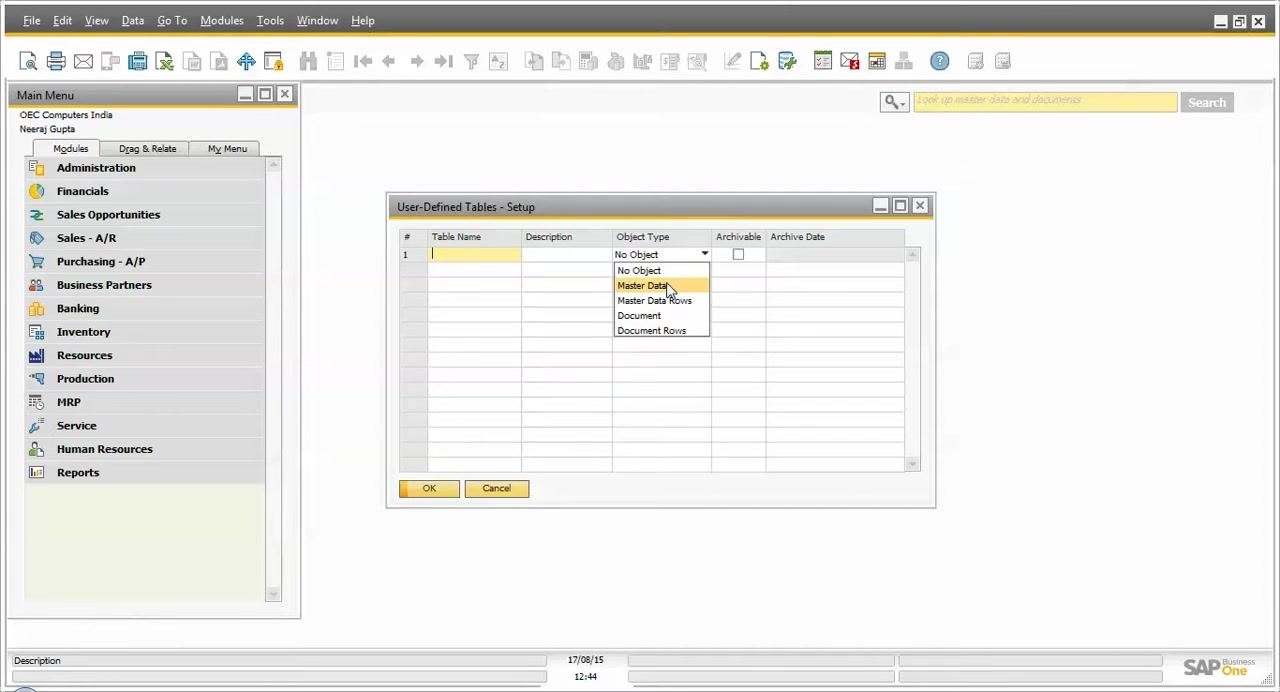
Click the Object Type dropdown to see the types of table you can create:
- No Object
- Master Data
- Master Data Rows
- Document
- Document Rows
Step 5: Select the type that fits your data
Choose the object type based on your requirements:
- No Object: The table is not linked to any object.
- Master Data: Use for tables that store master data, such as business partners or items.
- Master Data Rows: Use for tables that store row-level details related to master data.
- Document: Use for tables that store document-level data, such as sales orders or purchase orders.
- Document Rows: Use for tables that store row-level details of documents, such as line items in sales or purchase documents.
Step 6: Set archiving options (optional)
If you want the table to be archivable, select the Archivable checkbox. Specify an Archive Date if required.
Create a No Object table
Step 7: Enter the table name and description
- In the Table Name column, enter a name for your table. For example, enter
NoObj. - In the Description column, enter a description. For example, enter
No object table.
Step 8: Select the No Object type
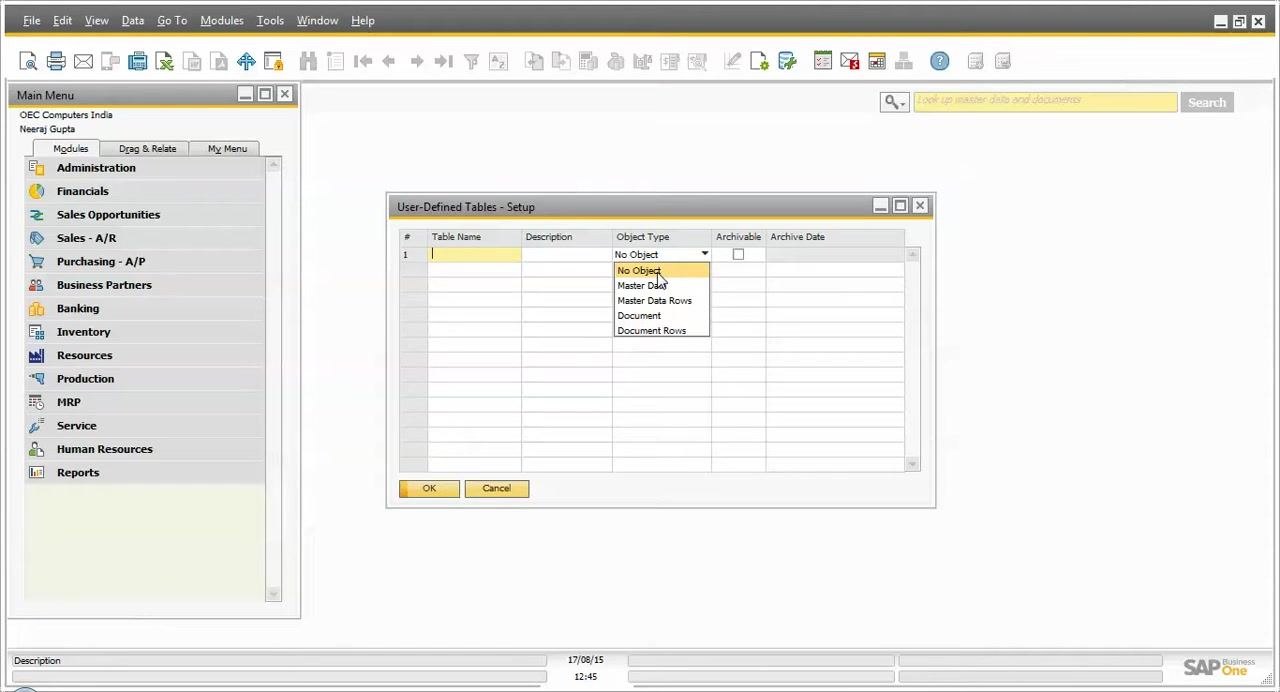
In the User-Defined Tables – Setup window, click the Object Type dropdown and select No Object.
Use this type to maintain data that is not related to master data or document tables. It works as a simple data maintenance table. You cannot create objects for No Object tables. Only Master Data, Master Data Rows, Document, and Document Rows tables support object creation.
Step 9: Click Update to create the table
Click Update. A message window may appear: "The following workstations are connected to the company. Disconnect them in order to continue."
This message appears because modifying data structures requires all other users to be disconnected from the company database.
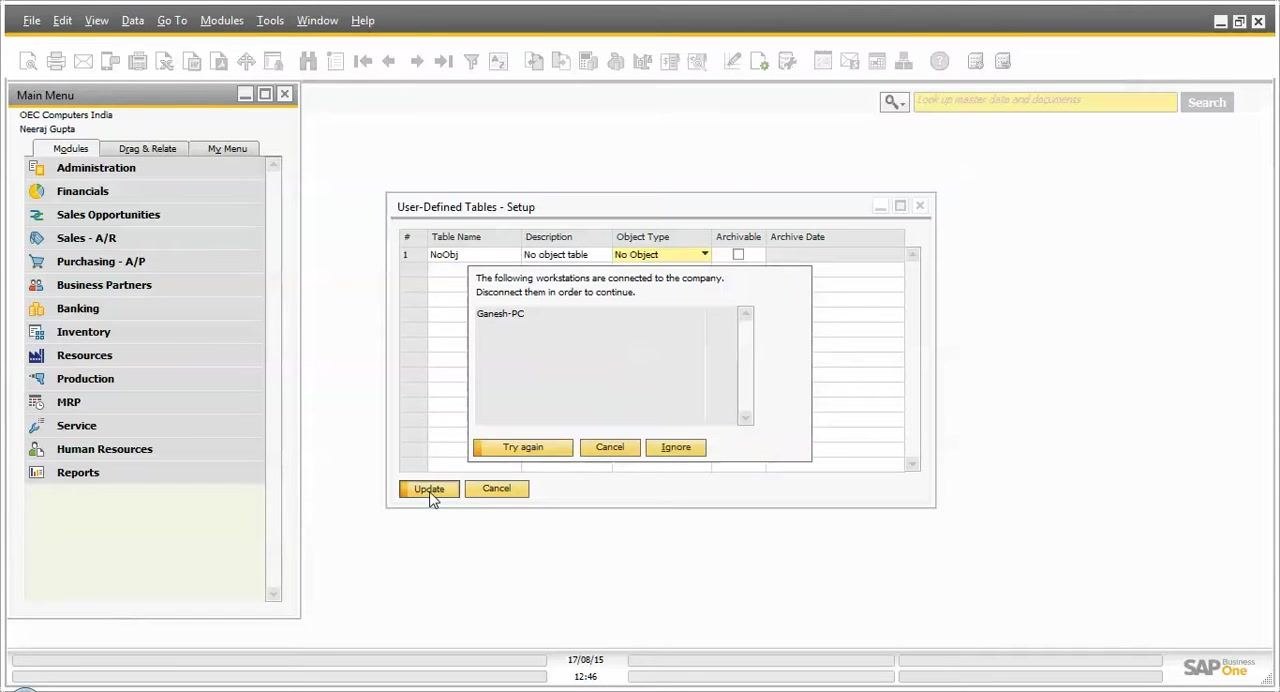
Step 10: Review the connected workstations
Check the list of connected workstations in the message window. For example, the workstation Ganesh-PC may be listed as connected.
To proceed, disconnect all listed users from the company database. You can then choose one of these options:
- Try again after disconnecting users.
- Cancel the operation.
- Ignore, if it is available and appropriate for your environment.
Step 11: Ignore the warning and confirm
For metadata modifications, which are not direct data changes, you may click Ignore to proceed.
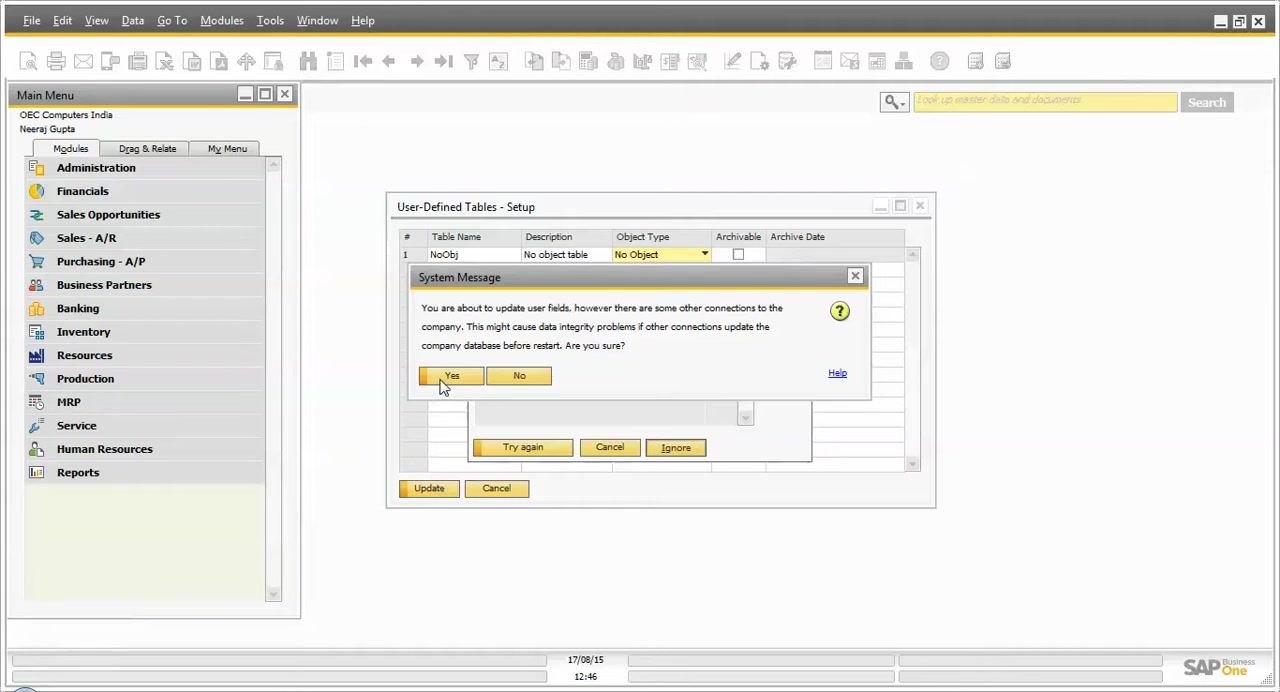
A System Message then appears: "You are about to update user fields, however there are some other connections to the company. This might cause data integrity problems if other connections update the company database before restart. Are you sure?" Click Yes to proceed.
The table list updates to show the new table. In this example, it shows NOOBJ with the description No object table and the type No Object. A status message at the bottom confirms: "Operation completed successfully."
Create Master Data, Master Data Rows, and Document tables
Step 12: Create a Master Data table
- In the User-Defined Tables – Setup window, enter
MasterDataas the Table Name. - Enter
Master Data Tableas the Description. - Click the Object Type dropdown for the
MasterDatarow. It is initially set toNo Object. - Select Master Data.
- Click Update.
If the system shows the warning about connected users, click Ignore, and then click Yes in the confirmation dialog.
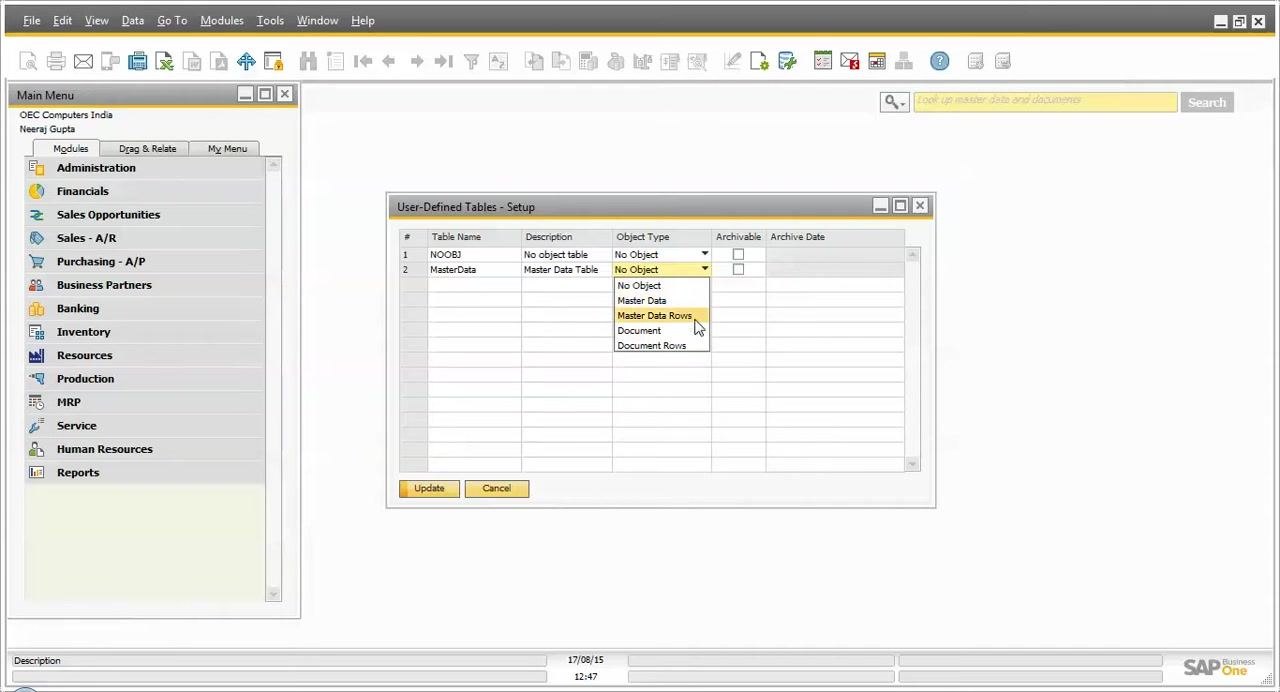
Step 13: Create a Master Data Rows table
- Add a new row in the window. Enter
MasterRowas the Table Name. - Enter
Master Data Row tableas the Description. - Click the Object Type dropdown for the
MasterRowrow. It is initially set toNo Object. - Select Master Data Rows.
- Click Update.
If a warning about other connections appears, click Ignore, and then click Yes to confirm.
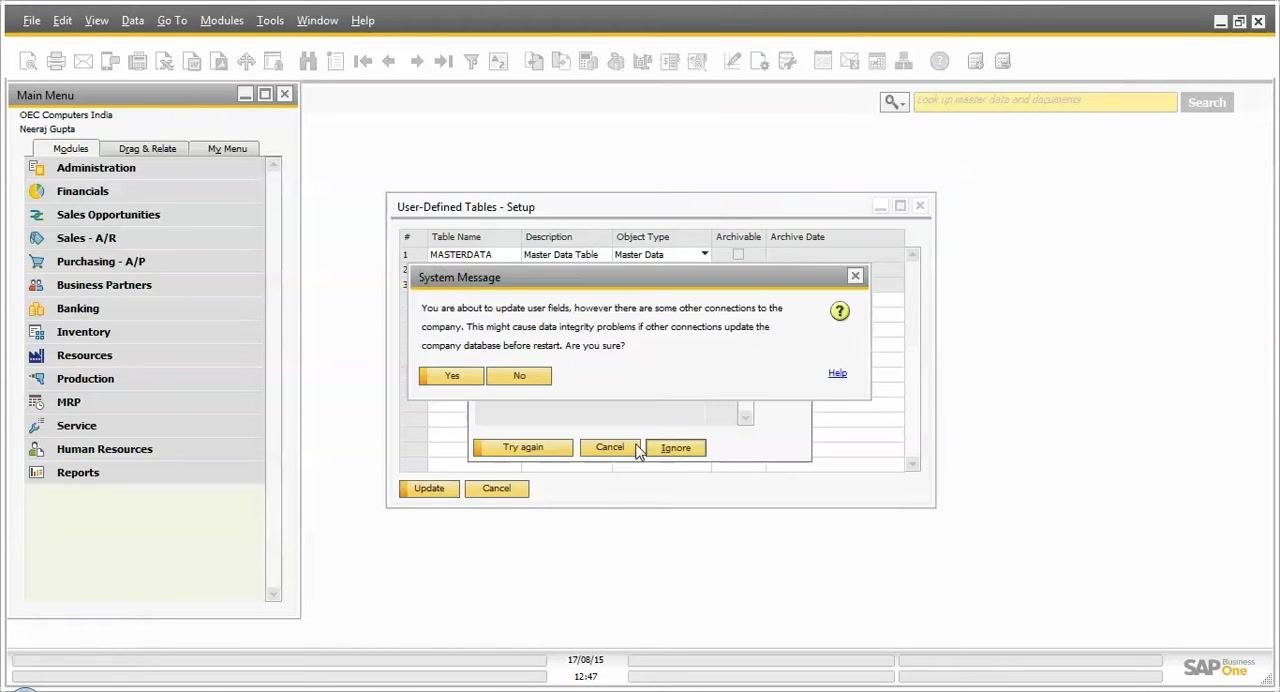
Step 14: Create a Document table
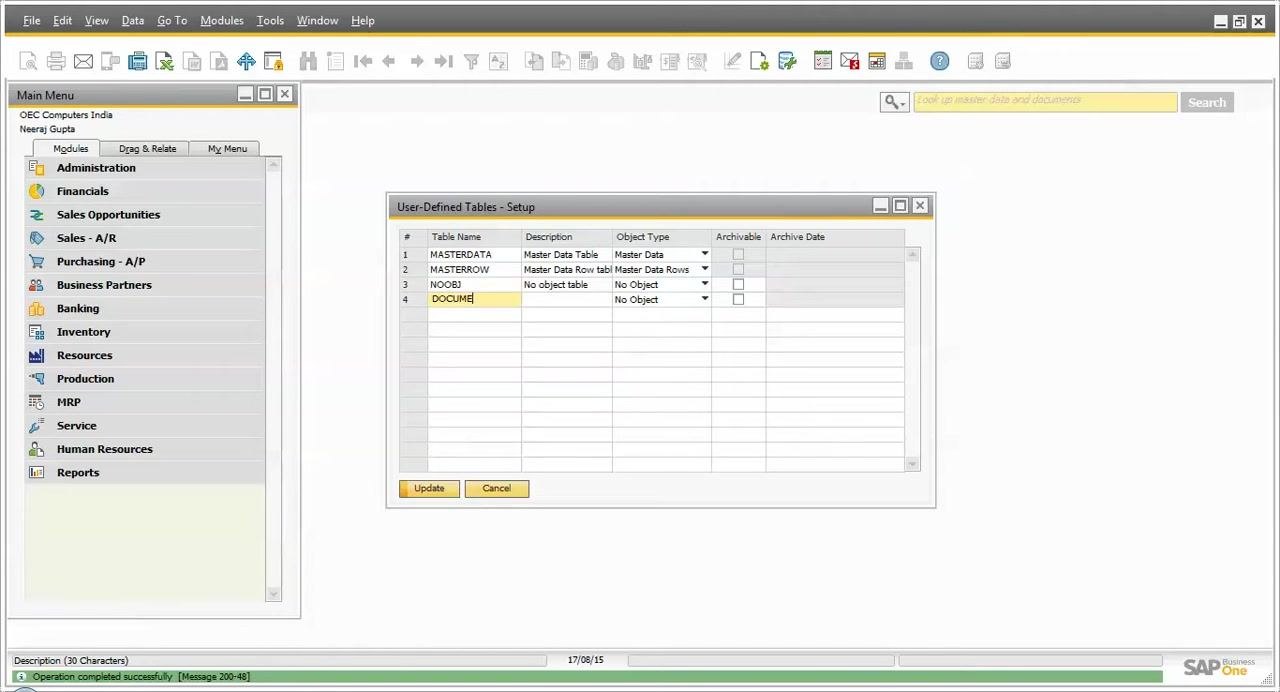
- Add a new row in the window. Enter
Documentas the Table Name. - Enter
Document Data Tableas the Description. - Click the Object Type dropdown for the
Documentrow. It is initially set toNo Object. - Select Document.
- Click Update.
If prompted, click Ignore, and then click Yes to proceed.
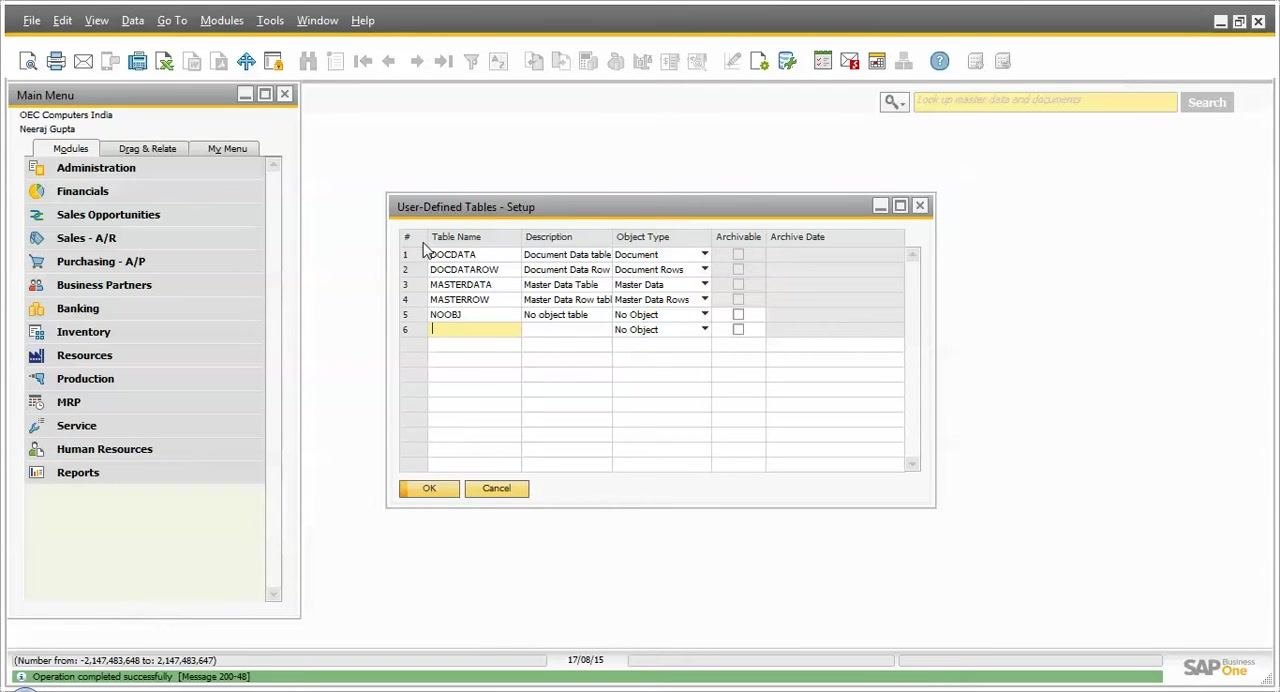
Step 15: Save your changes
When you finish creating or modifying tables, click OK in the User-Defined Tables - Setup window to save your changes.
Open a user-defined table to enter data
Step 16: Open the table from User-Defined Windows
- In the top menu, click Tools.
- Hover over User-Defined Windows.
- Select the table you want from the list. For example, select
NOOBJ - No object table.
Step 17: Enter data in the Code and Name fields
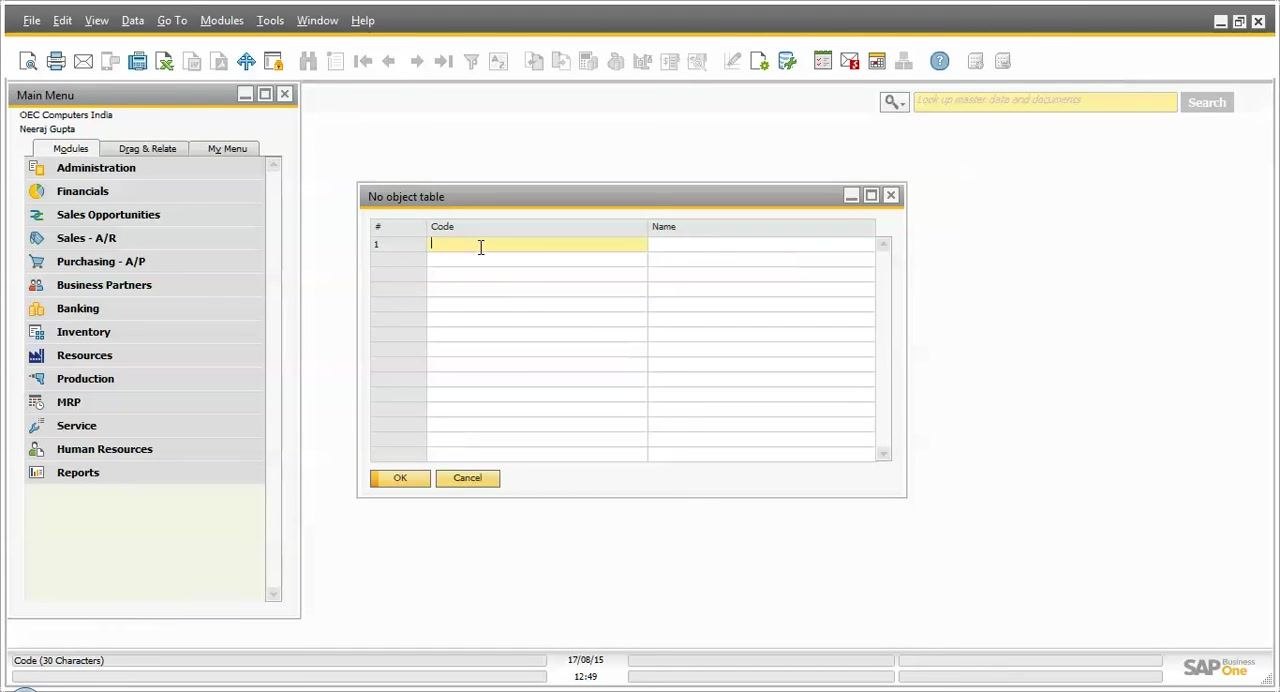
The table window opens with a grid that has Code and Name columns. The first row is active, with the cursor in the Code field. OK and Cancel buttons appear at the bottom.
- Click the Code cell and type the code, up to 30 characters.
- Move to the Name cell and enter the corresponding name for the record.
Step 18: Save or discard the entries
When you have entered all required data, click OK to save the new entries. Click Cancel to discard your changes.
Best practices
- Review system warnings about connected users before you proceed with metadata changes.
- Use Ignore only when you are certain that other connected users will not cause data integrity issues.
- Assign the correct Object Type to each table: Master Data for standalone master records, Master Data Rows for row-based master data, Document for document-related data, and No Object for simple, standalone data.
Summary
You now know how to create a user defined table (UDT) in SAP Business One. You opened User-Defined Tables – Setup, chose an object type, and created No Object, Master Data, Master Data Rows, and Document tables. You handled the connected-users warnings and saved your work with OK. You also opened a table from User-Defined Windows and entered records in the Code and Name fields.
Generation details: cost, quality tiers
Docsie billed 3,500 credits ($2.45) to analyze this 7-minute video at standard quality. The rewrite, template fill and Word/PDF exports were included. The same video at each quality tier:
| Quality | Frames sampled | Credits | Approx. cost |
|---|---|---|---|
| Draft | every 16-30 s | 1,750 | $1.22 |
| Standard (this guide) | every 8-15 s | 3,500 | $2.45 |
| Detailed | every 4-7 s | 7,000 | $4.90 |
| Ultra | every 1-3 s | 14,000 | $9.80 |
Credits priced at $0.70 per 1,000; plans include a monthly allowance. Enterprise customers on on-premise or bring-your-own-model deployments run this on their own inference and pay no per-video credits.
Generated by Docsie Video-to-Docs on 2026-11-01 from a 6-minute video. Screenshots are frames from the source video and belong to their creator, SAP Business One Technical, whose original is embedded above. If you own this video and want the guide removed or credited differently, contact us and we will act within one business day.