
How to Create a User Defined Object (UDO) in SAP Business One
User-defined objects (UDOs) are custom documents or forms that capture information the standard SAP Business One modules don't cover. For example, if your business manages vehicles and SAP Business One has no vehicle management module, you can build one yourself.
Video: How to Create a User-Defined Object (UDO) in SAP Business One | Step-by-Step Tutorial by Maruf Rahman (2020). All credit for the demonstration goes to the creator; watch the original on YouTube. The written guide below was generated from this video by Docsie. Creator? Request a change or removal.
User-defined objects (UDOs) are custom documents or forms that capture information the standard SAP Business One modules don't cover. For example, if your business manages vehicles and SAP Business One has no vehicle management module, you can build one yourself.
This guide shows you how to create a user defined object (UDO) in SAP Business One. You create the tables and fields, register the object with the wizard, adjust its form, and enter test data. The example is a vehicle object built on a parent table named VMST and a child table named VMST_CHILD.
Prerequisites
Before you register a UDO, you must complete two things:
- Create user-defined tables.
- Create user-defined fields within those tables.
Steps 1 to 11 cover both prerequisites.
Create the user-defined tables
Step 1: Open User-Defined Tables – Setup
Open SAP Business One and make sure you are on the main cockpit screen.
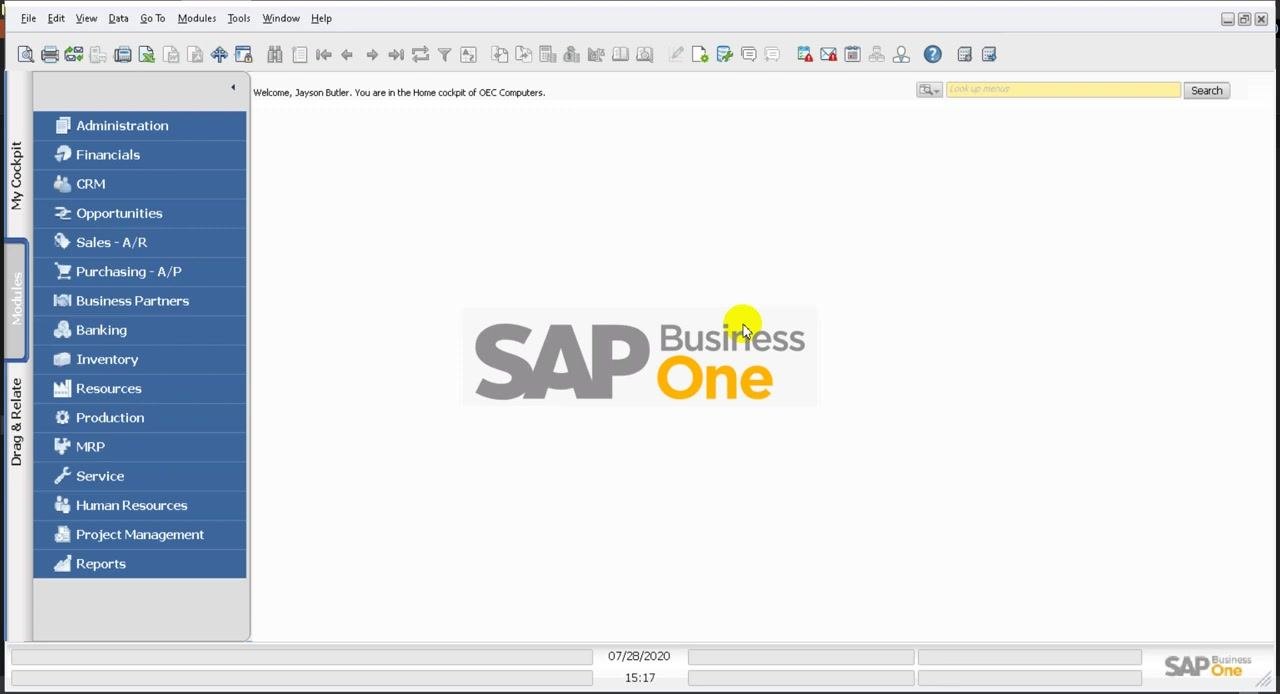
Step 2: Select the setup window from the Tools menu
In the menu bar, go to Tools > Customization Tools > User-Defined Tables – Setup. The User-Defined Tables – Setup window opens.
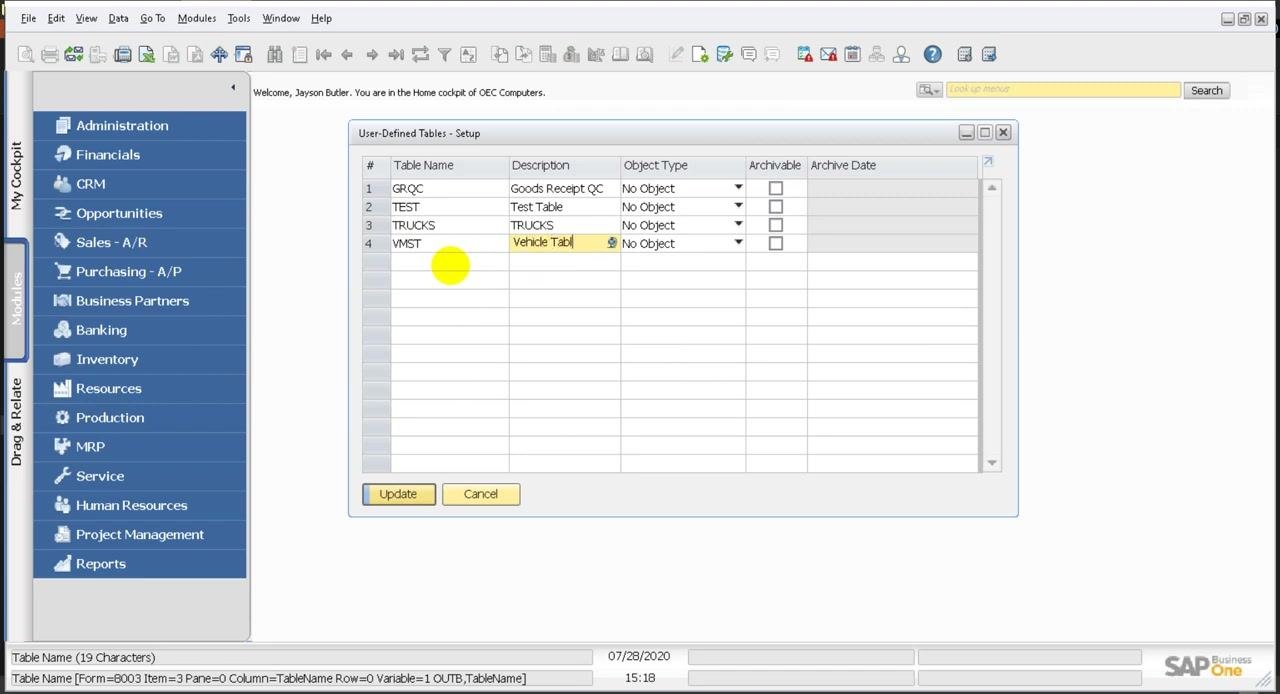
Step 3: Add the parent table
In the User-Defined Tables – Setup window, add a new row and enter the following values:
- Table Name:
VMST - Description:
Vehicle Table
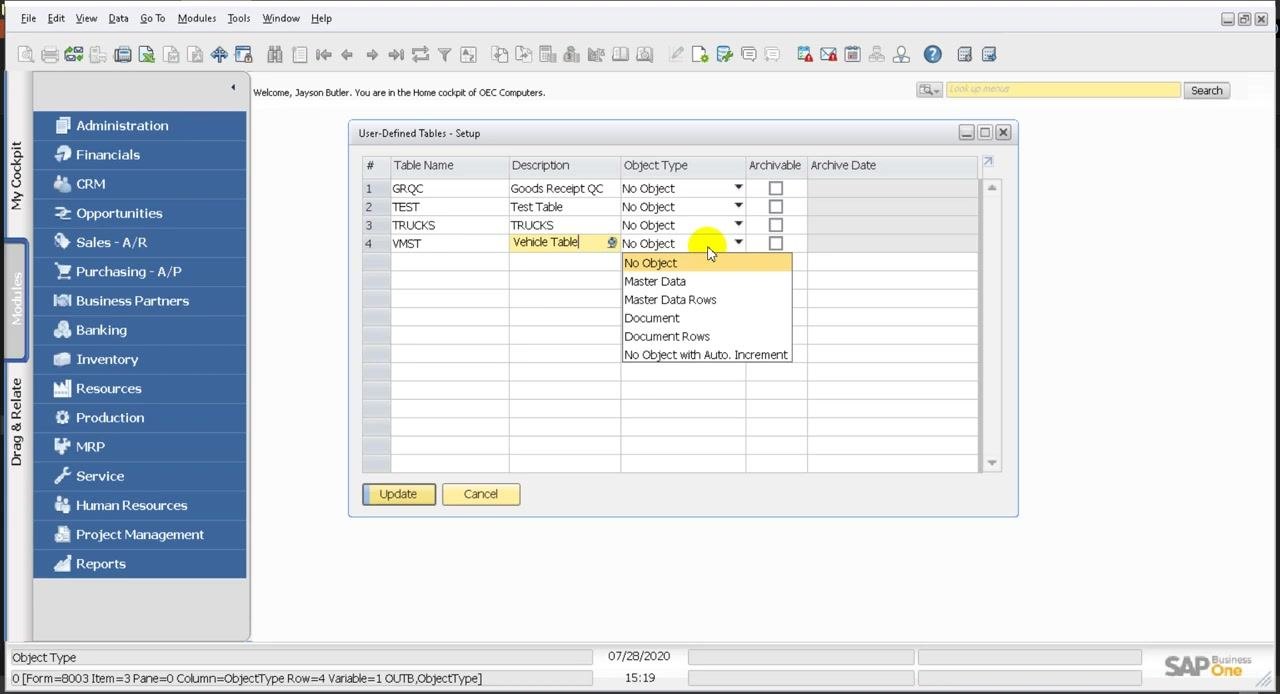
Step 4: Set the object type
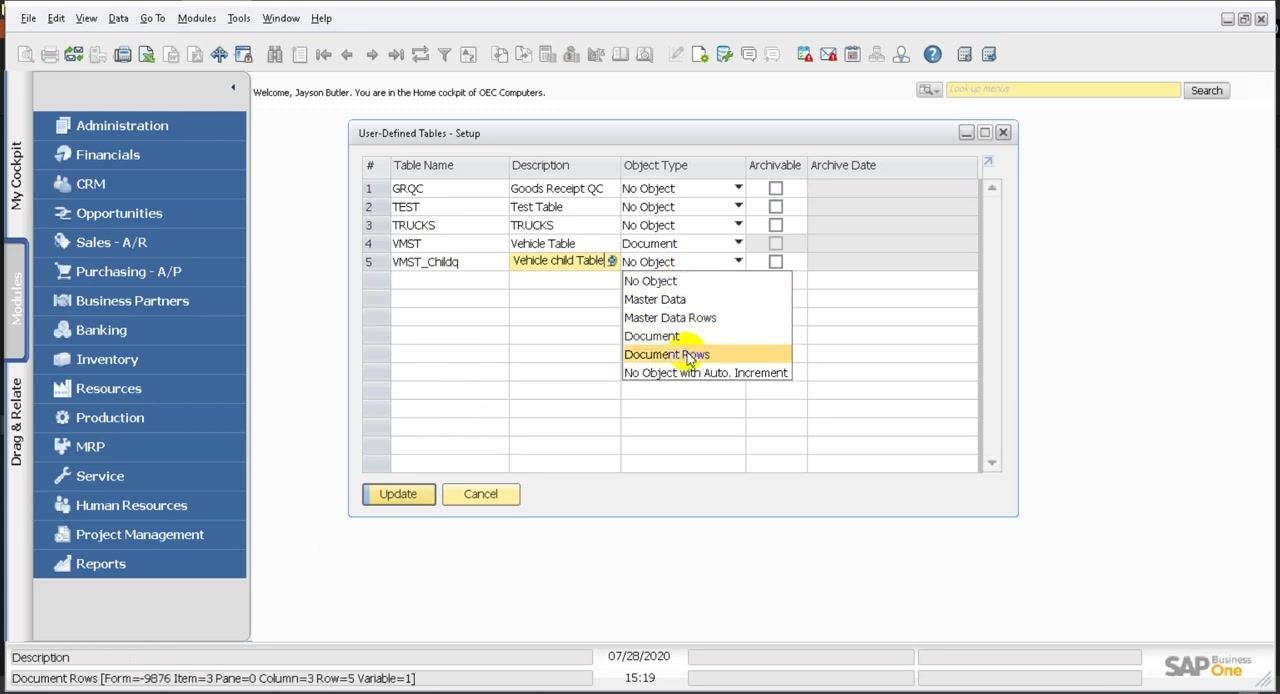
Click the dropdown in the Object Type column of the VMST row. The available options are "Master Data", "Master Data Rows", "Document", and "Document Rows". Choose the option that fits your use case.
In this example, VMST is the main document table, so it must end up with the object type Document. The child table you create next uses Document Rows.
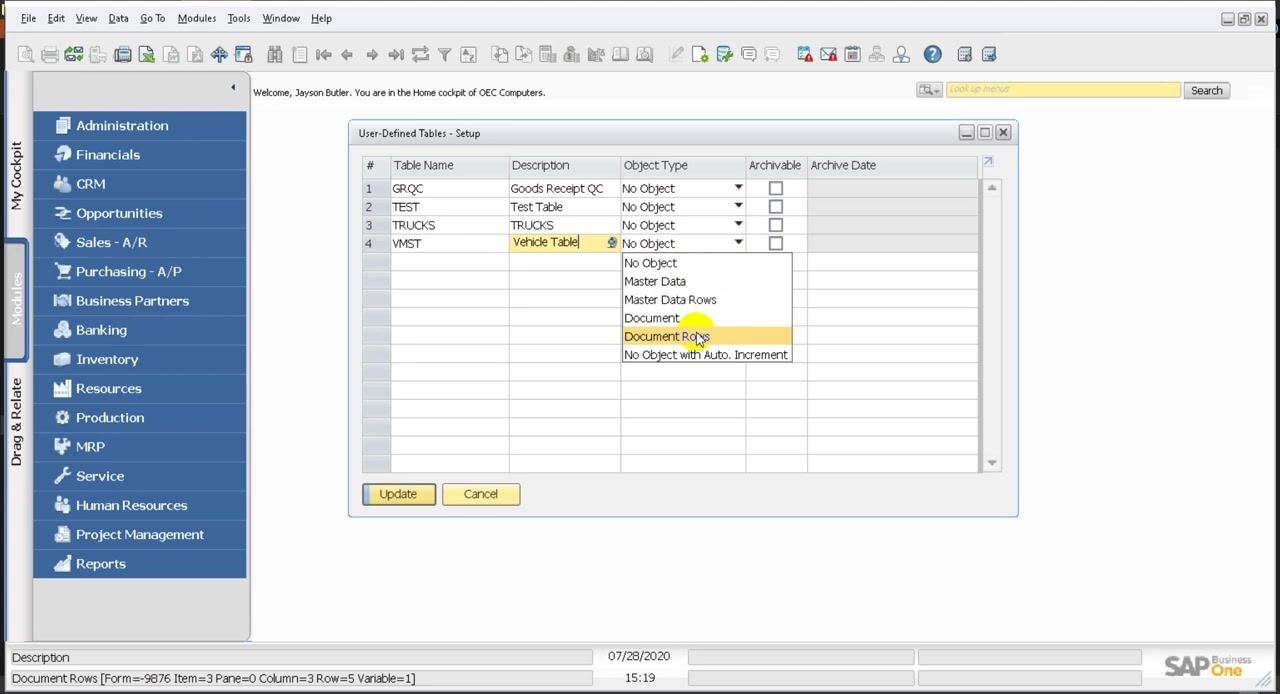
Step 5: Save the table and add the child table
Click Update or OK to save the new user-defined table. Then add a second row for the child table:
- Table Name:
VMST_CHILD - Description:
Vehicle child Table - Object Type:
Document Rows(select it from the dropdown)
Click OK or Update to save the child table.
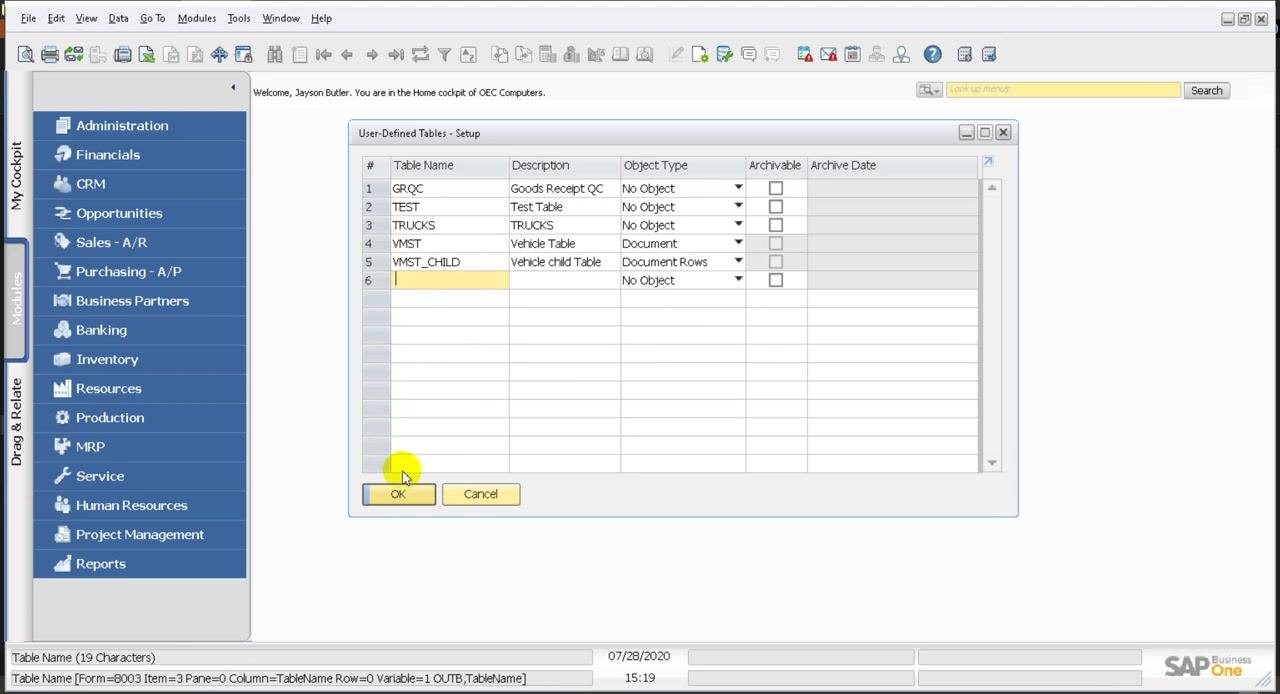
Confirm that you now have two tables:
VMST(Vehicle Table) with Object Type DocumentVMST_CHILD(Vehicle child Table) with Object Type Document Rows
Create the user-defined fields
Step 6: Open User-Defined Fields – Management
In the top menu, select Tools > Customization Tools > User-Defined Fields – Management.
Step 7: Add the Name field to the parent table
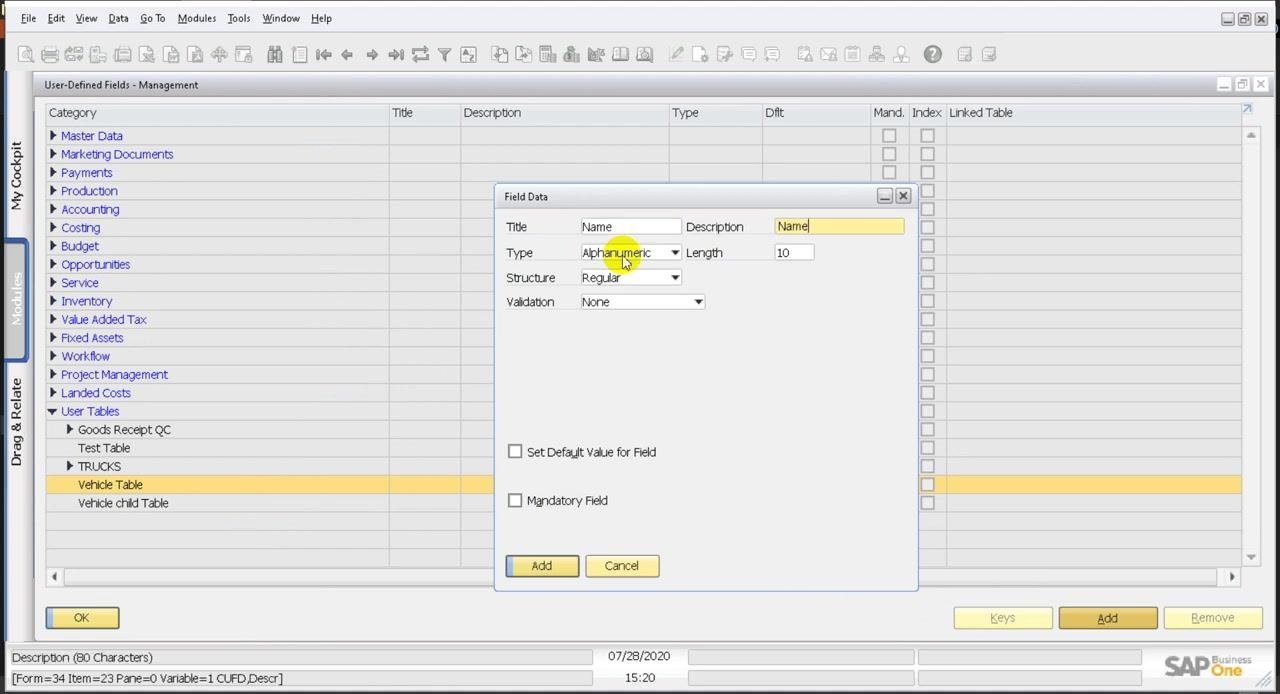
In the User-Defined Fields – Management window, expand the User Tables section and select Vehicle Table. Click Add to open the Field Data dialog, and enter these values:
- Title: Name
- Description: Name
- Type: Alphanumeric
- Length: 10
Leave the other options at their defaults, then click Add to create the field.
Step 8: Add the Date field to the parent table
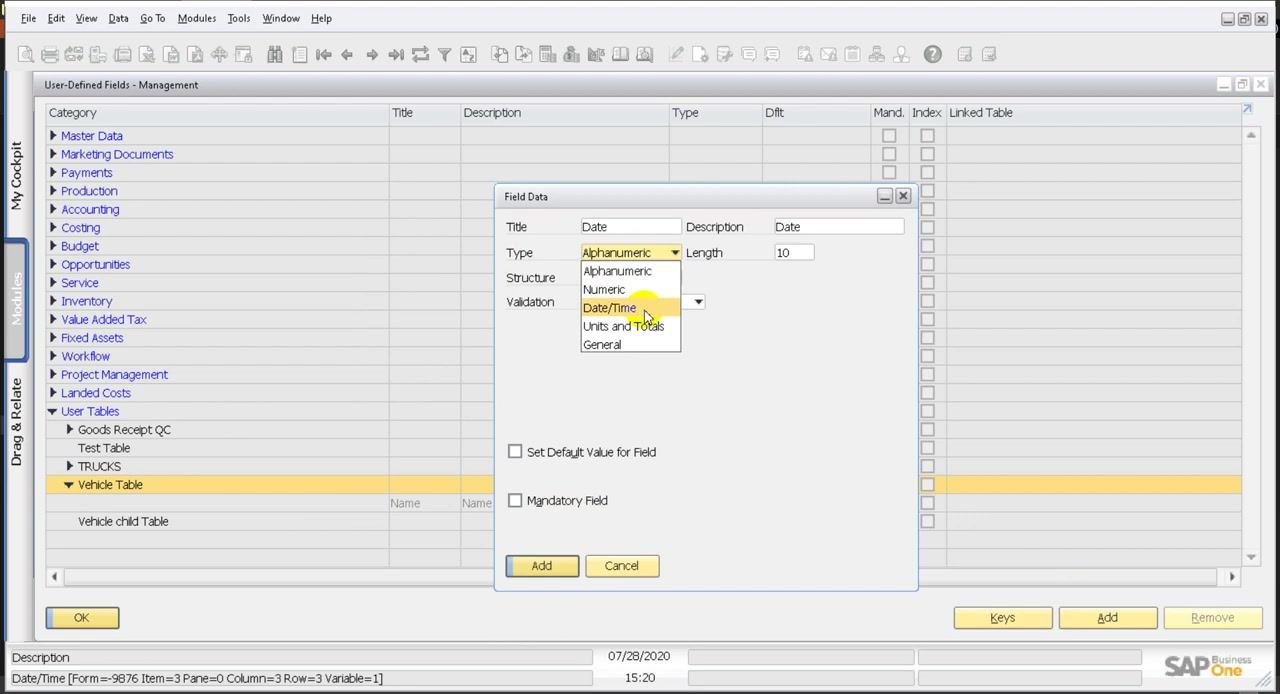
Click Add again and enter these values:
- Title: Date
- Description: Date
- Type: Date/Time (select it from the dropdown)
- Length: 10 (default)
Click Add to create the field.
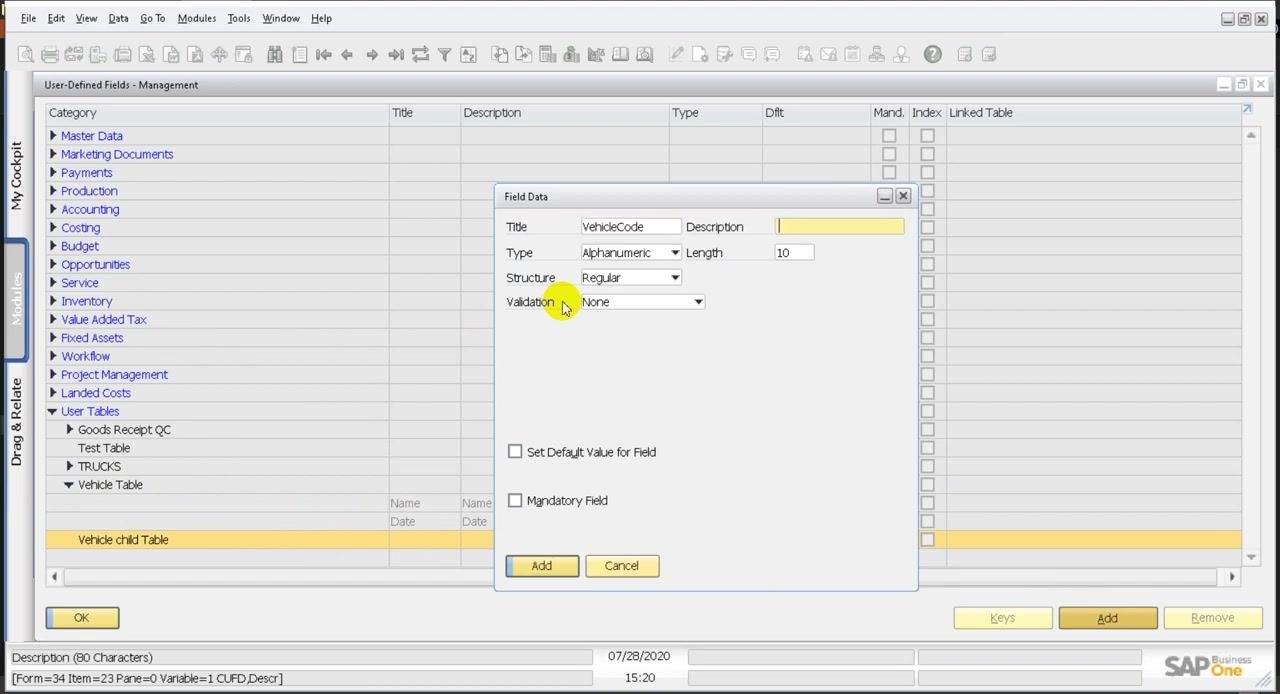
Step 9: Add the VehicleCode field to the child table
Under User Tables, select Vehicle child Table. Click Add to open the Field Data dialog, and enter these values:
- Title: VehicleCode
- Description: Leave blank or enter a value as needed.
- Type: Alphanumeric
- Length: 10
Click Add to create the field.
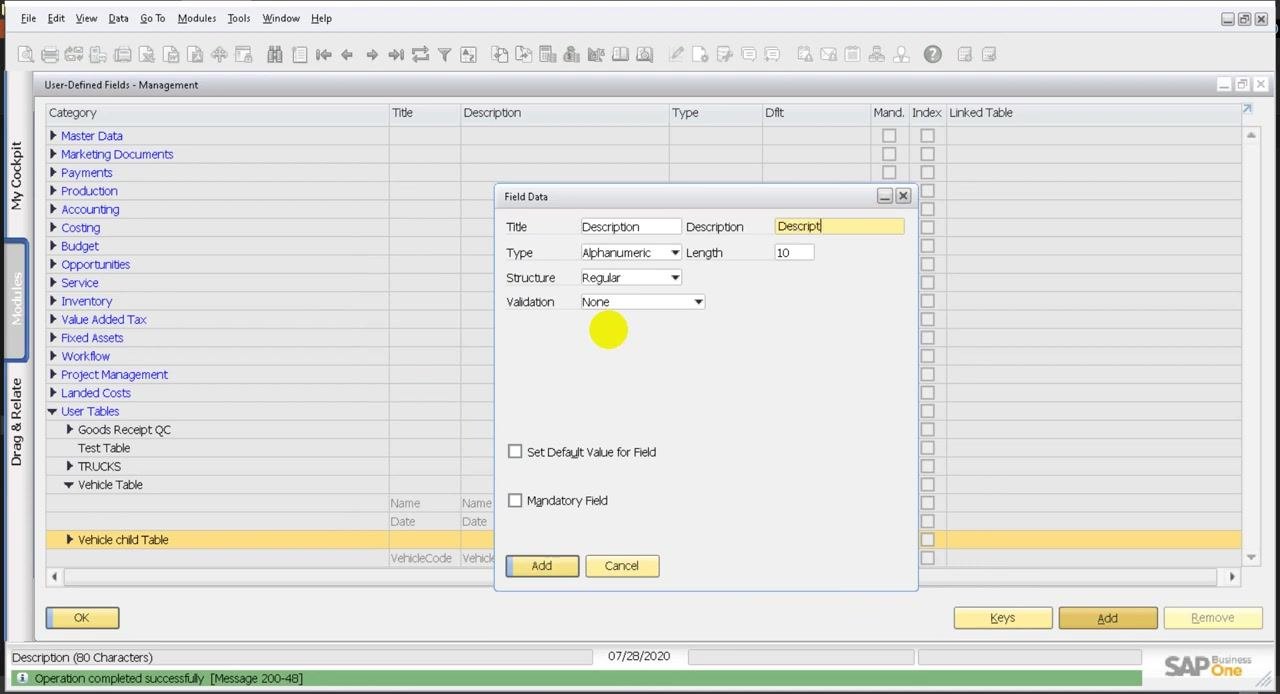
Step 10: Add the Description field to the child table
Add a second field to Vehicle child Table. In the Field Data dialog, enter these values:
- Title: Description
- Description: Description
- Type: Alphanumeric
- Length: 20
- Structure: Regular
- Validation: None
If you need them, you can select Set Default Value for Field or Mandatory Field. Click Add to create the field.
Step 11: Verify the child table fields
Confirm that Vehicle child Table now lists both fields:
- Description (Alphanumeric, 20)
- VehicleCode (Alphanumeric, 10)
Also check that the status bar displays "Operation completed successfully".
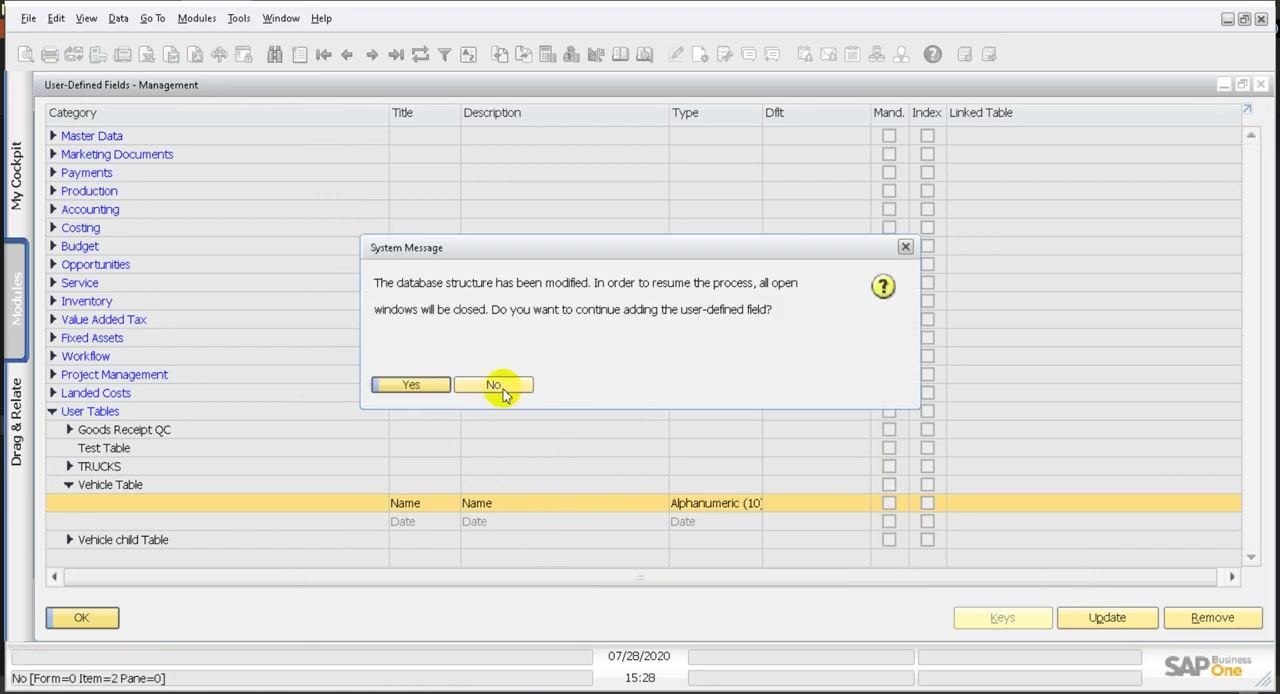
If SAP Business One shows a message about a database structure modification, read it. It says: "The database structure has been modified. In order to resume the process, all open windows will be closed. Do you want to continue adding the user-defined field?" Click Yes to proceed or No to cancel the operation.
Register the user-defined object
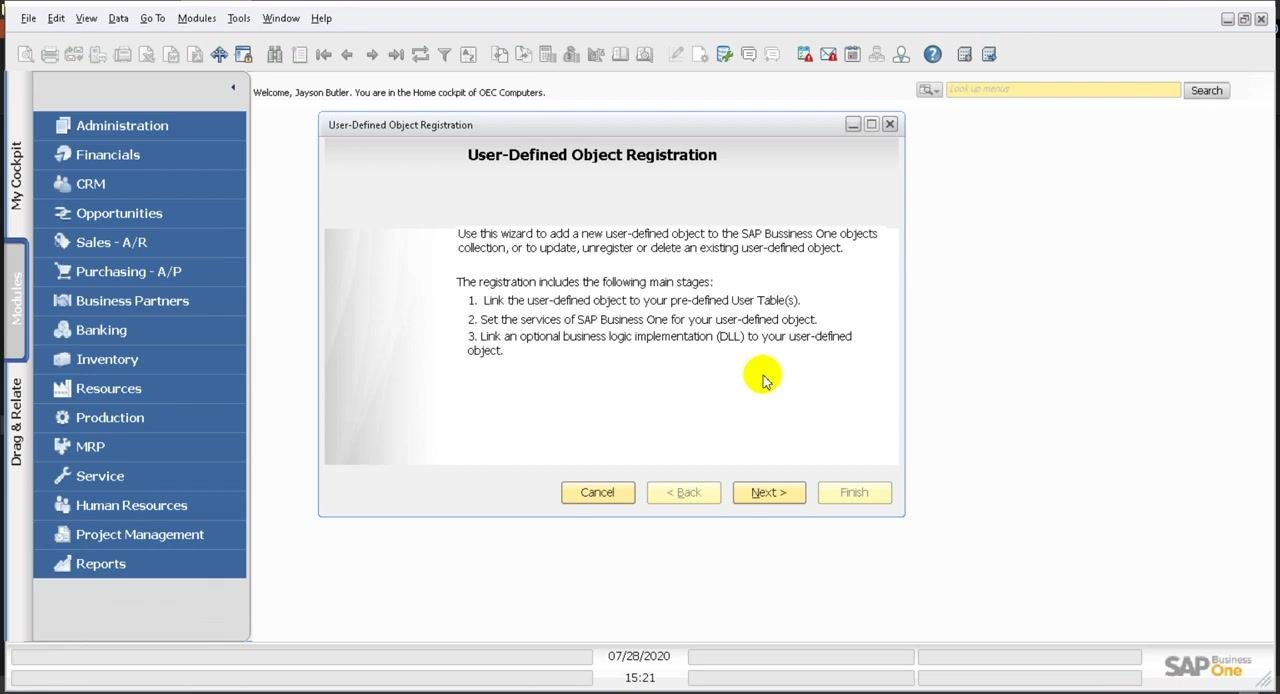
Step 12: Open the Object Registration Wizard
In the top menu, select Tools > Customization Tools > Object Registration Wizard.
Step 13: Review the wizard introduction
The User-Defined Object Registration window opens with an introduction. It outlines three tasks:
- Link the user-defined object to your pre-defined user table or tables.
- Set SAP Business One services for your user-defined object.
- Optionally, link a business logic implementation (DLL).
Click Next to proceed.
Step 14: Select the registration mode
Choose Add a New Object. The other options are Update an existing object, Unregister an existing object, and Delete an existing object. Click Next to continue.
Step 15: Define the basic settings
In the Defining Basic Settings window, enter these values:
- Unique ID: VMSD
- Name: VMSD
- Type: Select
Documentfrom the dropdown.
You choose the Table Name in the next step. At this stage, only Master Data and Document are available as object types.
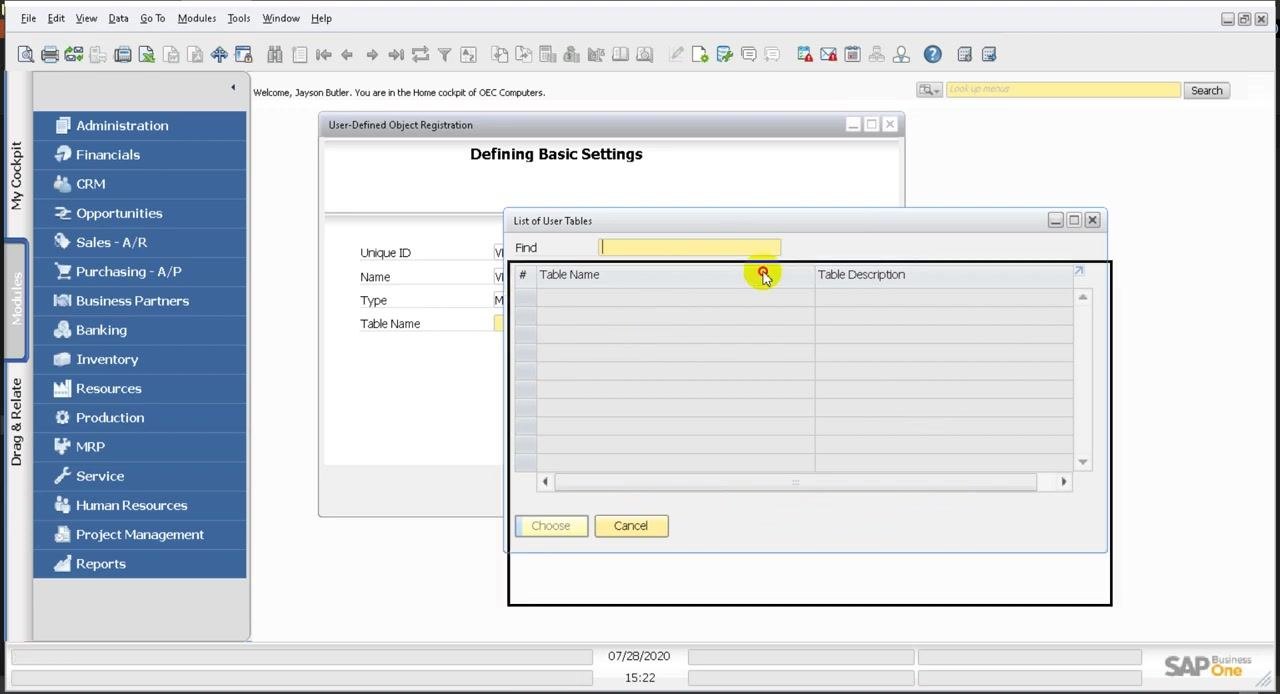
Step 16: Open the list of user tables
Click the lookup button next to Table Name to open the List of User Tables dialog. The list depends on the type you selected:
- If you select
Master Data, the list is empty because you haven't created any master data tables. - If you select
Document, the list shows the available document tables.
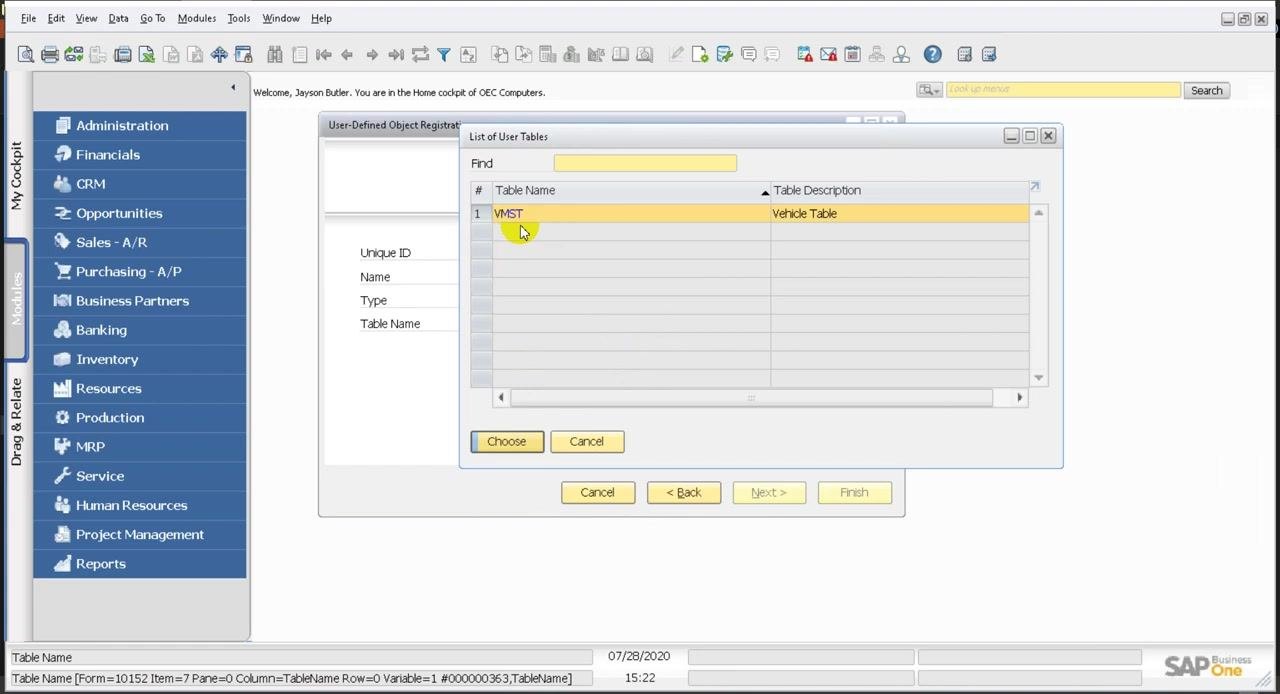
Step 17: Select the main document table
With Document as the type, find the table with these details in the List of User Tables dialog:
- Table Name: VMST
- Table Description: Vehicle Table
Select only the main document table, VMST. Do not select the rows table or any child table at this stage. Click Choose to confirm.
Set services and UI settings
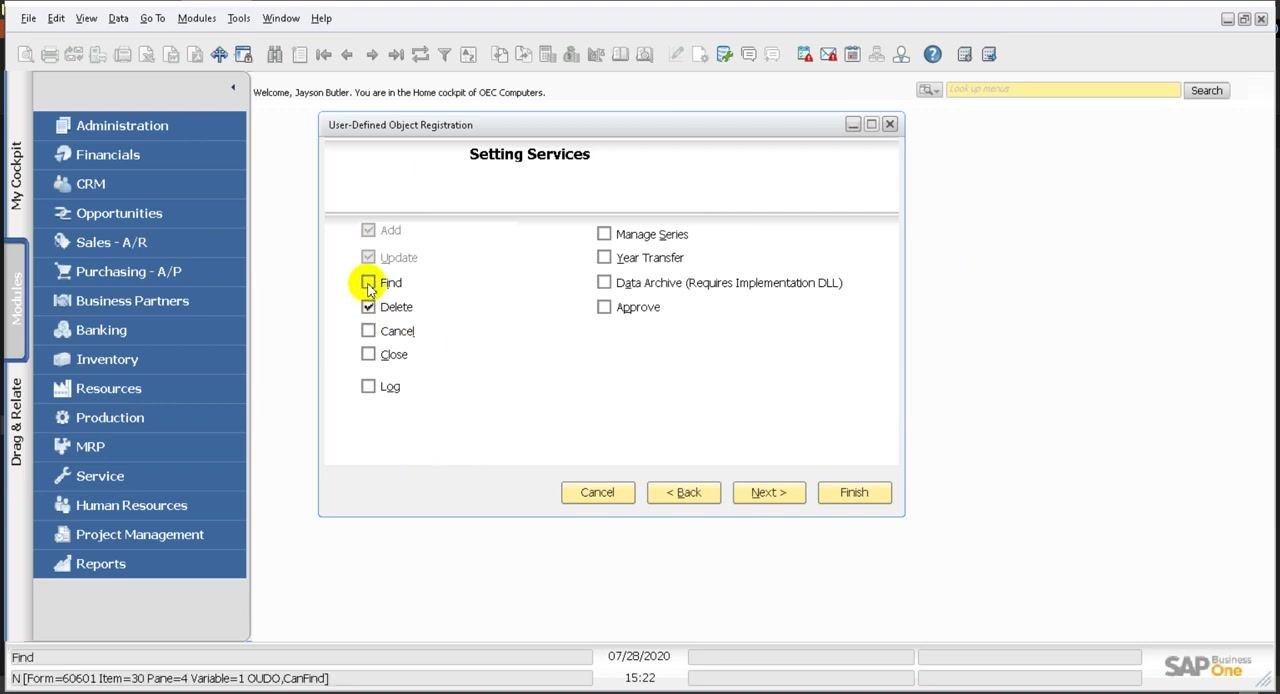
Step 18: Choose the services
In the Setting Services window, review the list of services available for the object. Set the checkboxes as follows:
- Add: Checked (mandatory)
- Delete: Checked
- Find: Checked (lets users search for records)
- Update: Unchecked
- Cancel: Unchecked
- Close: Unchecked
- Log: Unchecked
- Manage Series: Unchecked
- Year Transfer: Unchecked
- Data Archive (Requires Implementation DLL): Unchecked
- Approve: Unchecked
Leave the settings as they are unless you need specific changes, then click Next >.
Step 19: Configure the UI settings
In the UI Settings window, make sure Default Form is checked and select Header Line Style as the form style.
To add the object as a menu item, check Menu Item and enter VMST in the Menu Caption field. Leave Parent Menu ID, Position, and Menu UID blank for now.
To assign the object to a specific module, click the ... button next to Parent Menu ID.
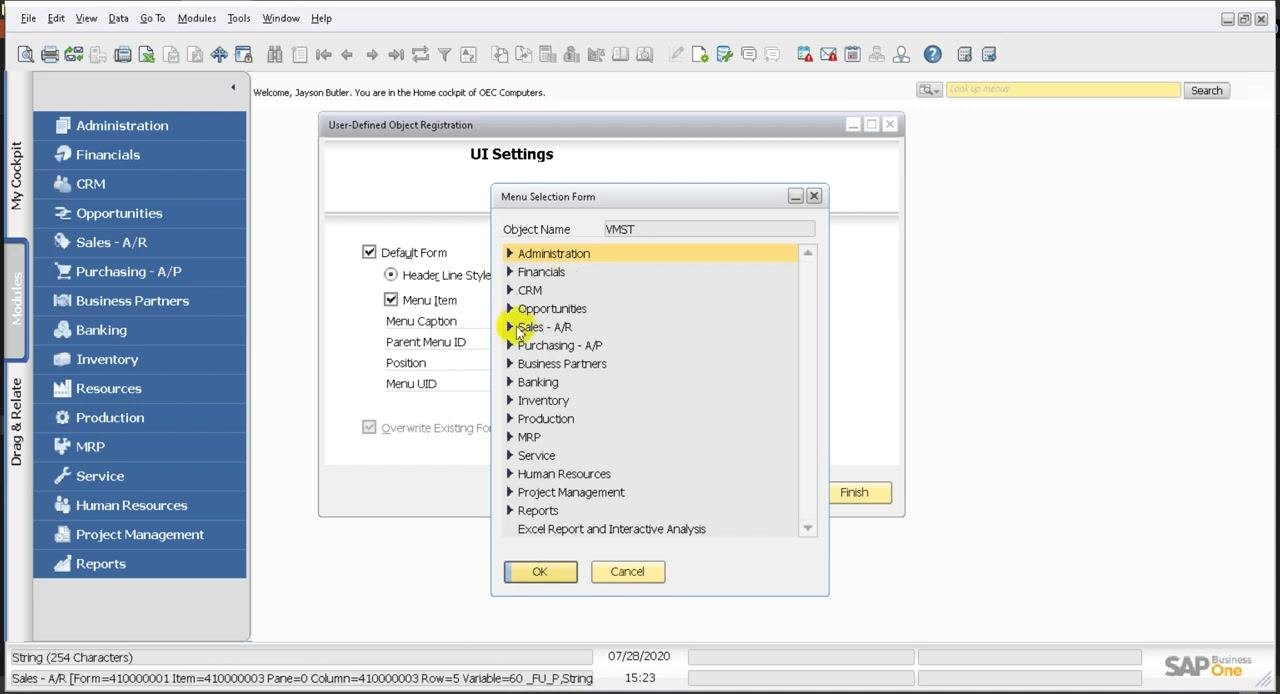
Step 20: Assign the object to a module
In the Menu Selection Form dialog, browse the list of modules and select the one you want, for example Inventory. Click OK to confirm.
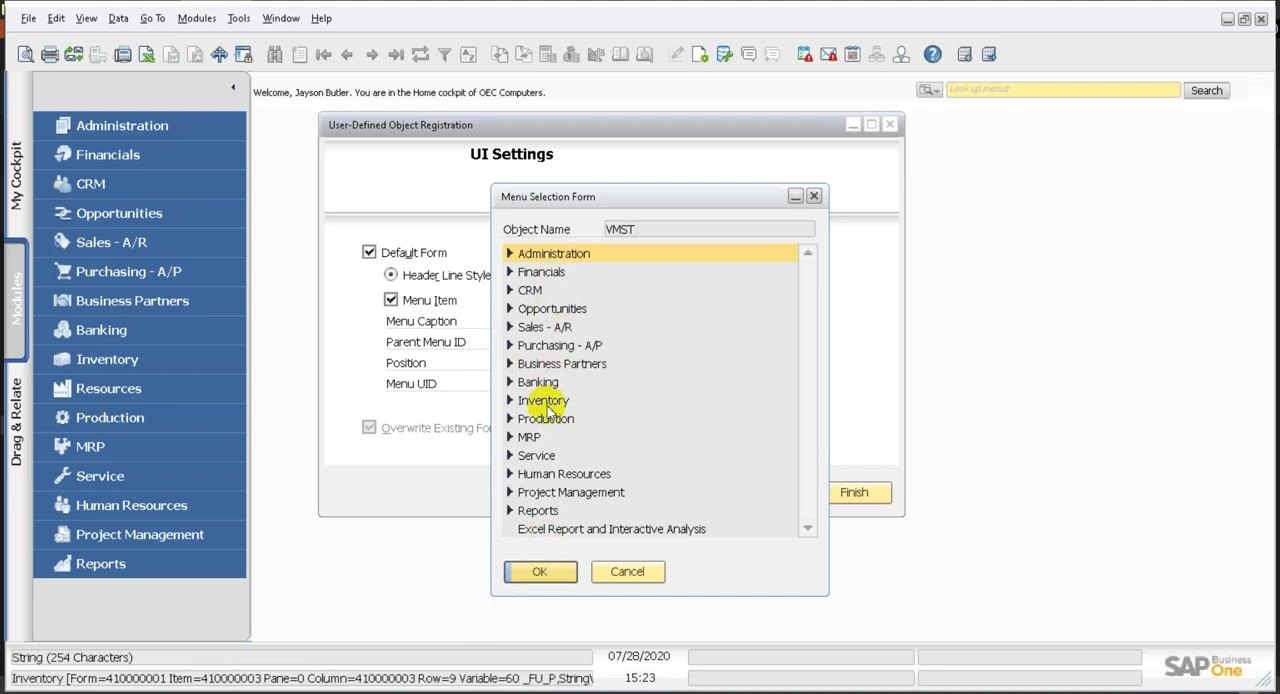
Back in UI Settings, check the following:
- Parent Menu ID now shows the ID of the module you selected, for example Inventory.
- Menu UID is set to VMST.
If needed, adjust Position or Place at Bottom. Then click Next >.
Set the Find and form fields
Step 21: Choose the fields for Find
In the Setting the fields for Find window, review the available columns. Check the boxes for the columns you want users to search by. Columns in the list include:
- DocEntry
- DocNum
- Period
- Instance
- Series
- Handwritten
- Canceled
Use the up and down arrows to reorder the columns. Optionally, check View Checked Columns Only to filter the list. Click Next > to continue.
Step 22: Recognize the U_ prefix
SAP Business One automatically prefixes every user-defined field you create with U_. This prefix distinguishes user-defined fields from system fields. For example, the fields appear in the Find window as U_Name and U_Date.
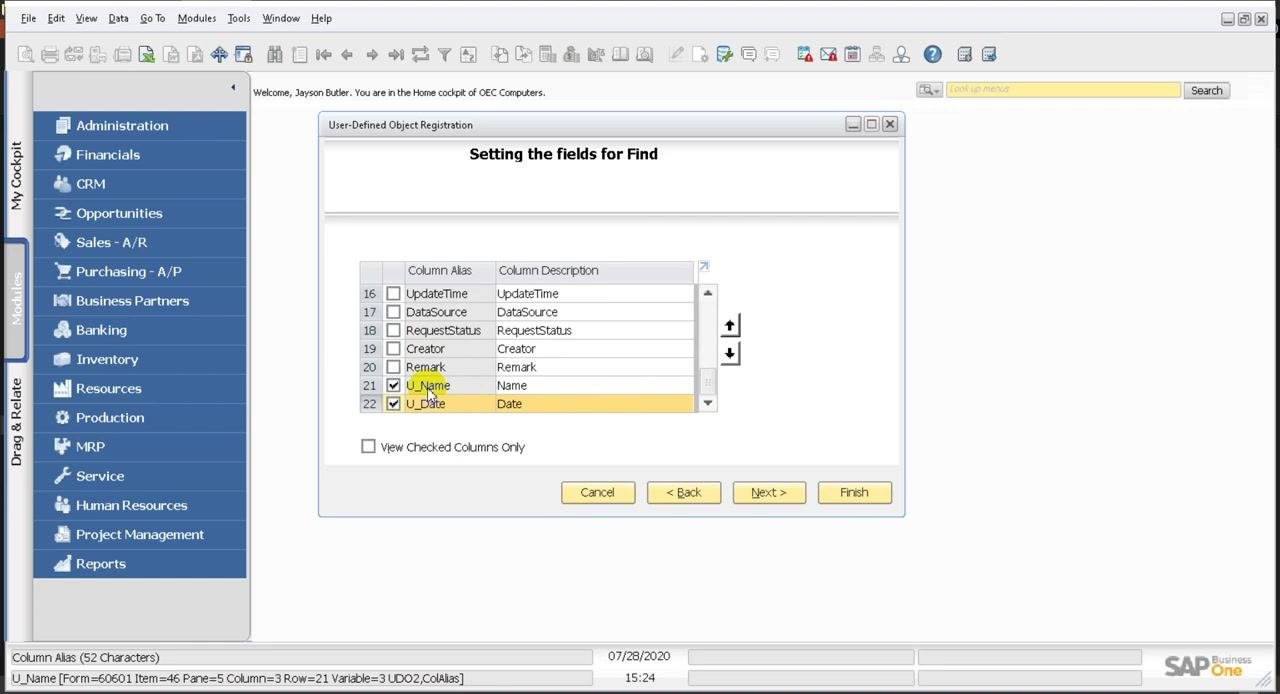
Step 23: Verify your user-defined fields in the Find list
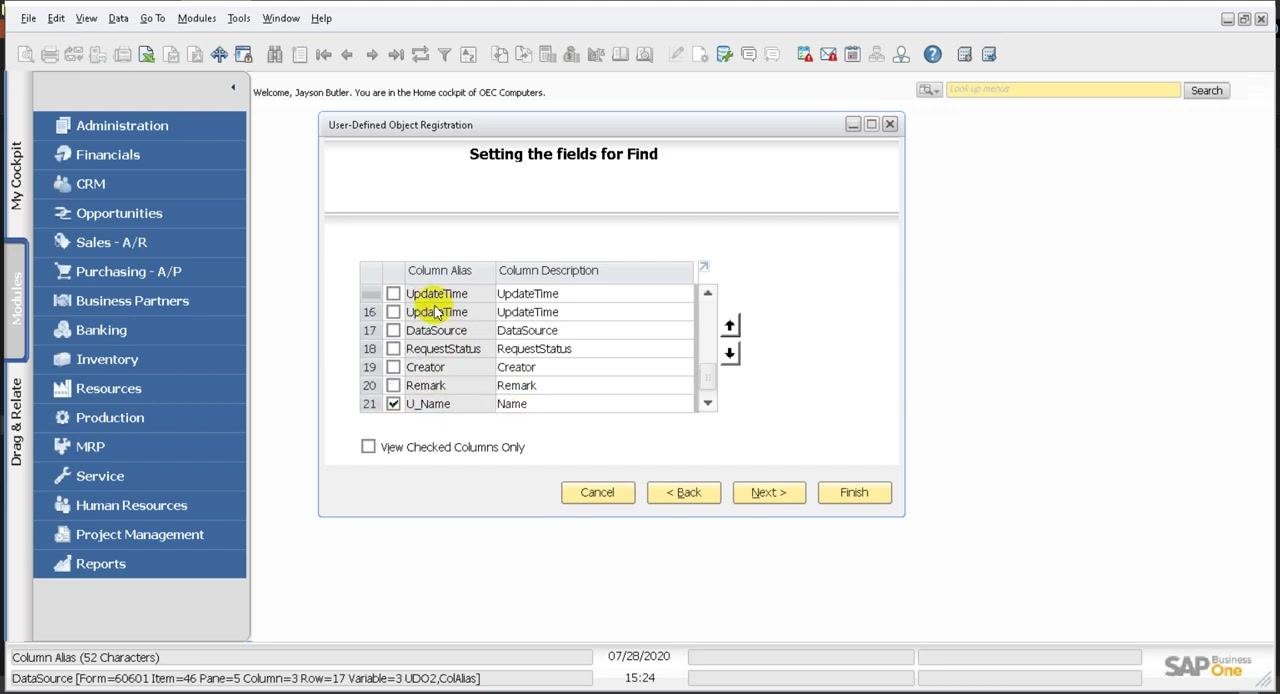
Scroll the list to confirm that the fields you created are present. Besides U_Name and U_Date, the window shows columns such as UpdateTime, DataSource, RequestStatus, Creator, and Remark. Only fields with the U_ prefix are user-defined.
In this example, U_Name is checked, so users can search by it, and U_Date is unchecked.
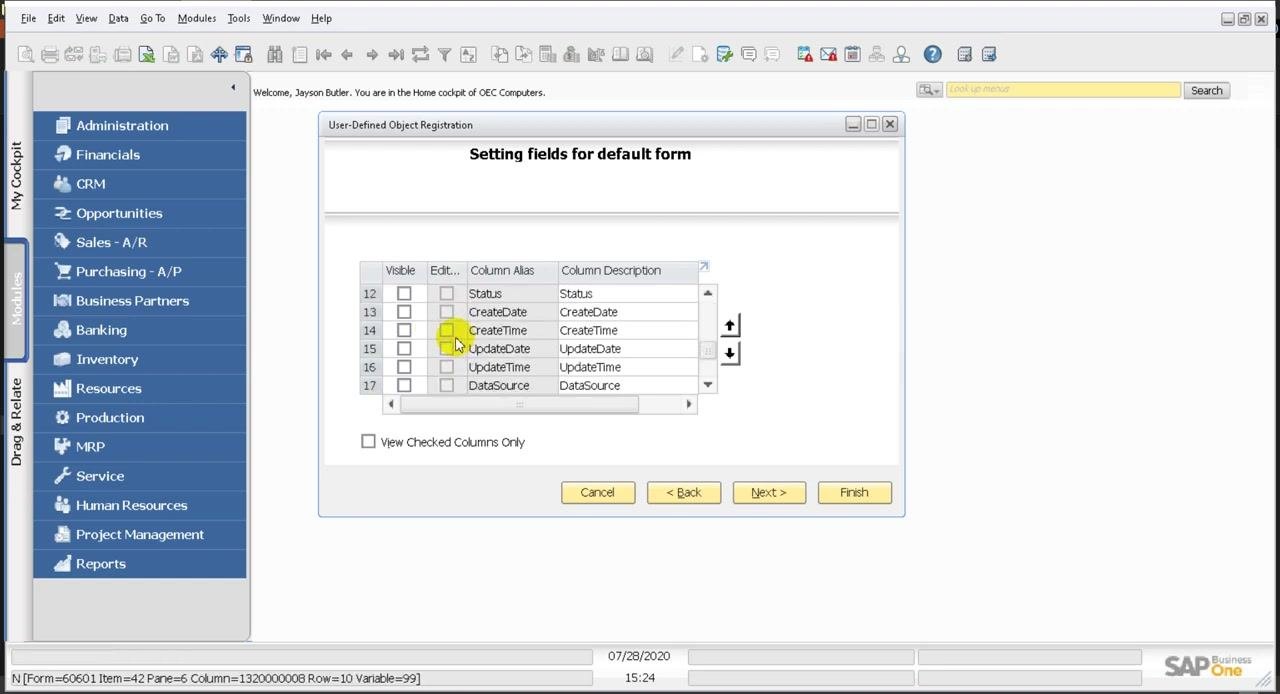
Step 24: Set the fields for the default form
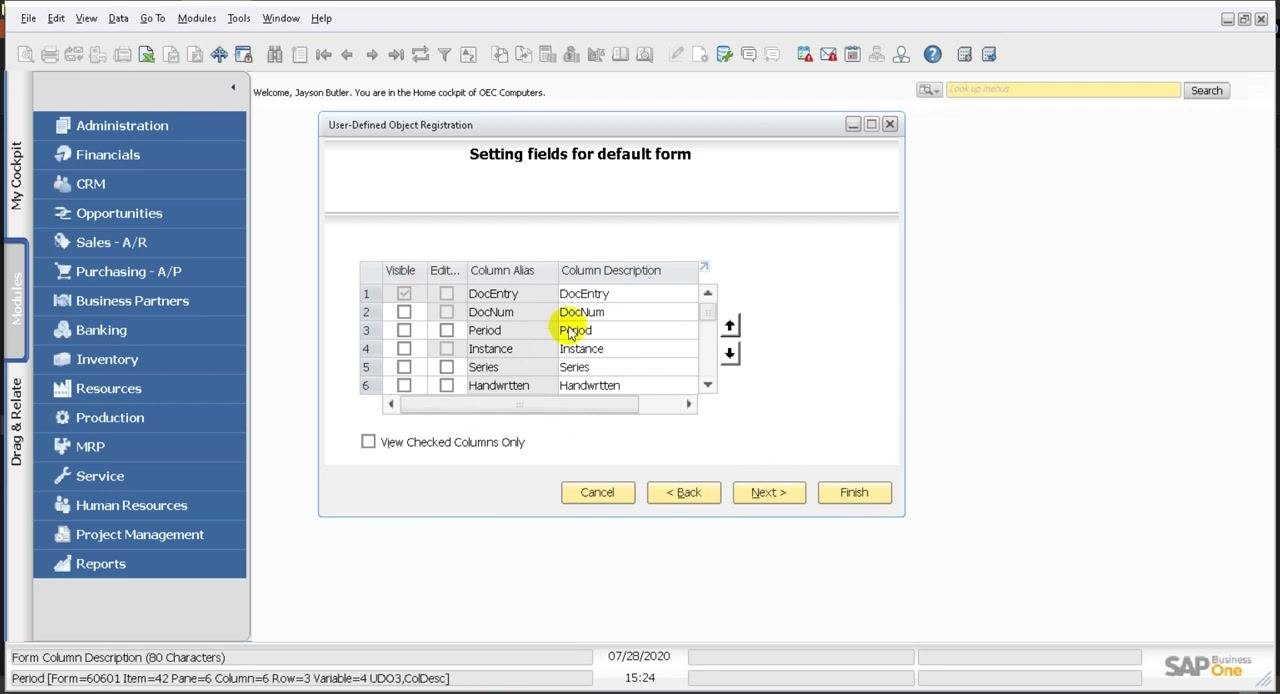
Click Next > to open the Setting fields for default form window. Here you select which fields are visible and editable on the default form of your object.
The list includes columns such as DocEntry, DocNum, Period, Instance, Series, and Handwritten. By default, only DocEntry is checked as visible.
Step 25: Review the additional default form fields
Scroll through the list to review more fields: Status, CreateDate, CreateTime, UpdateDate, UpdateTime, and DataSource. None is checked as visible or editable by default. Check any of them if you want them to appear on the form.
Step 26: Link the child table
In the Linking child user tables window, review the list of available child tables. The table VMST_CHILD with the description "Vehicle child Table" is listed. Check the box next to VMST_CHILD to link it to your main object, then click Next >.
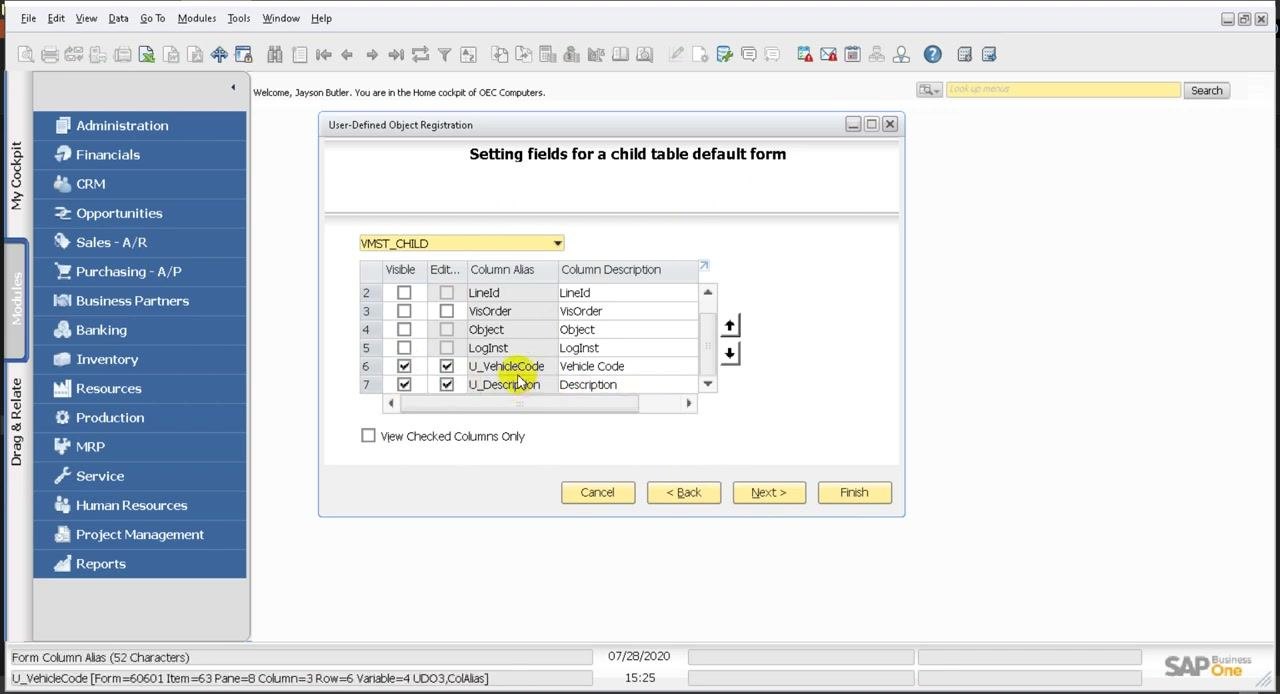
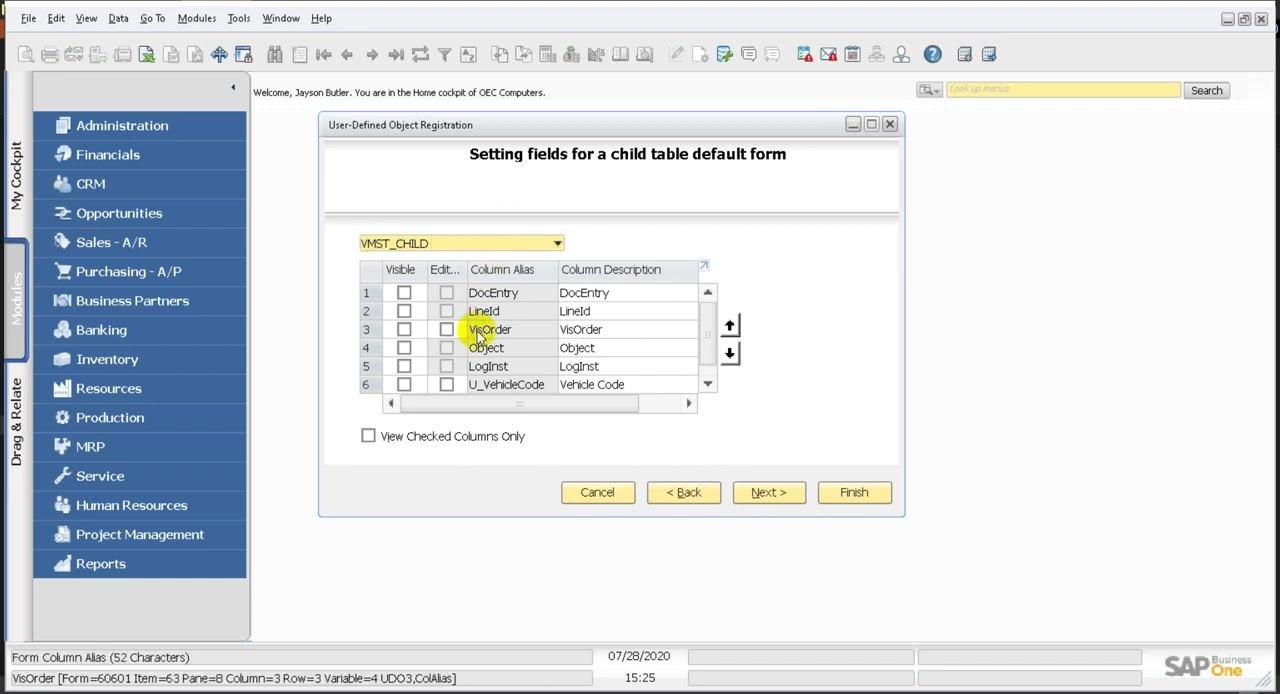
Step 27: Set the fields for the child table form
In the Setting fields for a child table default form window, select which fields are visible and editable for the child table. VMST_CHILD includes columns such as DocEntry, LineId, VisOrder, Object, LogInst, U_VehicleCode, and U_Description.
Check U_VehicleCode (Vehicle Code) and U_Description (Description) to make them visible and editable on the child table form.
Step 28: Review the generated form
After you finish the field selection, the system displays the generated form for your user-defined object. It includes:
DocEntry(disabled)DateName- A table for entering
Vehicle CodeandDescription
The Add and Cancel buttons appear at the bottom of the form.
Customize the form with Edit UI Form
Step 29: Open the form settings
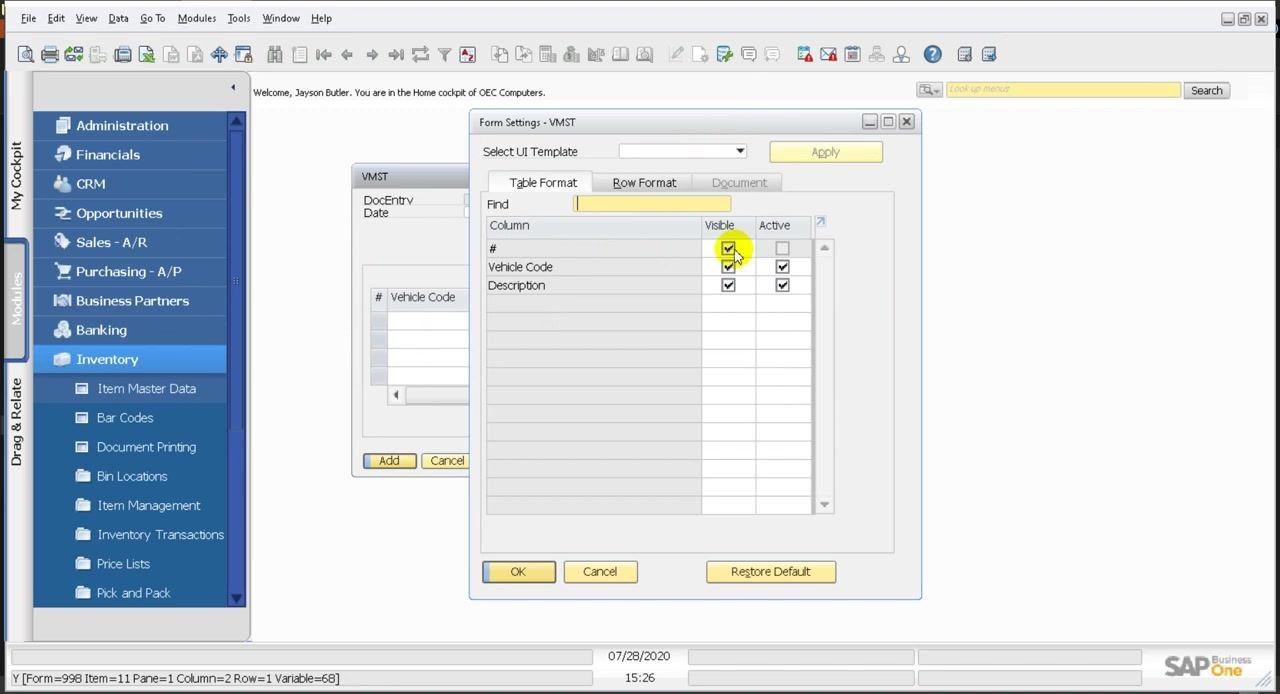
To control which table columns are visible, select Tools > Edit UI Form. The Form Settings - VMST window opens.
On the Table Format tab, the table columns are listed: #, Vehicle Code, and Description. Check or uncheck the boxes in the Visible and Active columns to control which fields are shown and editable. In this example, all three columns are visible and active.
Step 30: Apply and save the changes
After you adjust column visibility and activity, click OK or Apply to save your changes. You can also use the window controls to close the dialog. The changes immediately affect the layout of the VMST form.
Step 31: Use UI Edit Mode for further customization
The VMST form now appears in UI Edit Mode. Right-click any field, such as Date or Name, to open a context menu. The options are Save, Leave UI Edit Mode, Restore Default, Add Tab, Remove Tab, and Rename Tab.
These options let you customize the form layout further. The status bar at the bottom confirms "UI changes saved successfully."
Step 32: Return to the standard form view
Exit UI Edit Mode to return to the standard VMST form view. The form reflects the changes you made. The DocEntry, Date, and Name fields appear at the top, with the table for Vehicle Code and Description below.
Enter and update data
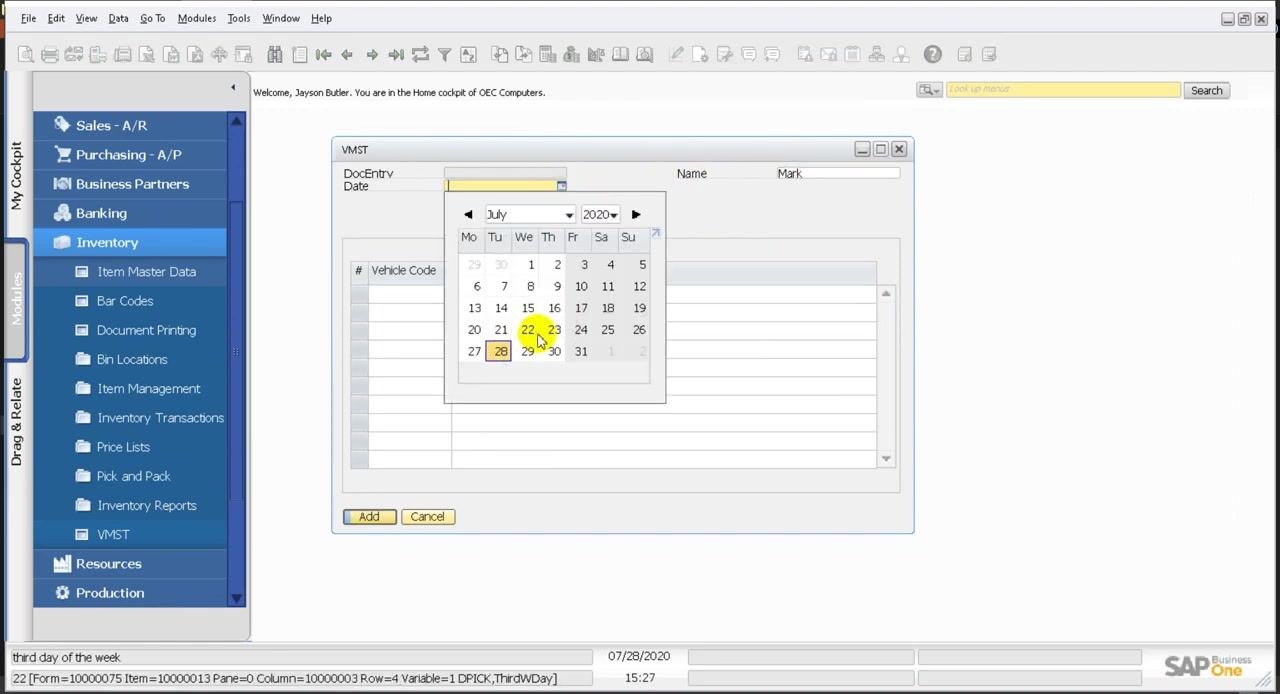
Step 33: Set the date
Click the Date field to open the date picker, then select a date from the calendar. In this example, July 28, 2020 is chosen. The selected date fills the Date field on the form.
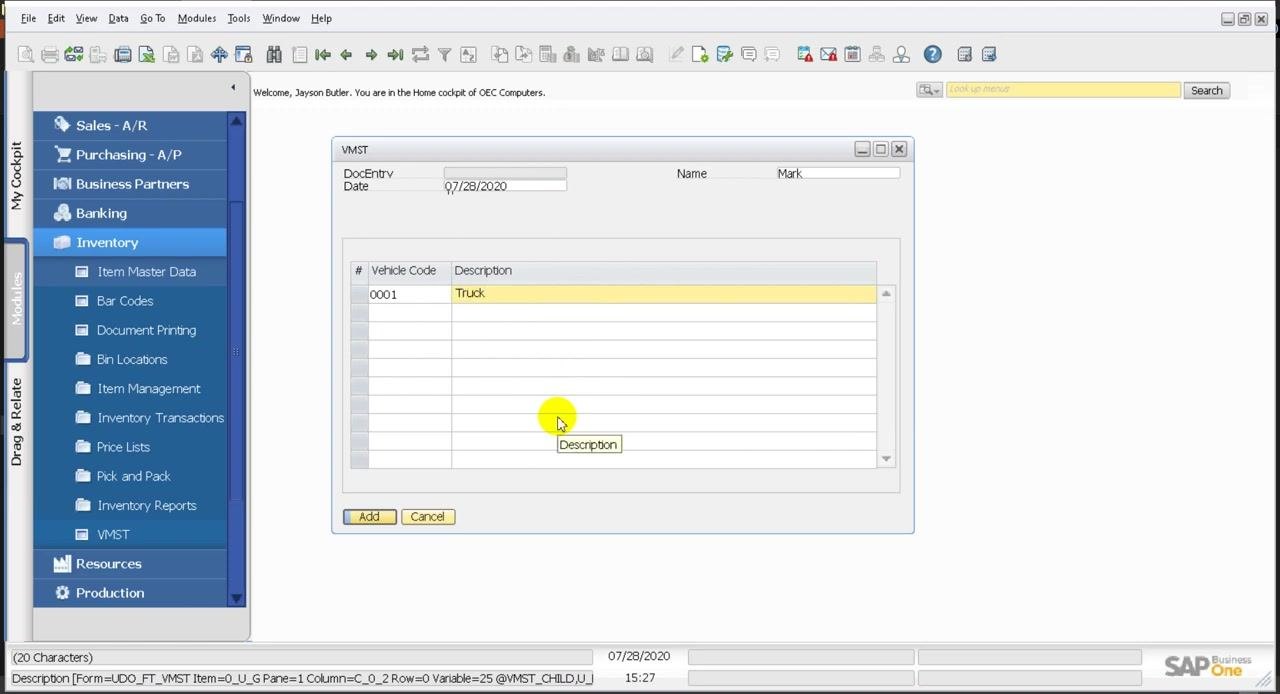
Step 34: Enter data in the table
In the table section, enter these values:
- Vehicle Code: 0001
- Description: Truck
The row is highlighted while you enter data. The form then displays the entered data, ready for further actions such as adding or saving the record.
Step 35: Edit the Name field
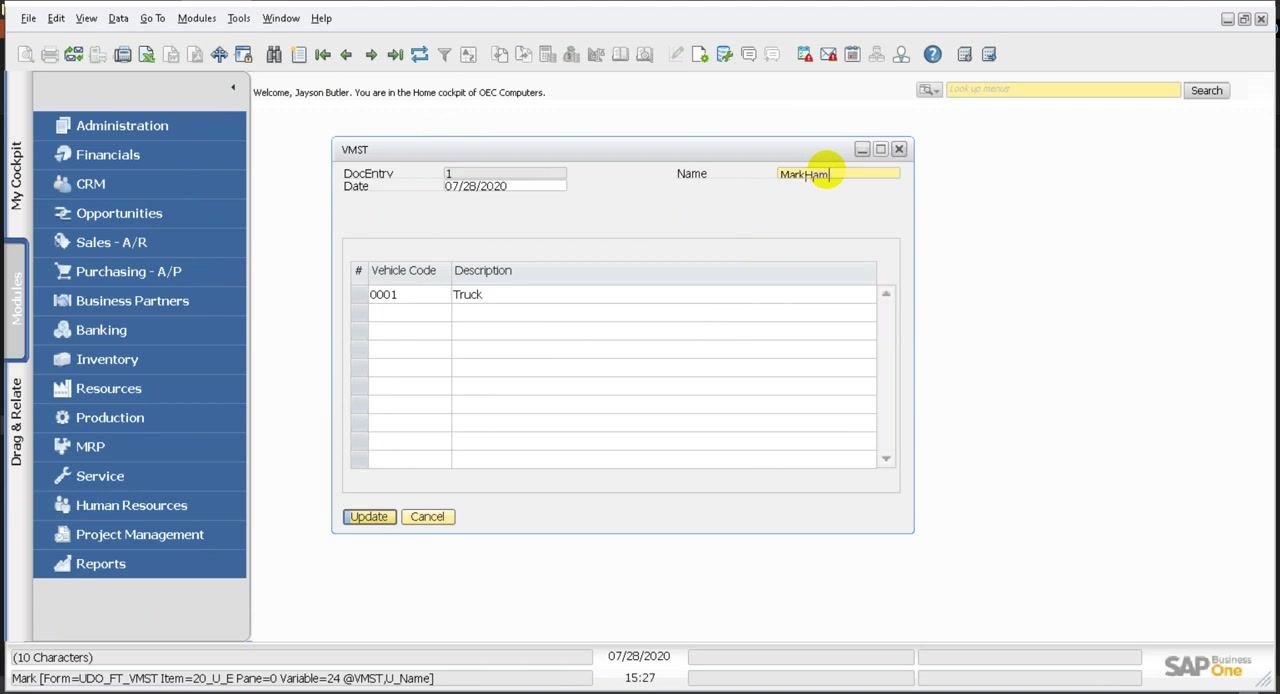
Click the Name field and change the value to Mark Hamilton. If an error appears after you edit, review the data and field settings to make sure they meet SAP Business One requirements.
Step 36: Verify the record
Return to the VMST form and select the last record in the VMST table. Confirm that the Name field is updated (for example, "Mark Hamilton"). Also confirm that the table shows the correct vehicle information: Vehicle Code 0001 and Description Truck.
Step 37: Test the update function
Click Update to save your changes. Make sure the navigation menu and form fields reflect the updated data.
What's next
After you create your UDO, you can reopen Tools > Edit UI Form to refine the layout. You can also return to the Object Registration Wizard to update the object later.
Summary
You created a user defined object (UDO) in SAP Business One by completing these tasks:
- Created the parent table
VMSTand the child tableVMST_CHILD. - Added the user-defined fields
NameandDateto the parent table. - Added
VehicleCodeandDescriptionto the child table. - Registered the object with the Object Registration Wizard.
- Enabled the mandatory services and configured the UI settings.
- Assigned the object to the Inventory module with a menu caption.
- Chose the Find fields and the default form fields for the parent and child tables.
- Customized the form with Edit UI Form and UI Edit Mode.
- Entered sample data and updated a record.
Generation details: cost, quality tiers
Docsie billed 6,000 credits ($4.20) to analyze this 12-minute video at standard quality. The rewrite, template fill and Word/PDF exports were included. The same video at each quality tier:
| Quality | Frames sampled | Credits | Approx. cost |
|---|---|---|---|
| Draft | every 16-30 s | 3,000 | $2.10 |
| Standard (this guide) | every 8-15 s | 6,000 | $4.20 |
| Detailed | every 4-7 s | 12,000 | $8.40 |
| Ultra | every 1-3 s | 24,000 | $16.80 |
Credits priced at $0.70 per 1,000; plans include a monthly allowance. Enterprise customers on on-premise or bring-your-own-model deployments run this on their own inference and pay no per-video credits.
Generated by Docsie Video-to-Docs on 2026-11-01 from a 11-minute video. Screenshots are frames from the source video and belong to their creator, Maruf Rahman, whose original is embedded above. If you own this video and want the guide removed or credited differently, contact us and we will act within one business day.