
How to Create a Lightweight Add-on in SAP Business One
This guide explains how to create a lightweight add-on in SAP Business One by using the Extension Package Application. You prepare your compiled source code, enter the extension details, select the 32-bit and 64-bit executables, and package everything into a ZIP file.
Video: How to Create Lightweight Extension in SAP B1 ? (SAP Business One) by SAP Business One (2020). All credit for the demonstration goes to the creator; watch the original on YouTube. The written guide below was generated from this video by Docsie. Creator? Request a change or removal.
This guide explains how to create a lightweight add-on in SAP Business One by using the Extension Package Application. You prepare your compiled source code, enter the extension details, select the 32-bit and 64-bit executables, and package everything into a ZIP file.
Prerequisites
Before you begin, make sure you have the following:
- SAP Business One SDK installed
- Visual Studio installed
- Add-on source code that is ready and compiled for both 32-bit and 64-bit configurations
- A build output path that matches your intended deployment directory
Steps
Open Visual Studio and prepare your source code
Open Visual Studio and load your add-on project. In this example, the project is named "ExtPack", and the configuration is set to Debug and x64.
Confirm that the build output path matches your intended deployment directory.
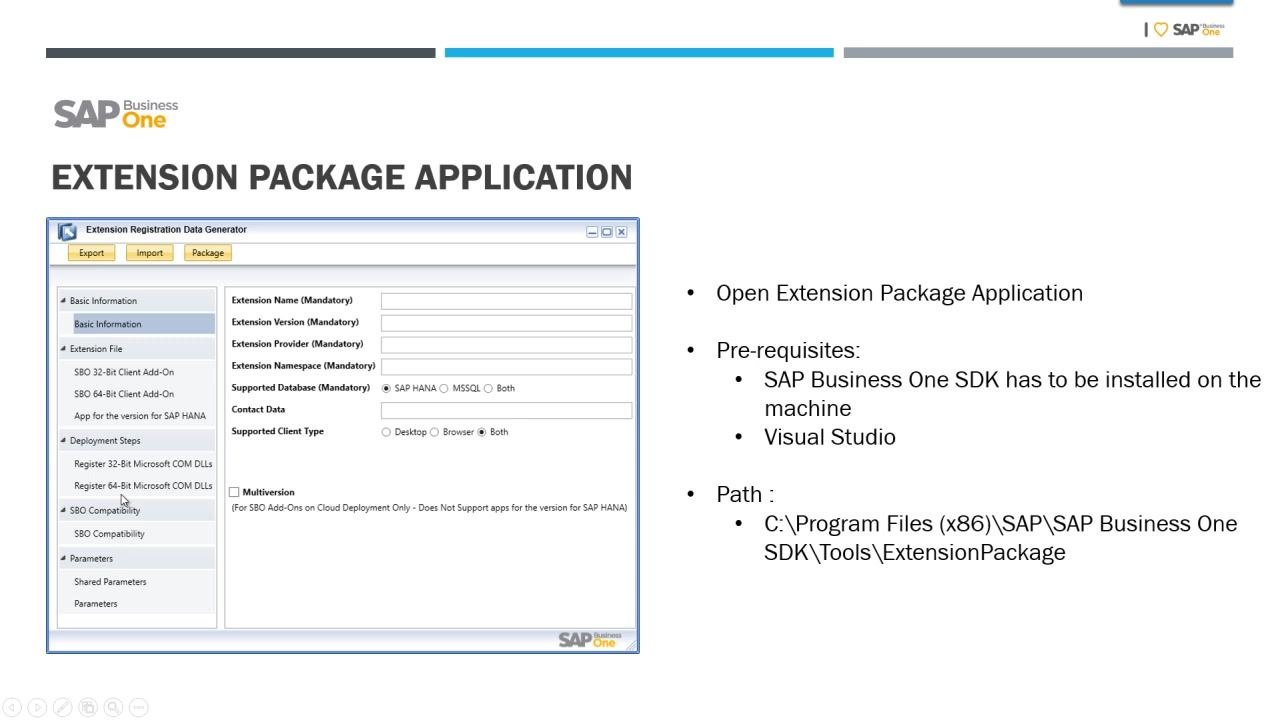
Launch the Extension Package Application as administrator
Go to the following directory on your machine:
C:\Program Files (x86)\SAP\SAP Business One SDK\Tools\ExtensionPackage
Right-click the Extension Package Application executable and select Run as administrator. The Extension Registration Data Generator window opens.
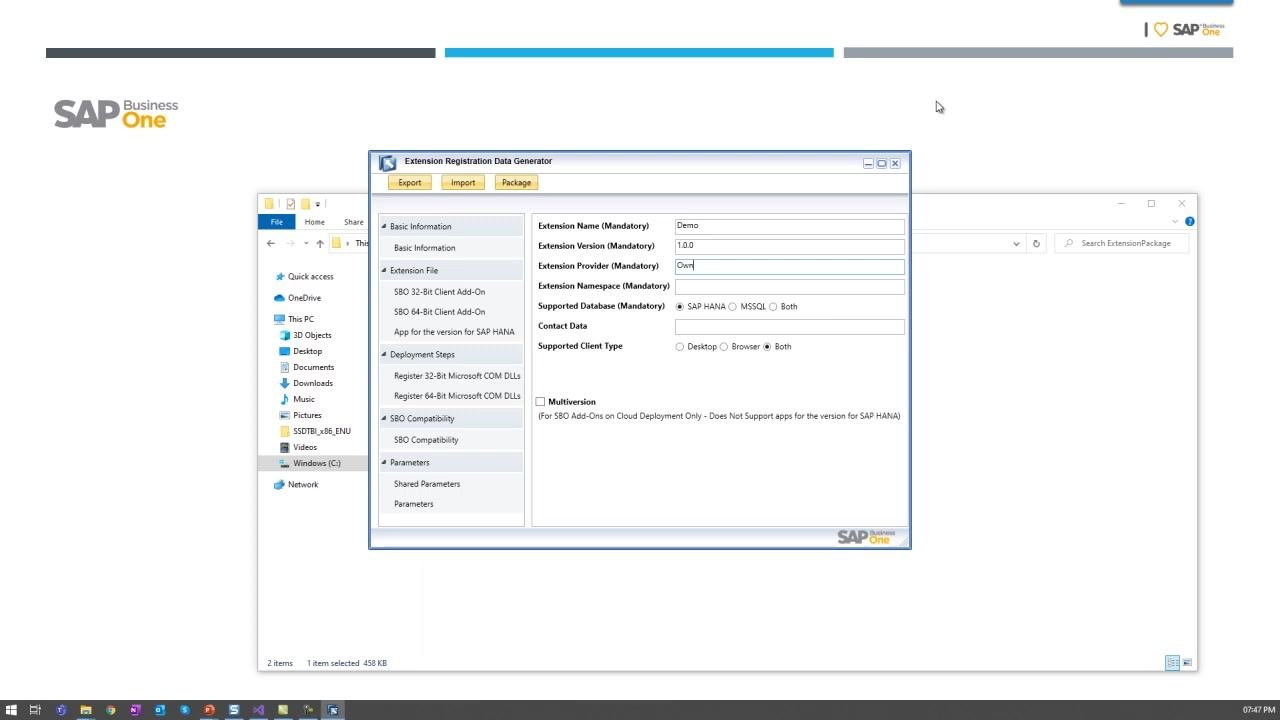
Enter the basic extension information
Fill in the mandatory fields:
- Extension Name: Enter the name of your add-on.
- Extension Version: Enter the version.
- Extension Provider: Enter the vendor or provider name.
- Extension Namespace: Enter the namespace.
- Supported Database: Select
SAP HANA,MSSQL, orBoth. - Contact Data: Enter your contact information.
- Supported Client Type: Select
Desktop,Browser, orBoth.
This example uses the following values:
- Extension Name:
Demo - Extension Version:
1.0.0 - Extension Provider:
Own - Extension Namespace:
Own - Supported Database:
SAP HANA - Contact Data:
Own - Supported Client Type:
Both
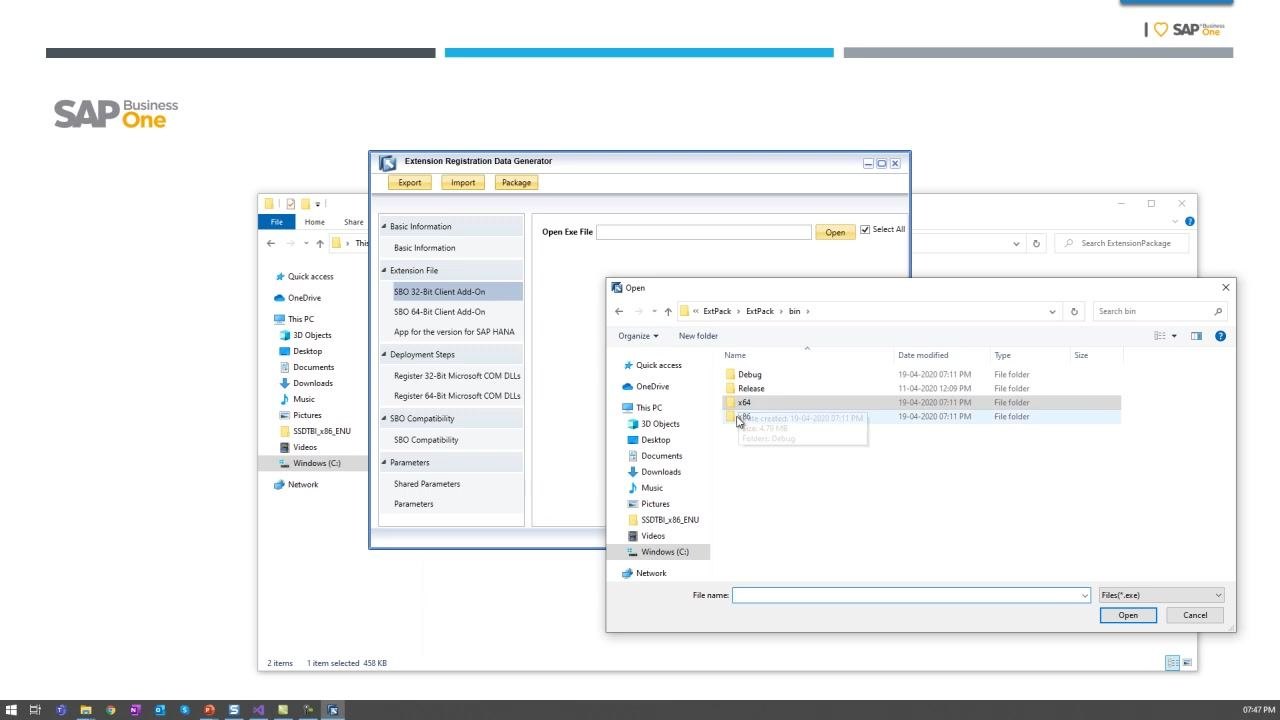
Select the 32-bit add-on executable
In the SBO 32-Bit Client Add-On section, click to open the file dialog. Go to your compiled 32-bit executable, for example in the x86 folder under your project's bin directory.
Select the .exe file for your add-on. If it applies to your add-on, select the option for non-required files.
Select the 64-bit add-on executable
Repeat the process for the 64-bit version:
- Go to the SBO 64-Bit Client Add-On section.
- Open the file dialog and go to the
x64folder under your project'sbindirectory. - Select the 64-bit
.exefile for your add-on.
Start packaging your add-on
After you select both executables, click the Package button at the top of the Extension Registration Data Generator window. A file dialog opens so you can choose the location and filename for the packaged add-on.
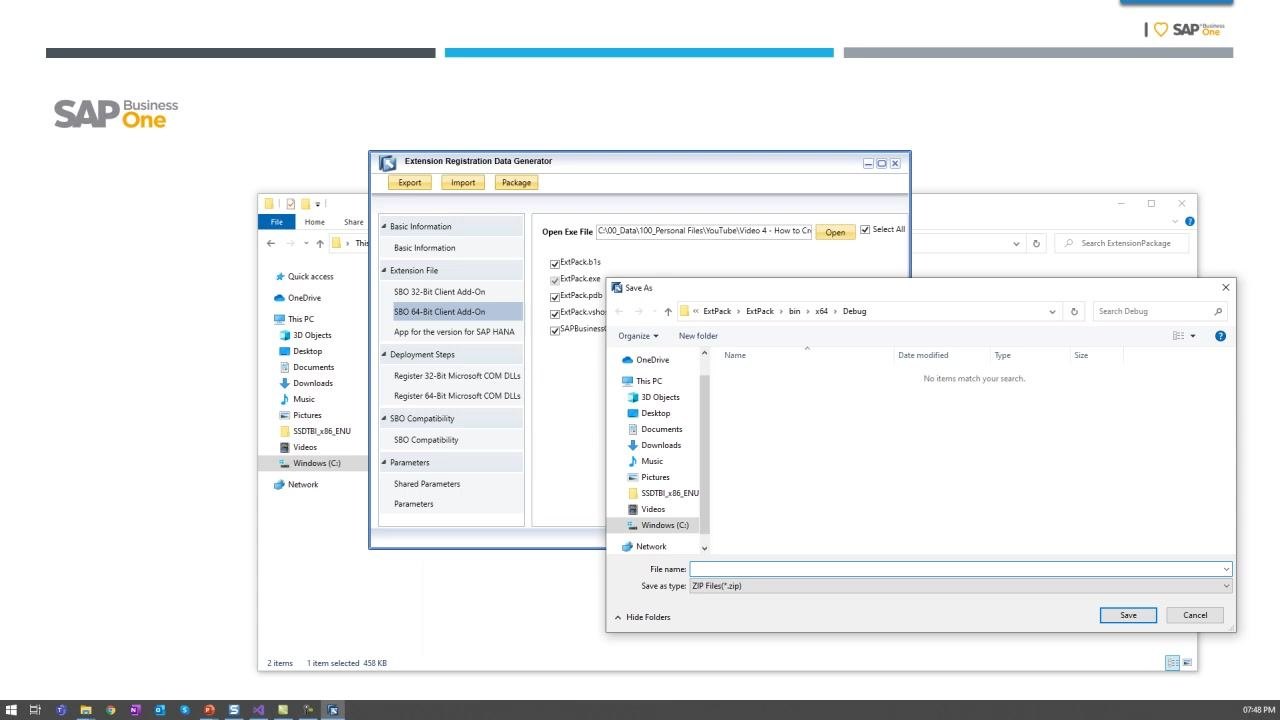
Specify the package save location and name
In the Save As dialog, complete these actions:
- Go to the folder where you want to save the package.
- Enter a filename for your package, for example
Demo. - Make sure the file type is set to
ZIP Files (*.zip). - Click Save.
Confirm that packaging succeeded
When packaging finishes, a confirmation dialog appears with this message:
You have successfully packaged your add-on at: [path]\Demo_1.0.0.zip
Click OK to close the dialog.
Summary
You have now learned how to create a lightweight add-on in SAP Business One. You entered the basic extension information, selected the 32-bit and 64-bit executables, and packaged the add-on as a ZIP file.
The application may offer further steps, such as configuring deployment steps, compatibility, and parameters. Complete them as your add-on requires, and then deploy the extension according to your organizational requirements.
Generation details: cost, quality tiers
Docsie billed 1,500 credits ($1.05) to analyze this 3-minute video at standard quality. The rewrite, template fill and Word/PDF exports were included. The same video at each quality tier:
| Quality | Frames sampled | Credits | Approx. cost |
|---|---|---|---|
| Draft | every 16-30 s | 750 | $0.52 |
| Standard (this guide) | every 8-15 s | 1,500 | $1.05 |
| Detailed | every 4-7 s | 3,000 | $2.10 |
| Ultra | every 1-3 s | 6,000 | $4.20 |
Credits priced at $0.70 per 1,000; plans include a monthly allowance. Enterprise customers on on-premise or bring-your-own-model deployments run this on their own inference and pay no per-video credits.
Generated by Docsie Video-to-Docs on 2026-11-01 from a 2-minute video. Screenshots are frames from the source video and belong to their creator, SAP Business One, whose original is embedded above. If you own this video and want the guide removed or credited differently, contact us and we will act within one business day.