
How to Create a Formatted Search (FMS) in SAP Business One
This guide shows you how to create a formatted search (FMS) in SAP Business One that displays a customer's phone number on the Sales Order form. You create a user-defined field (UDF) for the phone number and write a saved query that retrieves it. You then link the query to the field so it fills in automatically when you select a customer.
Video: How to Create a Formatted Search Query in SAP Business One | Step-by-Step Guide by Maruf Rahman (2020). All credit for the demonstration goes to the creator; watch the original on YouTube. The written guide below was generated from this video by Docsie. Creator? Request a change or removal.
This guide shows you how to create a formatted search (FMS) in SAP Business One that displays a customer's phone number on the Sales Order form. You create a user-defined field (UDF) for the phone number and write a saved query that retrieves it. You then link the query to the field so it fills in automatically when you select a customer.
Prerequisites
Before you begin, make sure you have:
- SAP Business One launched and running.
- The Sales Order window available under Sales - A/R.
- The table and field names you need. This guide uses the
OCRDtable and itsPhone1andCardCodefields.
Open the Sales Order window and identify the missing information
- Launch SAP Business One.
- In the left navigation pane, expand Sales - A/R.
- Click Sales Order to open the Sales Order window.
- Review the form. The customer phone number isn't displayed by default.
Open User-Defined Fields – Management
- Close the Sales Order window.
- In the top menu, click Tools.
- Select User-Defined Fields – Management.
- In the User-Defined Fields – Management window, expand Marketing Documents.
- Expand Title under Marketing Documents.
Add a new user-defined field
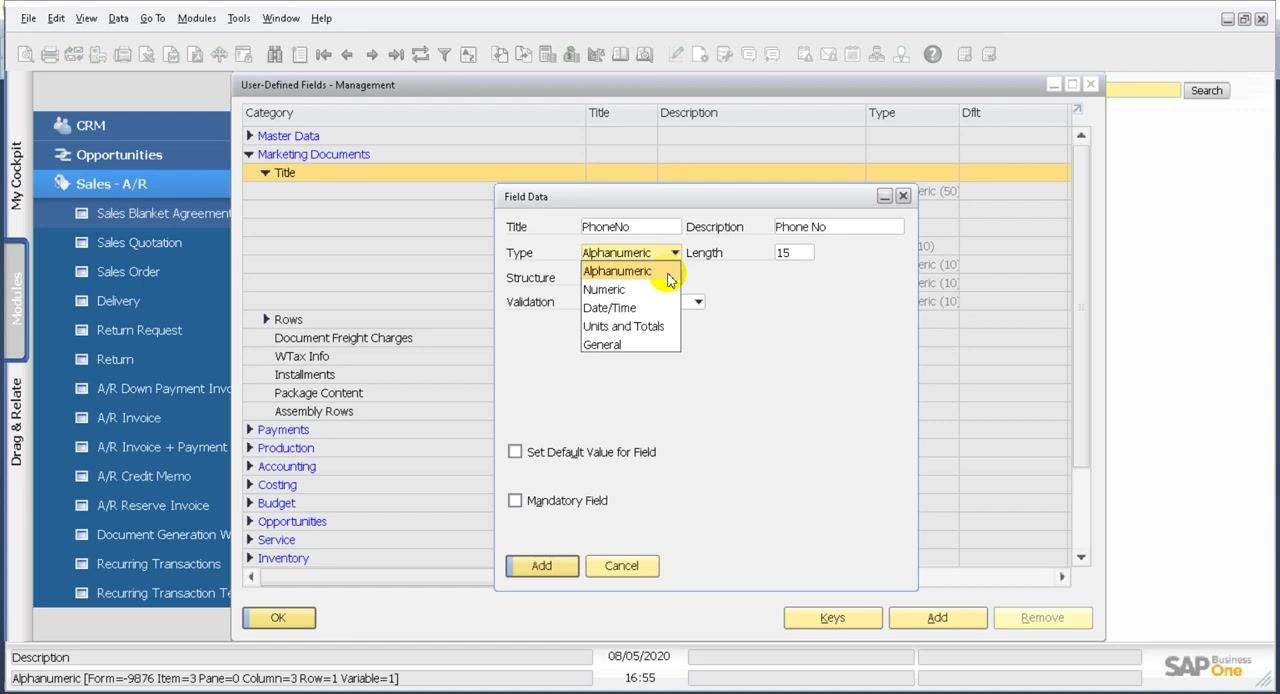
Click Add at the bottom of the window. In the Field Data dialog, enter the following values:
- Title:
PhoneNo - Description:
Phone No - Type:
Alphanumeric - Length:
15 - Structure: leave as
Regular - Validation: leave as
None
Don't select Set Default Value for Field or Mandatory Field.
Confirm and add the field
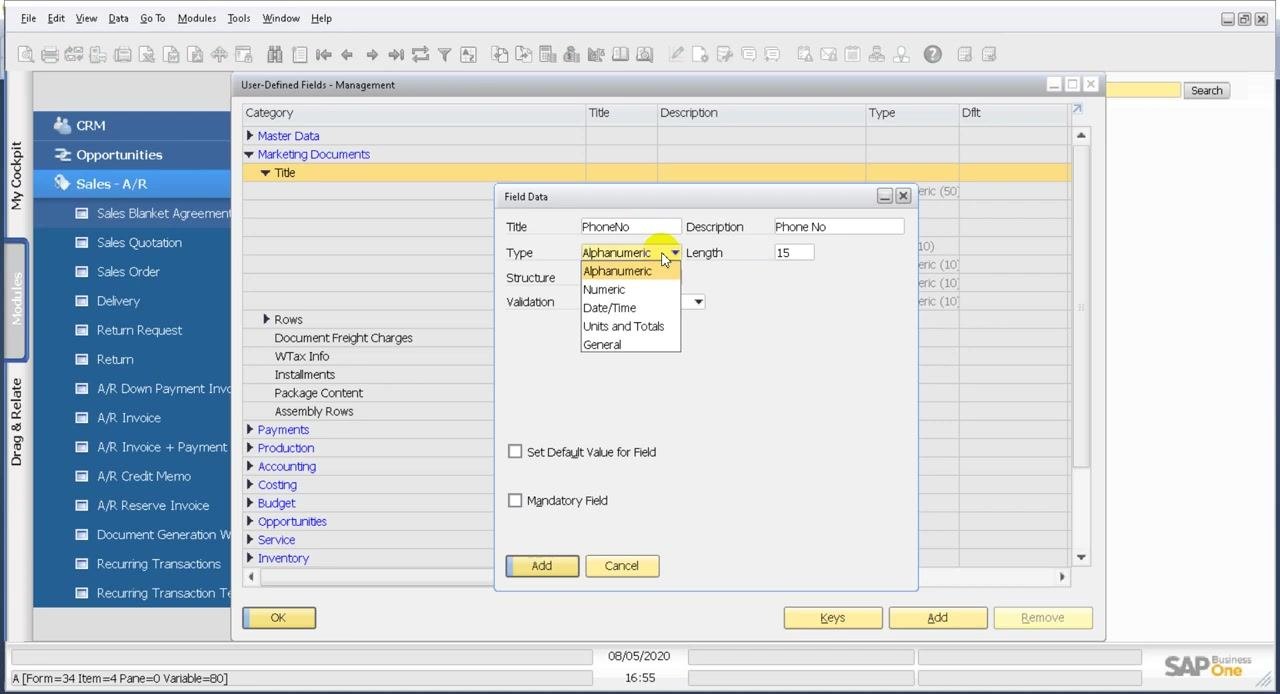
Review the field settings to make sure they match:
- Title:
PhoneNo - Description:
Phone No - Type:
Alphanumeric - Length:
15
Click Add to create the user-defined field.
You have now created a user-defined field for the customer phone number in the Sales Order module. Next, you assign a formatted search query to this field so it displays the phone number for the selected customer.
Verify the UDF placement and technical name
- Open the Sales Order window.
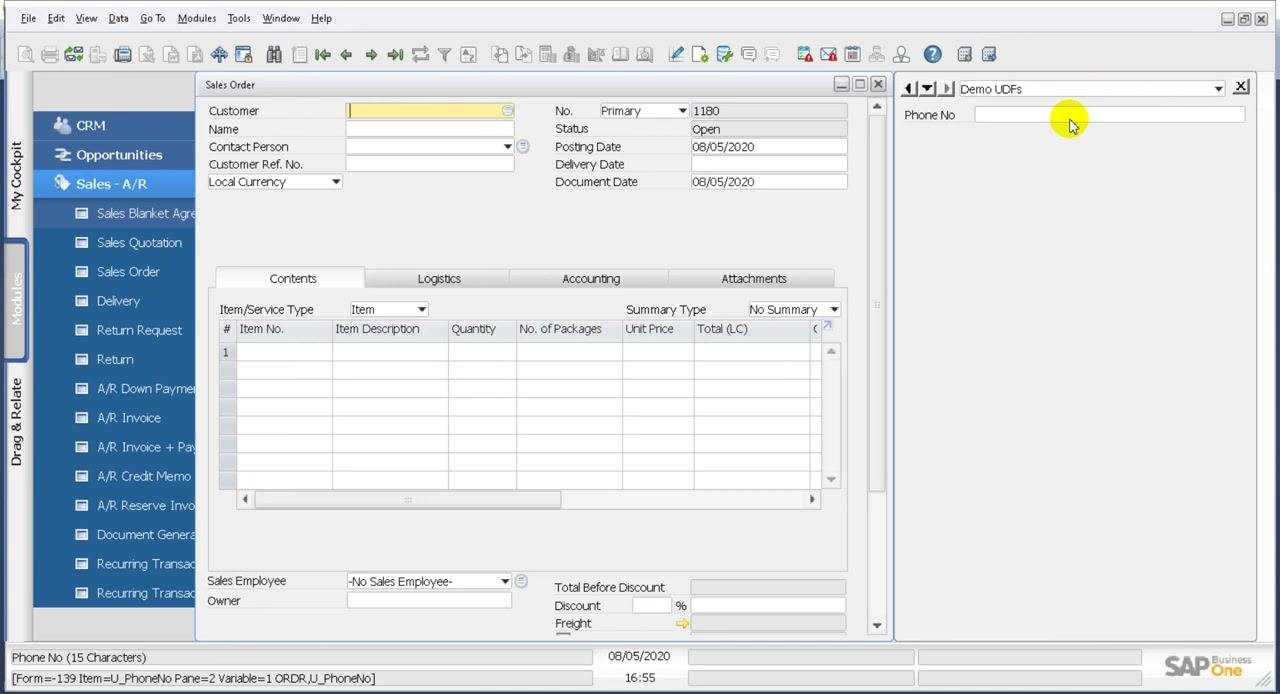
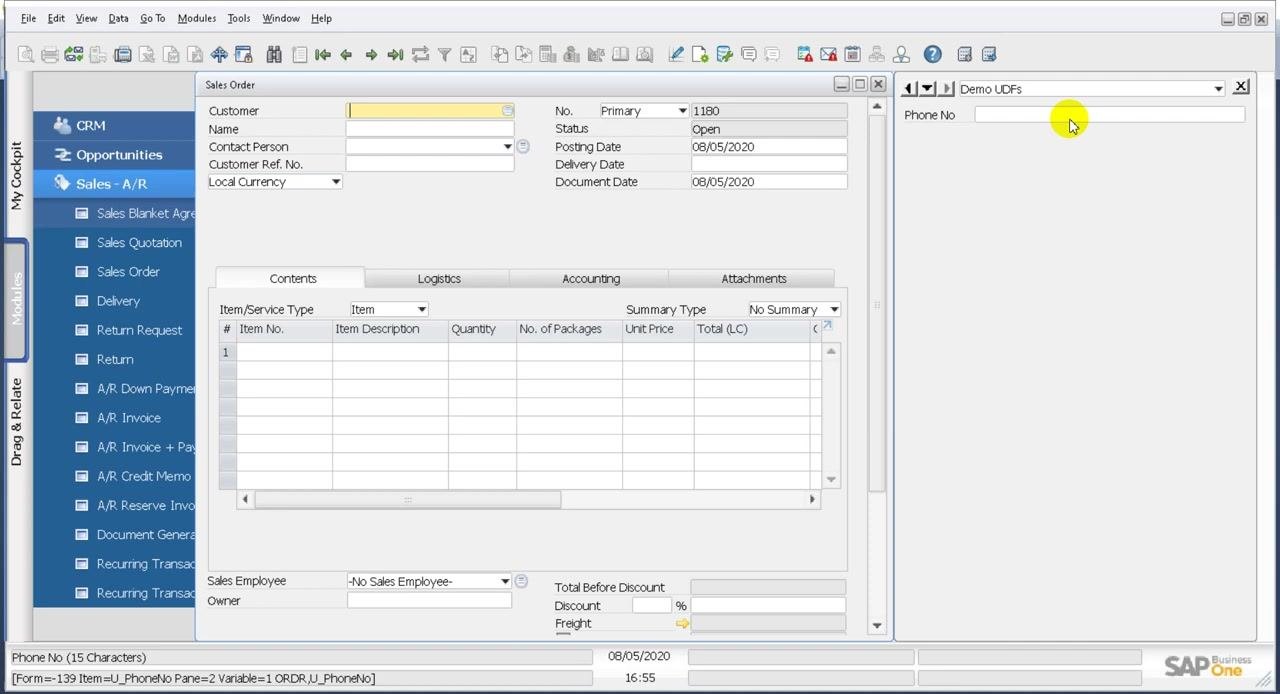
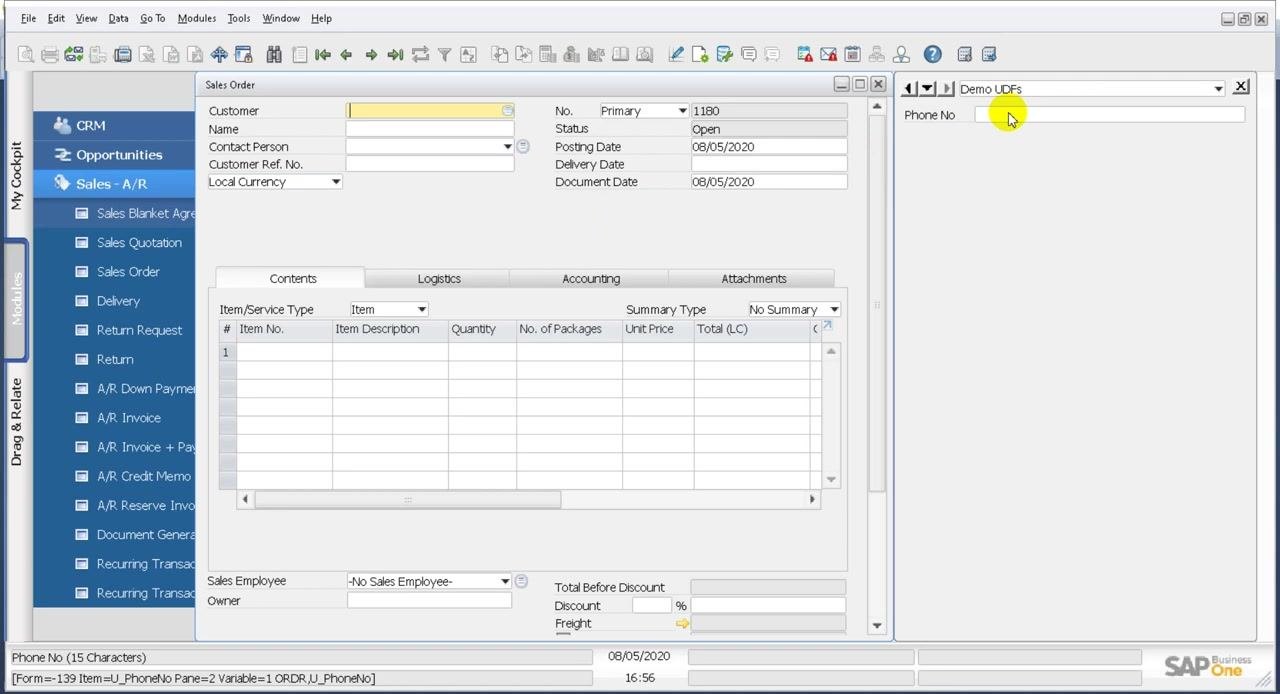
- On the right side of the form, find the Phone No field under the Demo UDFs section.
- Hover your mouse over the Phone No field.
- Check the bottom left corner of the screen. The system information displays the UDF technical name, for example
U_PhoneNo.
Find the item number of the Customer field
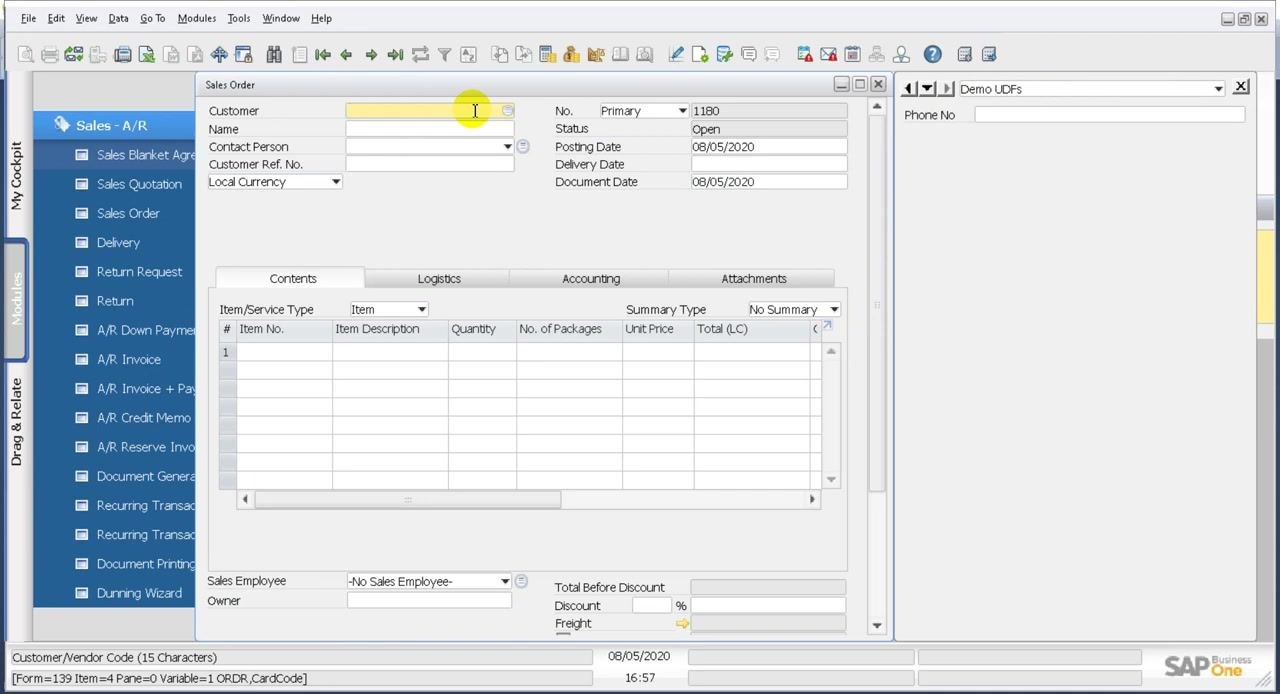
- In the Sales Order window, hover over the Customer field.
- Check the system information bar at the bottom. It displays:
Form=139 Item=4 Pane=0 Variable=1 ORDR,CardCode
- Note that the item number is
4. This number matches the dynamic reference you use in your query.
Check the table and field names in Business Partner Master Data
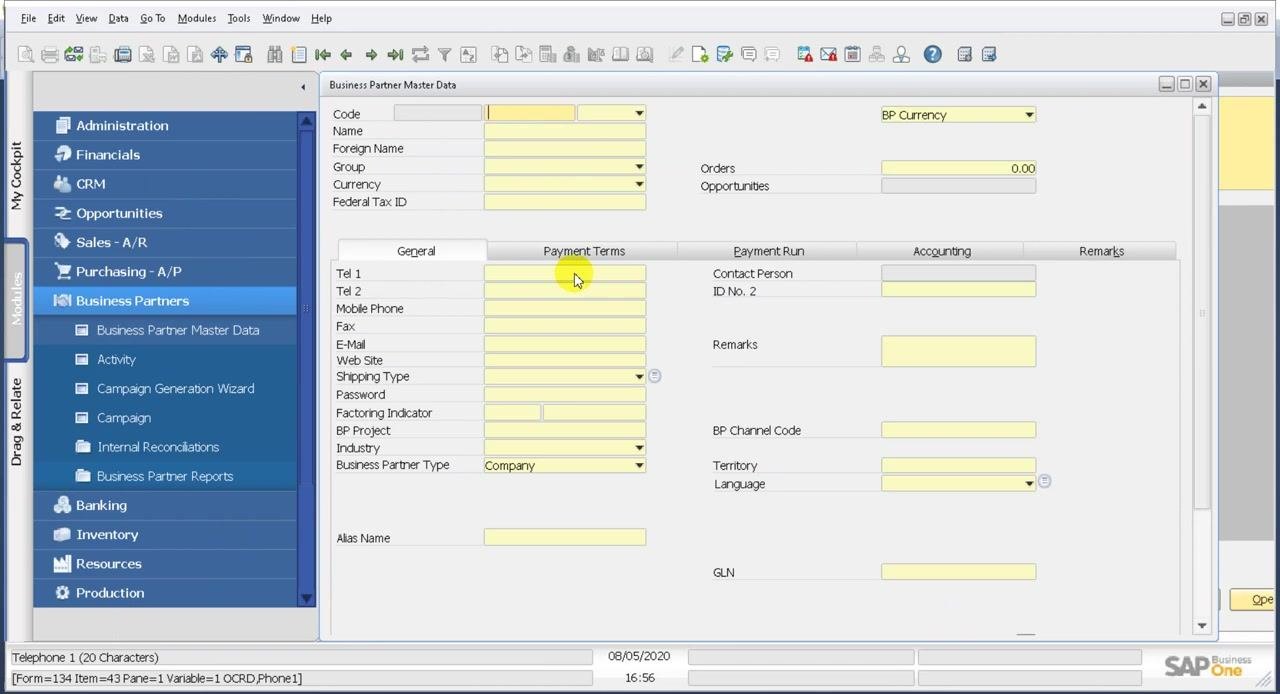
If you're unsure about the table or field names, open Business Partner Master Data from the left navigation pane under Business Partners.
- The Telephone 1 field corresponds to
Phone1in theOCRDtable. - The Code field corresponds to the business partner's unique identifier (
CardCode).
Open the Query Generator
- Close the Sales Order window if it's open.
- In the top menu, click Tools.
- Hover over Queries.
- Select Query Generator from the submenu.
Open the query editor
- In the Query Generator window, click Execute at the bottom left.
- Click the pencil icon to open the query editor, where you write a custom SQL query.
Write the query with a dynamic condition
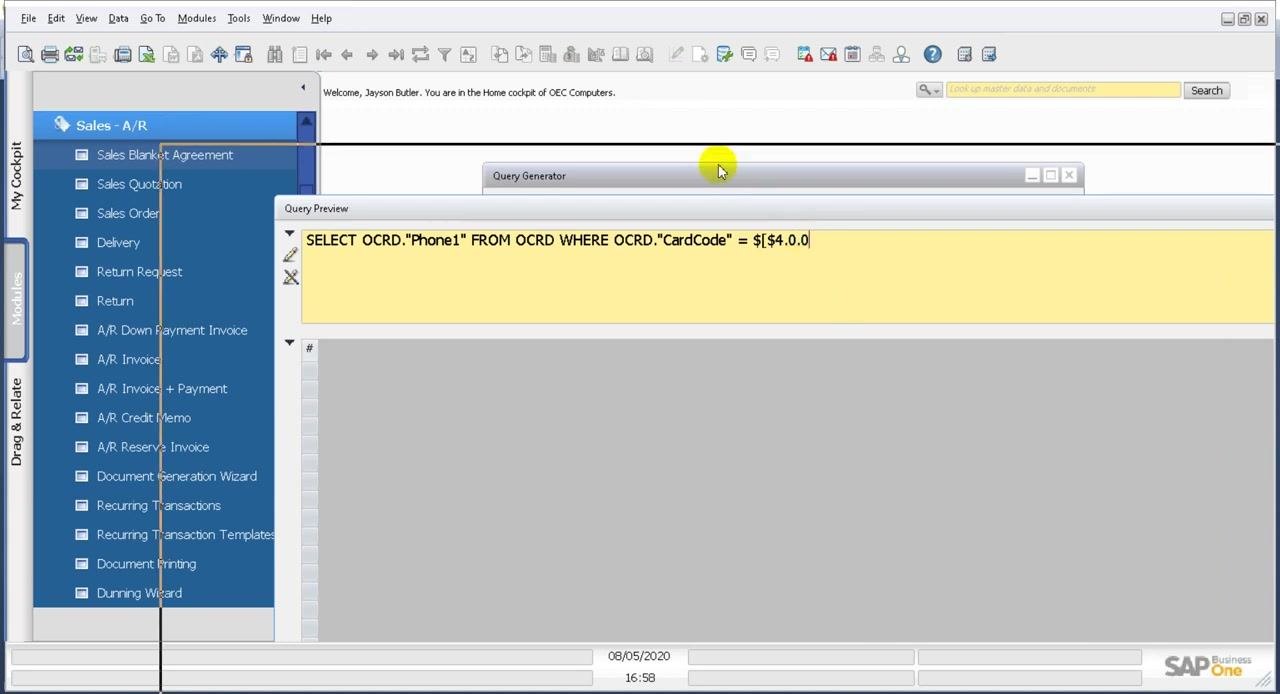
In the Query Preview window, make sure your SQL statement uses a dynamic reference for the customer code:
SELECT OCRD."Phone1" FROM OCRD WHERE OCRD."CardCode" = $[$4.0.0]
The placeholder $[$4.0.0] is built as follows:
4is the item number of the Customer field in the Sales Order form. You saw it in the system information bar in Step 6.- The first
0refers to the column index. CardCode is the first column, so the index is 0. - The second
0refers to the data type. Alphanumeric is also indexed at 0 in SAP Business One.
This reference makes the query pull the customer code from the active Sales Order form.
Save the query
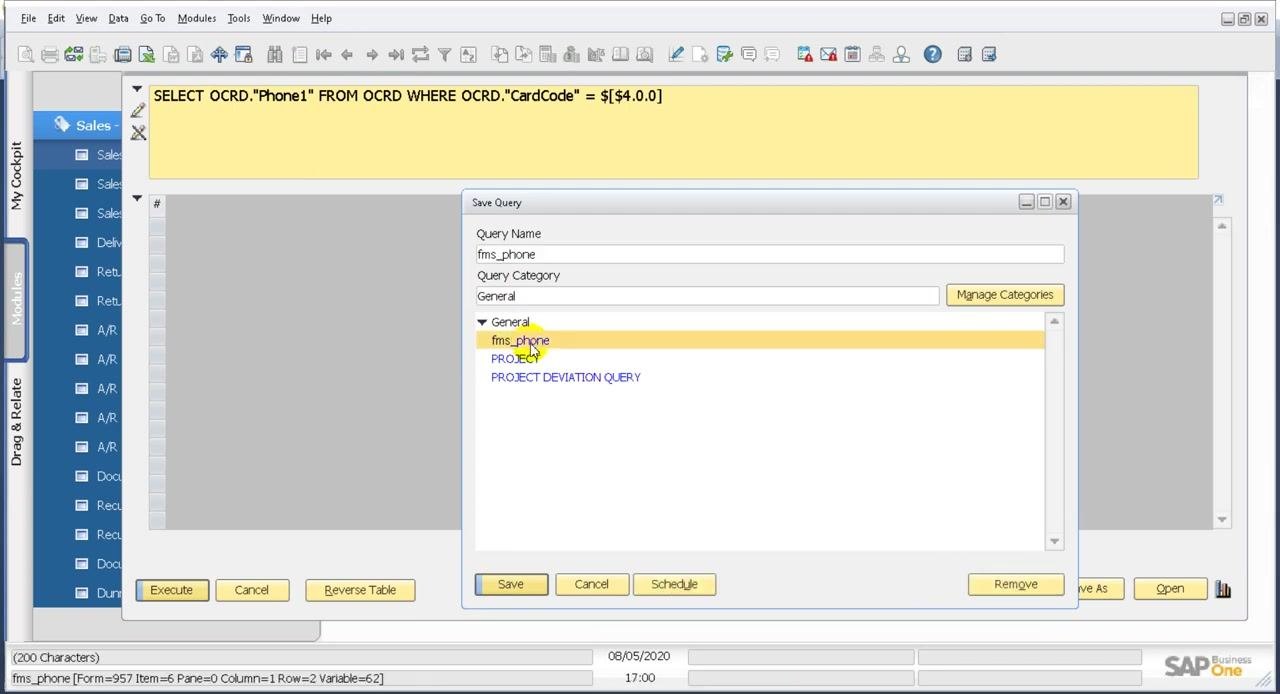
- In the Query Preview window, click Save.
- In the Save Query dialog, select the appropriate query category, for example General.
- Choose the query you want to replace, for example
fms_phone. If you're creating a new query, enter a new name instead. - Click Save to store the query.
Open User-Defined Values – Setup
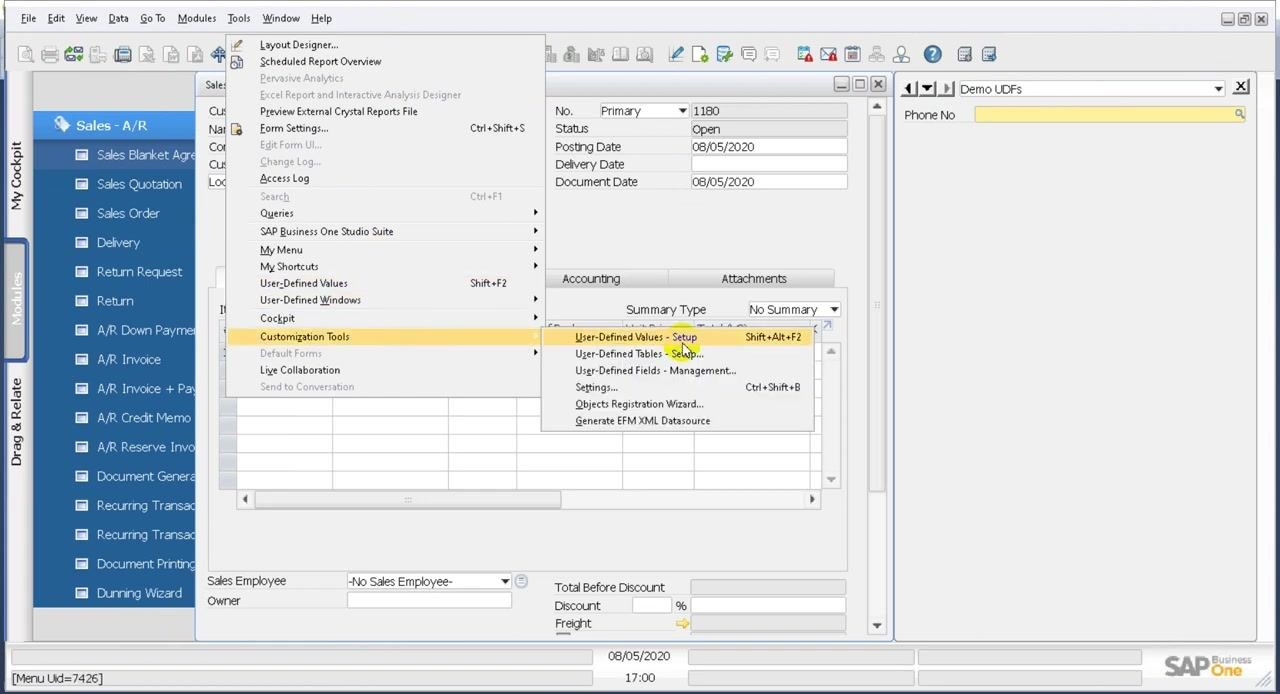
- Open the SAP Business One application and go to the main workspace.
- In the top menu, select Tools.
- Hover over Customization Tools.
- Select User-Defined Values – Setup. The shortcut is Shift + Alt + F2.
Link the saved query to the field
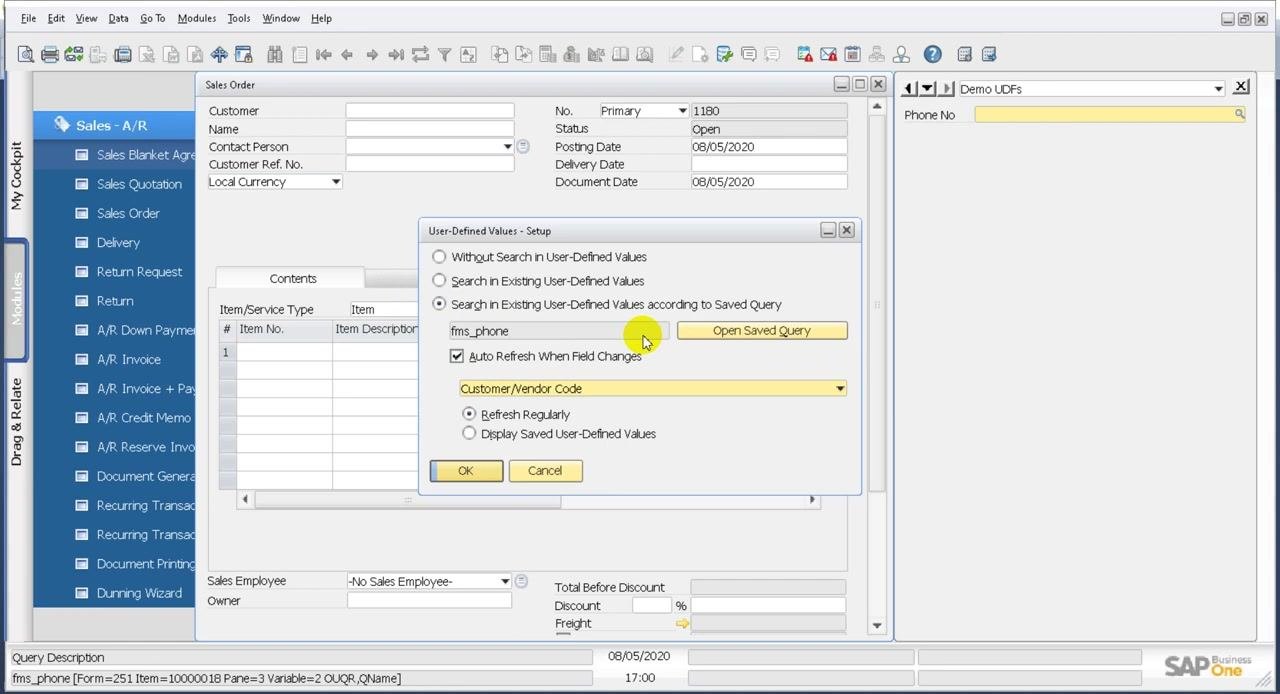
In the User-Defined Values – Setup dialog, configure the formatted search:
- Choose Search in Existing User-Defined Values according to Saved Query.
- Enter
fms_phonein the field provided. - Click Open Saved Query to select or review the saved query.
- Make sure Auto Refresh When Field Changes is selected.
- In the dropdown below it, select Customer/Vendor Code as the field that triggers the refresh.
- Choose Refresh Regularly so the values update as needed.
- Click OK to save the setup.
Test the formatted search
Once setup is complete, the Phone No UDF fills in automatically with the phone number of the customer you select in the Sales Order form.
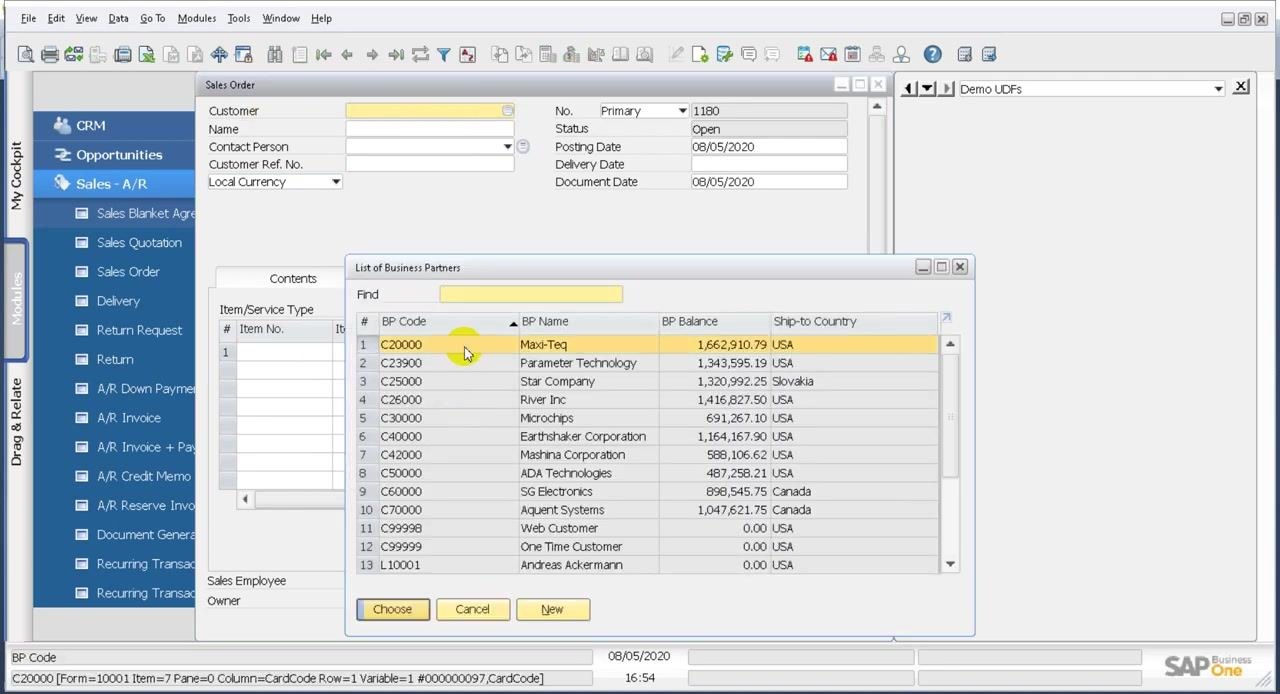
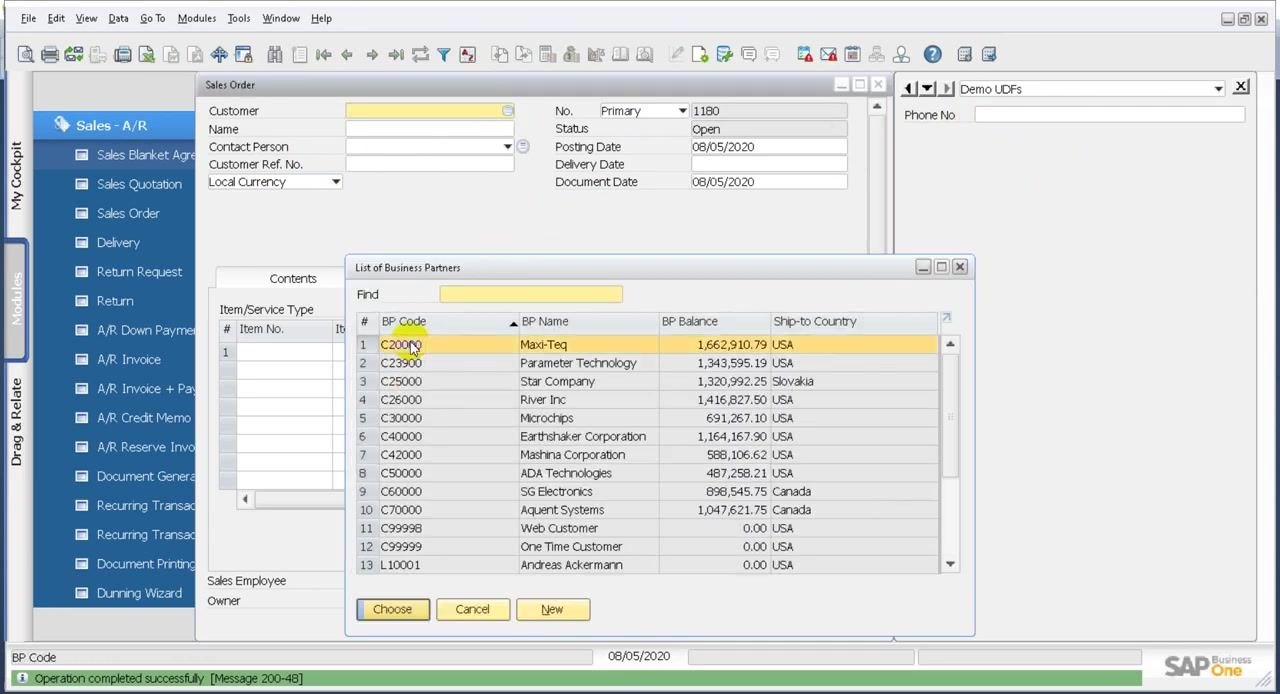
- In the Sales Order form, click the Customer field.
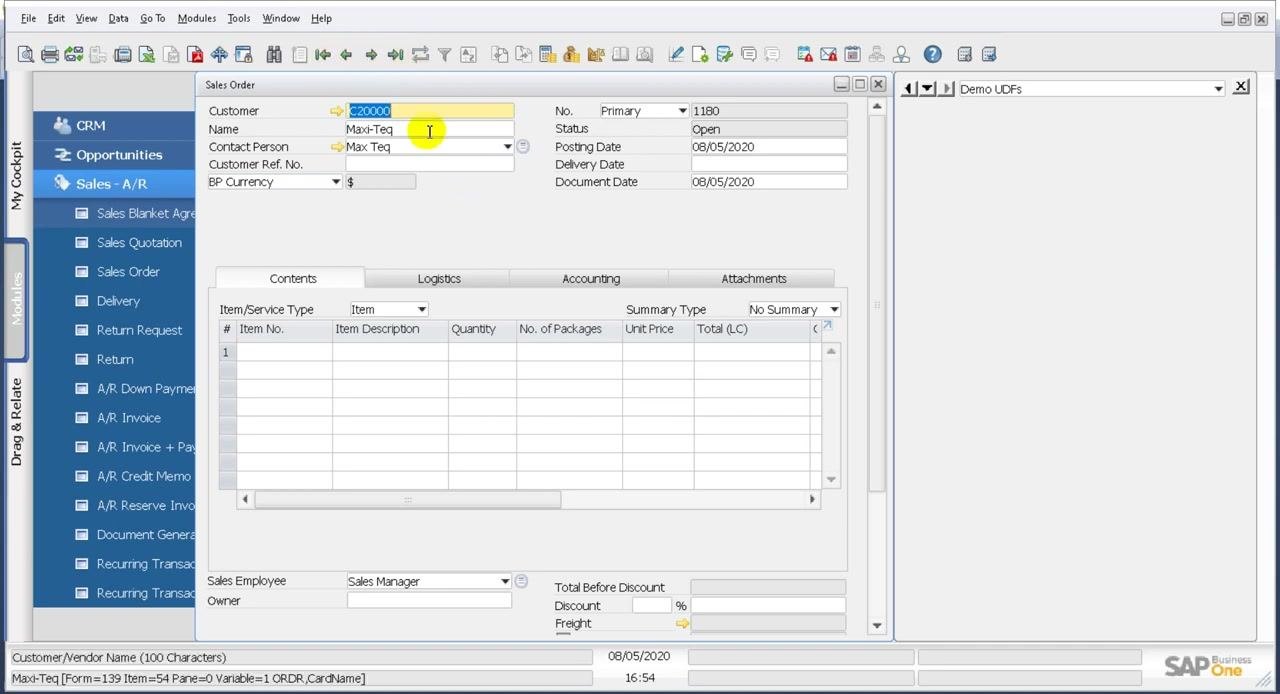
- In the List of Business Partners dialog, select a customer, for example BP Code
C20000, NameMaxi-Teq. - Click Choose.
- Check that the Phone No field in the Demo UDFs panel updates with the phone number of the selected customer.
Repeat with another customer and review the form
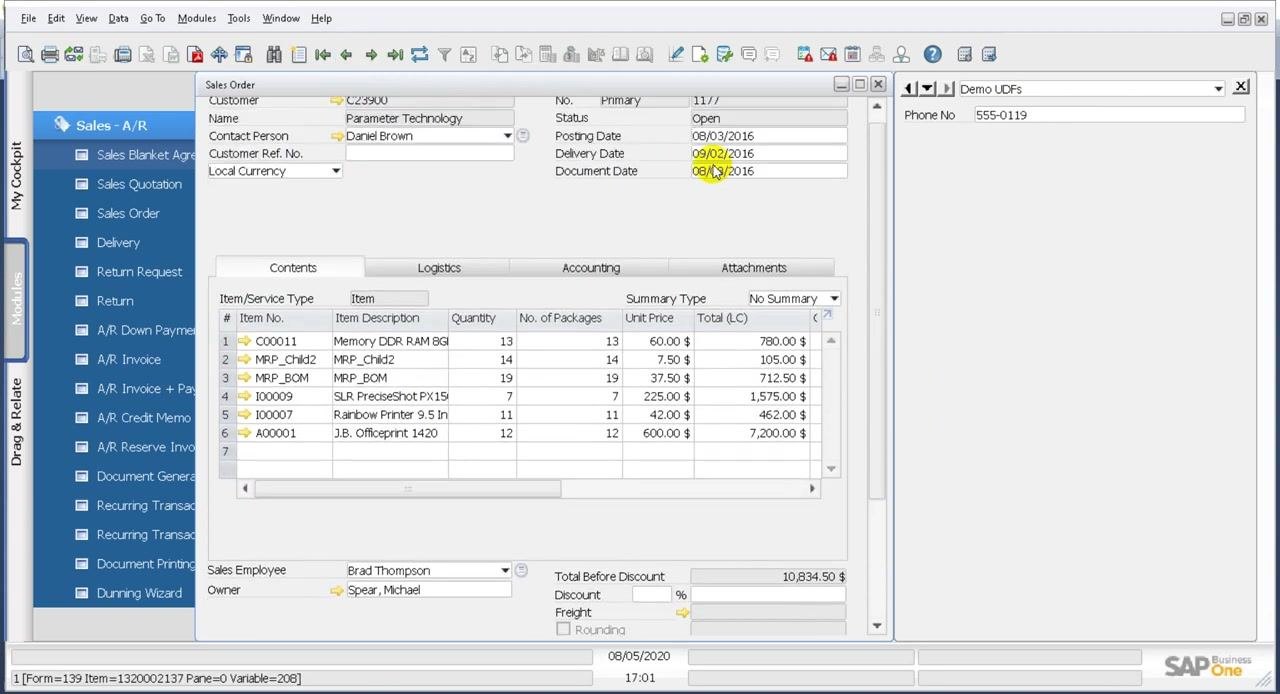
- Select a different customer, for example BP Code
C23900, NameParameter Technology. - Confirm that the phone number updates to match the new customer.
- Review the Sales Order form. Check that the relevant fields (Customer, Name, Contact Person, and so on) and the Phone No UDF are populated correctly.
Summary
You now know how to create a formatted search (FMS) in SAP Business One that displays a customer's phone number on the Sales Order form. You created the PhoneNo user-defined field and wrote and saved the fms_phone query. You then linked the query to the field in User-Defined Values – Setup so it refreshes whenever the customer changes.
Generation details: cost, quality tiers
Docsie billed 3,500 credits ($2.45) to analyze this 7-minute video at standard quality. The rewrite, template fill and Word/PDF exports were included. The same video at each quality tier:
| Quality | Frames sampled | Credits | Approx. cost |
|---|---|---|---|
| Draft | every 16-30 s | 1,750 | $1.22 |
| Standard (this guide) | every 8-15 s | 3,500 | $2.45 |
| Detailed | every 4-7 s | 7,000 | $4.90 |
| Ultra | every 1-3 s | 14,000 | $9.80 |
Credits priced at $0.70 per 1,000; plans include a monthly allowance. Enterprise customers on on-premise or bring-your-own-model deployments run this on their own inference and pay no per-video credits.
Generated by Docsie Video-to-Docs on 2026-11-01 from a 6-minute video. Screenshots are frames from the source video and belong to their creator, Maruf Rahman, whose original is embedded above. If you own this video and want the guide removed or credited differently, contact us and we will act within one business day.