
How to Upload Submittals in Procore
This guide shows you how to upload submittals in Procore, from logging in to confirming that your task is complete. You will open your project, find the submittal that needs your attention, add comments, attach your file, and submit it. You will then check the Submittal Workflow section and confirm that no open items remain.
Video: Procore Guide: How to upload a file to an existing submittal by Shadeed Crockett (2018). All credit for the demonstration goes to the creator; watch the original on YouTube. The written guide below was generated from this video by Docsie. Creator? Request a change or removal.
This guide shows you how to upload submittals in Procore, from logging in to confirming that your task is complete. You will open your project, find the submittal that needs your attention, add comments, attach your file, and submit it. You will then check the Submittal Workflow section and confirm that no open items remain.
Prerequisites
Before you start, make sure you have the following:
- A Procore account with your email address and password
- Access to the project you are working on
- A submittal assigned to you that appears in your open items
- The file you want to attach, such as a PDF or a picture
Log in to Procore
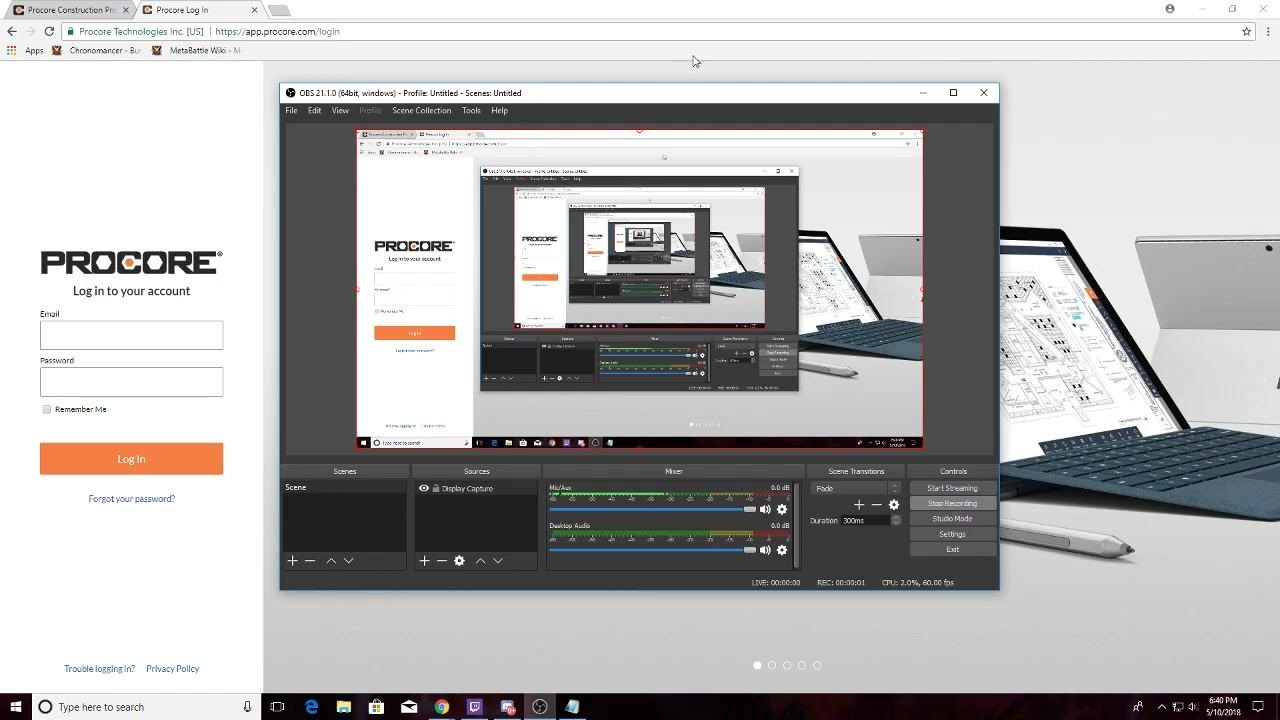
- Open your web browser and go to https://app.procore.com/login.
- Enter your email address and password in the fields provided.
- Click the orange Log In button.
If you have forgotten your password, click Forgot your password? to reset it.
Select your project
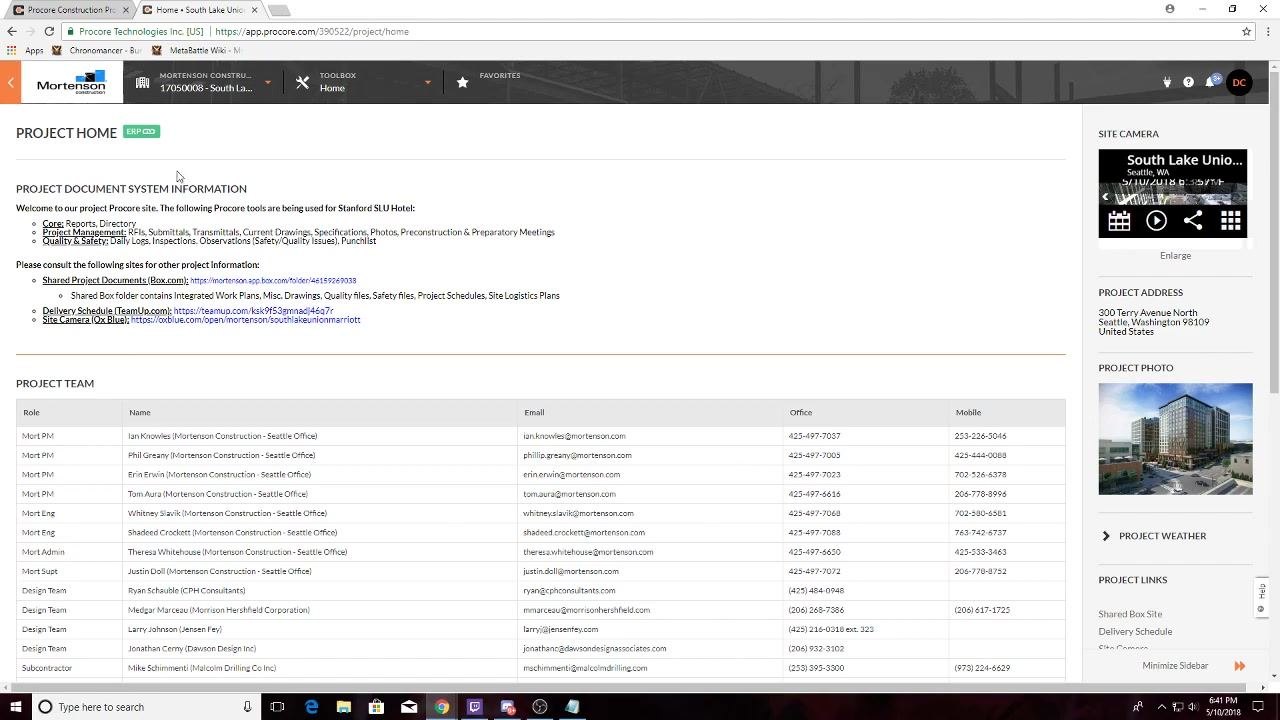
After you log in, the Procore Portfolio page opens. Find the list of available projects in the left sidebar, then click the thumbnail or name of the project you are working on. In this example, the project is "Stanford South Lake Union Hotel Project."
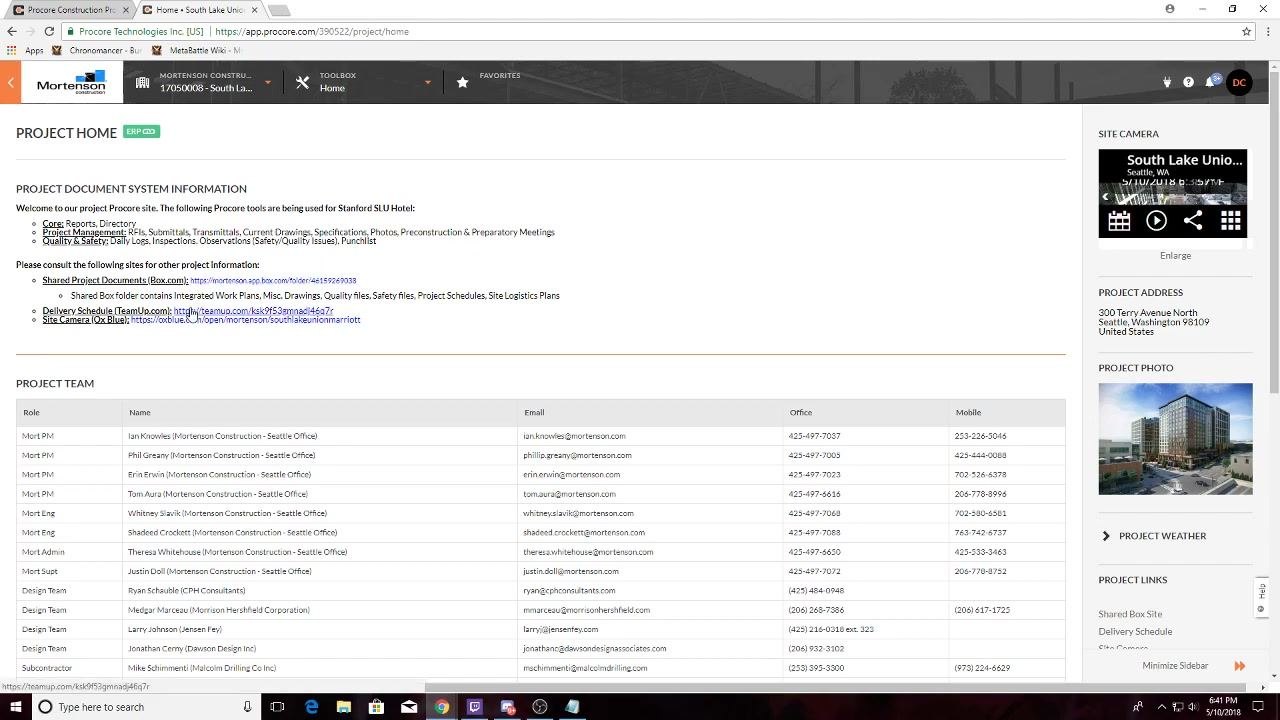
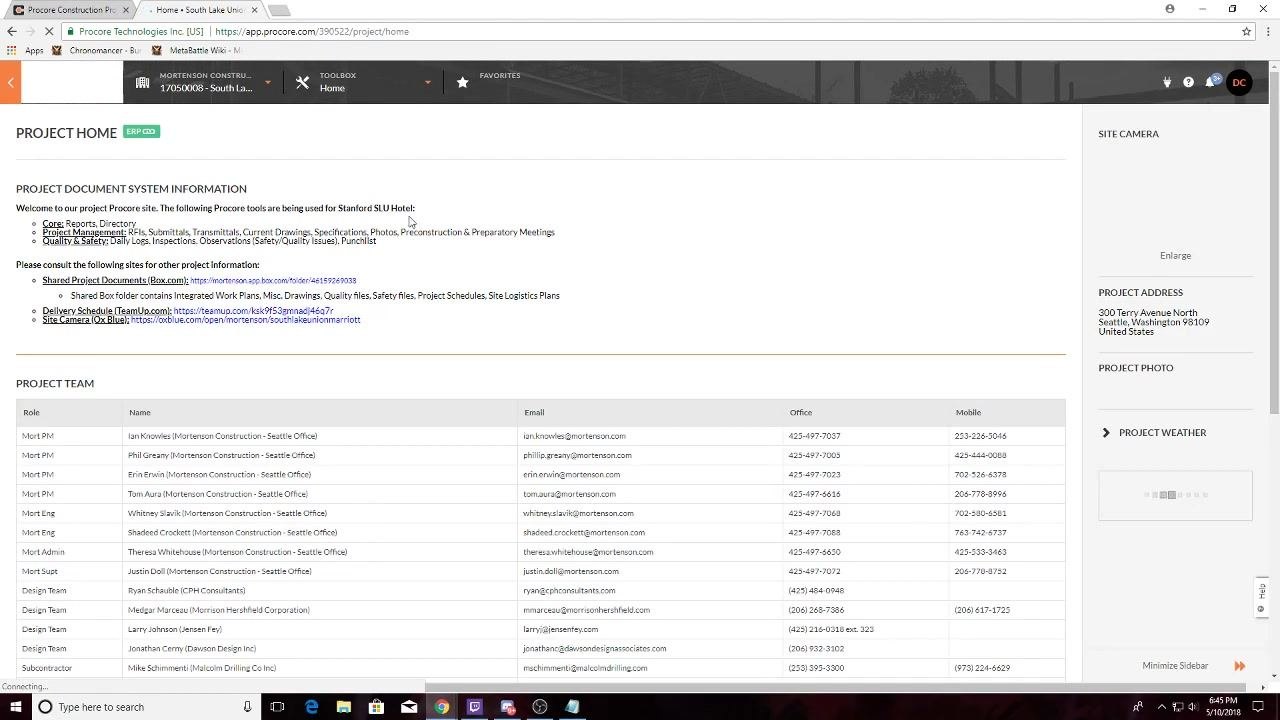
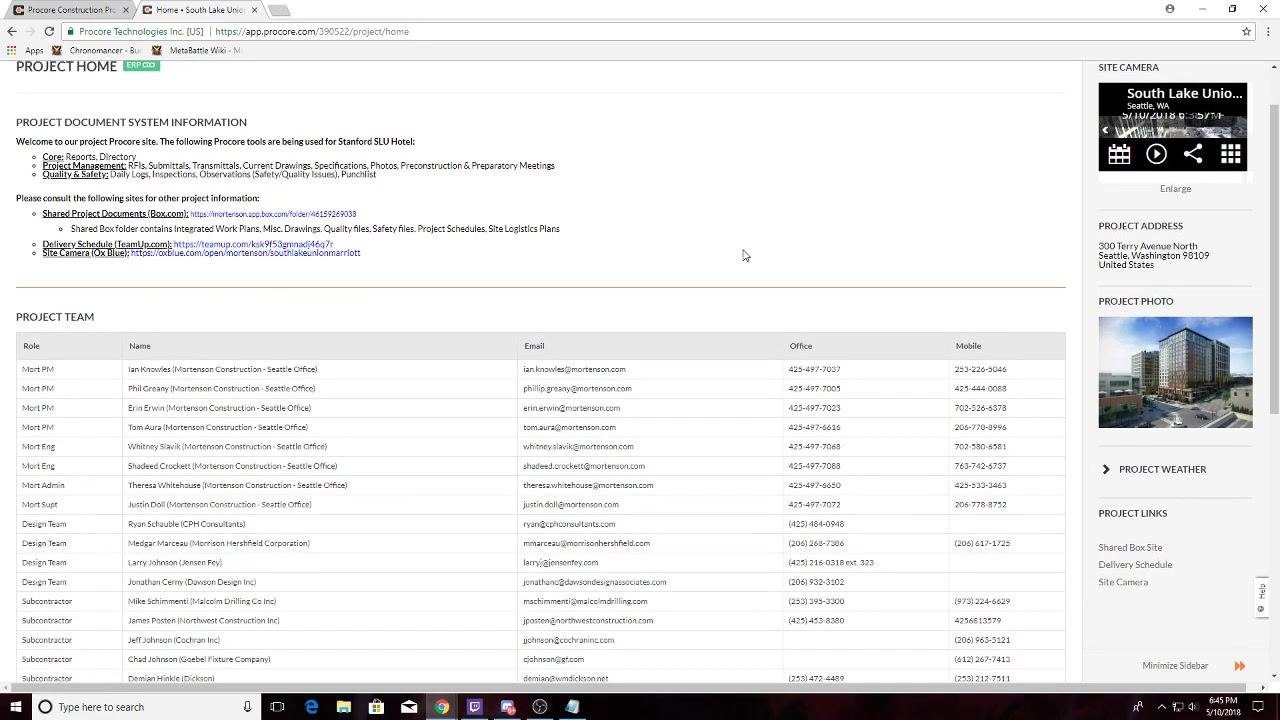
The Project Home page opens. It shows project links, the site camera feed, the delivery schedule, the project address, the project photo, and the project weather.
- The "PROJECT DOCUMENT SYSTEM INFORMATION" section has links to shared documents, the delivery schedule, and the site camera.
- The "PROJECT TEAM" section lists team members with their roles, emails, office numbers, and mobile numbers.
Find your submittal in My Open Items
Scroll down the Project Home page to the "MY OPEN ITEMS" section. It lists the items that need your attention. Look under "Item Type" for any submittals.
For example, you might see "Submittals: #00 0100-2.0: Test for Procore Training," with a status of Open and a due date of 05/10/18.
Open the submittal
Click the submittal in the "MY OPEN ITEMS" section, for example "#00 0100-2.0: Test for Procore Training." The submittal details page opens, where you can complete the required actions.
Enter comments or a description
- In the large text box, type any comments or a description for your submittal.
- If you need to change the font size, apply bold or italics, or add lists, use the formatting toolbar above the text box.
Attach your submittal file
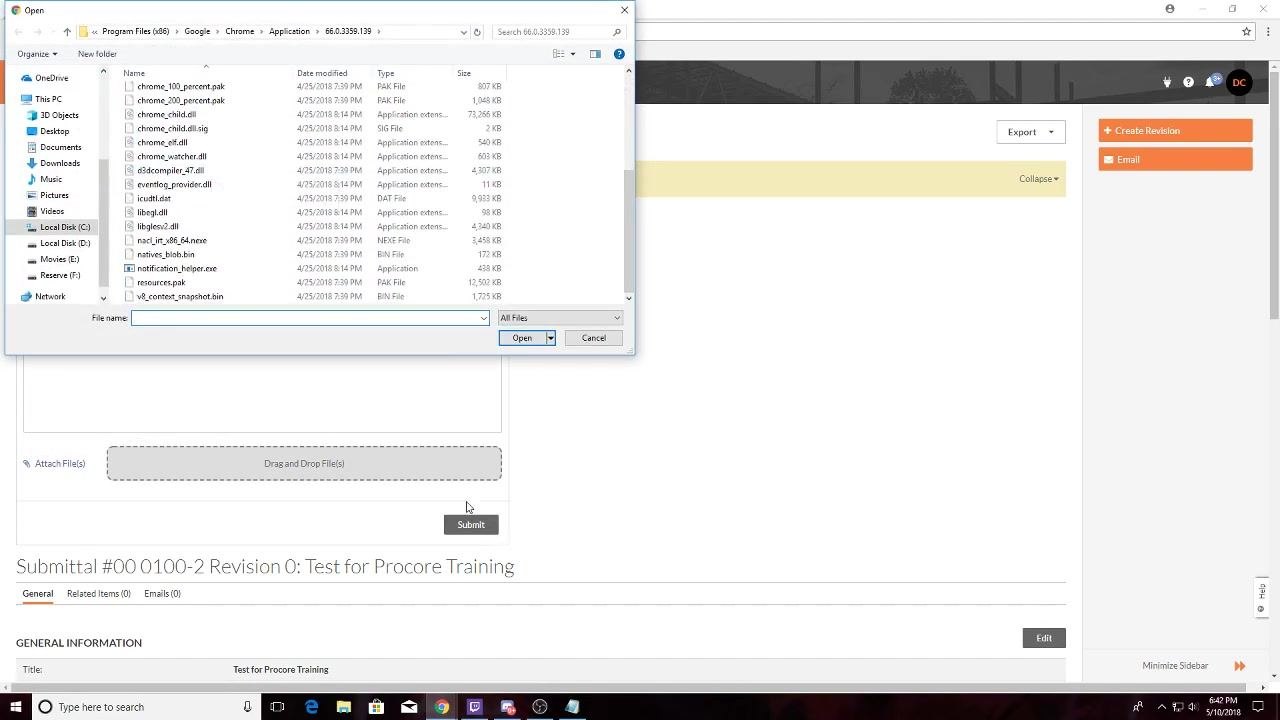
To upload your submittal in Procore, attach the file to the submittal form.
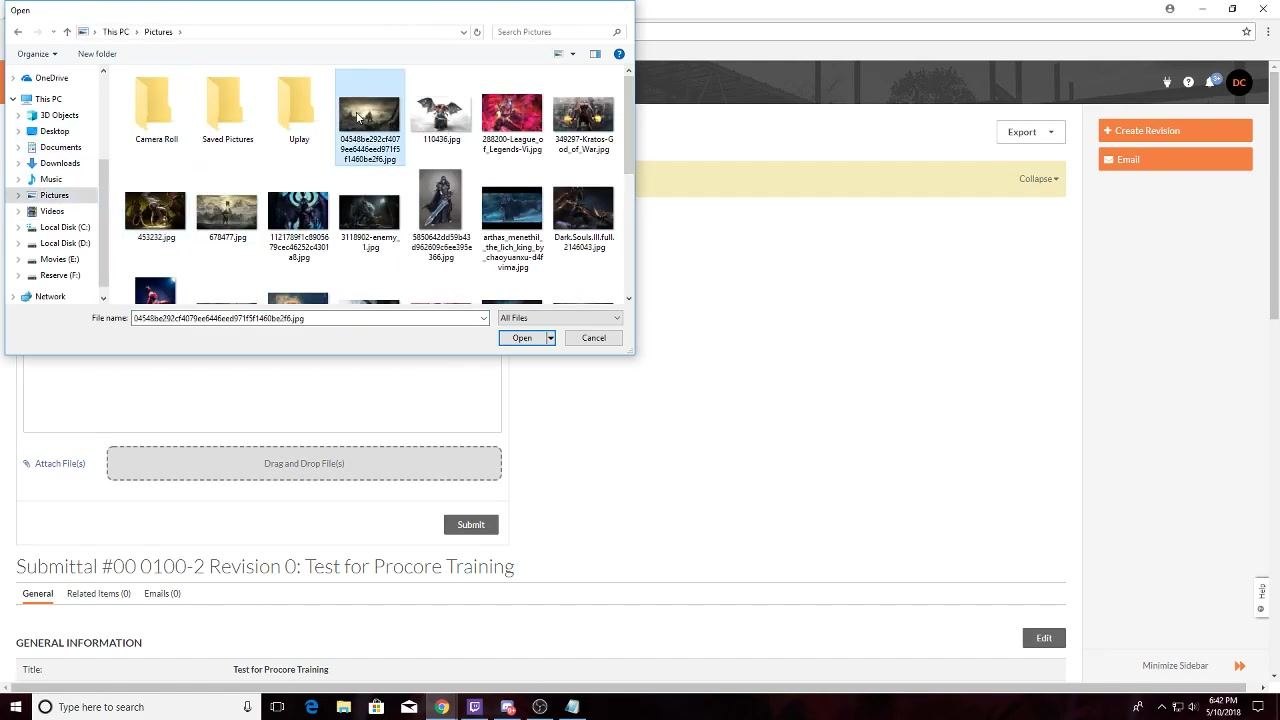
- Click the Attach File(s) link, or drag and drop your files into the "Drag and Drop File(s)" area.
- In the file browser window, go to the location of your submittal file.
- Select the file you want to upload, such as a picture or a PDF related to your submittal.
- Click Open to attach the file.
Verify the file is attached
Check that your file appears in the attachment area below the comment box. The file name should be visible, which confirms the file is ready for submission.
Submit the submittal
- Click the Submit button at the bottom of the form.
- Wait while Procore processes and uploads your submittal.
Review the Submittal Workflow section
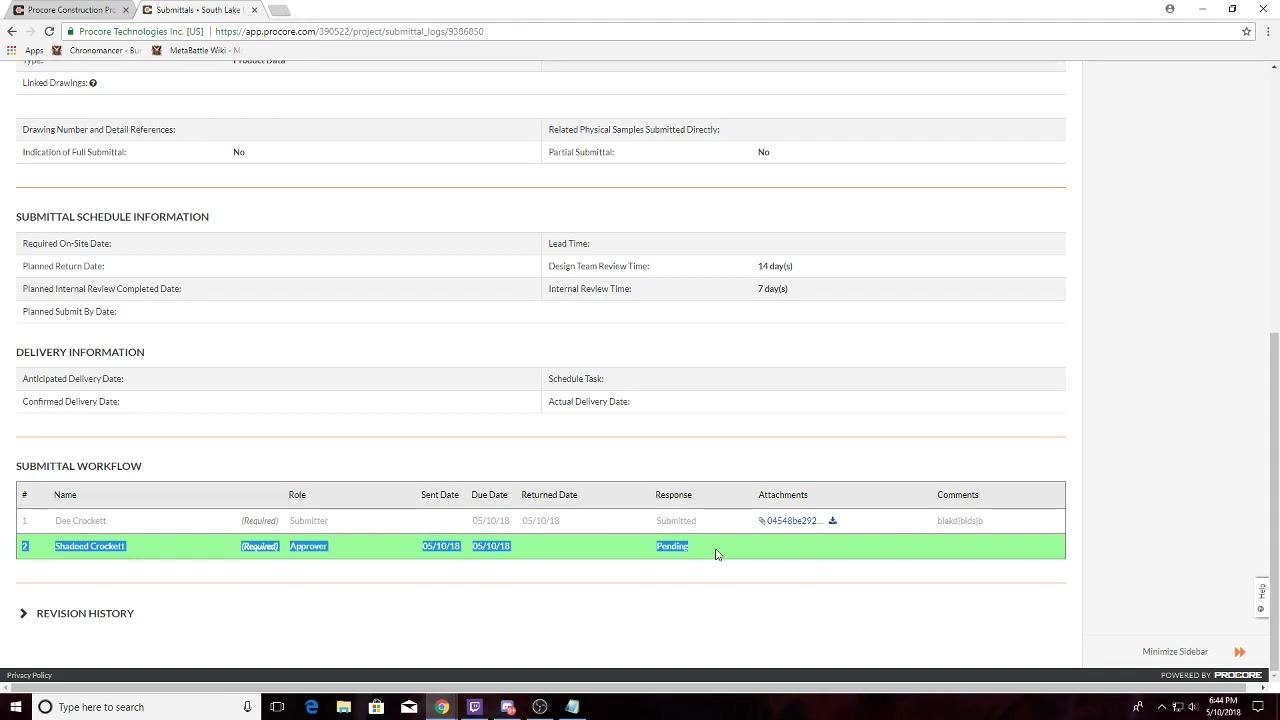
After you submit, scroll to the Submittal Workflow section at the bottom of the submittal details page. The workflow table lists:
- The names and roles of participants, such as Submitter and Approver
- Sent, due, and returned dates
- Response status, such as "Submitted" or "Pending"
- Attached files, with file names and download icons
- Any comments entered during submission
The current approver's row is highlighted in green. This means it is their turn to take action.
Attachments uploaded by other team members, such as the interior designer or architect, also appear in this section. Your original attachment is listed under your name and is grayed out. This shows it has been submitted and is awaiting review.
Verify no open items remain
- Return to the Procore Project Home page.
- Scroll down to the "MY OPEN ITEMS" section.
- Confirm that no open items are listed for you. This indicates your task is complete.
Contact the team with questions
If you have questions or run into problems with the submittal process, send an email to the designated contact person. Use the Project Team section to find names, roles, email addresses, and office and mobile numbers for key project members. For technical support, for example, find the appropriate team member, such as the Project Engineer or Project Manager, and use the email address listed.
Summary
You now know how to upload submittals in Procore. You logged in, selected your project, opened the submittal from "MY OPEN ITEMS," added comments, attached your file, and submitted it. You then reviewed the Submittal Workflow section and confirmed that no open items remain.
What's next
- Check the Submittal Workflow section to follow the approver's response.
- Use the Project Team section to contact the right person if you need help.
- Share these steps with teammates so everyone follows the same submittal process.
Generation details: cost, quality tiers
Docsie billed 3,000 credits ($2.10) to analyze this 6-minute video at standard quality. The rewrite, template fill and Word/PDF exports were included. The same video at each quality tier:
| Quality | Frames sampled | Credits | Approx. cost |
|---|---|---|---|
| Draft | every 16-30 s | 1,500 | $1.05 |
| Standard (this guide) | every 8-15 s | 3,000 | $2.10 |
| Detailed | every 4-7 s | 6,000 | $4.20 |
| Ultra | every 1-3 s | 12,000 | $8.40 |
Credits priced at $0.70 per 1,000; plans include a monthly allowance. Enterprise customers on on-premise or bring-your-own-model deployments run this on their own inference and pay no per-video credits.
Generated by Docsie Video-to-Docs on 2026-11-01 from a 5-minute video. Screenshots are frames from the source video and belong to their creator, Shadeed Crockett, whose original is embedded above. If you own this video and want the guide removed or credited differently, contact us and we will act within one business day.