
How to Create a New Project in Procore
This guide walks you through how to create a new project in Procore, from reviewing your company's best practices checklist to logging in, filling out the required project setup fields, and confirming that your new project has been created successfully.
Video: Procore Training, Week 1 - Creating A Project by John Colburn (2016). All credit for the demonstration goes to the creator; watch the original on YouTube. The written guide below was generated from this video by Docsie. Creator? Request a change or removal.
This guide walks you through how to create a new project in Procore, from reviewing your company's best practices checklist to logging in, filling out the required project setup fields, and confirming that your new project has been created successfully.
Prerequisites
Before you create a new project in Procore, make sure you have the following:
- Access to your company's Procore Best Practices Checklist, typically distributed via email. This checklist outlines tasks, responsible roles, and best practice notes for every stage of a project.
- An active Procore account with a valid email address and password.
- The project details you'll need to enter, including the project name, number, description, address, and stage, as defined by your organization's naming conventions.
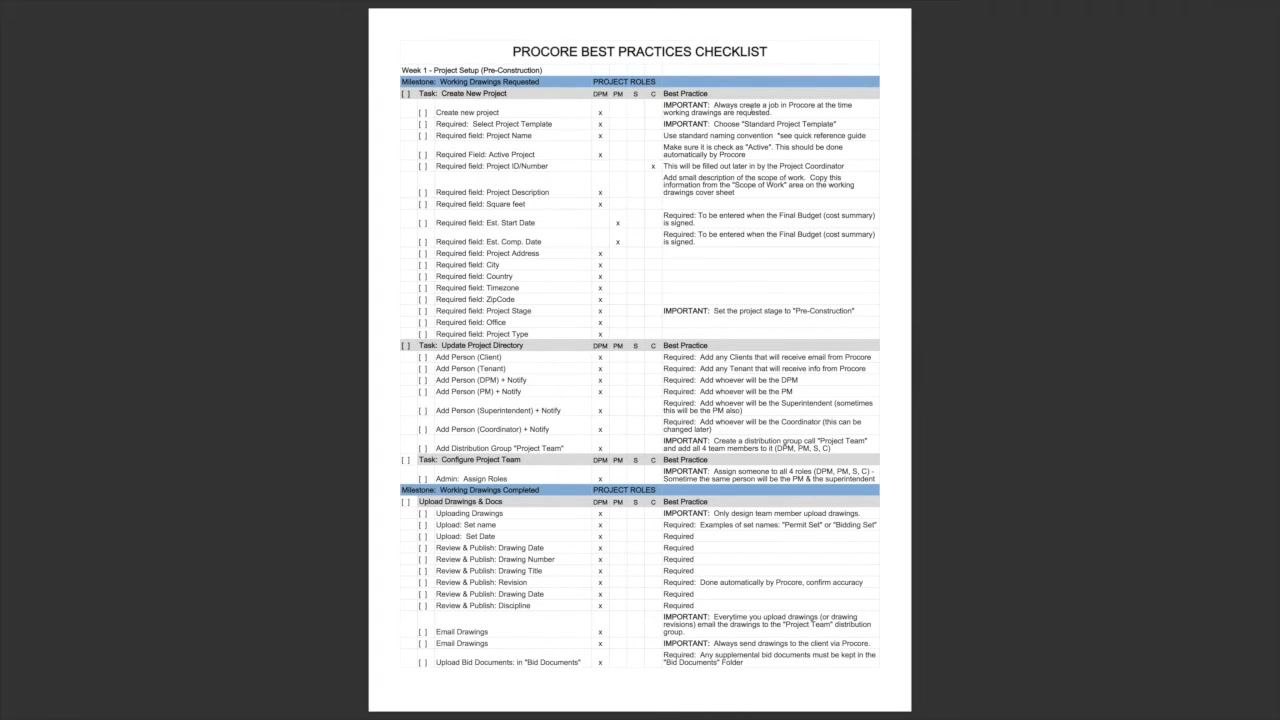
Review the Procore Best Practices Checklist
Before creating a project, review your organization's checklist to understand what's required at each stage.
The checklist is a structured document organized into columns for Task, Project Roles (DPM, PM, S, C), and Best Practice. Blue bars indicate milestones—key events that typically involve client interaction—and each milestone triggers a set of follow-up tasks.
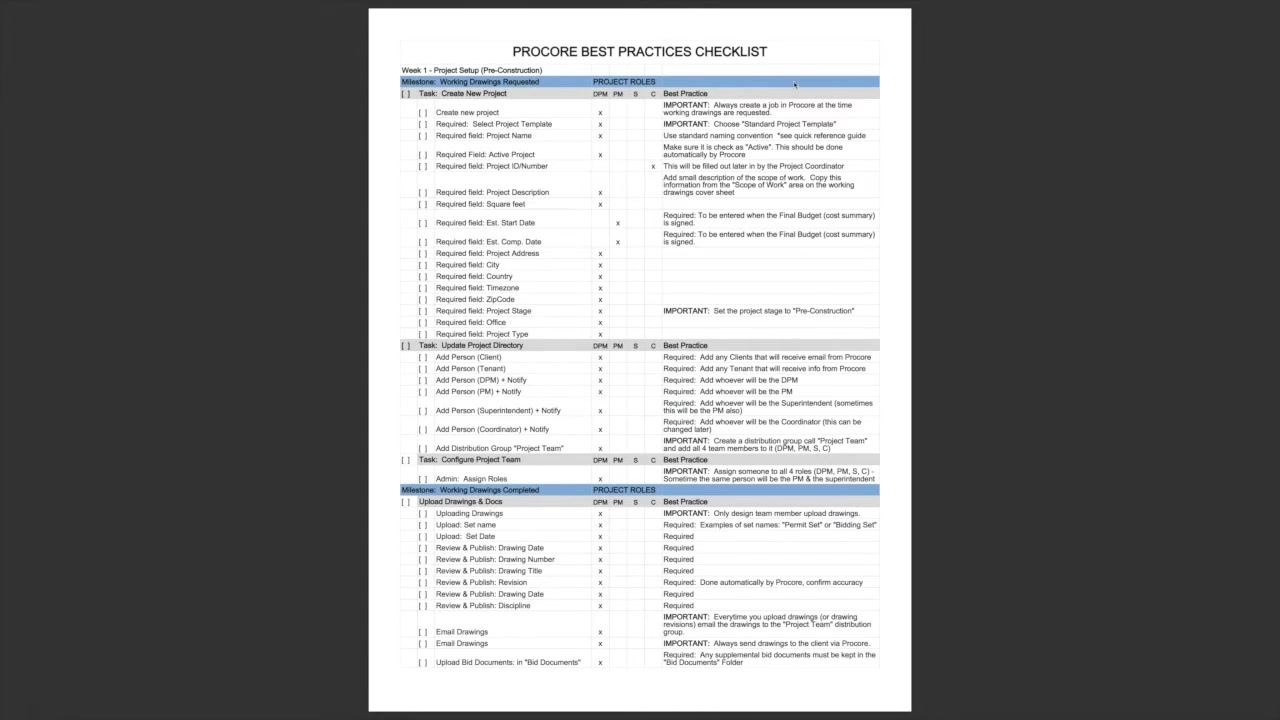
Use the checklist to confirm:
- The sequence of tasks required at each milestone.
- The roles responsible for each action.
- The best practices and required fields for each step.
Identify tasks tied to the "Working Drawing Requested" milestone
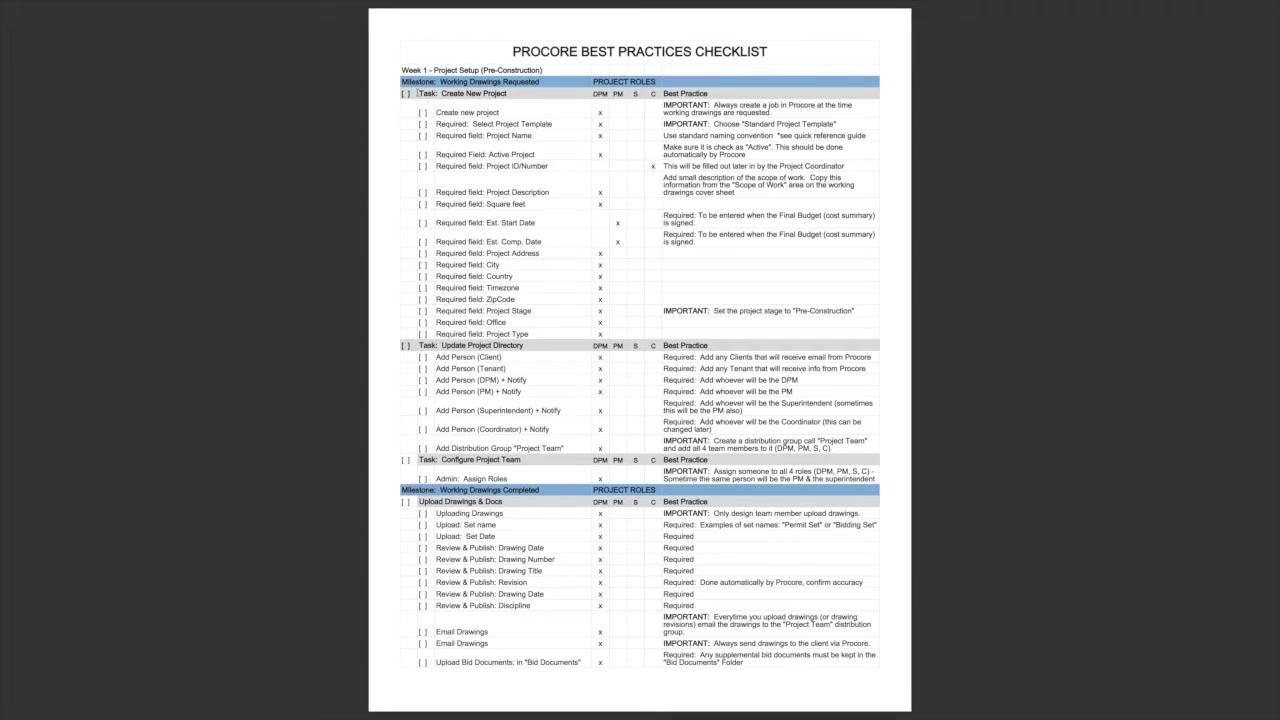
When a client requests working drawings, this triggers the Working Drawing Requested milestone. According to the checklist, the Design Project Manager (DPM) is primarily responsible for the initial tasks at this stage.
The three immediate tasks under this milestone are:
- Create a new project in Procore.
- Update the project directory.
- Configure the project team.
These tasks should be initiated as soon as working drawings are requested.
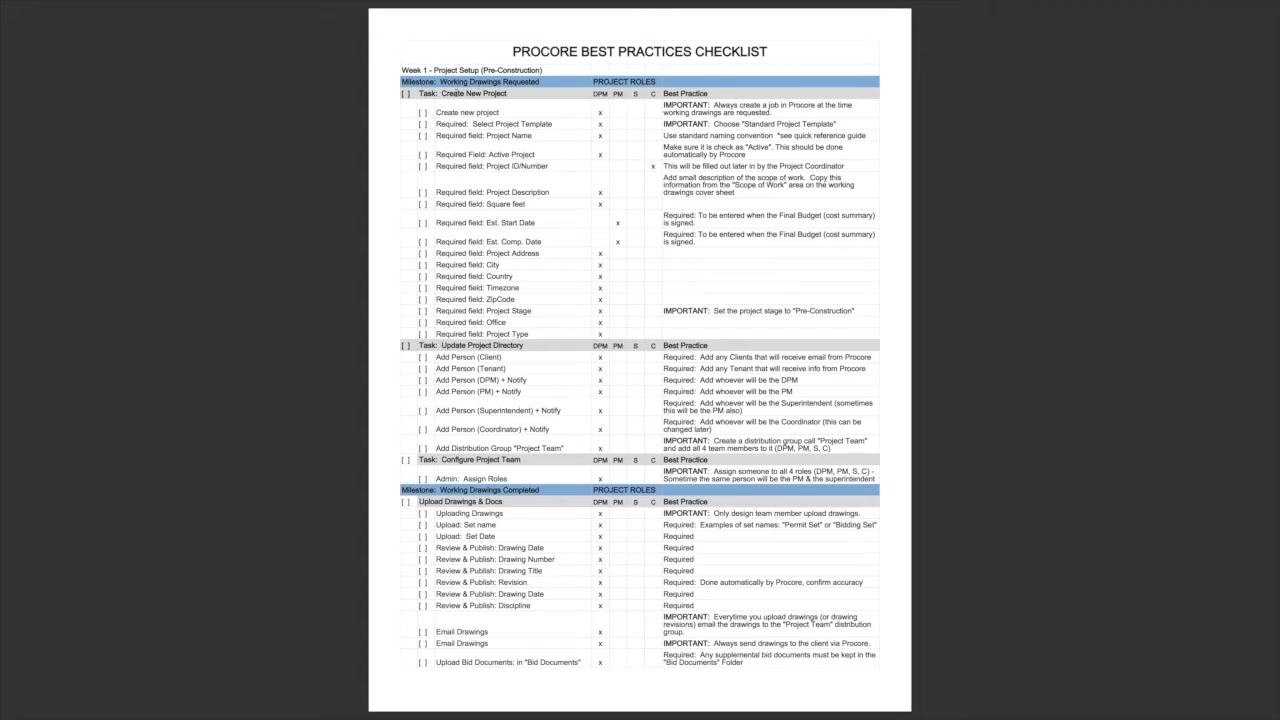
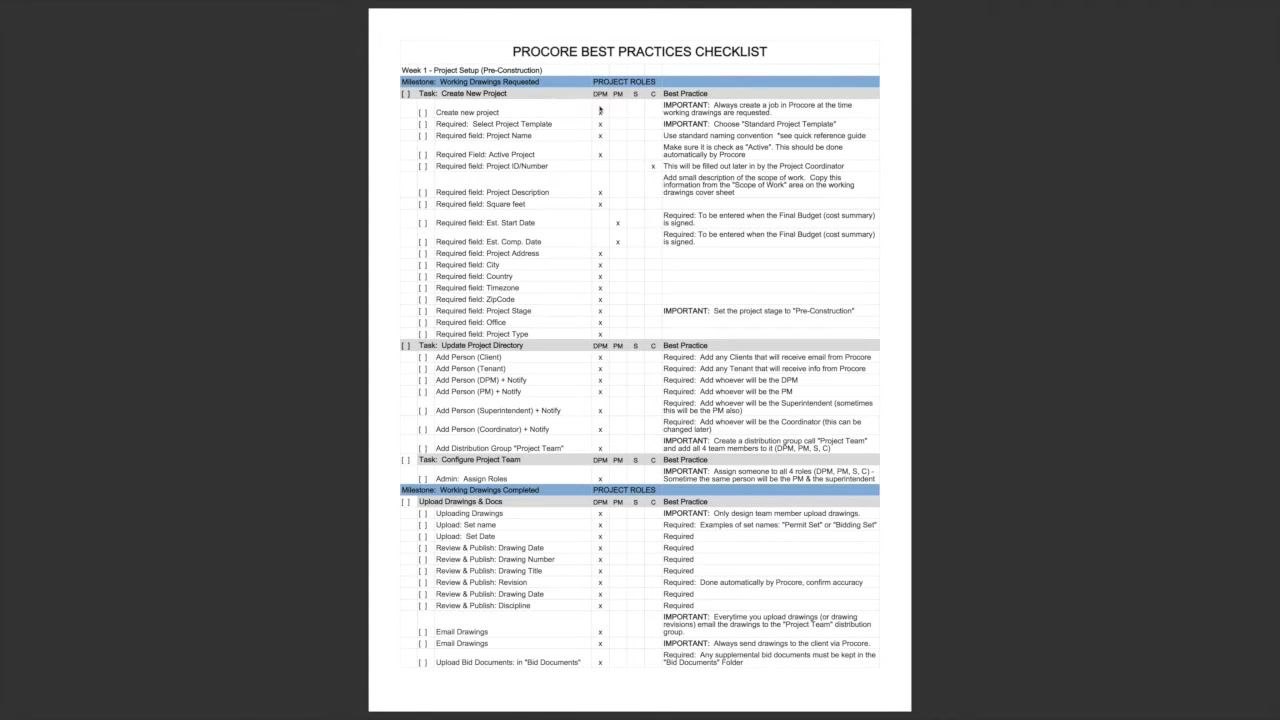
The checklist also lists required fields for each task—such as Project Name, Project Address, and Project Stage—along with best practice notes. For example, you should always create a job in Procore at the time working drawings are requested, use your organization's standard naming convention, and set the project stage to Pre-Construction.
Log in to Procore
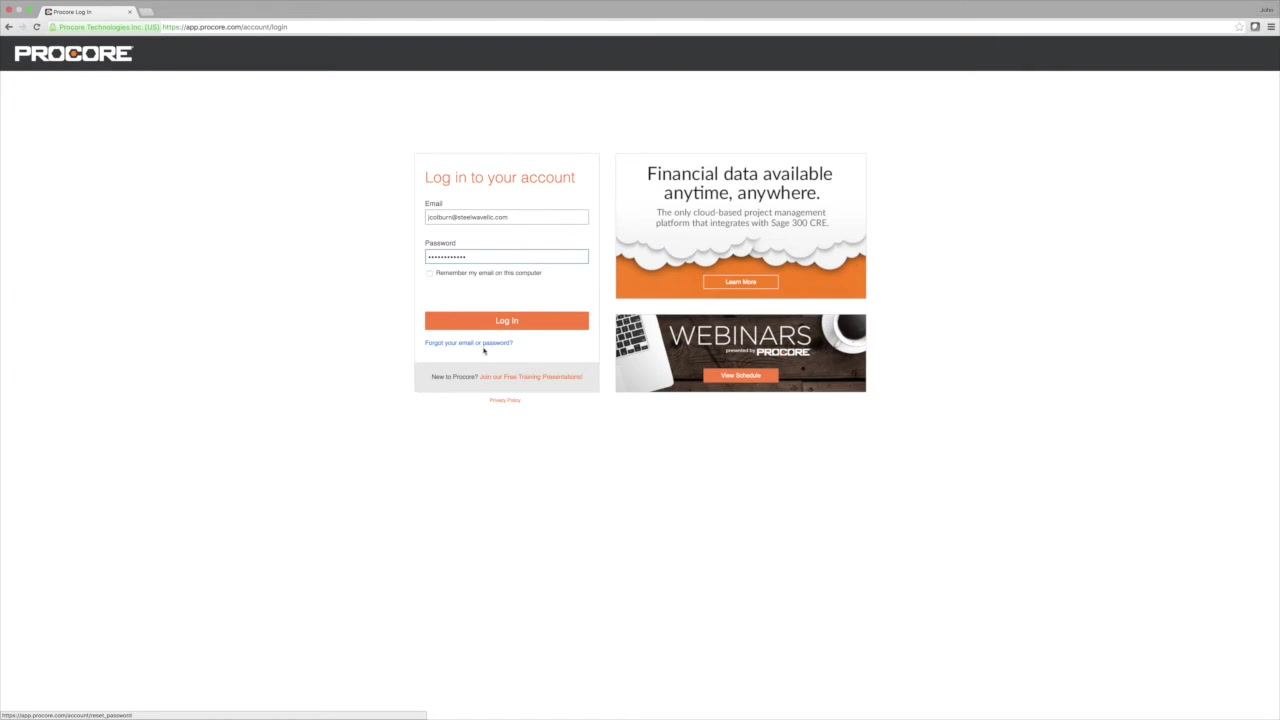
Open your web browser and navigate to https://app.procore.com/account/login. The login page displays the Procore logo, a login form, and informational panels about financial data and webinars.
Enter your email address and password, then click the orange Log In button. If you want your email saved for future logins, check Remember my email on this computer before signing in.
If you are new to Procore, you can click Join our Free Training Presentations! for additional help.
If you or a subcontractor cannot log in
If you've forgotten your email or password, use the Forgot your email or password? link on the login page to reset your credentials. This feature is available to all users and is simple to use—direct subcontractors to this link if they have trouble accessing their accounts.
If login issues persist, contact your company's support contact for assistance. Make sure everyone on your team has an active Procore account before proceeding.
Open the Portfolio List
After logging in, you'll land on the Procore Portfolio List. This screen displays all current projects, with columns for Name, Project #, Address, City, State, ZIP, Phone, Program, Status, Stage, Type, Department, and Notes. Use the search and filter options on the right to locate existing projects if needed.
To start creating a new project, click the orange + Add New Project button located at the top right of the Portfolio List screen.
Select a standard project template
When the Create a new project... dialog appears, locate the Select a project template dropdown. Choose your organization's standard project template to ensure consistency across all projects. If you're unsure which template to use, refer to your company's guidelines or the Procore Best Practices Checklist.
Click Continue to proceed.
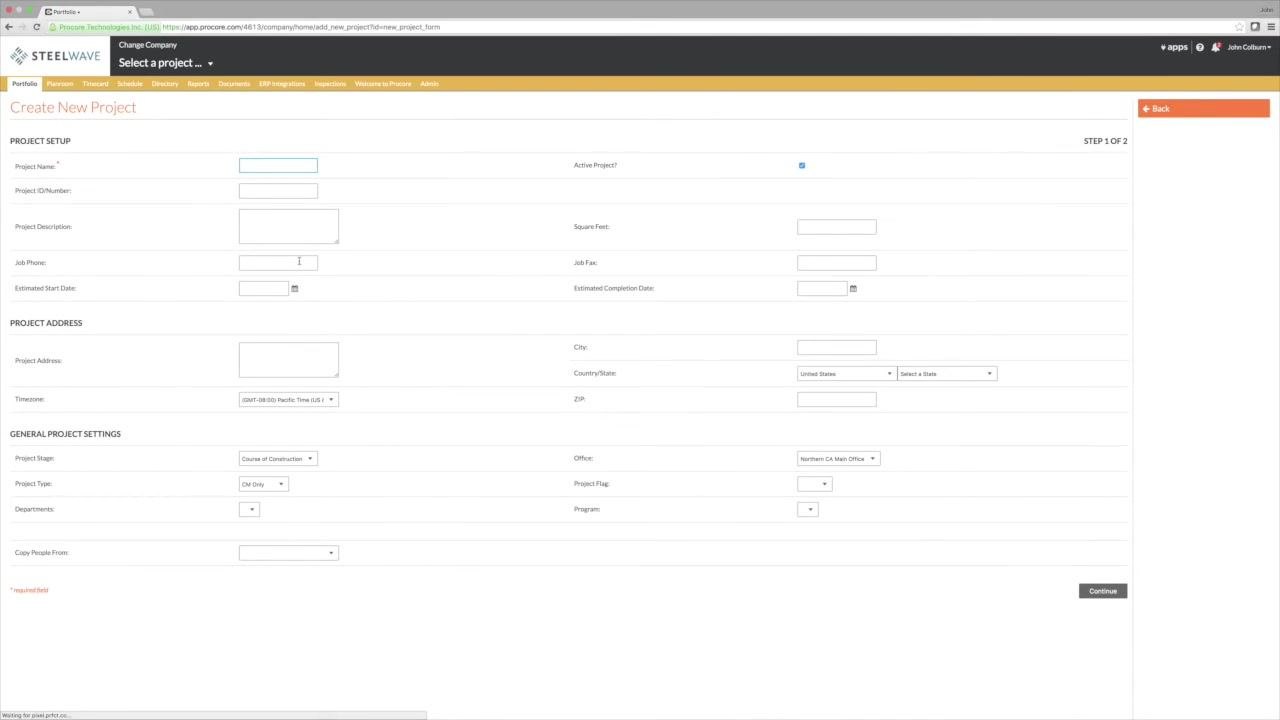
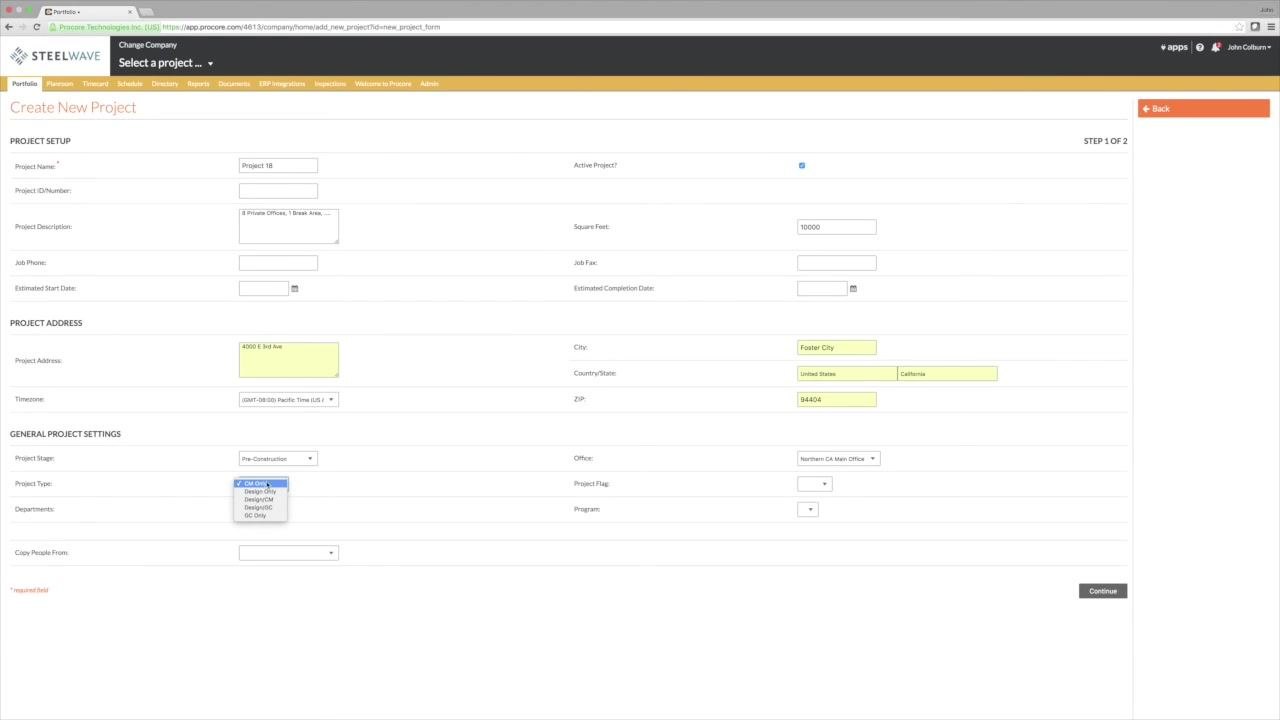
This takes you to the Create New Project form, divided into three sections: Project Setup, Project Address, and General Project Settings. The page header confirms you're on STEP 1 OF 2.
Enter the project name
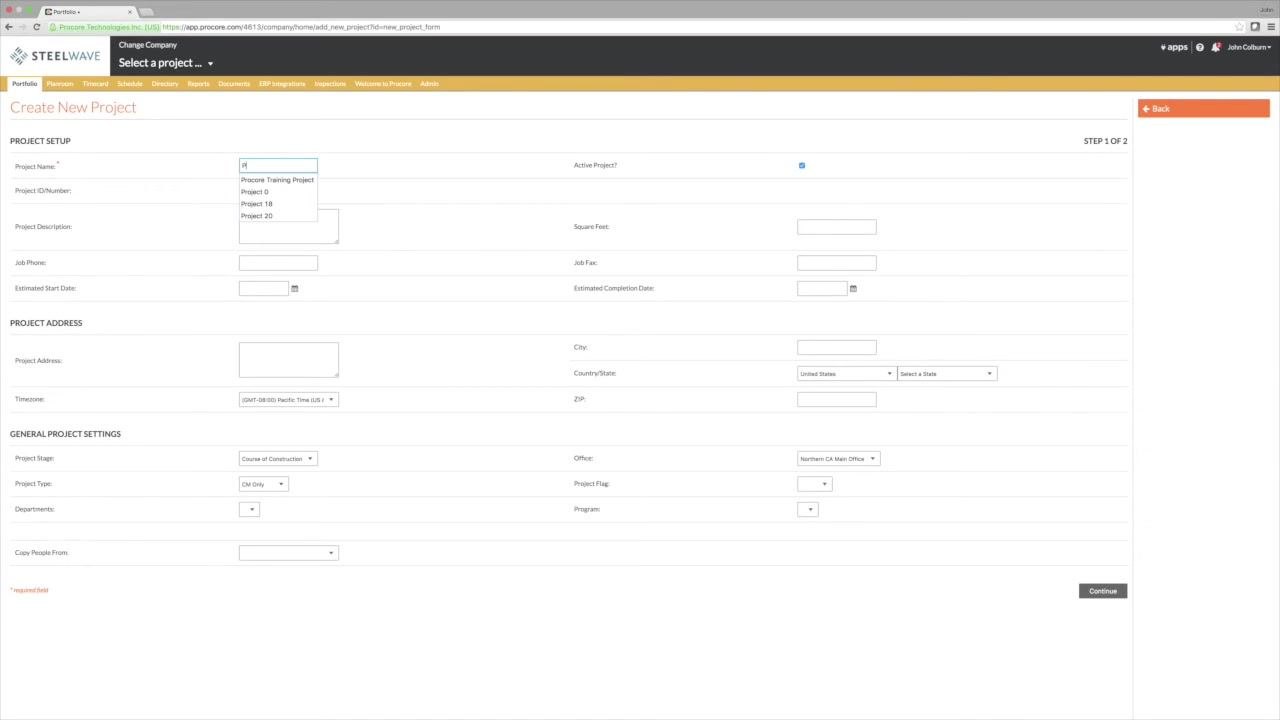
In the Project Name field under Project Setup, enter the project name according to your organization's standard naming convention. If you don't know the naming convention, consult the quick reference guide included in your onboarding materials. For training purposes, you can use the project number as the project name (for example, "Project 18").
Make sure the Active Project? checkbox is checked—it is checked by default.
Enter the Project ID/Number
Locate the Project ID/Number field directly below Project Name. Enter the official project number as listed on your organization's project roster—this field is used for tracking and reporting purposes. If the number is not yet known, you can leave this field blank and fill it in later.
Enter the project description
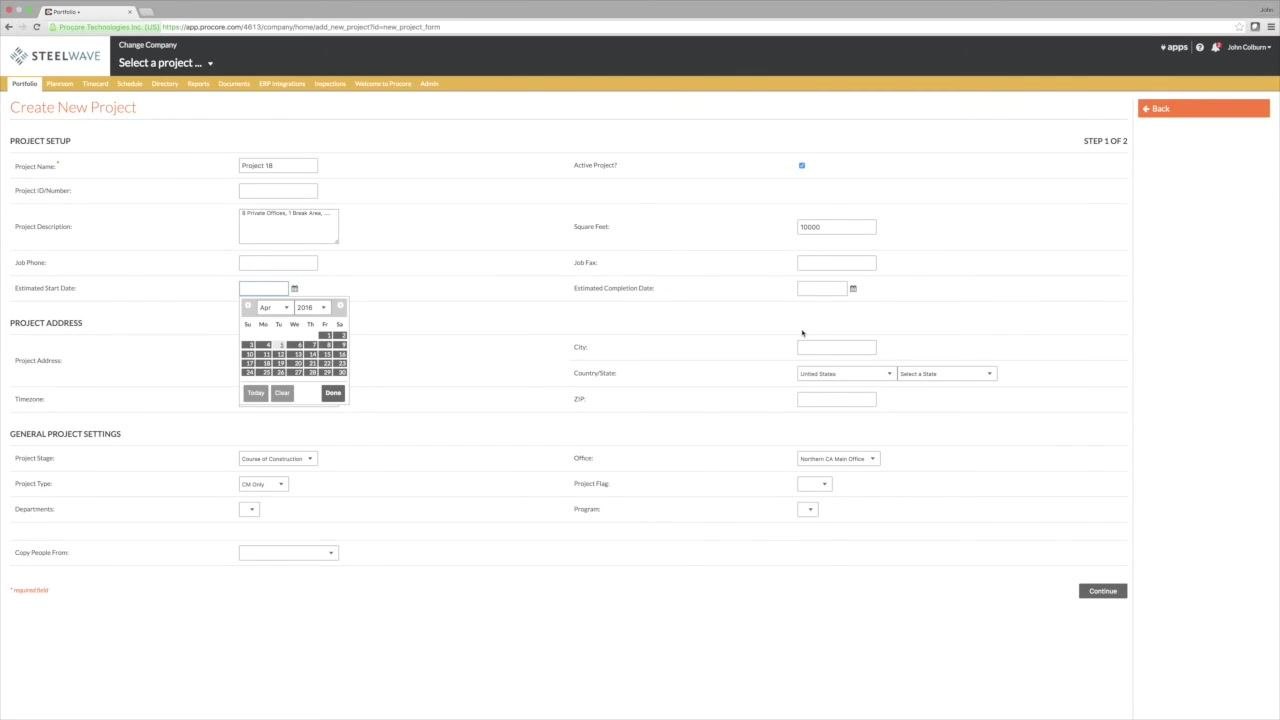
Click into the Project Description field and enter a short description similar to what would typically appear on the cover sheet of the working drawings. For example: 3 Private Offices, 1 Break Area, .... If you're unsure what to enter, use a brief summary of the project scope.
Enter square footage and optional details
In the Square Feet field, enter the appropriate value (for example, 10000).
You can also fill in the following optional fields as needed:
- Job Phone: Leave blank if not specified.
- Job Fax: Leave blank if not specified.
- Estimated Start Date: Click the calendar icon and select the appropriate date.
- Estimated Completion Date: Leave blank if not specified.
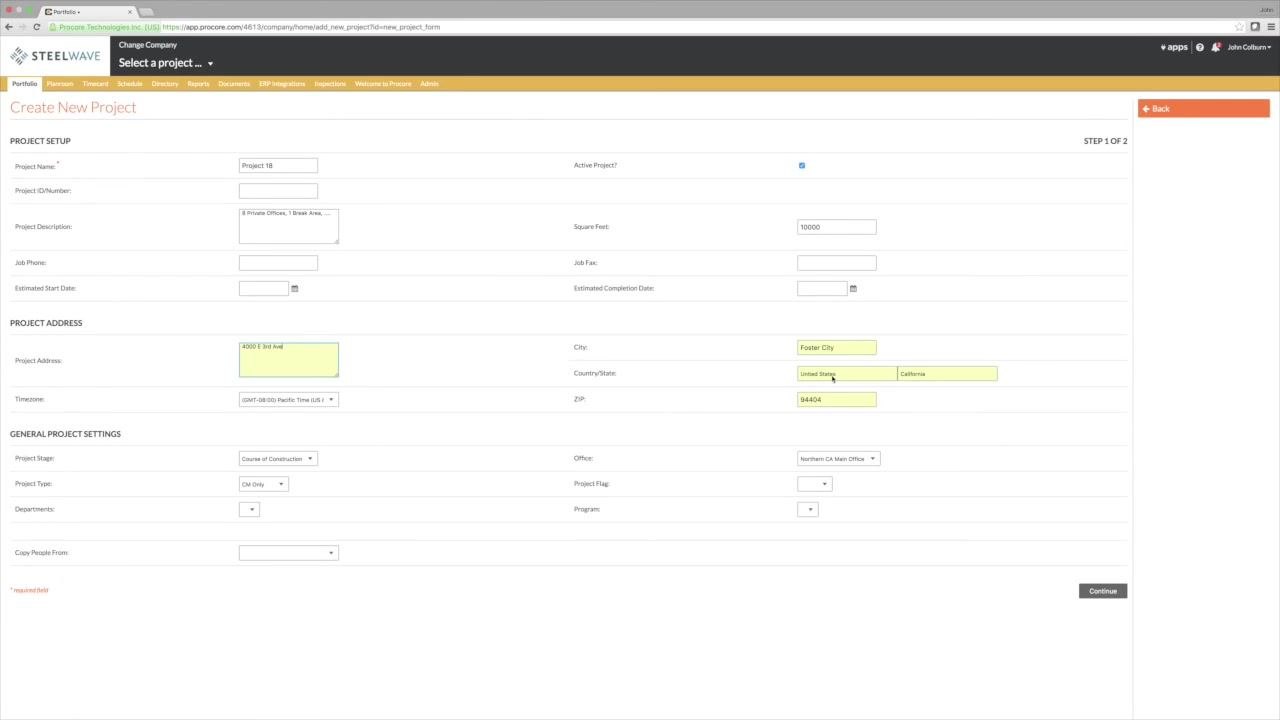
Fill in the Project Address fields
Complete all required fields in the Project Address section:
- Project Address: Enter the street address.
- City: Enter the city name.
- Country/State: Select the appropriate country and state.
- ZIP: Enter the ZIP code.
These fields are required and must not be left blank. The system may auto-populate some fields, but you should verify that all required information is filled in correctly.
Set the timezone
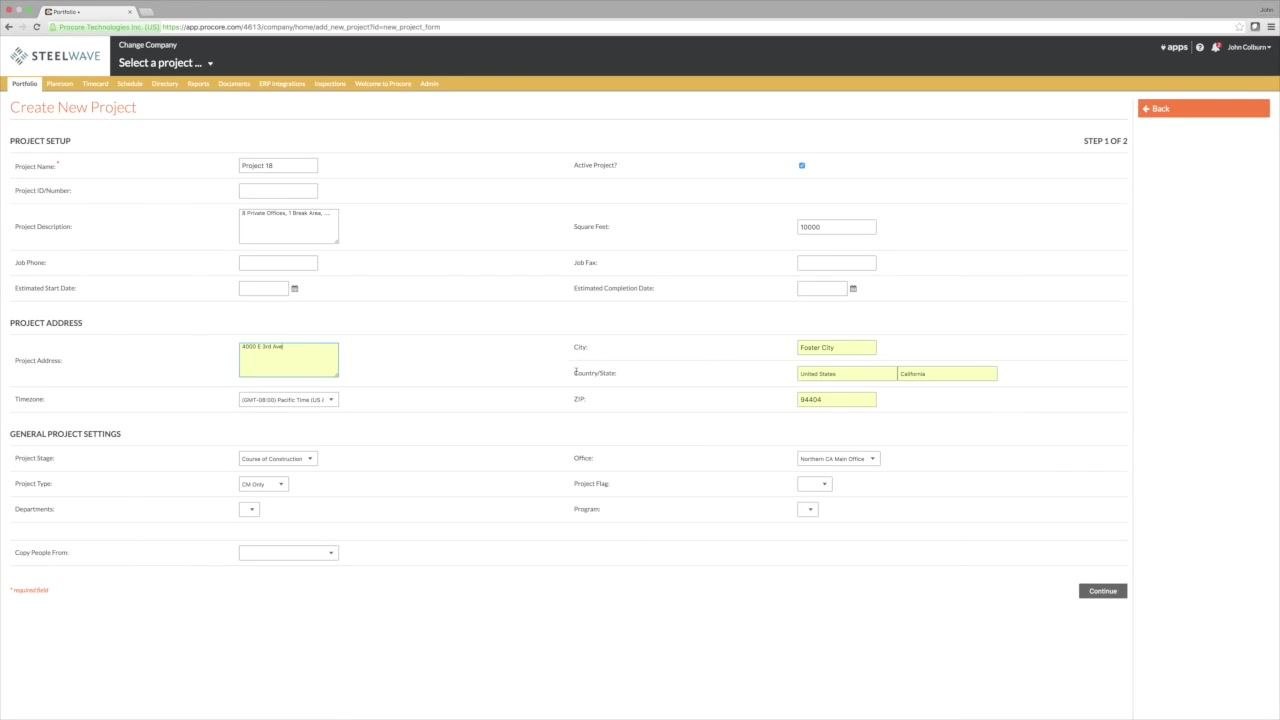
In the Timezone dropdown, confirm it is set to the correct timezone for your project (for example, (GMT-08:00) Pacific Time (US & Canada)). Setting the correct timezone is important because it affects scheduling and notifications.
Select the Project Stage
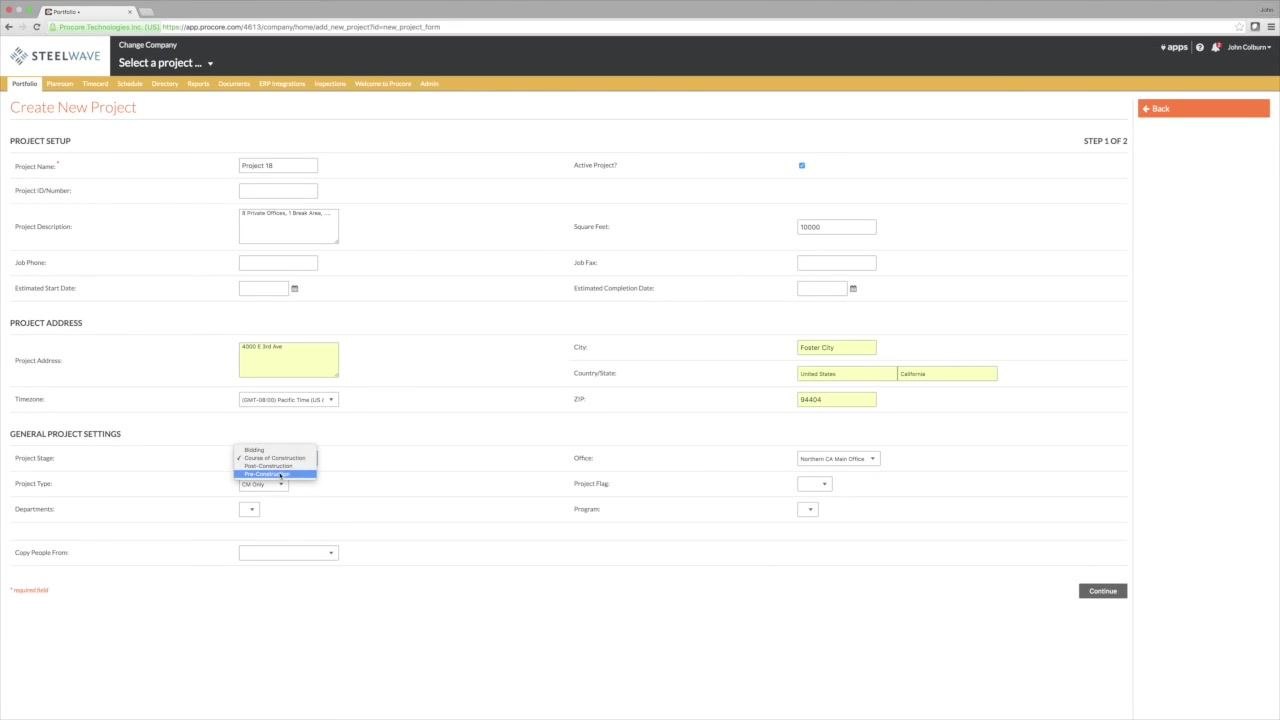
Under General Project Settings, open the Project Stage dropdown and choose the stage that matches your project. For a job in the planning phase, select Pre-Construction. Other available options include Bidding, Course of Construction, and Post-Construction.
Choose the Project Type
Open the Project Type dropdown and select the type that best fits your project. For example, select Design/VDC. Other available options include CM Only, Design Only, Design/CM, and GC Only.
Review your entries before continuing
Before submitting, double-check that all required fields—marked with a red asterisk—are completed correctly. Your entries should include values such as:
- Project Name
- Project Description
- Square Feet
- Project Address, City, Country/State, and ZIP
- Timezone
- Project Stage
- Project Type
- Office
Note: The project number is typically the responsibility of the project coordinator and may be left blank or filled in later, depending on your organization's process. For the Project Description, use a concise summary similar to what would appear on the cover sheet of the working drawings.
Submit the form
Once all required fields are completed, click the Continue button at the bottom right of the form. Wait for the system to process your request.
Verify that the project was created
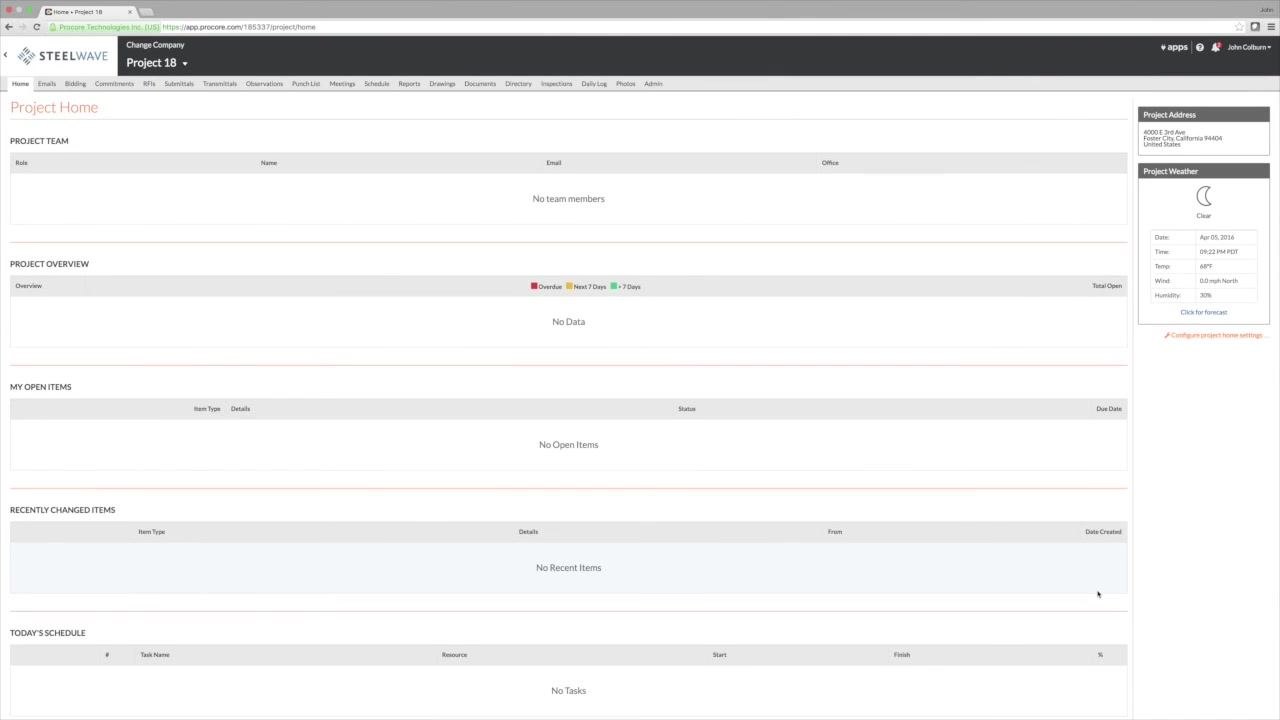
After submission, you're redirected to the Project Home page for your new project. This page initially displays:
- Project Team (empty until members are added)
- Project Overview (no data yet)
- My Open Items (none yet)
- Recently Changed Items (none yet)
- Today's Schedule (no tasks yet)
The right sidebar shows the Project Address and Project Weather. Confirm that the project name and address details match what you entered.
Best practices and notes
- Always complete all required fields before submitting the form.
- Use clear, descriptive names and summaries so the project is easy to identify later.
- For training or practice purposes, use example values as needed.
- The project number is the coordinator's responsibility and can be added later if it's not yet known.
What's next
Now that you know how to create a new project in Procore, you can invite team members, update the project directory, and configure additional project settings to continue setting up collaboration on the project.
Generation details: cost, quality tiers
Docsie billed 4,500 credits ($3.15) to analyze this 9-minute video at standard quality. The rewrite, template fill and Word/PDF exports were included. The same video at each quality tier:
| Quality | Frames sampled | Credits | Approx. cost |
|---|---|---|---|
| Draft | every 16-30 s | 2,250 | $1.57 |
| Standard (this guide) | every 8-15 s | 4,500 | $3.15 |
| Detailed | every 4-7 s | 9,000 | $6.30 |
| Ultra | every 1-3 s | 18,000 | $12.60 |
Credits priced at $0.70 per 1,000; plans include a monthly allowance. Enterprise customers on on-premise or bring-your-own-model deployments run this on their own inference and pay no per-video credits.
Generated by Docsie Video-to-Docs on 2026-10-25 from a 8-minute video. Screenshots are frames from the source video and belong to their creator, John Colburn, whose original is embedded above. If you own this video and want the guide removed or credited differently, contact us and we will act within one business day.