
How to Respond to an RFI in Procore
This guide walks you through the full RFI workflow in Procore, from creating and distributing a Request for Information to learning how to respond to an RFI in Procore once it has been assigned to you. Following these steps ensures that your RFI is properly created, tracked, and resolved, with all responses logged automatically.
Video: Create and Respond to RFIs in Procore by Procore (2015). All credit for the demonstration goes to the creator; watch the original on YouTube. The written guide below was generated from this video by Docsie. Creator? Request a change or removal.
This guide walks you through the full RFI workflow in Procore, from creating and distributing a Request for Information to learning how to respond to an RFI in Procore once it has been assigned to you. Following these steps ensures that your RFI is properly created, tracked, and resolved, with all responses logged automatically.
Prerequisites
- Access to the RFIs tool within your Procore project.
- Permission to create RFIs or admin permission to manage and close them, depending on the task.
- Knowledge of who should be assigned to answer the RFI and who should receive updates.
Navigate to the RFI tool
Step 1: Open the RFI tool
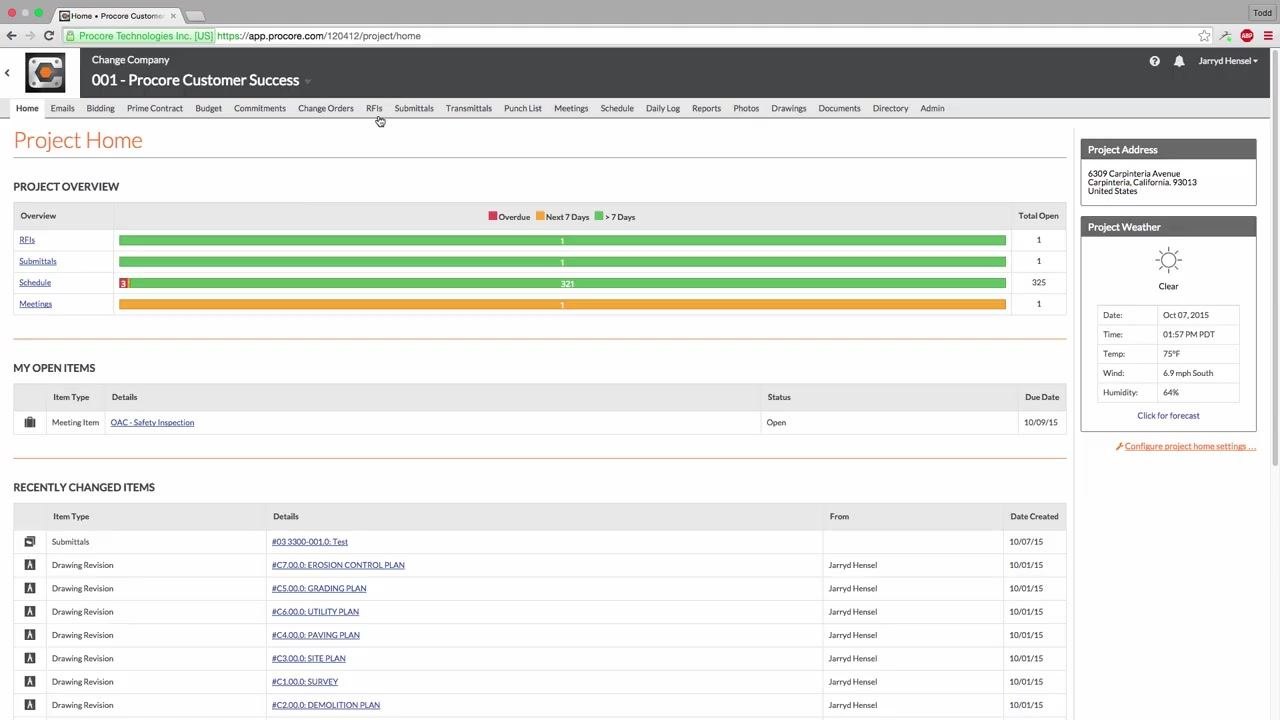
From the Project Home screen, locate the top navigation bar and click the RFIs tab to open the RFI tool.
Step 2: Create a new RFI
On the RFI tool page, click the orange Create RFI button on the right side of the screen to start a new request.
Fill out the RFI information
Step 3: Enter the RFI details
On the New RFI screen, complete the following fields:
- RFI #: Enter the RFI number (for example, 5).
- Subject: Enter the subject of the RFI (for example, "Pavement Deletion at Ramp").
- Assigned To: Start typing and select the person responsible for answering the RFI (for example, Lyons, Brett).
- Due Date: Set the due date (for example, 10/10/2015). Procore automatically assigns a due date if you leave this blank. If the assignee does not reply by this date, Procore can send overdue email notifications automatically.
- Question: Enter the RFI question in the text area at the bottom of the form. For example: "Due to logistical issues with placing asphalt beneath the ramp per A2.1, please confirm replacing with a CIP SOG is acceptable. LA please confirm detail and thickness."
- Draft: Check the Draft box if you want to save the RFI to complete or send later.
Step 4: Specify the responsible contractor and question source
In the Responsible Contractor field, select the company or person responsible for the issue (for example, Cardinal Concrete, LLC.). In the Question Received From field, select the company or person who originally asked the question or who needs to be notified once it is answered.
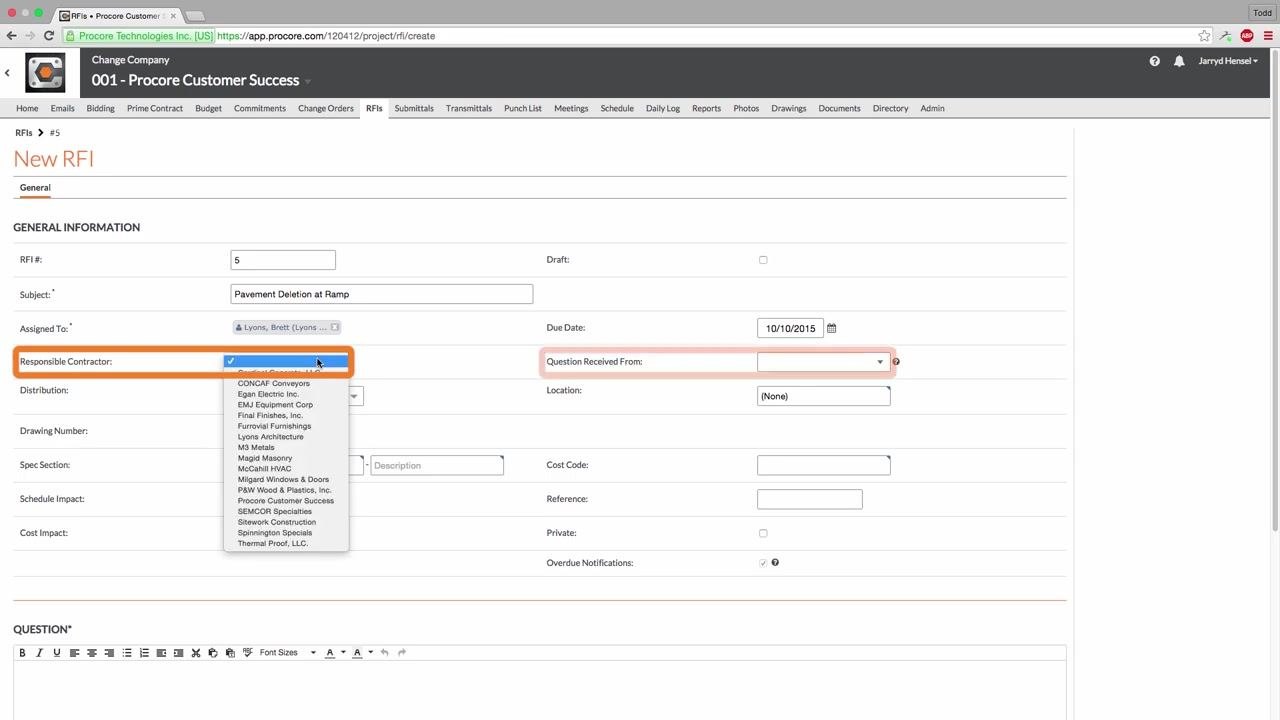
Keep in mind that vendors or people entered in the Responsible Contractor or Question Received From fields will not be copied on any RFI emails.
Step 5: Add team members to the distribution list
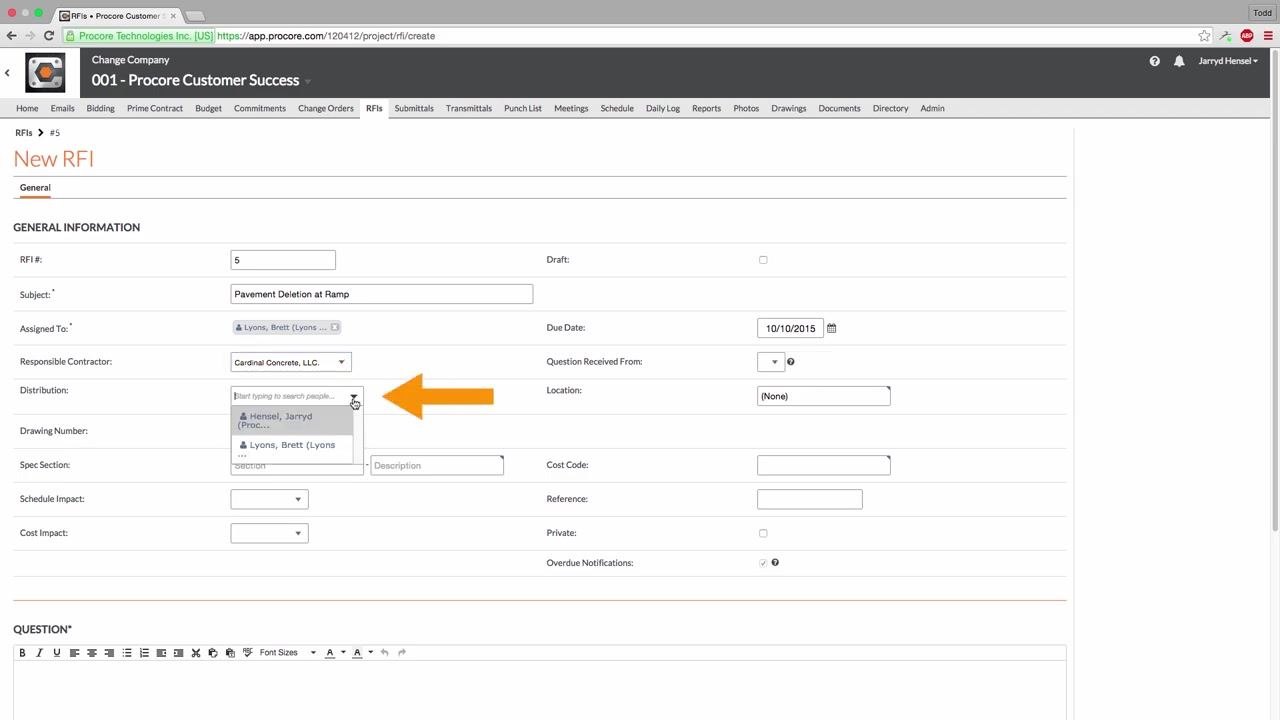
In the Distribution field, add any team members who should receive all RFI correspondence. These members can comment directly via the RFI email they receive.
Step 6: Associate additional information (optional)
Complete any of the following fields as needed for your project:
- Drawing Number: Enter if applicable.
- Spec Section: Select the relevant specification section and provide a description.
- Schedule Impact: Indicate any potential schedule impacts.
- Cost Impact: Indicate any potential cost impacts.
- Location, Cost Code, Reference, Private, Overdue Notifications: Fill out as required for your project.
Step 7: Mark the RFI as private (optional)
Check the Private box if you want to restrict who can view the RFI. When marked as private, only users with admin permission on the RFI tool, the assignee, and users on the Distribution List can view it.
Step 8: Attach supporting files (optional)
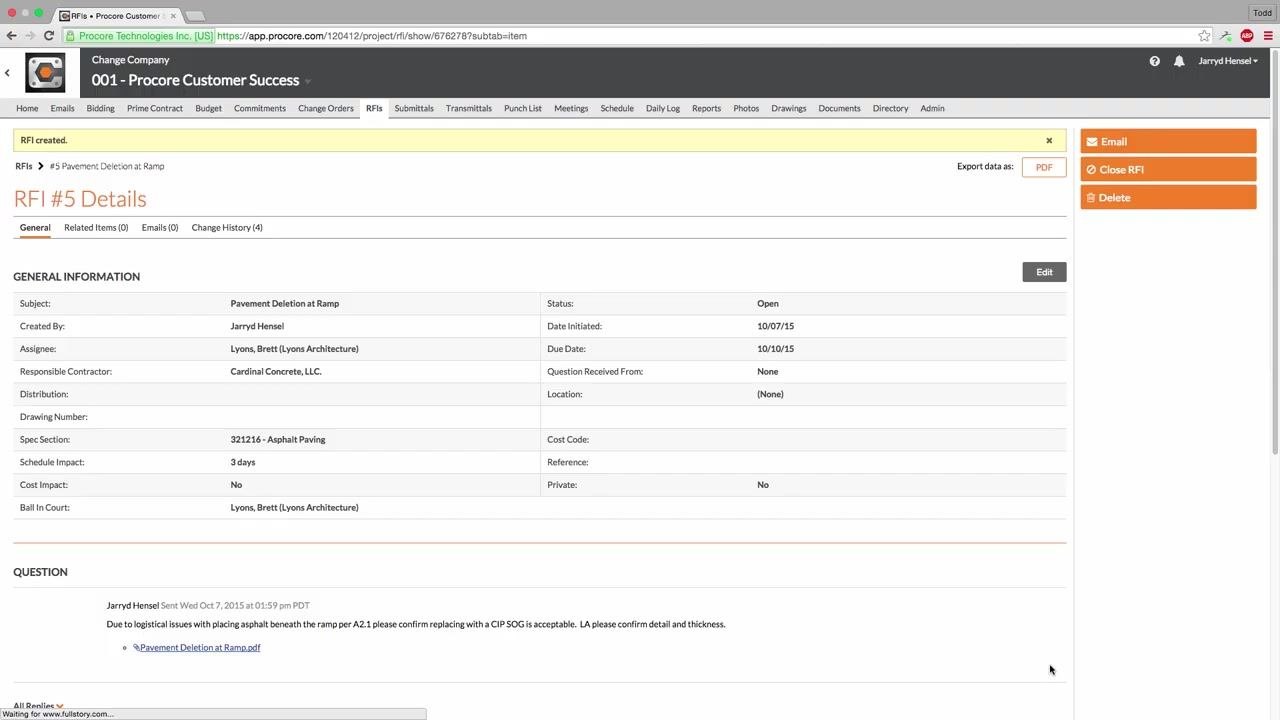
Click Attach File(s) below the Question field. You can select files from your computer or choose from Procore's Photos, Documents, or Drawings tools. For example, you might attach "Pavement_Deletion_at_Ramp.pdf" from your Documents folder.
Create the RFI
Step 9: Submit the RFI
Click the Create button at the bottom right of the screen. Procore automatically sends an email notification to the assignee and all users on the Distribution List, informing them that an RFI has been created.
Step 10: Check the RFI notification email
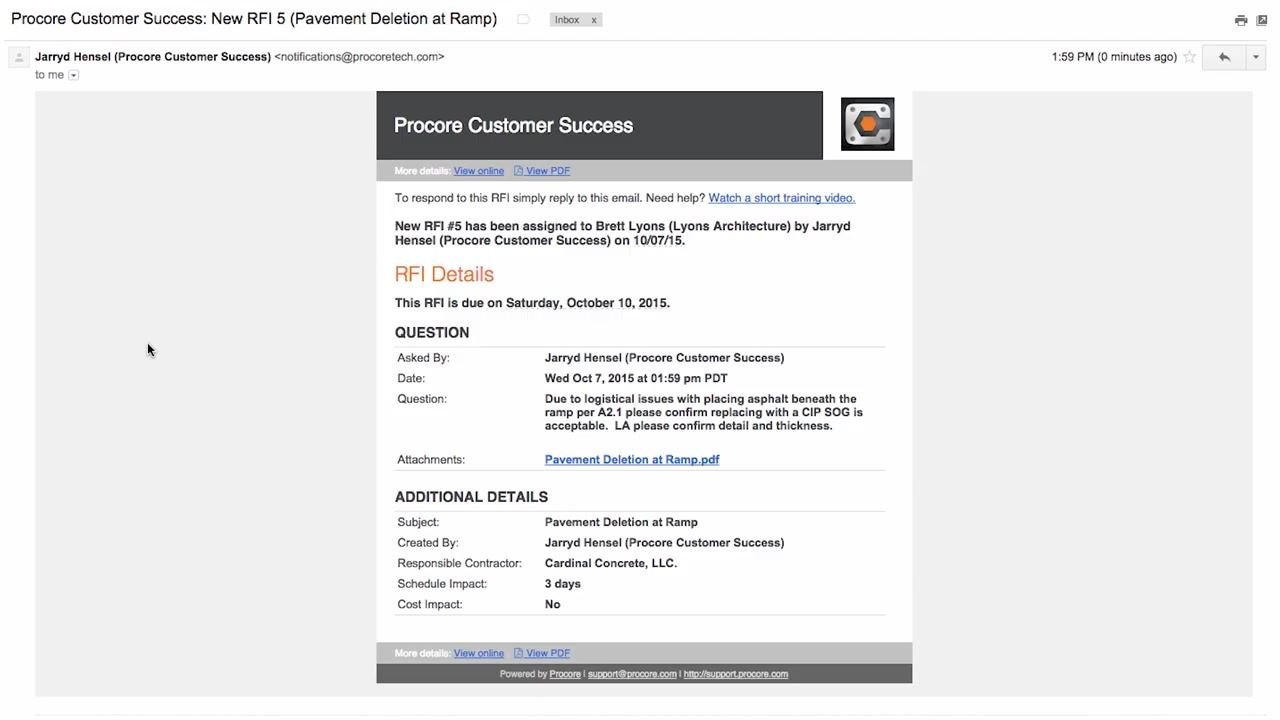
The assignee and distribution list members receive an email with the RFI details, the question, and any attachments. The email includes:
- RFI number and subject
- Due date
- Question and attachments
- Additional details, such as who created it, the responsible contractor, and schedule or cost impact
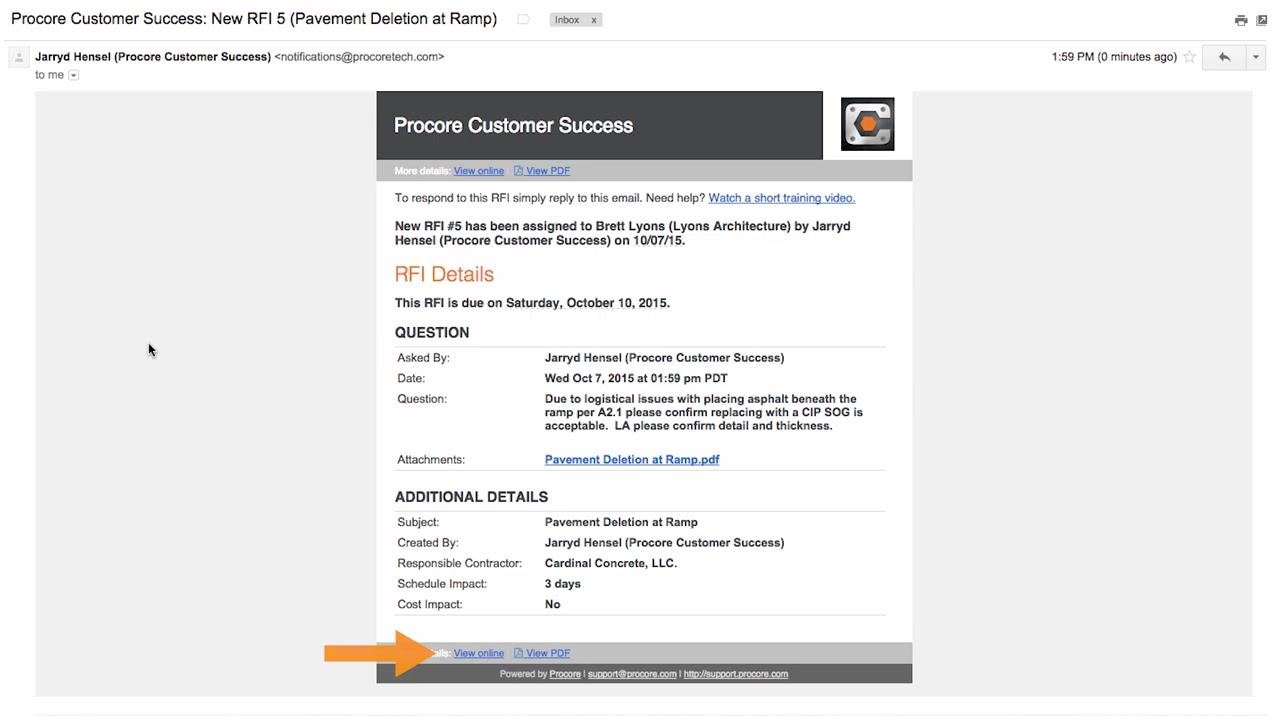
- Links to View online or View PDF
Step 11: Review the created RFI
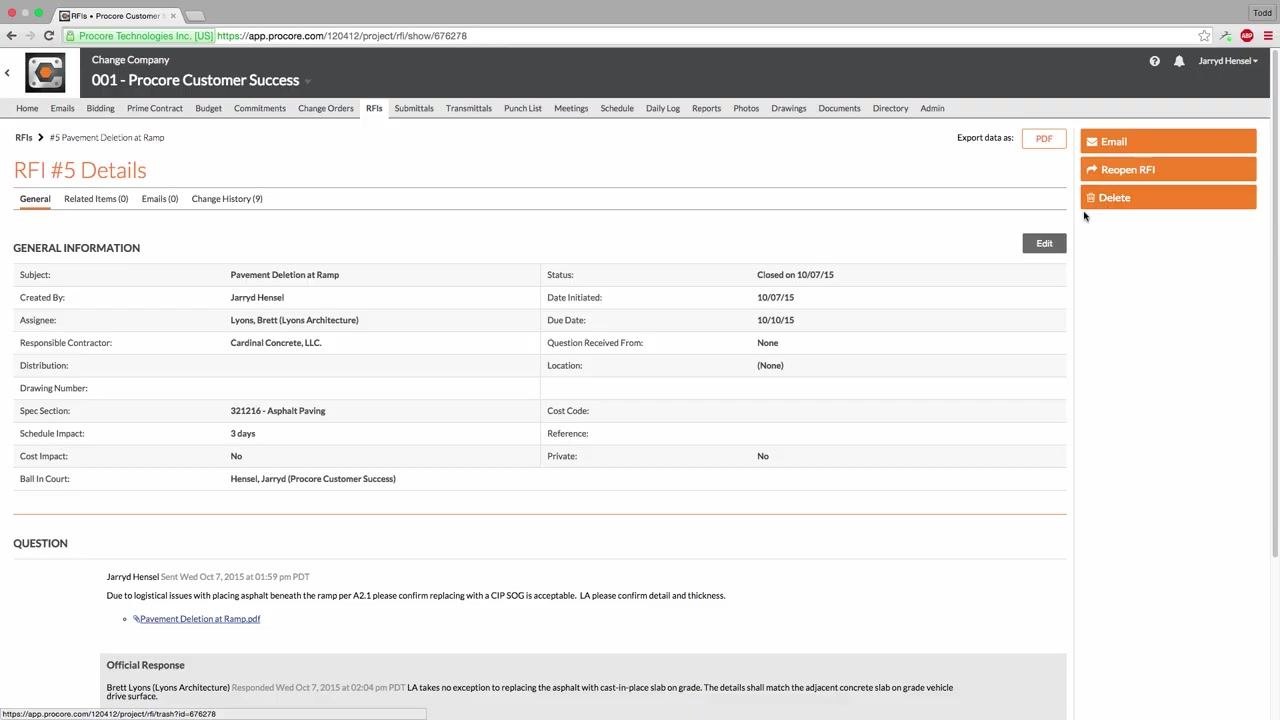
After creating the RFI, open its details page to confirm all the information is correct. The page displays the status, subject, assignee, responsible contractor, schedule and cost impact, and the attached question and files.
Respond to the RFI
Step 12: Choose how to respond to the RFI in Procore
There are three ways to respond to an RFI in Procore:
- Online: Click the View online link in the email to respond directly in Procore.
- Mobile App: Respond using Procore's iOS or Android mobile applications.
- Email Reply: Reply directly to the notification email with your answer. Procore automatically logs the response and any attachments.
Regardless of which method you use, Procore automatically logs all responses and attachments. Responding shifts the "Ball in Court" back to the RFI creator and notifies everyone on the distribution list by email.
Step 13: Review and close the RFI (admin only)
Users with admin permission can:
- Review all responses submitted to the RFI.
- Mark the official response by checking the Official Response box.
- Click Close RFI once the answer is satisfactory.
Step 14: Reassign the RFI (optional)
If needed, admins can reassign the RFI to a new person by clicking the Edit button on the RFI details page and changing the assignee.
What's next
By following these steps, your RFI is properly created, distributed, and managed within Procore, with all responses and actions accurately tracked and documented. Once an RFI is closed, you can continue monitoring the RFI tool for new items or reopen a closed RFI if further clarification is needed.
Generation details: cost, quality tiers
Docsie billed 2,000 credits ($1.40) to analyze this 4-minute video at standard quality. The rewrite, template fill and Word/PDF exports were included. The same video at each quality tier:
| Quality | Frames sampled | Credits | Approx. cost |
|---|---|---|---|
| Draft | every 16-30 s | 1,000 | $0.70 |
| Standard (this guide) | every 8-15 s | 2,000 | $1.40 |
| Detailed | every 4-7 s | 4,000 | $2.80 |
| Ultra | every 1-3 s | 8,000 | $5.60 |
Credits priced at $0.70 per 1,000; plans include a monthly allowance. Enterprise customers on on-premise or bring-your-own-model deployments run this on their own inference and pay no per-video credits.
Generated by Docsie Video-to-Docs on 2026-10-25 from a 3-minute video. Screenshots are frames from the source video and belong to their creator, Procore, whose original is embedded above. If you own this video and want the guide removed or credited differently, contact us and we will act within one business day.