
How to Submit a Submittal in Procore
Knowing how to submit a submittal in Procore ensures your response reaches the project team quickly, with all the right documentation attached. This guide walks you through locating an assigned submittal, attaching your spec sheets, submitting your response, and tracking the review process through to final approval.
Video: How to Submit a Submittal in Procore by Brody Harrison (2025). All credit for the demonstration goes to the creator; watch the original on YouTube. The written guide below was generated from this video by Docsie. Creator? Request a change or removal.
Knowing how to submit a submittal in Procore ensures your response reaches the project team quickly, with all the right documentation attached. This guide walks you through locating an assigned submittal, attaching your spec sheets, submitting your response, and tracking the review process through to final approval.
Prerequisites
- Access to your Procore account for the project.
- An email notification from Procore assigning you a submittal, or direct access to the Submittals tool.
- The relevant spec sheets or documents you need to attach to your response.
Check your email notification
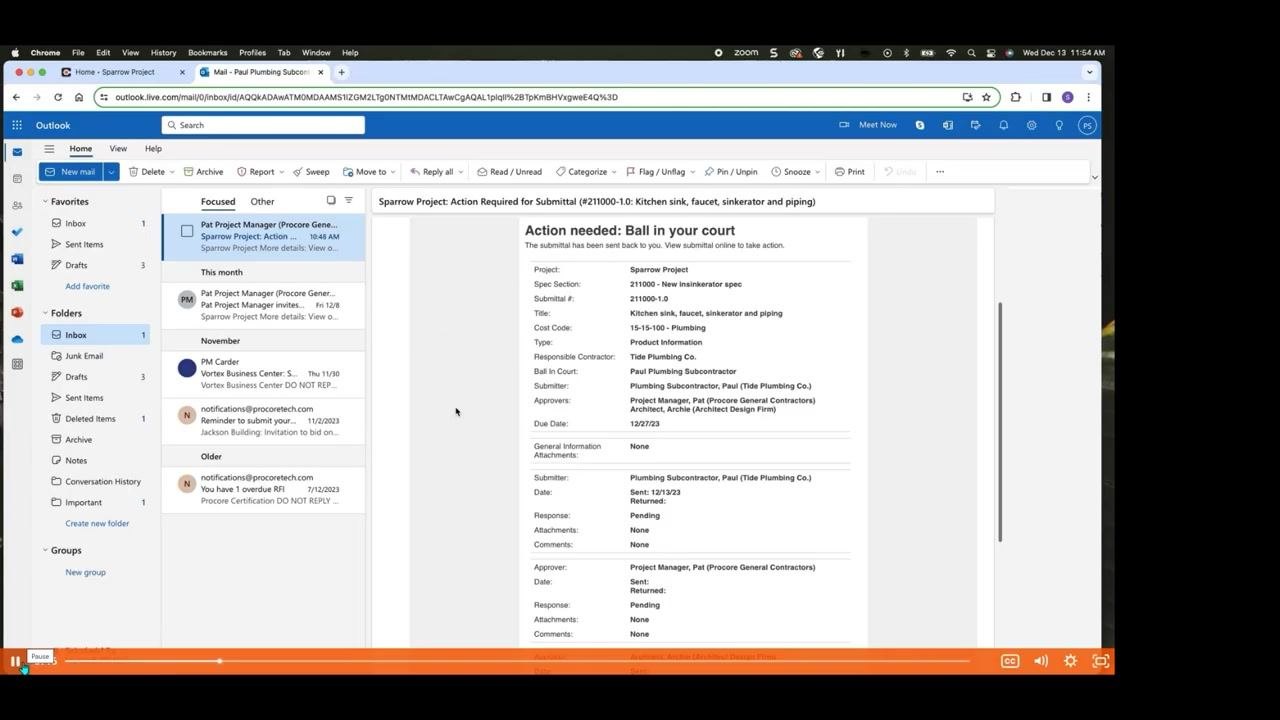
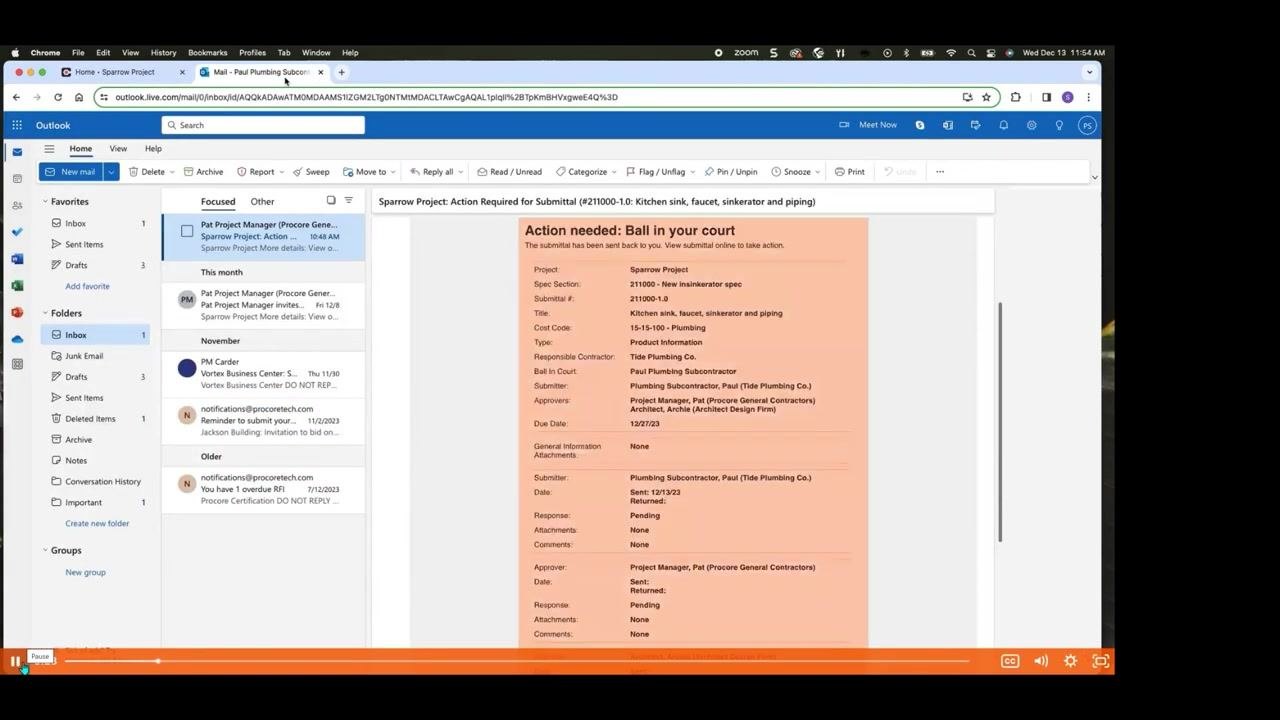
Look for an email from Procore notifying you of the assigned submittal. This email contains the essential details you need before responding, including:
- Project name: Sparrow Project
- Spec section: 211000 – New insinkerator spec
- Submittal #: 211000-1.0
- Title: Kitchen sink, faucet, sinkerator and piping
- Cost code: 15-15-100 – Plumbing
- Type: Product Information
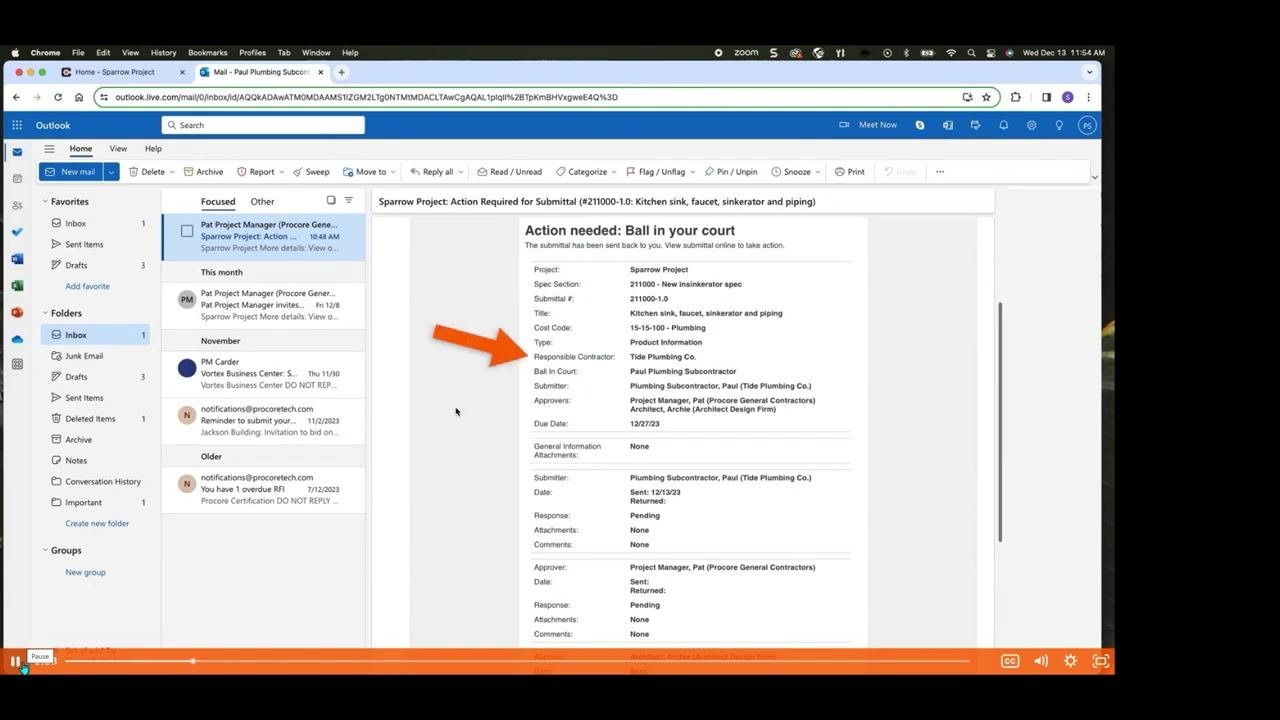
- Responsible Contractor: Tide Plumbing Co.
- Ball in Court: Paul Plumbing Subcontractor
- Submitter: Plumbing Subcontractor, Paul (Tide Plumbing Co.)
- Approvers: Project Manager, Pat (Procore General Contractors); Architect, Archie (Architect Design Firm)
- Due Date: 12/27/23
Review your role and responsibilities
Confirm your role as the assignee by checking the email details. Review the Type and Responsible Contractor fields to understand exactly what is required of your response.
Locate the submittal in Procore
Go to the Procore home page and find your assigned submittals in the My Open Items section. You can also navigate to the Submittals tool for your project to view all submittals, where assigned items are marked with a banner at the top of the screen.
Begin the submission process
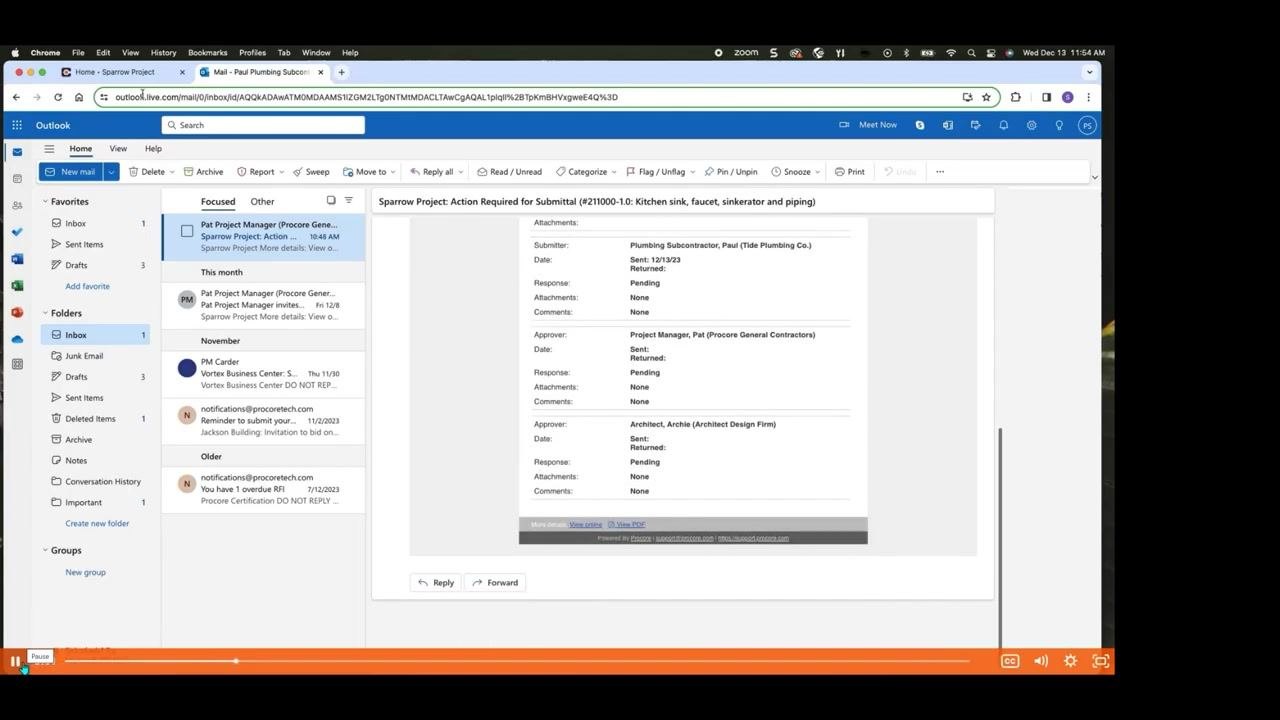
Click the View Online link in the notification email to open the submittal directly, or manually navigate to it within Procore by searching for the submittal number or title.
Open the submittal and respond
Open the submittal assigned to you in Procore. Click the Respond button next to your name in the submittal workflow to begin your response.
Attach your spec sheets
Click Attach Files, or drag and drop files into the upload area. Attach all relevant spec sheets for the items you intend to install or work on, ensuring they comply with the project plans or spec book — for example, "New insinkerator spec.pdf".
Add your response and comment
Select Submitted as your response type, then enter a comment to give the reviewer additional context. For example: "Attached are the submittals for the kitchen sink, faucet, insinkerator and piping. Let me know if you need anything else." Click Preview to review your response and comment before sending.
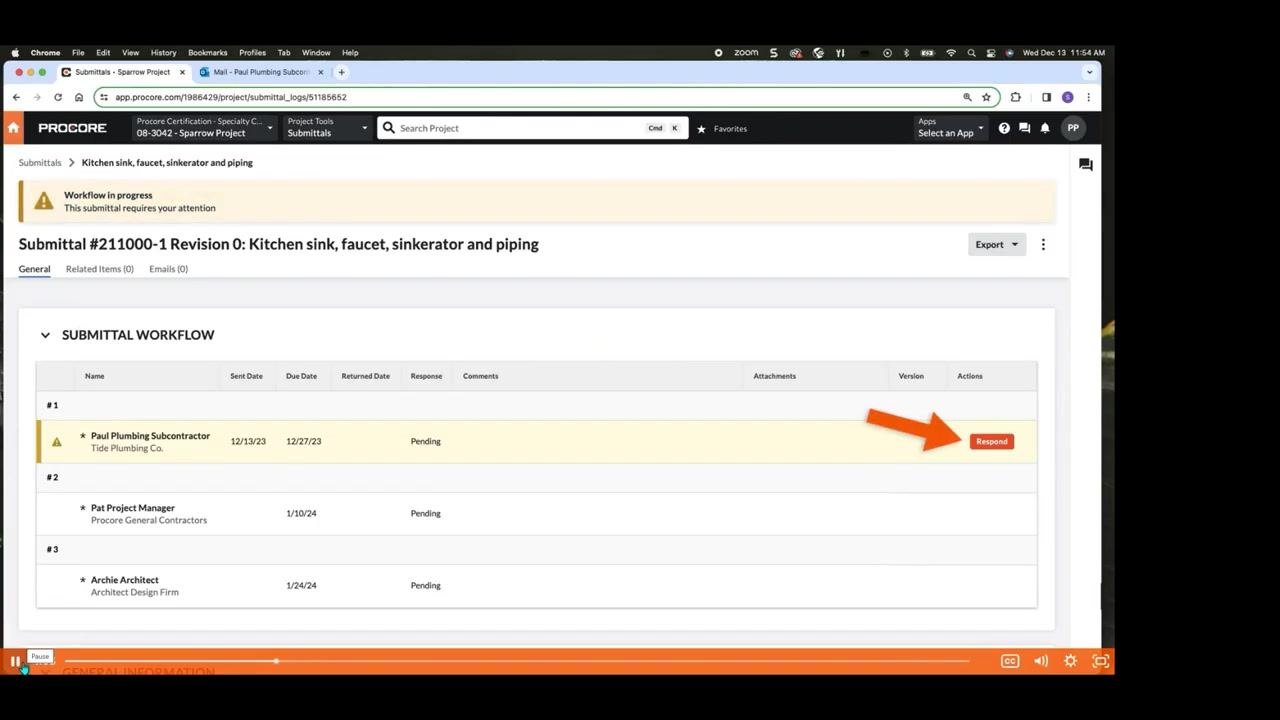
Submit your response
After previewing your submission, click Respond to submit your response along with your attachments. Procore automatically sends an email notification to your Procore Point of Contact letting them know your submission is ready for review.
By completing these steps, you ensure your submittal response is complete, compliant, and communicated efficiently to the project team.
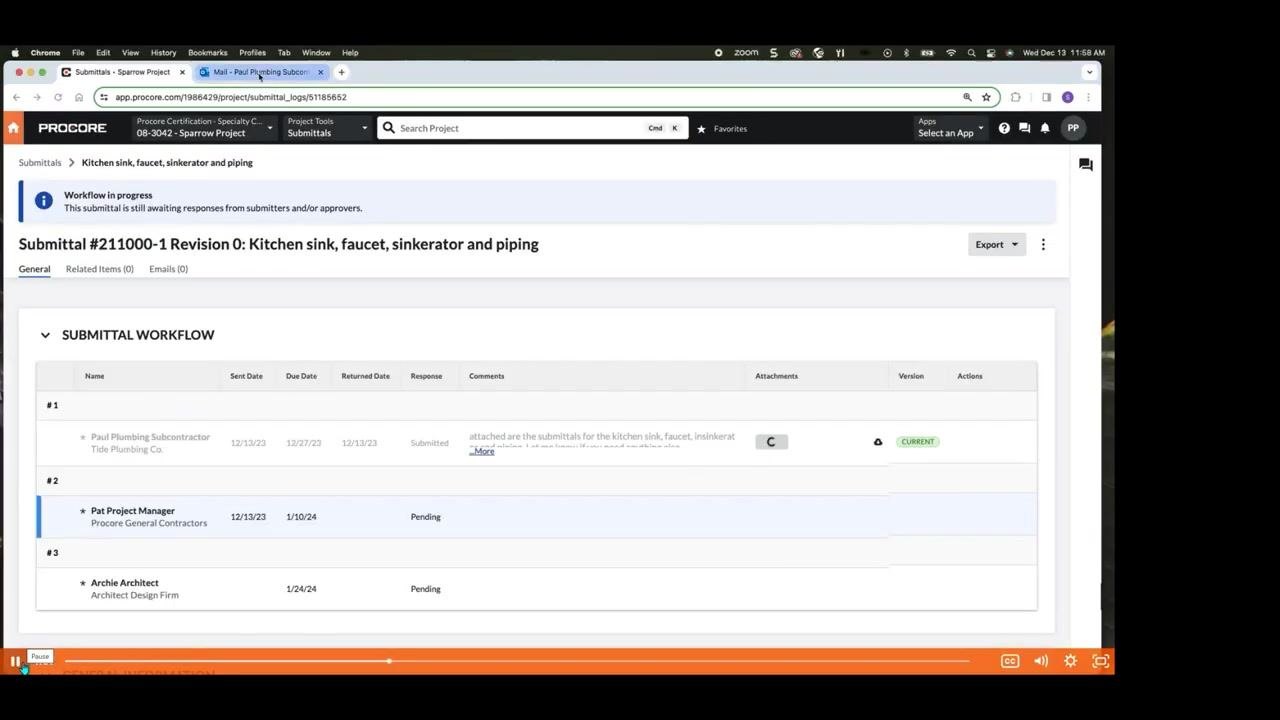
Track your response in the submittal history
Once submitted, your response appears as the latest entry in the submittal's history within Procore. Review the history to confirm your submission and see its current status.
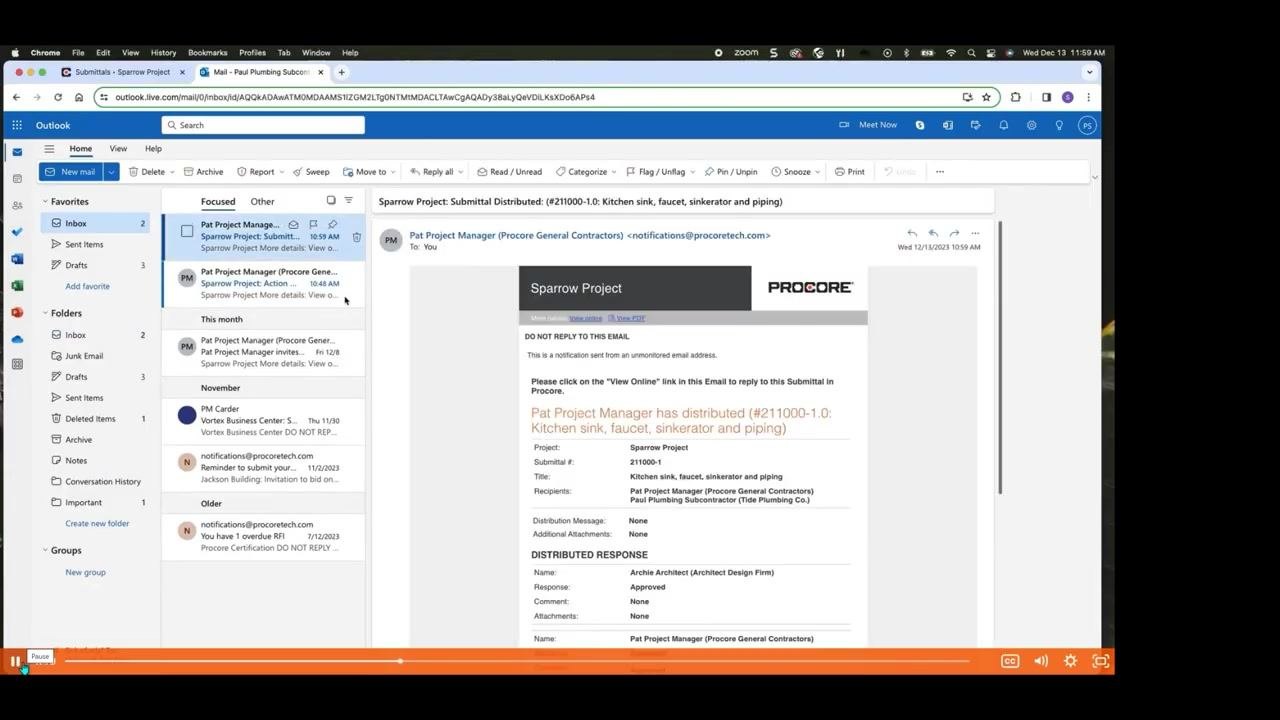
Correct or edit a submitted response
If you make an error or need to update your submittal after submitting it, contact your Procore Point of Contact for assistance. If permitted, they can reassign the submittal back to you so you can edit your response.
Understand how the "Ball in Court" shifts
After your initial submission, responsibility for the submittal — known as the "Ball in Court" — shifts to the next person in the workflow. Typically, the sequence runs as follows:
- Your Procore Point of Contact reviews your submission.
- The Ball in Court then shifts to the architect for final review.
- The architect either approves or rejects the submittal based on their assessment.
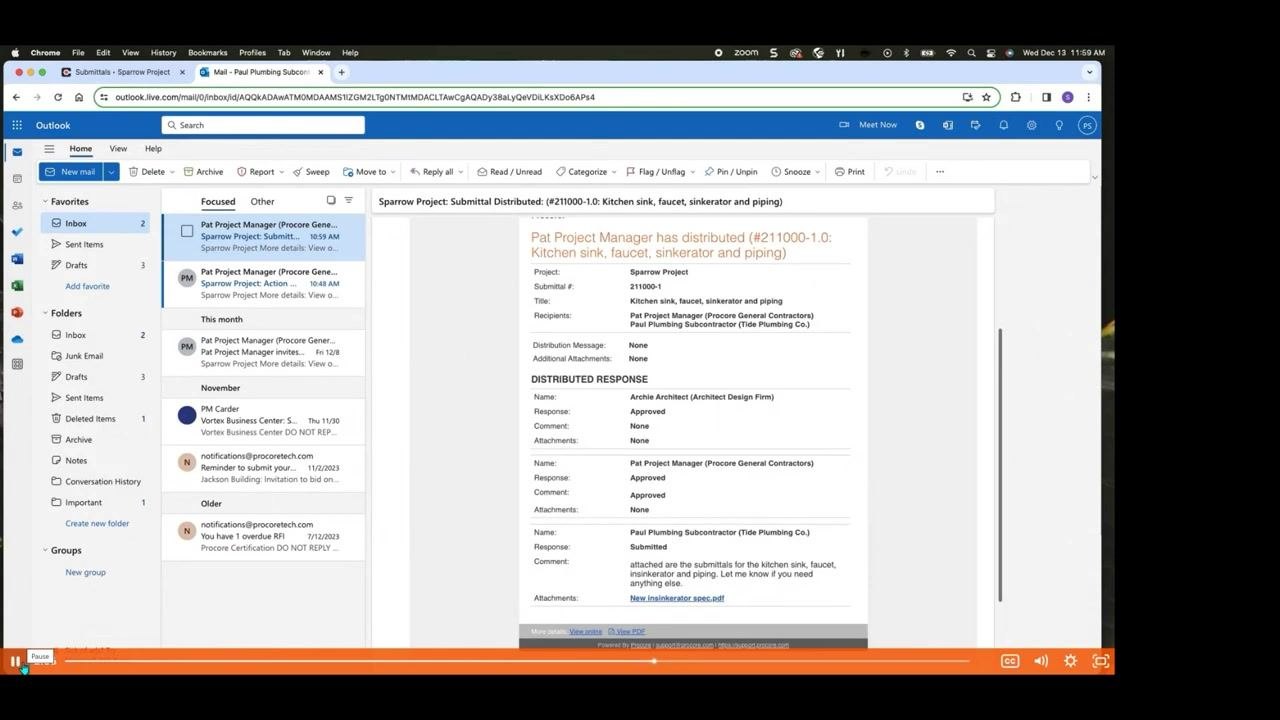
Respond to requests for additional information
Designated reviewers may request additional information or clarification before granting approval. If your submission is rejected, it is returned to you for corrections and resubmission as a new revision.
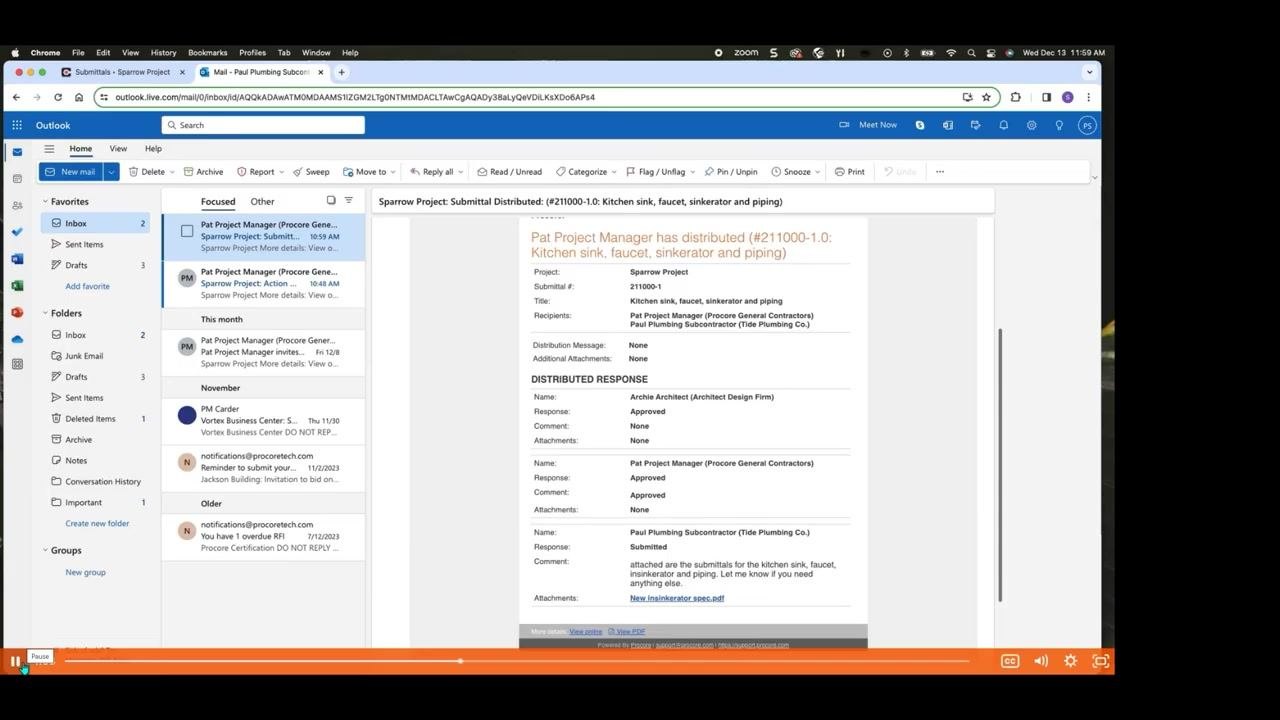
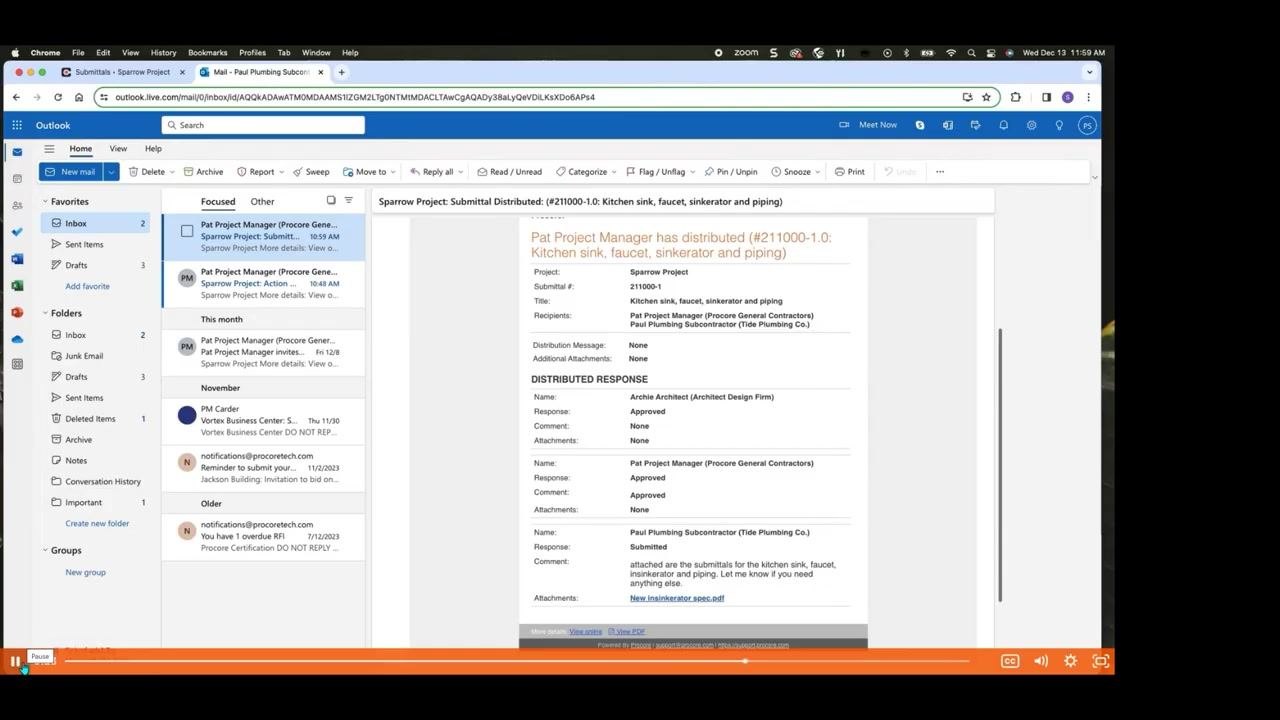
Receive and access approved submittals
Once your submittal is approved and distributed back to you by your Procore Point of Contact, you receive an email notification with the final specifications and approval stamps. Download the approved specifications directly from the email or by clicking View Online — these documents give you everything you need to proceed with purchasing materials or performing work on site.
Locate submittals with search and filter options
Open the Submittals log in Procore to view all submittals for your project. Use the Search bar at the top of the log to quickly find specific submittals by keyword, number, or title. Click Add Filter to apply filters such as status or responsible contractor.
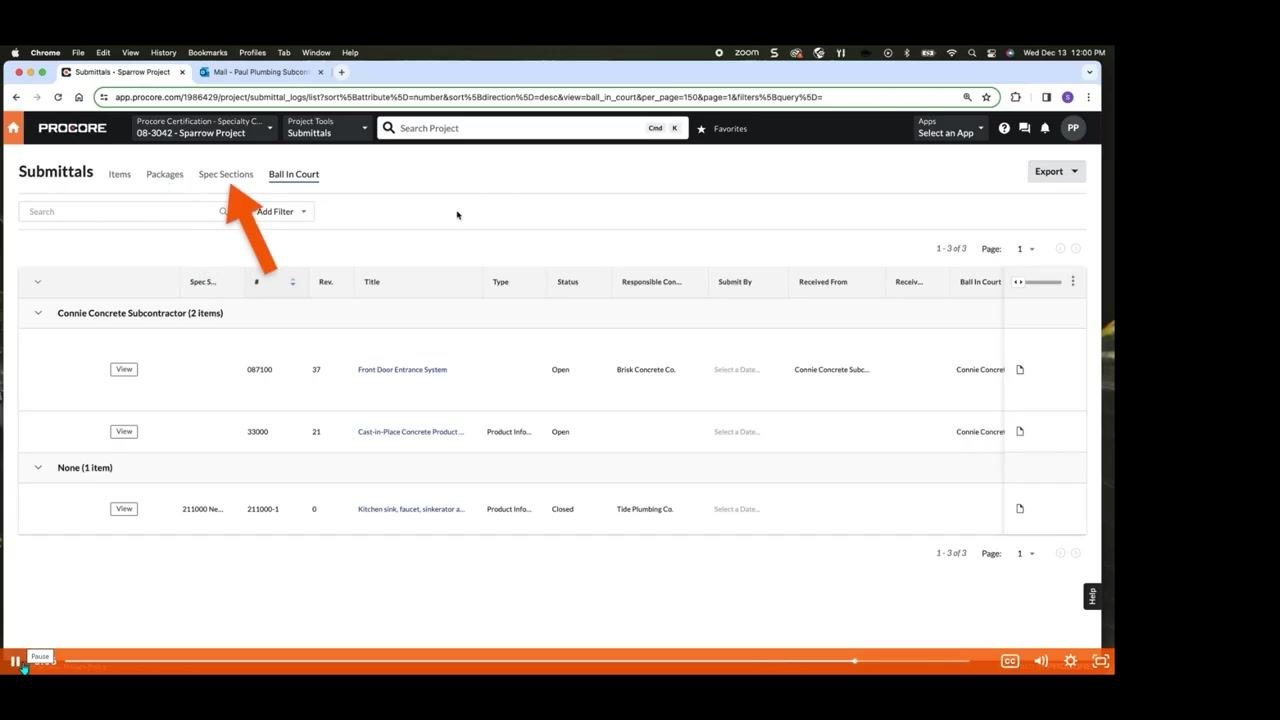
Use the Ball In Court filter to see which submittals currently require your action. Select your name or role from the Ball In Court dropdown to display only the submittals where you're responsible for the next step. You can apply multiple filters at once to narrow your results.
Organize submittals by package and specification
Switch between the Items, Packages, and Spec Sections tabs at the top of the Submittals log to view submittals grouped by different organizational structures. Click the Spec Sections tab to see submittals organized by specification section, making related items easier to track.
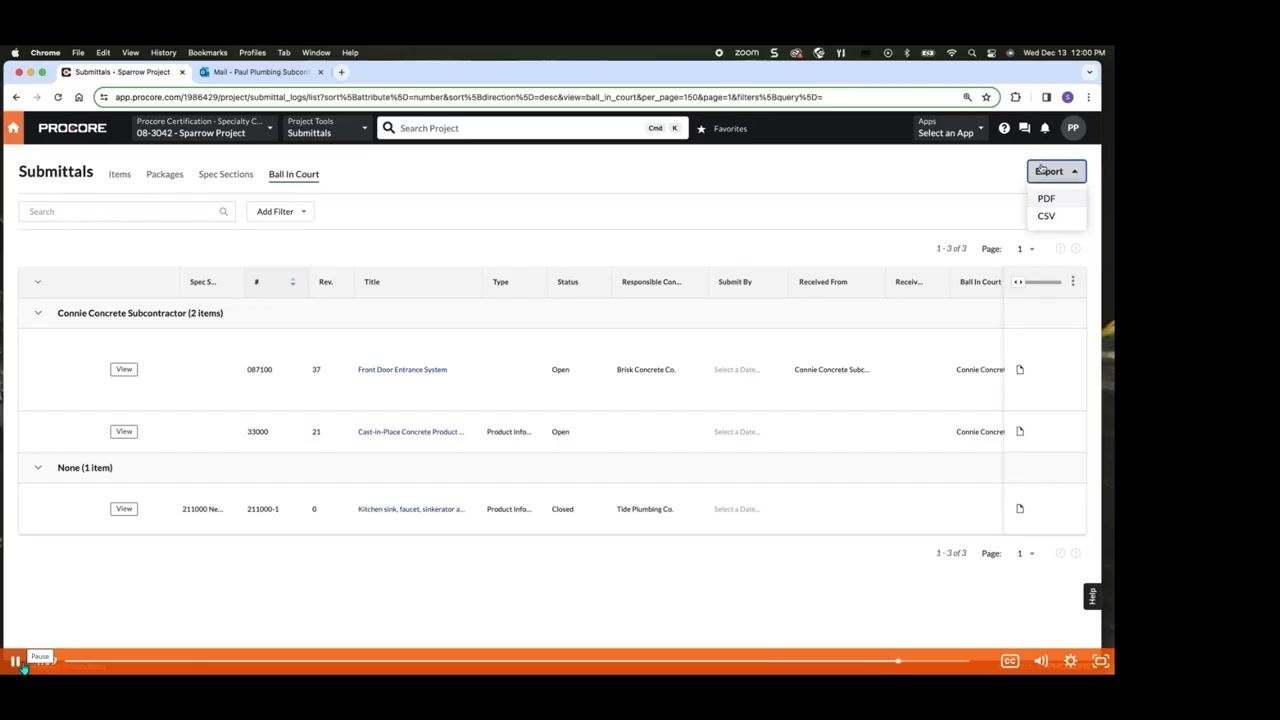
Export your filtered submittal list
Click the Export button in the upper right corner of the Submittals log. Choose to export your current view as a PDF, suitable for printing or sharing a formatted report, or as a CSV, ideal for further analysis in spreadsheet software.
Review and print your submittal report
Open the exported PDF or CSV file to review your filtered submittal list. Print or save the report for your records, or share it with other project stakeholders.
What's next
With your submittal successfully submitted and tracked, you can continue using the Search, Add Filter, and Export tools in the Submittals log to monitor the status of other assigned submittals, stay on top of Ball In Court responsibilities, and keep accurate records for the project team.
Generation details: cost, quality tiers
Docsie billed 2,500 credits ($1.75) to analyze this 5-minute video at standard quality. The rewrite, template fill and Word/PDF exports were included. The same video at each quality tier:
| Quality | Frames sampled | Credits | Approx. cost |
|---|---|---|---|
| Draft | every 16-30 s | 1,250 | $0.88 |
| Standard (this guide) | every 8-15 s | 2,500 | $1.75 |
| Detailed | every 4-7 s | 5,000 | $3.50 |
| Ultra | every 1-3 s | 10,000 | $7.00 |
Credits priced at $0.70 per 1,000; plans include a monthly allowance. Enterprise customers on on-premise or bring-your-own-model deployments run this on their own inference and pay no per-video credits.
Generated by Docsie Video-to-Docs on 2026-10-25 from a 4-minute video. Screenshots are frames from the source video and belong to their creator, Brody Harrison, whose original is embedded above. If you own this video and want the guide removed or credited differently, contact us and we will act within one business day.