
How to Take Attendance in PowerSchool
This guide shows you how to take attendance in PowerSchool SIS. You can record attendance for a single day, mark extended absences with Multi-Day attendance, or use a seating chart. It also covers how to correct attendance after you submit it.
Video: PowerSchool SIS 4 Taking Attendance by Rachel Brockman (2022). All credit for the demonstration goes to the creator; watch the original on YouTube. The written guide below was generated from this video by Docsie. Creator? Request a change or removal.
This guide shows you how to take attendance in PowerSchool SIS. You can record attendance for a single day, mark extended absences with Multi-Day attendance, or use a seating chart. It also covers how to correct attendance after you submit it.
Prerequisites
Before you begin, make sure you have the following:
- Access to the PowerSchool SIS link through Clever.
- Your TCS login credentials.
- A seating chart set up in PowerSchool SIS, if you want to use Seating Chart attendance.
Start page and attendance options
Step 1: Log in to PowerSchool SIS
- Open the PowerSchool SIS link through Clever.
- Sign in with your TCS login credentials.
Step 2: Review the start page
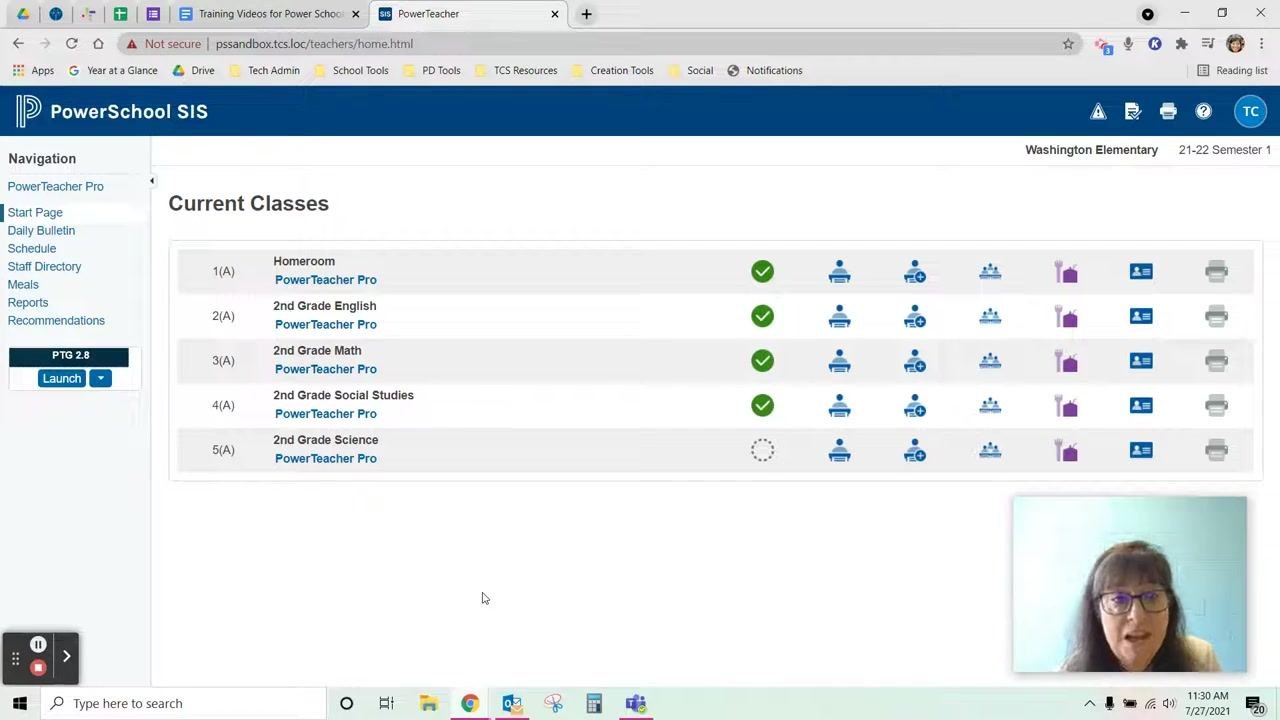
After you log in, the landing page shows Current Classes. Confirm that your homeroom and each section you teach appear in the list.
The left navigation menu includes Start Page, Daily Bulletin, Schedule, Staff Directory, Meals, Reports, and Recommendations. The top right shows your school (for example, Washington Elementary) and the current semester.
Step 3: Check the attendance status indicators
Each class section has a row with several icons. The attendance icons sit to the right of the checkmark circles.
- A green checkmark in the circle means you have submitted attendance for that section today.
- No checkmark means you have not yet submitted attendance for that section.
Step 4: Identify the attendance options
Each section has three attendance icons:
- Single Day Attendance: Take attendance for one day.
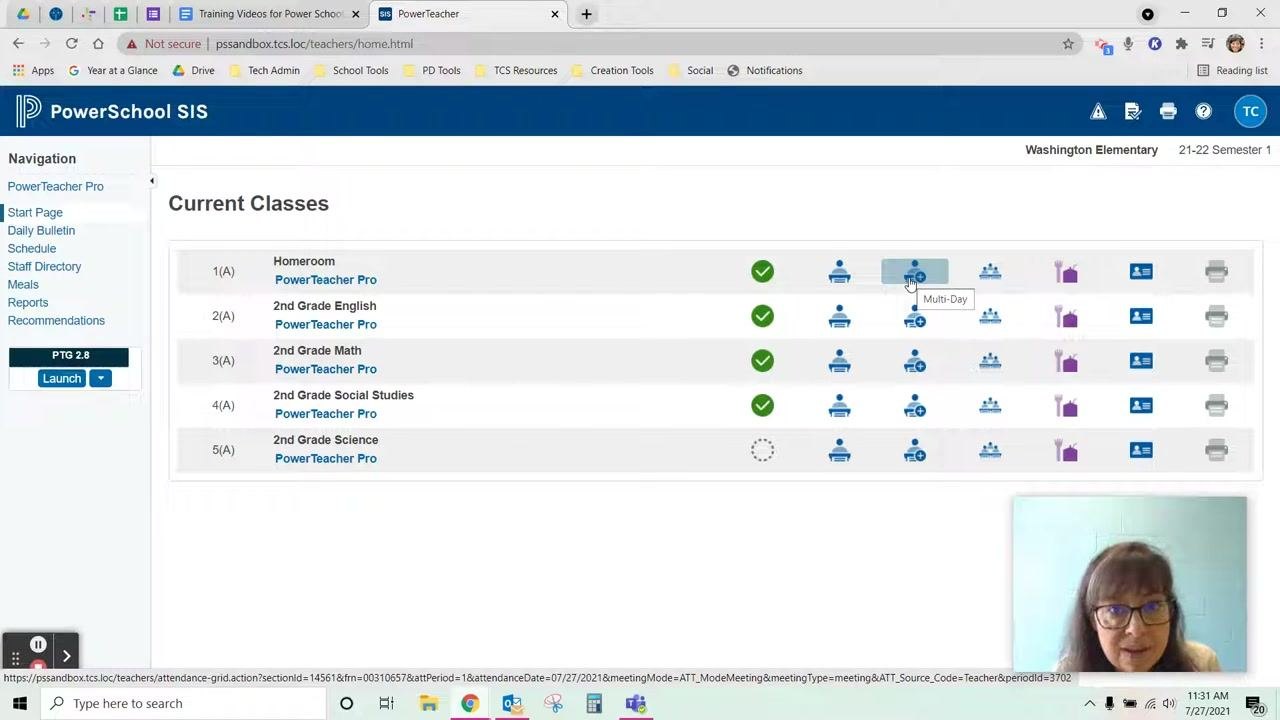
- Multi-Day Attendance: Use this when a student will be absent for multiple days, for example with a note for five days out.
- Seating Chart Attendance: Available only if you have set up your seating chart in PowerSchool SIS.
Hover over an icon to see a tooltip with its function, such as "Multi-Day" or "Seating Chart."
Take single-day attendance
Step 5: Open the attendance roster for a section
Click the Single Day Attendance icon (a person at a desk) for the section you want, such as Homeroom. The attendance roster for that section opens.
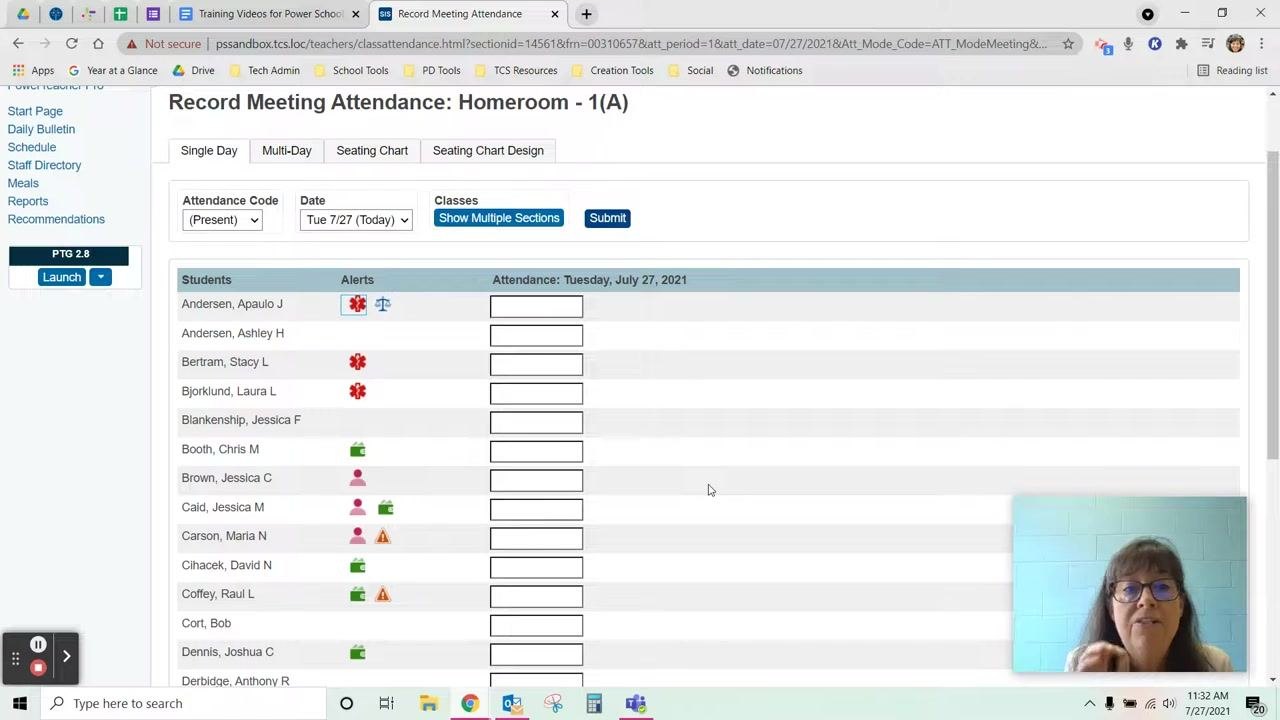
Step 6: Review the Record Meeting Attendance page
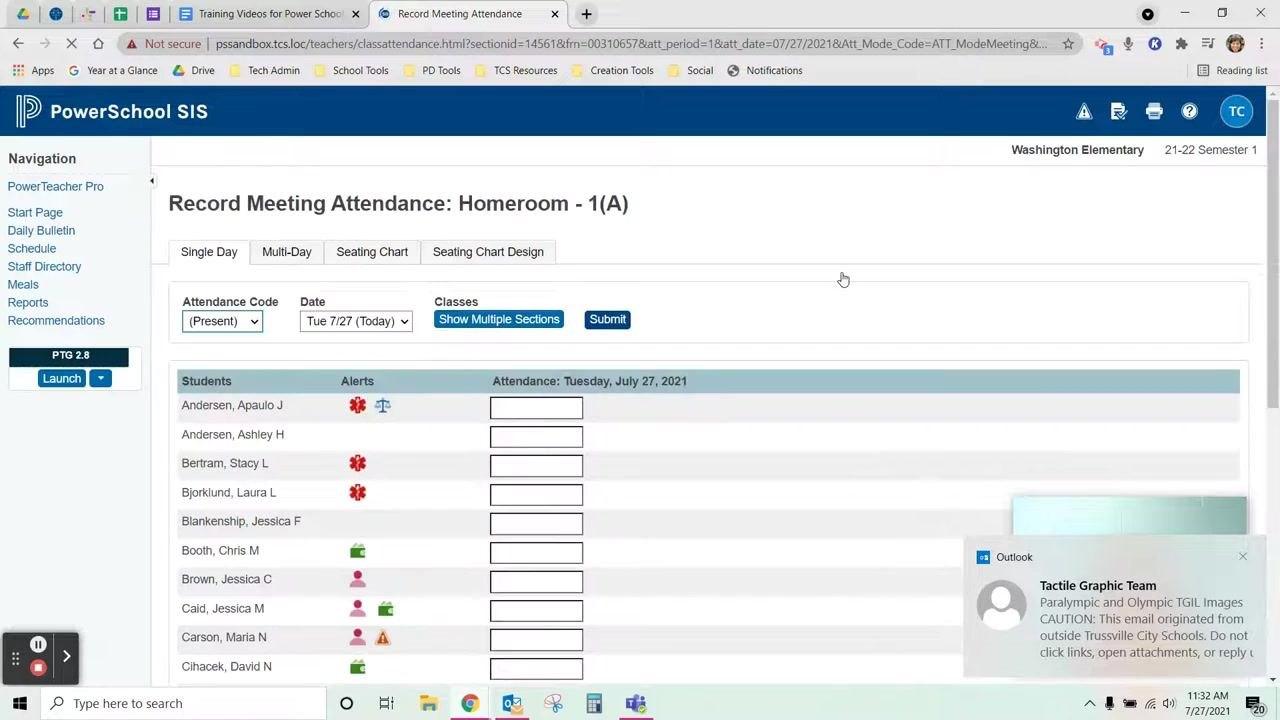
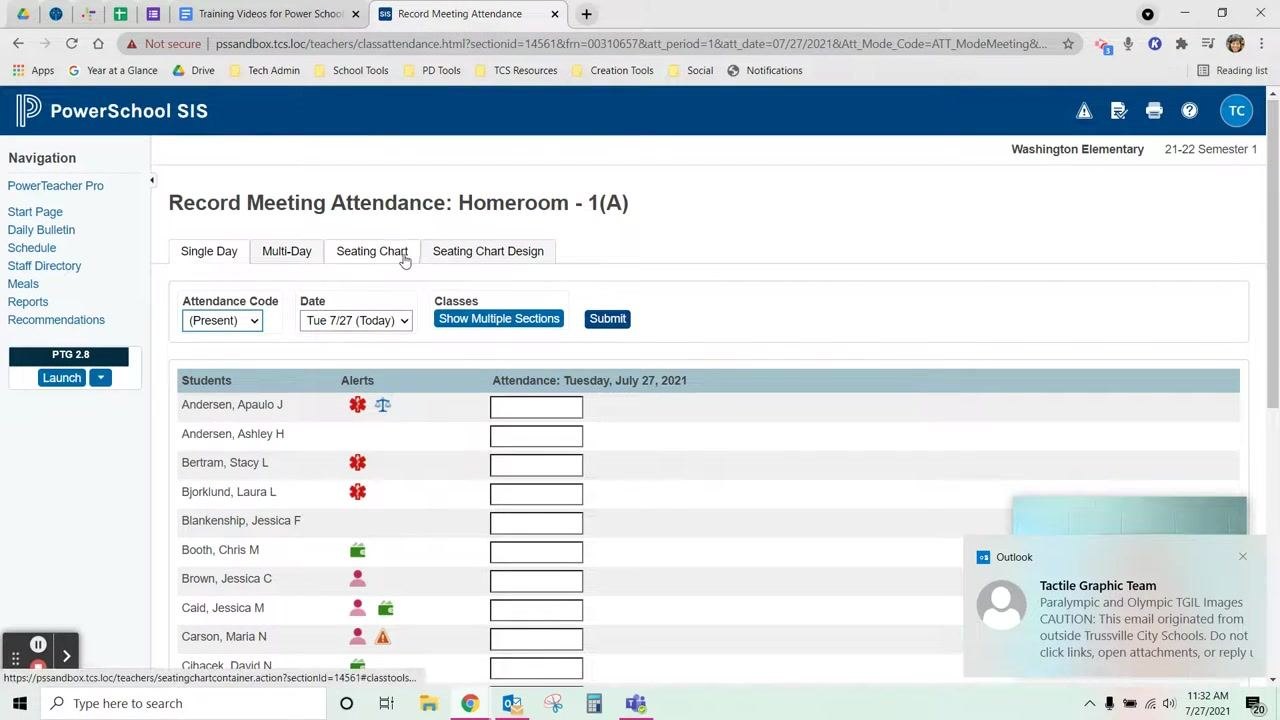
The Record Meeting Attendance page opens. Tabs at the top let you switch between Single Day, Multi-Day, Seating Chart, and Seating Chart Design.
The roster lists all students, any alerts, and attendance entry fields for the selected date. Confirm that the date is correct (for example, Tue 7/27).
Step 7: Review student alerts
Make sure you are on the Single Day tab. The Alerts column next to each student's name uses icons for different alert types, such as medical, custody, and discipline.
- Hover over an alert icon to see a tooltip with the alert type.
- Click an alert icon to view detailed information about the alert.
Step 8: Mark all students present (quick method)
If all students are present, use the quick method:
- Go to the Attendance Code dropdown at the top of the roster.
- Make sure the code is set to Present.
- Click Submit to mark all students as present for the selected date (for example, Tue 7/27).
Step 9: Mark individual students absent
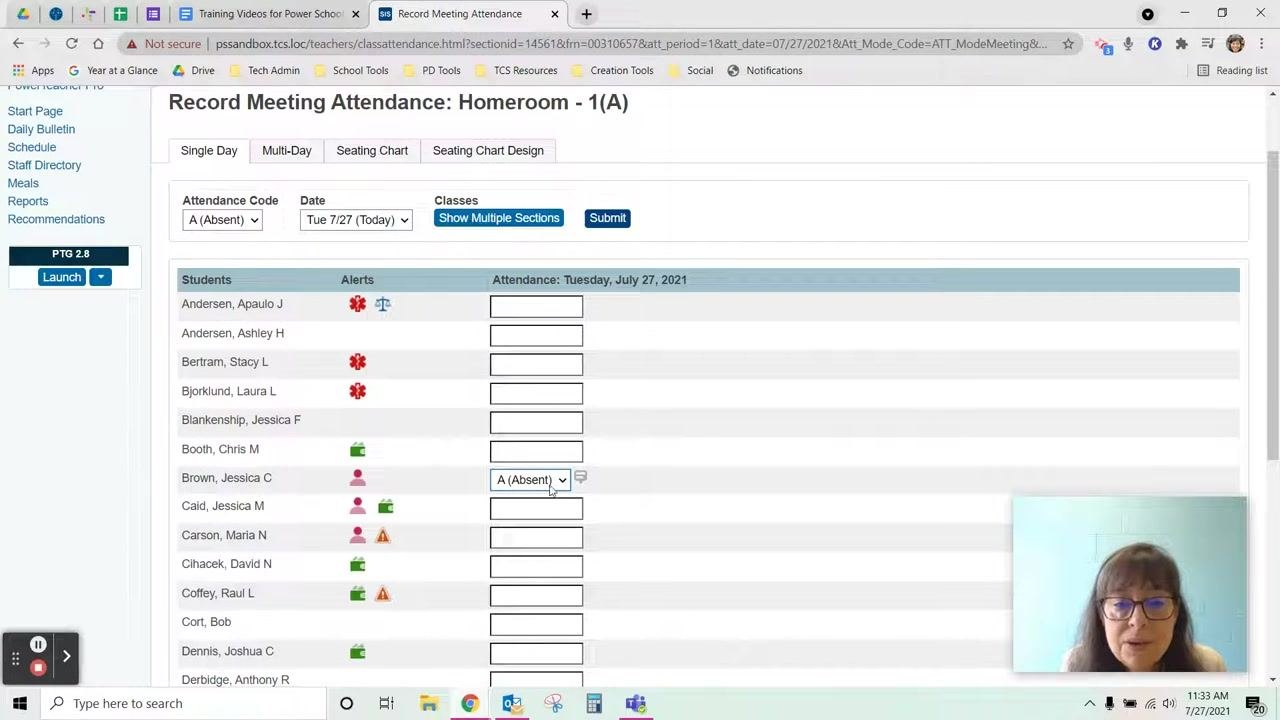
- Select A (Absent) from the Attendance Code dropdown.
- Click in the attendance box next to the absent student's name (for example, Brown, Jessica C). The box updates to show A (Absent).
- Optionally, click the small comment icon next to the attendance box to add details about the absence.
- Click Submit to save your attendance.
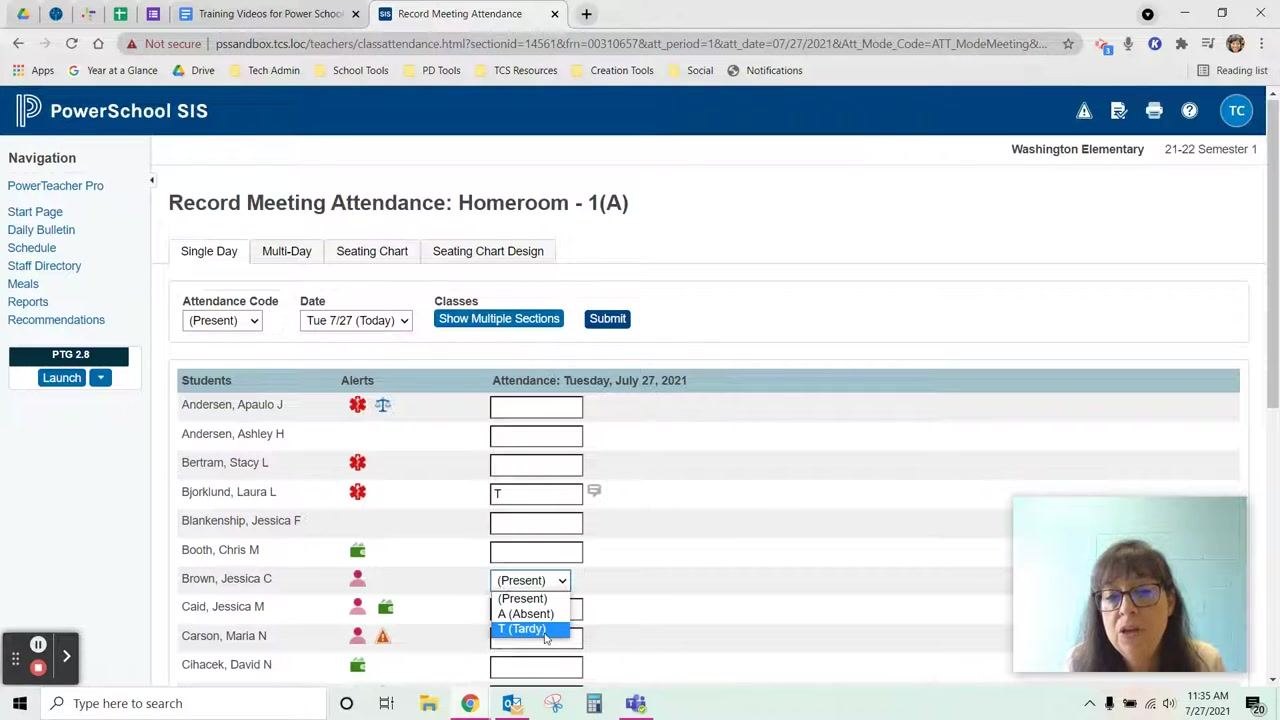
Step 10: Mark individual students tardy
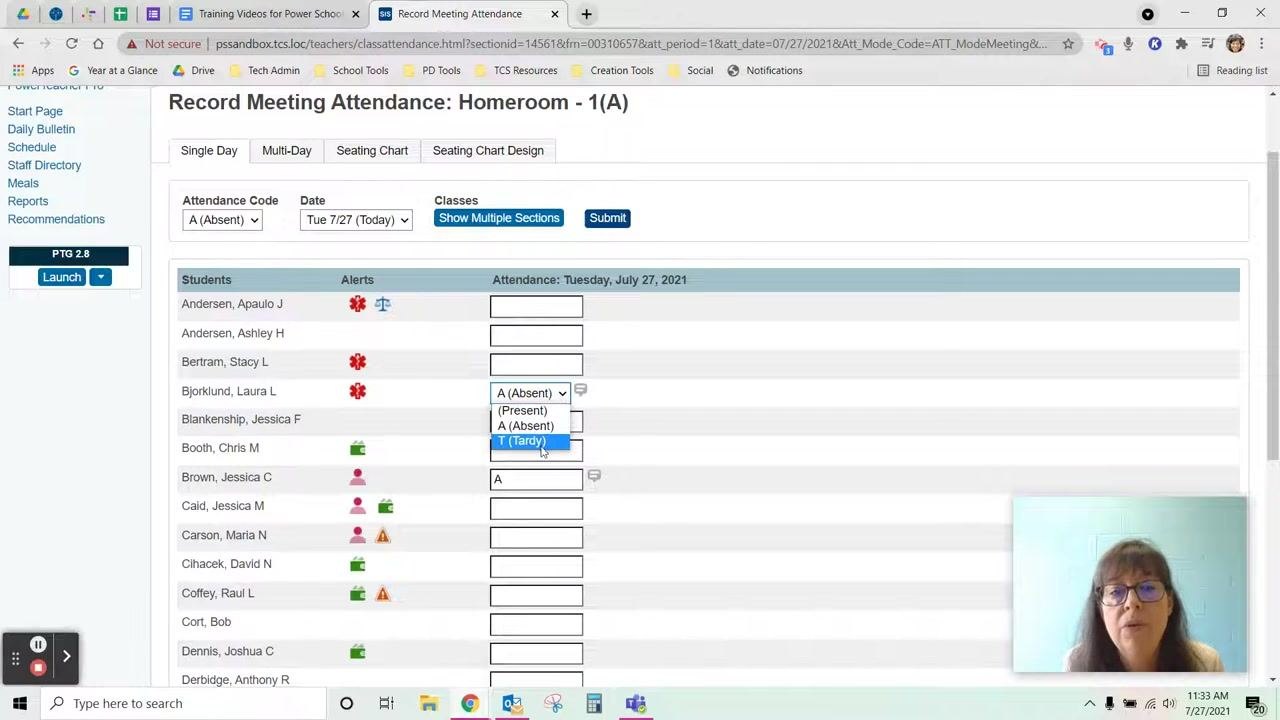
- Click in the attendance box next to the student's name (for example, Bjorklund, Laura L).
- Use the dropdown arrow in the box to select T (Tardy).
- Optionally, click the comment icon to add details about the tardy.
Correct submitted attendance
Step 11: Return to the attendance screen
If you need to update attendance after you submit it, return to the attendance screen for the relevant class and date. For example, a student marked absent may arrive late and need to be marked tardy.
On the Current Classes page, click the attendance icon for the class you want to update.
Step 12: Update the student's attendance code
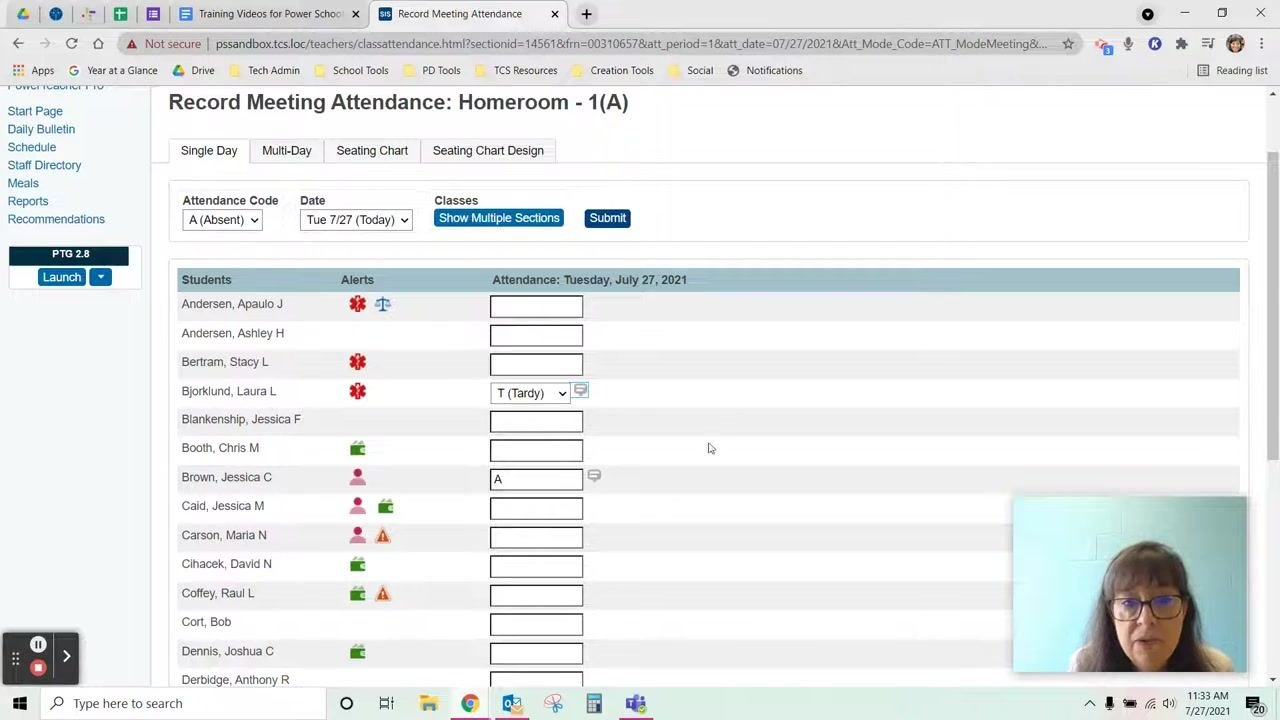
- Find the student whose attendance you need to correct (for example, Jessica, previously marked Absent).
- Click in the attendance box next to the student's name.
- Use the dropdown menu to change the code from A (Absent) to T (Tardy).
- Click Submit to save the correction for that day.
Record multi-day attendance
Step 13: Open Multi-Day attendance
If a student provides a note for an extended absence, such as a trip, use the Multi-Day attendance feature. On the Current Classes page, click the Multi-Day attendance icon for the relevant class.
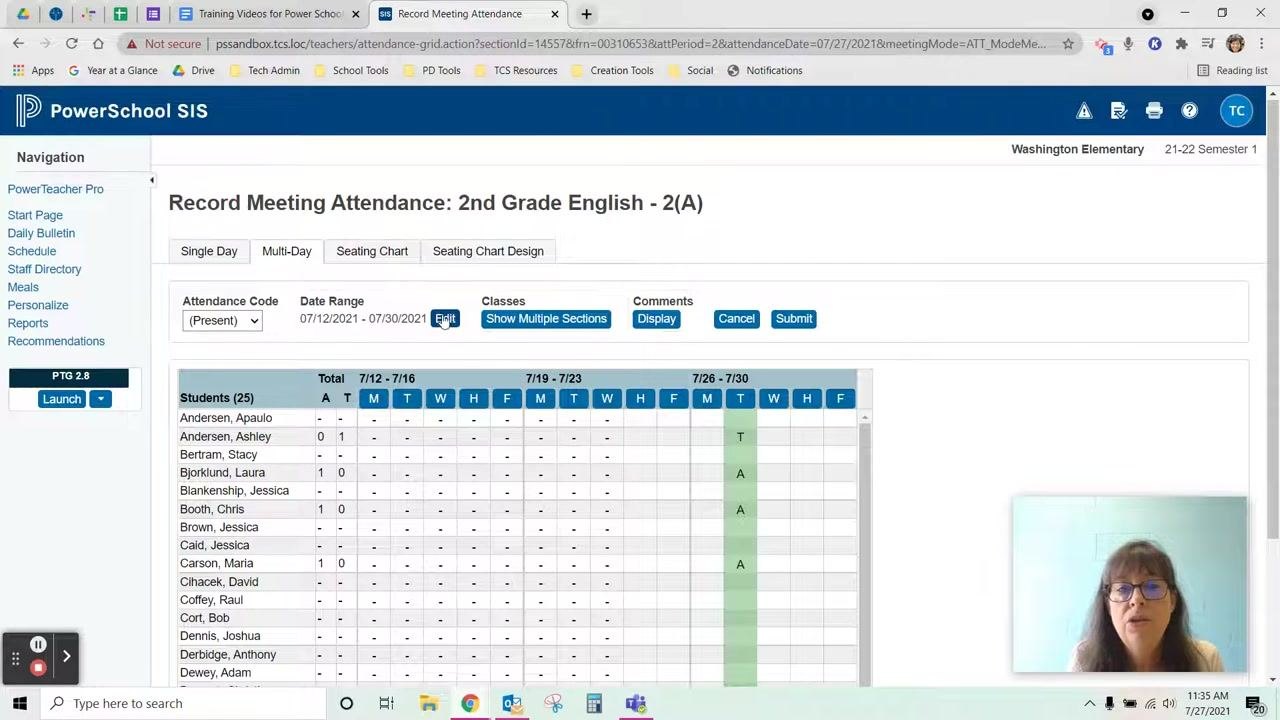
Step 14: Adjust the date range
- On the Record Meeting Attendance screen, switch to the Multi-Day tab.
- Click Edit next to the date range.
- Select the weeks or days that match the student's absence period.
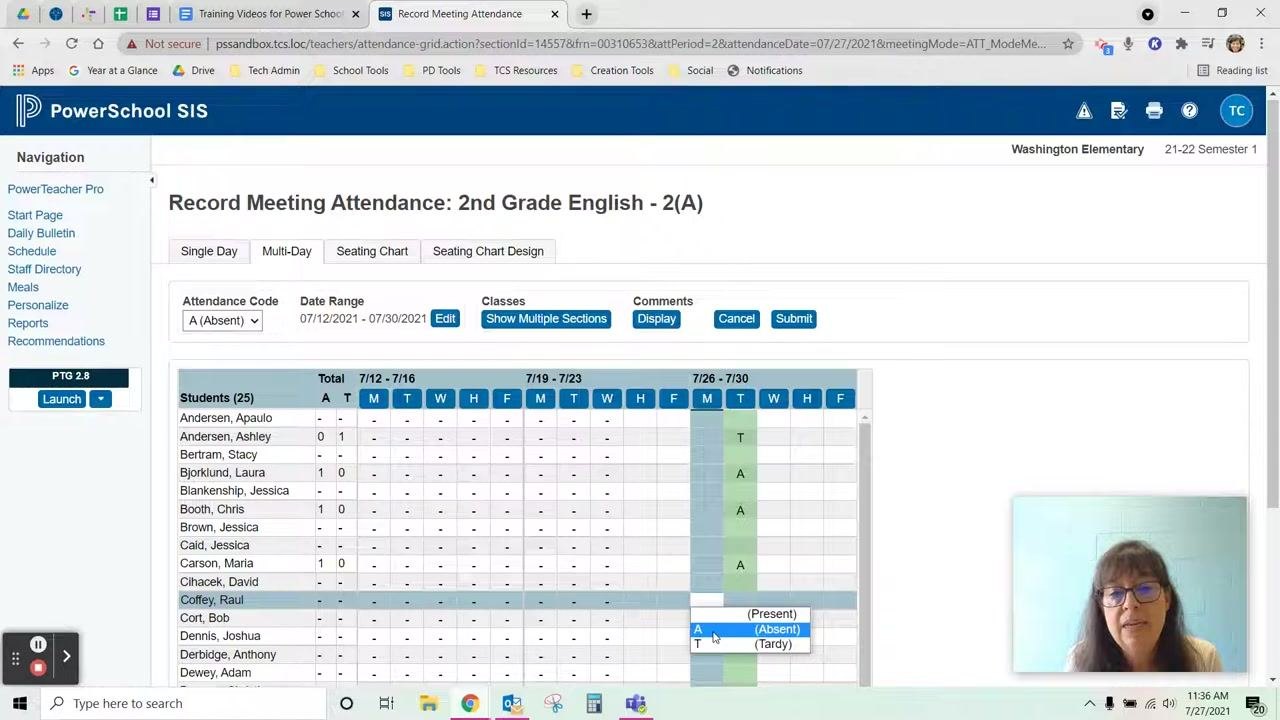
Step 15: Mark the student absent for multiple days
- Set the Attendance Code dropdown to A (Absent).
- Click the attendance boxes for the student (for example, Raul Coffey) for each day they will be absent.
- Make sure all relevant days are marked with "A."
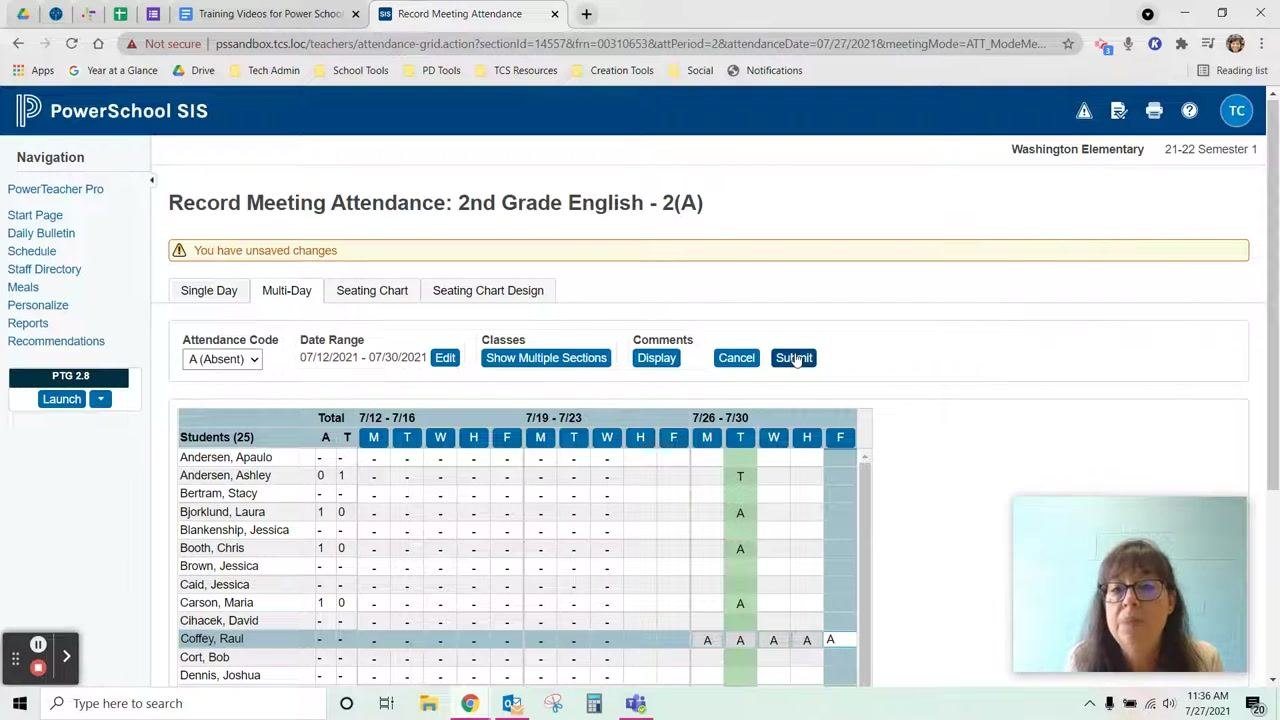
Step 16: Submit the multi-day changes
After you mark all necessary days, click Submit at the top of the screen to save your changes. A confirmation message or indicator confirms your updates.
Take attendance with a seating chart
Step 17: Open the seating chart for your class
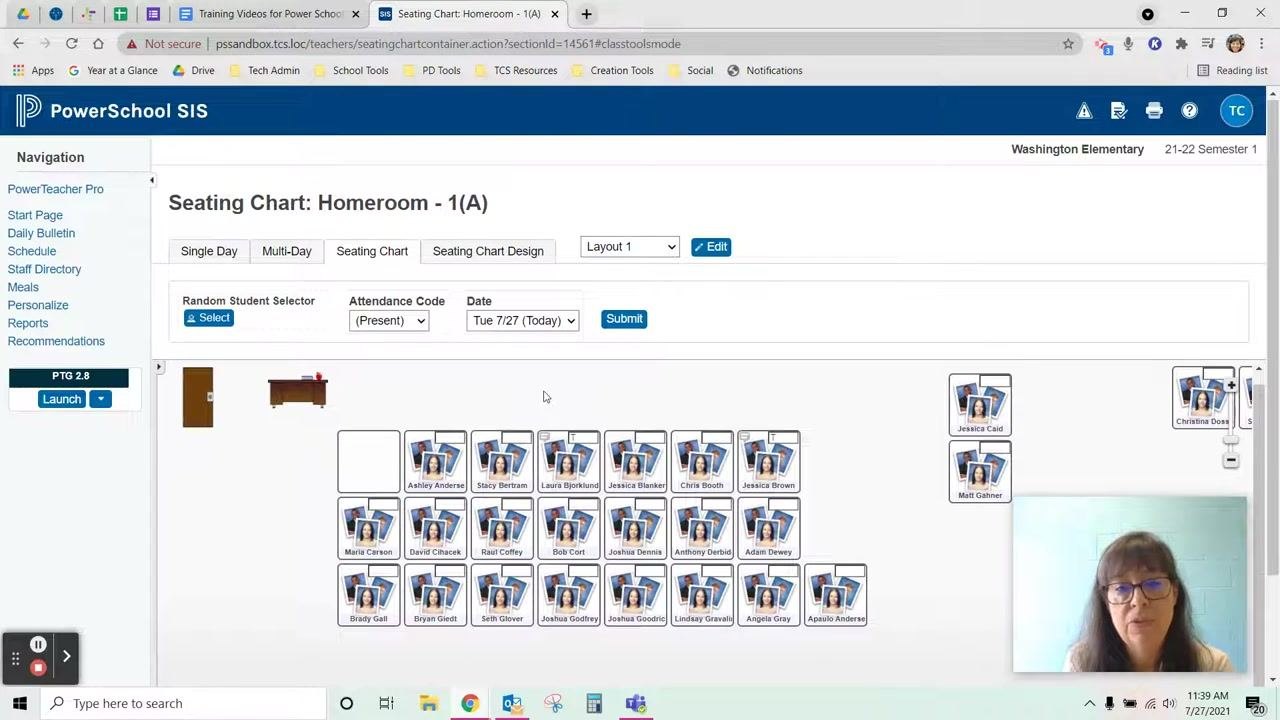
Go to the Seating Chart tab for your homeroom or class (for example, Homeroom - 1(A)). Make sure you are on the correct date (for example, Tue 7/27).
The seating chart shows student photos and names arranged according to your classroom layout. The Attendance Code dropdown and the date selector are above the chart.
Step 18: Select an attendance code
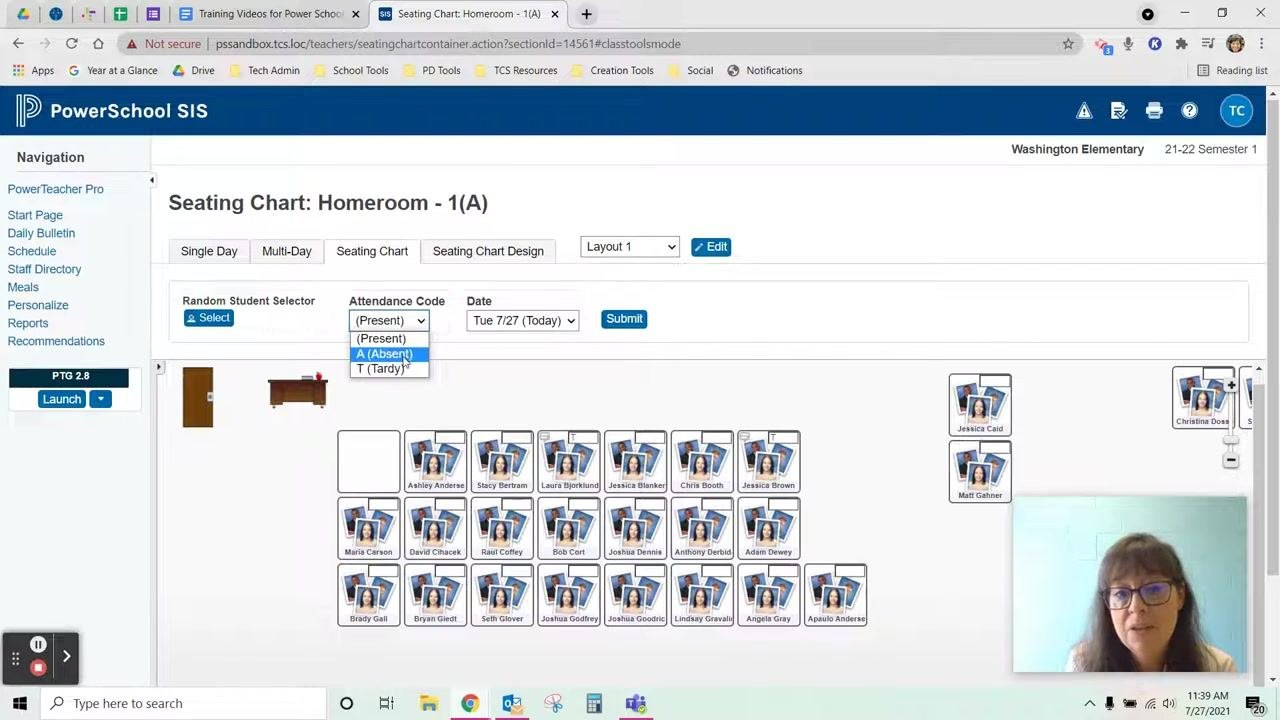
Click the Attendance Code dropdown above the seating chart and choose the code that matches the student's status:
- Present
- A (Absent)
- T (Tardy)
You can switch between codes as needed.
Step 19: Mark students and add comments
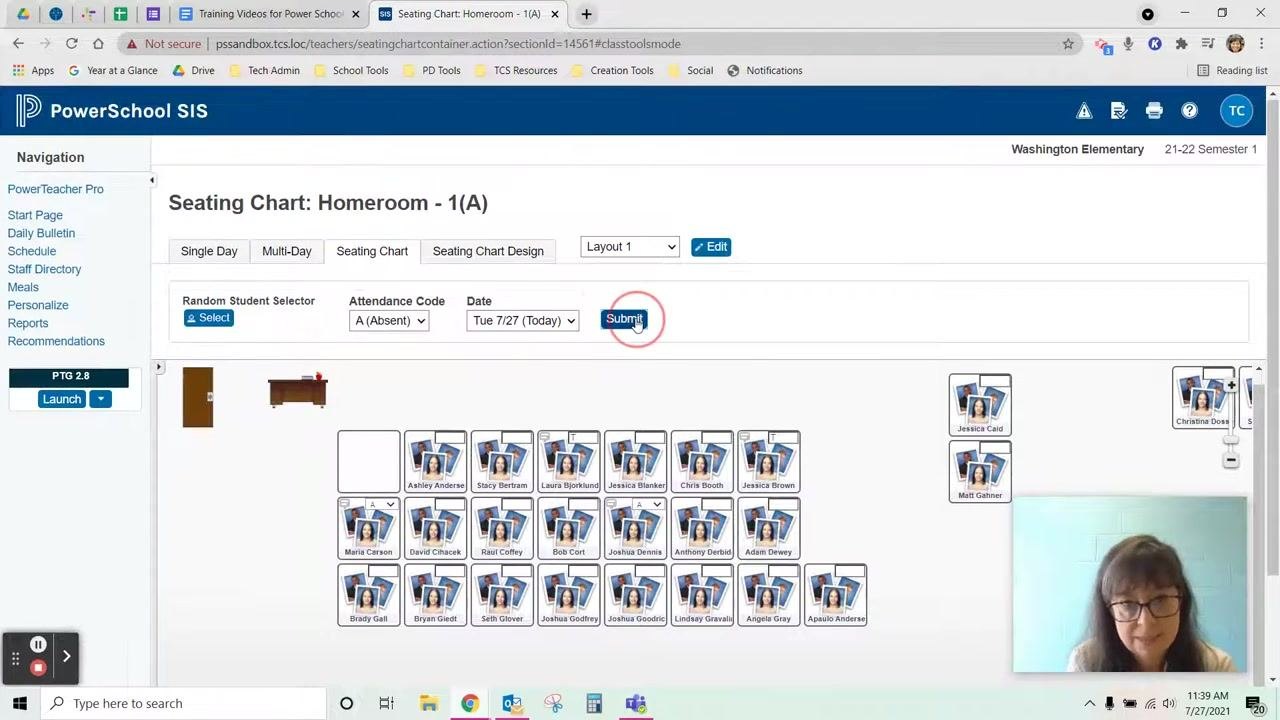
Click the students in the seating chart who match the code you selected. For example, if Maria and Joshua are absent, select A (Absent) and click their seats. You can check which students have each code by looking at the seating chart rows.
If you want to add information about a student's attendance, enter comments in the provided field. This step is optional.
Step 20: Submit seating chart attendance
When all students are marked, click the blue Submit button above the seating chart to save your attendance for the day. The system updates the attendance records.
Step 21: Verify the submission
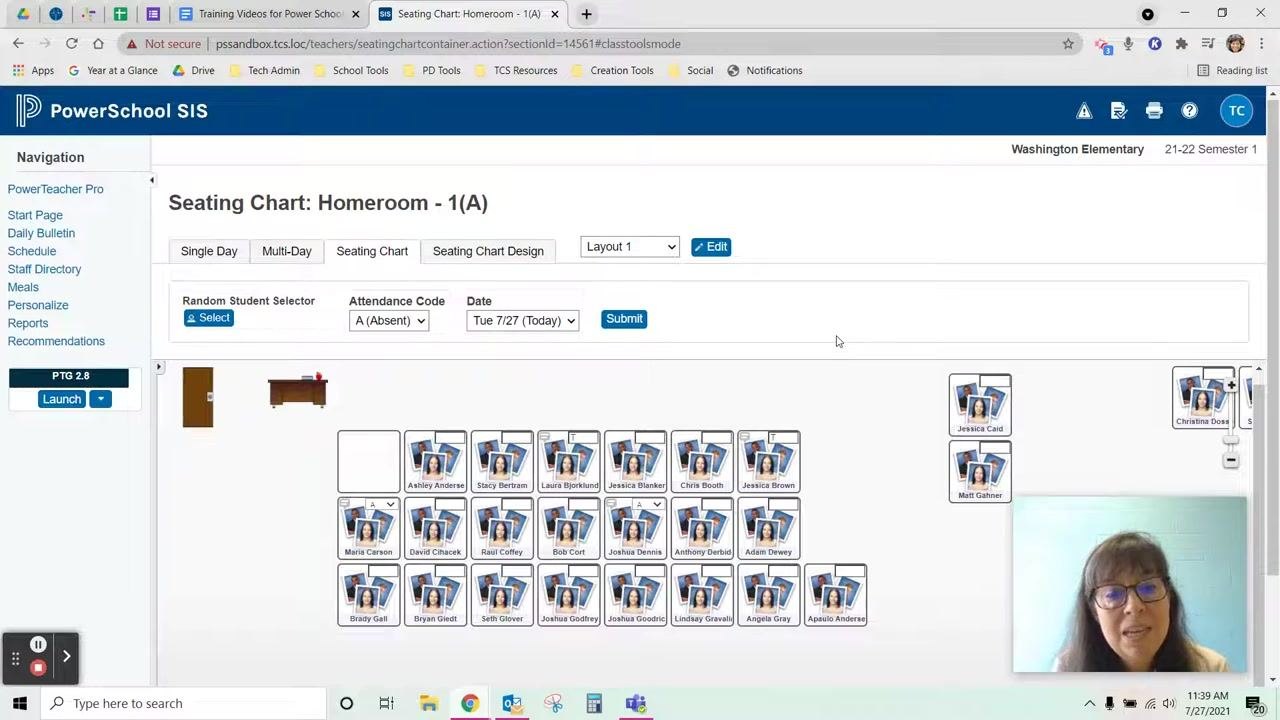
After you submit, review the seating chart to make sure all attendance codes are applied correctly. The attendance code and date should reflect your selections.
Summary
You now know how to take attendance in PowerSchool SIS using Single Day, Multi-Day, and Seating Chart attendance. You can also correct attendance after you submit it. Use the green checkmarks on the Current Classes page to confirm that each section's attendance is submitted for the day.
Generation details: cost, quality tiers
Docsie billed 3,000 credits ($2.10) to analyze this 6-minute video at standard quality. The rewrite, template fill and Word/PDF exports were included. The same video at each quality tier:
| Quality | Frames sampled | Credits | Approx. cost |
|---|---|---|---|
| Draft | every 16-30 s | 1,500 | $1.05 |
| Standard (this guide) | every 8-15 s | 3,000 | $2.10 |
| Detailed | every 4-7 s | 6,000 | $4.20 |
| Ultra | every 1-3 s | 12,000 | $8.40 |
Credits priced at $0.70 per 1,000; plans include a monthly allowance. Enterprise customers on on-premise or bring-your-own-model deployments run this on their own inference and pay no per-video credits.
Generated by Docsie Video-to-Docs on 2026-11-01 from a 5-minute video. Screenshots are frames from the source video and belong to their creator, Rachel Brockman, whose original is embedded above. If you own this video and want the guide removed or credited differently, contact us and we will act within one business day.